USB PEUGEOT 308 2023 Owners Manual
[x] Cancel search | Manufacturer: PEUGEOT, Model Year: 2023, Model line: 308, Model: PEUGEOT 308 2023Pages: 260, PDF Size: 7.97 MB
Page 6 of 260
4
Overview
Presentation
These illustrations and descriptions are provided
for information. The presence and location of
some elements vary depending on the version
or trim level.
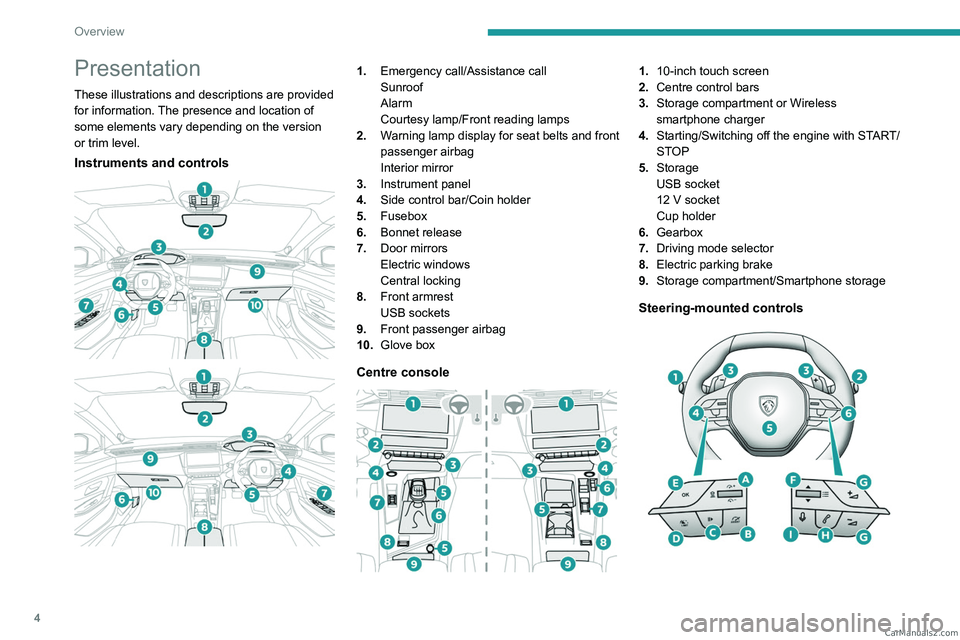
Instruments and controls
1. Emergency call/Assistance call
Sunroof
Alarm
Courtesy lamp/Front reading lamps
2. Warning lamp display for seat belts and front
passenger airbag
Interior mirror
3. Instrument panel
4. Side control bar/Coin holder
5. Fusebox
6. Bonnet release
7. Door mirrors
Electric windows
Central locking
8. Front armrest
USB sockets
9. Front passenger airbag
10. Glove box
Centre console
1.10-inch touch screen
2. Centre control bars
3. Storage compartment or Wireless
smartphone charger
4. Starting/Switching off the engine with START/
STOP
5. Storage
USB socket
12
V socket
Cup holder
6. Gearbox
7. Driving mode selector
8. Electric parking brake
9. Storage compartment/Smartphone storage
Steering-mounted controls
CarM an uals 2 .c o m
Page 58 of 260
56
Ease of use and comfort
This function is available when the vehicle is
connected or not connected.
Programming
In the Climate touch screen application,
select the Preconditioning tab.
►
Press
+ to add a programme.
►
Select the time of entry into the vehicle and
the desired days. Press
OK.
►
Press
ON to activate this programming.
The pre-conditioning sequence begins
approximately 45
minutes before the
programmed time when the vehicle is connected
(20
minutes when it is not connected) and is
maintained for 10
minutes after.
This indicator lamp comes on fixed when
a temperature pre-conditioning cycle is
programmed. It flashes when temperature pre-
conditioning is in progress.
You can set multiple programmes. Each one is saved in the system.
To optimise the driving range, we recommend
starting a programme while the vehicle is
connected.
The programming can also be carried out from a smartphone via the MYPEUGEOT
APP application.
For more information on Remotely operable
additional functions , refer to the corresponding
section.
The fan noise that occurs during temperature pre-conditioning is perfectly
normal.
Vehicles equipped with an alarm
system
Depending on version, interior volumetric
and anti-tilt monitoring may be reduced or
even suspended during temperature pre-
conditioning sequences.
Operating conditions
– The function is only activated when the
ignition is switched off and the
vehicle
locked.
–
When the vehicle is not connected, the
function is only activated if the battery charge
level is greater than 20%.
–
When the vehicle is not connected and a
recurring programme is active (e.g. from Monday
to Friday), if two temperature pre-conditioning
sequences are run without the vehicle being
used, the programme will be deactivated.
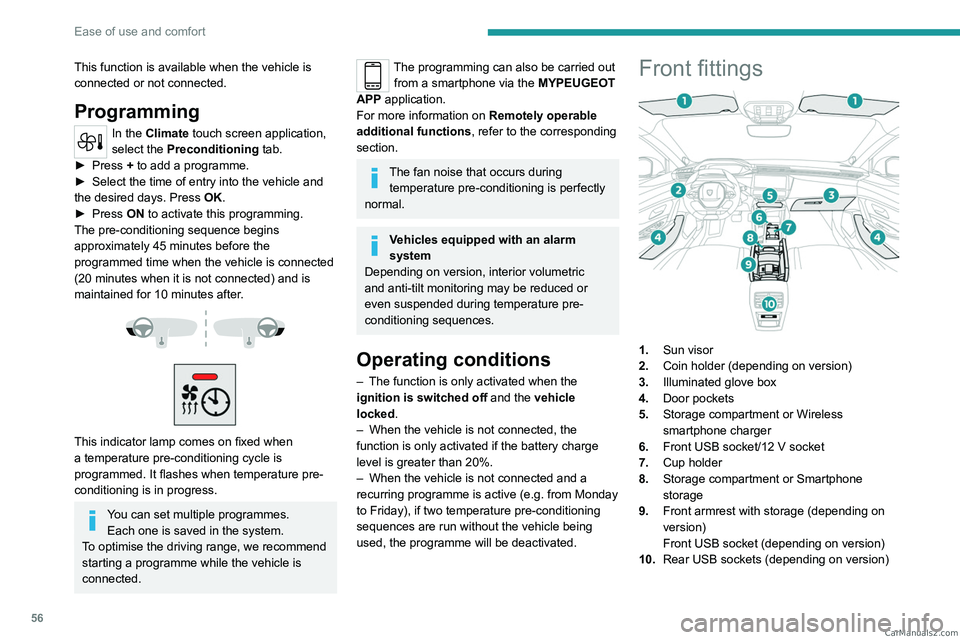
Front fittings
1. Sun visor
2. Coin holder (depending on version)
3. Illuminated glove box
4. Door pockets
5. Storage compartment or Wireless
smartphone charger
6. Front USB socket/12 V socket
7. Cup holder
8. Storage compartment or Smartphone
storage
9. Front armrest with storage (depending on
version)
Front USB socket (depending on version)
10. Rear USB sockets (depending on version) CarM an uals 2 .c o m
Page 59 of 260
57
Ease of use and comfort
3Sun visor
► With the ignition on, raise the concealing
flap; depending on the version, the mirror is
illuminated automatically.
This sun visor is also equipped with a ticket
holder.
Glove box
► To open the glove box, lift the handle.
With the ignition on, the glove box is lit when
open.
Depending on version, it contains an adjustable
ventilation nozzle, distributing the same
conditioned air as the vents in the passenger
compartment.
Never drive with the glove box open
when a passenger is at the front. It may
cause injury during sharp deceleration!
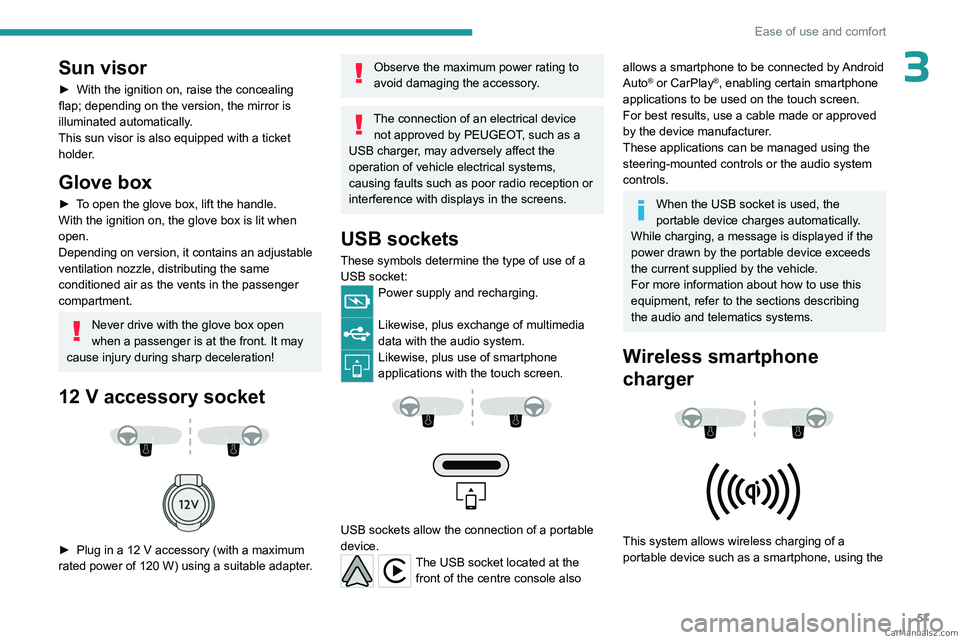
12 V accessory socket
► Plug in a 12 V accessory (with a maximum
rated power of 120 W) using a suitable adapter.
Observe the maximum power rating to
avoid damaging the accessory.
The connection of an electrical device not approved by PEUGEOT, such as a
USB charger, may adversely affect the
operation of vehicle electrical systems,
causing faults such as poor radio reception or
interference with displays in the screens.
USB sockets
These symbols determine the type of use of a USB socket:
Power supply and recharging.
Likewise, plus exchange of multimedia
data with the audio system.
Likewise, plus use of smartphone
applications with the touch screen.
USB sockets allow the connection of a portable
device.
The USB socket located at the front of the centre console also
allows a smartphone to be connected by Android
Auto® or CarPlay®, enabling certain smartphone
applications to be used on the touch screen.
For best results, use a cable made or approved
by the device manufacturer.
These applications can be managed using the
steering-mounted controls or the audio system
controls.
When the USB socket is used, the
portable device charges automatically.
While charging, a message is displayed if the
power drawn by the portable device exceeds
the current supplied by the vehicle.
For more information about how to use this
equipment, refer to the sections describing
the audio and telematics systems.
Wireless smartphone
charger
This system allows wireless charging of a
portable device such as a smartphone, using the CarM an uals 2 .c o m
Page 62 of 260
60
Ease of use and comfort
Reading lamps
► With the ignition on, operate the
corresponding switch.
Take care not to place anything in contact with the courtesy lamps.
Interior ambient lighting
The interior ambient lighting casts soft, coloured
lighting in the passenger compartment, when low
lighting conditions are detected.
By default, the colour of the interior ambient
lighting is linked to that of the screens,
depending on the driving mode selected.
Activation/deactivation and adjustment of the brightness are set via the Settings >
Brightness
touch screen application.
The colour is selected via the Settings >
Customization touch screen application.
Rear fittings
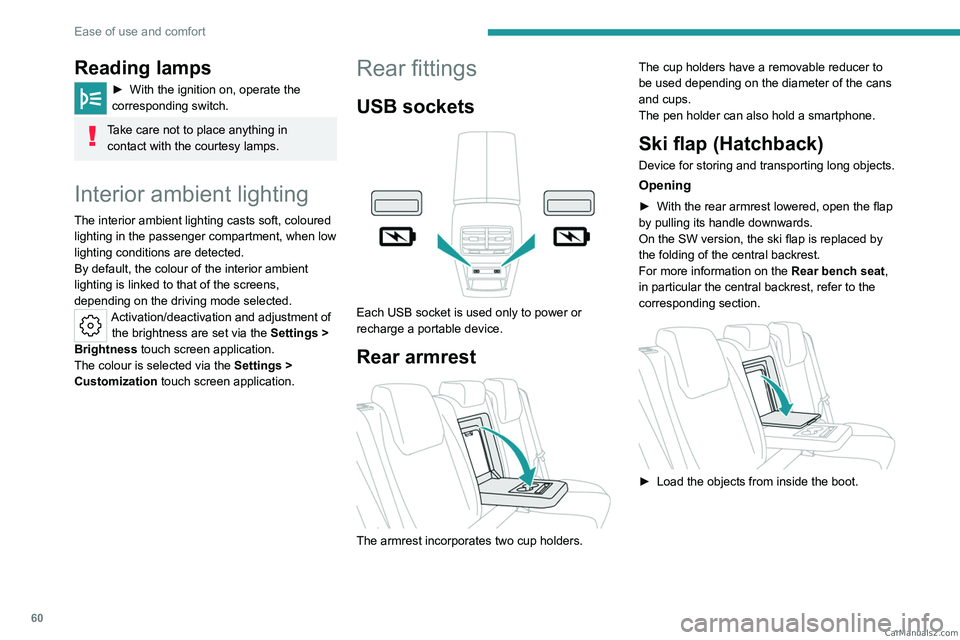
USB sockets
Each USB socket is used only to power or
recharge a portable device.
Rear armrest
The armrest incorporates two cup holders. The cup holders have a removable reducer to
be used depending on the diameter of the cans
and cups.
The pen holder can also hold a smartphone.
Ski flap (Hatchback)
Device for storing and transporting long objects.
Opening
► With the rear armrest lowered, open the flap
by pulling its handle downwards.
On the SW version, the ski flap is replaced by
the folding of the central backrest.
For more information on the Rear bench seat,
in particular the central backrest, refer to the
corresponding section.
► Load the objects from inside the boot. CarM an uals 2 .c o m
Page 65 of 260
63
Ease of use and comfort
3Behind the front seats
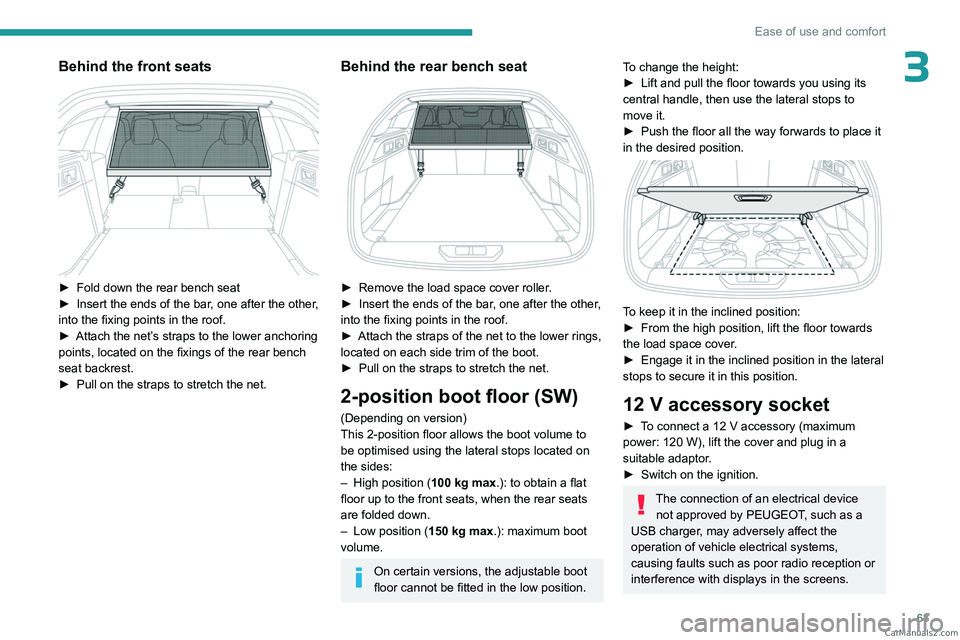
► Fold down the rear bench seat
► Insert the ends of the bar , one after the other,
into the fixing points in the roof.
►
Attach the net’
s straps to the lower anchoring
points, located on the fixings of the rear bench
seat backrest.
►
Pull on the straps to stretch the net.
Behind the rear bench seat
► Remove the load space cover roller .
► Insert the ends of the bar , one after the other,
into the fixing points in the roof.
►
Attach the straps of the net to the lower rings,
located on each side trim of the boot.
►
Pull on the straps to stretch the net.
2-position boot floor (SW)
(Depending on version)
This 2-position floor allows the boot volume to
be optimised using the lateral stops located on
the sides:
–
High position ( 100
kg max.): to obtain a flat
floor up to the front seats, when the rear seats
are folded down.
–
Low position ( 150
kg max.): maximum boot
volume.
On certain versions, the adjustable boot
floor cannot be fitted in the low position.
To change the height:
► Lift and pull the floor towards you using its
central handle, then use the lateral stops to
move it.
►
Push the floor all the way forwards to place it
in the desired position.
To keep it in the inclined position:
► From the high position, lift the floor towards
the load space cover
.
►
Engage it in the inclined position in the lateral
stops to secure it in this position.
12 V accessory socket
► To connect a 12 V accessory (maximum
power: 120 W), lift the cover and plug in a
suitable adaptor.
►
Switch on the ignition.
The connection of an electrical device not approved by PEUGEOT, such as a
USB charger, may adversely affect the
operation of vehicle electrical systems,
causing faults such as poor radio reception or
interference with displays in the screens. CarM an uals 2 .c o m
Page 209 of 260
207
PEUGEOT i-Connect Advanced - PEUGEOT i-Connect
10► Press the button located on the steering
wheel.
or
►
Press the touch screen button.
To ensure that voice commands are always recognised by the system, please
follow these recommendations:
–
Use natural language in a normal tone
without breaking up words or raising your
voice.
–
After opening voice recognition with the
steering wheel-mounted button or the button
on the touch screen, always wait for the
"beep” (audible signal) before talking. No
"beep" sounds when voice recognition is
opened using "OK Peugeot".
–
For optimal operation, it is recommended
that you close the windows and the sunroof
(depending on equipment) to avoid any
external interference, and switch the
ventilation off.
–
Before speaking the voice commands, ask
the other passengers not to speak.
Voice command example for air
conditioning:
"raise the fan speed"
"Turn on air conditioning"
"i'm too hot"
Voice command example for radio and
media:
"I want to listen to michael jackson"
"switch to radio"
"tune to 88.5"
Media voice commands are only
available with a USB connection.
Voice command example for navigation:
"navigate home"
"Navigate me to gabrielle's house"
"search for public parking nearby"
Depending on the country, give
destination (address) instructions in the
language configured for the system.
Voice command example for telephone:
"Call Matthew's mobile"
"call 0113 345 9869"
"Call jonathan"
If there is no telephone connected by
Bluetooth®, a voice message announces:
"Connect a telephone by Bluetooth®", and the
voice session will be closed.
Voice command example for the weather:
"do i need a raincoat"
"how is the weather tonight"
"what is today's humidity level"
Navigation
Navigation home screen
(depending on equipment)
Access to additional videos
https://www.tomtom.com/
PSAGroup-Connected-Nav
Press the "Navigation" application to
display the navigation home screen.
Press "Search" to enter an address or a
name.
Press this button to display the main
menu for the various options.
Press this button to display the 3D/2D
mode.
Select "Sound activated", "Alerts only"
and "Silent" with successive presses on
this button.
Press the "plus"/"minus" buttons to zoom
in/out, or use two fingers on the screen.
Main menu
Press the "Navigation" application to
display the navigation home screen.
Press this button to display the main
menu for the various options. CarM an uals 2 .c o m
Page 210 of 260
208
PEUGEOT i-Connect Advanced - PEUGEOT i-Connect
Select "Search" to enter an address,
name or some points of interest.
Select "Go home" using an address
previously saved in "Add home".
Select "Go to work" using an address
previously saved in "My places".
Select "Recent destinations" to display
the latest destinations searched.
Select "Current trip" to open another
menu and perform various actions for the
current planned route.
Select "My places" for quick access to
saved places as well as favourite
destinations.
Select "My trips" to display your favourite
routes.
Select "Parking" to display the various
parking options in the area.
Select "Service station" to display the
different service stations on the current
route or near the current location.
Select "TomTom service" to check the
network status.
Select "Settings" to enter the vehicle type
and to personalise the display, voice
instructions, map options, trip planning, sounds
and alerts, and system information.
Select this button to display details on
software versions as well as legal
information. Details of the Open Source software
libraries used and their licence URLs.
Regular connection to a secure Wi-Fi
access point automatically updates the
installed mapping globally.
The mapping is also updated using a cellular
network, depending on version, country of
sale, the vehicle's level of equipment, as well
as the subscription to connected services and
options.
However, using your smartphone's Wi-Fi
and/or cellular networks may incur additional
charges if you exceed your data plan.
These charges, if any, will be passed on to
your telephone operator's bill.
Connectivity
Connecting a wired device
by USB
The USB connection of a mobile device allows it
to be recharged. It makes its authorised media
content available to the system (Media content
of iPod
® type).Only one USB socket will allow a Mirror
Screen connection (Apple®CarPlay® or
Android Auto) for the compatible connected
mobile devices and to use some of the device's
applications on the touch screen.
For more information on the USB socket
compatible with the Mirror Screen
® function,
refer to the "Ease of use and comfort - Fittings"
section.
The mobile device is in charging mode when
connected with the USB cable.
It is recommended that you use your
device's original USB cables, preferably
with a short cable to ensure optimum
performance.
To protect the system, do not use a USB hub.
Bluetooth® connection
Connecting a mobile device to the vehicle's
system via Bluetooth® provides access to its
contents and its "Media" streaming. It also
enables the Phone function to be activated.
The connection can be initiated either from the
mobile device's Bluetooth
® menu or from the
vehicle's system, which requires opening the "My
Devices" menu for the first connection.
In some cases, you will need to unlock
your device and check the authorisation
to synchronise contacts and recent calls.
Some features may not be supported by your
device.
For information on the partial or full
compatibility of device models or
smartphones, please connect to the Brand’s
national website. CarM an uals 2 .c o m
Page 211 of 260
209
PEUGEOT i-Connect Advanced - PEUGEOT i-Connect
10Pairing procedure from a device
From the Bluetooth® menu on your mobile
device, select the system’s name from the
list of detected devices.
In order to make your system’s
Bluetooth® visible, first open the "My
Devices " menu on the system.
Continue the first connection procedure
proposed by the system and on the device.
For example: validating pairing codes.
Pairing procedure from the system
Press the "Settings" application.
In the list, select the "Connectivity" tab.
Select "My Devices ".
Select the name of the mobile device that
you want to connect, from:
–
The list of known devices (if the device has
already been connected to the system).
or
–
The list of detected devices (if the device
has never been connected to the system or
previously deleted from the system).
A mobile device already connected to the system will be able to reconnect
automatically when the vehicle is started,
once the user profile has been selected.
Automatic reconnection is put on hold as
soon as the "My Devices" menu is opened.
This is to allow the system to make its
Bluetooth® visible for the connection of a new
device.
The system is disconnected when the driver’s
door is opened and the ignition is switched
off.
Automatic reconnection
The system allows automatic reconnection of
devices already connected and detected when a
user profile is selected.
The priority
reconnected devices are those which
have been linked to the selected user profile or,
failing this, the last connected devices.
Wi-Fi connection
The system has an external Wi-Fi connection
mode for performing system updates.
Press the "Settings" application.
In the list, select the "Connectivity" tab.
Select "Wi-Fi".
Activate/Deactivate "Wi-Fi". The system starts a search for
nearby
Wi-Fi networks. This may take a few
seconds.
Select the Wi-Fi network to connect to and enter
its password.
To protect your system, only networks with a sufficient level of security are
allowed to connect. WPA2 encryption level,
equivalent to a domestic level, is required.
Any network already connected to the system will reconnect automatically as
soon as it is detected by the system and after
having previously activated the Wi-Fi function.
The Wi-Fi connection of the system to a device already connected using a Mirror
Screen
® wireless connection is not possible.
In this case, favour a Mirror
Screen
® connection using the USB socket.
Device management
For each device already connected to the
system using a wireless connection (Bluetooth®
or wireless Mirror Screen® connection), it is
possible to determine a preferred connection
mode (depending on the functions the device
can support). It is therefore possible to determine
whether the device should be connected using
a wireless Bluetooth
® connection or a wireless
Mirror Screen® connection each time the system
is started once the profile is chosen.
Press the "Settings" application.
In the list, select the "Connectivity".
Select "My Devices " to display the list of
paired devices.
Press this button to manage the
connection of a device. CarM an uals 2 .c o m
Page 212 of 260
210
PEUGEOT i-Connect Advanced - PEUGEOT i-Connect
Choose a connection type then confirm this
choice by pressing “APPLY".
Deleting a device
Press the "Settings" application.
In the list, select the "Connectivity".
Select "My Devices " to display the list of
paired devices.
Press this button.
Press "DELETE".
Confirm by pressing “ YES”.
Some devices that have just been
deleted from the system request a
connection, refuse this request.
Mirror Screen®
When a smartphone is connected using
Mirror Screen®, the vehicle's location and
some vehicle data is sent to the smartphone
(e.g. brand, left-hand or right-hand drive, day/
night mode, physical speed).
Apple®CarPlay® smartphone
connection
Connecting just one Apple®CarPlay® smartphone
can be carried out either by USB cable or using
a wireless connection.
First activate the Siri® function on your
Apple® smartphone.
If the device fails to connect, refer to the
Apple website to check that the device is
compatible with this function.
If the problem persists, delete all saved
connections on the smartphone and on the
system before attempting a new connection.
The cable connection requires that you
deactivate the CarPlay function in the Settings,
Bluetooth menu of your smartphone.
In the Bluetooth menu, click on the "i" next to
the relevant vehicle and deactivate CarPlay.
Connect the smartphone to the system
using the USB socket compatible with
Mirror Screen.
Apple
®CarPlay® is automatically launched a few
seconds after the USB connection has been
established. In some cases, it may be necessary
to unlock your device.
The smartphone charges when connected by the
USB cable.
The cable connection allows you to avoid
disconnections, especially when passing through
toll booths.
Only one USB socket enables the Mirror
Screen® connection (Apple®CarPlay®);
refer to the "Ease of use and comfort
- Fittings" section.
It is recommended that you use the device's
original USB cables, preferably with a short
cable to ensure optimum performance. The wireless connection of an Apple
®CarPlay®
smartphone can be initiated from the " My
Devices " menu.
First activate the smartphone’s CarPlay
®
function.
In the Bluetooth menu, click on the "i" next to
the relevant vehicle and activate CarPlay.
Press the "Settings" application.
In the list, select the "Connectivity".
Select "My Devices " to display the device
to be connected to Apple®CarPlay®.
If the device has already been connected to the
system via Bluetooth
®, select the device settings
from the list of known devices and choose
Apple
®CarPlay® as the wireless connection
mode.
If the device has never been connected to the
system before, it will have to be paired (refer to
the "Bluetooth
® connection" section).
The system detects if the smartphone is
compatible with Apple
®CarPlay® and offers to
connect to it following the pairing process.
Subsequent automatic connection of the
smartphone requires activation of the Bluetooth
®
on your device.
As soon as the connection is established, press this button to display the
"Apple
®CarPlay®" interface.To initiate the smartphone voice commands, press and hold the steering-
mounted control button. CarM an uals 2 .c o m
Page 213 of 260
2 11
PEUGEOT i-Connect Advanced - PEUGEOT i-Connect
10Android Auto smartphone connection
Connecting just one Android Auto smartphone
can be carried out either by USB cable or using
a wireless connection.
First install the "Android Auto"
application via "Play Store" on your
smartphone.
The "Android Auto" function requires a
compatible smartphone.
If the device fails to connect, refer to the
Android Auto website to check that the device
is compatible with this function.
If the problem persists, delete all saved
connections on the smartphone and on the
system before attempting a new connection.
To ensure an optimum wireless connection,
we recommend avoiding placing your
smartphone too close to other Wi-Fi networks
to which it can connect automatically.
The cable connection requires that you
deactivate the Android Auto wireless function,
in the Settings menu of the "Android Auto"
application of your smartphone.
Connect the smartphone to the system
using the USB socket compatible with
Mirror Screen
®.
Android Auto is automatically launched a few
seconds after the USB connection has been
established. A validation procedure on the
smartphone has to be followed for the first
connection, with the vehicle stationary.
The smartphone charges when connected by the
USB cable.
The cable connection allows you to avoid
disconnections, especially when passing through
toll booths.
Only one USB socket enables the Mirror
Screen® connection (Android Auto); refer
to the "Ease of use and comfort - Fittings"
section.
It is recommended that you use the device's
original USB cables, preferably with a short
cable to ensure optimum performance.
The wireless connection of an Android Auto
smartphone can be initiated from the " My
Devices " menu.
First activate the smartphone’s Android Auto
®
wireless function, in the Settings menu of the
"Android Auto" application of your smartphone.
Press the "Settings" application.
In the list, select the "Connectivity" tab.
Select "My Devices " to display the device
to be connected to Android Auto.
If the device has never been connected to the
system before, it will have to be paired (refer to
the "Bluetooth
® connection" section).
The system detects if the smartphone is
compatible with Android Auto and offers to
connect to it following the pairing process. If the device has already been connected to the
system via Bluetooth
®, select the device settings
from the list of known devices and choose
Android Auto as the wireless connection mode.
The subsequent automatic connection of the
smartphone requires activation of Bluetooth
® on
your device.
As soon as the connection is established, press this button to display the " Android
Auto" interface.
To initiate the smartphone voice commands, press and hold the steering-
mounted control button.
Media
Changing source
Press the "Media" application.
Press this button to change source (radio,
audio streaming via a USB socket,
Bluetooth
® or Mirror Screen®).
Selecting a radio station
Press the "Media" application.
In the list, select the "Player" tab.
Press one of the buttons to
perform an automatic search for
radio stations.
Or CarM an uals 2 .c o m