display PEUGEOT 4007 2010.5 Workshop Manual
[x] Cancel search | Manufacturer: PEUGEOT, Model Year: 2010.5, Model line: 4007, Model: PEUGEOT 4007 2010.5Pages: 215, PDF Size: 15.37 MB
Page 184 of 215
11
AUDIO EQUIPMENT and TELEMATICS
CD player
Your Audio-Telematic system allows you
to listen to audio CDs (CDDA, CD-Text,
CD-R/RW) or MP3 and WMA CDs.
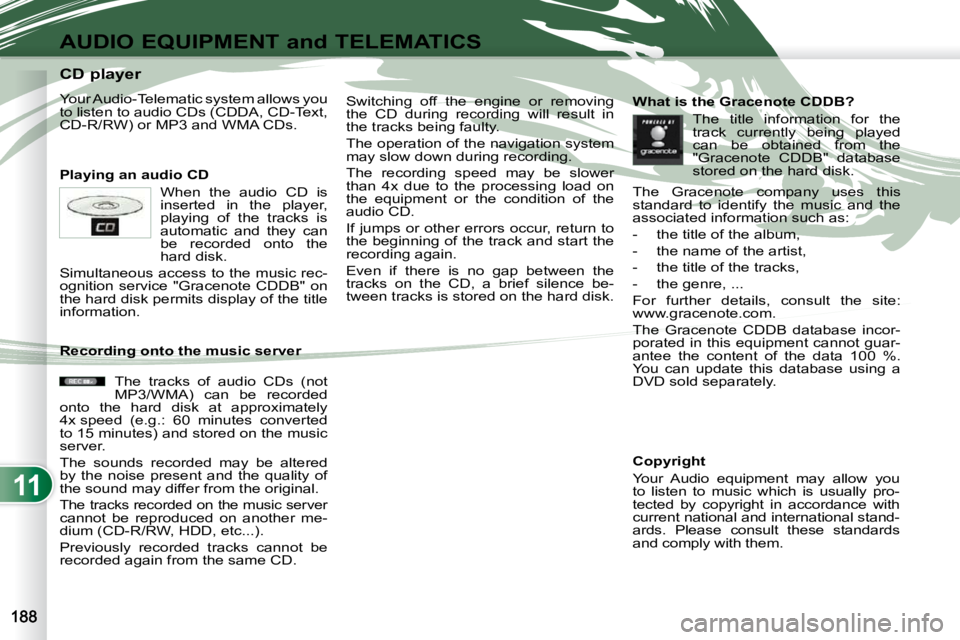
Playing an audio CD When the audio CD is
inserted in the player,
playing of the tracks is
automatic and they can
be recorded onto the
hard disk.
Simultaneous access to the music rec-
ognition service "Gracenote CDDB" on
the hard disk permits display of the title
information. Switching off the engine or removing
the CD during recording will result in
the tracks being faulty.
The operation of the navigation system
may slow down during recording.
The recording speed may be slower
than 4x due to the processing load on
the equipment or the condition of the
audio CD.
If jumps or other errors occur, return to
the beginning of the track and start the
recording again.
Even if there is no gap between the
tracks on the CD, a brief silence be-
tween tracks is stored on the hard disk.
What is the Gracenote CDDB?
Copyright
Your Audio equipment may allow you
to listen to music which is usually pro-
tected by copyright in accordance with
current national and international stand-
ards. Please consult these standards
and comply with them.
Recording onto the music server
The tracks of audio CDs (not
MP3/WMA) can be recorded
onto the hard disk at approximately
4x speed (e.g.: 60 minutes converted
to 15 minutes) and stored on the music
server.
The sounds recorded may be altered
by the noise present and the quality of
the sound may differ from the original.
The tracks recorded on the music server
cannot be reproduced on another me-
dium (CD-R/RW, HDD, etc...).
Previously recorded tracks cannot be
recorded again from the same CD. The title information for the
track currently being played
can be obtained from the
"Gracenote CDDB" database
stored on the hard disk.
The Gracenote company uses this
standard to identify the music and the
associated information such as:
- the title of the album,
- the name of the artist,
- the title of the tracks,
- the genre, ...
For further details, consult the site:
www.gracenote.com.
The Gracenote CDDB database incor-
porated in this equipment cannot guar-
antee the content of the data 100 %.
You can update this database using a
DVD sold separately.
Page 185 of 215
11
AUDIO EQUIPMENT and TELEMATICS
Information displayed in CD mode and recording a CD
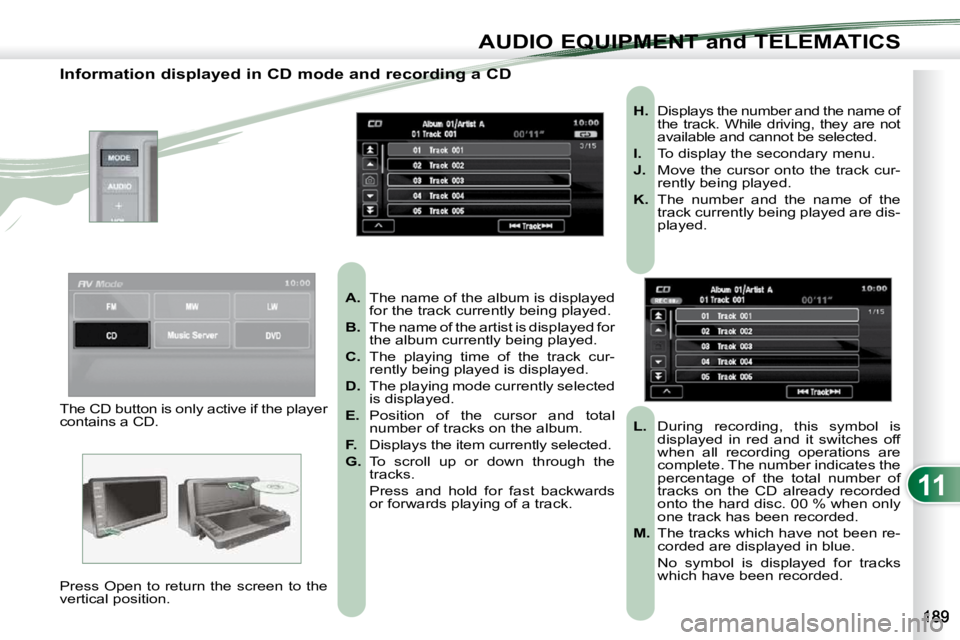
A. The name of the album is displayed
for the track currently being played.
B. The name of the artist is displayed for
the album currently being played.
C. The playing time of the track cur-
rently being played is displayed.
D. The playing mode currently selected
is displayed.
E. Position of the cursor and total
number of tracks on the album.
F. Displays the item currently selected.
G. To scroll up or down through the
tracks.
Press and hold for fast backwards or forwards playing of a track.
H. Displays the number and the name of
the track. While driving, they are not
available and cannot be selected.
I. To display the secondary menu.
J. Move the cursor onto the track cur-
rently being played.
K. The number and the name of the
track currently being played are dis-
played.
L. During recording, this symbol is
displayed in red and it switches off
when all recording operations are
complete. The number indicates the
percentage of the total number of
tracks on the CD already recorded
onto the hard disc. 00 % when only
one track has been recorded.
M. The tracks which have not been re-
corded are displayed in blue.
No symbol is displayed for tracks which have been recorded.
The CD button is only active if the player
contains a CD.
Press Open to return the screen to the
vertical position.
Page 191 of 215
11
AUDIO EQUIPMENT and TELEMATICS
Information displayed in Music Server mode
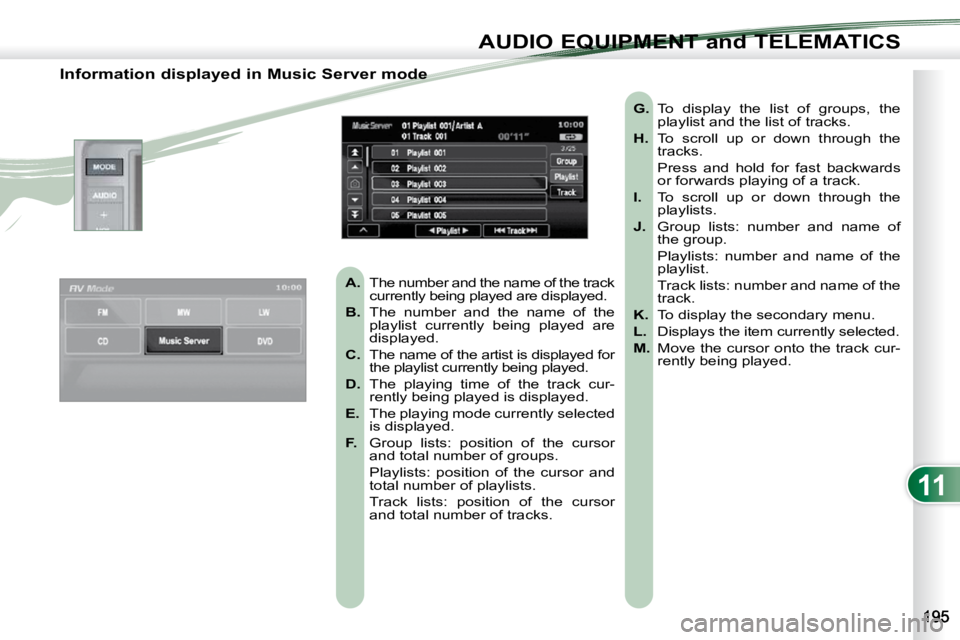
A. The number and the name of the track
currently being played are displayed.
B. The number and the name of the
playlist currently being played are
displayed.
C. The name of the artist is displayed for
the playlist currently being played.
D. The playing time of the track cur-
rently being played is displayed.
E. The playing mode currently selected
is displayed.
F. Group lists: position of the cursor
and total number of groups.
Playlists: position of the cursor and total number of playlists.
Track lists: position of the cursor and total number of tracks.
G. To display the list of groups, the
playlist and the list of tracks.
H. To scroll up or down through the
tracks.
Press and hold for fast backwards or forwards playing of a track.
I. To scroll up or down through the
playlists.
J. Group lists: number and name of
the group.
Playlists: number and name of the playlist.
Track lists: number and name of the track.
K. To display the secondary menu.
L. Displays the item currently selected.
M. Move the cursor onto the track cur-
rently being played.
Page 194 of 215
11
AUDIO EQUIPMENT and TELEMATICS
General notes on MP3/WMA CDs
Playing an MP3/WMA CD Copyright
Your Audio equipment may allow you
to listen to music which is usually pro-
tected by copyright in accordance with
current national and international stand-
ards. Please consult these stan-dards
and comply with them.
Acceptance of the fi les
Some blank CDs may not be played
by your equipment (quality, recording
speed...).
When you burn a CD-R or CD-RW,
select the ISO 9660 level 1.2 or Joliet
burning standard.
To obtain the best acoustic quality pos-
sible, select the lowest burning speed.
The MPEG1 and MPEG2 standards
are accepted.
Transmission speeds between 32 and
320 kbits/s and scans between 16 kHz
and 48 kHz are accepted.
To display the title information (the
name of the artist, the title of the album,
etc...), the information contained in the
ID3 Tags or the WMA Tags must be in-
cluded in the MP3/WMA fi les burned
onto the disc.
What is the MP3/WMA fi le format?
MP3 is the abbreviation of MPEG-1 Audio
Layer 3 and MPG is the abbreviation of
Motion Pictures Experts Group, a digital
video data compression standard used on
media such as video CDs.
The MP3 compression reduces the
number of bytes in a song by eliminat-
ing the long sound waves in the range of
frequencies which are imperceptible to
the human ear, so producing high quality
audio fi les with a low volume of data.
This compression divides the size of
the content of a conventional audio CD
by approximately 10, which means that
the content of 10 audio CDs can be re-
corded onto a single CD-R or CD-RW.
WMA is the abbreviation of Windows
Media Audio, another audio data com-
pression standard offered by Microsoft.
It can be used to create and save audio
fi les at a compression rate higher than
that of the MP3 format.
Windows Media and Microsoft Corpo-
ration are trademarks registered in the
United States and/or other countries.
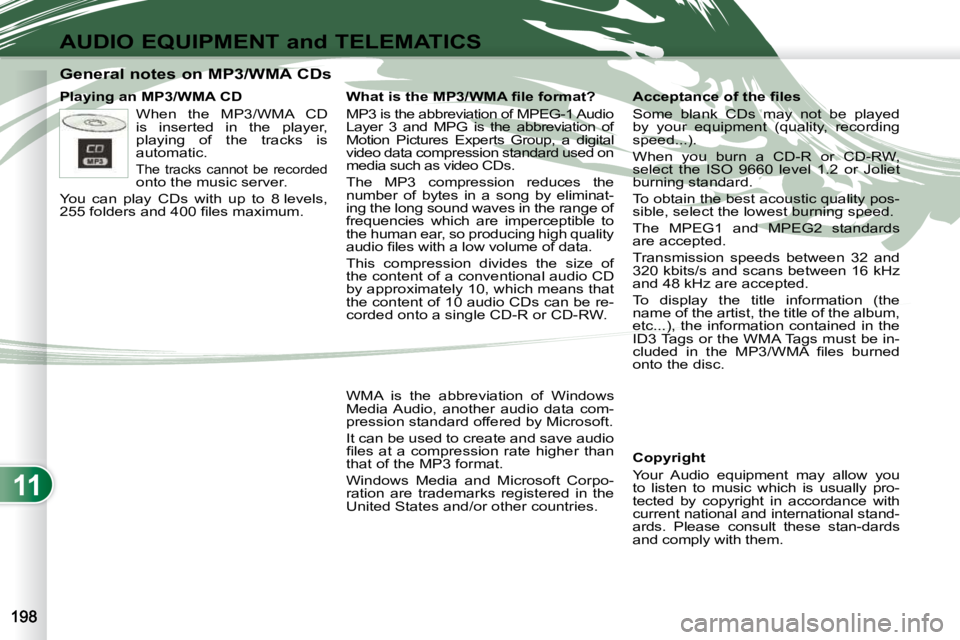
When the MP3/WMA CD
is inserted in the player,
playing of the tracks is
automatic.
The tracks cannot be recorded
onto the music server.
You can play CDs with up to 8 levels,
255 folders and 400 fi les maximum.
Page 195 of 215
11
AUDIO EQUIPMENT and TELEMATICS
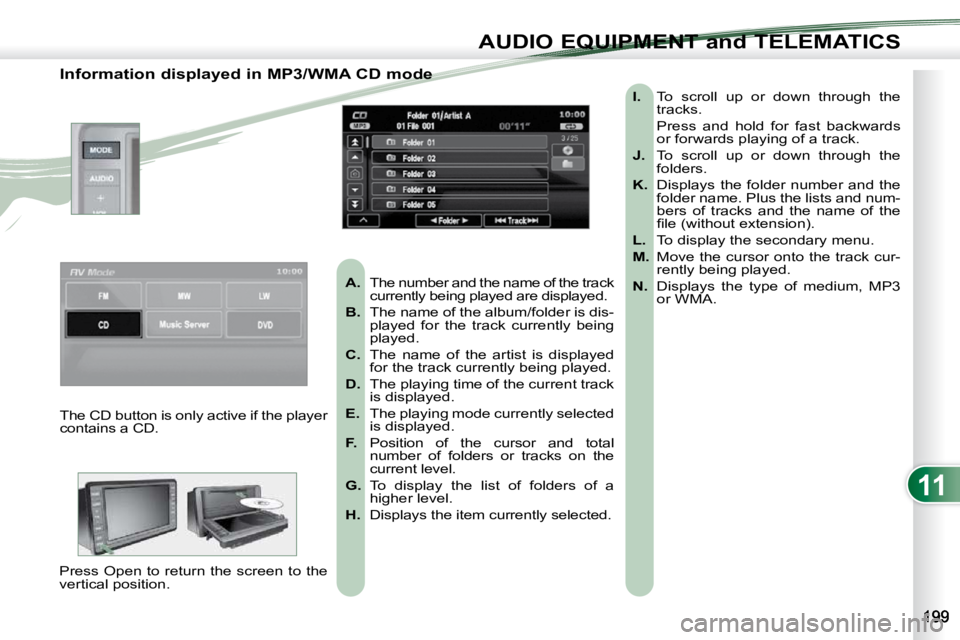
Information displayed in MP3/WMA CD mode
A. The number and the name of the track
currently being played are displayed.
B. The name of the album/folder is dis-
played for the track currently being
played.
C. The name of the artist is displayed
for the track currently being played.
D. The playing time of the current track
is displayed.
E. The playing mode currently selected
is displayed.
F. Position of the cursor and total
number of folders or tracks on the
current level.
G. To display the list of folders of a
higher level.
H. Displays the item currently selected.
I. To scroll up or down through the
tracks.
Press and hold for fast backwards or forwards playing of a track.
J. To scroll up or down through the
folders.
K. Displays the folder number and the
folder name. Plus the lists and num-
bers of tracks and the name of the
fi le (without extension).
L. To display the secondary menu.
M. Move the cursor onto the track cur-
rently being played.
N. Displays the type of medium, MP3
or WMA.
The CD button is only active if the player
contains a CD.
Press Open to return the screen to the
vertical position.
Page 196 of 215
11
AUDIO EQUIPMENT and TELEMATICS
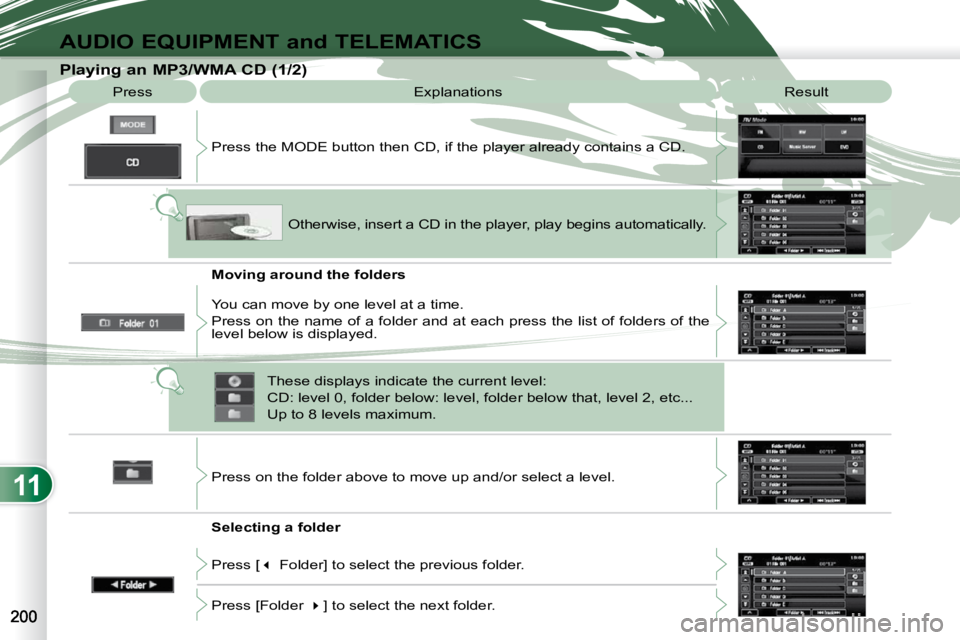
Playing an MP3/WMA CD (1/2) Press Explanations Result
Press the MODE button then CD, if the player already contains a CD.
Moving around the folders
Selecting a folder Otherwise, insert a CD in the player, play begins
automatically.
You can move by one level at a time.
Press on the name of a folder and at each press the list of f olders of the
level below is displayed.
Press on the folder above to move up and/or select a level.
Press [ Folder] to select the previous folder.
Press [Folder ] to select the next folder.
These displays indicate the current level:
CD: level 0, folder below: level, folder below that, l
evel 2, etc...
Up to 8 levels maximum.
Page 198 of 215
11
AUDIO EQUIPMENT and TELEMATICS
DVD MODE DVD MODE
The DVD button is only active if the
player contains a DVD. Press Open to return the screen to the
vertical position. For safety reasons, the video is
not displayed while driving, how-
ever the audio can be played.
To display the picture and watch
a DVD, park the vehicle in a safe
place.
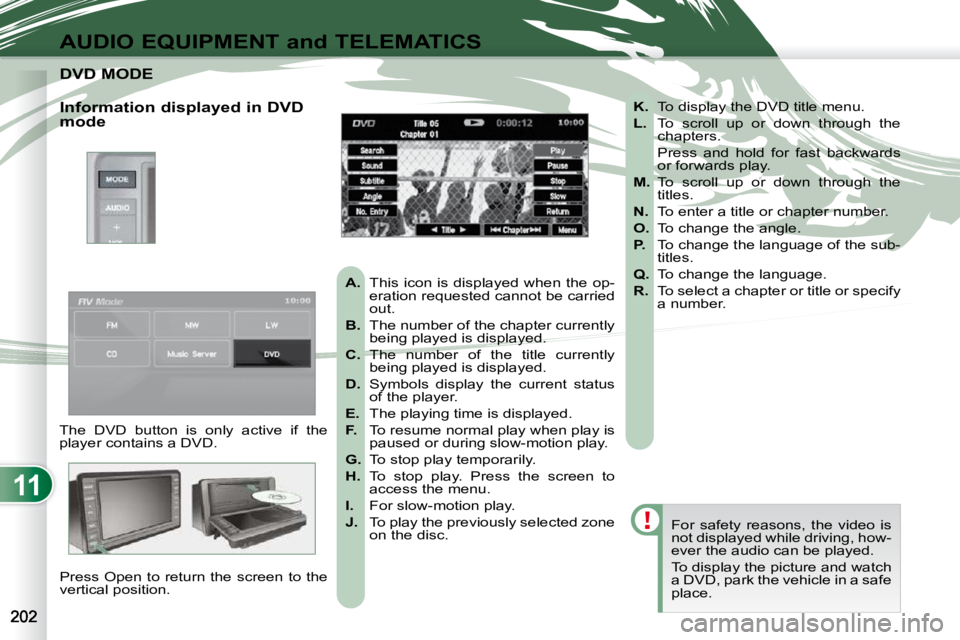
K. To display the DVD title menu.
L. To scroll up or down through the
chapters.
Press and hold for fast backwards or forwards play.
M. To scroll up or down through the
titles.
N. To enter a title or chapter number.
O. To change the angle.
P. To change the language of the sub-
titles.
Q. To change the language.
R. To select a chapter or title or specify
a number.
A. This icon is displayed when the op-
eration requested cannot be carried
out.
B. The number of the chapter currently
being played is displayed.
C. The number of the title currently
being played is displayed.
D. Symbols display the current status
of the player.
E. The playing time is displayed.
F. To resume normal play when play is
paused or during slow-motion play.
G. To stop play temporarily.
H. To stop play. Press the screen to
access the menu.
I. For slow-motion play.
J. To play the previously selected zone
on the disc.
Information displayed in DVD
mode
Page 199 of 215
11
AUDIO EQUIPMENT and TELEMATICS
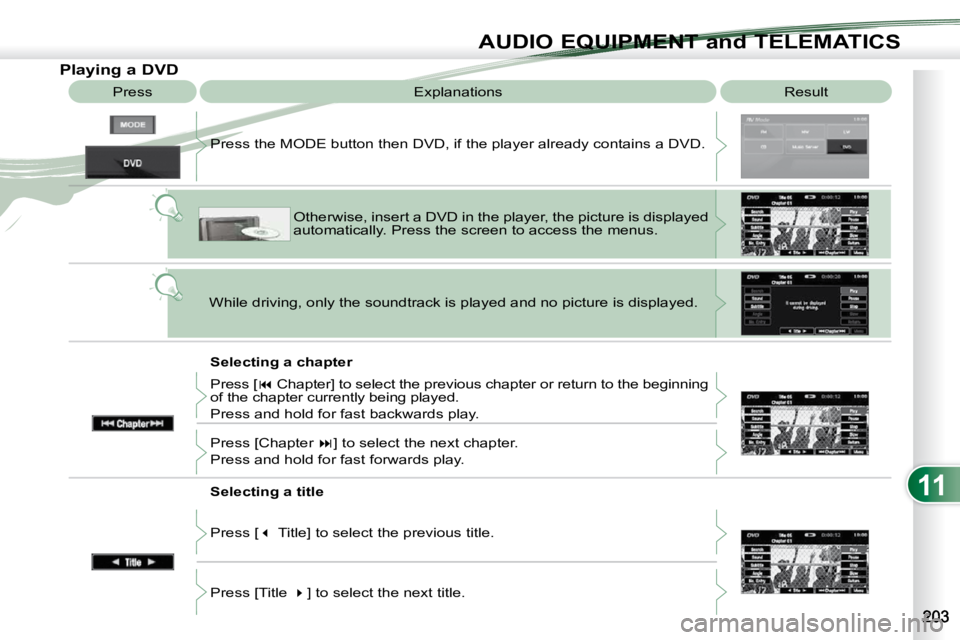
Playing a DVD Result
Explanations
Selecting a chapter
Press the MODE button then DVD, if the player already contains
a DVD.
Otherwise, insert a DVD in the player, the picture is displa yed
automatically. Press the screen to access the menus.
While driving, only the soundtrack is played and no picture i s displayed.
Press [ Chapter] to select the previous chapter or return to the beginning
of the chapter currently being played.
Press and hold for fast backwards play.
Press [Chapter ] to select the next chapter.
Press and hold for fast forwards play.
Selecting a title
Press [ Title] to select the previous title.
Press [Title ] to select the next title.
Press
Page 200 of 215
11
AUDIO EQUIPMENT and TELEMATICS
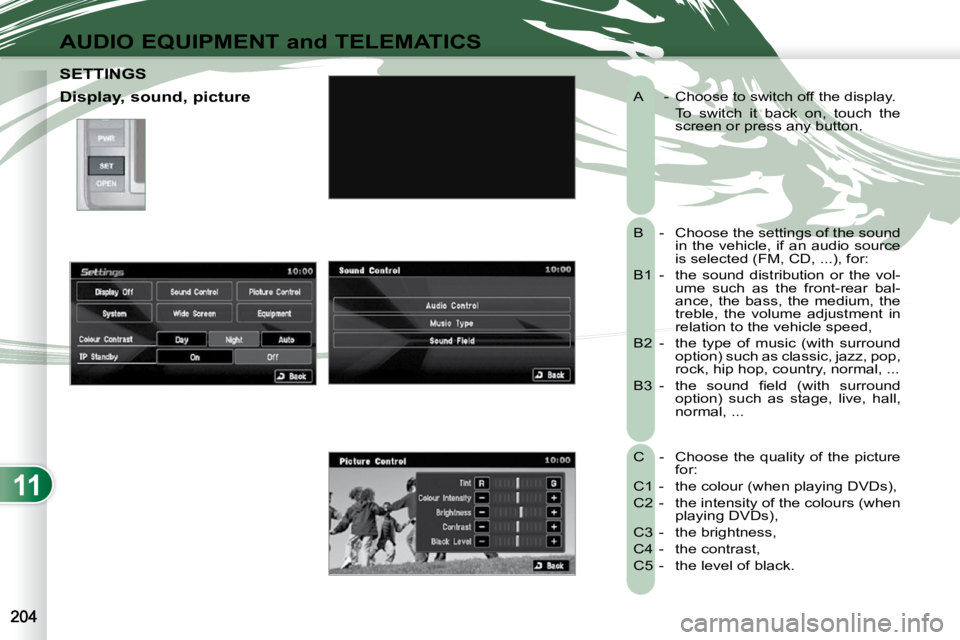
A - Choose to switch off the display.
To switch it back on, touch the screen or press any button.
B - Choose the settings of the sound in the vehicle, if an audio source
is selected (FM, CD, ...), for:
B1 - the sound distribution or the vol- ume such as the front-rear bal-
ance, the bass, the medium, the
treble, the volume adjustment in
relation to the vehicle speed,
B2 - the type of music (with surround option) such as classic, jazz, pop,
rock, hip hop, country, normal, ...
B3 - the sound fi eld (with surround option) such as stage, live, hall,
normal, ...
C - Choose the quality of the picture for:
C1 - the colour (when playing DVDs),
C2 - the intensity of the colours (when playing DVDs),
C3 - the brightness,
C4 - the contrast,
C5 - the level of black.
SETTINGS SETTINGS
Display, sound, picture
Page 201 of 215
11
AUDIO EQUIPMENT and TELEMATICS
Time and date, language,
unit, picture size E -
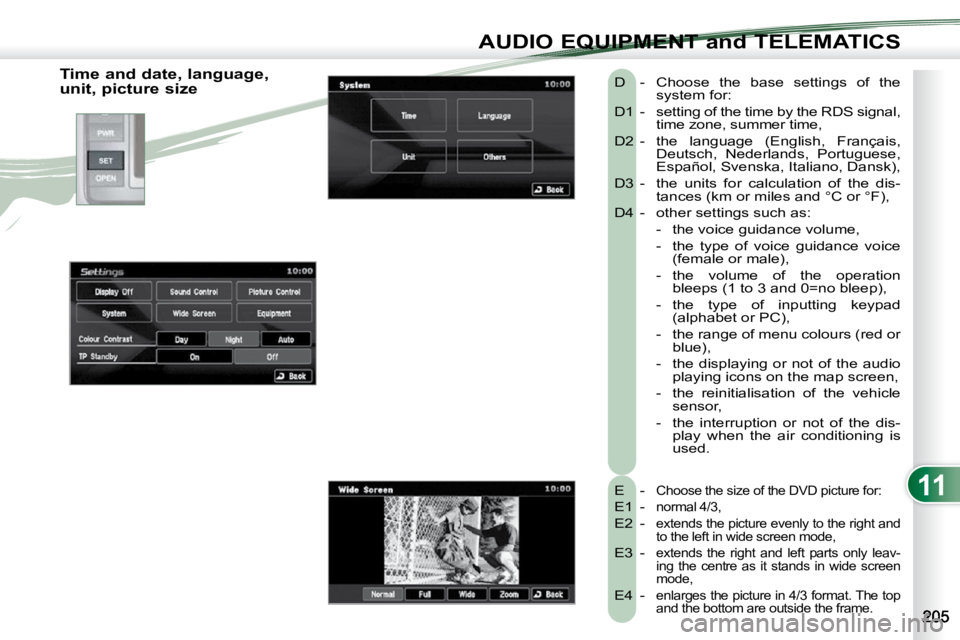
Choose the size of the DVD picture for:
E1 - normal 4/3,
E2 - extends the picture evenly to the right and
to the left in wide screen mode,
E3 - extends the right and left parts only leav-
ing the centre as it stands in wide screen
mode,
E4 - enlarges the picture in 4/3 format. The top
and the bottom are outside the frame.
D - Choose the base settings of the system for:
D1 - setting of the time by the RDS signal, time zone, summer time,
D2 - the language (English, Français, Deutsch, Nederlands, Portuguese,
Español, Svenska, Italiano, Dansk),
D3 - the units for calculation of the dis- tances (km or miles and °C or °F),
D4 - other settings such as:
- the voice guidance volume,
- the type of voice guidance voice (female or male),
- the volume of the operation bleeps (1 to 3 and 0=no bleep),
- the type of inputting keypad (alphabet or PC),
- the range of menu colours (red or blue),
- the displaying or not of the audio playing icons on the map screen,
- the reinitialisation of the vehicle sensor,
- the interruption or not of the dis- play when the air conditioning is
used.