instrument panel PEUGEOT 4007 2012 User Guide
[x] Cancel search | Manufacturer: PEUGEOT, Model Year: 2012, Model line: 4007, Model: PEUGEOT 4007 2012Pages: 236, PDF Size: 17.59 MB
Page 36 of 236
1
INSTRUMENTS and CONTROLS
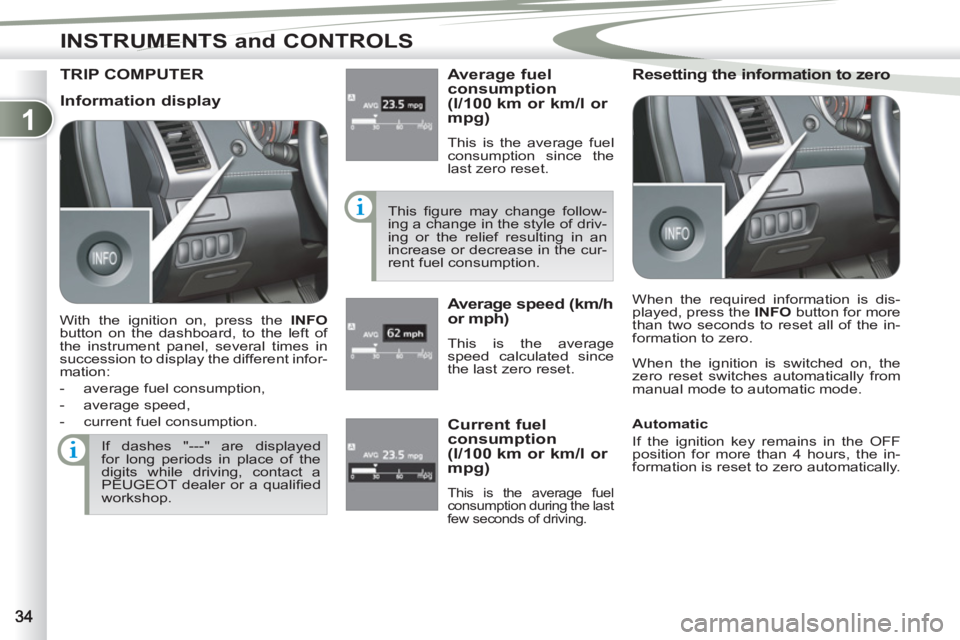
TRIP COMPUTER
Average fuel
consumption
(l/100 km or km/l or
mpg)
This is the average fuel
consumption since the
last zero reset.
This fi gure may change follow-
ing a change in the style of driv-
ing or the relief resulting in an
increase or decrease in the cur-
rent fuel consumption.
Average speed (km/h
or mph)
This is the average
speed calculated since
the last zero reset.
Resetting the information to zero
When the ignition is switched on, the
zero reset switches automatically from
manual mode to automatic mode.
If dashes "---" are displayed
for long periods in place of the
digits while driving, contact a
PEUGEOT dealer or a qualifi ed
workshop.
Current fuel
consumption
(l/100 km or km/l or
mpg)
This is the average fuel
consumption during the last
few seconds of driving.
Information display
With the ignition on, press the INFO
button on the dashboard, to the left of
the instrument panel, several times in
succession to display the different infor-
mation:
- average fuel consumption,
- average speed,
- current fuel consumption. When the required information is dis-
played, press the INFO
button for more
than two seconds to reset all of the in-
formation to zero.
Automatic
If the ignition key remains in the OFF
position for more than 4 hours, the in-
formation is reset to zero automatically.
Page 37 of 236
1
INSTRUMENTS and CONTROLS
When the vehicle is
stationary
, it allows the
user to change the fol-
lowing settings:
- the choice of the reini-
tialisation of the aver-
age fuel consumption
and average speed,
- the fuel consumption units,
- the temperature display unit,
- the display language,
- activation/deactivation of the INFO
button sound,
- the break (rest) reminder display in-
terval,
- restore the factory settings.
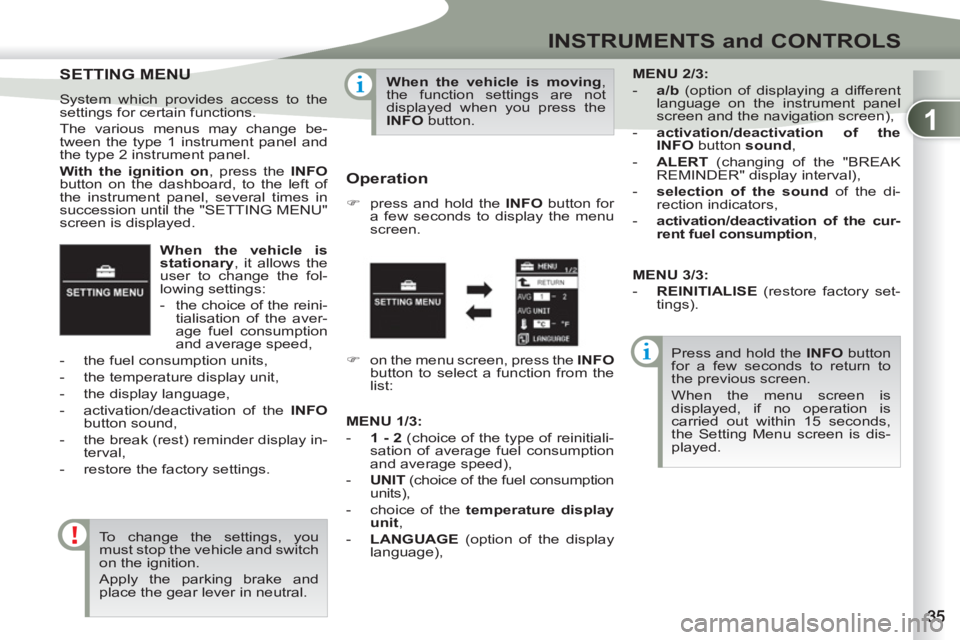
SETTING MENU
SETTING MENU
System which provides access to the
settings for certain functions.
The various menus may change be-
tween the type 1 instrument panel and
the type 2 instrument panel.
With the ignition on
, press the INFO
button on the dashboard, to the left of
the instrument panel, several times in
succession until the "SETTING MENU"
screen is displayed.
To change the settings, you
must stop the vehicle and switch
on the ignition.
Apply the parking brake and
place the gear lever in neutral.
When the vehicle is moving
,
the function settings are not
displayed when you press the
INFO
button.
Operation
)
press and hold the INFO
button for
a few seconds to display the menu
screen.
Press and hold the INFO
button
for a few seconds to return to
the previous screen.
When the menu screen is
displayed, if no operation is
carried out within 15 seconds,
the Setting Menu screen is dis-
played.
)
on the menu screen, press the INFO
button to select a function from the
list:
MENU
2/3:
- a/b
(option of displaying a different
language on the instrument panel
screen and the navigation screen),
- activation/deactivation of the
INFO
button sound
,
- ALERT
(changing of the "BREAK
REMINDER" display interval),
- selection of the sound
of the di-
rection indicators,
- activation/deactivation of the cur-
rent fuel consumption
,
MENU
1/3
:
- 1 - 2
(choice of the type of reinitiali-
sation of average fuel consumption
and average speed),
- UNIT
(choice of the fuel consumption
units),
- choice of the temperature display
unit
,
- LANGUAGE
(option of the display
language),
MENU 3/3:
- REINITIALISE
(restore factory set-
tings).
Page 40 of 236
1
INSTRUMENTS and CONTROLS
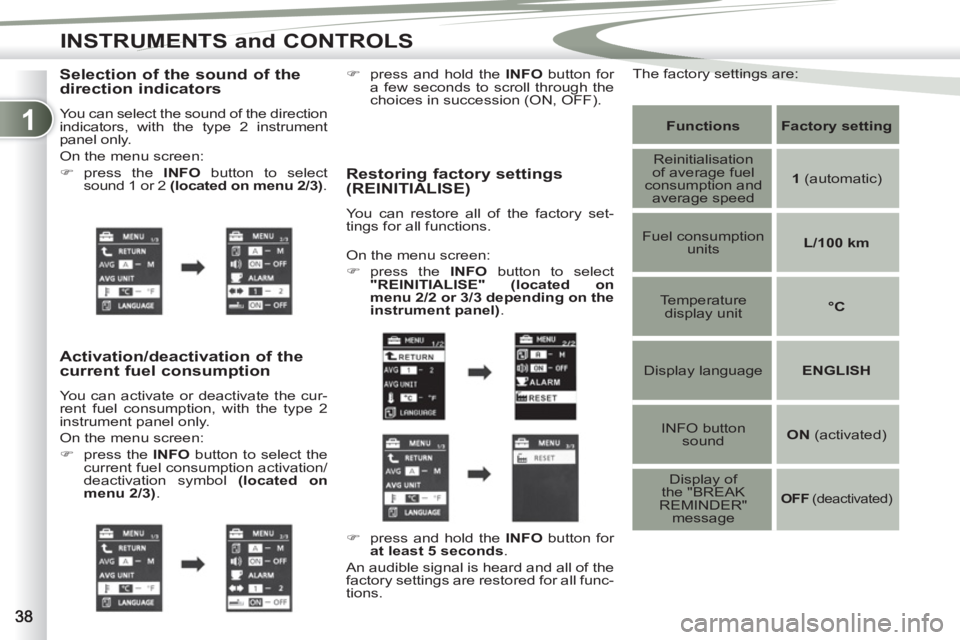
Selection of the sound of the
direction indicators
You can select the sound of the direction
indicators, with the type 2 instrument
panel only.
On the menu screen:
)
press the INFO
button to select
sound 1 or 2 (located on menu 2/3)
.
Activation/deactivation of the
current fuel consumption
You can activate or deactivate the cur-
rent fuel consumption, with the type 2
instrument panel only.
On the menu screen:
)
press the INFO
button to select the
current fuel consumption activation/
deactivation symbol (located on
menu 2/3)
.
Restoring factory settings
(REINITIALISE)
You can restore all of the factory set-
tings for all functions.
Functions
Factory
setting
Reinitialisation
of average fuel
consumption and
average speed
1
(automatic)
Fuel consumption
units
L/100 km
Temperature
display unit
°C
Display language
ENGLISH
INFO button
sound
ON
(activated)
Display of
the "BREAK
REMINDER"
message
OFF
(deactivated)
On the menu screen:
)
press the INFO
button to select
"REINITIALISE"
(located on
menu 2/2 or 3/3 depending on the
instrument panel)
.
)
press and hold the INFO
button for
at least 5 seconds
.
An audible signal is heard and all of the
factory settings are restored for all func-
tions.
)
press and hold the INFO
button for
a few seconds to scroll through the
choices in succession (ON, OFF).
The factory settings are:
Page 43 of 236
1
INSTRUMENTS and CONTROLS
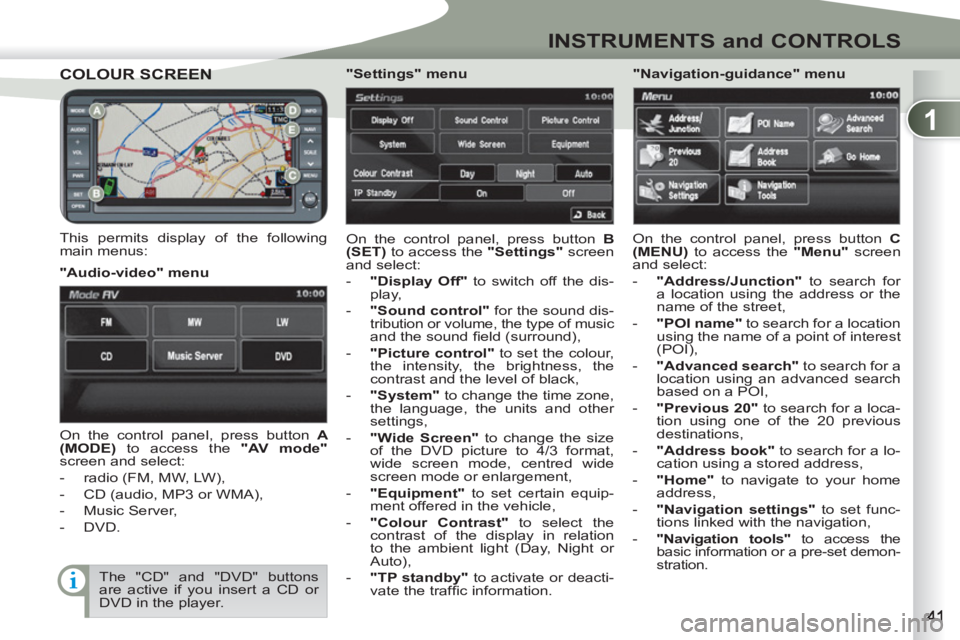
COLOUR SCREENCOLOUR SCREEN
This permits display of the following
main menus: On the control panel, press button B
(SET)
to access the "Settings"
screen
and select:
- "Display Off"
to switch off the dis-
play,
- "Sound control"
for the sound dis-
tribution or volume, the type of music and the sound fi eld (surround),
- "Picture control"
to set the colour,
the intensity, the brightness, the
contrast and the level of black,
- "System"
to change the time zone,
the language, the units and other
settings,
- "Wide Screen"
to change the size
of the DVD picture to 4/3 format,
wide screen mode, centred wide
screen mode or enlargement,
- "Equipment"
to set certain equip-
ment offered in the vehicle,
- "Colour Contrast"
to select the
contrast of the display in relation
to the ambient light (Day, Night or
Auto),
- "TP standby"
to activate or deacti-
vate the traffi c information.
"Audio-video" menu
"Navigation-guidance" menu
On the control panel, press button A
(MODE)
to access the "AV mode"
screen and select:
- radio (FM, MW, LW),
- CD (audio, MP3 or WMA),
- Music Server,
- DVD.
"Settings" menu
On the control panel, press button C
(MENU)
to access the "Menu"
screen
and select:
- "Address/Junction"
to search for
a location using the address or the
name of the street,
- "POI name"
to search for a location
using the name of a point of interest
(POI),
- "Advanced search"
to search for a
location using an advanced search
based on a POI,
- "Previous 20"
to search for a loca-
tion using one of the 20 previous
destinations,
- "Address book"
to search for a lo-
cation using a stored address,
- "Home"
to navigate to your home
address,
- "Navigation settings"
to set func-
tions linked with the navigation,
-
"Navigation tools"
to access the
basic information or a pre-set demon-
stration.
The "CD" and "DVD" buttons
are active if you insert a CD or
DVD in the player.
Page 44 of 236
1
INSTRUMENTS and CONTROLS
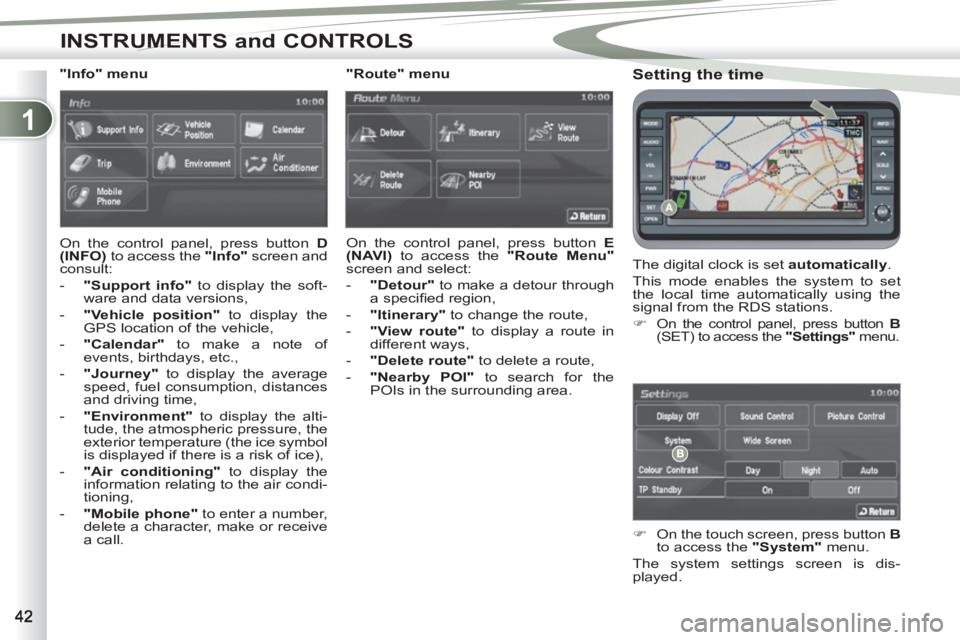
Setting the time
The digital clock is set automatically
.
This mode enables the system to set
the local time automatically using the
signal from the RDS stations.
)
On the control panel, press button B
(SET) to access the "Settings"
menu.
)
On the touch screen, press button B
to access the "System"
menu.
The system settings screen is dis-
played.
"Info" menu
On the control panel, press button D
(INFO)
to access the "Info"
screen and
consult:
- "Support info"
to display the soft-
ware and data versions,
- "Vehicle position"
to display the
GPS location of the vehicle,
- "Calendar"
to make a note of
events, birthdays, etc.,
- "Journey"
to display the average
speed, fuel consumption, distances
and driving time,
- "Environment"
to display the alti-
tude, the atmospheric pressure, the
exterior temperature (the ice symbol
is displayed if there is a risk of ice),
- "Air conditioning"
to display the
information relating to the air condi-
tioning,
- "Mobile phone"
to enter a number,
delete a character, make or receive
a call.
"Route" menu
On the control panel, press button E
(NAVI)
to access the "Route Menu"
screen and select:
- "Detour"
to make a detour through
a specifi ed region,
- "Itinerary"
to change the route,
- "View route"
to display a route in
different ways,
- "Delete route"
to delete a route,
-
"Nearby POI"
to search for the
POIs in the surrounding area.
Page 81 of 236
3
ACCESS
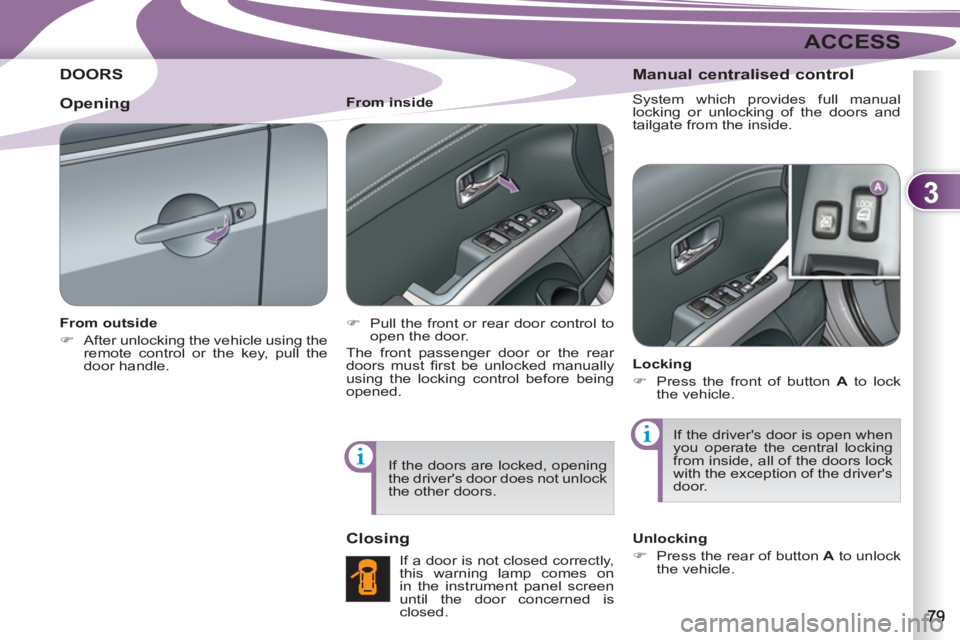
DOORS
From outside
)
After unlocking the vehicle using the
remote control or the key, pull the
door handle.
From inside
)
Pull the front or rear door control to
open the door.
The front passenger door or the rear
doors must fi rst be unlocked manually
using the locking control before being
opened.
Closing
If a door is not closed correctly,
this warning lamp comes on
in the instrument panel screen
until the door concerned is
closed.
Manual centralised control
System which provides full manual
locking or unlocking of the doors and
tailgate from the inside.
Locking
)
Press the front of button A
to lock
the vehicle.
If the driver's door is open when
you operate the central locking
from inside, all of the doors lock
with the exception of the driver's
door.
Unlocking
)
Press the rear of button A
to unlock
the vehicle.
Opening
If the doors are locked, opening
the driver's door does not unlock
the other doors.
Page 83 of 236
3
ACCESS
Before opening the tailgate,
ensure that no one is within the
radius of opening.
For reasons of safety and cor-
rect operation, do not drive with
the tailgate open.
If the battery is disconnected,
the tailgate cannot be opened.
Do not climb onto the lower
tailgate and do not subject it to
heavy knocks, it may be dam-
aged.
Always close the lower tailgate
and check that it is secured cor-
rectly before closing the main
tailgate.
When closing the lower tailgate,
ensure that no person or object
is in the proximity of the moving
parts to avoid any risk of injury
or damage.
Do not open the lower tailgate
when a towbar is fi tted.
"Tailgate open" warning
This warning lamp comes on
on the instrument panel screen
when the tailgate is not closed
correctly.
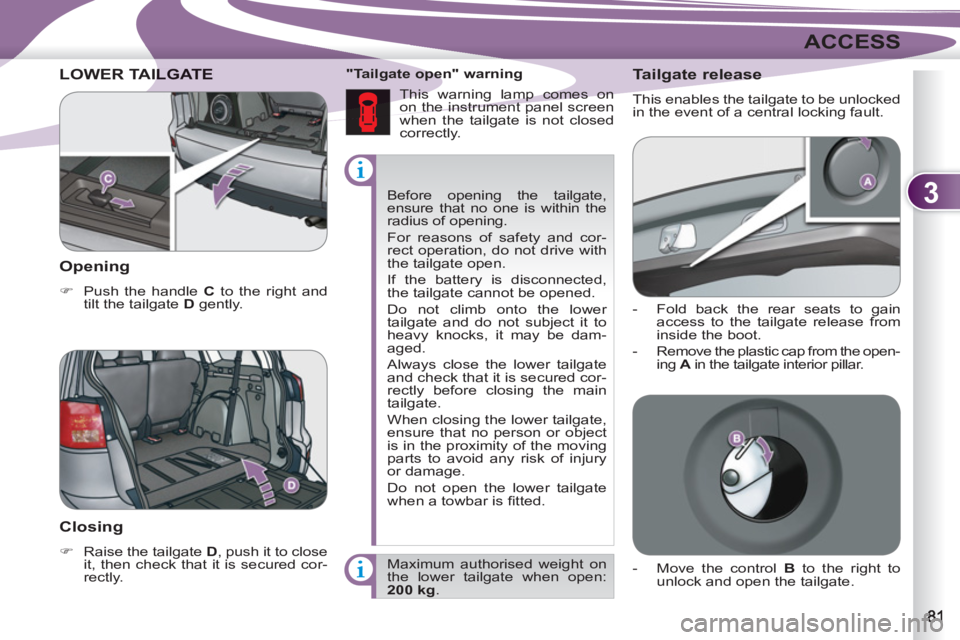
LOWER TAILLGATE
Opening
)
Push the handle C
to the right and
tilt the tailgate D
gently.
Closing
)
Raise the tailgate D
, push it to close
it, then check that it is secured cor-
rectly. Maximum authorised weight on
the lower tailgate when open:
200 kg
.
Tailgate release
This enables the tailgate to be unlocked
in the event of a central locking fault.
- Fold back the rear seats to gain
access to the tailgate release from
inside the boot.
- Remove the plastic cap from the open-
ing A
in the tailgate interior pillar.
- Move the control B
to the right to
unlock and open the tailgate.
Page 88 of 236
4
VISIBILITY
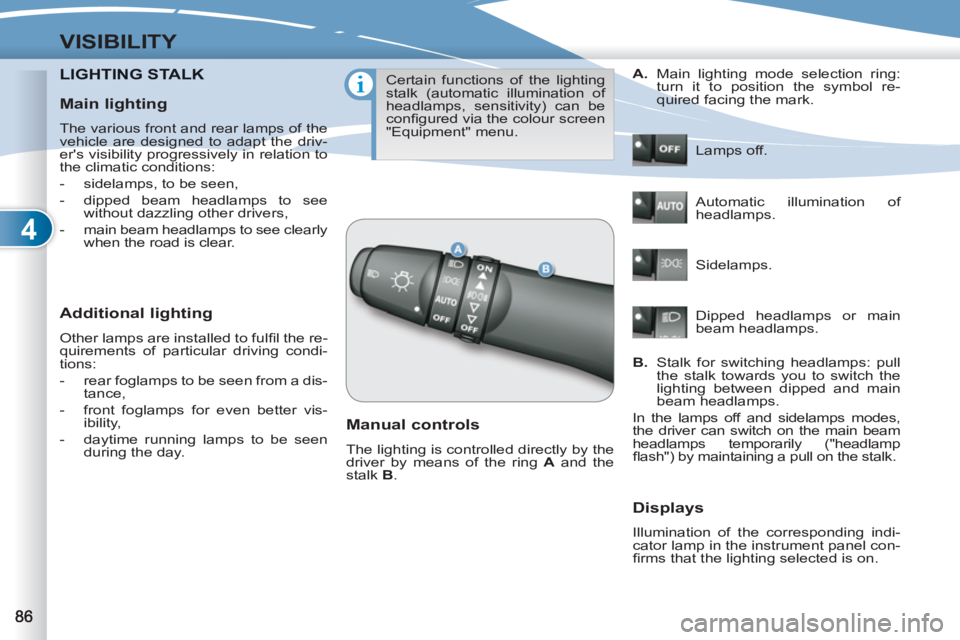
LIGHTING STALKNG STALK
Additional lighting
Other lamps are installed to fulfi l the re-
quirements of particular driving condi-
tions:
- rear foglamps to be seen from a dis-
tance,
- front foglamps for even better vis-
ibility,
- daytime running lamps to be seen
during the day.
Certain functions of the lighting
stalk (automatic illumination of
headlamps, sensitivity) can be
confi gured via the colour screen
"Equipment" menu.
Manual controls
The lighting is controlled directly by the
driver by means of the ring A
and the
stalk B
. Lamps off.
Automatic illumination of
headlamps.
Sidelamps.
B.
Stalk for switching headlamps: pull
the stalk towards you to switch the
lighting between dipped and main
beam headlamps.
In the lamps off and sidelamps modes,
the driver can switch on the main beam
headlamps temporarily ("headlamp
fl ash") by maintaining a pull on the stalk.
Displays
Illumination of the corresponding indi-
cator lamp in the instrument panel con-
fi rms that the lighting selected is on.
A.
Main lighting mode selection ring:
turn it to position the symbol re-
quired facing the mark.
Dipped headlamps or main
beam headlamps.
Main lighting
The various front and rear lamps of the
vehicle are designed to adapt the driv-
er's visibility progressively in relation to
the climatic conditions:
- sidelamps, to be seen,
- dipped beam headlamps to see
without dazzling other drivers,
- main beam headlamps to see clearly
when the road is clear.
Page 90 of 236
4
VISIBILITY
In foggy weather or in snow, the
sunshine sensor may detect suf-
fi cient light. The lighting will not
come on automatically.
Do not cover the sunshine sen-
sor, the associated functions will
no longer be controlled.
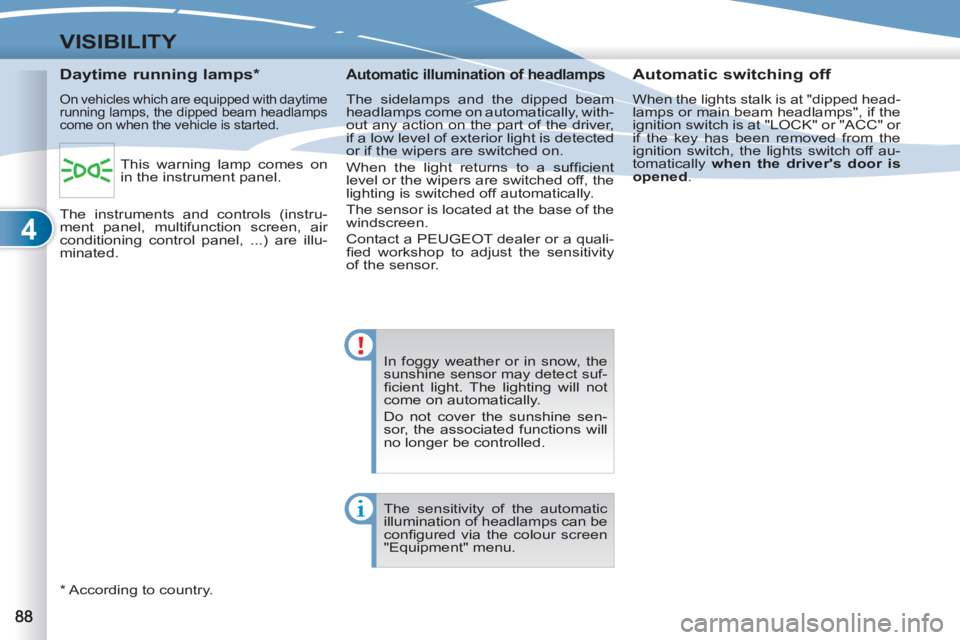
Daytime running lamps *
On vehicles which are equipped with daytime
running lamps, the dipped beam headlamps
come on when the vehicle is started.
*
According to country.
Automatic switching off
When the lights stalk is at "dipped head-lamps or main beam headlamps", if the
ignition switch is at "LOCK" or "ACC" or
if the key has been removed from the
ignition switch, the lights switch off au-
tomatically when the driver's door is
opened
.
Automatic illumination of headlamps
The sidelamps and the dipped beam
headlamps come on automatically, with-
out any action on the part of the driver,
if a low level of exterior light is detected
or if the wipers are switched on.
When the light returns to a suffi cient
level or the wipers are switched off, the
lighting is switched off automatically.
The sensor is located at the base of the
windscreen.
Contact a PEUGEOT dealer or a quali-
fi ed workshop to adjust the sensitivity
of the sensor.
The sensitivity of the automatic
illumination of headlamps can be
confi gured via the colour screen
"Equipment" menu. This warning lamp comes on
in the instrument panel.
The instruments and controls (instru-
ment panel, multifunction screen, air
conditioning control panel, ...) are illu-
minated.
Page 105 of 236
6
SAFETY
BRAKING ASSISTANCE
SYSTEMS
Group of supplementary systems which
help you to obtain optimum braking in
complete safety in emergency situa-
tions:
- anti-lock braking system (ABS),
- electronic brake force distribution
(EBFD).
When braking in an emergency,
press very fi rmly without releasing
the pressure. The two warning lamps comes
on at the same time and the two
warnings are displayed alter-
nately in the instrument panel
screen.
When replacing wheels (tyres and
rims), ensure that they conform to
the manufacturer's recommenda-
tions.
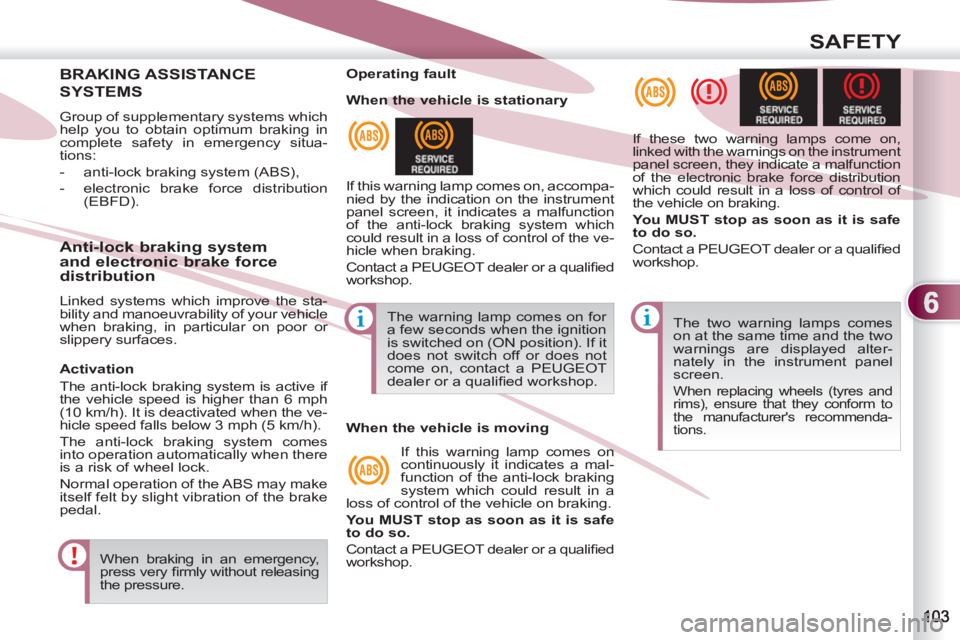
Operating fault
If this warning lamp comes on, accompa-
nied by the indication on the instrument
panel screen, it indicates a malfunction
of the anti-lock braking system which
could result in a loss of control of the ve-
hicle when braking.
Contact a PEUGEOT dealer or a qualifi ed
workshop. If these two warning lamps come on,
linked with the warnings on the instrument
panel screen, they indicate a malfunction
of the electronic brake force distribution
which could result in a loss of control of
the vehicle on braking.
You MUST stop as soon as it is safe
to do so.
Contact a PEUGEOT dealer or a qualifi ed
workshop.
Anti-lock braking system
and electronic brake force
distribution
Linked systems which improve the sta-
bility and manoeuvrability of your vehicle
when braking, in particular on poor or
slippery surfaces. The warning lamp comes on for
a few seconds when the ignition
is switched on (ON position). If it
does not switch off or does not
come on, contact a PEUGEOT
dealer or a qualifi ed workshop.
When the vehicle is stationary
When the vehicle is moving
If this warning lamp comes on
continuously it indicates a mal-
function of the anti-lock braking
system which could result in a
loss of control of the vehicle on braking.
You MUST stop as soon as it is safe
to do so.
Contact a PEUGEOT dealer or a qualifi ed
workshop.
Activation
The anti-lock braking system is active if
the vehicle speed is higher than 6 mph
(10 km/h). It is deactivated when the ve-
hicle speed falls below 3 mph (5 km/h).
The anti-lock braking system comes
into operation automatically when there
is a risk of wheel lock.
Normal operation of the ABS may make
itself felt by slight vibration of the brake
pedal.