ESP PEUGEOT 4008 2015 Owner's Manual
[x] Cancel search | Manufacturer: PEUGEOT, Model Year: 2015, Model line: 4008, Model: PEUGEOT 4008 2015Pages: 389, PDF Size: 15.89 MB
Page 246 of 389
244
BLUETOOTH® TELEPHONE
WITH
VOICE
RECOGNITION
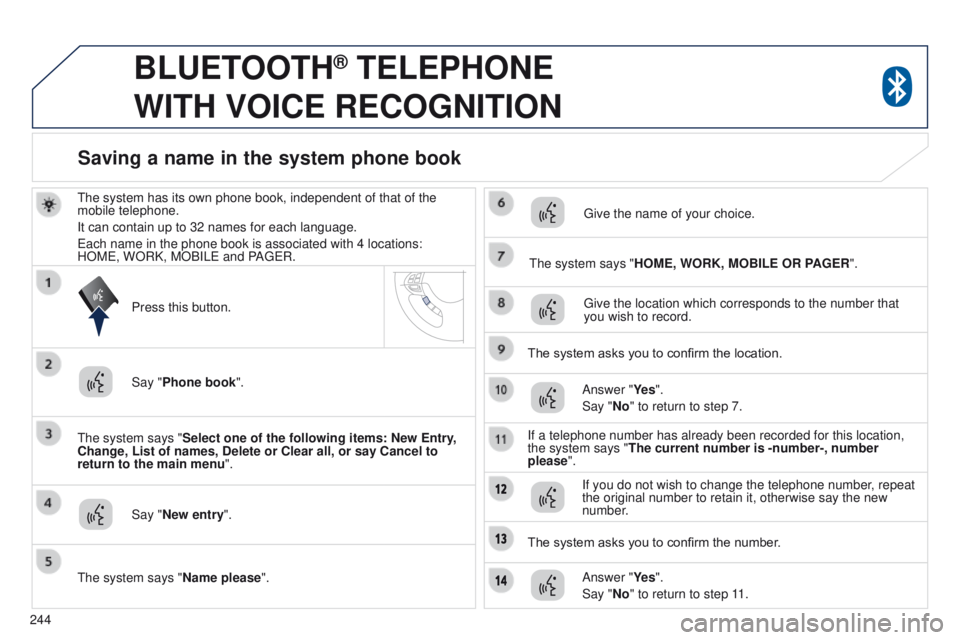
the system has its own phone book, independent of that of the
mobile telephone.
It can contain up to 32 names for each language.
e
ach name in the phone book is associated with 4 locations:
HOM
e , WORK, MOBIL e and PA ge R.
t
he system says "Select one of the following items: New Entry,
Change, List of names, Delete or Clear all, or say Cancel to
return to the main menu ".
Say "New entry".
t
he system says "HOME, WORK, MOBILE OR PAGER".
g
ive the location which corresponds to the number that
you wish to record.
The system asks you to confirm the location. Answer "Ye s ".
Say "No" to return to step 7.
If a telephone number has already been recorded for this location,
the system says "The current number is -number-, number
please".
Saving a name in the system phone book
Press this button.
Say "Phone book ".
t
he system says "Name please ".
g
ive the name of your choice.
If you do not wish to change the telephone number, repeat
the original number to retain it, otherwise say the new
number.
Answer "Ye s ".
Say "No" to return to step 11.
The system asks you to confirm the number.
Page 247 of 389
245
BLUETOOTH® TELEPHONE
WITH
VOICE
RECOGNITION
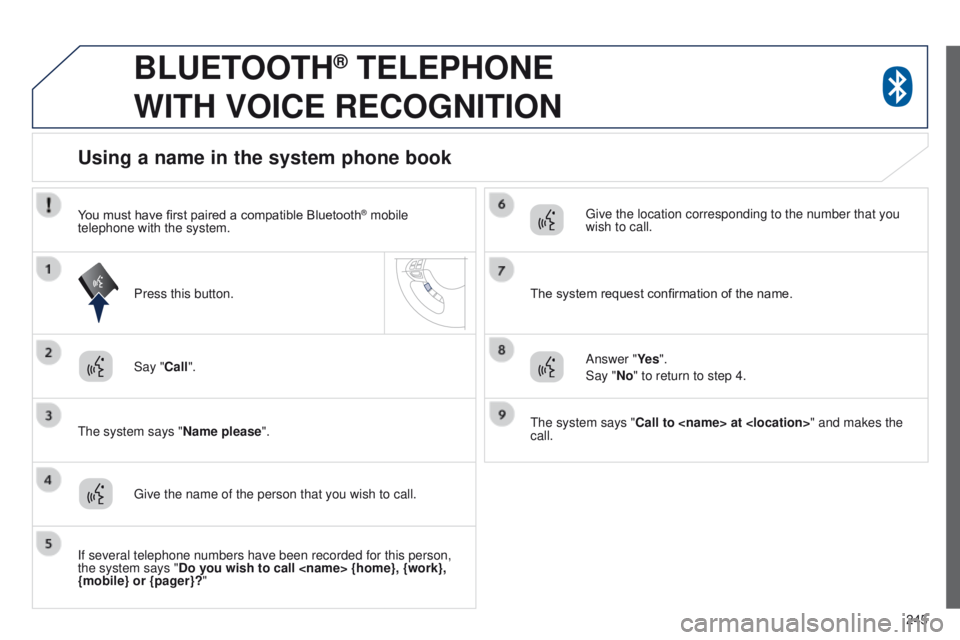
Say "Call".
t
he system says "Name please ".
Using a name in the system phone book
give the name of the person that you wish to call.
Press this button.
g
ive the location corresponding to the number that you
wish to call.
You must have first paired a compatible Bluetooth
® mobile
telephone with the system.
If several telephone numbers have been recorded for this person,
the system says "Do you wish to call
{mobile} or {pager}?" The system request confirmation of the name.
Answer "Ye s ".
Say "No" to return to step 4.
t
he system says "Call to
call.
Page 281 of 389
05
279
4008_en_Chap10b_Mitsu6_ed01-2014
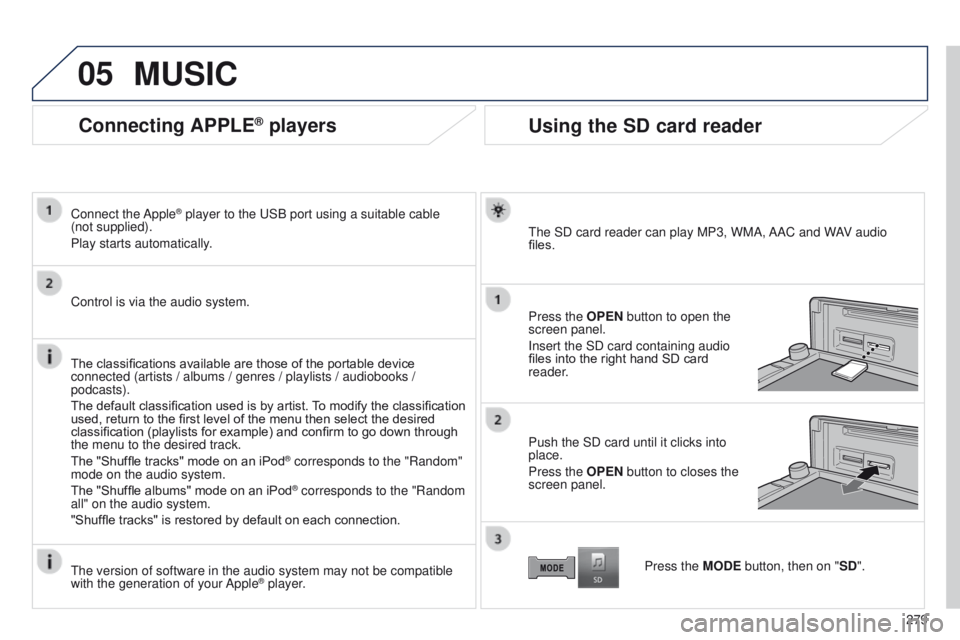
Connecting APPLE® players
Connect the Apple® player to the uSB port using a suitable cable
(not
supplied).
Play starts automatically.
Control is via the audio system.
The classifications available are those of the portable device
connected (artists / albums / genres / playlists / audiobooks /
podcasts).
The default classification used is by artist. To modify the classification
used, return to the first level of the menu then select the desired
classification (playlists for example) and confirm to go down through
the menu to the desired track.
The "Shuffle tracks" mode on an iPod
® corresponds to the "Random"
mode on the audio system.
The "Shuffle albums" mode on an iPod
® corresponds to the "Random
all" on the audio system.
"Shuffle tracks" is restored by default on each connection.
t
he version of software in the audio system may not be compatible
with the generation of your Apple
® player.
MUSIC
Using the SD card reader
the SD card reader can play MP3, WMA, AAC and WAV audio
files.
Press the
OPEN button to open the
screen panel.
Insert the SD card containing audio
files into the right hand SD card
reader.
Push the SD card until it clicks into
place.
Press the OPEN button to closes the
screen panel.
Press the MODE button, then on "SD".
Page 319 of 389
04
317
4008_en_Chap10d_Mitsu4_ed01-2014
RADIO
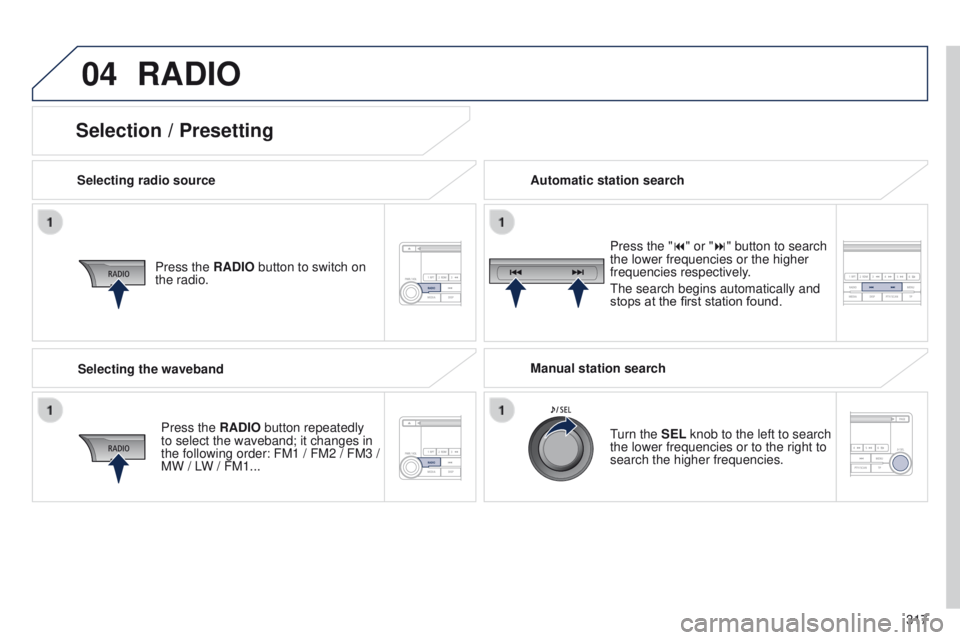
Selecting radio sourcePress the RADIO button to switch on
the radio.
Press the RADIO button repeatedly
to select the waveband; it changes in
the following order: FM1 / FM2 / FM3 /
MW / LW
/ FM1... Automatic station search
Manual station search
turn the
SEL knob to the left to search
the lower frequencies or to the right to
search the higher frequencies. Press the "9" or ":" button to search
the lower frequencies or the higher
frequencies respectively.
t
he search begins automatically and
stops at the first station found.
Selecting the waveband
Selection / Presetting
Page 320 of 389
04
318
4008_en_Chap10d_Mitsu4_ed01-2014
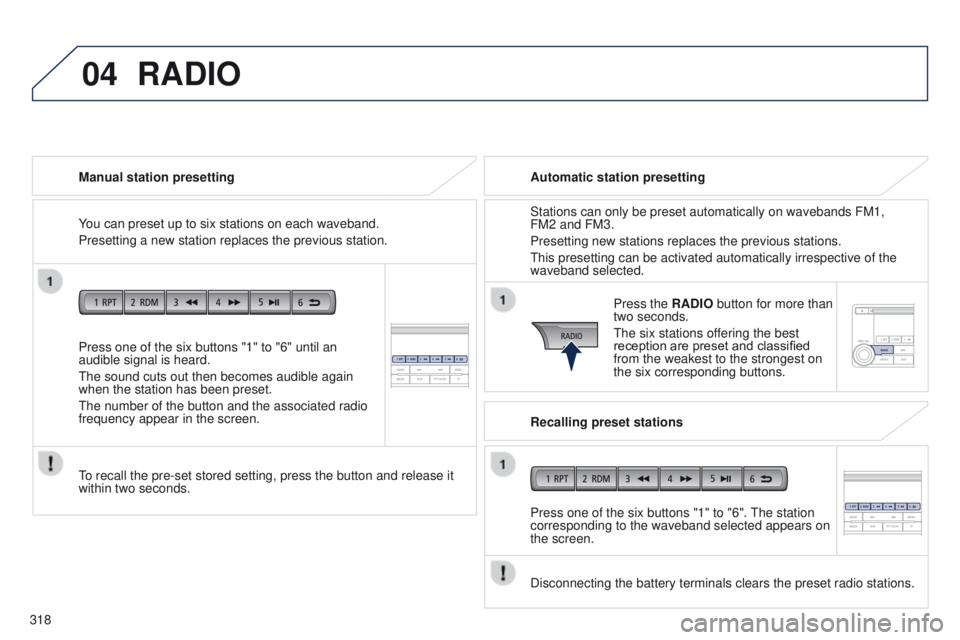
Press one of the six buttons "1" to "6" until an
audible signal is heard.
t
he sound cuts out then becomes audible again
when the station has been preset.
t
he number of the button and the associated radio
frequency appear in the screen. Manual station presetting
to recall the pre-set stored setting, press the button and release it
within two seconds.
RADIO
You can preset up to six stations on each waveband.
Presetting a new station replaces the previous station. Automatic station presetting
Disconnecting the battery terminals clears the preset radio stations. Stations can only be preset automatically on wavebands FM1,
FM2 and FM3.
Presetting new stations replaces the previous stations.
t
his presetting can be activated automatically irrespective of the
waveband selected.
Press the RADIO button for more than
two seconds.
t
he six stations offering the best
reception are preset and classified
from the weakest to the strongest on
the six corresponding buttons.
Recalling preset stations
Press one of the six buttons "1" to "6".
t
he station
corresponding to the waveband selected appears on
the screen.
Page 326 of 389
05
324
4008_en_Chap10d_Mitsu4_ed01-2014
MUSIC MEDIA PLAYERS
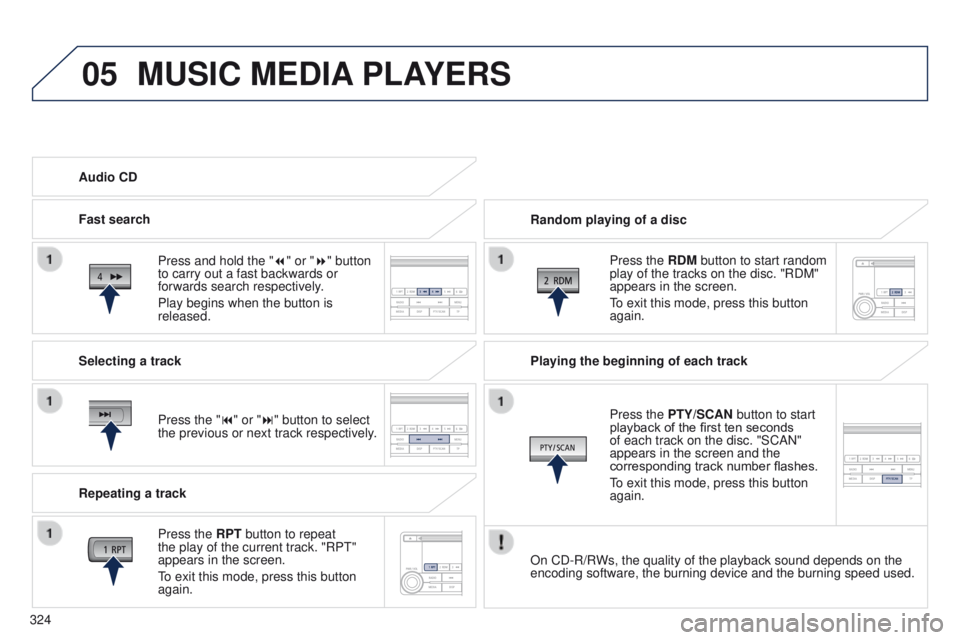
Random playing of a disc
Press the RDM button to start random
play of the tracks on the disc. "RDM"
appears in the screen.
to exit this mode, press this button
again.
Audio CD
Press and hold the " 7
" or "8" button
to carry out a fast backwards or
forwards search respectively.
Play begins when the button is
released.
Fast search
Press the "9" or ":" button to select
the previous or next track respectively.
Selecting a track
Press the RPT button to repeat
the play of the current track. "RP
t
"
appears in the screen.
to exit this mode, press this button
again.
Repeating a track Playing the beginning of each track
Press the
PTY/SCAN button to start
playback of the first ten seconds
of each track on the disc. "SCAN"
appears in the screen and the
corresponding track number flashes.
to exit this mode, press this button
again.
On CD-R/R
Ws, the quality of the playback sound depends on the
encoding software, the burning device and the burning speed used.
Page 328 of 389
05
326
4008_en_Chap10d_Mitsu4_ed01-2014
MUSIC MEDIA PLAYERS
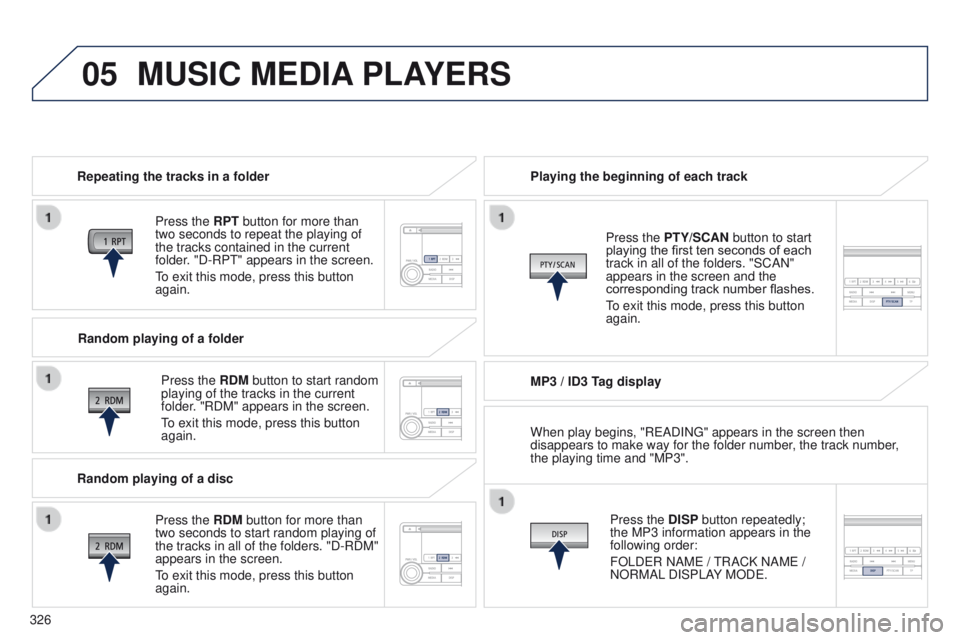
Repeating the tracks in a folder
Press the RPT button for more than
two seconds to repeat the playing of
the tracks contained in the current
folder. "D-RP
t " appears in the screen.
to exit this mode, press this button
again.
Press the
RDM button to start random
playing of the tracks in the current
folder. "RDM" appears in the screen.
to exit this mode, press this button
again. Playing the beginning of each track
MP3 / ID3 T
ag displayPress the DISP button repeatedly;
the MP3 information appears in the
following order:
FOLD
e R NAM e /
t
RACK NAM e /
NORMAL DISPLAY MOD
e .
Press the PTY/SCAN button to start
playing the first ten seconds of each
track in all of the folders. "SCAN"
appears in the screen and the
corresponding track number flashes.
to exit this mode, press this button
again.
Random playing of a folder
Random playing of a disc Press the
RDM button for more than
two seconds to start random playing of
the tracks in all of the folders. "D-RDM"
appears in the screen.
to exit this mode, press this button
again. When play begins, "R
e ADIN g " appears in the screen then
disappears to make way for the folder number, the track number,
the playing time and "MP3".
Page 331 of 389
06
329
4008_en_Chap10d_Mitsu4_ed01-2014
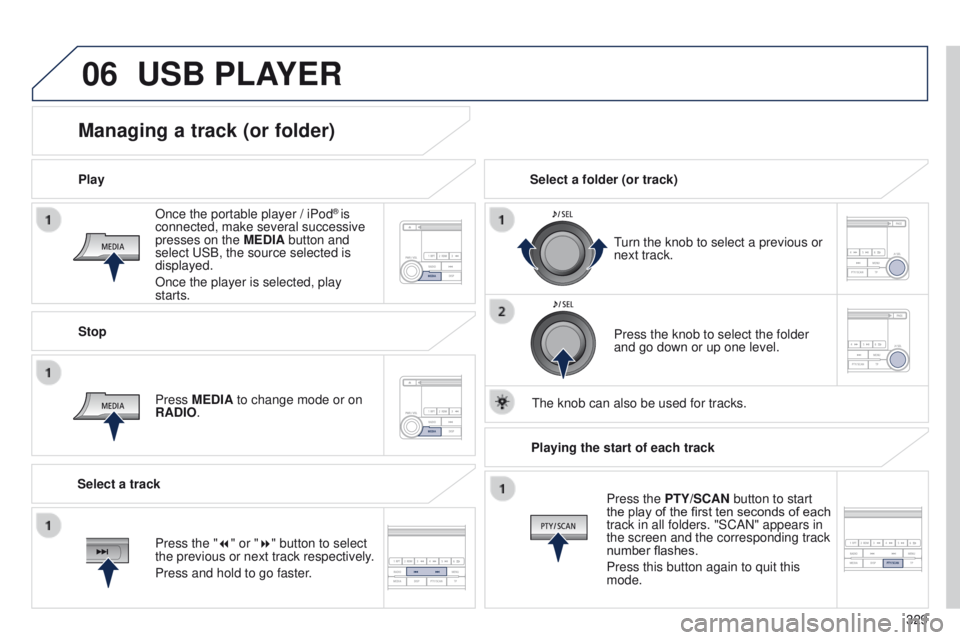
Once the portable player / iPod® is
connected, make several successive
presses on the MEDIA button and
select
u
SB, the source selected is
displayed.
Once the player is selected, play
starts.
Play
Managing a track (or folder)
Stop
Press MEDIA to change mode or on
RADIO.
turn the knob to select a previous or
next track.
Select a folder (or track)
Select a track Press the knob to select the folder
and go down or up one level.
t
he knob can also be used for tracks.
USB PLAYER
Press the "7" or "8" button to select
the previous or next track respectively.
Press and hold to go faster.Playing the start of each track
Press the PTY/SCAN button to start
the play of the first ten seconds of each
track in all folders. "SCAN" appears in
the screen and the corresponding track
number flashes.
Press this button again to quit this
mode.
Page 332 of 389
07
330
4008_en_Chap10d_Mitsu4_ed01-2014
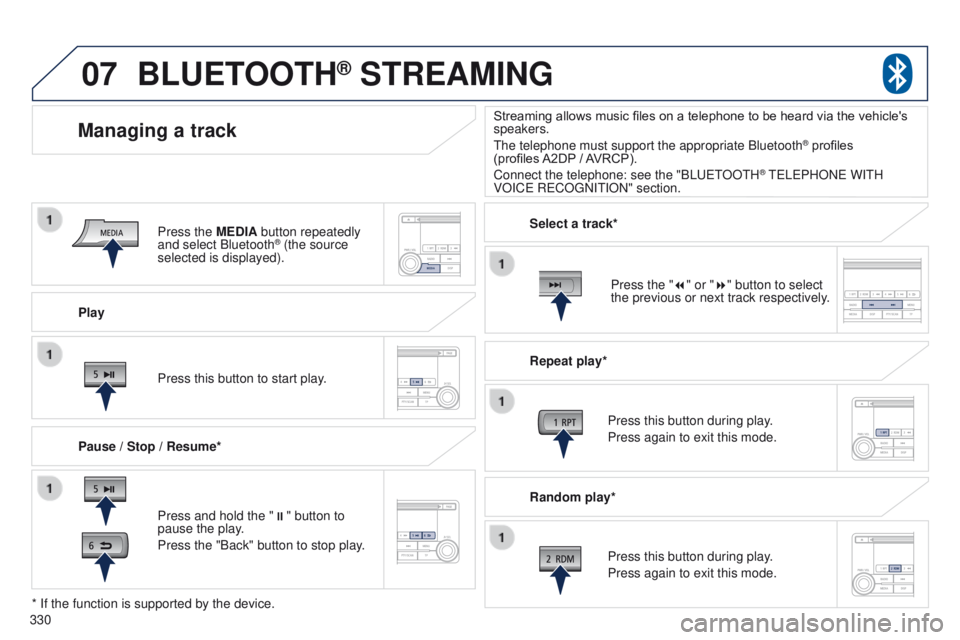
Play
Managing a track
Pause / Stop / Resume*
BLUETOOTH® STREAMING
Press and hold the ";" button to
pause the play.
Press the "Back" button to stop play. Press this button to start play. Select a track*
Repeat play*
Press this button during play.
Press again to exit this mode.
Press this button during play.
Press again to exit this mode.
* If the function is supported by the device. Random play*
Streaming allows music files on a telephone to be heard via the vehicle's
speakers.
t
he telephone must support the appropriate Bluetooth
® profiles
(profiles
A2DP
/ AVRCP).
Connect the telephone: see the "BL
uet
OO
t
H
® teLePHONe WItH
VOIC
e
R
e
CO
g
NI
t
ION" section.
Press the MEDIA button repeatedly
and select Bluetooth
® (the source
selected is displayed).
Press the "7" or "8" button to select
the previous or next track respectively.
Page 366 of 389
18
Monitoring
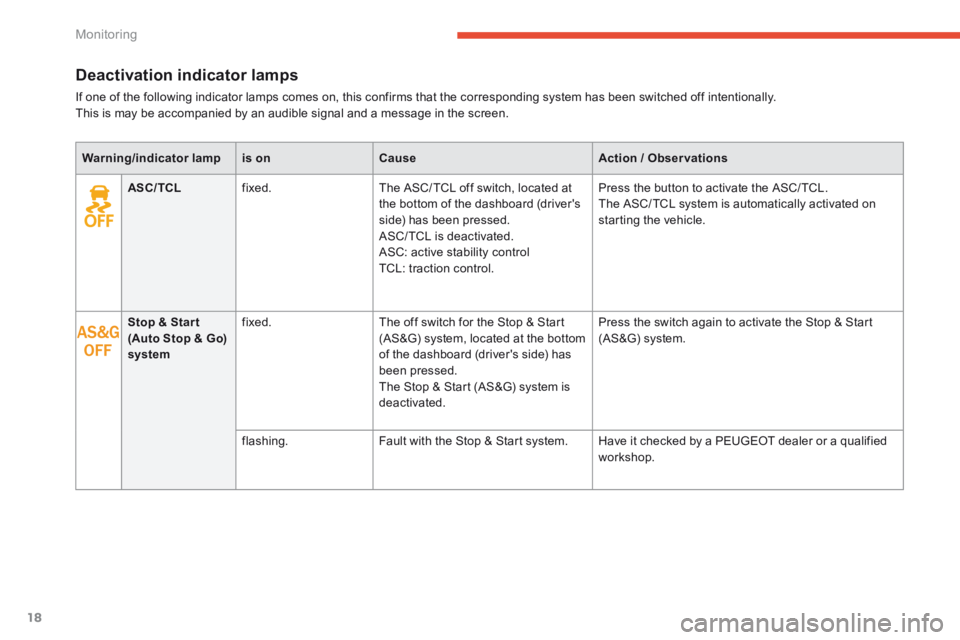
Deactivation indicator lamps
If one of the following indicator lamps comes on, this confirms that the corresponding system has been switched off intentionally. This is may be accompanied by an audible signal and a message in the screen.
Warning/indicator lampis onCauseAction / Observations
ASC/TCL fixed. The ASC/ TCL off switch, located at the bottom of the dashboard (driver's side) has been pressed. ASC/ TCL is deactivated. ASC: active stability control TCL: traction control.
Press the button to activate the ASC/ TCL. The ASC/ TCL system is automatically activated on starting the vehicle.
Stop & Star t (Auto Stop & Go) system
fixed. The off switch for the Stop & Start (AS&G) system, located at the bottom of the dashboard (driver's side) has been pressed. The Stop & Start (AS&G) system is deactivated.
Press the switch again to activate the Stop & Start (AS&G) system.
flashing. Fault with the Stop & Start system. Have it checked by a PEUGEOT dealer or a qualified workshop.