ad blue PEUGEOT 4008 2017 User Guide
[x] Cancel search | Manufacturer: PEUGEOT, Model Year: 2017, Model line: 4008, Model: PEUGEOT 4008 2017Pages: 368, PDF Size: 12.22 MB
Page 245 of 368
243
4008_en_Chap10a_Mitsu3_ed01-2016
BLUETOOTH® TELEPHONE
WITH
VOICE
RECOGNITION
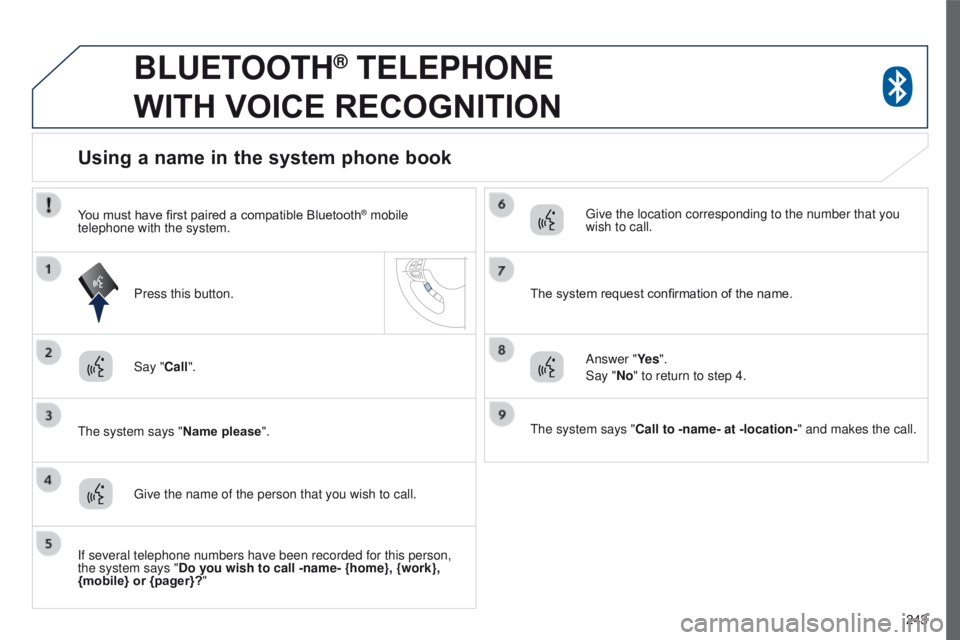
Say "Call".
t
he system says "Name please ".
Using a name in the system phone book
give the name of the person that you wish to call.
Press this button.
g
ive the location corresponding to the number that you
wish to call.
You must have first paired a compatible Bluetooth
® mobile
telephone with the system.
If several telephone numbers have been recorded for this person,
the system says "Do you wish to call -name- {home}, {work},
{mobile} or {pager}?" The system request confirmation of the name.
Answer "Ye s ".
Say "No" to return to step 4.
t
he system says "Call to -name- at -location -" and makes the call.
Page 246 of 368
244
4008_en_Chap10a_Mitsu3_ed01-2016
BLUETOOTH® TELEPHONE
WITH
VOICE
RECOGNITION
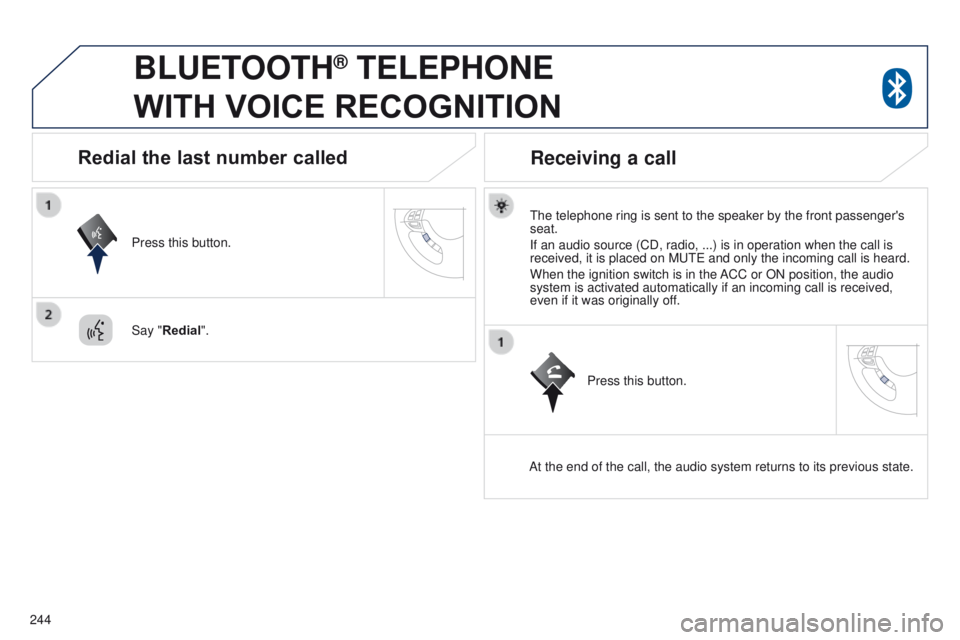
the telephone ring is sent to the speaker by the front passenger's
seat.
If an audio source (CD, radio, ...) is in operation when the call is
received, it is placed on M
ute and only the incoming call is heard.
When the ignition switch is in the ACC or ON position, the audio
system is activated automatically if an incoming call is received,
even if it was originally off.
At the end of the call, the audio system returns to its previous state.
Redial the last number called
Press this button.
Say "Redial".
Receiving a call
Press this button.
Page 247 of 368
245
4008_en_Chap10a_Mitsu3_ed01-2016
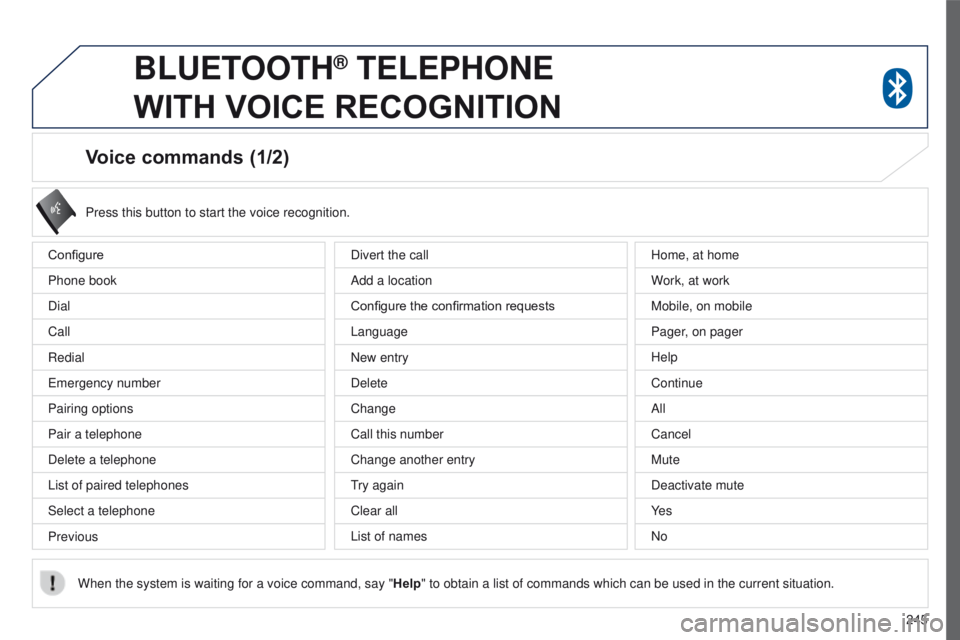
Voice commands (1/2)
Configure
Phone book
Dial
Call
Redial
e
mergency number
Pairing options
Pair a telephone
Delete a telephone
List of paired telephones
Select a telephone
Previous Press this button to start the voice recognition.
When the system is waiting for a voice command, say " Help" to obtain a list of commands which can be used in the current situatio\
n.
Divert the call
Add a location
Configure the confirmation requests
Language
New entry
Delete
Change
Call this number
Change another entry
try again
Clear all
List of names Home, at home
W
ork, at work
Mobile, on mobile
Pager, on pager
Help
Continue
All
Cancel
Mute
Deactivate mute
Ye s
No
BLUETOOTH® TELEPHONE
WITH
VOICE
RECOGNITION
Page 248 of 368
246
4008_en_Chap10a_Mitsu3_ed01-2016
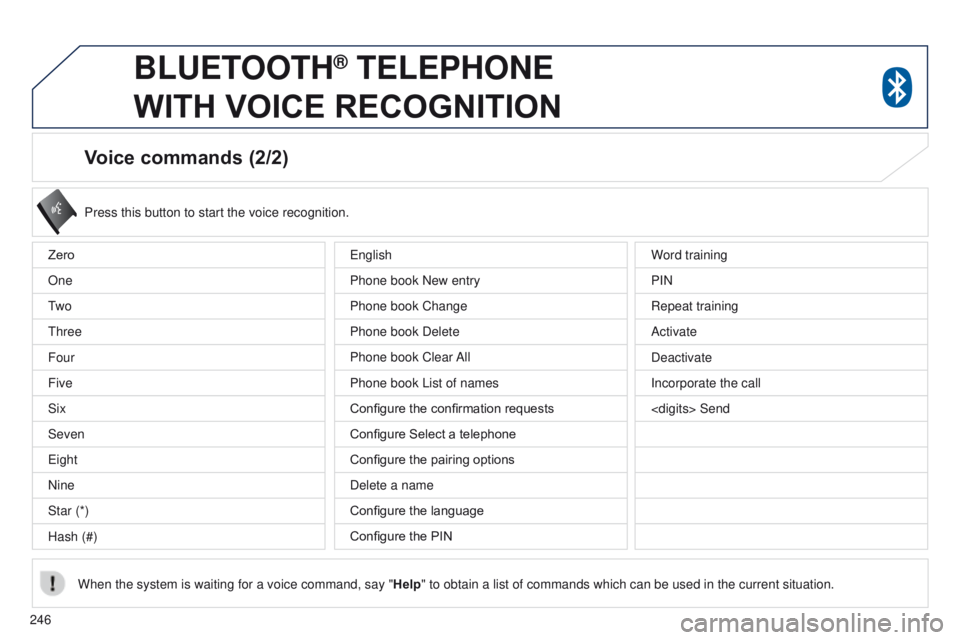
Voice commands (2/2)
Press this button to start the voice recognition.
When the system is waiting for a voice command, say " Help" to obtain a list of commands which can be used in the current situatio\
n.
Zero
One
t
w o
t
hree
Four
Five
Six
Seven
e
ight
Nine
Star (*)
Hash (#) Word training
PIN
Repeat training
Activate
Deactivate
Incorporate the call
e
nglish
Phone book New entry
Phone book Change
Phone book Delete
Phone book Clear All
Phone book List of names
Configure the confirmation requests
Configure Select a telephone
Configure the pairing options
Delete a name
Configure the language
Configure the PIN
BLUETOOTH® TELEPHONE
WITH
VOICE
RECOGNITION
BLUETOOTH® TELEPHONE WITH VOICE RECOGNITION
Page 249 of 368
247
4008_EN_CHAP10B_MITSU6_ED01-2016
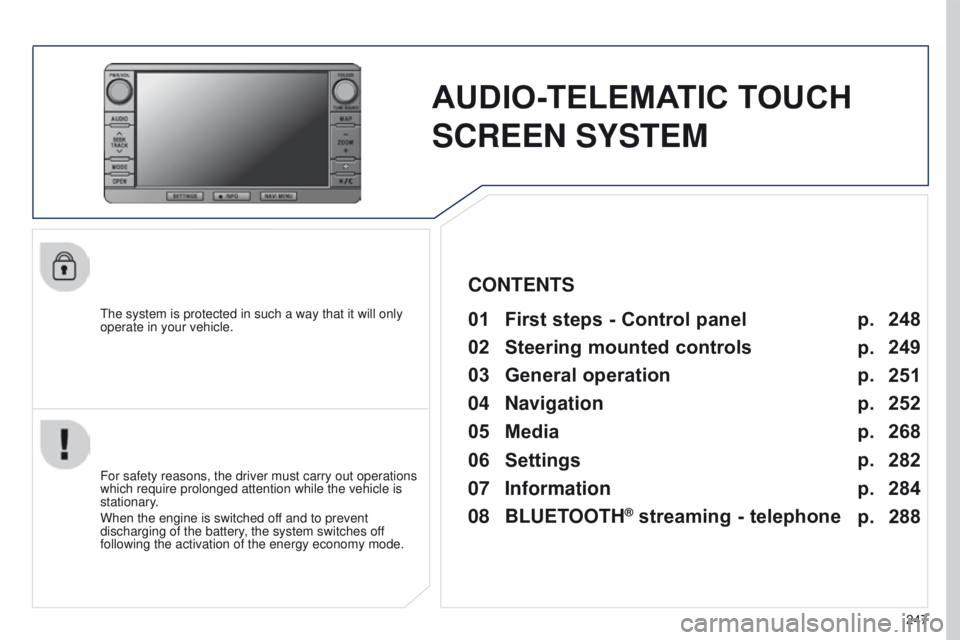
AUDIO-TELEMATIC TOUCH
SCREEN SYSTEM
the system is protected in such a way that it will only
operate in your vehicle.01 First steps - Control panel
For safety reasons, the driver must carry out operations
which require prolonged attention while the vehicle is
stationary.
When the engine is switched off and to prevent
discharging of the battery, the system switches off
following the activation of the energy economy mode.
CONTENTS
03
General
operation
04
Navigation
05
Media
06
Settings
07
Information p.
p.
p.
p.
p.
p.
p. 248
249
251
252
268
282
284
02
Steering
mounted controls p.
288
08
BLUETOOTH
® streaming - telephone
Page 251 of 368
02
249
4008_EN_CHAP10B_MITSU6_ED01-2016
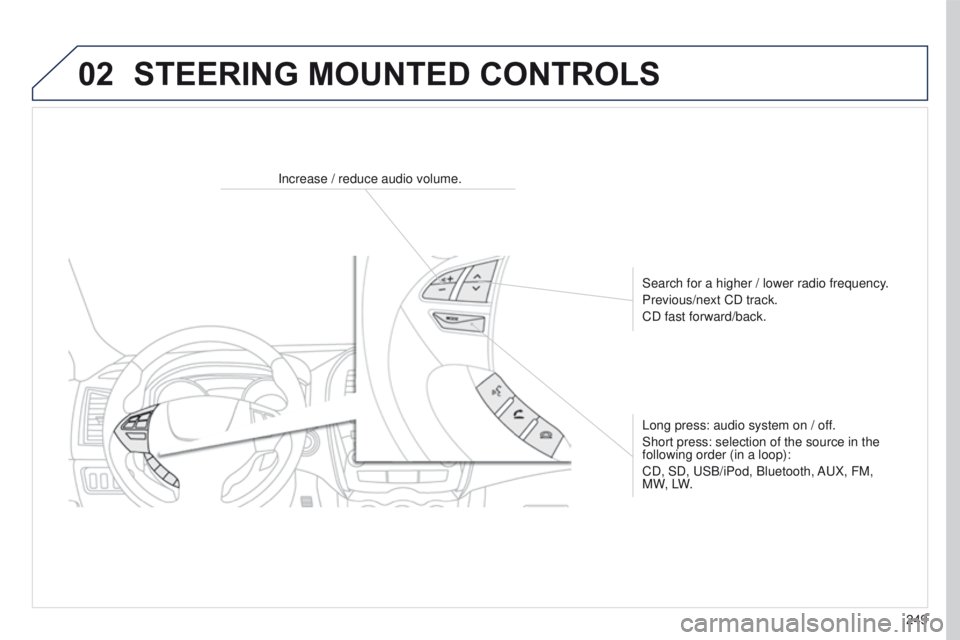
Increase / reduce audio volume.Search for a higher / lower radio frequency.
Previous/next CD track.
CD fast forward/back.
Long press: audio system on / off.
Short press: selection of the source in the
following order (in a loop):
CD, SD,
u SB/iPod, Bluetooth, A u X, FM,
M W, LW.
STEERING MOUNTED CONTROLS
Page 264 of 368
04
262
4008_EN_CHAP10B_MITSU6_ED01-2016
the satellite navigation system guides the driver to the destination
set in accordance with a chosen route.
Initially
, it searches for the destination required by the user, then
it calculates the route and finally it provides the visual and vocal
guidance instructions.
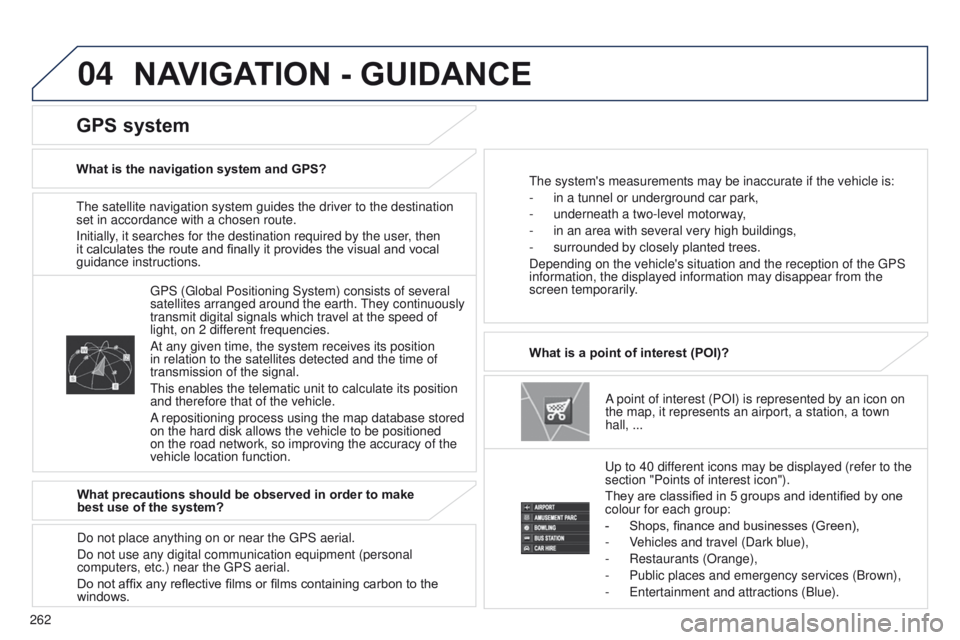
A point of interest (POI) is represented by an icon on
the map, it represents an airport, a station, a town
hall,
...
What is a point of interest (POI)?
u
p to 40 different icons may be displayed (refer to the
section "Points of interest icon").
They are classified in 5 groups and identified by one
colour for each group:
-
Shops, finance and businesses (Green),
-
V
ehicles and travel (Dark blue),
-
Restaurants (Orange),
-
Public places and emergency services (Brown),
-
e ntertainment and attractions (Blue).
g
PS ( g lobal Positioning System) consists of several
satellites arranged around the earth.
t
hey continuously
transmit digital signals which travel at the speed of
light, on 2 different frequencies.
At any given time, the system receives its position
in relation to the satellites detected and the time of
transmission of the signal.
t
his enables the telematic unit to calculate its position
and therefore that of the vehicle.
A repositioning process using the map database stored
on the hard disk allows the vehicle to be positioned
on the road network, so improving the accuracy of the
vehicle location function.
GPS system
What is the navigation system and GPS?t he system's measurements may be inaccurate if the vehicle is:
-
in a tunnel or underground car park,
-
underneath a two-level motorway
,
-
in an area with several very high buildings,
-
surrounded by closely planted trees.
Depending on the vehicle's situation and the reception of the
g PS
information, the displayed information may disappear from the
screen temporarily.
What precautions should be observed in order to make
best use of the system?
Do not place anything on or near the
g PS aerial.
Do not use any digital communication equipment (personal
computers, etc.) near the
g PS aerial.
Do not affix any reflective films or films containing carbon to the
windows.
NAVIGATION - GUIDANCE
Page 266 of 368
04
264
4008_EN_CHAP10B_MITSU6_ED01-2016
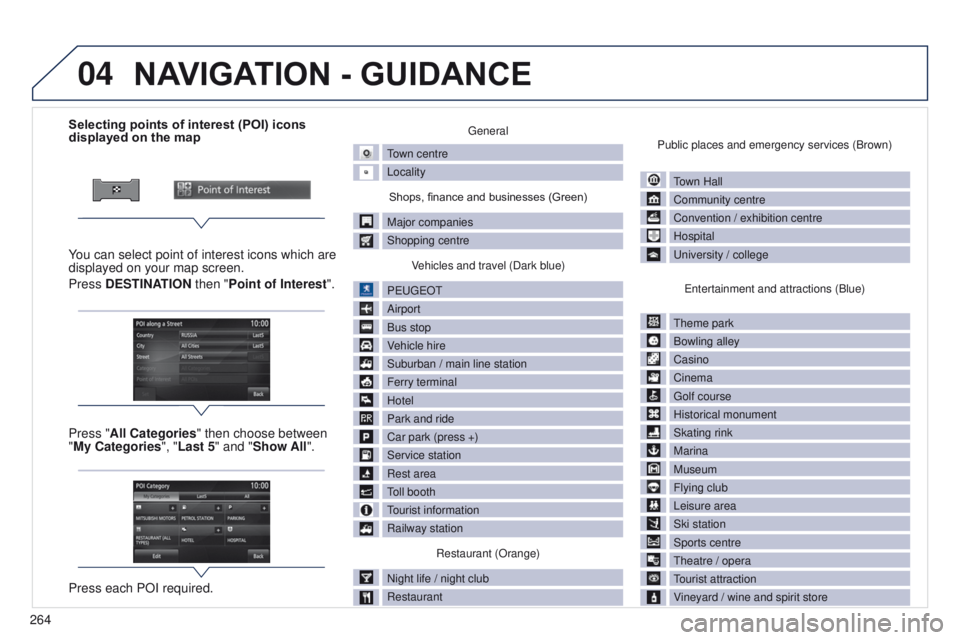
Selecting points of interest (POI) icons
displayed on the map
You can select point of interest icons which are
displayed on your map screen.
Press DESTINATION then "Point of Interest ".
Press "All Categories" then choose between
"My Categories", "Last 5" and "Show All".
Press each POI required.general
town centre
Locality
Shops, finance and businesses (Green)
Major companies
Shopping centre V
ehicles and travel (Dark blue)
P
euge
O
t
Airport
Bus stop
V
ehicle hire
Suburban / main line station
Ferry terminal
Hotel
Park and ride
Car park (press +)
Service station
Rest area
toll booth
tourist information
Railway station
Restaurant (Orange)
Night life / night club
Restaurant Public places and emergency services (Brown)
town Hall
Community centre
Convention / exhibition centre
Hospital
u
niversity / college
e
ntertainment and attractions (Blue)
t
heme park
Bowling alley
Casino
Cinema
g
olf course
Historical monument
Skating rink
Marina
Museum
Flying club
Leisure area
Ski station
Sports centre
t
heatre / opera
tourist attraction
V
ineyard / wine and spirit store
NAVIGATION - GUIDANCE
Page 269 of 368
04
267
4008_EN_CHAP10B_MITSU6_ED01-2016
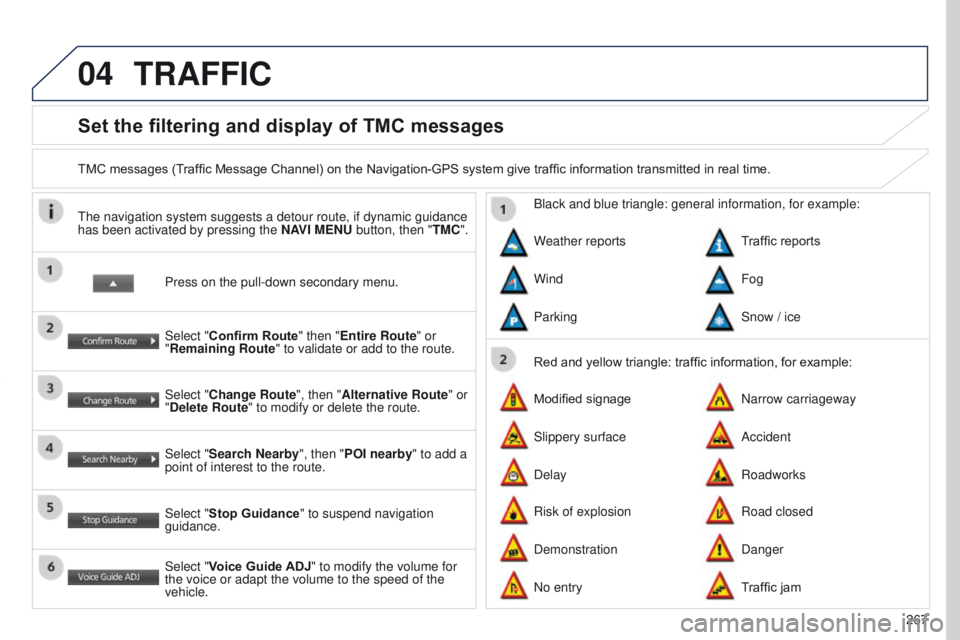
Set the filtering and display of TMC messages
TMC messages (Traffic Message Channel) on the Navigation-GPS system give traffic information transmitted in real time.Press on the pull-down secondary menu.
t
he navigation system suggests a detour route, if dynamic guidance
has been activated by pressing the NAVI MENU button, then "TMC".
Select "Confirm Route" then "Entire Route" or
"Remaining Route" to validate or add to the route.
Select "Change Route", then "Alternative Route" or
"Delete Route" to modify or delete the route.
Select "Search Nearby ", then "POI nearby" to add a
point of interest to the route.
Select "Stop Guidance " to suspend navigation
guidance.
Select "Voice Guide ADJ" to modify the volume for
the voice or adapt the volume to the speed of the
vehicle. Red and yellow triangle: traffic information, for example:
Black and blue triangle: general information, for example:
Weather reports
Modified signage
Risk of explosion Traffic reports
Narrow carriageway
Road closed
Wind
Slippery surface
Demonstration Fog
Accident
Danger
Parking
Delay
No entry Snow / ice
Roadworks
Traffic jam
TRAFFIC
Page 273 of 368
271
4008_EN_CHAP10B_MITSU6_ED01-2016
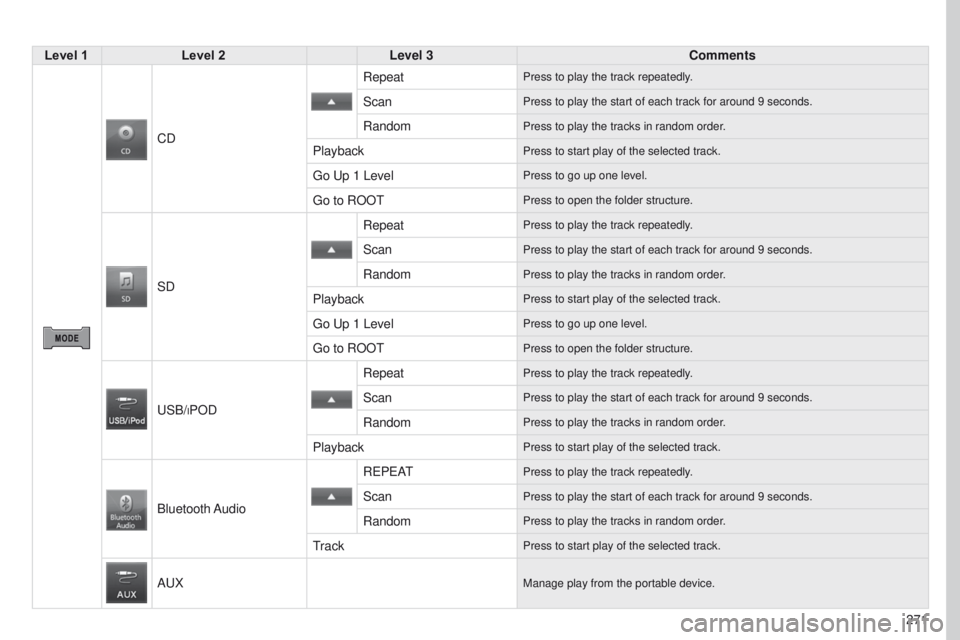
Level 1Level 2 Level 3 Comments
CD Repeat
Press to play the track repeatedly.
ScanPress to play the start of each track for around 9 seconds.
RandomPress to play the tracks in random order.
PlaybackPress to start play of the selected track.
go up 1 LevelPress to go up one level.
go to ROOtPress to open the folder structure.
SDRepeat
Press to play the track repeatedly.
ScanPress to play the start of each track for around 9 seconds.
RandomPress to play the tracks in random order.
PlaybackPress to start play of the selected track.
go up 1 LevelPress to go up one level.
go to ROOtPress to open the folder structure.
uSB/iPOD
RepeatPress to play the track repeatedly.
ScanPress to play the start of each track for around 9 seconds.
RandomPress to play the tracks in random order.
PlaybackPress to start play of the selected track.
Bluetooth Audio
Re P e A
tPress to play the track repeatedly.
ScanPress to play the start of each track for around 9 seconds.
RandomPress to play the tracks in random order.
trackPress to start play of the selected track.
AuXManage play from the portable device.