navigation PEUGEOT 5008 2013 Owner's Guide
[x] Cancel search | Manufacturer: PEUGEOT, Model Year: 2013, Model line: 5008, Model: PEUGEOT 5008 2013Pages: 364, PDF Size: 16.24 MB
Page 277 of 364
275
The system is protected in such a way that it will onlyoperate in your vehicle.
PEUGEOT CONNECT NAVIGATION (RT6)
01 First steps - Control panel
For safety reasons, the driver must carry out operations
which require prolonged attention while the vehicle is stationary.
When the en
gine is switched off and to prevent
discharging of the battery, the system switches off following the activation of the energy economy mode.
CONTENTS
02 Steerin
g mounted controls
03 General o
peration
04 Navi
gation - Guidance
05 Traffic information
06 Usin
g the telephone
07 Radio
08 Music media pla
yers
09 Audio settin
gs
10 Confi
guration
11 Screen menu ma
p
p.
p.
p.
p.
p.
p.
p.
p.
p.
p.
p.
276
278
279
281
294
297
307
3
10
3
16
317
3
18
SATELLITE NAVIGATION SYSTEM
MULTIMEDIA BLUETOOTH
TELEPHONE AUDIO SYSTEM
Frequentl
y asked questions p. 322
Page 278 of 364
276
01 FIRST STEPS
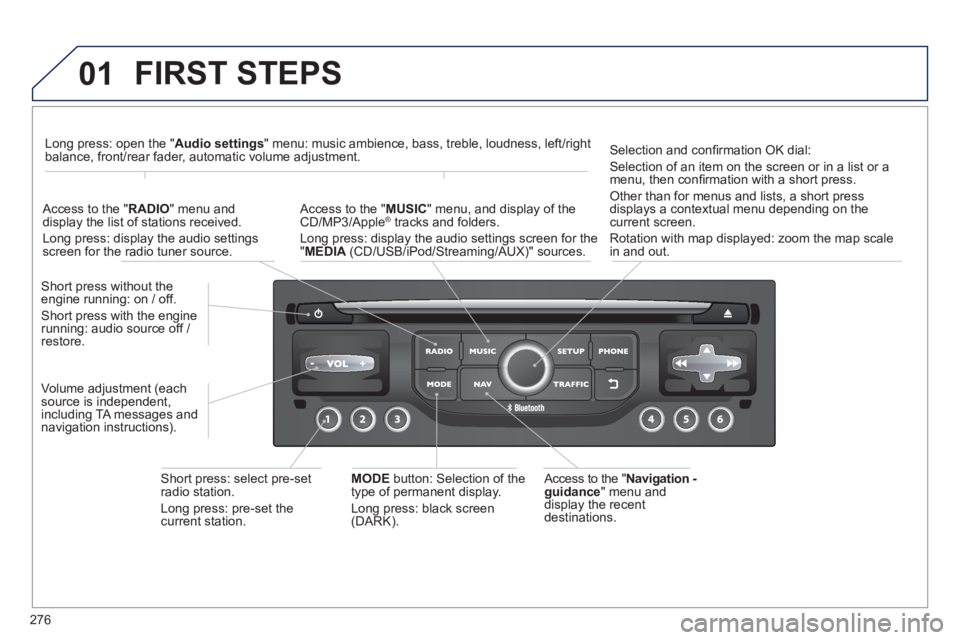
Access to the "Navigation -guidance
" menu anddisplay the recentdestinations. Short
press without the engine running: on / off.
Short press with the enginerunning: audio source off / restore.
Short press: select pre-set radio station.
Lon
g press: pre-set thecurrent station.
MODE
button: Selection of the
type of permanent display.
Lon
g press: black screen(DARK).
A
ccess to the " MUSIC
" menu, and display of the CD/MP3/Apple®
tracks and folders. ®
Long press: display the audio settings screen for the"MEDIA
(CD/USB/iPod/Streaming/AUX)" sources.
Long press: open the "Audio settings" menu: music ambience, bass, treble, loudness, left/right
balance, front/rear fader, automatic volume adjustment.
A
ccess to the "RADIO
" menu anddisplay the list of stations received.
Lon
g press: display the audio settingsscreen for the radio tuner source.
Selection and confi rmation OK dial:
Selection of an item on the screen or in a list or a
menu, then confi rmation with a short press.
Other than for menus and lists, a short press
displays a contextual menu depending on the current screen.
Rotation with map displa
yed: zoom the map scalein and out.
Volume ad
justment (each
source is independent,
includin
g TA messages and
navigation instructions).
Page 279 of 364
277
01
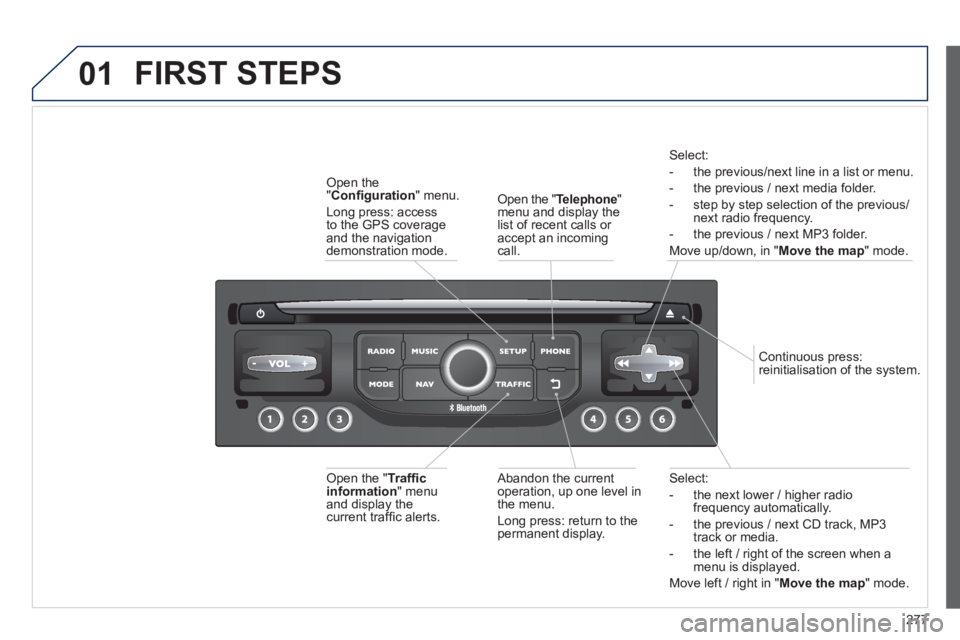
Select:
- the next lower / hi
gher radiofrequency automatically.
- the previous
/ next CD track, MP3
track or media.
- the le
ft / right of the screen when a menu is displayed.
Move left / ri
ght in "Move the map
" mode.
Abandon the current
operation, up one level in
t
he menu.
Long press: return to the permanent display.
Continuous
press:
reinitialisation of the system.
Open the " Telephone"menu and display thelist of recent calls or
accept an incoming call.
Open the
"Confi guration
" menu.
Lon
g press: access
to the GPS coverageand the navigation demonstration mode.
Open the "Traffi c information " menuand display thecurrent traffi c alerts.
Select:
- the previous
/next line in a list or menu.
- the previous
/ next media folder.
- step b
y step selection of the previous/next radio frequency.
- the previous / next MP3 folder.
Move up/down, in "
Move the map " mode.
FIRST STEPS
Page 281 of 364
279
03
For a detailed global view of the menus available, refer to the
"Screen menu map" section.
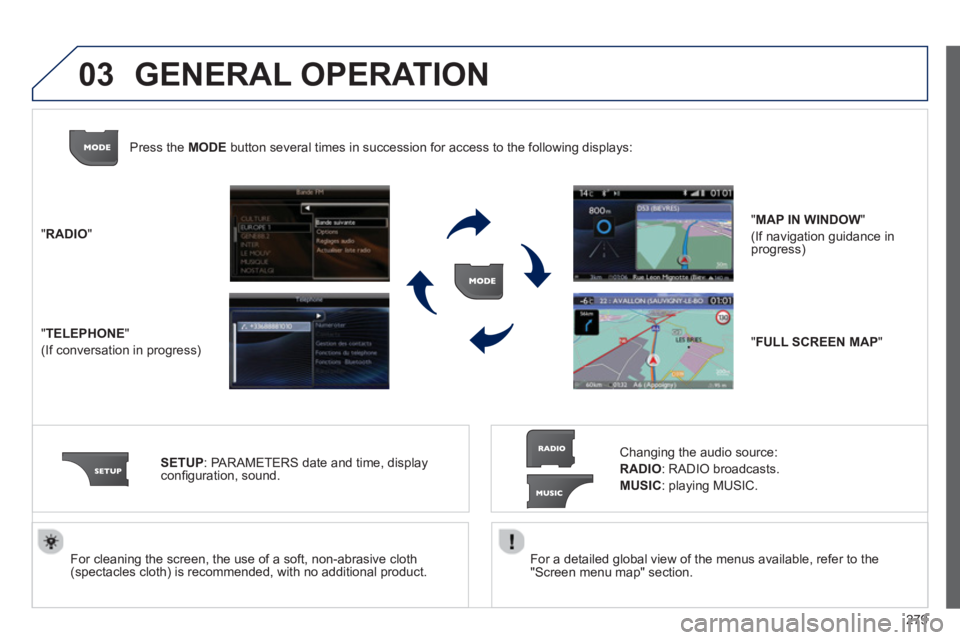
For cleaning the screen, the use of a soft, non-abrasive cloth (spectacles cloth) is recommended, with no additional product. "RADIO
"
"
TELEPHONE"
(If conversation in progress)
SETUP:
PARAMETER
S
date and time, displayconfi guration, sound.
Changing the audio source:
RADIO:
RADIO broadcasts.
MUSIC: playing MUSIC. Pr
ess the MODE button several times in succession for access to the following displays:
GENERAL OPERATION
"FULL SCREEN MAP"
"MAP IN WINDOW"
(If navigation guidance in progress)
Page 283 of 364
281
04
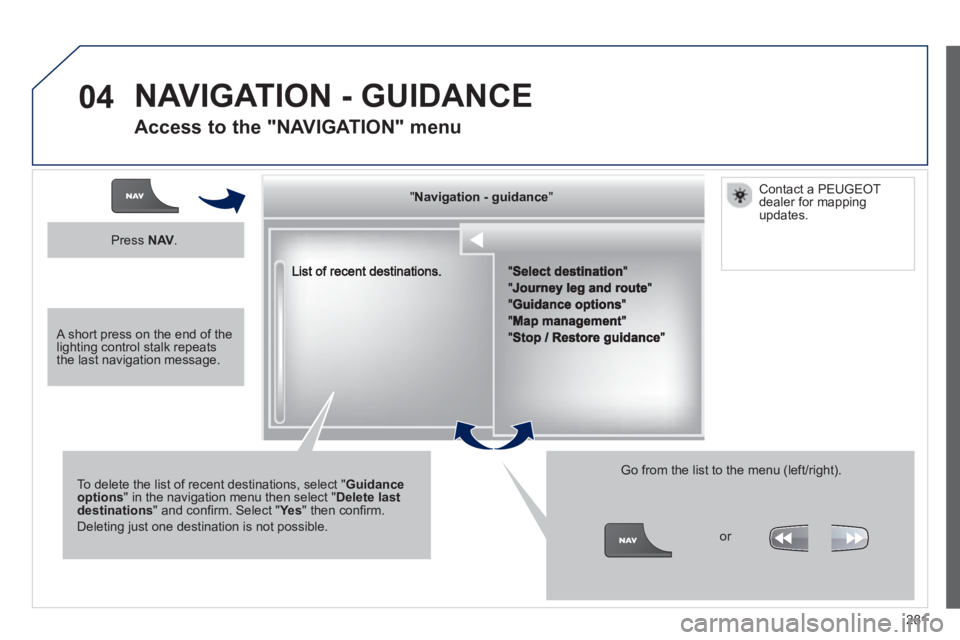
"""""""ggggggggggNavigation guidanceNavigation guidanceNavigation guidanceNavigation guidanceNavigation guidanceNavigation - guidanceNavigation - guidanceNavigation - guidanceNavigation - guidanceNavigation guidanceNavigation guidanceNavigation guidanceNavigation guidanceNavigation guidanceN i ti idN i ti idN i ti idN i ti idN i ti id"""""""
To delete the list of recent destinations, select "Guidance options" in the navigation menu then select "Delete last destinations" and confi rm. Select "Ye s" then confi rm.
Deleting just one destination is not possible.
Go from the list to the menu (left/right).
NAVIGATION - GUIDANCE
Access to the "NAVIGATION" menu
Press NAV .
or
Contact a PEUGEOT
dealer for mappingupdates.
A short press on the end of thelighting control stalk repeats the last navigation message.
Page 284 of 364
282
04
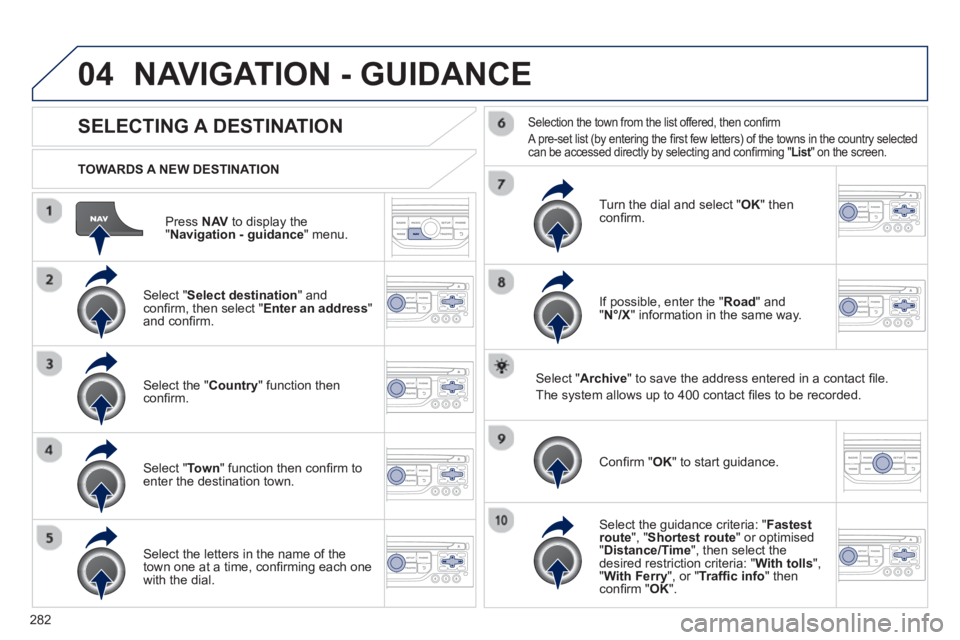
Press NAVto display the"Navigation - guidance " menu.
TOWARDS A NEW DESTINATION
NAVIGATION - GUIDANCE
SELECTING A DESTINATION
Select "Select destination
" and confi rm, then select " Enter an address"and confi rm.
Select the " Country
" function then confi rm.
Select "Town" function then confi rm to enter the destination town.
Select the letters in the name of the
town one at a time, confi rming each one
with the dial.
Selection the town from the list offered, then confi rm
A pre-set list (by entering the fi rst few letters) of the towns in the country selected can be accessed directly by selecting and confi rming " List" on the screen. t
Turn the dial and select "OK" thenconfi rm.
If possible, enter the "
Road
" and "N°/X
" information in the same way.
Select "Archive
" to save the address entered in a contact fi le.
The s
ystem allows up to 400 contact fi les to be recorded.
Confi rm " OK
" to start guidance.
Select the guidance criteria: "Fastest
route", " Shortest route" or optimised "Distance/Time ", then select thedesired restriction criteria: "With tolls","With Ferry", or "Traffi c info" thenconfi rm "OK".
Page 285 of 364
283
04
SELECTING A DESTINATION
NAVIGATION - GUIDANCE
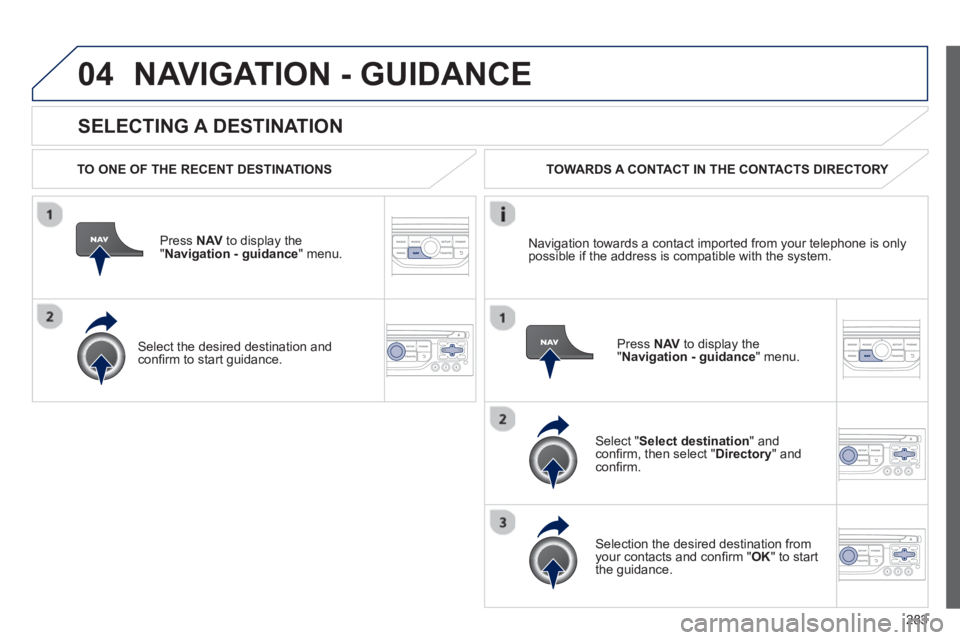
TO ONE OF THE RECENT DESTINATIONS
Press NAV
to display the"Navigation - guidance" menu.
Select the desired destination and confi rm to start guidance. TOWARDS A CONTACT IN THE CONTACTS DIRECTORY
Select " Select destination" andconfi rm, then select " Directory " and confi rm.
Selection the desired destination from your contacts and confi rm "OK
" to start
the guidance.
Pr
ess NAVto display the"Navigation - guidance
" menu. Navi
gation towards a contact imported from your telephone is only
possible if the address is compatible with the system.
Page 286 of 364
284
04
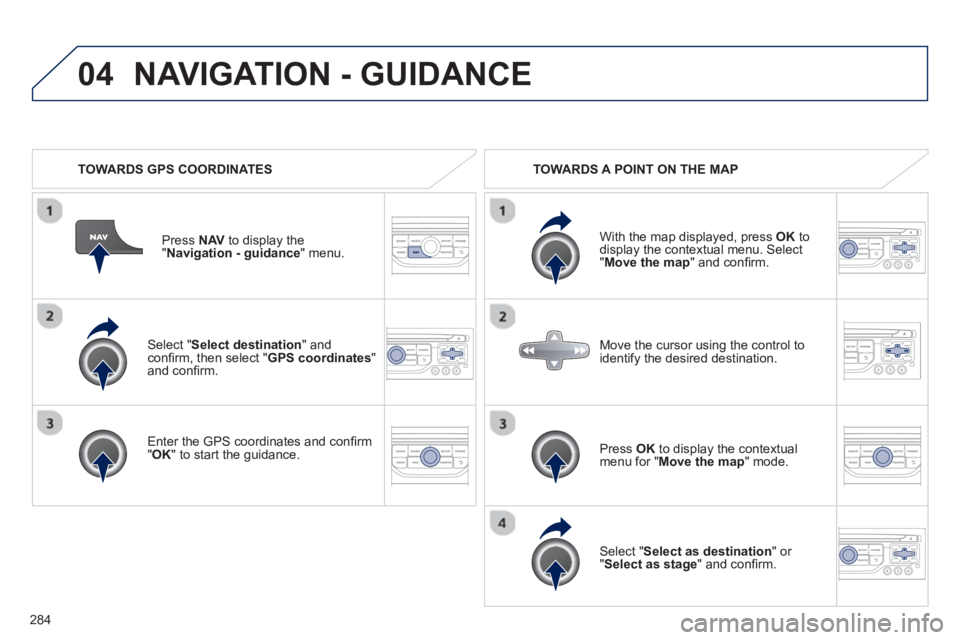
Select "Select destination" andconfi rm, then select " GPS coordinates
"and confi rm.
Enter the
GPS coordinates and confi rm "OK " to start the guidance. Pr
ess NAV
to display the
"Navigation - guidance" menu.
NAVIGATION - GUIDANCE
TOWARDS GPS COORDINATES TOWARDS A POINT ON THE MAP
With the map displa
yed, press OKto
display the contextual menu. Select"Move the map
" and confi rm.
Pr
ess OK
to display the contextual
menu for " Move the map " mode.
Select " Select as destination
" or "Select as stage" and confi rm. Move the cursor usin
g the control to
identify the desired destination.
Page 287 of 364
285
04
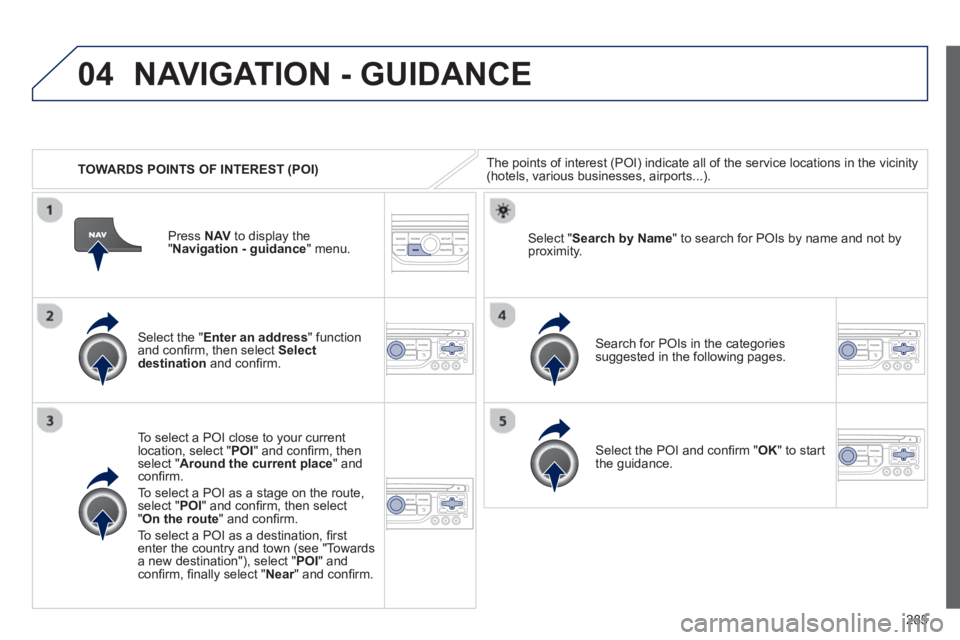
TOWARDS POINTS OF INTEREST (POI)
NAVIGATION - GUIDANCE
The points of interest (POI) indicate all of the service locations in the vicinity(hotels, various businesses, airports...).
Select the " Enter an address
" function
and confi rm, then select Select
destinationand confi rm.
To select a P
OI close to your currentlocation, select "POI" and confi rm, thenselect " Around the current place
" and confi rm.
To select a P
OI as a stage on the route,select " POI" and confi rm, then select"On the route
" and confi rm.
To select a P
OI as a destination, fi rst enter the country and town (see "Towards
a new destination"), select "POI" andconfi rm, fi nally select "Near" and confi rm.r
Search for POIs in the categories
suggested in the following pages.
Select " Search by Name
" to search for POIs by name and not byproximity.
Select the POI and confi rm " OK" to start
the guidance. Pr
ess NAV
to display the
"Navigation - guidance" menu.
Page 288 of 364
286
04
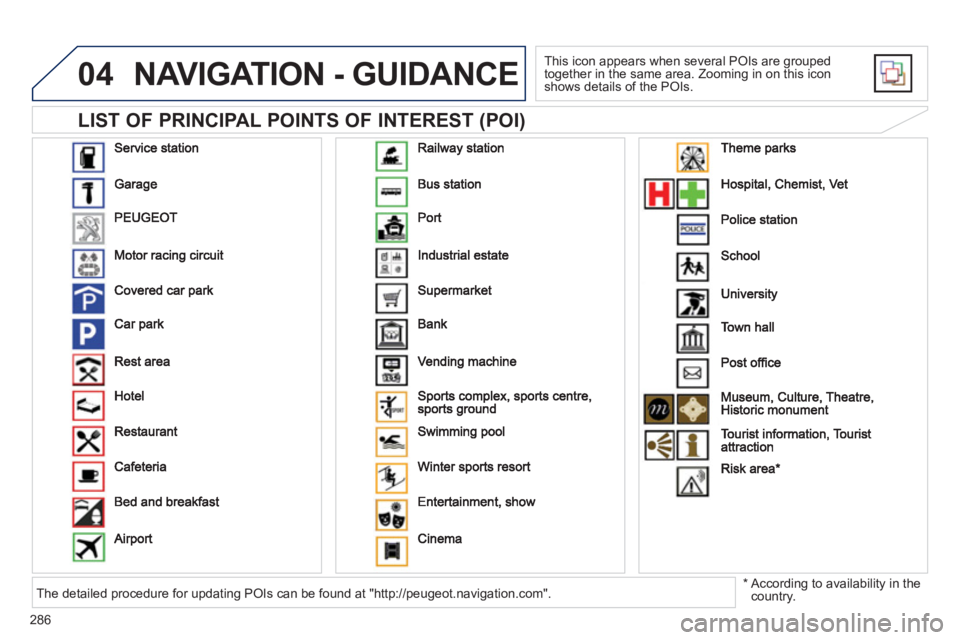
LIST OF PRINCIPAL POINTS OF INTEREST (POI)
NAVIGATION - GUIDANCE
This icon appears when several POIs are grouped
together in the same area. Zooming in on this icon shows details of the POIs.
*
According to availability in the country. The detailed procedure for updating POIs can be found at "http://peugeot.navigation.com".