display PEUGEOT 5008 2015.5. Owners Manual
[x] Cancel search | Manufacturer: PEUGEOT, Model Year: 2015.5., Model line: 5008, Model: PEUGEOT 5008 2015.5.Pages: 364, PDF Size: 12.82 MB
Page 292 of 364
04
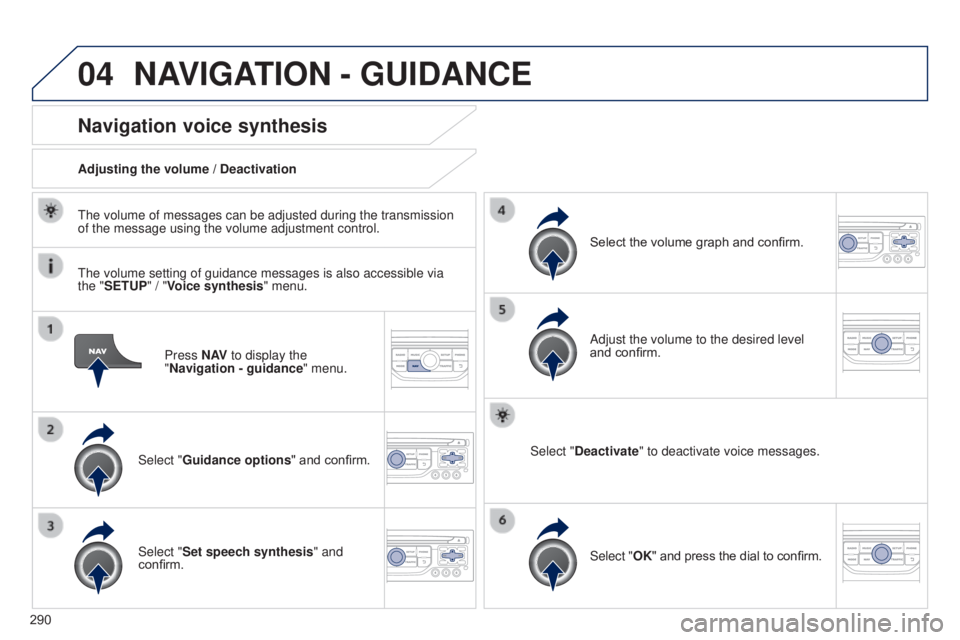
290Press N AV
to display the
"Navigation - guidance " menu.
Navigation voice synthesis
Select "Guidance options " and confirm.
Adjusting the volume / Deactivation
Select "Set speech synthesis" and
confirm. Select the volume graph and confirm.
Select "Deactivate " to deactivate voice messages.
Select "OK" and press the dial to confirm. Adjust the volume to the desired level
and confirm.
The volume of messages can be adjusted during the transmission
of the message using the volume adjustment control.
The volume setting of guidance messages is also accessible via
the "SETUP" / "
Voice synthesis" menu.
NAVIGATION - GUIDANCE
Page 293 of 364
04
291
Male voice / Female voice
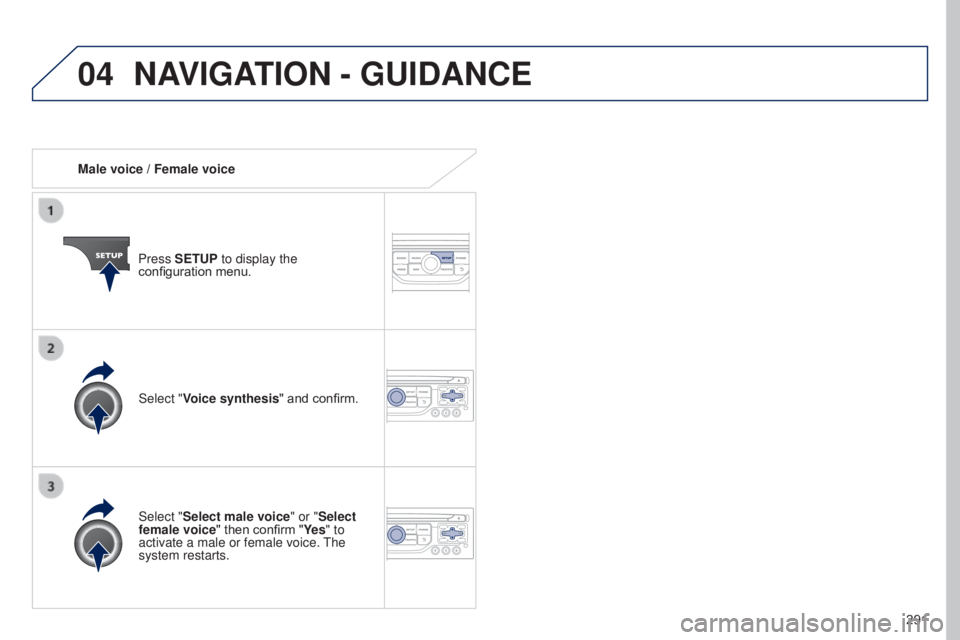
Press SETUP to display the
configuration menu.
Select "Select male voice" or "Select
female voice" then confirm "Ye s " to
activate a male or female voice. The
system restarts. Select "Voice synthesis" and confirm.
NAVIGATION - GUIDANCE
Page 294 of 364
05
292
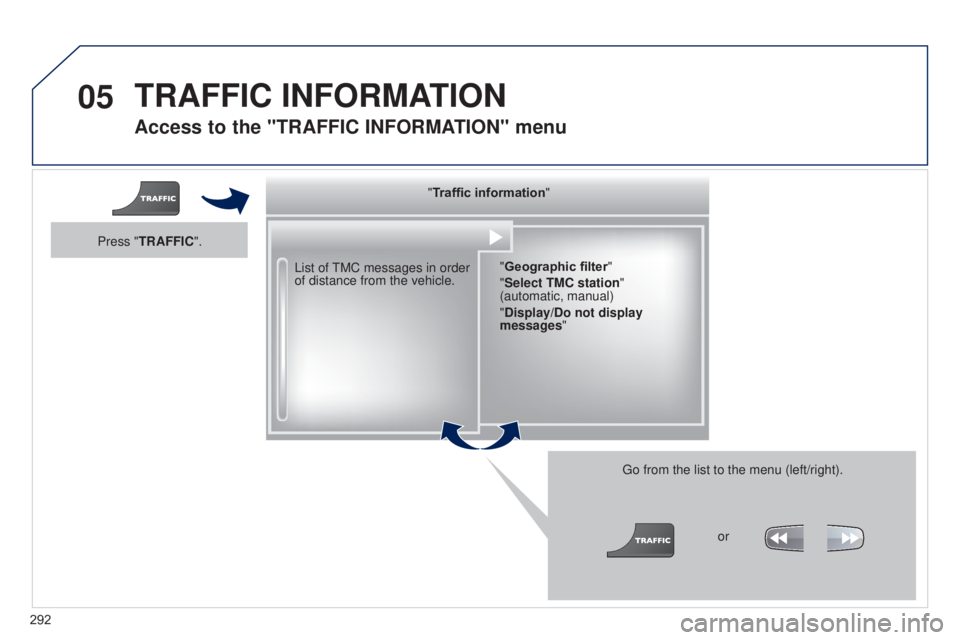
Access to the "TRAFFIC INFORMATION " menu
List of TMC messages in order
of distance from the vehicle.
Go from the list to the menu (left/right).
"Traffic information"
"Geographic filter "
"Select TMC station"
(automatic, manual)
"Display/Do not display
messages "
or
Press "TRAFFIC".
TRAFFIC INFORMATION
Page 295 of 364
05
293
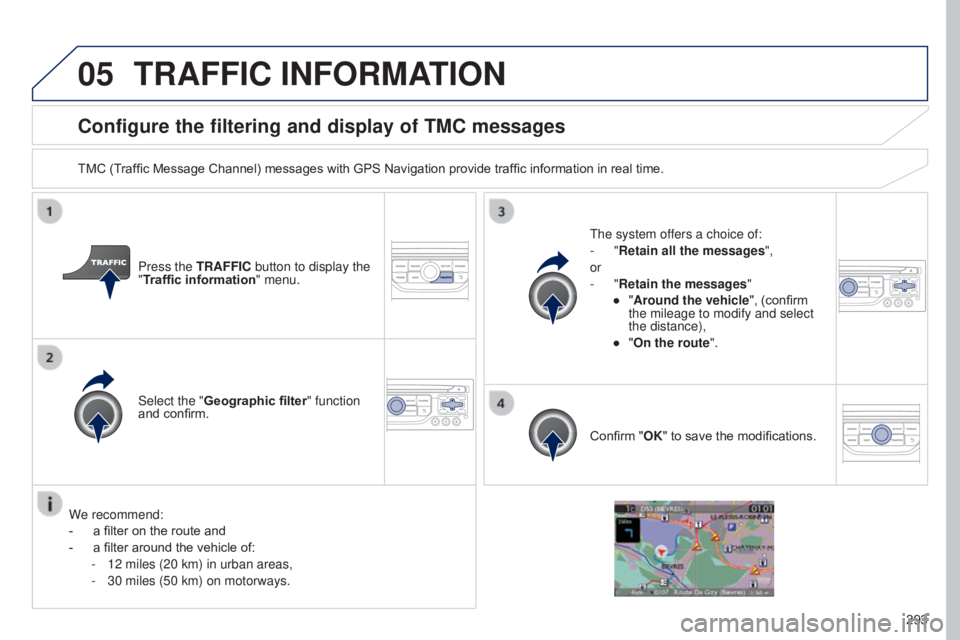
Configure the filtering and display of TMC messages
TMC (Traffic Message Channel) messages with GPS Navigation provide traffic information in real time.Press the TRAFFIC button to display the
"Traffic information" menu.
Select the "Geographic filter" function
and confirm. The system offers a choice of:
-
"Retain all the messages",
or
-
"Retain the messages"
●
"
Around the vehicle", (confirm
the mileage to modify and select
the distance),
●
"
On the route".
Confirm "OK" to save the modifications.
We recommend:
-
a filter on the route and
-
a filter around the vehicle of:
-
12 miles (20 km) in urban areas,
-
30 miles (50 km) on motorways.
TRAFFIC INFORMATION
Page 296 of 364
05
294
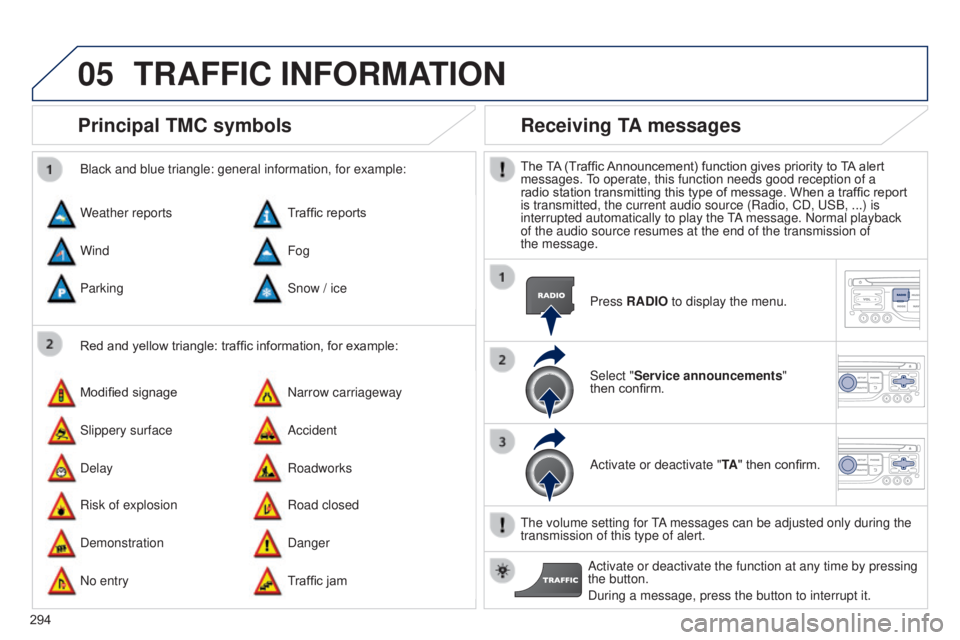
Principal TMC symbols
Red and yellow triangle: traffic information, for example:
Black and blue triangle: general information, for example:
Weather reports
Modified signage
Risk of explosion Traffic reports
Narrow carriageway
Road closed
Wind
Slippery surface
Demonstration Fog
Accident
Danger
Parking
Delay
No entry Snow / ice
Roadworks
Traffic jam
Receiving TA messages
The TA (Traffic Announcement) function gives priority to TA alert
messages. To operate, this function needs good reception of a
radio station transmitting this type of message. When a traffic report
is transmitted, the current audio source (Radio, CD, USB, ...) is
interrupted automatically to play the TA message. Normal playback
of the audio source resumes at the end of the transmission of
the
message. Press RADIO to display the menu.
Select "Service announcements"
then
confirm.
Activate or deactivate "TA " then confirm.
The volume setting for TA messages can be adjusted only during the
transmission of this type of alert. Activate or deactivate the function at any time by pressing
the button.
During a message, press the button to interrupt it.
TRAFFIC INFORMATION
Page 297 of 364
06
295
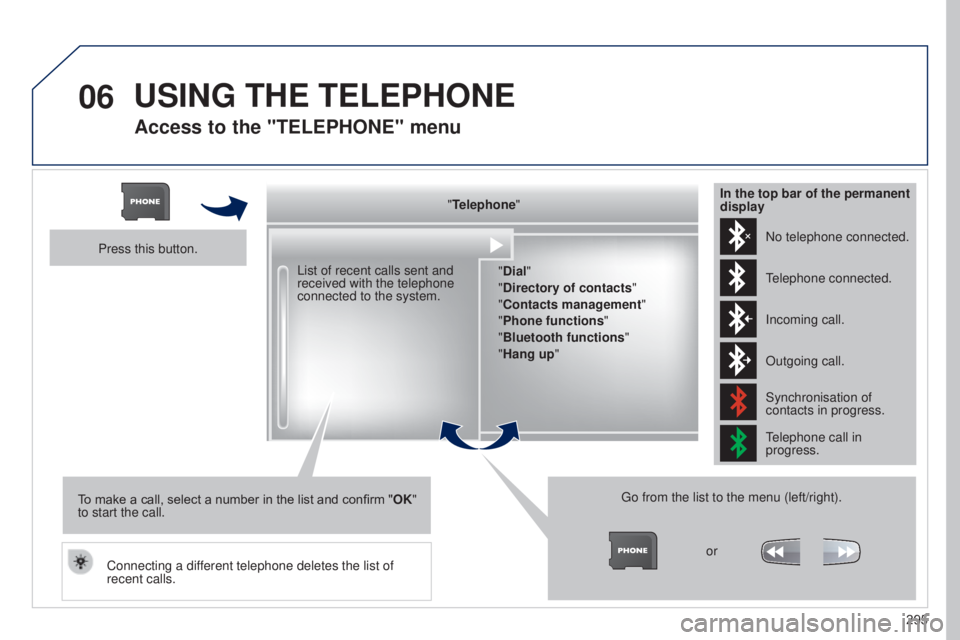
Access to the "TELEPHONE" menu
"Telephone""Dial"
"Directory of contacts"
"Contacts management "
"Phone functions "
"Bluetooth functions "
"Hang up "
Go from the list to the menu (left/right). or
List of recent calls sent and
received with the telephone
connected to the system.
Press this button.
To make a call, select a number in the list and confirm " OK"
to start the call.
Connecting a different telephone deletes the list of
recent calls. No telephone connected.
Telephone connected.
Incoming call.
Outgoing call.
Synchronisation of
contacts in progress.
Telephone call in
progress.
In the top bar of the permanent
display
USING THE TELEPHONE
Page 298 of 364
06
296
USING THE TELEPHONE
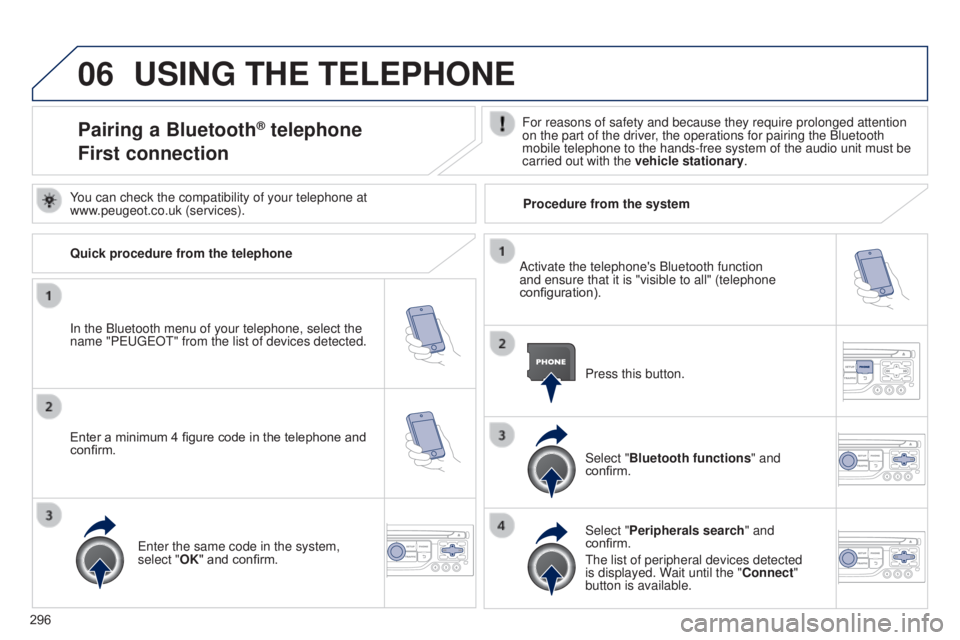
Pairing a Bluetooth® telephone
First connectionFor reasons of safety and because they require prolonged attention
on the part of the driver, the operations for pairing the Bluetooth
mobile telephone to the hands-free system of the audio unit must be
carried out with the vehicle stationary.
In the Bluetooth menu of your telephone, select the
name "PEUGEOT" from the list of devices detected. Press this button.
Select "Bluetooth functions" and
confirm.
Select "Peripherals search " and
confirm.
The list of peripheral devices detected
is displayed. Wait until the "Connect"
button is available.
You can check the compatibility of your telephone at
www.peugeot.co.uk (services).
Activate the telephone's Bluetooth function
and ensure that it is "visible to all" (telephone
configuration).
Quick procedure from the telephone
Enter a minimum 4 figure code in the telephone and
confirm.
Enter the same code in the system,
select "OK" and confirm. Procedure from the system
Page 300 of 364
06
298
USING THE TELEPHONE
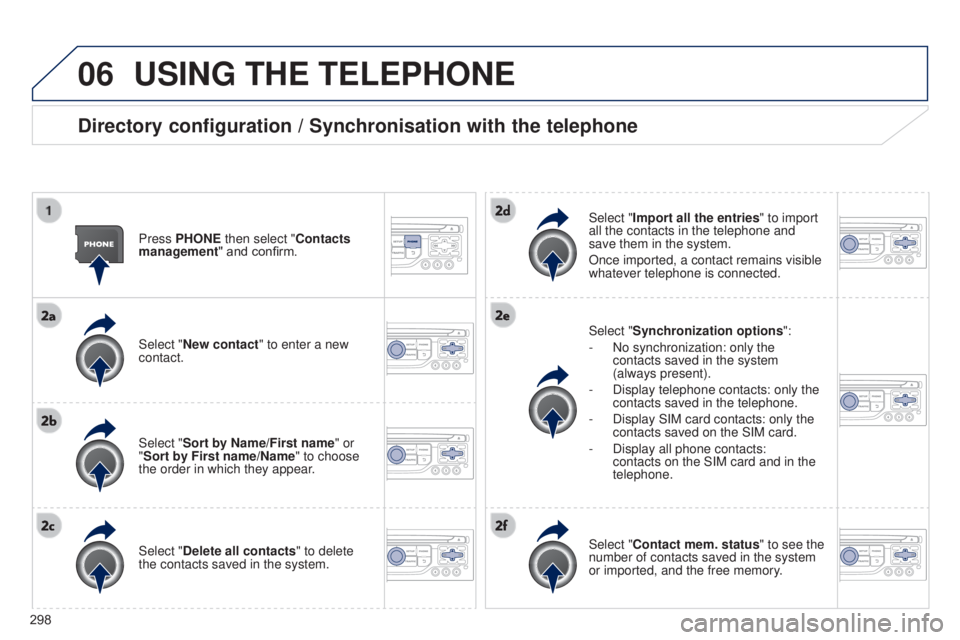
Directory configuration / Synchronisation with the telephone
Press PHONE then select "Contacts
management" and confirm.
Select "New contact" to enter a new
contact.
Select "Sort by Name/First name" or
"Sort by First name/Name" to choose
the order in which they appear.
Select "Delete all contacts" to delete
the contacts saved in the system.Select "Synchronization options
":
-
No synchronization: only the
contacts saved in the system
(always present).
-
Display telephone contacts: only the
contacts saved in the telephone.
-
Display SIM card contacts: only the
contacts saved on the SIM card.
-
Display all phone contacts:
contacts on the SIM card and in the
telephone.
Select "
Import all the entries" to import
all the contacts in the telephone and
save them in the system.
Once imported, a contact remains visible
whatever telephone is connected.
Select "Contact mem. status" to see the
number of contacts saved in the system
or imported, and the free memory.
Page 303 of 364
06
301
USING THE TELEPHONE
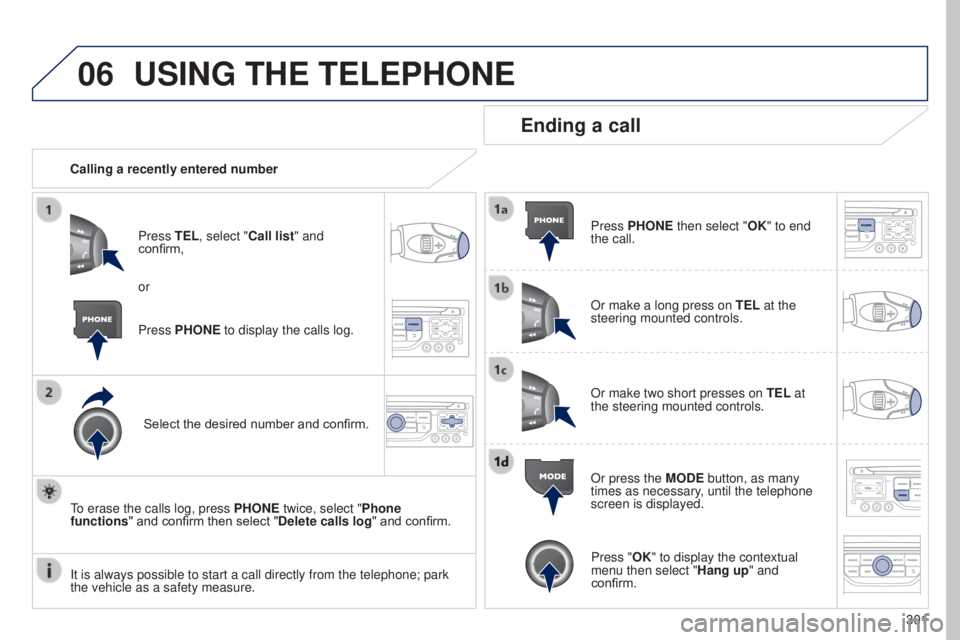
Calling a recently entered numberPress TEL, select "Call list" and
confirm,
Select the desired number and confirm.
To erase the calls log, press PHONE twice, select "Phone
functions" and confirm then select "Delete calls log" and confirm.
Ending a call
Press PHONE then select "OK" to end
the call.
Or make a long press on TEL at the
steering mounted controls.
Or make two short presses on TEL at
the steering mounted controls.
Or press the MODE button, as many
times as necessary, until the telephone
screen is displayed.
Press PHONE to display the calls log. or
Press "OK" to display the contextual
menu then select "Hang up" and
confirm.
It is always possible to start a call directly from the telephone; park \
the vehicle as a safety measure.
Page 304 of 364
06
302
USING THE TELEPHONE
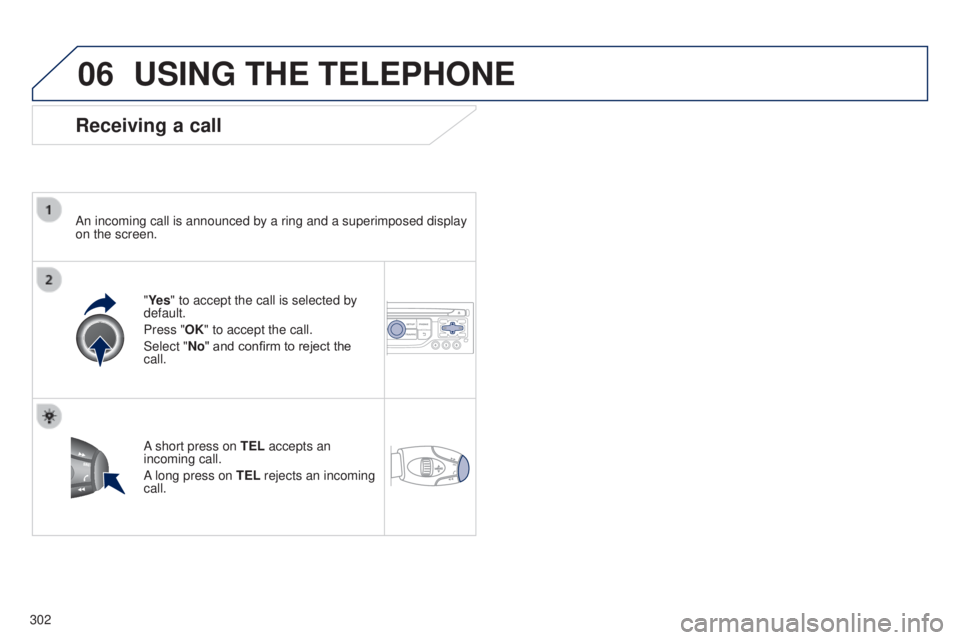
Receiving a call
An incoming call is announced by a ring and a superimposed display
on the screen."Ye s" to accept the call is selected by
default.
Press "OK" to accept the call.
Select "No" and confirm to reject the
call.
A short press on TEL accepts an
incoming call.
A long press on TEL rejects an incoming
call.