display PEUGEOT 5008 2015.5. Owners Manual
[x] Cancel search | Manufacturer: PEUGEOT, Model Year: 2015.5., Model line: 5008, Model: PEUGEOT 5008 2015.5.Pages: 364, PDF Size: 12.82 MB
Page 305 of 364
06
303
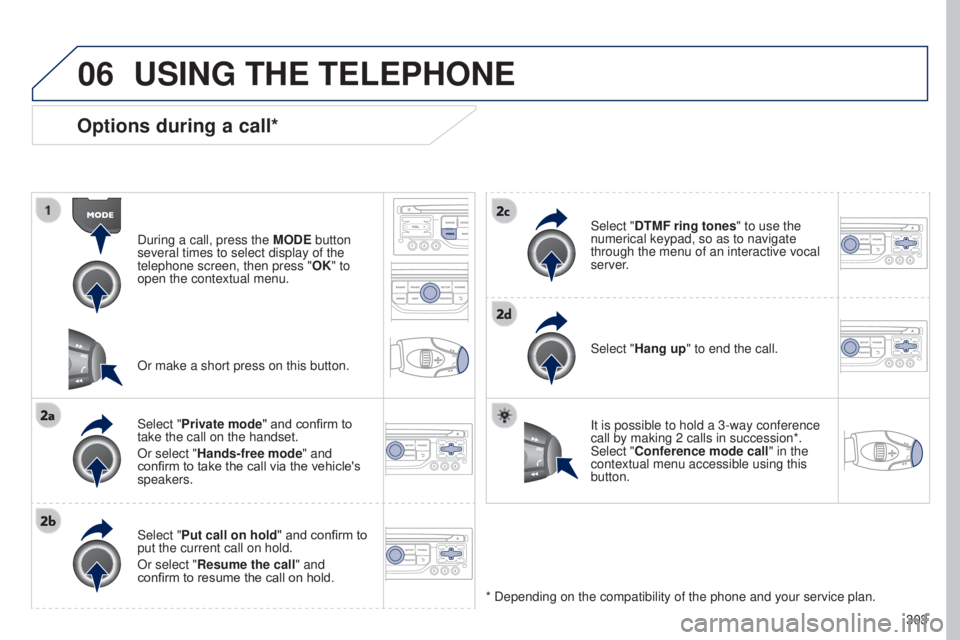
Options during a call*
During a call, press the MODE button
several times to select display of the
telephone screen, then press " OK" to
open the contextual menu.
Select "Private mode" and confirm to
take the call on the handset.
Or select "Hands-free mode" and
confirm to take the call via the vehicle's
speakers.
Select "Put call on hold " and confirm to
put the current call on hold.
Or select "Resume the call" and
confirm to resume the call on hold. Select "DTMF ring tones
" to use the
numerical keypad, so as to navigate
through the menu of an interactive vocal
server.
Select "Hang up" to end the call.
* Depending on the compatibility of the phone and your service plan. It is possible to hold a 3-way conference
call by making 2 calls in succession*.
Select "Conference mode call" in the
contextual menu accessible using this
button.
Or make a short press on this button.
USING THE TELEPHONE
Page 308 of 364
07
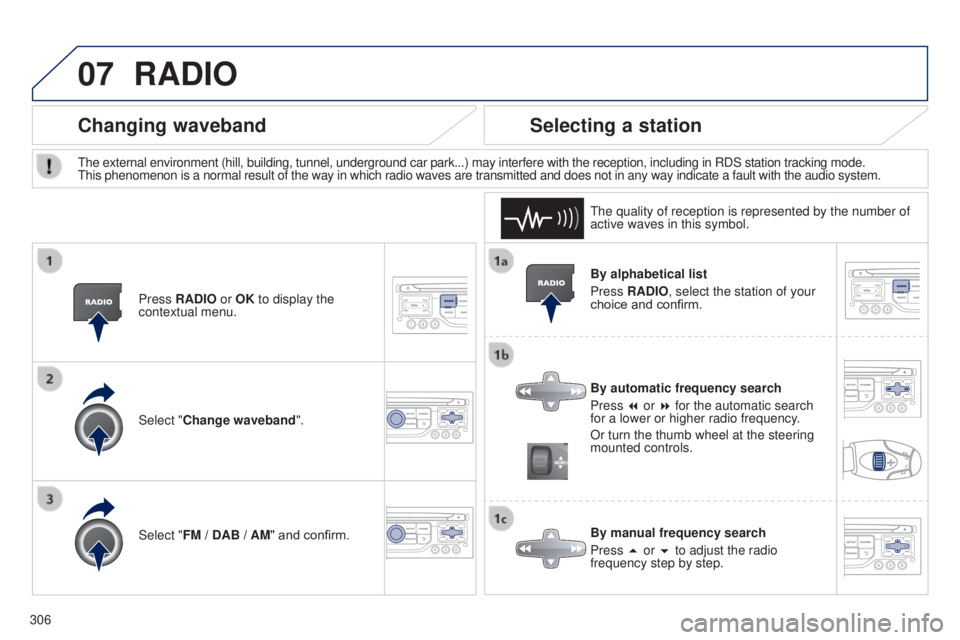
306By alphabetical list
Press RADIO, select the station of your
choice and confirm.
By automatic frequency search
Press 7 or 8 for the automatic search
for a lower or higher radio frequency.
Or turn the thumb wheel at the steering
mounted controls.
By manual frequency search
Press 5 or 6 to adjust the radio
frequency step by step.
Selecting a station
The external environment (hill, building, tunnel, underground car park.\
..) may interfere with the reception, including in RDS station tracking mode.
This
phenomenon is a normal result of the way in which radio waves are transm\
itted and does not in any way indicate a fault with the audio system.
The quality of reception is represented by the number of
active waves in this symbol.
Press RADIO or OK to display the
contextual menu.
Changing waveband
Select "Change waveband".
Select "FM / DAB / AM" and confirm.
RADIO
Page 310 of 364
07
308
RADIO
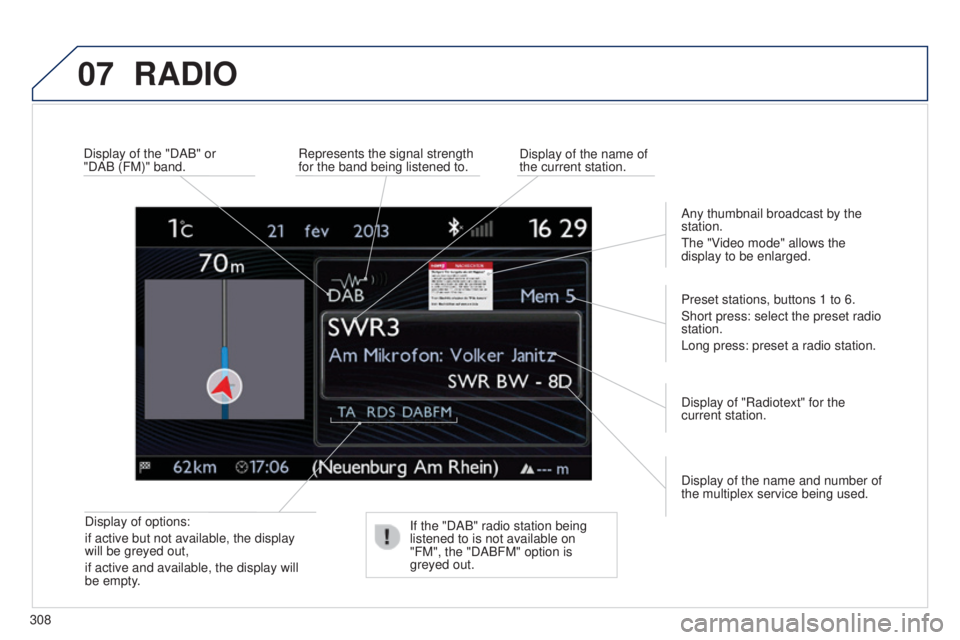
Display of options:
if active but not available, the display
will be greyed out,
if active and available, the display will
be empty.Display of the name and number of
the multiplex service being used. Preset stations, buttons 1 to 6.
Short press: select the preset radio
station.
Long press: preset a radio station.
Display of "Radiotext" for the
current station.
Display of the "DAB" or
"DAB (FM)" band.
Display of the name of
the current station.
Represents the signal strength
for the band being listened to.
If the "DAB" radio station being
listened to is not available on
"FM", the "DABFM" option is
greyed out. Any thumbnail broadcast by the
station.
The "Video mode" allows the
display to be enlarged.
Page 311 of 364
07
309
RADIO
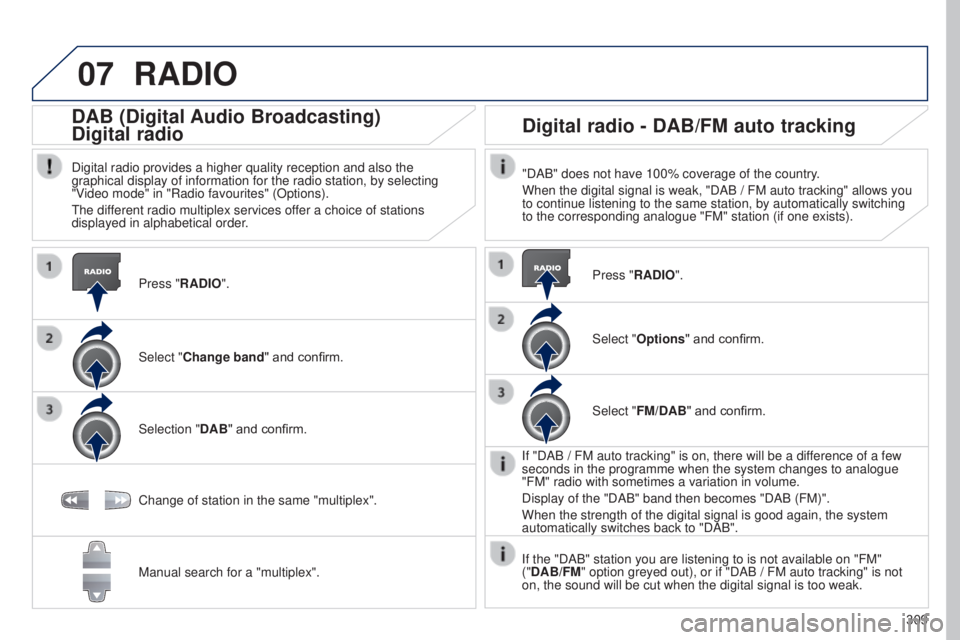
Press "RADIO".
DAB (Digital Audio Broadcasting)
Digital radio
Digital radio provides a higher quality reception and also the
graphical display of information for the radio station, by selecting
"Video mode" in "Radio favourites" (Options).
The different radio multiplex services offer a choice of stations
displayed in alphabetical order.Select "Change band" and confirm.
Selection "DAB" and confirm.
Digital radio - DAB/FM auto tracking
"DAB" does not have 100% coverage of the country.
When the digital signal is weak, "DAB
/ FM auto tracking" allows you
to continue listening to the same station, by automatically switching
to the corresponding analogue "FM" station (if one exists).
Change of station in the same "multiplex".
Manual search for a "multiplex". Press "RADIO".
Select "Options
" and confirm.
Select "FM/DAB" and confirm.
If "DAB
/ FM auto tracking" is on, there will be a difference of a few
seconds in the programme when the system changes to analogue
"FM" radio with sometimes a variation in volume.
Display of the "DAB" band then becomes "DAB (FM)".
When the strength of the digital signal is good again, the system
automatically switches back to "DAB".
If the "DAB" station you are listening to is not available on "FM"
("DAB/FM" option greyed out), or if "DAB
/ FM auto tracking" is not
on, the sound will be cut when the digital signal is too weak.
Page 314 of 364
08
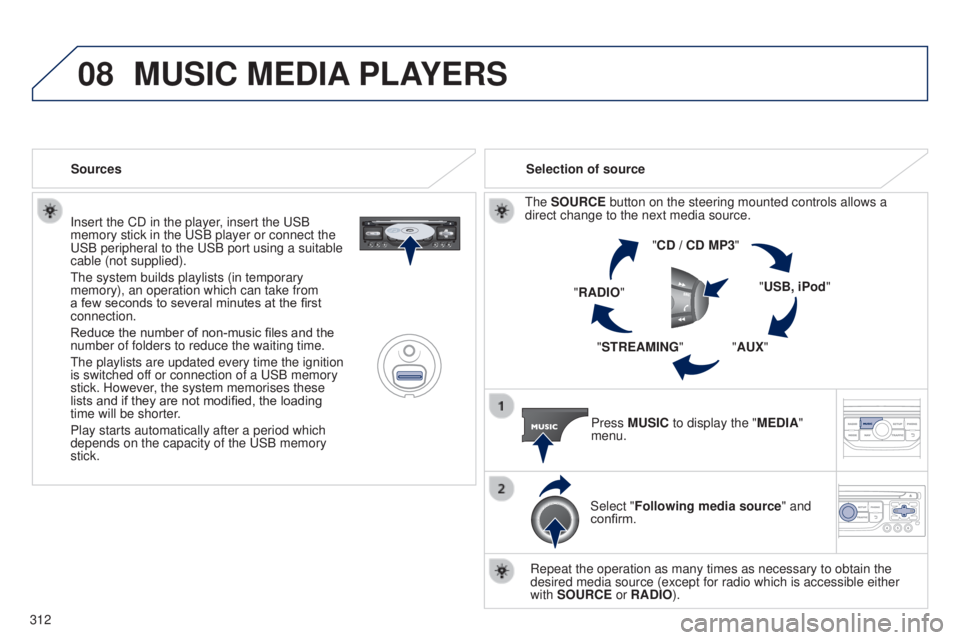
312Insert the CD in the player, insert the USB
memory stick in the USB player or connect the
USB peripheral to the USB port using a suitable
cable (not supplied).
The system builds playlists (in temporary
memory), an operation which can take from
a few seconds to several minutes at the first
connection.
Reduce the number of non-music files and the
number of folders to reduce the waiting time.
The playlists are updated every time the ignition
is switched off or connection of a USB memory
stick. However, the system memorises these
lists and if they are not modified, the loading
time will be shorter.
Play starts automatically after a period which
depends on the capacity of the USB memory
stick.
Selection of source
The SOURCE button on the steering mounted controls allows a
direct change to the next media source. "CD / CD MP3"
"USB, iPod"
"AUX"
"STREAMING"
"RADIO"
Press MUSIC to display the "MEDIA"
menu.
Select "Following media source " and
confirm.
Repeat the operation as many times as necessary to obtain the
desired media source (except for radio which is accessible either
with SOURCE or RADIO).
Sources
MUSIC MEDIA
PLAYERS
Page 317 of 364
08
315
MUSIC MEDIA PLAYERS
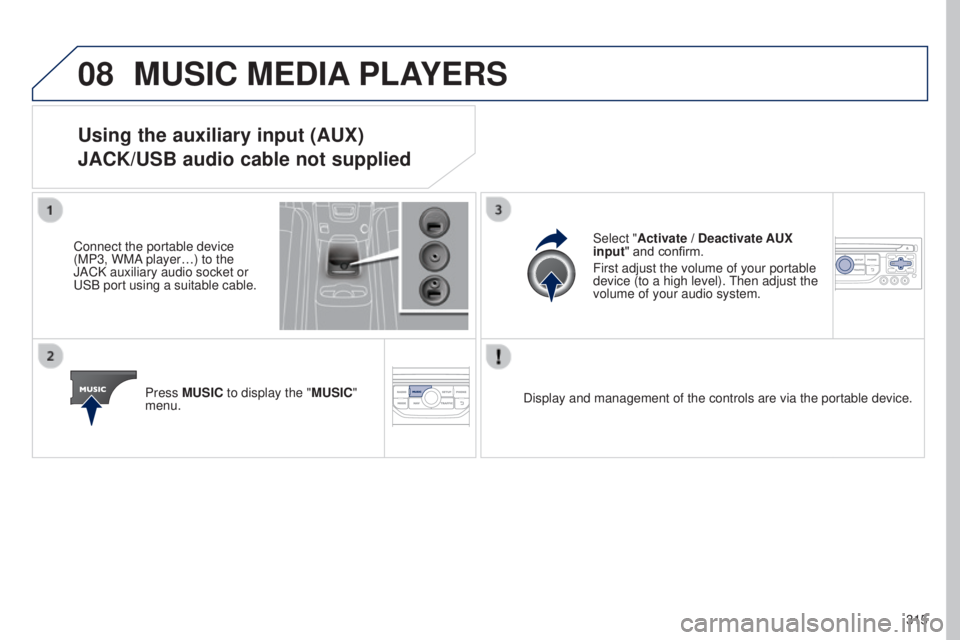
Using the auxiliary input (AUX)
JACK/USB audio cable not supplied
Connect the portable device
(MP3, WMA player…) to the
JACK auxiliary audio socket or
USB port using a suitable cable.
Press MUSIC to display the "MUSIC"
menu. Select "Activate / Deactivate AUX
input
" and confirm.
First adjust the volume of your portable
device (to a high level). Then adjust the
volume of your audio system.
Display and management of the controls are via the portable device.
Page 319 of 364
10
317
CONFIGURATION
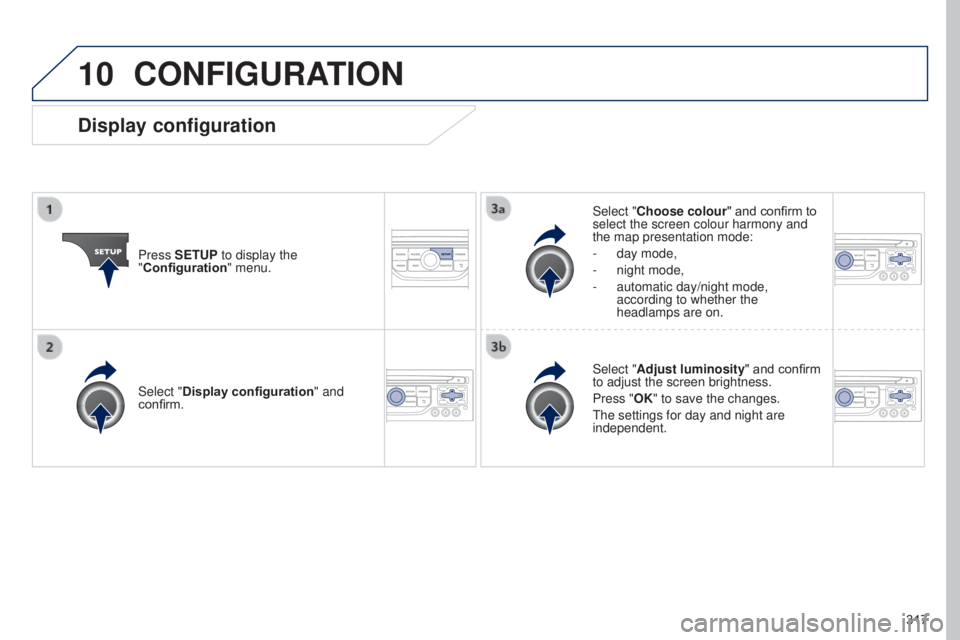
Press SETUP to display the
"Configuration" menu. Select "Choose colour" and confirm to
select the screen colour harmony and
the map presentation mode:
-
day mode,
- night mode,
-
automatic day/night mode,
according to whether the
headlamps are on.
Select "
Adjust luminosity" and confirm
to adjust the screen brightness.
Press "OK" to save the changes.
The settings for day and night are
independent.
Select "Display configuration
" and
confirm.
Display configuration
Page 321 of 364
11
319
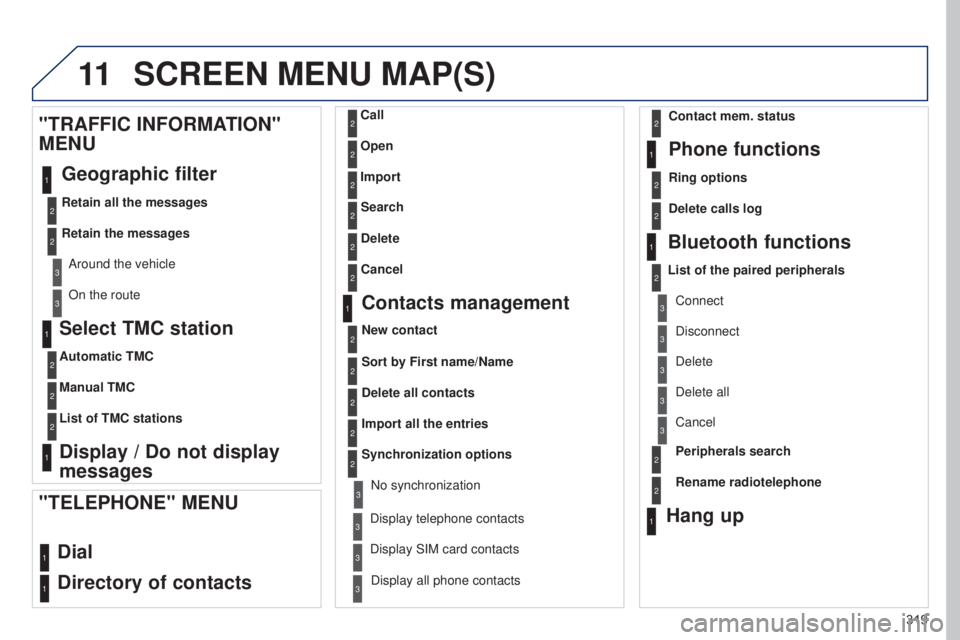
Select TMC station
Automatic TMC
Manual TMC
List of TMC stations
Display / Do not display
messages
"TRAFFIC INFORMATION"
MENU
Geographic filter
Retain all the messages
Retain the messages
Around the vehicle
On the route
1
2
2
2
1
2
2
3
3
1
SCREEN MENU MAP(S)
Dial
Directory of contacts
Call
Open
Import
"TELEPHONE" MENU
1
2
2
2
1
2
2
2
2
2
1
2
3
3
3
2
2
2
1
1
1
3
3
3
2
3
2
2
3
List of the paired peripherals Connect
Disconnect
Delete
Delete all
Phone functions
Ring options Contact mem. status
Delete calls log
Bluetooth functions
Peripherals search
Rename radiotelephone
Hang up
Display all phone contacts
Delete Search
Contacts management
New contact
Delete all contacts
Import all the entries
Synchronization options
Display telephone contactsNo synchronization
Display SIM card contacts
2Cancel
2Sort by First name/Name
3Cancel
Page 323 of 364
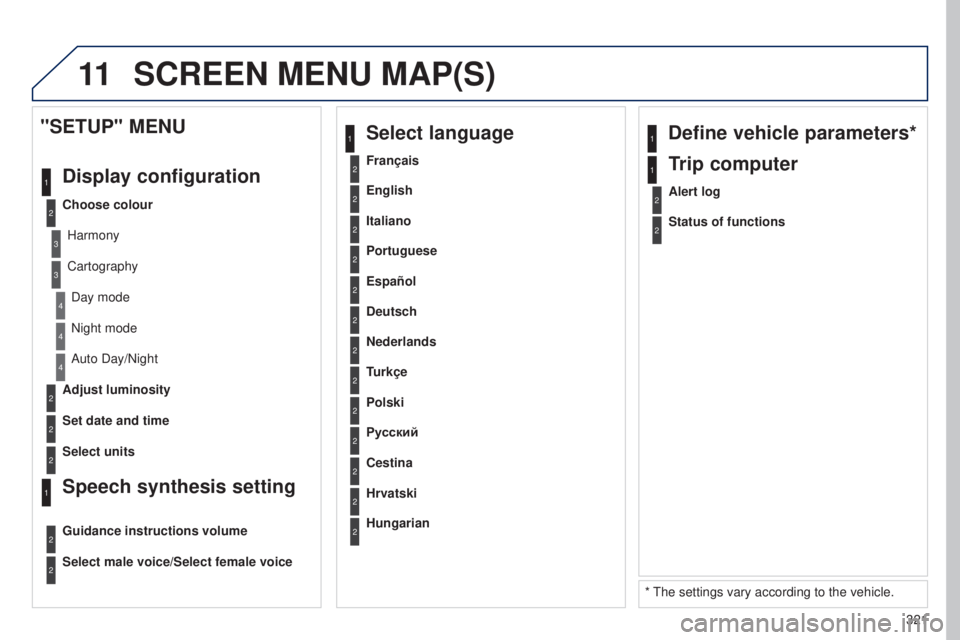
11
321
2
3
3
1
4
2
2
1
4
4
2
2
Night mode
Auto Day/Night
Adjust luminosity
Set date and time
"SETUP" MENU
Display configuration
Choose colourHarmony
CartographyDay mode
Speech synthesis setting
Guidance instructions volume
Select male voice/Select female voice
2Select units
1Define vehicle parameters*
* The settings vary according to the vehicle.
2Alert log
1Trip computer
2Status of functions
2Français
1Select language
2English
2Italiano
2Portuguese
2Español
2Deutsch
2Nederlands
2
2
Turkçe
Cestina
2
2
Polski
Hrvatski
2
2
Русский
Hungarian
SCREEN MENU MAP(S)
Page 325 of 364
323
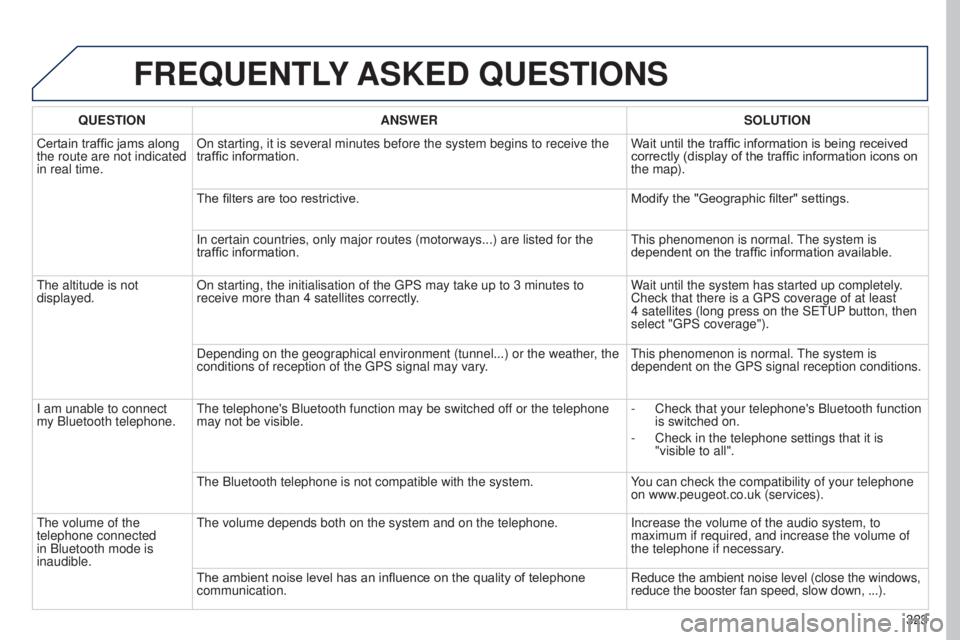
FREQUENTLY ASKED QUESTIONS
QUESTION ANSWER SOLUTION
Certain traffic jams along
the route are not indicated
in real time. On starting, it is several minutes before the system begins to receive t\
he
traffic information.
Wait until the traffic information is being received
correctly (display of the traffic information icons on
the map).
The filters are too restrictive. Modify the "Geographic filter" settings.
In certain countries, only major routes (motorways...) are listed for \
the
traffic information. This phenomenon is normal. The system is
dependent on the traffic information available.
The altitude is not
displayed. On starting, the initialisation of the GPS may take up to 3 minutes to
receive more than 4 satellites correctly. Wait until the system has started up completely.
Check that there is a GPS coverage of at least
4
satellites (long press on the SETUP button, then
select "GPS coverage").
Depending on the geographical environment (tunnel...) or the weather, the
conditions of reception of the GPS signal may vary. This phenomenon is normal. The system is
dependent on the GPS signal reception conditions.
I am unable to connect
my Bluetooth telephone. The telephone's Bluetooth function may be switched off or the telephone
may not be visible. -
Check that your telephone's Bluetooth function
is switched on.
-
Check in the telephone settings that it is
"visible to all".
The Bluetooth telephone is not compatible with the system. Y
ou can check the compatibility of your telephone
on www.peugeot.co.uk (services).
The volume of the
telephone connected
in Bluetooth mode is
inaudible. The volume depends both on the system and on the telephone.
Increase the volume of the audio system, to
maximum if required, and increase the volume of
the telephone if necessary.
The ambient noise level has an influence on the quality of telephone
communication. Reduce the ambient noise level (close the windows,
reduce the booster fan speed, slow down, ...).