audio PEUGEOT 5008 2015.5. Owner's Manual
[x] Cancel search | Manufacturer: PEUGEOT, Model Year: 2015.5., Model line: 5008, Model: PEUGEOT 5008 2015.5.Pages: 364, PDF Size: 12.82 MB
Page 272 of 364
270
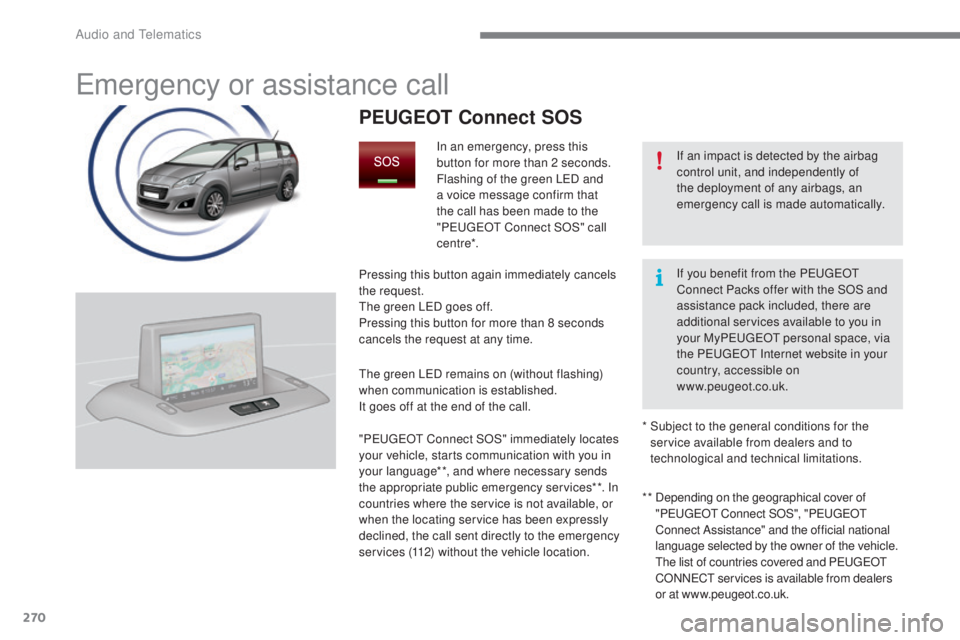
Emergency or assistance call
If an impact is detected by the airbag
control unit, and independently of
the deployment of any airbags, an
emergency call is made automatically.
PEUGEOT Connect SOS
In an emergency, press this
button for more than 2 seconds.
Flashing of the green LED and
a voice message confirm that
the call has been made to the
"P
E
UGEOT
C
onnect SOS" call
c e nt re*.
Pressing this button again immediately cancels
the request.
The green LED goes off.
Pressing this button for more than 8 seconds
cancels the request at any time.
The green LED remains on (without flashing)
when communication is established.
It goes off at the end of the call.
" P
E
UGEOT
C
onnect SOS" immediately locates
your vehicle, starts communication with you in
your language**, and where necessary sends
the appropriate public emergency services**. In
countries where the service is not available, or
when the locating service has been expressly
declined, the call sent directly to the emergency
services (112) without the vehicle location. * *
D
epending on the geographical cover of
" P
E
UGEOT
C
onnect SOS", "P
E
UGEOT
C
onnect Assistance" and the official national
language selected by the owner of the vehicle.
The list of countries covered and PEUGEOT
CONNECT services is available from dealers
or at www.peugeot.co.uk.
*
S
ubject to the general conditions for the
service available from dealers and to
technological and technical limitations. If you benefit from the P
E
UGEOT
C
onnect Packs offer with the SOS and
assistance pack included, there are
additional services available to you in
your MyP
E
UGEOT
p
ersonal space, via
the PEUGEOT Internet website in your
country, accessible on
www.peugeot.co.uk.
Audio and Telematics
Page 273 of 364
271
PEUGEOT Connect Assistance
If you purchased your vehicle outside
the PEUGEOT dealer network, we
invite you to have a dealer check the
configuration of these services and, if
desired, modified to suit your wishes.
In a multi-lingual country, configuration
is possible in the official national
language of your choice.
For technical reasons and in particular
to improve the quality of "PEUGEOT
CONNECT services" services to
customers, the manufacturer reserves
the right to carry out updates to the
vehicle's on-board telematic system.
A fault with the system does not
prevent the vehicle being driven. Press this button for more than
2
seconds to request assistance
if the vehicle breaks down.
A voice message confirms that
the call has been made**.
Pressing this button again immediately cancels
the request.
The cancellation is confirmed by a voice
message.
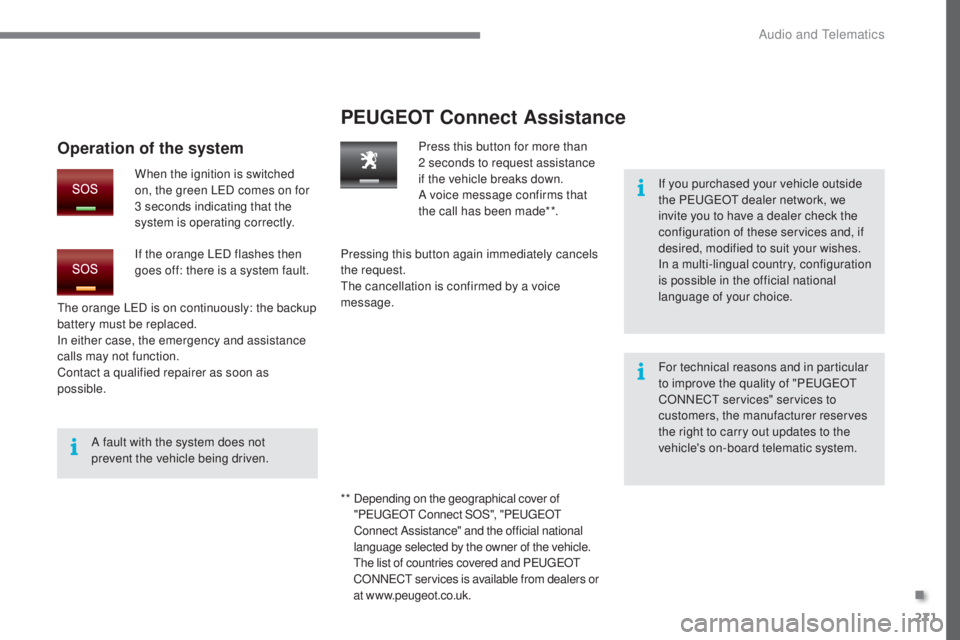
The orange LED is on continuously: the backup
battery must be replaced.
In either case, the emergency and assistance
calls may not function.
Contact a qualified repairer as soon as
possible.
Operation of the system
When the ignition is switched
on, the green LED comes on for
3 seconds indicating that the
system is operating correctly.
If the orange LED flashes then
goes off: there is a system fault.
* *
D
epending on the geographical cover of
" P
E
UGEOT
C
onnect SOS", "P
E
UGEOT
C
onnect Assistance" and the official national
language selected by the owner of the vehicle.
The list of countries covered and PEUGEOT
CONNECT services is available from dealers or
at www.peugeot.co.uk.
.
Audio and Telematics
Page 275 of 364
273
The system is protected in such a way that it will only
operate in your vehicle.
PEUGEOT Connect Navigation (RT6)
01 First steps - Control
panel
As a safety measure, the driver must only carry out
operations which require prolonged attention while the
vehicle is stationary.
When the engine is switched off and to prevent
discharging of the battery, the system switches off
following the activation of the energy economy mode.
CONTENTS
02
Steering mounted
controls
03
General operation
04
Navigation
- Guidance
05
T
raffic information
06
Using
the telephone
07
Radio
08
Music media players
09
Audio
settings
10
Configuration
11
Screen menu
maps p.
p.
p.
p.
p.
p.
p.
p.
p.
p.
p.
274
276
277
279
292
295
305
310
316
317
318
GPS navigation system
Multimedia audio system
Bluetooth
® telephone
Frequently asked questions p.
322
Page 276 of 364
01
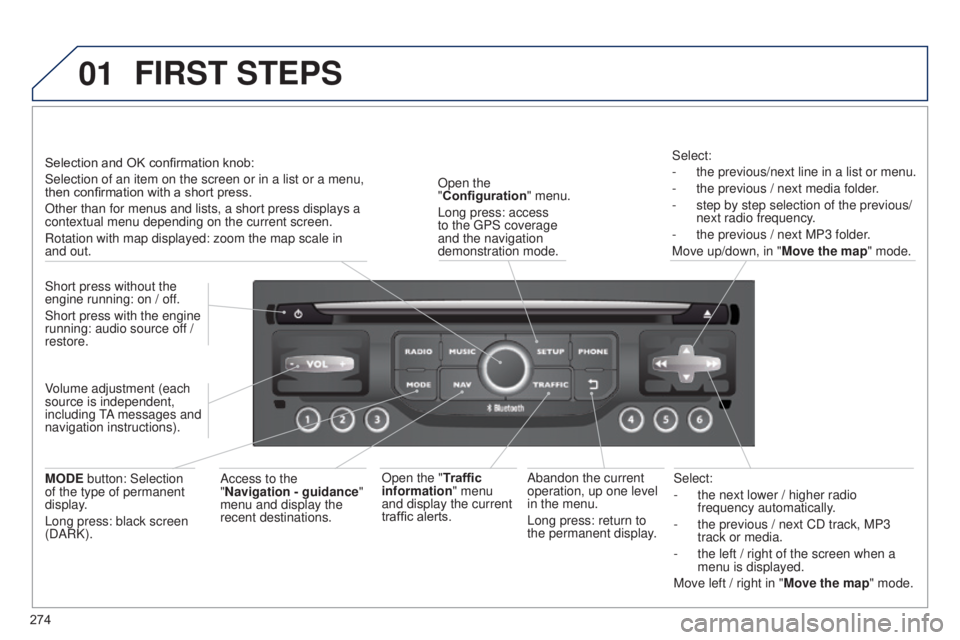
274Select:
-
the next lower / higher radio
frequency automatically
.
-
the previous / next CD track, MP3
track or media.
-
the left / right of the screen when a
menu is displayed.
Move left / right in "
Move the map" mode.
Abandon the current
operation, up one level
in the menu.
Long press: return to
the permanent display.
Open the
"Configuration
" menu.
Long press: access
to the GPS coverage
and the navigation
demonstration mode.
Open the "Traffic
information" menu
and display the current
traffic alerts. Select:
-
the previous/next line in a list or menu.
-
the previous / next media folder
.
-
step by step selection of the previous/
next radio frequency
.
-
the previous / next MP3 folder
.
Move up/down, in " Move the map" mode.
FIRST STEPS
Access to the
"Navigation - guidance "
menu and display the
recent destinations.
Short press without the
engine running: on / off.
Short press with the engine
running: audio source off /
restore.
MODE button: Selection
of the type of permanent
display.
Long press: black screen
(DARK). Selection and OK confirmation knob:
Selection of an item on the screen or in a list or a menu,
then confirmation with a short press.
Other than for menus and lists, a short press displays a
contextual menu depending on the current screen.
Rotation with map displayed: zoom the map scale in
and out.
Volume adjustment (each
source is independent,
including TA messages and
navigation instructions).
Page 277 of 364
01
275
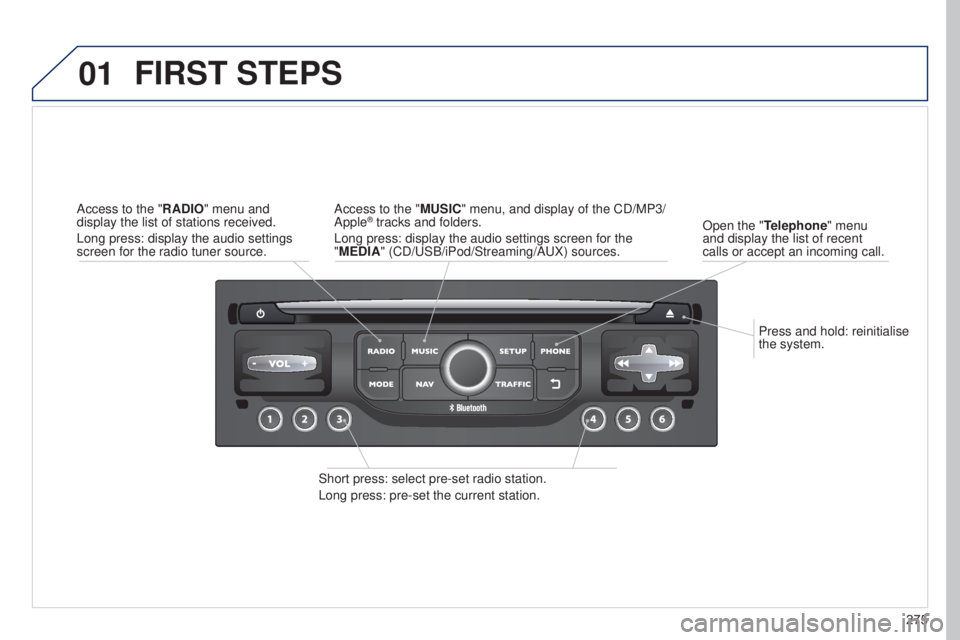
Press and hold: reinitialise
the system.
Open the "Telephone" menu
and display the list of recent
calls or accept an incoming call.
FIRST STEPS
Short press: select pre-set radio station.
Long press: pre-set the current station. Access to the "MUSIC" menu, and display of the CD/MP3/
Apple
® tracks and folders.
Long press: display the audio settings screen for the
"MEDIA" (CD/USB/iPod/Streaming/AUX) sources.
Access to the "RADIO" menu and
display the list of stations received.
Long press: display the audio settings
screen for the radio tuner source.
Page 278 of 364
02
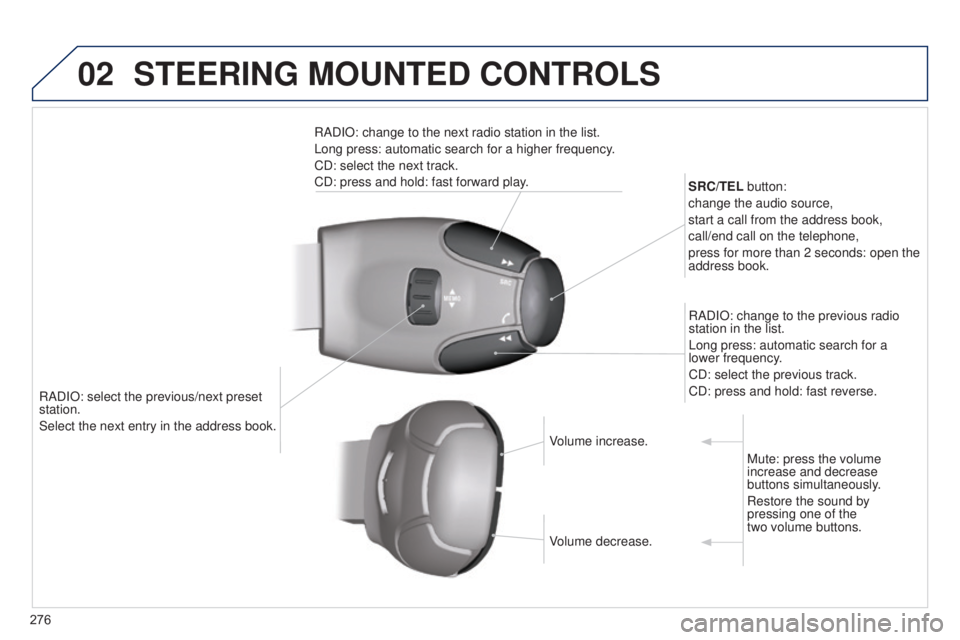
276RADIO: select the previous/next preset
station.
Select the next entry in the address book. SRC/TEL button:
change the audio source,
start a call from the address book,
call/end call on the telephone,
press for more than 2 seconds: open the
address book.
RADIO: change to the previous radio
station in the list.
Long press: automatic search for a
lower frequency.
CD: select the previous track.
CD: press and hold: fast reverse.
RADIO: change to the next radio station in the list.
Long press: automatic search for a higher frequency.
CD: select the next track.
CD: press and hold: fast forward play.
Volume increase.
Volume decrease.Mute: press the volume
increase and decrease
buttons simultaneously.
Restore the sound by
pressing one of the
two volume buttons.
STEERING MOUNTED CONTROLS
Page 279 of 364
03
277
For the details of the menus, refer to the "Screen menu map"
section.
For cleaning the screen, the use of a soft, non-abrasive cloth
(spectacles cloth) is recommended, with no additional product.
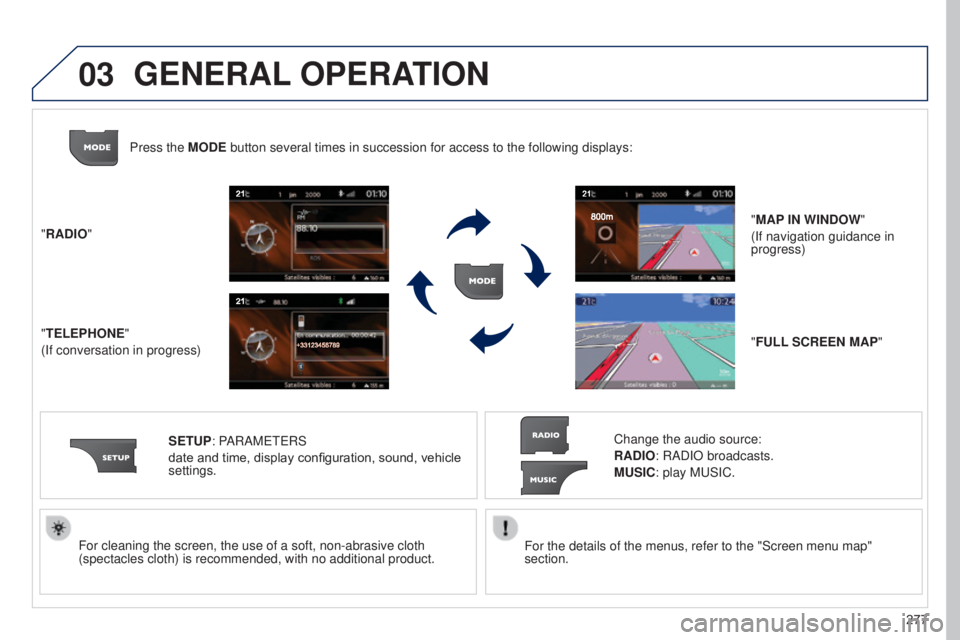
"RADIO"
"TELEPHONE"
(If conversation in progress)
SETUP: PARAMETERS
date and time, display configuration, sound, vehicle
settings. Change the audio source:
RADIO: RADIO broadcasts.
MUSIC: play MUSIC.
Press the MODE button several times in succession for access to the following displays\
:
"FULL SCREEN MAP" "MAP IN WINDOW"
(If navigation guidance in
progress)
GENERAL OPERATION
Page 283 of 364
04
281
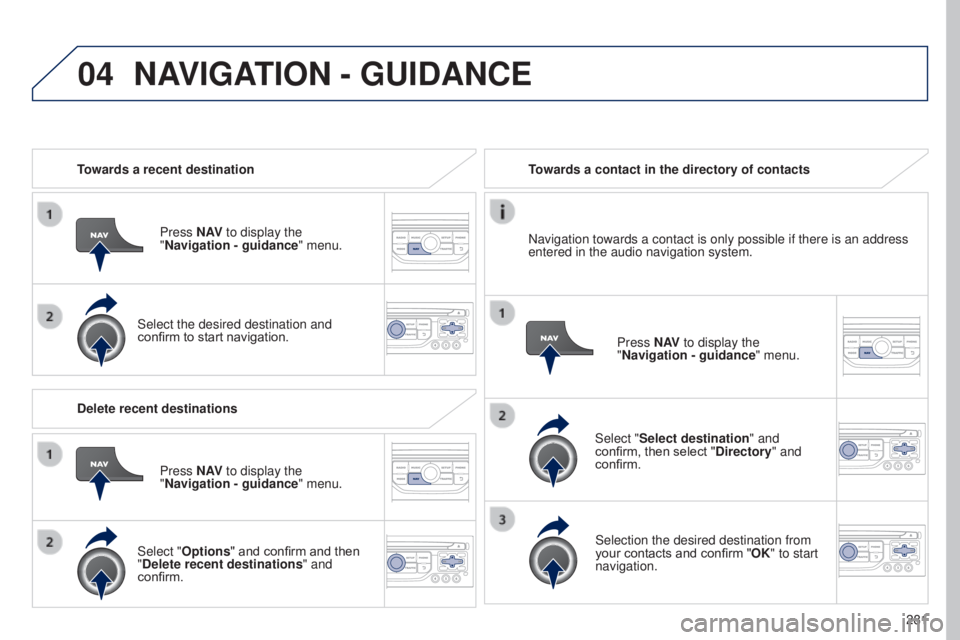
Towards a recent destination
Press N AV to display the
"Navigation - guidance " menu.
Select the desired destination and
confirm to start navigation. Towards a contact in the directory of contacts
Select "Select destination" and
confirm, then select "Directory " and
confirm.
Selection the desired destination from
your contacts and confirm "OK" to start
navigation. Press N AV
to display the
"Navigation - guidance " menu.
Navigation towards a contact is only possible if there is an address
entered in the audio navigation system.
Delete recent destinations Press N AV to display the
"Navigation - guidance " menu.
Select "Options " and confirm and then
"Delete recent destinations" and
confirm.
NAVIGATION - GUIDANCE
Page 296 of 364
05
294
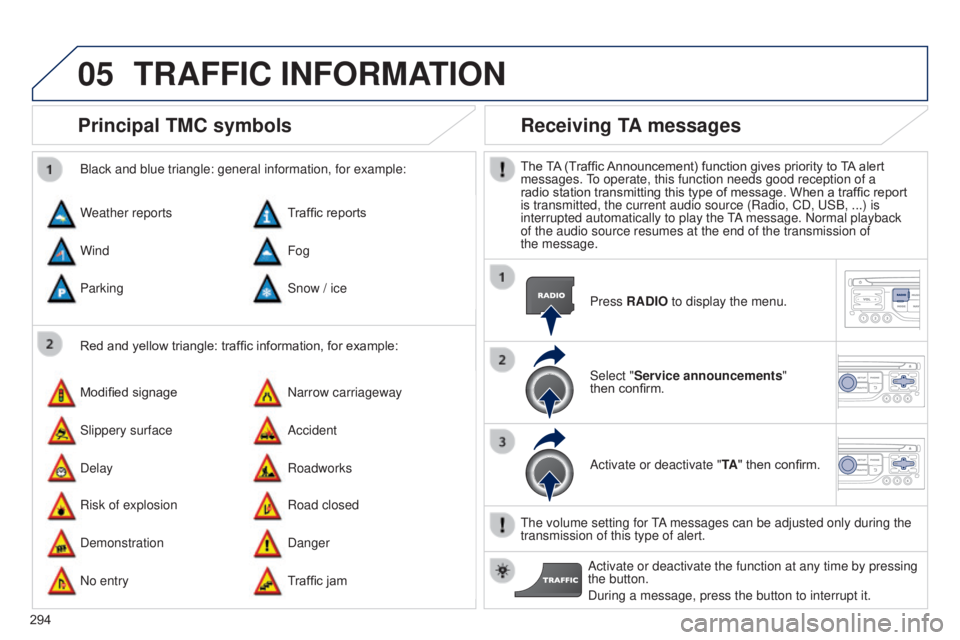
Principal TMC symbols
Red and yellow triangle: traffic information, for example:
Black and blue triangle: general information, for example:
Weather reports
Modified signage
Risk of explosion Traffic reports
Narrow carriageway
Road closed
Wind
Slippery surface
Demonstration Fog
Accident
Danger
Parking
Delay
No entry Snow / ice
Roadworks
Traffic jam
Receiving TA messages
The TA (Traffic Announcement) function gives priority to TA alert
messages. To operate, this function needs good reception of a
radio station transmitting this type of message. When a traffic report
is transmitted, the current audio source (Radio, CD, USB, ...) is
interrupted automatically to play the TA message. Normal playback
of the audio source resumes at the end of the transmission of
the
message. Press RADIO to display the menu.
Select "Service announcements"
then
confirm.
Activate or deactivate "TA " then confirm.
The volume setting for TA messages can be adjusted only during the
transmission of this type of alert. Activate or deactivate the function at any time by pressing
the button.
During a message, press the button to interrupt it.
TRAFFIC INFORMATION
Page 298 of 364
06
296
USING THE TELEPHONE
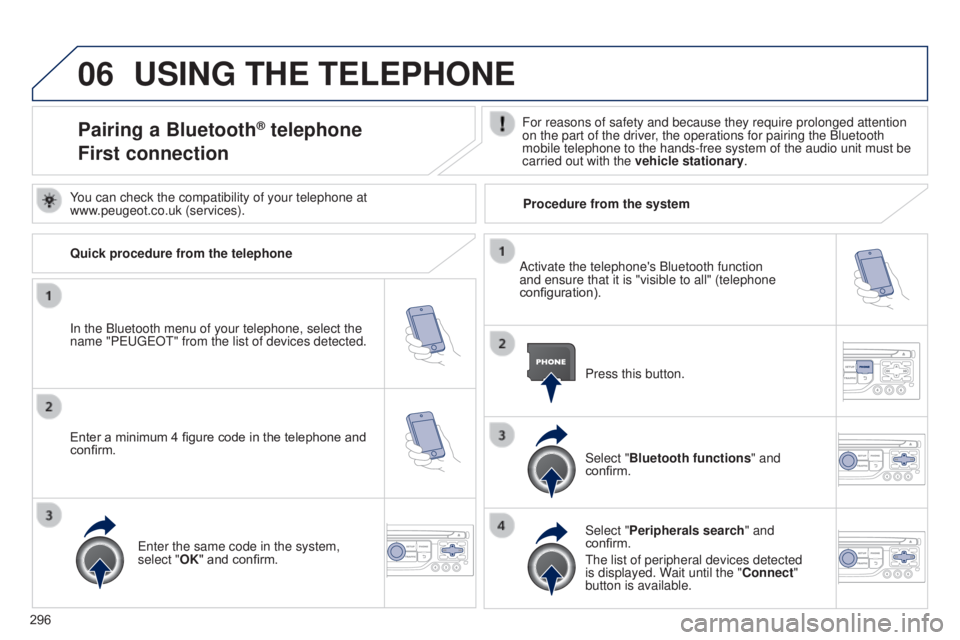
Pairing a Bluetooth® telephone
First connectionFor reasons of safety and because they require prolonged attention
on the part of the driver, the operations for pairing the Bluetooth
mobile telephone to the hands-free system of the audio unit must be
carried out with the vehicle stationary.
In the Bluetooth menu of your telephone, select the
name "PEUGEOT" from the list of devices detected. Press this button.
Select "Bluetooth functions" and
confirm.
Select "Peripherals search " and
confirm.
The list of peripheral devices detected
is displayed. Wait until the "Connect"
button is available.
You can check the compatibility of your telephone at
www.peugeot.co.uk (services).
Activate the telephone's Bluetooth function
and ensure that it is "visible to all" (telephone
configuration).
Quick procedure from the telephone
Enter a minimum 4 figure code in the telephone and
confirm.
Enter the same code in the system,
select "OK" and confirm. Procedure from the system