phone Peugeot 508 2011 User Guide
[x] Cancel search | Manufacturer: PEUGEOT, Model Year: 2011, Model line: 508, Model: Peugeot 508 2011Pages: 340, PDF Size: 25.72 MB
Page 260 of 340
258
8
06
7
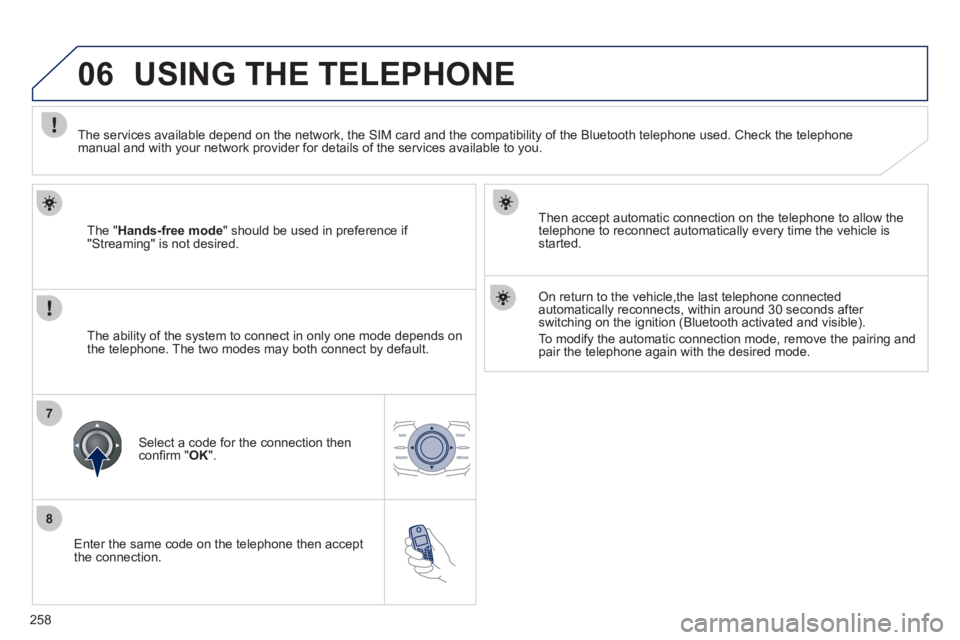
Enter the same code on the telephone then accept
the connection.
Then accept automatic connection on the telephone to allow the
telephone to reconnect automatically every time the vehicle is
started.
On return to the vehicle,the last telephone connected
automatically reconnects, within around 30 seconds after
switching on the ignition (Bluetooth activated and visible).
To modify the automatic connection mode, remove the pairing and
pair the telephone again with the desired mode.
USING THE TELEPHONE
The " Hands-free mode
" should be used in preference if
"Streaming" is not desired.
The services available depend on the network, the SIM card and the compatibility of the Bluetooth telephone used. Check the telephone
manual and with your network provider for details of the services available to you.
The ability of the system to connect in only one mode depends on
the telephone. The two modes may both connect by default.
Select a code for the connection then
confi rm " OK
".
Page 261 of 340
259
1
2
2
3
1
3
4
06 USING THE TELEPHONE
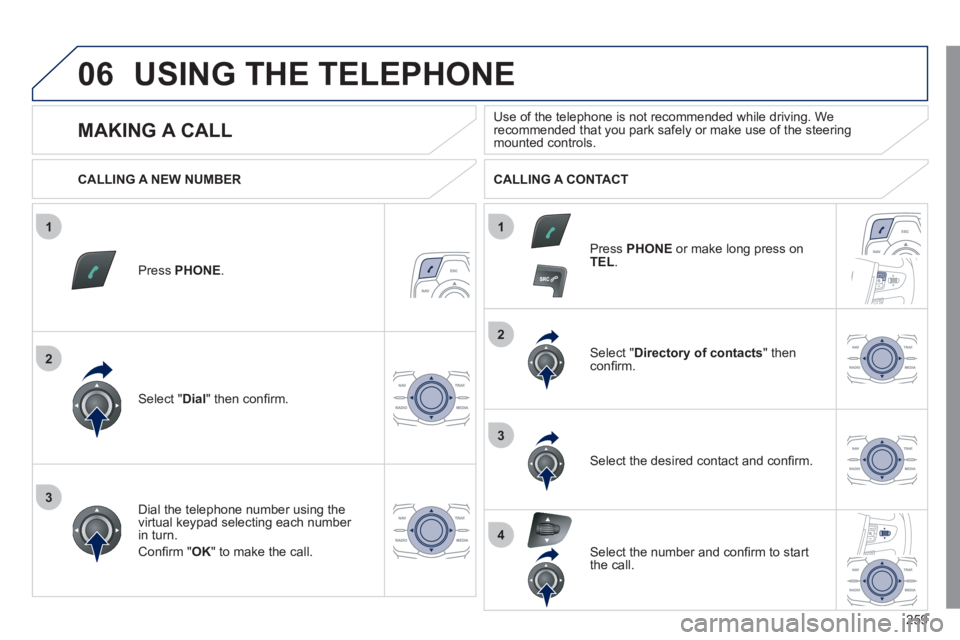
Press PHONE
.
Select " Dial
" then confi rm.
Select " Directory of contacts
" then
confi rm.
Dial the telephone number using the
virtual keypad selecting each number
in turn.
Confi rm " OK
" to make the call.
Press PHONE
or make long press on
TEL
.
CALLING A NEW NUMBER
CALLING A CONTACT
Select the desired contact and confi rm.
Select the number and confi rm to start
the call.
MAKING A CALL
Use of the telephone is not recommended while driving. We
recommended that you park safely or make use of the steering
mounted controls.
Page 262 of 340
260
1
2
06
1
USING THE TELEPHONE
CALLING A RECENTLY DIALLED NUMBER
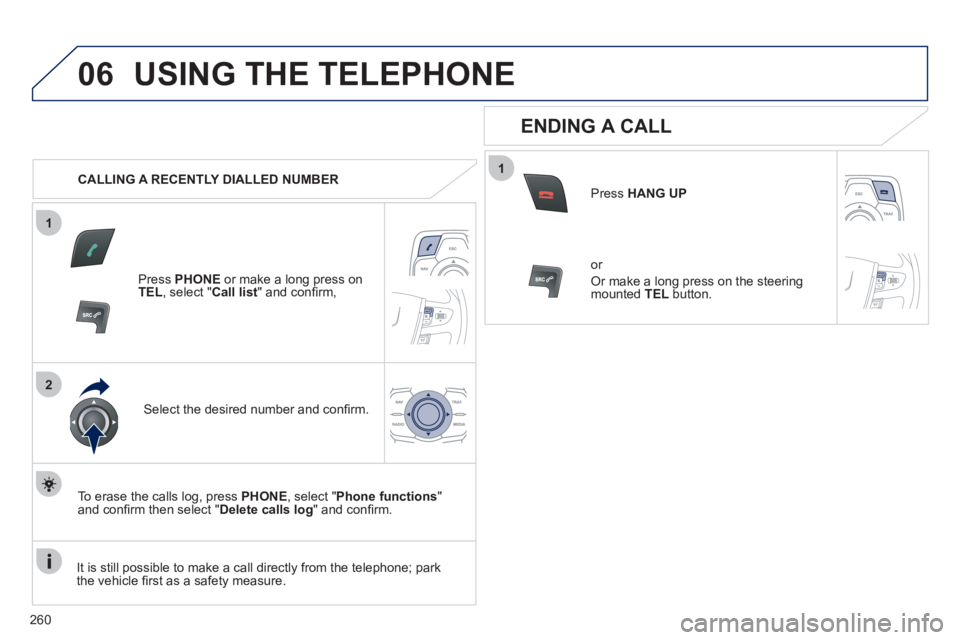
Press PHONE
or make a long press on
TEL
, select " Call list
" and confi rm,
Select the desired number and confi rm.
To erase the calls log, press PHONE
, select " Phone functions
"
and confi rm then select " Delete calls log
" and confi rm.
ENDING A CALL
Press HANG UP
or
Or make a long press on the steering
mounted TEL
button.
It is still possible to make a call directly from the telephone; park
the vehicle fi rst as a safety measure.
Page 263 of 340
261
1
2
06 USING THE TELEPHONE
RECEIVING A CALL
An incoming call is announced by a ring and a superimposed display
in the screen.
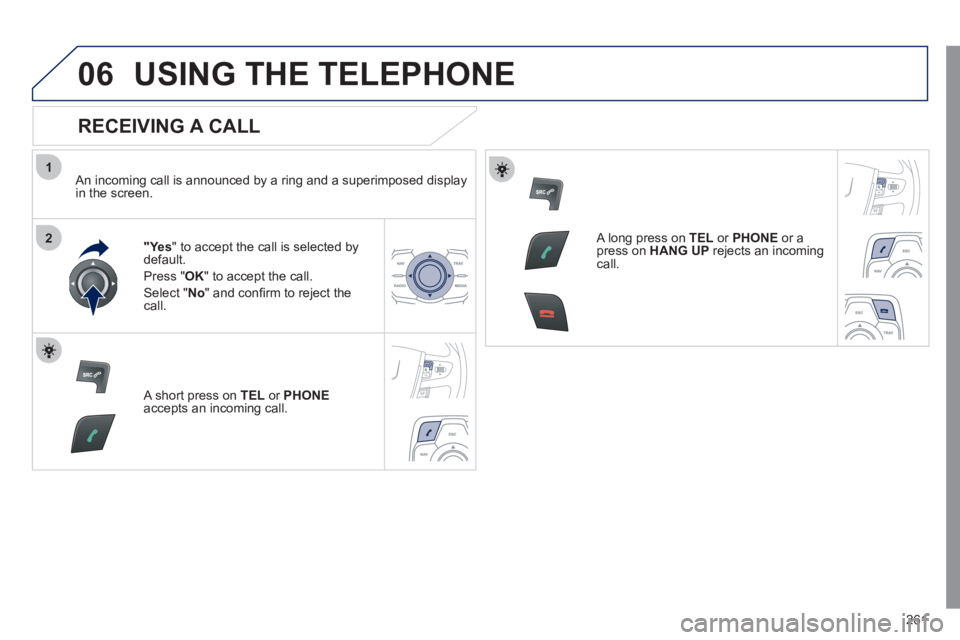
"Yes
" to accept the call is selected by
default.
Press " OK
" to accept the call.
Select " No
" and confi rm to reject the
call.
A short press on TEL
or PHONE
accepts an incoming call.
A long press on TEL
or PHONE
or a
press on HANG UP
rejects an incoming
call.
Page 264 of 340
262
1
2a
2b
2c
2d
06 USING THE TELEPHONE
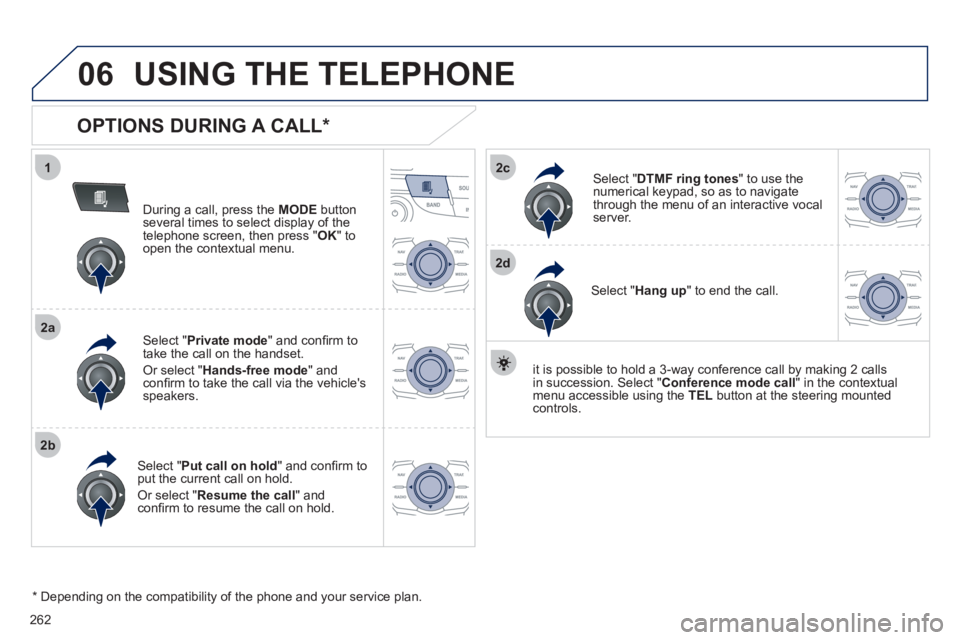
OPTIONS DURING A CALL *
During a call, press the MODE
button
several times to select display of the
telephone screen, then press " OK
" to
open the contextual menu.
Select " Private mode
" and confi rm to
take the call on the handset.
Or select " Hands-free mode
" and
confi rm to take the call via the vehicle's
speakers.
Select " Put call on hold
" and confi rm to
put the current call on hold.
Or select " Resume the call
" and
confi rm to resume the call on hold.
Select " DTMF ring tones
" to use the
numerical keypad, so as to navigate
through the menu of an interactive vocal
server.
Select " Hang up
" to end the call.
* Depending on the compatibility of the phone and your service plan.
it is possible to hold a 3-way conference call by making 2 calls
in succession. Select " Conference
mode call
" in the contextual
menu accessible using the TEL
button at the steering mounted
controls.
Page 265 of 340
263
1
2
3
1
2
3
4
5
06
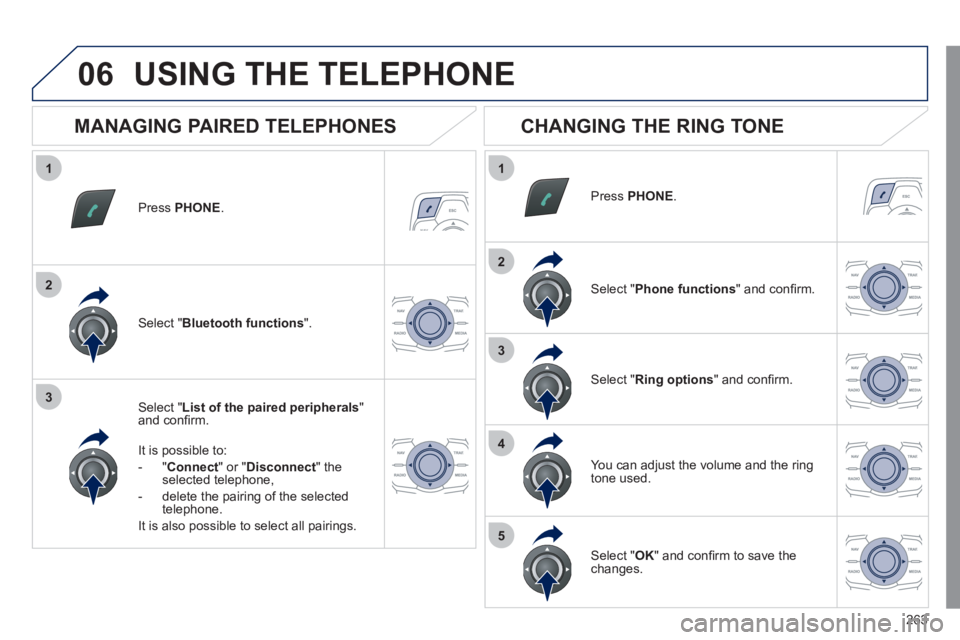
Press PHONE
.
Select " List of the paired peripherals
"
and confi rm.
It is possible to:
- " Connect
" or " Disconnect
" the
selected telephone,
- delete the pairing of the selected
telephone.
It is also possible to select all pairings.
USING THE TELEPHONE
MANAGING PAIRED TELEPHONES
CHANGING THE RING TONE
Press PHONE
.
Select " Phone functions
" and confi rm.
Select " Ring options
" and confi rm.
You can adjust the volume and the ring
tone used.
Select " Bluetooth functions
".
Select " OK
" and confi rm to save the
changes.
Page 266 of 340
264
07 DIRECTORY - ADDR BOOK
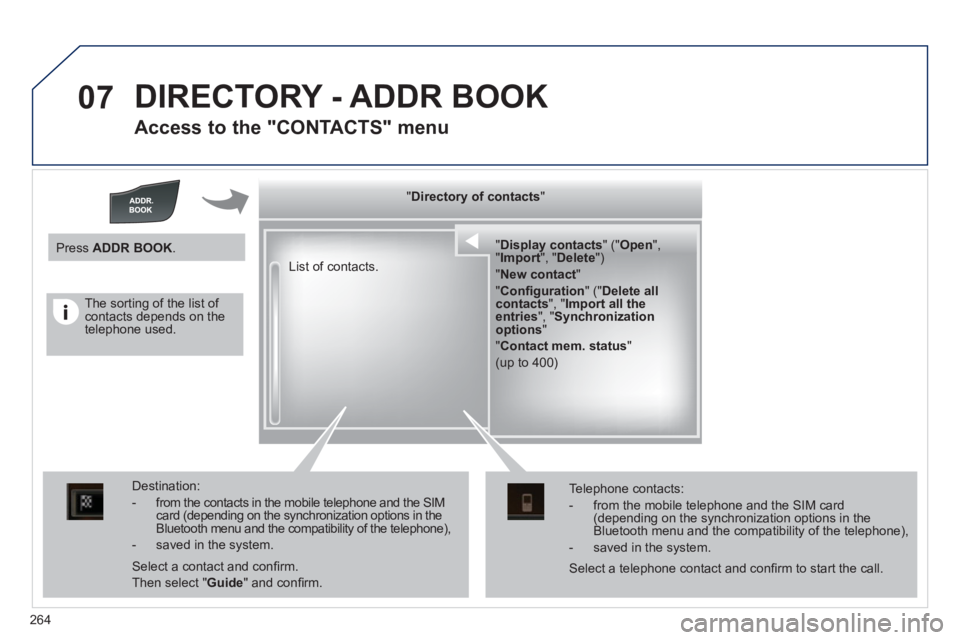
Access to the "CONTACTS" menu
" Directory of contacts
"
" Display contacts
" (" Open
",
" Import
", " Delete
")
" New contact
"
" Confi guration
" (" Delete all
contacts
", " Import all the
entries
", " Synchronization
options
"
" Contact mem. status
"
(up to 400)
List of contacts.
Destination:
- from the contacts in the mobile telephone and the SIM
card (depending on the synchronization options in the
Bluetooth menu and the compatibility of the telephone),
- saved in the system.
Select a contact and confi rm.
Then select " Guide
" and confi rm.
Telephone contacts:
- from the mobile telephone and the SIM card
(depending on the synchronization options in the
Bluetooth menu and the compatibility of the telephone),
- saved in the system.
Press ADDR BOOK
.
Select a telephone contact and confi rm to start the call.
The sorting of the list of
contacts depends on the
telephone used.
Page 267 of 340

265
1
2
2a
2b
2c
3
07
DIRECTORY/SYNCHRONIZING CONTACTS
Press ADDR BOOK
twice then select
" New contact
" to enter a new contact.
Press ADDR BOOK
twice then select
" Confi guration
" and confi rm.
Select " Delete all contacts
" to delete
the contacts saved in the system.
Select " Import all the entries
" to import
all the contacts in the telephone and
save them in the system.
Select " Synchronization options
" and
confi rm:
- No synchronization: only the
contacts saved in the system
(always present).
- Display telephone contacts: only the
contacts saved in the telephone.
- Display SIM card contacts: only the
contacts saved on the SIM card.
- Display all phone contacts:
contacts on the SIM card and in the
telephone.
Press ADDR BOOK
twice then select
" Contact mem. status
" to see the
number of contacts saved in the system
or imported, and the free memory.
DIRECTORY - ADDR BOOK
Page 268 of 340
266
1
2
3
4
5
6
07
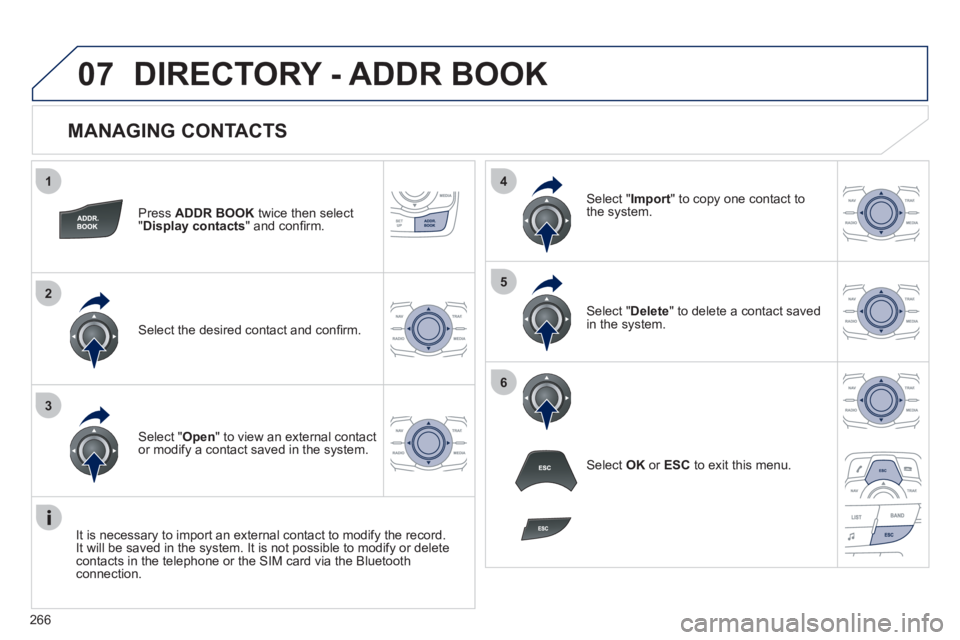
MANAGING CONTACTS
Press ADDR BOOK
twice then select
" Display contacts
" and confi rm.
Select the desired contact and confi rm.
Select " Import
" to copy one contact to
the system.
Select " Open
" to view an external contact
or modify a contact saved in the system.
Select OK
or ESC
to exit this menu.
Select " Delete
" to delete a contact saved
in the system.
It is necessary to import an external contact to modify the record.
It will be saved in the system. It is not possible to modify or delete
contacts in the telephone or the SIM card via the Bluetooth
connection.
DIRECTORY - ADDR BOOK
Page 276 of 340
274
1
2
1
2
09
AUDIO STREAMING
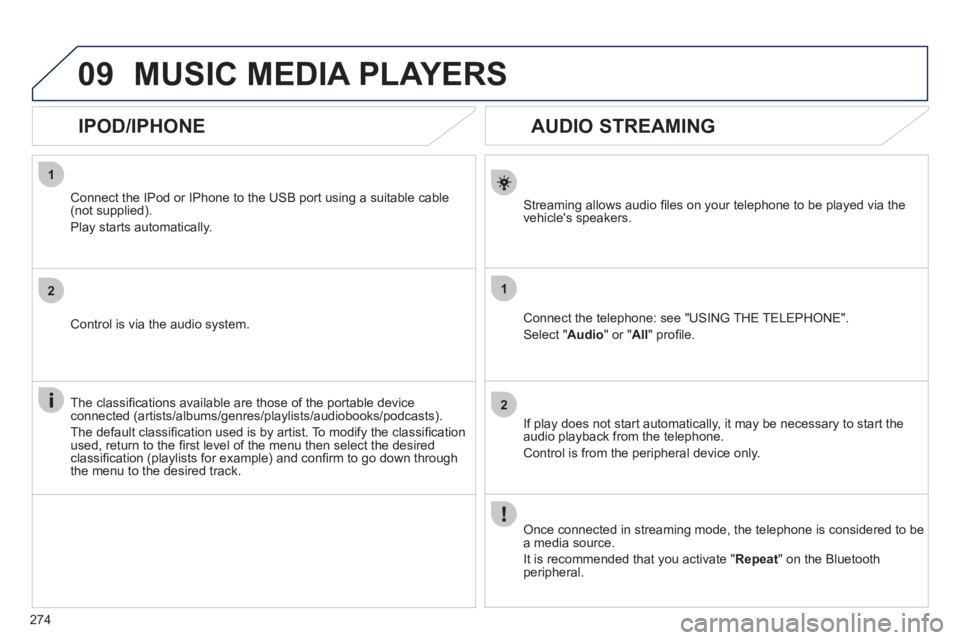
Streaming allows audio fi les on your telephone to be played via the
vehicle's speakers.
Connect the telephone: see "USING THE TELEPHONE".
Select " Audio
" or " All
" profi le.
If play does not start automatically, it may be necessary to start the
audio playback from the telephone.
Control is from the peripheral device only.
Once connected in streaming mode, the telephone is considered to be
a media source.
It is recommended that you activate " Repeat
" on the Bluetooth
peripheral.
MUSIC MEDIA PLAYERS
IPOD/IPHONE
Connect the IPod or IPhone to the USB port using a suitable cable
(not supplied).
Play starts automatically.
Control is via the audio system.
The classifi cations available are those of the portable device
connected (artists/albums/genres/playlists/audiobooks/podcasts).
The default classifi cation used is by artist. To modify the classifi cation
used, return to the fi rst level of the menu then select the desired
classifi cation (playlists for example) and confi rm to go down through
the menu to the desired track.