key PEUGEOT 508 2021 Owner's Guide
[x] Cancel search | Manufacturer: PEUGEOT, Model Year: 2021, Model line: 508, Model: PEUGEOT 508 2021Pages: 292, PDF Size: 8.61 MB
Page 183 of 292
181
Practical information
7Advice on care and maintenance
General recommendations
Observe the following recommendations to avoid
damaging the vehicle.
Exterior
Never use a high-pressure jet wash in
the engine compartment - risk of
damaging the electrical components!
Do not wash the vehicle in bright sunshine or
extremely cold conditions.
When washing the vehicle in an
automatic roller-brush car wash, be sure
to lock the doors and, depending on version,
move the electronic key away and deactivate
the "hands-free" function (Hands-Free
Tailgate Access).
When using a pressure washer, keep the jet
nozzle at a minimum distance of 30 cm from
the vehicle (particularly when cleaning areas
containing chipped paint, sensors or seals).
Promptly clean up any stains containing
chemicals liable to damage the vehicle's
paintwork (including tree resin, bird
droppings, insect secretions, pollen and tar).
Depending on the environment, clean the
vehicle frequently to remove salty deposits
(in coastal areas), soot (in industrial areas)
and mud/salts (in wet or cold areas). These
substances can be highly corrosive.
Contact a PEUGEOT dealer or a qualified
workshop for advice on removing stubborn
stains requiring special products (such as tar
or insect removers).
Preferably, have paint touch-ups performed
by a PEUGEOT dealer or a qualified
workshop.
Interior
When washing the vehicle, never use a
water hose or high-pressure jet to clean
the interior.
Liquids carried in cups or other open
containers can spill, presenting a risk of
damage to the instruments and controls and
the controls located on the centre console. Be
vigilant!
To clean instrument panels, touch screens
or other displays, wipe gently with a soft,
dry cloth. Do not use products (e.g. alcohol,
disinfectant) or soapy water directly on these
surfaces - risk of damage!
Bodywork
High-gloss paint
Do not use abrasive products, solvents,
petrol or oil to clean the bodywork.
Never use an abrasive sponge to clean
stubborn stains - risk of scratching the
paintwork!
Do not apply polish in strong sunshine, or to
plastic or rubber parts.
Use a soft cloth and soapy water or a pH
neutral product.
Gently wipe the bodywork with a clean
microfibre cloth.
Apply polish with the vehicle clean and dry.
Comply with the instructions for use stated on
the product.
Decals
(Depending on version)
Do not use a high-pressure washer to
clean the vehicle - risk of damaging or
detaching the decals!
Use a high-flow hose (temperature
between 25°C and 40°C).
Place the jet of water perpendicular to the
surface to be cleaned.
Rinse the vehicle with demineralised water.
Page 199 of 292
197
In the event of a breakdown
8Before disconnecting the battery:
► Close all openings (doors, boot, windows,
roof).
►
Switch off all electricity-consuming devices
(audio system, wipers, lamps, etc.).
►
Switch off the ignition and wait for 4
minutes.
After accessing the battery, it is only necessary
to disconnect the (+) terminal.
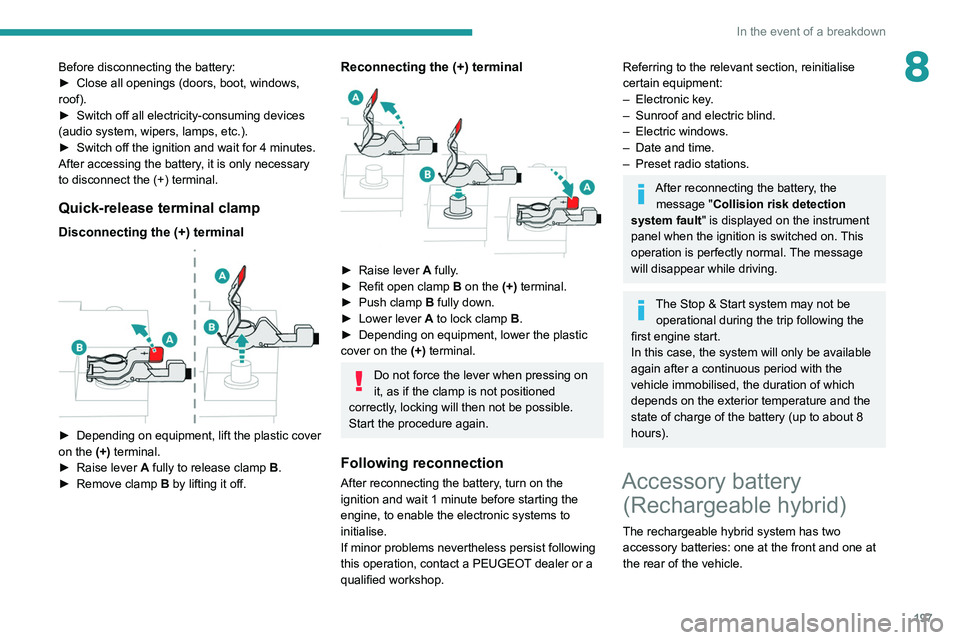
Quick-release terminal clamp
Disconnecting the (+) terminal
► Depending on equipment, lift the plastic cover
on the (+) terminal.
►
Raise lever
A
fully to release clamp
B
.
►
Remove clamp
B
by lifting it off.
Reconnecting the (+) terminal
► Raise lever A fully.
► Refit open clamp B on the (+) terminal.
►
Push clamp
B fully down.
►
Lower lever
A
to lock clamp B.
►
Depending on equipment, lower the plastic
cover on the
(+) terminal.
Do not force the lever when pressing on
it, as if the clamp is not positioned
correctly, locking will then not be possible.
Start the procedure again.
Following reconnection
After reconnecting the battery, turn on the
ignition and wait 1 minute before starting the
engine, to enable the electronic systems to
initialise.
If minor problems nevertheless persist following
this operation, contact a PEUGEOT dealer or a
qualified workshop.
Referring to the relevant section, reinitialise
certain equipment:
–
Electronic key
.
–
Sunroof and electric blind.
–
Electric windows.
–
Date and time.
–
Preset radio stations.
After reconnecting the battery, the message "Collision risk detection
system fault" is displayed on the instrument
panel when the ignition is switched on. This
operation is perfectly normal. The message
will disappear while driving.
The Stop & Start system may not be operational during the trip following the
first engine start.
In this case, the system will only be available
again after a continuous period with the
vehicle immobilised, the duration of which
depends on the exterior temperature and the
state of charge of the battery (up to about 8
hours).
Accessory battery (Rechargeable hybrid)
The rechargeable hybrid system has two
accessory batteries: one at the front and one at
the rear of the vehicle.
Page 202 of 292
200
In the event of a breakdown
Accessing the tools
Hatchback
Reconnection
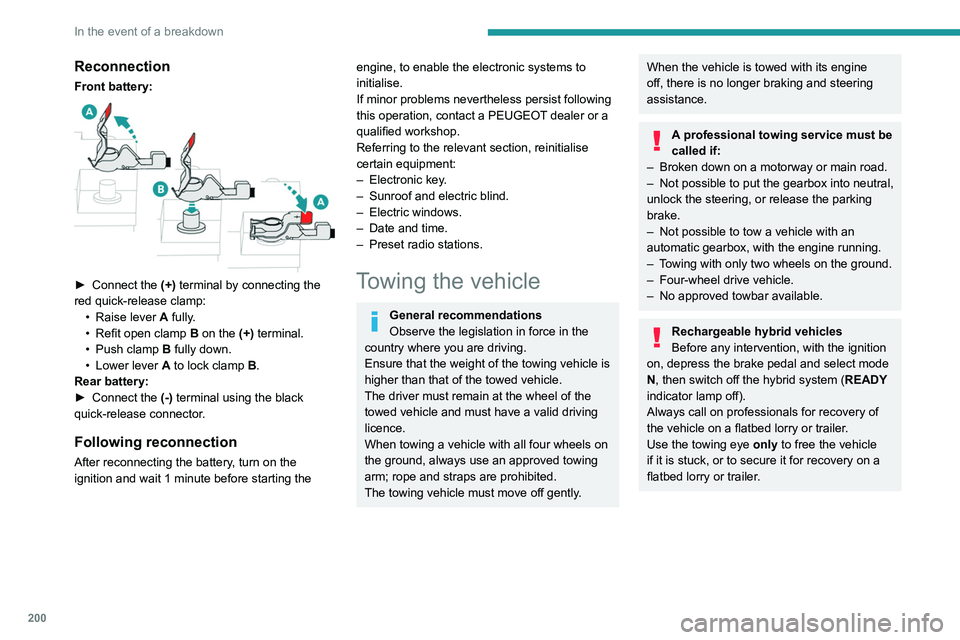
Front battery:
► Connect the (+) terminal by connecting the
red quick-release clamp: •
Raise lever
A
fully.
•
Refit open clamp
B
on the (+) terminal.
•
Push clamp
B fully down.
•
Lower lever
A
to lock clamp B.
Rear battery:
►
Connect the
(-) terminal using the black
quick-release connector.
Following reconnection
After reconnecting the battery, turn on the
ignition and wait 1 minute before starting the
engine, to enable the electronic systems to
initialise.
If minor problems nevertheless persist following
this operation, contact a PEUGEOT dealer or a
qualified workshop.
Referring to the relevant section, reinitialise
certain equipment:
–
Electronic key
.
–
Sunroof and electric blind.
–
Electric windows.
–
Date and time.
–
Preset radio stations.
Towing the vehicle
General recommendations
Observe the legislation in force in the
country where you are driving.
Ensure that the weight of the towing vehicle is
higher than that of the towed vehicle.
The driver must remain at the wheel of the
towed vehicle and must have a valid driving
licence.
When towing a vehicle with all four wheels on
the ground, always use an approved towing
arm; rope and straps are prohibited.
The towing vehicle must move off gently.
When the vehicle is towed with its engine
off, there is no longer braking and steering
assistance.
A professional towing service must be
called if:
–
Broken down on a motorway or main road.
–
Not possible to put
the gearbox into neutral,
unlock the steering, or release the parking
brake.
–
Not possible to tow a vehicle with an
automatic gearbox, with the engine running.
–
T
owing with only two wheels on the ground.
–
Four-wheel drive vehicle.
–
No approved towbar available.
Rechargeable hybrid vehicles
Before any intervention, with the ignition
on, depress the brake pedal and select mode
N, then switch off the hybrid system (READY
indicator lamp off).
Always call on professionals for recovery of
the vehicle on a flatbed lorry or trailer.
Use the towing eye only
to free the vehicle
if it is stuck, or to secure it for recovery on a
flatbed lorry or trailer.
Page 216 of 292
214
PEUGEOT Connect Radio
Enter the FM and AM waveband values
using the virtual keypad.
Press "OK" to confirm.
Radio reception may be affected by the
use of electrical equipment not approved
by the Brand, such as a USB charger
connected to the 12 V socket.
The exterior environment (hills, buildings,
tunnels, basement car parks, etc.) may
block reception, including in RDS mode.
This phenomenon is perfectly normal in the
context of radio wave transmission, and
in no way indicative of an audio system
malfunction.
Changing the waveband
Press Radio Media to display the main
page.
Press the "OPTIONS " button to access the
secondary page.
Press "Band" to change waveband.
Press in the shaded area to confirm.
Presetting a station
Select a radio station or frequency.Make a short press on the star outline. If
the star is solid, the radio station is
already preset.
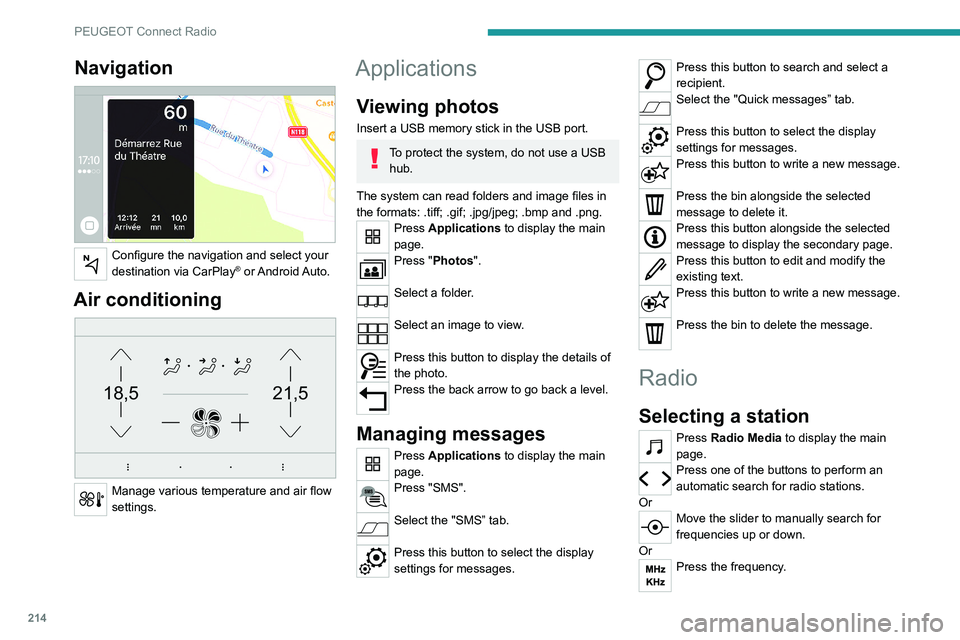
Navigation
Configure the navigation and select your
destination via CarPlay® or Android Auto.
Air conditioning
21,518,5
Manage various temperature and air flow
settings.
Applications
Viewing photos
Insert a USB memory stick in the USB port.
To protect the system, do not use a USB hub.
The system can read folders and image files in
the formats: .tiff; .gif; .jpg/jpeg; .bmp and .png.
Press Applications to display the main
page.
Press "Photos".
Select a folder.
Select an image to view.
Press this button to display the details of
the photo.
Press the back arrow to go back a level.
Managing messages
Press Applications to display the main
page.
Press "SMS".
Select the "SMS” tab.
Press this button to select the display
settings for messages.
Press this button to search and select a
recipient.
Select the "Quick messages” tab.
Press this button to select the display
settings for messages.
Press this button to write a new message.
Press the bin alongside the selected
message to delete it.
Press this button alongside the selected
message to display the secondary page.
Press this button to edit and modify the
existing text.
Press this button to write a new message.
Press the bin to delete the message.
Radio
Selecting a station
Press Radio Media to display the main
page.
Press one of the buttons to perform an
automatic search for radio stations.
Or
Move the slider to manually search for
frequencies up or down.
Or
Press the frequency.
Page 217 of 292
215
PEUGEOT Connect Radio
10Enter the FM and AM waveband values
using the virtual keypad.
Press "OK" to confirm.
Radio reception may be affected by the
use of electrical equipment not approved
by the Brand, such as a USB charger
connected to the 12 V socket.
The exterior environment (hills, buildings,
tunnels, basement car parks, etc.) may
block reception, including in RDS mode.
This phenomenon is perfectly normal in the
context of radio wave transmission, and
in no way indicative of an audio system
malfunction.
Changing the waveband
Press Radio Media to display the main
page.
Press the "OPTIONS " button to access the
secondary page.
Press "Band" to change waveband.
Press in the shaded area to confirm.
Presetting a station
Select a radio station or frequency.Make a short press on the star outline. If
the star is solid, the radio station is
already preset.
Or
Select a radio station or frequency.
Press "Preset ".
Make a long press on one of the buttons
to preset the station.
Activating/Deactivating RDS
RDS, if activated, allows you to continue
listening to the same station by automatically
retuning to alternative frequencies.
Press Radio Media to display the main
page.
Press the "OPTIONS " button to access the
secondary page.
Activate/deactivate "RDS".
Press in the shaded area to confirm.
RDS station tracking may not be
available nationwide, as many radio
stations do not cover 100
% of the country.
This explains the loss of reception of the
station during a journey.
Displaying text information
The "Radio Text" function displays information
transmitted by the radio station relating to the
station or the currently playing song.
Press Radio Media to display the main
page. Press the "OPTIONS
" button to access the
secondary page.
Activate/deactivate "News".
Press in the shaded area to confirm.
Playing TA messages
The TA (Traffic Announcement) function gives
priority to TA alert messages. To operate, this
function needs good reception of a radio station
that transmits this type of message. While traffic
information is being broadcast, the current
media is automatically interrupted so that the
TA message can be heard. Normal play of the
previously playing media resumes at the end of
the message.
Press Radio Media to display the main
page.
Press the "OPTIONS " button to access the
secondary page.
Activate/deactivate "TA ".
Press in the shaded area to confirm.
Audio settings
Press Radio Media to display the main
page.
Press the "OPTIONS " button to access the
secondary page.
Press "Audio settings".
Page 222 of 292
220
PEUGEOT Connect Radio
Settings
Configuring profiles
Press Settings to display the main page.
Press "Profiles".
Select "Profile 1", "Profile 2", "Profile 3” or
"Common profile ".
Press this button to enter a name for the
profile using the virtual keypad.
Press "OK" to save.
Press the back arrow to confirm.
Press this button to activate the profile.
Press the back arrow again to confirm.
Press this button to reset the selected
profile.
Adjusting the brightness
Press Settings to display the main page.
Press Brightness.
Move the slider to adjust the brightness of
the screen and/or the instrument panel
(depending on version).
Press in the shaded area to confirm.
Press "OK" to confirm.
Managing paired telephones
This function lets you connect or disconnect a
device or delete a pairing.
Press Telephone to display the main
page.
Press the "PHONE" button to access the
secondary page.
Press "Bluetooth connection" to
display the list of paired devices.
Press on the name of the telephone
selected in the list to disconnect it.
Press again to connect it.
Deleting a telephone
Press the basket at the top right of the
screen to display a basket alongside the
telephone chosen.
Press the basket alongside the telephone
chosen to delete it.
Receiving a call
An incoming call is announced by a ring and a
superimposed display in the screen.
Make a short press on the steering
mounted PHONE button to accept an
incoming call.
And
Make a long press
on the steering mounted PHONE button
to reject the call.
Or
Press "End call".
Making a call
Using the telephone is not recommended
while driving.
Parking the vehicle.
Make the call using the steering mounted
controls.
Calling a new number
Press Telephone to display the main
page.
Enter the phone number using the digital
keypad.
Press "Call" to start the call.
Calling a contact
Press Telephone to display the main
page.
Or press and hold
the steering mounted PHONE button.
Press "Contacts".
Select the desired contact from the displayed list.
Press "Call".
Calling a recently used
number
Press Telephone to display the main
page.
Or
Press and hold
the steering mounted button.
Press "Recent calls".
Select the desired contact from the displayed list.
It is always possible to make a call
directly from the telephone; as a safety
measure, first park the vehicle.
Setting the ringtone
Press Telephone to display the main
page.
Press the "OPTIONS " button to access the
secondary page.
Press "Ring volume" to display the
volume bar.
Press the arrows or move the slider to set
the ring volume.
Page 223 of 292
221
PEUGEOT Connect Radio
10Settings
Configuring profiles
Press Settings to display the main page.
Press "Profiles".
Select "Profile 1", "Profile 2", "Profile 3” or
"Common profile ".
Press this button to enter a name for the
profile using the virtual keypad.
Press "OK" to save.
Press the back arrow to confirm.
Press this button to activate the profile.
Press the back arrow again to confirm.
Press this button to reset the selected
profile.
Adjusting the brightness
Press Settings to display the main page.
Press Brightness.
Move the slider to adjust the brightness of
the screen and/or the instrument panel
(depending on version).
Press in the shaded area to confirm.
Modifying system settings
Press Settings to display the main page.
Press "Configuration" to access the
secondary page.
Press "System configuration".
Press the "Units" tab to change the units of
distance, fuel consumption and temperature.
Press the "Factory settings" tab to restore the
initial settings.
Returning the system to factory settings
activates the English language by default
(depending on version).
Press the "System info" tab to display the
versions of the various modules installed in the
system.
Press the "Privacy " tab,
or
Press Settings to display the main page.
Press "Privacy" to activate or deactivate
the private data mode.
Activate or deactivate:
–
"No sharing (data, vehicle position) ".
–
"Only data sharing ”
–
"Data and vehicle position sharing "
Press the back arrow to confirm.
Press Settings to display the main page.
Press "Configuration" to access the
secondary page.
Press "Screen configuration".
Press "Brightness".
Move the slider to adjust the brightness of
the screen and/or the instrument panel
(depending on version).
Press the back arrow to confirm.
Press "Animation".
Activate or deactivate: “Automatic scrolling ”.
Select "Animated transitions".
Press the back arrow to confirm.
Selecting the language
Press Settings to display the main page.
Press "Configuration" to access the
secondary page.
Select "Language" to change the
language.
Press the back arrow to confirm.
Setting the time
Press Settings to display the main page.
Page 224 of 292
222
PEUGEOT Connect Radio
► Delete the files supplied with the memory
stick and limit the number of sub-folders in the
file structure on the memory stick.
Some characters in information about the
currently playing media are not displayed
correctly.
The audio system is unable to process certain
types of character.
► Use standard characters to name tracks and
folders.
Playback of streaming files does not start.
The connected device does not automatically
launch playback.
► Start playback from the device.
Track names and playing times are not
displayed on the audio streaming screen.
The Bluetooth profile does not allow the transfer
of this information.
Telephone
I cannot connect my Bluetooth telephone.
The telephone's Bluetooth function may be
switched off or the device may not be visible.
► Check that the telephone has Bluetooth
switched on.
► Check in the telephone settings that it is
"visible to all".
The Bluetooth telephone is not compatible with
the system.
► Check the compatibility of the telephone on
the Brand's website (services).
Android Auto and/or CarPlay do not work.
Press "Configuration" to access the
secondary page.
Press "Date and time".
Select "Time".
Press this button to set the time using the
virtual keypad.
Press "OK" to save the time.
Press this button to set the time zone.
Select the display format for the time
(12h/24h).
Activate or deactivate summer time (+1 hour).
Activate or deactivate GPS synchronisation (UTC).
Press the back arrow to save the settings.
The system may not automatically manage the change between winter and
summer time (depending on the country of
sale).
Setting the date
Press Settings to display the main page.
Press "Configuration" to access the
secondary page.
Press "Date and time".
Select "Date".
Press this button to set the date.
Press the back arrow to save the date.
Select the display format for the date.
Press the back arrow again to confirm.
Time and date setting is only available if
"GPS Synchronisation:" is deactivated.
Frequently asked
questions
The following information groups together the answers to the most frequently asked questions
concerning the system.
Radio
The reception quality of the tuned radio
station gradually deteriorates or the station
presets are not working (no sound, 87.5 MHz
is displayed, etc.).
The vehicle is too far from the selected station’s
transmitter, or no transmitter is present in the
geographical area.
►
Activate the "RDS" function in the upper bar
to enable the system to check whether there is
a more powerful transmitter in the geographical
area. The environment (hills, buildings, tunnels,
basement car parks, etc.) is blocking reception,
including in RDS mode.
This is a perfectly normal phenomenon, and is
not indicative of an audio system malfunction.
The aerial is missing or has been damaged
(for example while entering a car wash or
underground car park).
►
Have the aerial checked by a dealer
.
I cannot find some radio stations in the list of
received stations.
The name of the radio station changes.
The station is no longer received or its name has
changed in the list.
►
Press the round arrow on the "List" tab on the
"Radio" page.
Some radio stations send other information
in place of their name (the title of the song for
example).
The system interprets these details as the station
name.
►
Press the round arrow on the "List" tab on the
"Radio" page.
Media
Playback of my USB memory stick starts only
after a very long wait (around 2 to 3 minutes).
Some files supplied with the memory stick may
greatly slow down access to reading the memory
stick (multiplication by 10 of the cataloguing
time).
Page 232 of 292
230
PEUGEOT Connect Nav
David Miller, I'll be late". To display the list of
calls, say "display calls". For more information on
SMS, you can say "help with texting".
To choose a contact, say something like "select
line three". To move around the list say "next
page" or "previous page". You can undo your last
action and start over by saying "undo", or say
"cancel" to cancel the current action.
"Text message" voice
commands
If there is no telephone connected by
Bluetooth, a voice message announces:
"Please first connect a telephone", and the
voice session is closed.
The "Text messages" voice commands function allows you to dictate and send
an SMS.
Dictate the text, taking care to pause briefly
between each word.
When you have finished, the voice recognition
system will automatically generate an SMS.
Voice commands
Send quick message to Bill Carter, I'll be late
Help messages
* This function is av ailable only if the telephone connected to the system supports downloadi\
ng of contacts and recent calls and the corresponding
download has been performed. From the list of quick messages, say the name of
the one you'd like to send. To move around the
list you can say "go to start", "go to end", "next
page" or "previous page". You can undo your last
action and start over by saying "undo", or say
"cancel" to cancel the current action.
Voice commands
Send SMS to John Miller, I'm just arriving
Send SMS to David Miller at the office, don't
wait for me
Help messages
Please say "call" or "send quick message to",
and then select a line from the list. To move
around a list shown on the display, you can
say "go to start", "go to end", "next page" or
"previous page". You can undo your last action
and start over by saying "undo", or say "cancel"
to cancel the current action.
Voice commands
Listen to most recent message*
Help messages
To hear your last message, you can say "listen to
most recent message". When you want to send
a text, there's a set of quick messages ready for
you to use. Just use the quick message name
and say something like "send quick message to
Bill Carter, I'll be late". Check the phone menu
for the names of the supported messages.
The system only sends pre-recorded "Quick messages".
Navigation
Choice of a destination
To a new destination
Intuitive method:Press Navigation to display the main
page.
Press "Search…".
Enter an address or the key words for the
destination.
Press "OK" to select the "Guidance
criteria".
Or
Guided method:
In order to be able to use the navigation,
you must enter the "City", the "Street"
(suggestions are displayed automatically
when you begin typing), then enter the
"Number" using the virtual keypad, or select
Page 233 of 292
231
PEUGEOT Connect Nav
11an address from the "Contact" list or the
address "History".
If you do not confirm the number, the
navigation system will show one end of
the street.
Press the "MENU" button to access the
secondary page.
Select "Enter address".
Then
Select the "Country".
Select the keyboard “language”.
Change the keyboard "type" according to
the selected "language": ABCDE;
AZERTY; QWERTY or QWERTZ.
Enter the "City", the "Street" and the
"Number", and confirm by pressing on
the displayed suggestions.
Press "OK" to select the "Guidance
criteria".
And/or
Select "See on map" to choose the
"Guidance criteria".
Press "OK" to start guided navigation.
Zoom in/out using the touch buttons or
with two fingers on the screen.
To a recent destination
Press Navigation to display the main
page.
Press the "MENU" button to access the
secondary page.
Select "My destinations".
Select the "Recent” tab.
Select the address chosen in the list to display
the "Guidance criteria”.
Press "OK" to start guided navigation.
Select "Position " to see the point of
arrival on the map.
To "Home" or "My work"
Press Navigation to display the main
page.
Press the "MENU" button to access the
secondary page.
Select "My destinations".
Select the "Preferred ” tab.
Select "Home".
Or
Select "My work".
Or
Select a preset favourite destination.
To a contact
Press Navigation to display the main
page.
Press the "MENU" button to access the
secondary page.
Select "My destinations".
Select the "Contact” tab.
Select a contact in the list to start guided
navigation.
To points of interest (POI)
Guided method:
Points of interest (POI) are listed in different
categories.
Press Navigation to display the main
page.
Press the "MENU" button to access the
secondary page.
Select "Points of interest".
Select the "Travel", "leisure",
"Commercial ", "Public" or "Geographic”
tab.
Or
Select "Search" to enter the name and
address of a POI.
Press "OK" to calculate the route.
Or
Intuitive method: