phone Peugeot 607 Dag 2002.5 Owner's Manual
[x] Cancel search | Manufacturer: PEUGEOT, Model Year: 2002.5, Model line: 607 Dag, Model: Peugeot 607 Dag 2002.5Pages: 171, PDF Size: 2.22 MB
Page 2 of 171
3YOUR AT A GLANCE
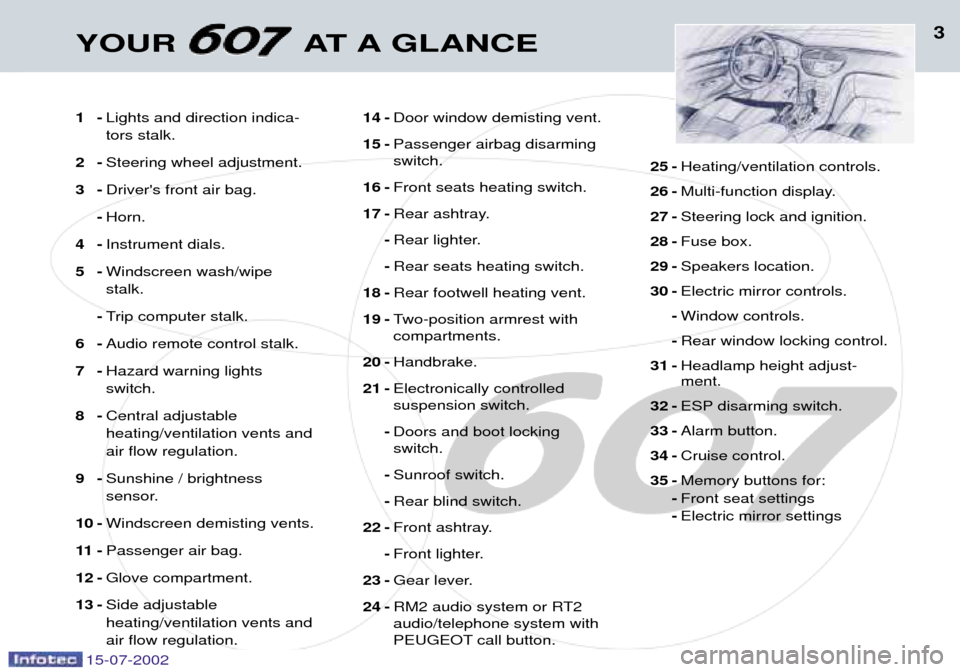
1-Lights and direction indica- tors stalk.
2- Steering wheel adjustment.
3- Driver's front air bag.
- Horn.
4- Instrument dials.
5- Windscreen wash/wipestalk.
- Trip computer stalk.
6- Audio remote control stalk.
7- Hazard warning lightsswitch.
8- Central adjustableheating/ventilation vents andair flow regulation.
9- Sunshine / brightness
sensor.
10 - Windscreen demisting vents.
11 - Passenger air bag.
12 - Glove compartment.
13 - Side adjustableheating/ventilation vents andair flow regulation. 14 -
Door window demisting vent.
15 - Passenger airbag disarming switch.
16 - Front seats heating switch.
17 - Rear ashtray.
- Rear lighter.
- Rear seats heating switch.
18 - Rear footwell heating vent.
19 - Two-position armrest withcompartments.
20 - Handbrake.
21 - Electronically controlledsuspension switch.
- Doors and boot lockingswitch.
- Sunroof switch.
- Rear blind switch.
22 - Front ashtray.
- Front lighter.
23 - Gear lever.
24 - RM2 audio system or RT2audio/telephone system with
PEUGEOT call button. 25 -
Heating/ventilation controls.
26 - Multi-function display.
27 - Steering lock and ignition.
28 - Fuse box.
29 - Speakers location.
30 - Electric mirror controls.
- Window controls.
- Rear window locking control.
31 - Headlamp height adjust- ment.
32 - ESP disarming switch.
33 - Alarm button.
34 - Cruise control.
35 - Memory buttons for:
- Front seat settings
- Electric mirror settings
15-07-2002
Page 13 of 171
13YOUR AT A GLANCE
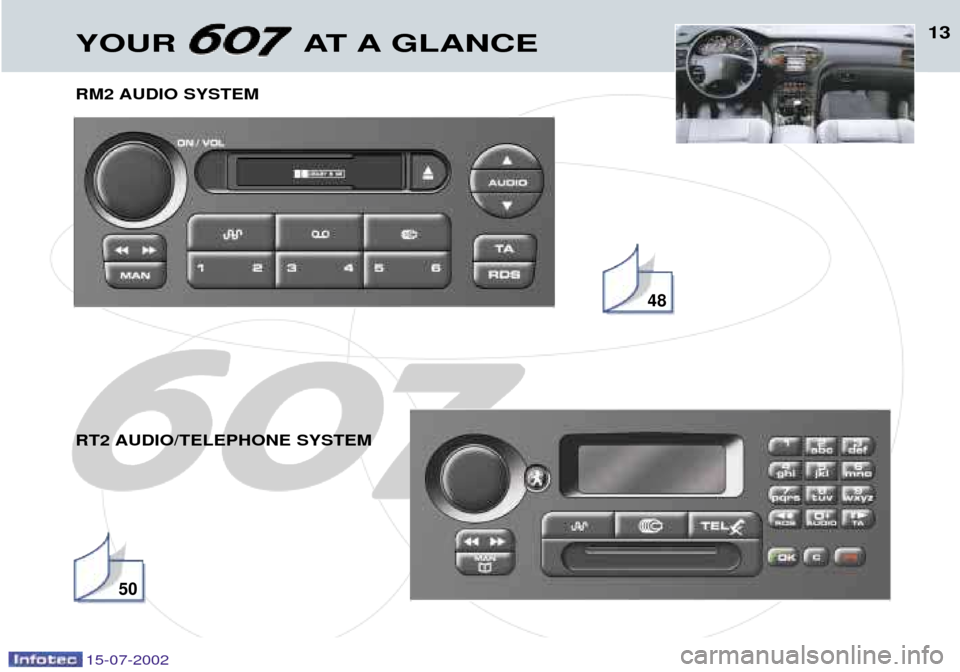
RM2 AUDIO SYSTEM
RT2 AUDIO/TELEPHONE SYSTEM
48
50
15-07-2002
Page 38 of 171

15-07-2002
YOUR 607 IN DETAIL
42
THE MULTI-FUNCTION
DISPLAY GeneralThe multifunction, monochrome C or colour display shows the following:
Ð the time,
Ð the date,
Ð the outside temperature (symbol¡C flashes if there is a risk of ice),
Ð the audio system displays,
Ð the telephone displays,
Ð status of the openings,
Ð warning messages (e.g. 'Fuel level low') and vehicle function status
messages, displayed temporarily,
Ð trip computer display (see corre- sponding section),
Ð satellite navigation system dis- plays* (see corresponding sec-tion),
Ð video images. It is controlled by a keypad. Superimposed display When the status of a function (audio
system, telephone, trip computer,satellite navigation system,....)changes while the display has been
showing a different function, a win-dow opens to announce the modifi-cation (information / warning mes-sage), then disappears.
* According to country The control pad This enables the functions, controls and parameters displayed to be selected
and validated. It is located next to the display.
Dial; This has two functions: ÐRotation of the dial: This allows you to move around the screen and thus select a
function.
It also allows you :
Ð after selection of a 'setting' type parameter, to increase or
decrease the value,
Ð with a 'list'type parameter, to open the list and scroll through
the values.
Ð Pressing the dial: This allows: Ð confirmation of the selected function or the modified value.
Ð selection of a 'setting' or 'list' type parameter in order to
modify it.
Ð cancelling of a superimposed display.
'MENU' button:This allows access at any time to the general menu.
'MODE' button:Ð brief press: Ð monochrome screen C: selection of functions (audio system,
navigation / guidance...),
Ð colour screen: access to the list of controls (context menu) of
the function being displayed.
Ð Press for more than two seconds: putting the screen on standby. 'ESC' button:
Ð brief press: cancelling of the operation in progress and a return to the previous screen or erasing of a superimposed display.
Ð press for more than two seconds: return to the start-up screen.
Page 39 of 171

15-07-2002
YOUR 607 IN DETAIL43
Setting the parameters From the
'general menu' , the
'Display configuration' menu
allows you to access the following parameters:
Ð setting the video brightness and display,
Ð setting the date and time,
Ð choosing the language in which information is heard and displayed (German, Spanish, French, Eng-lish, Italian), setting the formats
and the units. These settings allowyou to choose a display in km/h ormph, the temperature in Celsius orin Fahrenheit, and to modify thehour (12 or 24 hour) and date format.
Monochrome screen C General menu Press the 'Menu' button to select
one of the following functions:
Ð navigation/guidance* (see Section on 'Satellite naviga- tion system'),
Ð display configuration (see paragraph on 'Setting theparameters', below),
Ð navigation options* (see Section on 'Satellite naviga-tion system'),
Ð telephone phone books (see 'RT2 audio equipment' section).
* According to destination.The colour screen General menu From the general menu , select one
of the following functions by turning the dial then press the dial to confirm:
¥ general information,
¥ navigation/guidance*,
¥ map*,
¥ trip computer,
¥ settings,
¥ video.
Note: to enable you to make full use
of all the system functions, you have two CD-Roms: one contains the soft-
ware and the different languages ofthe voice synthesis, the other con-tains the "Satellite navigation sys-
tem" map data. The latter must be inthe drive for the "Navigation/Guid-ance" and "Map" functions to beactive.
Page 40 of 171

15-07-2002
YOUR 607 IN DETAIL43
Setting the parameters From the
'general menu' , the
'Display configuration' menu
allows you to access the following parameters:
Ð setting the video brightness and display,
Ð setting the date and time,
Ð choosing the language in which information is heard and displayed (German, Spanish, French, Eng-lish, Italian), setting the formats
and the units. These settings allowyou to choose a display in km/h ormph, the temperature in Celsius orin Fahrenheit, and to modify thehour (12 or 24 hour) and date format.
Monochrome screen C General menu Press the 'Menu' button to select
one of the following functions:
Ð navigation/guidance* (see Section on 'Satellite naviga- tion system'),
Ð display configuration (see paragraph on 'Setting theparameters', below),
Ð navigation options* (see Section on 'Satellite naviga-tion system'),
Ð telephone phone books (see 'RT2 audio equipment' section).
* According to destination.The colour screen General menu From the general menu , select one
of the following functions by turning the dial then press the dial to confirm:
¥ general information,
¥ navigation/guidance*,
¥ map*,
¥ trip computer,
¥ settings,
¥ video.
Note: to enable you to make full use
of all the system functions, you have two CD-Roms: one contains the soft-
ware and the different languages ofthe voice synthesis, the other con-tains the "Satellite navigation sys-
tem" map data. The latter must be inthe drive for the "Navigation/Guid-ance" and "Map" functions to beactive.
Page 41 of 171

15-07-2002
Language Select the required language, then confirm and record the modification. The system then asks you to load the language inn the navigation system. Select "YES" then confirm.
YOUR 607 IN DETAIL
44
General information The
'General information' function
displays an information summary on the following items:
Ð the time, outside temperature, date or telephone status,
Ð the audio equipment and the tele- phone,
Ð the range (see Section on 'Trip computer'),
Ð Navigation/guidance details* not covered by the map (see Section on 'Satellite navigation system').
The context menu for this functionenables you to access:
Ð the parameters to adjust for opti- mum use of the screen,
Ð the telephone directories (SIM, BIS, and TEL).
* According to destination. Setting the parametersTo modify a parameter, press the dial or the mode button.The
'Settings' function displays a sum-
mary of the settings used.The context menu allows you to changethese settings:
Ð language used for vocal messages or
visual displays (French, English, Ger- man, Spanish, Italian, Dutch),
Ð colour (blue, green, grey, beige /
auto),
Ð brightness,
Ð frame (horizontal, vertical),
Ð time / date,
Ð units (km-litres, miles-gallons, ¡C, ¡F).
To confirm modification of a setting, select 'OK', then confirm
by pressing the dial.
Carry out this operation with the engine running to prevent activa-
tion of the vehicle's energy econo-
my mode and therefore cutting offof the electrical supplies during loa-ding of the data.
Page 59 of 171
15-07-2002
50
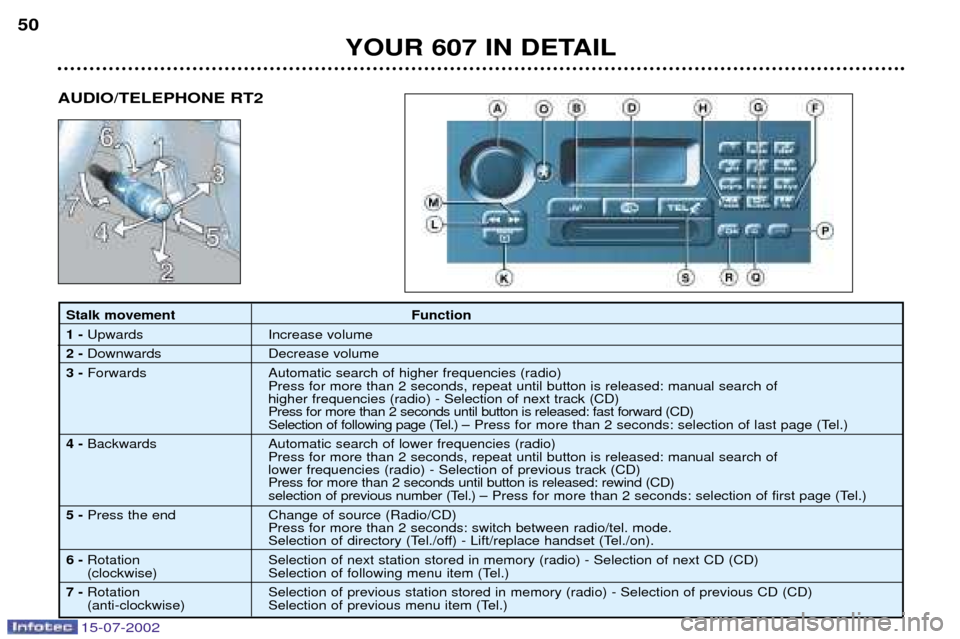
Stalk movementFunction
1 - Upwards Increase volume
2 - Downwards Decrease volume
3 - Forwards Automatic search of higher frequencies (radio)
Press for more than 2 seconds, repeat until button is released: manual search of higher frequencies (radio) - Selection of next track (CD) Press for more than 2 seconds until button is released: fast forward (CD)
Selection of following page (Tel.) Ð Press for more than 2 seconds: selection of last page (Tel.)
4 - Backwards Automatic search of lower frequencies (radio)
Press for more than 2 seconds, repeat until button is released: manual search oflower frequencies (radio) - Selection of previous track (CD) Press for more than 2 seconds until button is released: rewind (CD)
selection of previous number (Tel.) Ð Press for more than 2 seconds: selection of first page (Tel.)
5 - Press the end Change of source (Radio/CD)
Press for more than 2 seconds: switch between radio/tel. mode.
Selection of directory (Tel./off) - Lift/replace handset (Tel./on).
6 - Rotation Selection of next station stored in memory (radio) - Selection of next CD (CD)
(clockwise) Selection of following menu item (Tel.)
7 - Rotation Selection of previous station stored in memory (radio) - Selection of previous CD (CD)
(anti-clockwise) Selection of previous menu item (Tel.)
YOUR 607 IN DETAIL
AUDIO/TELEPHONE RT2
Page 60 of 171
15-07-2002
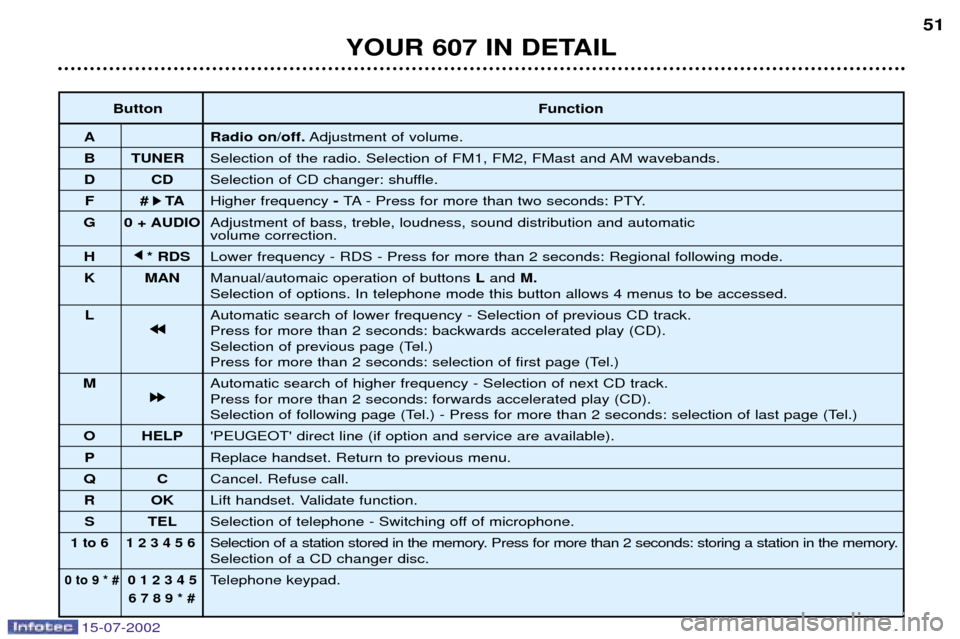
Button Function
A Radio on/off. Adjustment of volume.
B TUNER Selection of the radio. Selection of FM1, FM2, FMast and AM wavebands.
D CD Selection of CD changer: shuffle.
F # k
k TA
Higher frequency - TA - Press for more than two seconds: PTY.
G 0 + AUDIO Adjustment of bass, treble, loudness, sound distribution and automatic volume correction.
H j
j
* RDS Lower frequency - RDS - Press for more than 2 seconds: Regional following mode.
K MAN Manual/automaic operation of buttons Land M.
Selection of options. In telephone mode this button allows 4 menus to be accessed.
L Automatic search of lower frequency - Selection of previous CD track.
j
j j
j
Press for more than 2 seconds: backwards accelerated play (CD).
Selection of previous page (Tel.)
Press for more than 2 seconds: selection of first page (Tel.)
M Automatic search of higher frequency - Selection of next CD track.
k
k k
k
Press for more than 2 seconds: forwards accelerated play (CD).
Selection of following page (Tel.) - Press for more than 2 seconds: selection of last page (Tel.)
O HELP 'PEUGEOT' direct line (if option and service are available).
P Replace handset. Return to previous menu.
Q C Cancel. Refuse call.
R OK Lift handset. Validate function.
S TEL Selection of telephone - Switching off of microphone.
1 to 6 1 2 3 4 5 6Selection of a station stored in the memory. Press for more than 2 seconds: storing a station in the memory.Selection of a CD changer disc.
0 to 9 * #0 1 2 3 4 5Telephone keypad.
6 7 8 9 * #
51
YOUR 607 IN DETAIL
Page 61 of 171
15-07-2002
TELEPHONE: Audio/Telephone RT2 This function is a GSM 900 MHZ telephone incorporated in the audio system. It possesses a 'hands free'function, provided by a microphone located in the front courtesy light and a steering column
remote control which allows access to most of the functions. It also possesses a 'confidential' function, provided by the instrument panel located in the upper casing of the centre front
armrest. Note: An echo may be heard for a few seconds at the beginning of the call.
The principal "mobile"type functions are shown on the display incorporated in the audio system; the menu lists can be
referrred to on the multi-function display.This function is active when the ignition key is in the accessories position (1st notch), the ignition is switched on (2nd notch),
the engine is running or the vehicle is being driven. Note: when the ignition key is in the accessories position (1st notch) or the ignition is switched on (2nd notch), this function
will be interrupted after thirty minutes, when the message 'Economy mode active'appears on the multi-function display. If
you are using the telephone at that time, you will be able to finish your call.
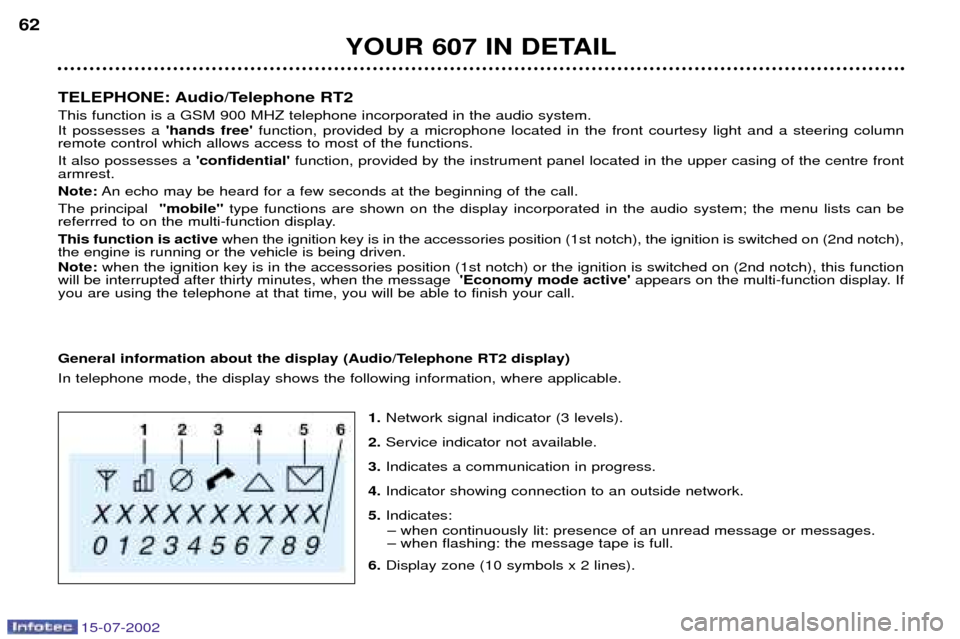
General information about the display (Audio/Telephone RT2 display) In telephone mode, the display shows the following information, where applicable.
1.Network signal indicator (3 levels).
2. Service indicator not available.
3. Indicates a communication in progress.
4. Indicator showing connection to an outside network.
5. Indicates:
Ð when continuously lit: presence of an unread message or messages. Ð when flashing: the message tape is full.
6. Display zone (10 symbols x 2 lines).
YOUR 607 IN DETAIL
62
Page 62 of 171
15-07-2002
Selecting telephone mode / Entering a number / Switching off the microphoneTo change to telephone mode, press the 'TEL' button or for more than 2 seconds on the steering column
remote control. Insert your SIM card fully into the slot at the front (use only the new generation 3V SIM card with bank card
format).
Note: the SIM card must not be taken out while the audio/telephone system is still in use. If you forget to do this, an audible
signal will sound for a few seconds after the ignition is switched off.
Enter your PIN number and confirm with the 'OK' button in order to access the network. The welcome screen is
displayed.Note: the PIN code is erased each time the ignition is switched off, but the ''PIN code protection'' function may be
cancelled.
Enter the number of the person you wish to speak to on the digital keypad and pres the 'OK'button to make the call.
To switch off the microphone mid-communication, press the 'TEL'button.
Cancelling the PIN code request
To cancel the PIN code request, select 'PIN code protection' in the 'Telephone parameters' menu and confirm; select 'OFF' and confirm, then input your PIN code and confirm. Receiving / Ending a call When a ringing sounds to let you know that a call is waiting, you can choose either to accept it by press- ing the 'OK'button or not to accept it by pressing button Por by selecting 'Refuse call' using the steer-
ing column remote control, pressing the end to confirm. If you do not accept it, the call is diverted to your voice mail (if this service is available and active).
To end the call, press button Por the end of the steering wheel remote control.
Note: Not accepting or ending a call by means of the steering wheel control returns the system to radio mode.
Receiving two incoming calls
During a call, when there is another incoming call, you are informed of this by a ring and a message. You may choose:
Ð to accept the call by pressing button 2then "OK" ; the first caller is put on hold and you are in contact with the second.
However, pressing button 2again allows you to return to the first caller,
Ð to finish the call you are on and talk to the second caller by pressing button 1 then "OK",
Ð not to accept the new call by pressing button "C".
YOUR 607 IN DETAIL 63