key Peugeot Boxer 2008.5 User Guide
[x] Cancel search | Manufacturer: PEUGEOT, Model Year: 2008.5, Model line: Boxer, Model: Peugeot Boxer 2008.5Pages: 167, PDF Size: 4.17 MB
Page 39 of 167
41
3
ERGONOMICS and COMFORT
Steering wheel controls
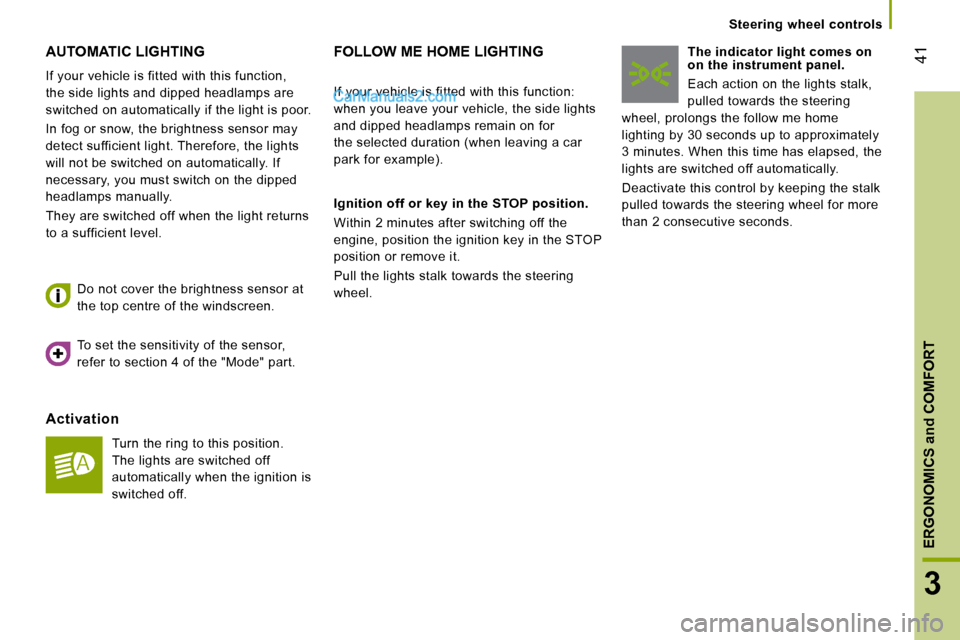
AUTOMATIC LIGHTING
If your vehicle is fitted with this function,
the side lights and dipped headlamps are
switched on automatically if the light is poor.
In fog or snow, the brightness sensor may
detect sufficient light. Therefore, the lights
will not be switched on automatically. If
necessary, you must switch on the dipped
headlamps manually.
They are switched off when the light returns
to a sufficient level.
Activation
Turn the ring to this position.
The lights are switched off
automatically when the ignition is
switched off.
Do not cover the brightness sensor at
the top centre of the windscreen.
FOLLOW ME HOME LIGHTING
Ignition off or key in the STOP position.
Within 2 minutes after switching off the
engine, position the ignition key in the STOP
position or remove it.
Pull the lights stalk towards the steering
wheel. The indicator light comes on
on the instrument panel.
Each action on the lights stalk,
pulled towards the steering
wheel, prolongs the follow me home
lighting by 30 seconds up to approximately
3 minutes. When this time has elapsed, the
lights are switched off automatically.
Deactivate this control by keeping the stalk
pulled towards the steering wheel for more
than 2 consecutive seconds.
If your vehicle is fitted with this function:
when you leave your vehicle, the side lights
and dipped headlamps remain on for
the selected duration (when leaving a car
park for example).
To set the sensitivity of the sensor,
refer to section 4 of the "Mode" part.
Page 40 of 167
42
Steering wheel controls
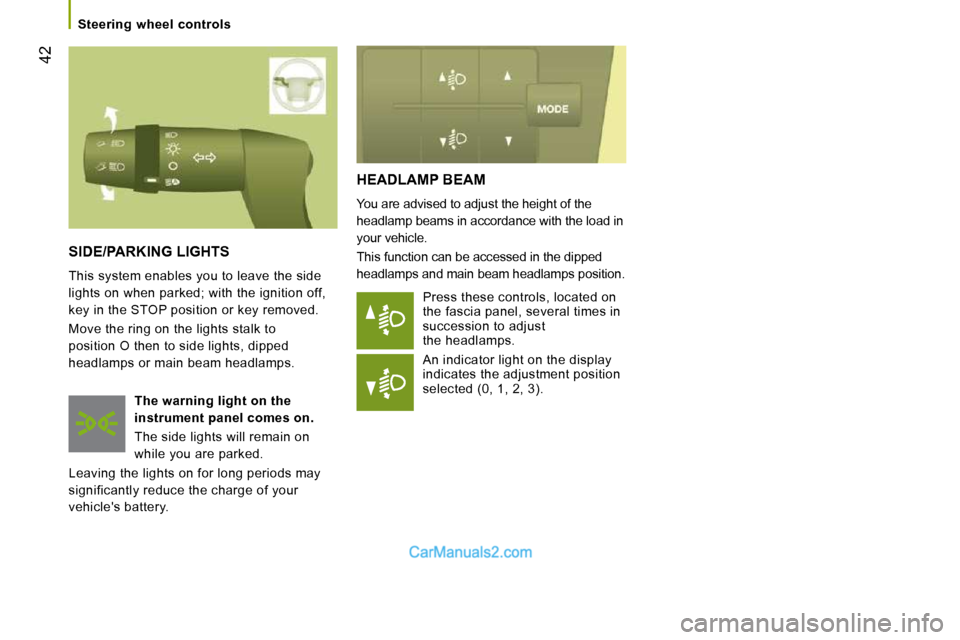
HEADLAMP BEAM
You are advised to adjust the height of the
headlamp beams in accordance with the load in
your vehicle.
This function can be accessed in the dipped
headlamps and main beam headlamps position. Press these controls, located on
the fascia panel, several times in
succession to adjust
the headlamps.
An indicator light on the display
indicates the adjustment position
selected (0, 1, 2, 3).
SIDE/PARKING LIGHTS
This system enables you to leave the side
lights on when parked; with the ignition off,
key in the STOP position or key removed.
Move the ring on the lights stalk to
position O then to side lights, dipped
headlamps or main beam headlamps.
The warning light on the
instrument panel comes on.
The side lights will remain on
while you are parked.
Leaving the lights on for long periods may
significantly reduce the charge of your
vehicle's battery.
Page 41 of 167
43
3
ERGONOMICS and COMFORT
Steering wheel controls
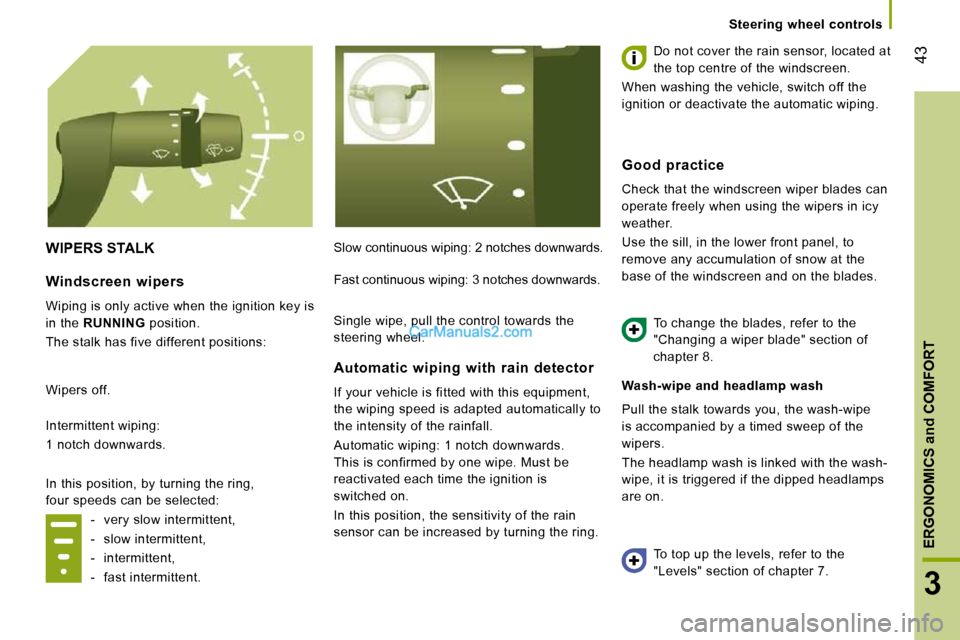
WIPERS STALK Slow continuous wiping: 2 notches downwards. Do not cover the rain sensor, located at
the top centre of the windscreen.
When washing the vehicle, switch off the
ignition or deactivate the automatic wiping.
Wash-wipe and headlamp wash
Pull the stalk towards you, the wash-wipe
is accompanied by a timed sweep of the
wipers.
The headlamp wash is linked with the wash-
wipe, it is triggered if the dipped headlamps
are on.
Windscreen wipers
Wiping is only active when the ignition key is
in the RUNNING position.
The stalk has five different positions:
Wipers off.
Intermittent wiping:
1 notch downwards.
In this position, by turning the ring,
four speeds can be selected: - very slow intermittent,
- slow intermittent,
- intermittent,
- fast intermittent.
Automatic wiping with rain detector
If your vehicle is fitted with this equipment,
the wiping speed is adapted automatically to
the intensity of the rainfall.
Automatic wiping: 1 notch downwards.
This is confirmed by one wipe. Must be
reactivated each time the ignition is
switched on.
In this position, the sensitivity of the rain
sensor can be increased by turning the ring.
Good practice
Check that the windscreen wiper blades can
operate freely when using the wipers in icy
weather.
Use the sill, in the lower front panel, to
remove any accumulation of snow at the
base of the windscreen and on the blades.
To change the blades, refer to the
"Changing a wiper blade" section of
chapter 8.
To top up the levels, refer to the
"Levels" section of chapter 7.
Fast continuous wiping: 3 notches downwards.
Single wipe, pull the control towards the
steering wheel.
Page 69 of 167
71
3
ERGONOMICS and COMFORT
Mirrors and windows
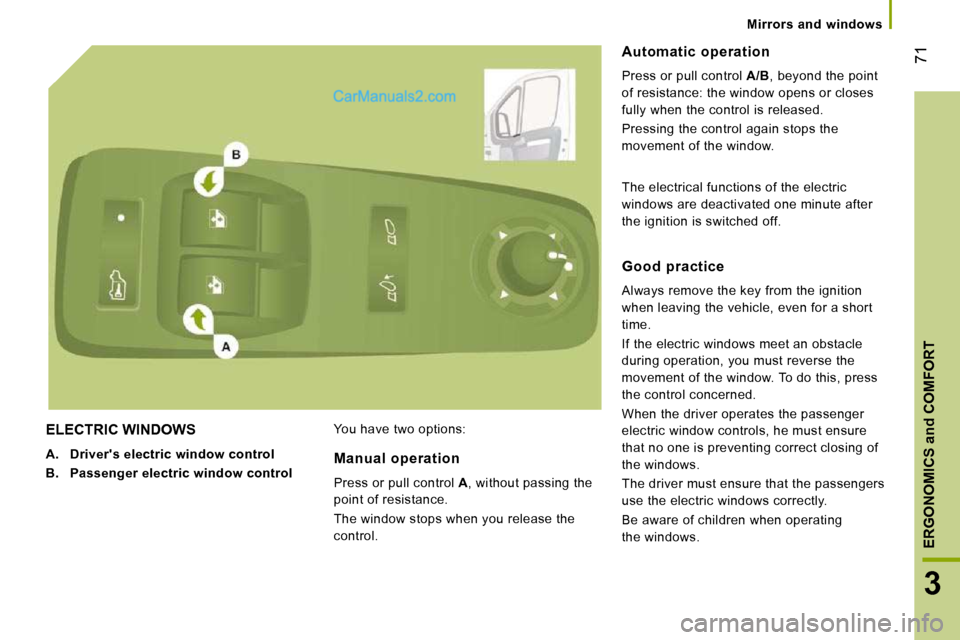
ELECTRIC WINDOWS
A. Driver's electric window control
B. Passenger electric window control You have two options:
Automatic operation
Press or pull control
A/B , beyond the point
of resistance: the window opens or closes
fully when the control is released.
Pressing the control again stops the
movement of the window.
Manual operation
Press or pull control A , without passing the
point of resistance.
The window stops when you release the
control.
Good practice
Always remove the key from the ignition
when leaving the vehicle, even for a short
time.
If the electric windows meet an obstacle
during operation, you must reverse the
movement of the window. To do this, press
the control concerned.
When the driver operates the passenger
electric window controls, he must ensure
that no one is preventing correct closing of
the windows.
The driver must ensure that the passengers
use the electric windows correctly.
Be aware of children when operating
the windows.
The electrical functions of the electric
windows are deactivated one minute after
the ignition is switched off.
Page 75 of 167
77
4
IN-CAR TECHNOLOGY
Reversing camera
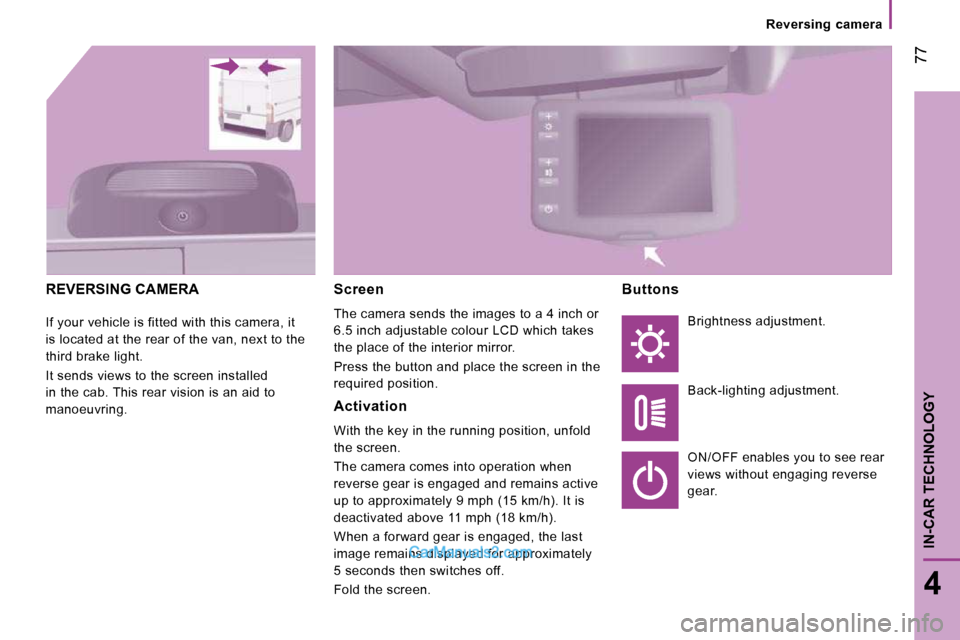
REVERSING CAMERA
If your vehicle is fitted with this camera, it
is located at the rear of the van, next to the
third brake light.
It sends views to the screen installed
in the cab. This rear vision is an aid to
manoeuvring.
Screen
The camera sends the images to a 4 inch or
6.5 inch adjustable colour LCD which takes
the place of the interior mirror.
Press the button and place the screen in the
required position.
Activation
With the key in the running position, unfold
the screen.
The camera comes into operation when
reverse gear is engaged and remains active
up to approximately 9 mph (15 km/h). It is
deactivated above 11 mph (18 km/h).
When a forward gear is engaged, the last
image remains displayed for approximately
5 seconds then switches off.
Fold the screen.
Buttons
Brightness adjustment.
Back-lighting adjustment.
ON/OFF enables you to see rear
views without engaging reverse
gear.
Page 83 of 167
85
4
IN-CAR TECHNOLOGY
Audio equipment
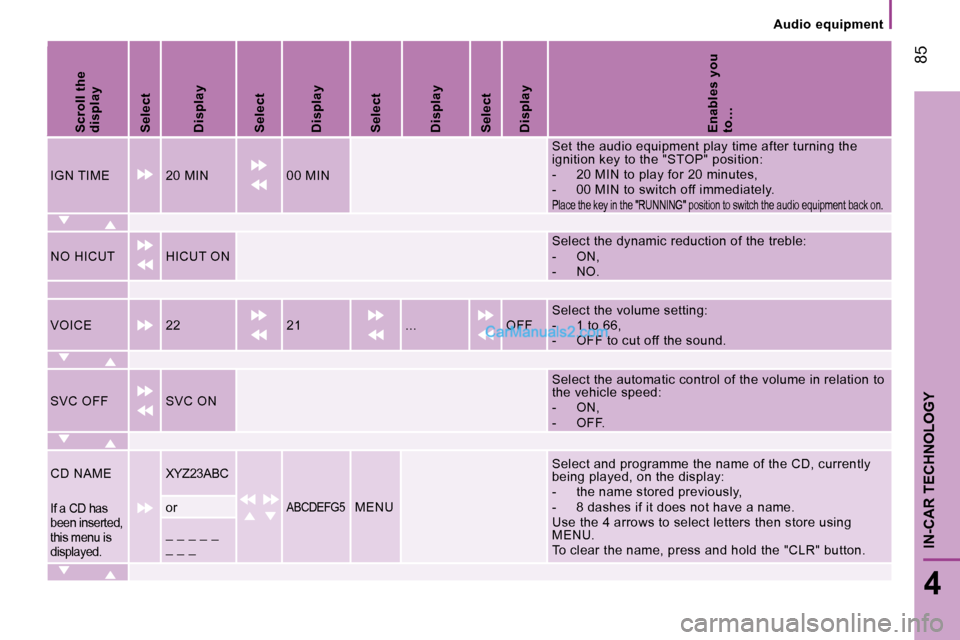
Scroll the
display
Select
Display
Select
Display
Select
Display
Select
Display
Enables you
to…
IGN TIME 20 MIN 00 MIN Set the audio equipment play time after turning th
e
ignition key to the "STOP" position:
- 20 MIN to play for 20 minutes,
- 00 MIN to switch off immediately.
Place the key in the "RUNNING" position to switch t he audio equipment back on.
NO HICUT HICUT ON Select the dynamic reduction of the treble:
- ON,
- NO.
VOICE 22 21 ... OFF Select the volume setting:
- 1 to 66,
- OFF to cut off the sound.
SVC OFF SVC ON Select the automatic control of the volume in rela
tion to
the vehicle speed:
- ON,
- OFF.
CD NAME XYZ23ABC
ABCDEFG5 MENU Select and programme the name of the CD, currently
being played, on the display:
- the name stored previously,
- 8 dashes if it does not have a name.
Use the 4 arrows to select letters then store usin
g
MENU.
To clear the name, press and hold the "CLR" button . If a CD has
been inserted,
this menu is
displayed. or
_ _ _ _ _
_ _ _
Page 87 of 167
89
4
IN-CAR TECHNOLOGY
Introduction
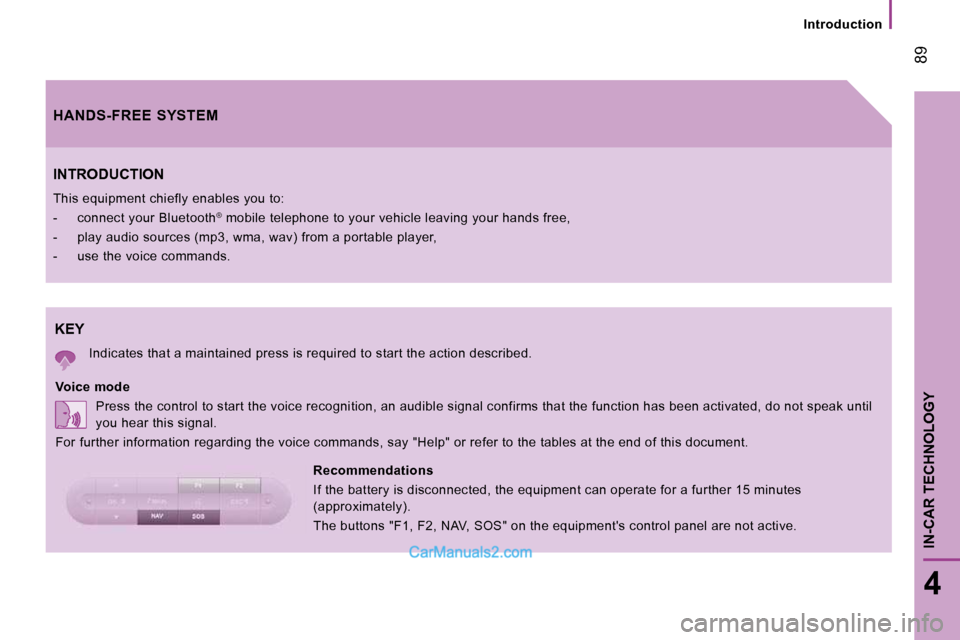
KEY
Indicates that a maintained press is required to start the action described.
Voice mode Press the control to start the voice recognition, an audible signal confirms that the function has be en activated, do not speak until
you hear this signal.
For further information regarding the voice comman ds, say "Help" or refer to the tables at the end of this document.
INTRODUCTION
This equipment chiefly enables you to:
- connect your Bluetooth®
mobile telephone to your vehicle leaving your hand s free,
- play audio sources (mp3, wma, wav) from a port able player,
- use the voice commands.
Recommendations
If the battery is disconnected, the equipment can operate for a further 15 minutes
(approximately).
The buttons "F1, F2, NAV, SOS" on the equipment's control panel are not active.
HANDS-FREE SYSTEM
Page 90 of 167
92
Mobile telephone with hands-free function When prompted by the telephone, enter the
PIN displayed on the instrument panel.
If the pairing has been successful, the
system announces "Connecting".
The name of the telephone identified
appears on the instrument panel display,
pairing is confirmed.
Blue indicator light on
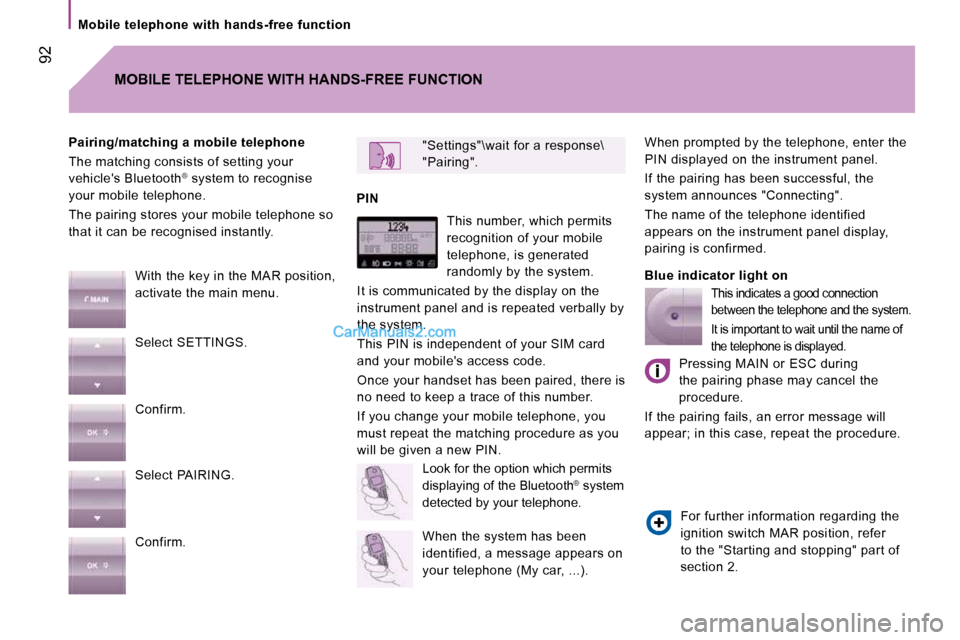
"Settings"\wait for a response\
"Pairing".
PIN
Pairing/matching a mobile telephone
The matching consists of setting your
vehicle's Bluetooth
®
system to recognise
your mobile telephone.
The pairing stores your mobile telephone so
that it can be recognised instantly.
MOBILE TELEPHONE WITH HANDS-FREE FUNCTION
With the key in the MAR position,
activate the main menu.
Select SETTINGS.
Confirm.
Select PAIRING.
Confirm. This number, which permits
recognition of your mobile
telephone, is generated
randomly by the system.
It is communicated by the display on the
instrument panel and is repeated verbally by
the system.
This PIN is independent of your SIM card
and your mobile's access code.
Once your handset has been paired, there is
no need to keep a trace of this number.
If you change your mobile telephone, you
must repeat the matching procedure as you
will be given a new PIN. Look for the option which permits
displaying of the Bluetooth ®
system
detected by your telephone.
When the system has been
identified, a message appears on
your telephone (My car, ...).
This indicates a good connection
between the telephone and the system.
It is important to wait until the name of
the telephone is displayed.
Pressing MAIN or ESC during
the pairing phase may cancel the
procedure.
If the pairing fails, an error message will
appear; in this case, repeat the procedure.
For further information regarding the
ignition switch MAR position, refer
to the "Starting and stopping" part of
section 2.
Page 93 of 167
95
4
IN-CAR TECHNOLOGY
Mobile telephone with hands-free function
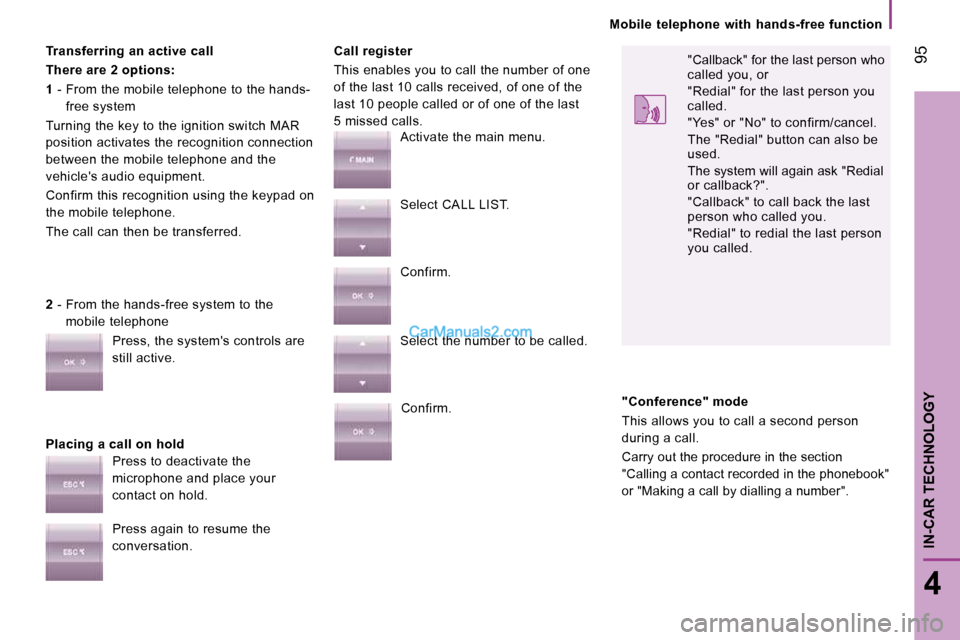
Transferring an active call
There are 2 options:
1 - From the mobile telephone to the hands-
free system
Turning the key to the ignition switch MAR
position activates the recognition connection
between the mobile telephone and the
vehicle's audio equipment.
Confirm this recognition using the keypad on
the mobile telephone.
The call can then be transferred.
Placing a call on hold Call register
This enables you to call the number of one
of the last 10 calls received, of one of the
last 10 people called or of one of the last
5 missed calls.
2 - From the hands-free system to the
mobile telephone
Press, the system's controls are
still active.
Press to deactivate the
microphone and place your
contact on hold.
Press again to resume the
conversation. Activate the main menu.
Select CALL LIST.
Confirm.
Select the number to be called.
Confirm. "Callback" for the last person who
called you, or
"Redial" for the last person you
called.
"Yes" or "No" to confirm/cancel.
The "Redial" button can also be
used.
The system will again ask "Redial
or callback?".
"Callback" to call back the last
person who called you.
"Redial" to redial the last person
you called.
"Conference" mode
This allows you to call a second person
during a call.
Carry out the procedure in the section
"Calling a contact recorded in the phonebook"
or "Making a call by dialling a number".
Page 94 of 167
96
Portable equipment audio player
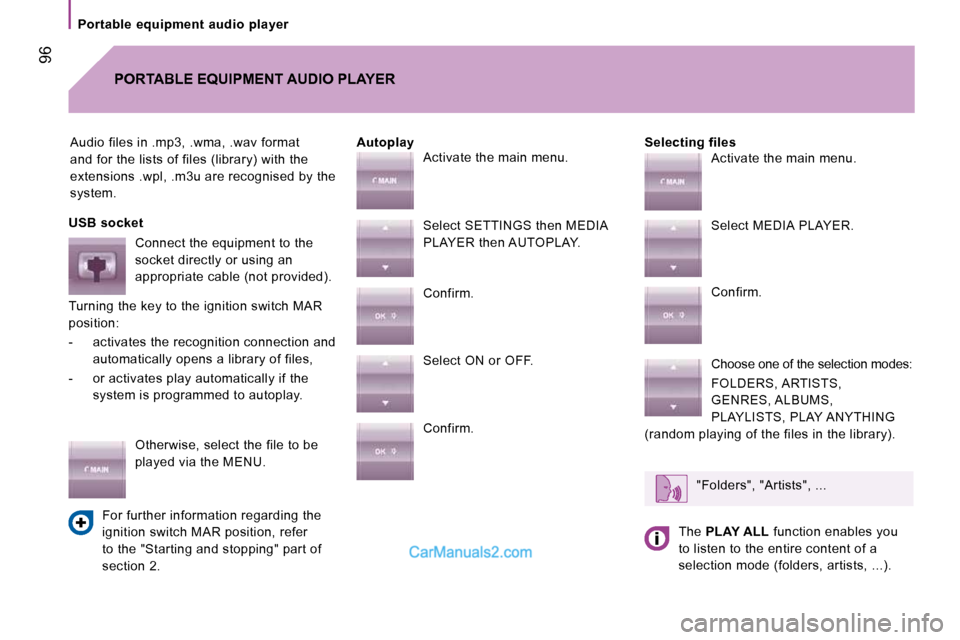
Audio files in .mp3, .wma, .wav format
and for the lists of files (library) with the
extensions .wpl, .m3u are recognised by the
system. Selecting files
PORTABLE EQUIPMENT AUDIO PLAYER
Autoplay
USB socket Connect the equipment to the
socket directly or using an
appropriate cable (not provided).
Turning the key to the ignition switch MAR
position:
- activates the recognition connection and automatically opens a library of files,
- or activates play automatically if the system is programmed to autoplay.
Otherwise, select the file to be
played via the MENU.
For further information regarding the
ignition switch MAR position, refer
to the "Starting and stopping" part of
section 2. Activate the main menu.
Select SETTINGS then MEDIA
PLAYER then AUTOPLAY.
Confirm.
Select ON or OFF.
Confirm.
Activate the main menu.
Select MEDIA PLAYER.
Confirm.
Choose one of the selection modes:
FOLDERS, ARTISTS,
GENRES, ALBUMS,
PLAYLISTS, PLAY ANYTHING
(random playing of the files in the library).
"Folders", "Artists", ...
The PLAY ALL function enables you
to listen to the entire content of a
selection mode (folders, artists, ...).