radio Peugeot Boxer 2014 - RHD (UK, Australia) User Guide
[x] Cancel search | Manufacturer: PEUGEOT, Model Year: 2014, Model line: Boxer, Model: Peugeot Boxer 2014Pages: 240, PDF Size: 7.88 MB
Page 173 of 240
10.7
Level 1Level 2Level 3Comment
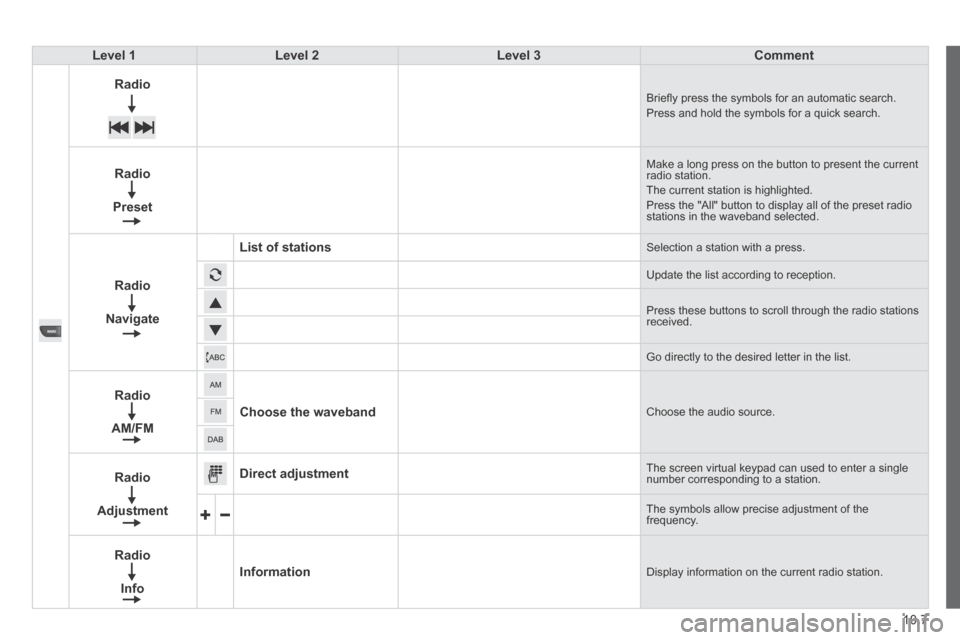
Radio Briefl y press the symbols for an automatic search. Press and hold the symbols for a quick search.
Radio
Preset
Make a long press on the button to present the current radio station. The current station is highlighted. Press the "All" button to display all of the preset radio stations in the waveband selected.
Radio
Navigate
List of stations Selection a station with a press.
Update the list according to reception.
Press these buttons to scroll through the radio stations received.
Go directly to the desired letter in the list.
Radio
AM/FM
Choose the waveband Choose the audio source.
Radio
Adjustment
Direct adjustment The screen virtual keypad can used to enter a single number corresponding to a station.
The symbols allow precise adjustment of the frequency.
Radio
Info
Information Display information on the current radio station.
Page 174 of 240
04
10.8
RADIO
Level 1Level 2Level 3
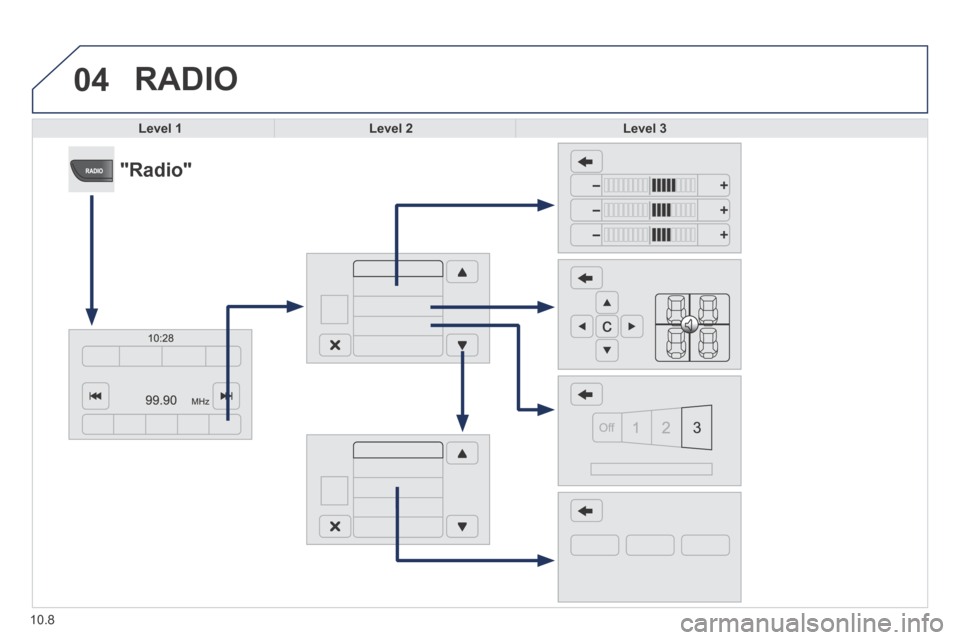
"Radio"
Page 175 of 240
10.9
Level 1Level 2Level 3Comment
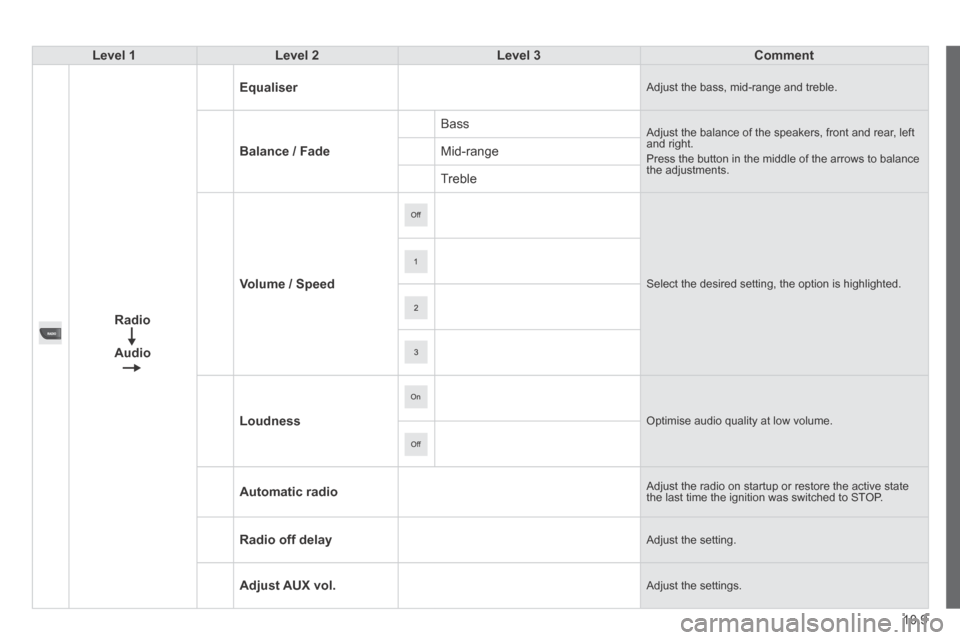
Radio
Audio
Equaliser Adjust the bass, mid-range and treble.
Balance / Fade
Bass Adjust the balance of the speakers, front and rear, left and right. Press the button in the middle of the arrows to balance the adjustments.
Mid-range
Treble
Volume / Speed Select the desired setting, the option is highlighted.
Loudness Optimise audio quality at low volume.
Automatic radio Adjust the radio on startup or restore the active state the last time the ignition was switched to STOP.
Radio off delay Adjust the setting.
Adjust AUX vol. Adjust the settings.
Page 176 of 240
04
10.10
RADIO
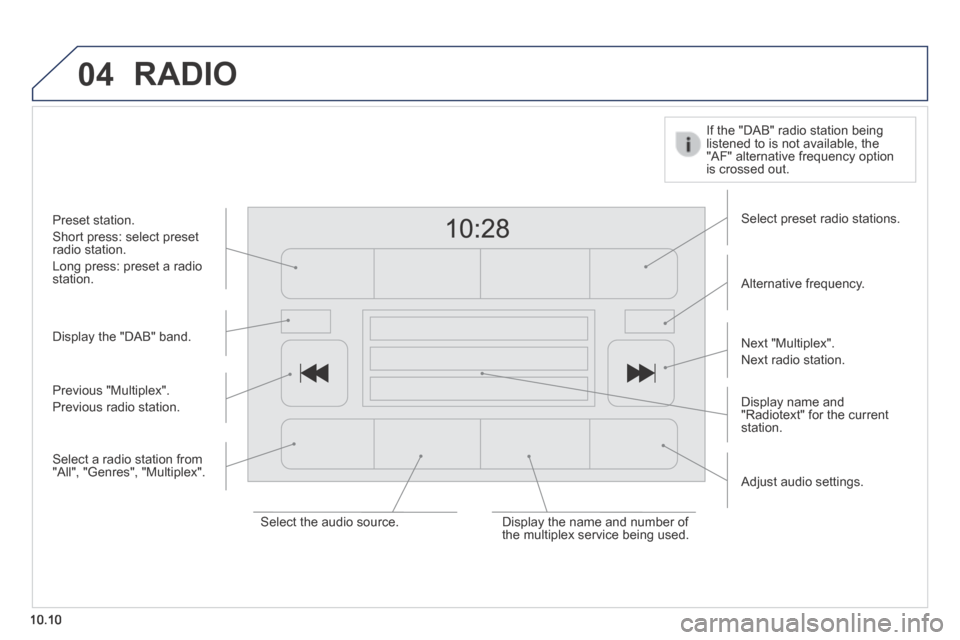
Display the "DAB" band.
Display name and "Radiotext" for the current station.
Select preset radio stations.
Alternative frequency.
If the "DAB" radio station being listened to is not available, the "AF" alternative frequency option is crossed out.
Preset station.
Short press: select preset radio station.
Long press: preset a radio station.
Next "Multiplex".
Next radio station.
Adjust audio settings.
Select the audio source. Display the name and number of the multiplex service being used.
Previous "Multiplex".
Previous radio station.
Select a radio station from "All", "Genres", "Multiplex".
Page 177 of 240
04
10.11
RADIO
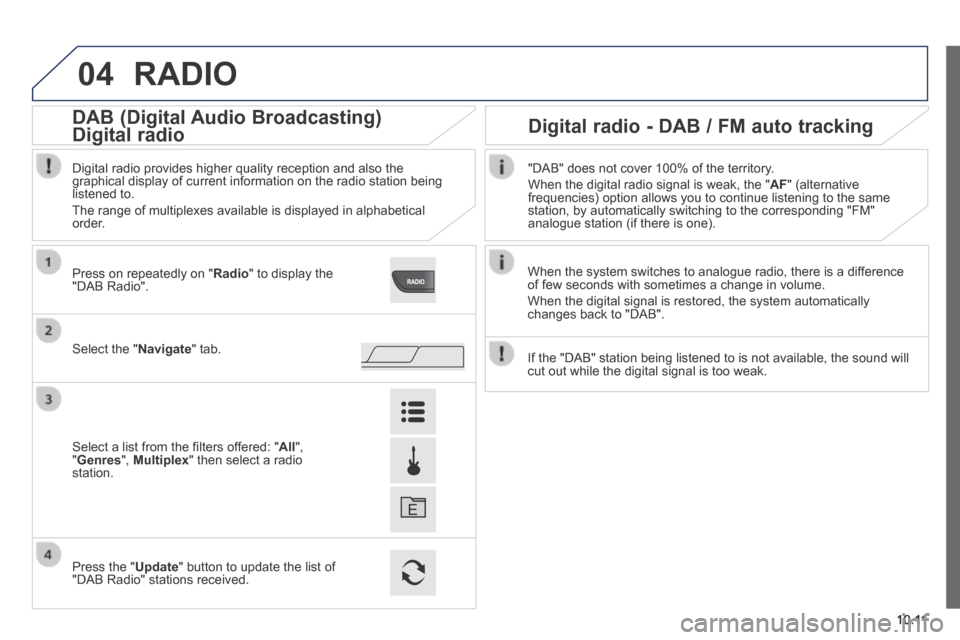
When the system switches to analogue radio, there is a difference of few seconds with sometimes a change in volume.
When the digital signal is restored, the system automatically changes back to "DAB".
Select the " Navigate " tab.
Press on repeatedly on " Radio " to display the "DAB Radio".
Select a list from the fi lters offered: " All ", " Genres ", Multiplex " then select a radio station.
Press the " Update " button to update the list of "DAB Radio" stations received.
Digital radio provides higher quality reception and also the graphical display of current information on the radio station being listened to.
The range of multiplexes available is displayed in alphabetical order.
"DAB" does not cover 100% of the territory.
When the digital radio signal is weak, the " AF " (alternative frequencies) option allows you to continue listening to the same station, by automatically switching to the corresponding "FM" analogue station (if there is one).
If the "DAB" station being listened to is not available, the sound will \
cut out while the digital signal is too weak.
Digital radio - DAB / FM auto tracking DAB (Digital Audio Broadcasting)
Digital radio Digital radio
DAB (Digital Audio Broadcasting)
Digital radio
DAB (Digital Audio Broadcasting)
Page 181 of 240
10.15
Level 1Level 2Level 3Comment
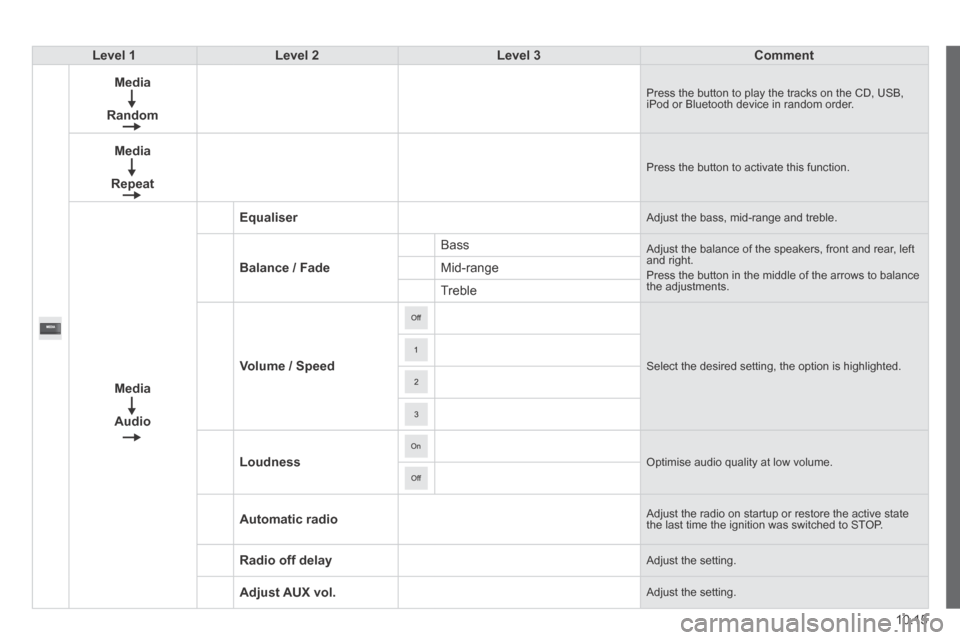
Media
Random
Press the button to play the tracks on the CD, USB, iPod or Bluetooth device in random order.
Media
Repeat
Press the button to activate this function.
Media
Audio
Equaliser Adjust the bass, mid-range and treble.
Balance / Fade
Bass Adjust the balance of the speakers, front and rear, left and right. Press the button in the middle of the arrows to balance the adjustments.
Mid-range
Treble
Volume / Speed Select the desired setting, the option is highlighted.
Loudness Optimise audio quality at low volume.
Automatic radio Adjust the radio on startup or restore the active state the last time the ignition was switched to STOP.
Radio off delay Adjust the setting.
Adjust AUX vol. Adjust the setting.
Page 205 of 240
10.39
Level 1Level 2Level 3Comment
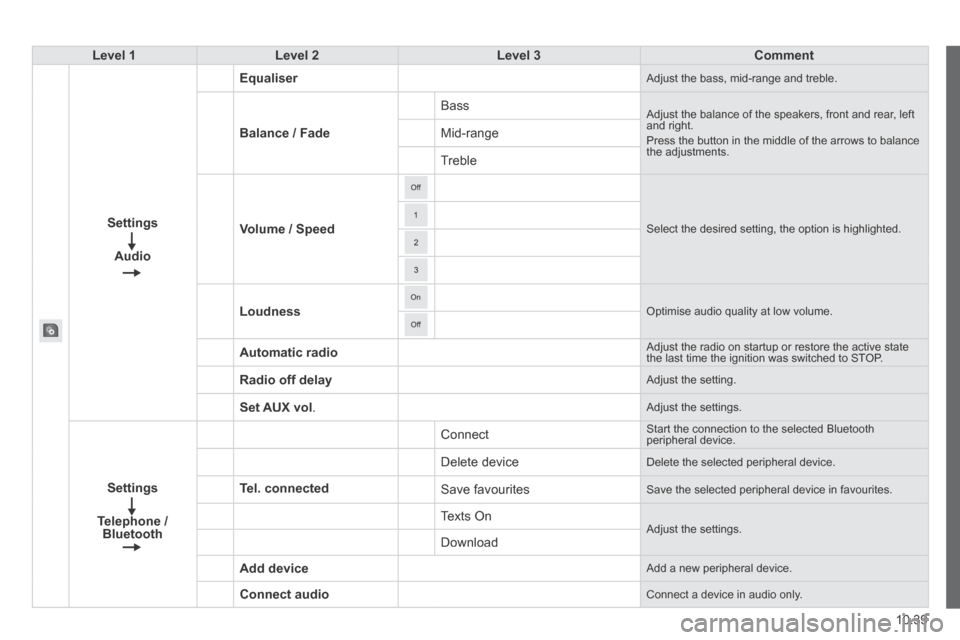
Settings
Audio
Equaliser Adjust the bass, mid-range and treble.
Balance / Fade
Bass Adjust the balance of the speakers, front and rear, left and right. Press the button in the middle of the arrows to balance the adjustments.
Mid-range
Treble
Volume / Speed Select the desired setting, the option is highlighted.
Loudness Optimise audio quality at low volume.
Automatic radio Adjust the radio on startup or restore the active state the last time the ignition was switched to STOP.
Radio off delay Adjust the setting.
Set AUX vol . Adjust the settings.
Settings
Telephone / Bluetooth
Tel. connected
Connect Start the connection to the selected Bluetooth peripheral device.
Delete device Delete the selected peripheral device.
Save favourites Save the selected peripheral device in favourites.
Texts On Adjust the settings. Download
Add device Add a new peripheral device.
Connect audio Connect a device in audio only.
Page 207 of 240
10.41
Level 1Level 2Level 3Comment
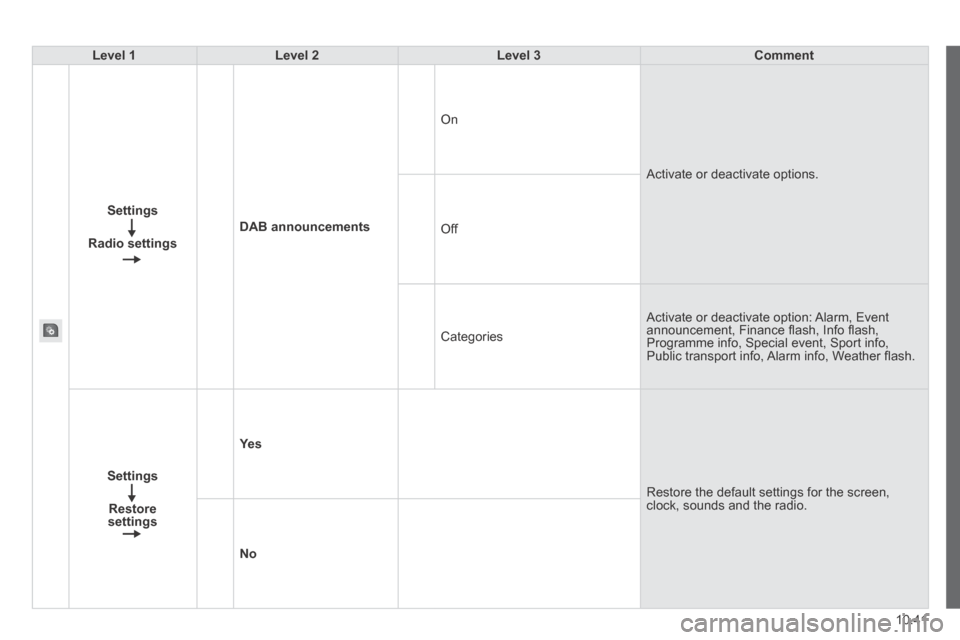
Settings
Radio settings
DAB announcements
On
Activate or deactivate options.
Off
Categories
Activate or deactivate option: Alarm, Event announcement, Finance fl ash, Info fl ash, Programme info, Special event, Sport info, Public transport info, Alarm info, Weather fl ash.
Settings
Restore settings
Ye s
Restore the default settings for the screen, clock, sounds and the radio.
No
Page 208 of 240
10
10.42
VOICE COMMANDS
Information - Using the system
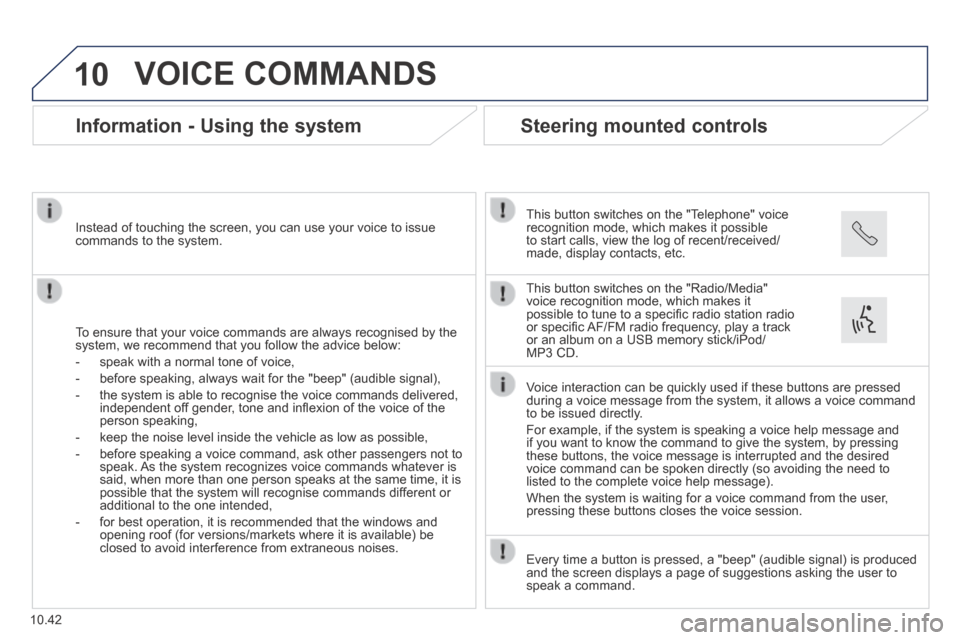
To ensure that your voice commands are always recognised by the system, we recommend that you follow the advice below:
- speak with a normal tone of voice,
- before speaking, always wait for the "beep" (audible signal),
- the system is able to recognise the voice commands delivered, independent off gender, tone and infl exion of the voice of the person speaking,
- keep the noise level inside the vehicle as low as possible,
- before speaking a voice command, ask other passengers not to speak. As the system recognizes voice commands whatever is said, when more than one person speaks at the same time, it is possible that the system will recognise commands different or additional to the one intended,
- for best operation, it is recommended that the windows and opening roof (for versions/markets where it is available) be closed to avoid interference from extraneous noises.
Instead of touching the screen, you can use your voice to issue commands to the system.
Steering mounted controls
This button switches on the "Telephone" voice recognition mode, which makes it possible to start calls, view the log of recent/received/made, display contacts, etc.
Every time a button is pressed, a "beep" (audible signal) is produced \
and the screen displays a page of suggestions asking the user to speak a command.
This button switches on the "Radio/Media" voice recognition mode, which makes it possible to tune to a specifi c radio station radio or specifi c AF/FM radio frequency, play a track or an album on a USB memory stick/iPod/MP3 CD.
Voice interaction can be quickly used if these buttons are pressed during a voice message from the system, it allows a voice command to be issued directly.
For example, if the system is speaking a voice help message and if you want to know the command to give the system, by pressing these buttons, the voice message is interrupted and the desired voice command can be spoken directly (so avoiding the need to listed to the complete voice help message).
When the system is waiting for a voice command from the user, pressing these buttons closes the voice session.
Page 212 of 240
10
10.46
VOICE COMMANDS
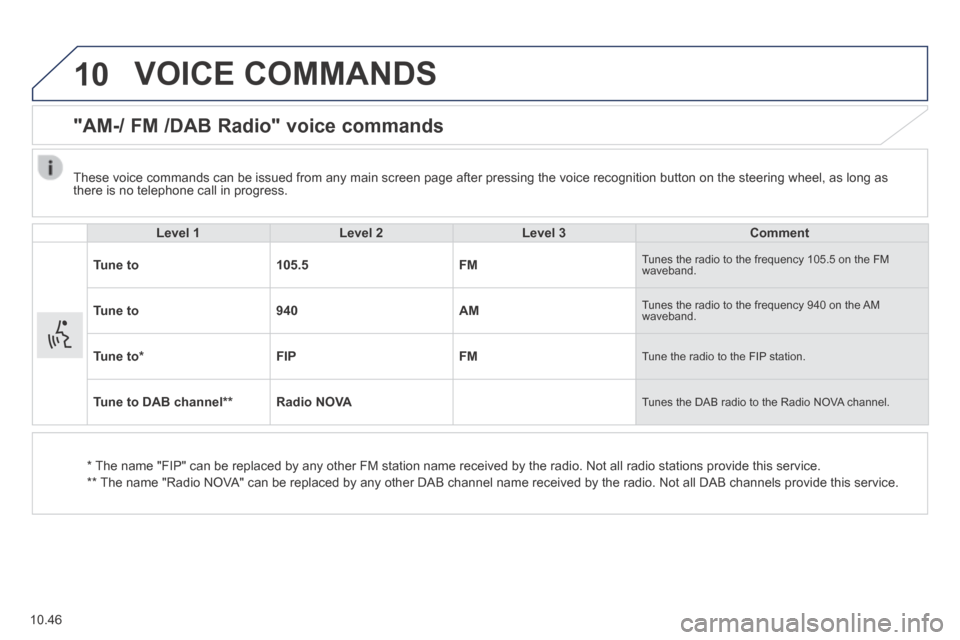
"AM-/ FM /DAB Radio" voice commands
Level 1Level 2Level 3Comment
Tune to105.5FM Tunes the radio to the frequency 105.5 on the FM waveband.
Tune to940AM Tunes the radio to the frequency 940 on the AM waveband.
Tune to * FIPFM Tune the radio to the FIP station.
Tune to DAB channel ** Radio NOVA Tunes the DAB radio to the Radio NOVA channel.
* The name "FIP" can be replaced by any other FM station name received by \
the radio. Not all radio stations provide this service.
** The name "Radio NOVA" can be replaced by any other DAB channel name received by the radio. \
Not all DAB channels provide this service.
These voice commands can be issued from any main screen page after press\
ing the voice recognition button on the steering wheel, as long as there is no telephone call in progress.