phone PEUGEOT BOXER 2015 User Guide
[x] Cancel search | Manufacturer: PEUGEOT, Model Year: 2015, Model line: BOXER, Model: PEUGEOT BOXER 2015Pages: 276, PDF Size: 8.99 MB
Page 209 of 276
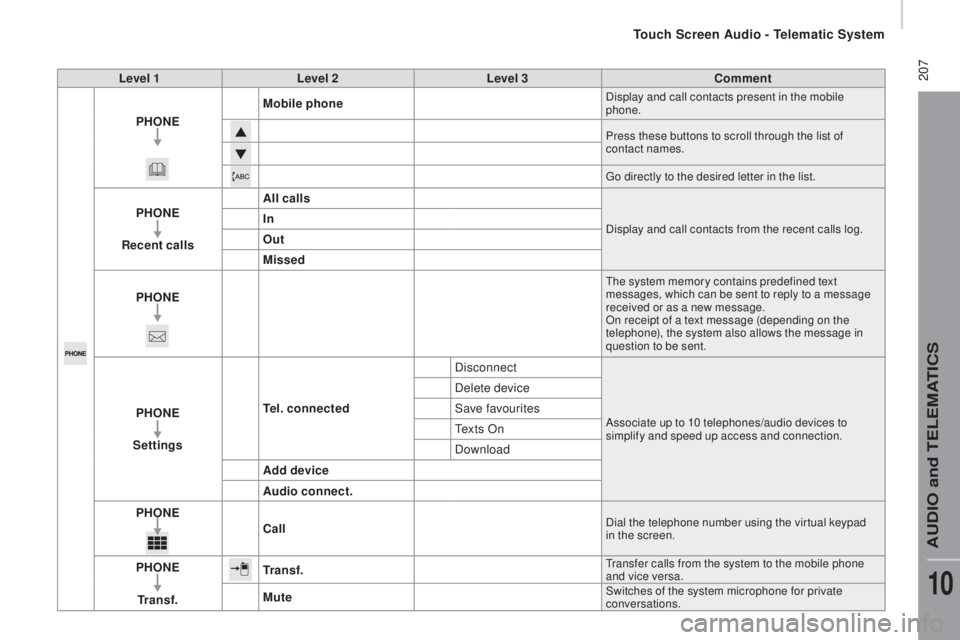
207Level 1Level 2 Level 3com ment
PH
o
n
E Mob
ile phone
Display and call contacts present in the mobile
phone.
Press these buttons to scroll through the list of
contact names.
go di
rectly to the desired letter in the list.
PHonE
rec
ent calls All callsDisplay and call contacts from the recent calls log.In
out
M
issed
PH
o
n
E
the system memory contains predefined text
m essages, which can be sent to reply to a message
received or as a new message.
On receipt of a text message (depending on the
telephone), the system also allows the message in
question to be sent.
PHonE
Se ttingstel. connected DisconnectAssociate up to 10 telephones/audio devices to
simplify and speed up access and connection.
Delete device
Save favourites
te
x t s O n
Download
Add device
Audio connect.
PH
o
n
Eca
ll
Dial the telephone number using the vir tual keypad
in the screen.
PHonE
tr a
n s f .tr a n s f .transfer calls from the system to the mobile phone
a nd vice versa.
MuteSwitches of the system microphone for private
conversations.
touch Screen Audio - telematic System
AuDIO and teLeMAtICS
10
Page 210 of 276
208
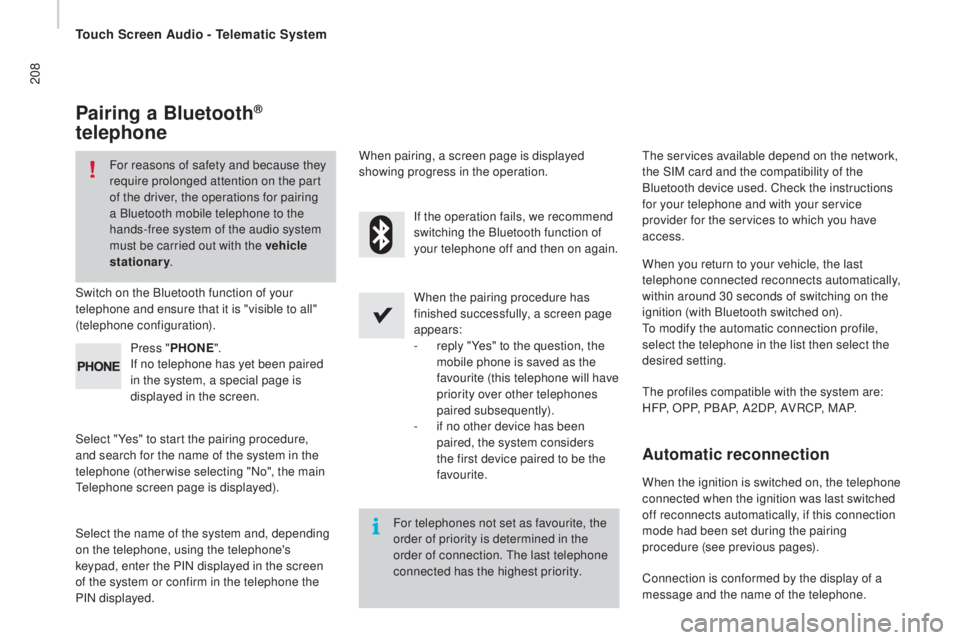
Pairing a Bluetooth®
telephone
For reasons of safety and because they
require prolonged attention on the part
of the driver, the operations for pairing
a Bluetooth mobile telephone to the
hands-free system of the audio system
must be carried out with the vehicle
stationary .
Switch on the Bluetooth function of your
telephone and ensure that it is "visible to all"
(telephone configuration).
Select "Yes" to start the pairing procedure,
and search for the name of the system in the
telephone (otherwise selecting "No", the main
tel
ephone screen page is displayed). When the pairing procedure has
finished successfully, a screen page
appears:
-
re
ply "Yes" to the question, the
mobile phone is saved as the
favourite (this telephone will have
priority over other telephones
paired subsequently).
-
if n
o other device has been
paired, the system considers
the first device paired to be the
favourite.
When pairing, a screen page is displayed
showing progress in the operation.the s
ervices available depend on the network,
the SIM card and the compatibility of the
Bluetooth device used. Check the instructions
for your telephone and with your service
provider for the services to which you have
access.
Select the name of the system and, depending
on the telephone, using the telephone's
keypad, enter the PIN displayed in the screen
of the system or confirm in the telephone the
PIN displayed. Press "
PH
o
n
E".
If n
o telephone has yet been paired
in the system, a special page is
displayed in the screen. If the operation fails, we recommend
switching the Bluetooth function of
your telephone off and then on again.
For telephones not set as favourite, the
order of priority is determined in the
order of connection.
the l
ast telephone
connected has the highest priority.
the p
rofiles compatible with the system are:
H F P, O P P, P B A P, A 2 D P, A V R C P, M A P. When you return to your vehicle, the last
telephone connected reconnects automatically,
within around 30 seconds of switching on the
ignition (with Bluetooth switched on).
to mo
dify the automatic connection profile,
select the telephone in the list then select the
desired setting.
Automatic reconnection
When the ignition is switched on, the telephone
connected when the ignition was last switched
off reconnects automatically, if this connection
mode had been set during the pairing
procedure (see previous pages).
Connection is conformed by the display of a
message and the name of the telephone.
touch Screen Audio - telematic System
Page 211 of 276
209
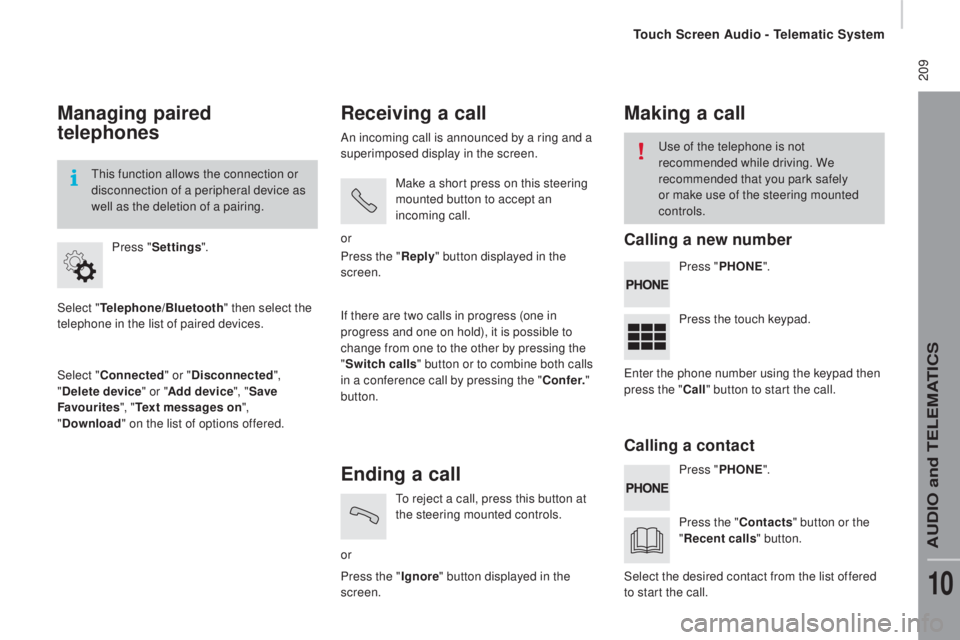
Managing paired
telephones
Select "telephone/Bluetooth" t hen select the
telephone in the list of paired devices.
Select "
con
nected" or "
dis
connected",
"
dele
te device " or "Add device", " Save
Favourites ", "
tex
t messages on",
"
do
wnload " on the list of options offered.
Press "
Settings ".
thi
s function allows the connection or
disconnection of a peripheral device as
well as the deletion of a pairing.
receiving a call
An incoming call is announced by a ring and a
superimposed display in the screen.
Make a short press on this steering
mounted button to accept an
incoming call.
or
If there are two calls in progress (one in
progress and one on hold), it is possible to
change from one to the other by pressing the
" Switch calls " button or to combine both calls
in a conference call by pressing the "
co n
f e r."
button. Press the "
reply " b
utton displayed in the
screen.
Ending a call
or
to re
ject a call, press this button at
the steering mounted controls.
Press the " Ignore" button displayed in the
screen.
Making a call
Press " PHo nE".
Pr ess " PH
o
n
E".
Pr
ess the touch keypad.
Press the "
co
ntacts" button or the
"
rec
ent calls " button.
use o
f the telephone is not
recommended while driving. We
recommended that you park safely
or make use of the steering mounted
controls.
ent
er the phone number using the keypad then
press the "
ca
ll" button to start the call.
Select the desired contact from the list offered
to start the call.
calling a new number
cal
ling a contact
touch Screen Audio - telematic System
AuDIO and teLeMAtICS
10
Page 221 of 276
219Level 1Level 2 Level 3com ment
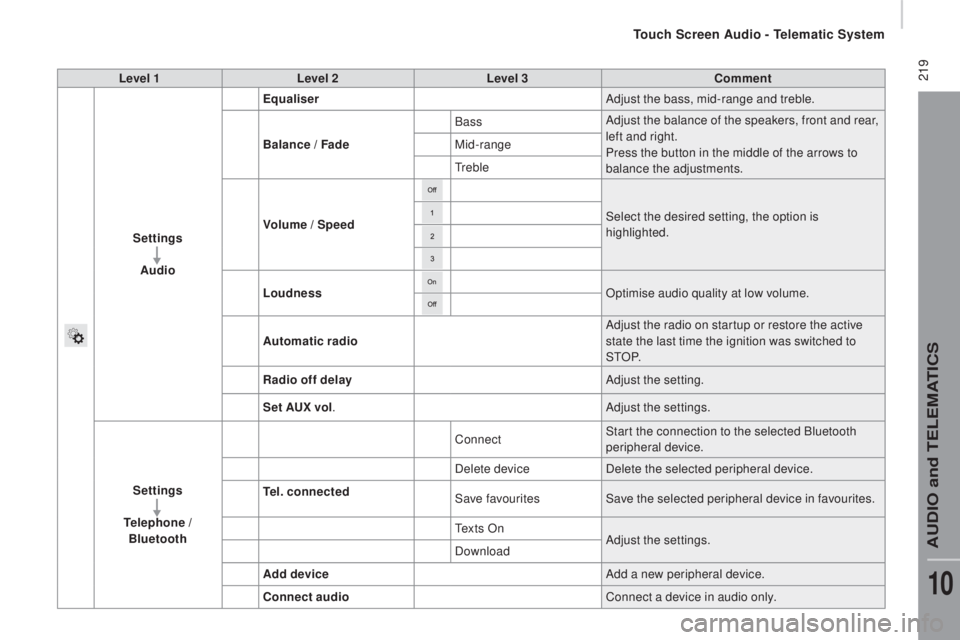
Settings Audio Equaliser
Adjust the bass, mid-range and treble.
Balance / Fade Bass
Adjust the balance of the speakers, front and rear,
left and right.
Press the button in the middle of the arrows to
balance the adjustments.
Mid-range
tre
ble
Volume / Speed Select the desired setting, the option is
highlighted.
Loudness Optimise audio quality at low volume.
Automatic radio Adjust the radio on startup or restore the active
state the last time the ignition was switched to
S
tO P.
rad
io off delay Adjust the setting.
Set A
ux v
ol. Adjust the settings.
Settings
tel
ephone /
Bluetooth
tel.
connected Connect
Start the connection to the selected Bluetooth
peripheral device.
Delete device Delete the selected peripheral device.
Save favourites Save the selected peripheral device in favourites.
te
x t s O nAdjust the settings.
Download
Add device Add a new peripheral device.
con
nect audio Connect a device in audio only.
touch Screen Audio - telematic System
AuDIO and teLeMAtICS
10
Page 224 of 276
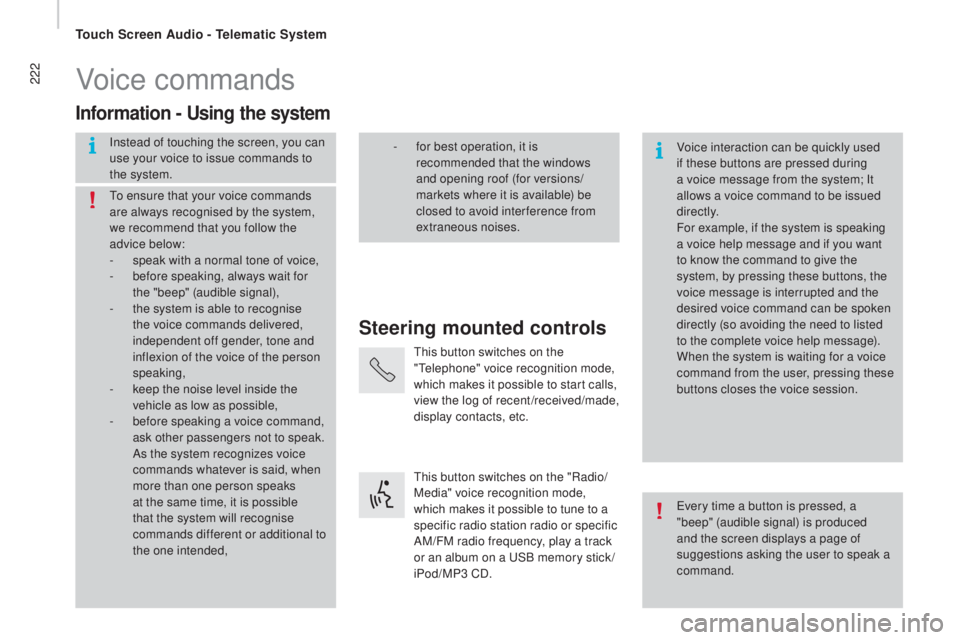
222Voice commands
Steering mounted controls
Information - using the system
Instead of touching the screen, you can
use your voice to issue commands to
the system. Voice interaction can be quickly used
if these buttons are pressed during
a voice message from the system; It
allows a voice command to be issued
di r e c t l y.
For example, if the system is speaking
a voice help message and if you want
to know the command to give the
system, by pressing these buttons, the
voice message is interrupted and the
desired voice command can be spoken
directly (so avoiding the need to listed
to the complete voice help message).
When the system is waiting for a voice
command from the user, pressing these
buttons closes the voice session.
to en
sure that your voice commands
are always recognised by the system,
we recommend that you follow the
advice below:
-
sp
eak with a normal tone of voice,
-
be
fore speaking, always wait for
the "beep" (audible signal),
-
th
e system is able to recognise
the voice commands delivered,
independent off gender, tone and
inflexion of the voice of the person
speaking,
-
ke
ep the noise level inside the
vehicle as low as possible,
-
be
fore speaking a voice command,
ask other passengers not to speak.
As the system recognizes voice
commands whatever is said, when
more than one person speaks
at the same time, it is possible
that the system will recognise
commands different or additional to
the one intended,
eve
ry time a button is pressed, a
"beep" (audible signal) is produced
and the screen displays a page of
suggestions asking the user to speak a
command.
- fo
r best operation, it is
recommended that the windows
and opening roof (for versions/
markets where it is available) be
closed to avoid inter ference from
extraneous noises.
thi
s button switches on the
"
tele
phone" voice recognition mode,
which makes it possible to start calls,
view the log of recent /received/made,
display contacts, etc.
thi
s button switches on the "Radio/
Media" voice recognition mode,
which makes it possible to tune to a
specific radio station radio or specific
AM/FM radio frequency, play a track
or an album on a
uSB m
emory stick /
iPod/MP3 CD.
touch Screen Audio - telematic System
Page 225 of 276
223
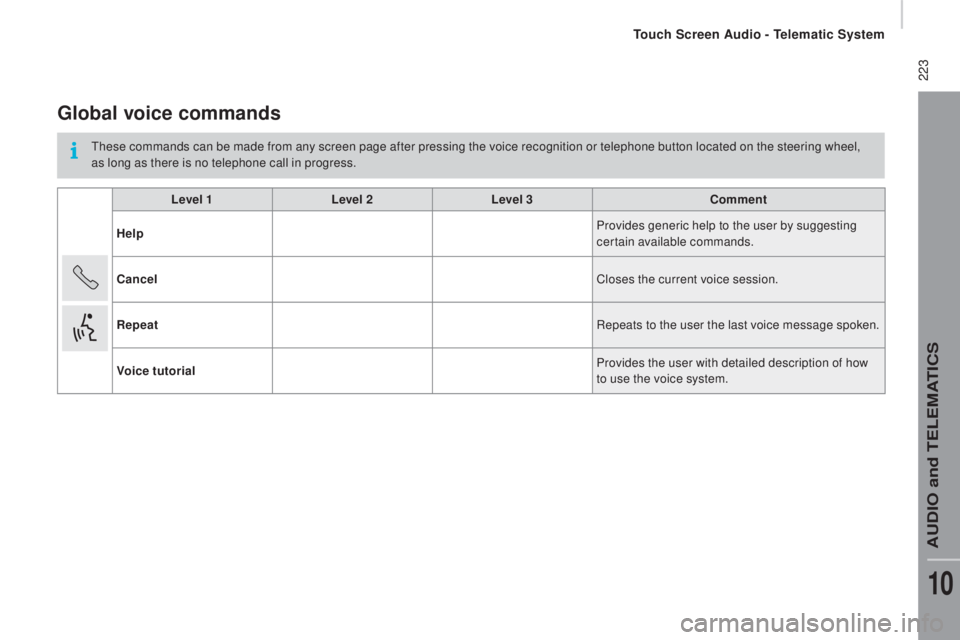
Global voice commands
these commands can be made from any screen page after pressing the voice recognition or telephone button located on the steering wheel,
a s long as there is no telephone call in progress.
Level 1 Level 2Level 3
com
ment
Help Provides generic help to the user by suggesting
certain available commands.
canc
el Closes the current voice session.
repe
at Repeats to the user the last voice message spoken.
Voice tutorial Provides the user with detailed description of how
to use the voice system.
touch Screen Audio - telematic System
AuDIO and teLeMAtICS
10
Page 226 of 276
224
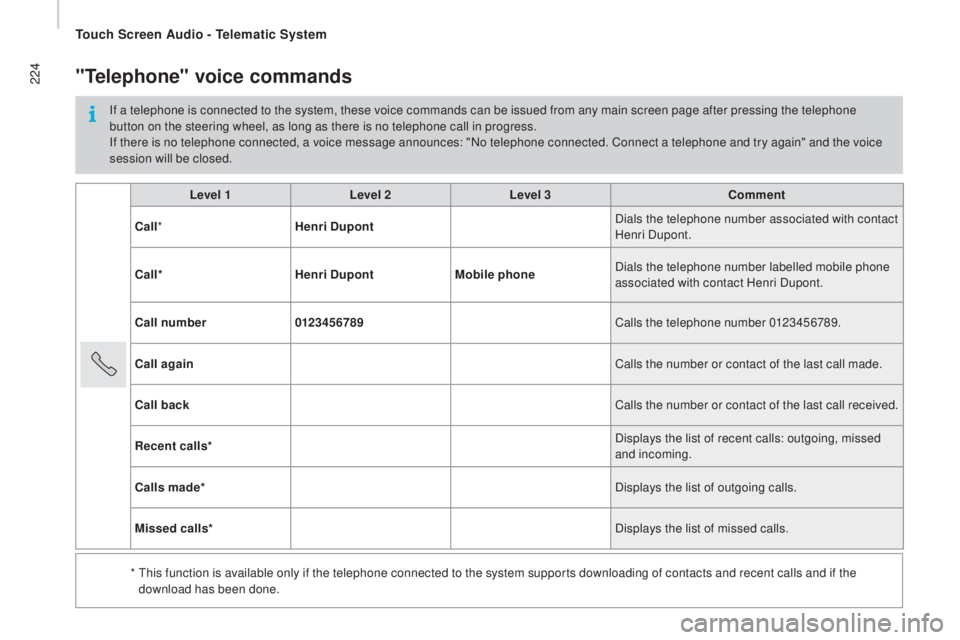
Level 1Level 2Level 3com ment
ca
ll * Henri
dup
ont Dials the telephone number associated with contact
Henri Dupont.
ca
ll* Henri
dup
ontMobile phone Dials the telephone number labelled mobile phone
associated with contact Henri Dupont.
cal
l number 0123456789 Calls the telephone number 0123456789.
call
again Calls the number or contact of the last call made.
cal
l back Calls the number or contact of the last call received.
rec
ent calls* Displays the list of recent calls: outgoing, missed
and incoming.
cal
ls made* Displays the list of outgoing calls.
Missed calls* Displays the list of missed calls.
*
t
hi
s function is available only if the telephone connected to the system supports downloading of contacts and recent calls and if the
download has been done.
"telephone" voice commands
If a telephone is connected to the system, these voice commands can be issued from any main screen page after pressing the telephone
button on the steering wheel, as long as there is no telephone call in progress.
If there is no telephone connected, a voice message announces: "No telephone connected. Connect a telephone and try again" and the voice
session will be closed.
touch Screen Audio - telematic System
Page 227 of 276
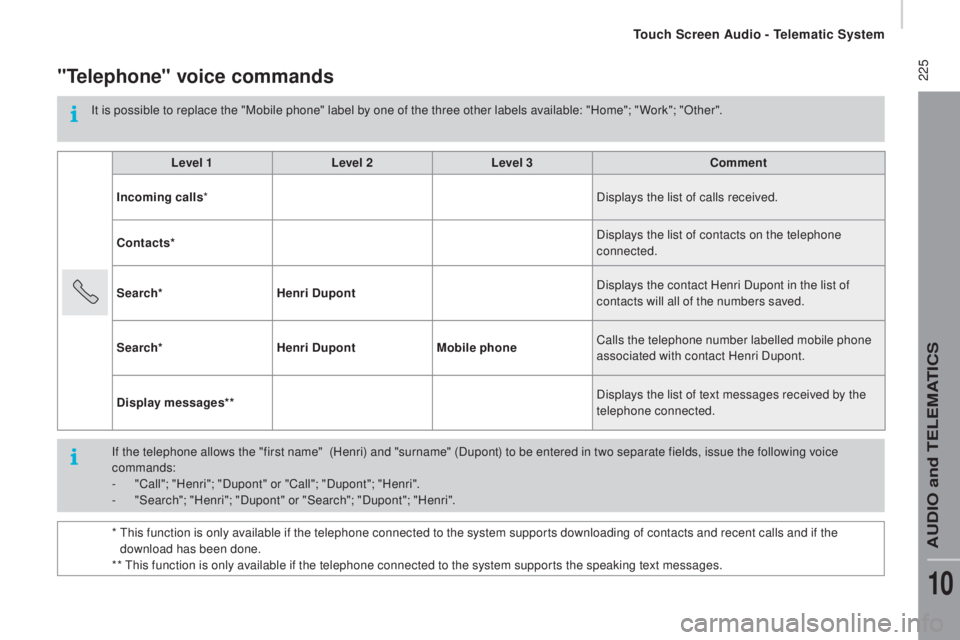
225"telephone" voice commands
It is possible to replace the "Mobile phone" label by one of the three other labels available: "Home"; " Work"; "Other".Level 1 Level 2Level 3
com
ment
Incoming calls * Displays the list of calls received.
con
tacts* Displays the list of contacts on the telephone
connected.
Search* Henri
dup
ont Displays the contact Henri Dupont in the list of
contacts will all of the numbers saved.
Search* Henri
dup
ontMobile phone Calls the telephone number labelled mobile phone
associated with contact Henri Dupont.
di
splay messages** Displays the list of text messages received by the
telephone connected.
If the telephone allows the "first name"
(
Henri) and "surname" (Dupont) to be entered in two separate fields, issue the following voice
commands:
-
"C
all"; "Henri"; "Dupont" or "Call"; "Dupont"; "Henri".
-
"S
earch"; "Henri"; "Dupont" or "Search"; "Dupont"; "Henri".
*
t
hi
s function is only available if the telephone connected to the system supports downloading of contacts and recent calls and if the
download has been done.
**
thi
s function is only available if the telephone connected to the system supports the speaking text messages.
touch Screen Audio - telematic System
AuDIO and teLeMAtICS
10
Page 228 of 276
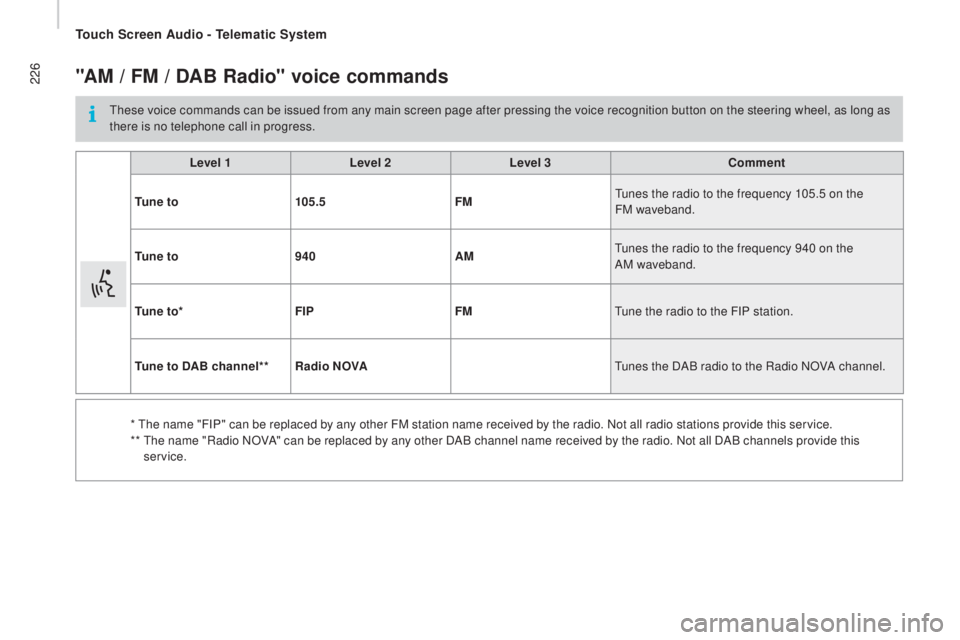
226"AM / FM / dAB radio" voice commands
these voice commands can be issued from any main screen page after pressing the voice recognition button on the steering wheel, as long as
t here is no telephone call in progress.
Level 1 Level 2Level 3
com
ment
tu
n e t o 105.5 FM
tun
es the radio to the frequency 105.5 on the
FM waveband.
tu
n e t o 940 AM
tun
es the radio to the frequency 940 on the
AM waveband.
tu
n e t o * FIP FM
tun
e the radio to the FIP station.
tun
e to
dAB c
hannel**
radi
o
noVAtun
es the DAB radio to the Radio NOVA channel.
*
the n
ame "FIP" can be replaced by any other FM station name received by the radio. Not all radio stations provide this service.
**
t
he n
ame "Radio NOVA" can be replaced by any other DAB channel name received by the radio. Not all DAB channels provide this
service.
touch Screen Audio - telematic System
Page 229 of 276
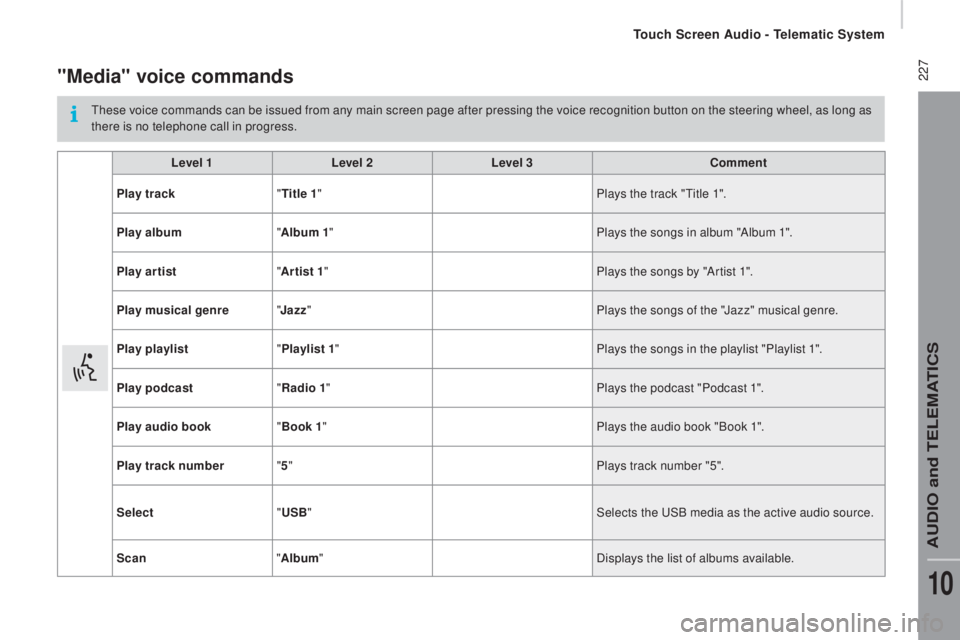
227"Media" voice commands
these voice commands can be issued from any main screen page after pressing the voice recognition button on the steering wheel, as long as
t here is no telephone call in progress.
Level 1 Level 2Level 3
com
ment
Play track "
tit
le 1" Plays the track "
tit
le 1".
Play album "Album 1 " Plays the songs in album "Album 1".
Play ar tist "Ar tist 1 " Plays the songs by "Artist 1".
Play musical genre "
ja
zz" Plays the songs of the "Jazz" musical genre.
Play playlist "Playlist 1 " Plays the songs in the playlist "Playlist 1".
Play podcast "
rad
io 1" Plays the podcast "Podcast 1".
Play audio book "Book 1 " Plays the audio book "Book 1".
Play track number "5 " Plays track number "5".
Select "
uS
B" Selects the
uSB m
edia as the active audio source.
Scan "Album " Displays the list of albums available.
touch Screen Audio - telematic System
AuDIO and teLeMAtICS
10