Radio Peugeot Boxer 2018 User Guide
[x] Cancel search | Manufacturer: PEUGEOT, Model Year: 2018, Model line: Boxer, Model: Peugeot Boxer 2018Pages: 232, PDF Size: 9.09 MB
Page 192 of 232
6
Media
Press "MEDIA" to display the media
menus:
Press the 9
or: buttons to play the previous/
next track.
Press and hold the buttons for fast for ward or
rewind in the track selected.
Navigate
-
N
avigate by: Playing currently, Ar tists,
Albums, Genres, Tracks, Playlists, Audio
books, Podcasts .
Navigate and select tracks on the active
device.
The selection options depend on the device
connected or type of CD inserted.
Source
-
C
D, AUX, USB .
Select the desired audio source from those
available or insert a
device intended for
this purpose; the system starts playing the
source automatically.
-
Bl
uetooth
®.
Pair a
Bluetooth® audio device.
Info
-
I
nformation .
Display information on the track playing. Random
Press the button to play tracks on the CD, USB,
iPod or Bluetooth
® device in random order.
Repeat
Press the button to activate this function.
Audio
-
E
qualiser .
Adjust the bass, mid-range and treble.
-
B
alance/Fade .
Adjust the balance of the speakers, front
and rear, left and right.
Press the button in the middle of the arrows
to balance the adjustments.
-
V
olume/Speed .
Select the desired setting, the option is
highlighted.
-
L
oudness .
Optimise audio quality at low volume.
-
A
utomatic radio .
Adjust the radio on startup or restore the
active state the last time the ignition was
switched to STOP.
-
R
adio off delay .
Adjust the setting.
-
A
UX vol. adjustment .
Adjust the settings.
USB port
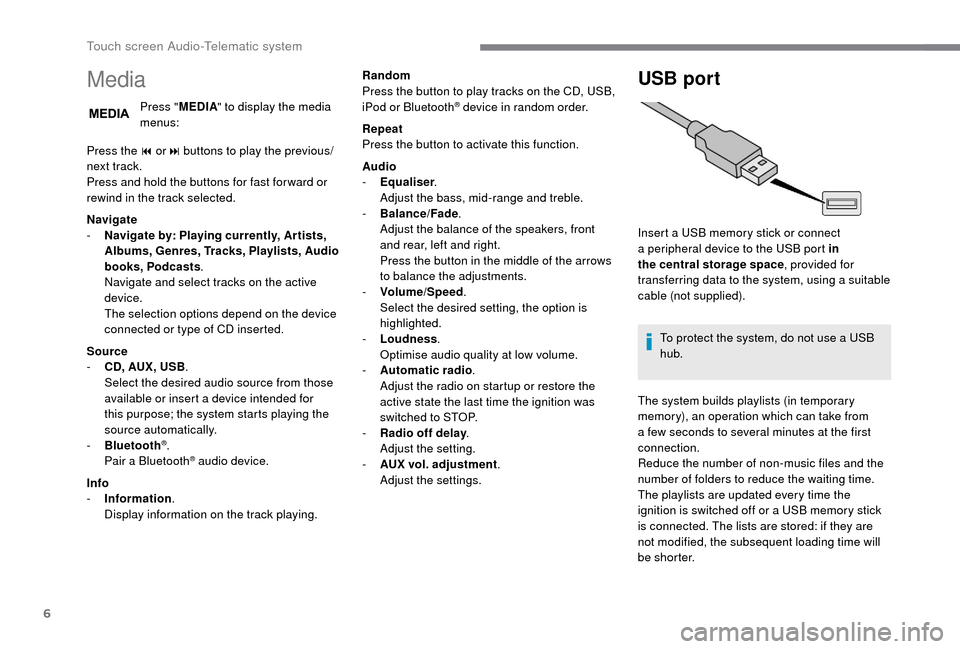
Insert a USB memory stick or connect
a peripheral device to the USB port in
the central storage space , provided for
transferring data to the system, using a
suitable
cable (not supplied).
To protect the system, do not use a
USB
hub.
The system builds playlists (in temporary
memory), an operation which can take from
a
few seconds to several minutes at the first
connection.
Reduce the number of non-music files and the
number of folders to reduce the waiting time.
The playlists are updated every time the
ignition is switched off or a
USB memory stick
is connected. The lists are stored: if they are
not modified, the subsequent loading time will
b e s h o r t e r.
Touch screen Audio-Telematic system
Page 201 of 232
15
- Unit of measurement.
Set the units used for the display of fuel
consumption, distance and temperature.
-
T
ouch screen beep .
Activate or deactivate the audible signal
when touching a
screen button.
-
D
isplay Trip B .
Display Trip B in the driver's screen.
Voice commands
-
V
oice response time .
Set the response time for the voice system.
-
D
isplay command list .
Display suggestions with the different
options during a
voice session.
Clock and Date
-
S
et time and format .
Set the time.
-
Di
splay time mode .
Activate or deactivate display of the digital
clock in the status bar.
-
S
ync time .
Activate or deactivate the automatic display
of time.
-
S
et date .
Set the date. Safety/Help
-
R eversing camera.
Display the reversing camera.
-
C
amera delay.
Maintain the display in the screen of the
image from the reversing camera for
a
maximum of ten seconds or up to 11 mph
(18
km/h).
Lamps
-
D
aytime running lamps.
Activate or deactivate the automatic
illumination of headlamps when starting.
Doors and locking
-
A
utoclose.
Activate or deactivate the automatic locking
of doors when the vehicle is moving. -
A utomatic radio
.
Adjust the radio on startup or restore the
active state the last time the ignition was
switched to STOP.
-
R
adio off delay.
Adjust the setting.
-
A
UX vol. adjustment.
Adjust the settings.
Telephone/Bluetooth
®
- Tel. connected .
Start the Bluetooth® connection of the
device selected.
Delete the selected device.
Save the selected device in favourites.
Adjust the settings.
-
A
dd device .
Add a
new peripheral device.
-
A
udio connect .
Connect a
device in audio only.
Audio
-
E
qualiser .
Adjust the bass, mid-range and treble.
-
B
alance/Fade .
Adjust the balance of the speakers, front
and rear, left and right.
Press the button in the middle of the arrows
to balance the adjustments.
-
V
olume/Speed .
Select the desired setting, the option is
highlighted.
-
L
oudness .
Optimise audio quality at low volume. Radio settings
-
D
AB announcements .
Activate or deactivate announcements.
Activate or deactivate the options: Alarm,
Event announc., Stock market flash, News
flash, Programme info, Special event,
Sports info, Public transp. info, Alarm
announcement, Weather flash.
.
Touch screen Audio-Telematic system
Page 202 of 232
16
Restore settings
Restore the default settings for the screen,
clock, sounds and the radio.
Erase personal data
Erase personal data, Bluetooth
® devices and
pre-settings included.
Voice commands
Information – Using the
system
Instead of touching the screen, you can
use your voice to issue commands to the
system. To ensure that your voice commands are
always recognised by the system, we
recommend that you follow the advice
below:
-
s
peak in a normal tone,
-
a
lways wait for the "beep" (audible
signal) before speaking,
-
t
he system is able to recognise the
voice commands delivered, regardless
of gender, tone and inflexion of the
voice of the person speaking,
-
k
eep the noise level inside the
passenger compartment as low as
possible,
- a sk the other passengers not to
speak before you use the voice
commands. As the system recognises
voice commands whatever is said,
when more than one person speaks
at the same time, it is possible that
the system will recognise different
or additional commands to the one
intended,
-
f
or best operation, it is recommended
that the windows and sunroof (for
models/markets where it is available)
be closed to avoid inter ference from
outside noise.
Steering wheel mounted controls
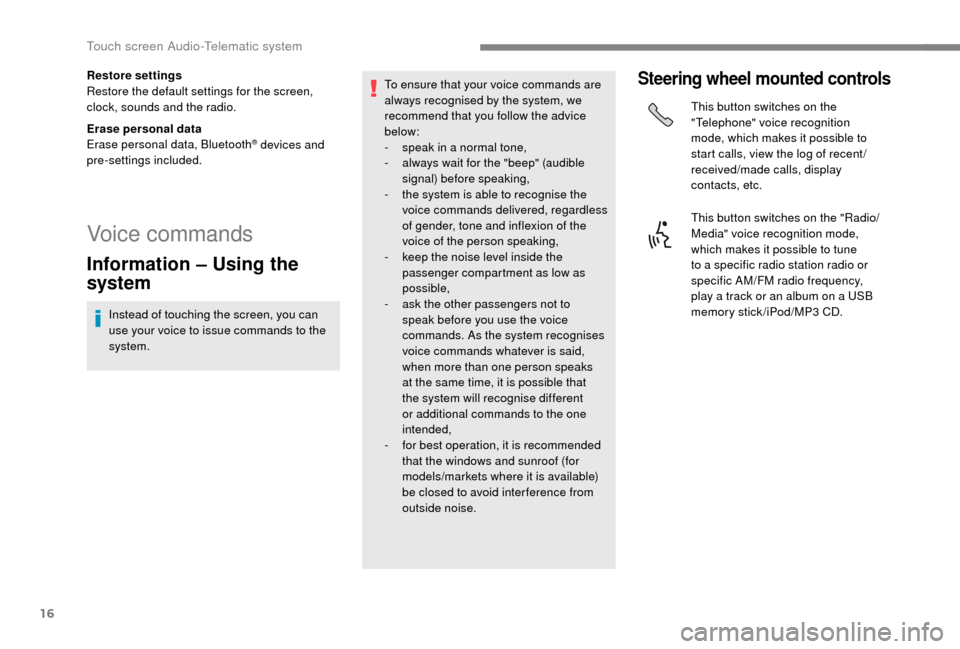
This button switches on the
"Telephone" voice recognition
mode, which makes it possible to
start calls, view the log of recent /
received/made calls, display
contacts, etc.
This button switches on the "Radio/
Media" voice recognition mode,
which makes it possible to tune
to a
specific radio station radio or
specific AM/FM radio frequency,
play a
track or an album on a USB
memory stick/iPod/MP3
CD.
Touch screen Audio-Telematic system
Page 206 of 232
20
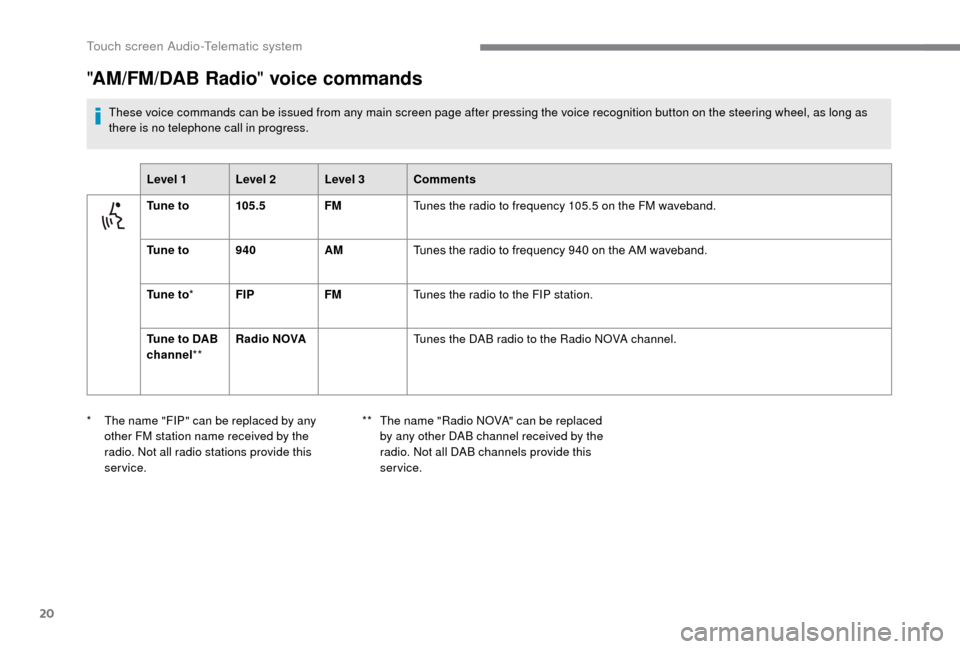
"AM/FM/DAB Radio " voice commands
These voice commands can be issued from any main screen page after pressing the voice recognition button on the steering wheel, as long as
there is no telephone call in progress.
Level 1 Level 2 Level 3 Comments
Tu n e t o 105.5FMTunes the radio to frequency 105.5
on the FM waveband.
Tu n e t o 940AMTunes the radio to frequency 940
on the AM waveband.
Tu n e t o * FIP FMTunes the radio to the FIP station.
Tune to DAB
channel ** Radio NOVA
Tunes the DAB radio to the Radio NOVA channel.
*
T
he name "FIP" can be replaced by any
other FM station name received by the
radio. Not all radio stations provide this
service. **
T
he name "Radio NOVA" can be replaced
by any other DAB channel received by the
radio. Not all DAB channels provide this
service.
Touch screen Audio-Telematic system
Page 207 of 232
21
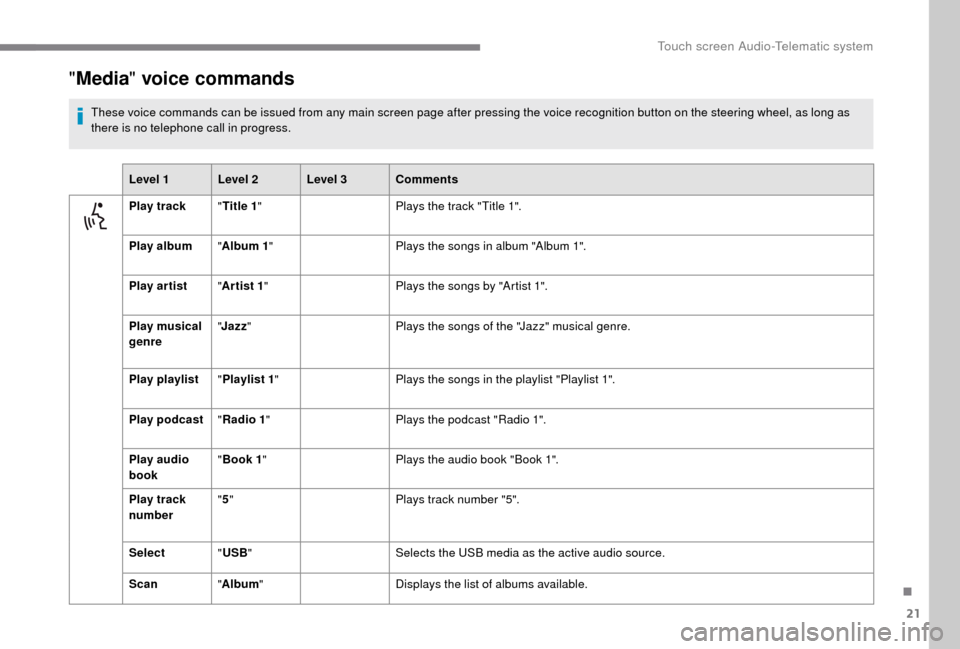
"Media " voice commands
These voice commands can be issued from any main screen page after pressing the voice recognition button on the steering wheel, as long as
there is no telephone call in progress.
Level 1 Level 2 Level 3 Comments
Play track "Title 1 " Plays the track "Title 1".
Play album "Album 1 " Plays the songs in album "Album 1".
Play ar tist "Ar tist 1 " Plays the songs by "Artist 1".
Play musical
genre "
Jazz " Plays the songs of the "Jazz" musical genre.
Play playlist "Playlist 1 " Plays the songs in the playlist "Playlist 1".
Play podcast "Radio 1 " Plays the podcast "Radio 1".
Play audio
book "
Book 1 " Plays the audio book "Book 1".
Play track
number "
5 " Plays track number "5".
Select "USB " Selects the USB media as the active audio source.
Scan "Album " Displays the list of albums available.
.
Touch screen Audio-Telematic system
Page 211 of 232
1
Audio system
Multimedia audio system –
Bluetooth® telephone
Contents
First steps
1
S
teering wheel mounted controls
2
R
adio
2
M
edia
4
T
elephone
5
S
ettings
6
V
oice commands
6T
he system is protected in such a way that
it will only operate in your vehicle.
For safety reasons, the vehicle must
always be stationary for the driver to
perform operations that require close
attention.
When the engine is switched off and to
prevent discharging of the battery, the
system switches off after activation of
energy economy mode.
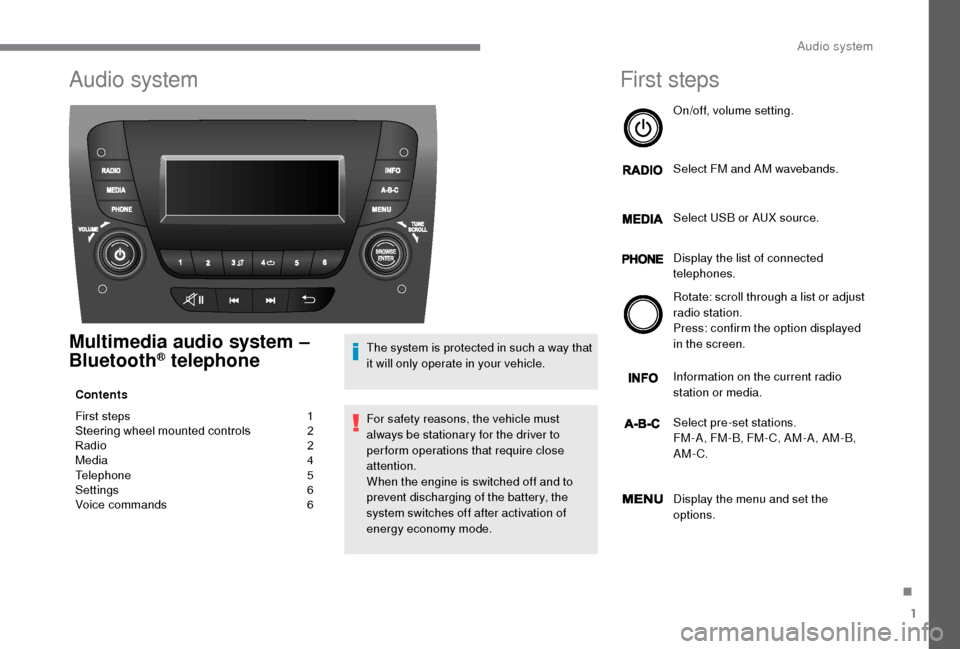
First steps
On/off, volume setting.
Select FM and AM wavebands.
Select USB or AUX source.
Display the list of connected
telephones.
Rotate: scroll through a
list or adjust
radio station.
Press: confirm the option displayed
in the screen.
Information on the current radio
station or media.
Select pre-set stations.
FM-A, FM-B, FM- C, AM-A, AM-B,
AM-C.
Display the menu and set the
options.
.
Audio system
Page 212 of 232
2
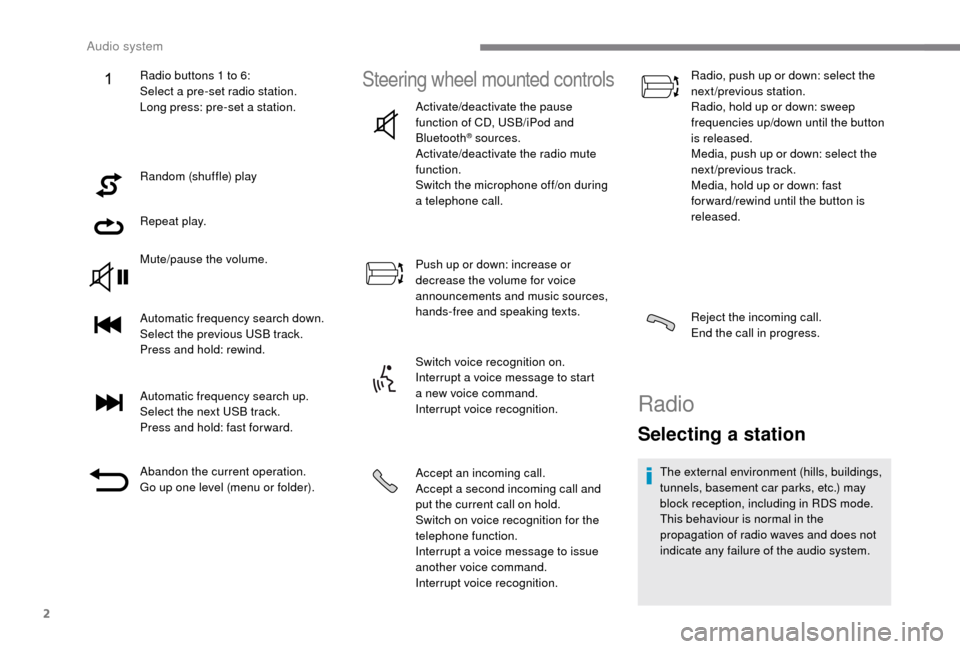
Random (shuffle) play
Repeat play.
Mute/pause the volume.
Automatic frequency search down.
Select the previous USB track.
Press and hold: rewind.
Automatic frequency search up.
Select the next USB track.
Press and hold: fast for ward.
Abandon the current operation.
Go up one level (menu or folder).
Steering wheel mounted controls
Activate/deactivate the pause
function of CD, USB/iPod and
Bluetooth
® sources.
Activate/deactivate the radio mute
function.
Switch the microphone off/on during
a
telephone call.
Push up or down: increase or
decrease the volume for voice
announcements and music sources,
hands-free and speaking texts.
Switch voice recognition on.
Interrupt a
voice message to start
a
new voice command.
Interrupt voice recognition.
Accept an incoming call.
Accept a
second incoming call and
put the current call on hold.
Switch on voice recognition for the
telephone function.
Interrupt a
voice message to issue
another voice command.
Interrupt voice recognition. Radio, push up or down: select the
next/previous station.
Radio, hold up or down: sweep
frequencies up/down until the button
is released.
Media, push up or down: select the
next/previous track.
Media, hold up or down: fast
for ward/rewind until the button is
released.
Reject the incoming call.
End the call in progress.
Radio
Selecting a station
The external environment (hills, buildings,
tunnels, basement car parks, etc.) may
block reception, including in RDS mode.
This behaviour is normal in the
propagation of radio waves and does not
indicate any failure of the audio system.
Radio buttons 1
to 6:
Select a
pre-set radio station.
Long press: pre-set a
station.
Audio system
Page 213 of 232
3
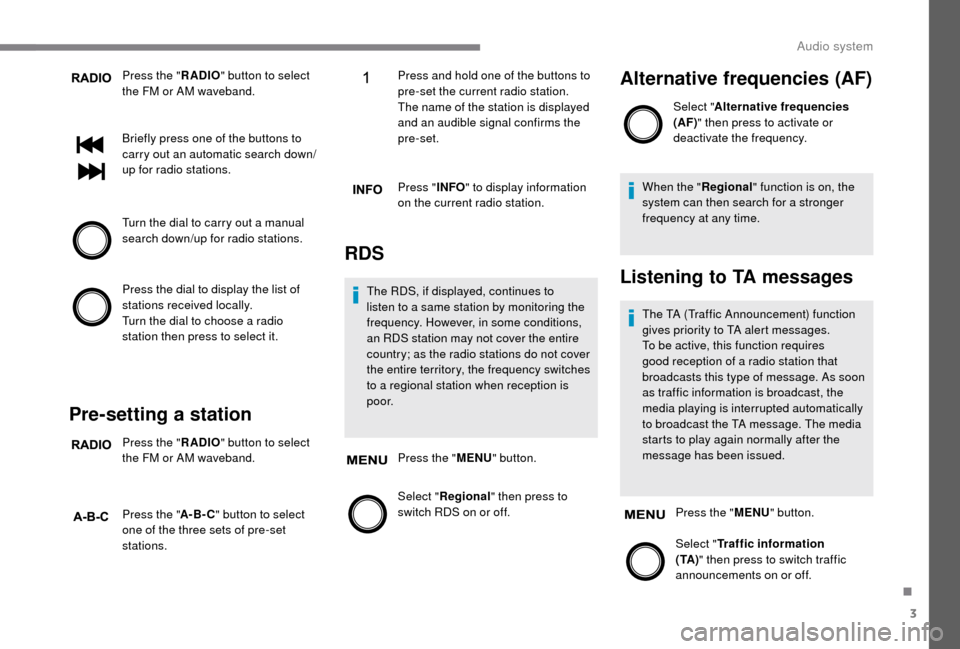
Press the "RADIO" button to select
the FM or AM waveband.
Briefly press one of the buttons to
carry out an automatic search down/
up for radio stations.
Turn the dial to carry out a
manual
search down/up for radio stations.
Press the dial to display the list of
stations received locally.
Turn the dial to choose a
radio
station then press to select it.
Pre-setting a station
Press the " RADIO" button to select
the FM or AM waveband.
Press the " A-B-C" button to select
one of the three sets of pre-set
stations. Press and hold one of the buttons to
pre-set the current radio station.
The name of the station is displayed
and an audible signal confirms the
pre-set.
Press "
INFO" to display information
on the current radio station.
RDS
The RDS, if displayed, continues to
listen to a same station by monitoring the
frequency. However, in some conditions,
an RDS station may not cover the entire
country; as the radio stations do not cover
the entire territory, the frequency switches
to a
regional station when reception is
p o o r.
Press the " MENU" button.
Select " Regional" then press to
switch RDS on or off.
Alternative frequencies (AF)
Select " Alternative frequencies
(AF)" then press to activate or
deactivate the frequency.
When the " Regional" function is on, the
system can then search for a
stronger
frequency at any time.
Listening to TA messages
The TA (Traffic Announcement) function
gives priority to TA alert messages.
To be active, this function requires
good reception of a
radio station that
broadcasts this type of message. As soon
as traffic information is broadcast, the
media playing is interrupted automatically
to broadcast the TA message. The media
starts to play again normally after the
message has been issued.
Press the " MENU" button.
Select " Traffic information
( TA ) " then press to switch traffic
announcements on or off.
.
Audio system
Page 217 of 232
7
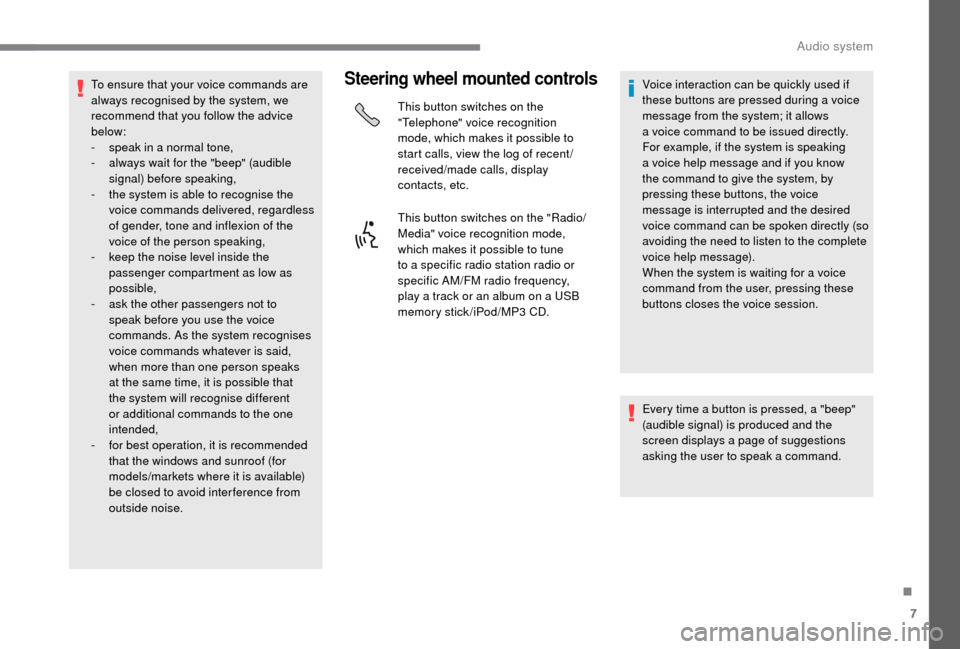
To ensure that your voice commands are
always recognised by the system, we
recommend that you follow the advice
below:
-
s
peak in a normal tone,
-
a
lways wait for the "beep" (audible
signal) before speaking,
-
t
he system is able to recognise the
voice commands delivered, regardless
of gender, tone and inflexion of the
voice of the person speaking,
-
k
eep the noise level inside the
passenger compartment as low as
possible,
-
a
sk the other passengers not to
speak before you use the voice
commands. As the system recognises
voice commands whatever is said,
when more than one person speaks
at the same time, it is possible that
the system will recognise different
or additional commands to the one
intended,
-
f
or best operation, it is recommended
that the windows and sunroof (for
models/markets where it is available)
be closed to avoid inter ference from
outside noise.Steering wheel mounted controls
This button switches on the
"Telephone" voice recognition
mode, which makes it possible to
start calls, view the log of recent /
received/made calls, display
contacts, etc.
This button switches on the "Radio/
Media" voice recognition mode,
which makes it possible to tune
to a
specific radio station radio or
specific AM/FM radio frequency,
play a
track or an album on a USB
memory stick/iPod/MP3
CD.Voice interaction can be quickly used if
these buttons are pressed during a
voice
message from the system; it allows
a
voice command to be issued directly.
For example, if the system is speaking
a
voice help message and if you know
the command to give the system, by
pressing these buttons, the voice
message is interrupted and the desired
voice command can be spoken directly (so
avoiding the need to listen to the complete
voice help message).
When the system is waiting for a
voice
command from the user, pressing these
buttons closes the voice session.
Every time a
button is pressed, a "beep"
(audible signal) is produced and the
screen displays a
page of suggestions
asking the user to speak a
command.
.
Audio system
Page 221 of 232
11
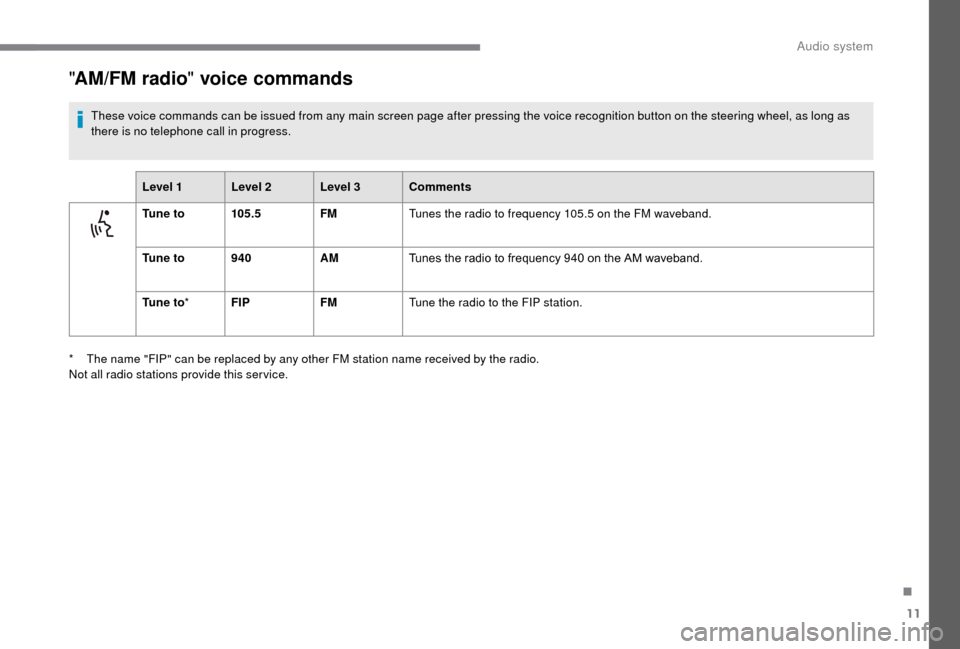
"AM/FM radio " voice commands
These voice commands can be issued from any main screen page after pressing the voice recognition button on the steering wheel, as long as
there is no telephone call in progress.
Level 1 Level 2 Level 3 Comments
Tu n e t o 105.5FMTunes the radio to frequency 105.5
on the FM waveband.
Tu n e t o 940AMTunes the radio to frequency 940
on the AM waveband.
Tu n e t o * FIP FMTune the radio to the FIP station.
*
T
he name "FIP" can be replaced by any other FM station name received by the radio.
Not all radio stations provide this ser vice.
.
Audio system