ECO mode PEUGEOT EXPERT 2023 Workshop Manual
[x] Cancel search | Manufacturer: PEUGEOT, Model Year: 2023, Model line: EXPERT, Model: PEUGEOT EXPERT 2023Pages: 348, PDF Size: 12 MB
Page 211 of 348
209
In the event of a breakdown
8► Progressively return the wheel to the carrier
by pushing alternately at the left and right until it
is clear of the hook fixing area.
►
Engage the carrier on the hook, then tighten
the bolt using the wheelbrace
until the bolt is fully
tightened.
Tyre in the carrier
You can change the size of the tyre on the spare
wheel by following the instructions below.
Original
tyre size Standard Long
215/65 R16 Placing a 225 wheel in the carrier is prohibited. There is no
restriction.
215/60 R17
215/60 R17
M&S
225/55 R17 Placing a 215 wheel in the
carrier is not
recommended (risk of noise).
A punctured tyre of size 215 or 225 can be placed in the carrier.
Removing a wheel
Parking the vehicle
Immobilise the vehicle where it does
not obstruct traffic: the ground must be level,
stable and non-slippery.
With a manual gearbox, engage first gear
then switch off the ignition to block the
wheels.
With an automatic gearbox, place the gear
selector in position P then switch off the
ignition to block the wheels.
With a drive selector, place the gear selector
in position P then switch off the ignition to
block the wheels.
Apply the parking brake, unless it is
programmed to automatic mode (for an
electric parking brake), and check that the
indicator lamp lights up on
the instrument
panel.
Ensure that the occupants have left the
vehicle and are located in a safe place.
Never go underneath a vehicle raised using a
jack; use an axle stand.
With an electric parking brake, place a chock
against the wheel diagonally opposite to the
one being replaced.
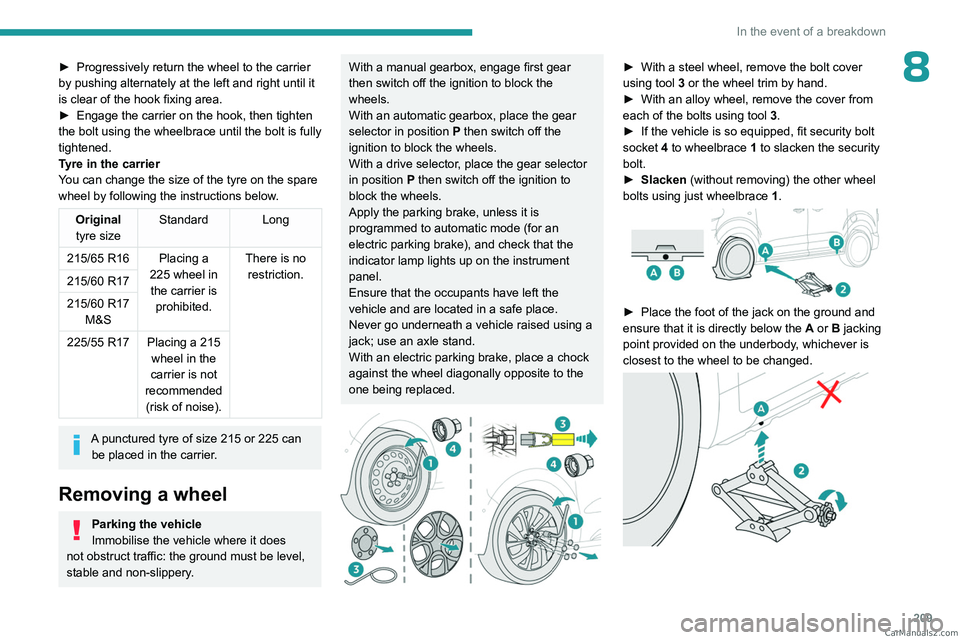
► With a steel wheel, remove the bolt cover
using tool 3
or the wheel trim by hand.
►
With an alloy wheel, remove the cover from
each of the bolts using tool 3
.
►
If the vehicle is so equipped, fit security bolt
socket
4 to wheelbrace 1 to slacken the security
bolt.
►
Slacken
(without removing) the other wheel
bolts using just wheelbrace 1.
► Place the foot of the jack on the ground and
ensure that it is directly below the A
or B jacking
point provided on the underbody, whichever is
closest to the wheel to be changed.
CarM an uals 2 .c o m
Page 218 of 348
216
In the event of a breakdown
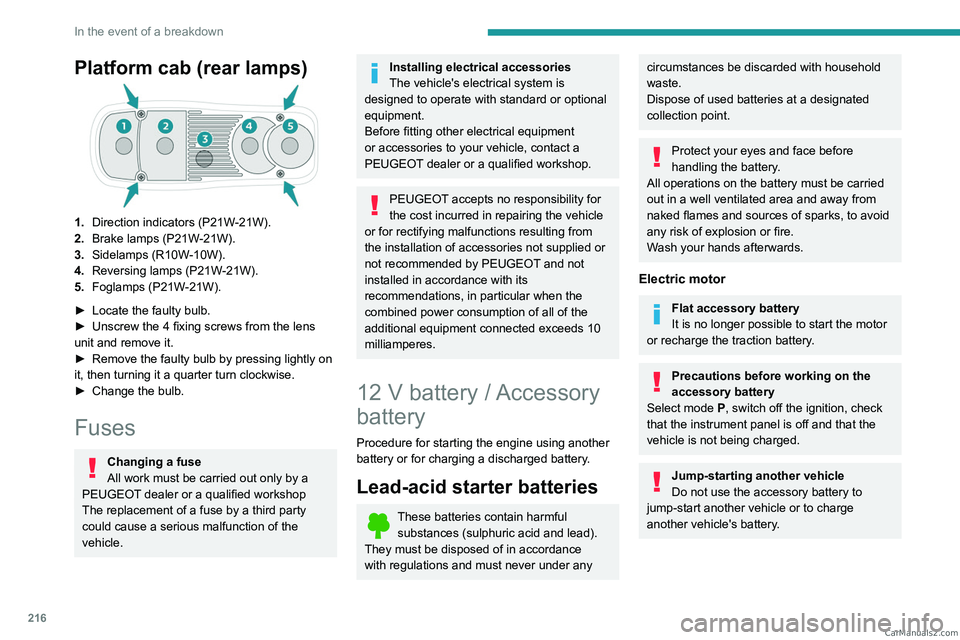
Platform cab (rear lamps)
1.Direction indicators (P21W-21W).
2. Brake lamps (P21W-21W).
3. Sidelamps (R10W-10W).
4. Reversing lamps (P21W-21W).
5. Foglamps (P21W-21W).
►
Locate the faulty bulb.
►
Unscrew the 4 fixing screws from the lens
unit and remove it.
►
Remove the faulty bulb by pressing lightly on
it, then turning it a quarter turn clockwise.
►
Change the bulb.
Fuses
Changing a fuse
All work must be carried out only by a
PEUGEOT dealer or a qualified workshop
The replacement of a fuse by a third party
could cause a serious malfunction of the
vehicle.
Installing electrical accessories
The vehicle's electrical system is
designed to operate with standard or optional
equipment.
Before fitting other electrical equipment
or accessories to your vehicle, contact a
PEUGEOT dealer or a qualified workshop.
PEUGEOT accepts no responsibility for
the cost incurred in repairing the vehicle
or for rectifying malfunctions resulting from
the installation of accessories not supplied or
not recommended by PEUGEOT and not
installed in accordance with its
recommendations, in particular when the
combined power consumption of all of the
additional equipment connected exceeds 10
milliamperes.
12 V battery / Accessory
battery
Procedure for starting the engine using another
battery or for charging a discharged battery.
Lead-acid starter batteries
These batteries contain harmful
substances (sulphuric acid and lead).
They must be disposed of in accordance
with regulations and must never under any
circumstances be discarded with household
waste.
Dispose of used batteries at a designated
collection point.
Protect your eyes and face before
handling the battery.
All operations on the battery must be carried
out in a well ventilated area and away from
naked flames and sources of sparks, to avoid
any risk of explosion or fire.
Wash your hands afterwards.
Electric motor
Flat accessory battery
It is no longer possible to start the motor
or recharge the traction battery.
Precautions before working on the
accessory battery
Select mode
P, switch off the ignition, check
that the instrument panel is off and that the
vehicle is not being charged.
Jump-starting another vehicle
Do not use the accessory battery to
jump-start another vehicle or to charge
another vehicle's battery. CarM an uals 2 .c o m
Page 222 of 348
220
In the event of a breakdown
Referring to the relevant section, reinitialise
certain equipment:
–
Remote control key or electronic key
(depending on version).
–
Electric windows.
–
Date and time.
–
Preset radio stations.
The Stop & Start system may not be operational during the trip following the
first engine start.
In this case, the system will only be available
again after a continuous period with the
vehicle immobilised, the duration of which
depends on the exterior temperature and the
state of charge of the battery (up to about 8
hours).
Towing the vehicle
Procedure for having your vehicle towed or
for towing another vehicle using a removable
mechanical device.
General recommendations
Observe the legislation in force in the
country where you are driving.
Check that the towing vehicle is heavier than
the towed vehicle.
The driver must remain at the wheel of the
towed vehicle and must have a valid driving
licence.
When towing a vehicle with all four wheels on
the ground, always use an approved towbar;
ropes and straps are prohibited.
The towing vehicle must move off gently.
When the vehicle is towed with its engine
off, there is no longer braking and steering
assistance.
A professional recovery service must
be called in the following cases:
–
broken down on a motorway or main road;
–
not possible to put the gearbox into neutral,
unlock the steering, or release the parking
brake;
–
not possible to tow a vehicle with an
automatic gearbox, with the engine running;
– towing with only two wheels on the ground;
– four-wheel drive vehicle;
–
no approved towbar available.
Before towing the vehicle, it is essential
to put the vehicle in free-wheeling mode.
For more information on Free-wheeling, refer
to the corresponding section.
Electric motor
An electric vehicle cannot under any
circumstances be used to tow another
vehicle.
However, it may be used, for example, to exit
a rut.
With a manual gearbox, place the gear
lever in neutral.
With an automatic gearbox, place the gear
selector in position N.
Failure to adhere to this instruction may lead
to damage to some braking components and
the lack of braking assistance on restarting
the engine. CarM an uals 2 .c o m
Page 236 of 348
234
Bluetooth® audio system
"Telephone": Call, Directory
management, Telephone management,
Hang up.
"Trip computer".
"Maintenance": Diagnosis, Warning log,
etc.
"Connections": Manage connections,
search for devices.
"Personalisation-configuration ": Define
the vehicle parameters, Choice of
language, Display configuration, Choice of units,
Date and time adjustment.
Press the "MENU" button.
Move from one menu to another.
Enter a menu.
Radio
Selecting a station
Press the SOURCE button repeatedly
and select the radio.
Press this button to select a waveband
(FM / AM / DAB).
Press one of the buttons for an automatic
search for radio stations.
Press one of the buttons to carry out a
manual search up / down for radio
frequencies.
Press this button to display the list of
stations received locally.
To update this list, press for more than two
seconds. The sound is cut while updating.
RDS
The external environment (hills, buildings, tunnels, car parks,
underground, etc.) may block reception,
including in RDS
tracking mode. This is a
normal effect of the way in which radio waves
are transmitted and does not indicate any
failure of the audio system.
If RDS is not available, the RDS symbol
appears struck out on the display.
RDS, if activated, allows you to continue
listening to the same station by
automatically retuning to alternative
frequencies. However, in certain conditions,
RDS station tracking may not be possible
nationwide, as radio stations do not always
cover the entire country. This can explain the
loss of reception of a station during a journey.
Short procedure
In "Radio" mode, press the OK button to activate
or deactivate RDS directly.
Long procedure
Press the MENU button.
Select "Audio functions ".
Press OK.
Select the "FM waveband preferences"
function.
Press OK.
Select "Frequency tracking (RDS)".
Press OK, RDS is displayed on the
screen.
Play TA messages
The TA (Traffic Announcement) function
gives priority to TA alert messages. To
operate, this function needs good reception of
a radio station that carries this type of
message. When a traffic report is transmitted,
the current audio source (Radio, CD, etc.) is
interrupted automatically to play the TA
message. Normal play of the media
previously playing is resumed at the end of
the message.
Take care when increasing the volume while listening to TA messages. The
volume may prove too high on return to the
original audio source. CarM an uals 2 .c o m
Page 238 of 348
236
Bluetooth® audio system
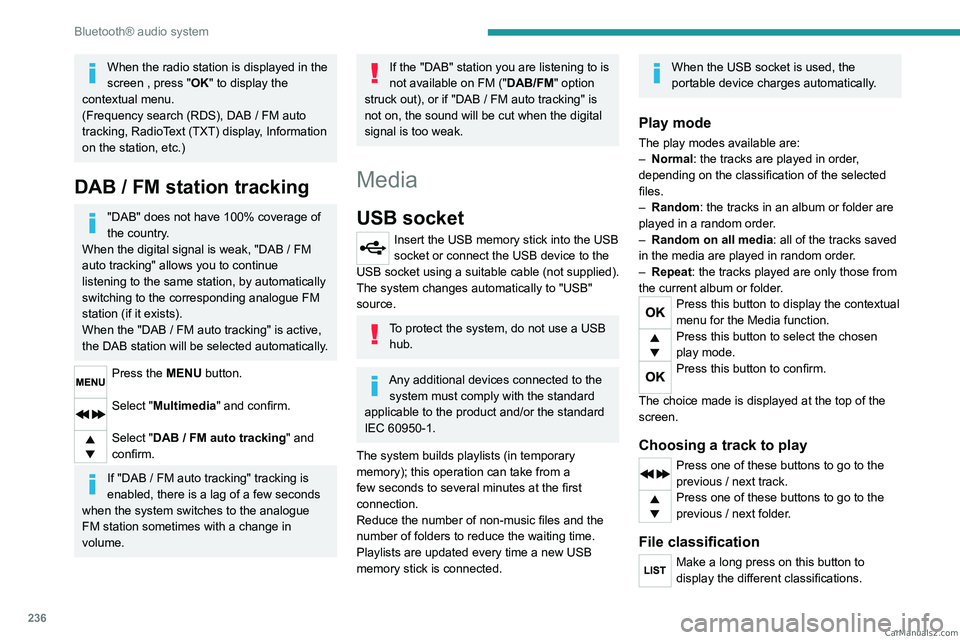
When the radio station is displayed in the
screen , press "OK" to display the
contextual menu.
(Frequency search (RDS), DAB
/ FM auto
tracking, RadioText (TXT) display, Information
on the station, etc.)
DAB / FM station tracking
"DAB" does not have 100% coverage of
the country.
When the digital signal is weak, "DAB
/ FM
auto tracking" allows you to continue
listening to the same station, by automatically
switching to the corresponding analogue FM
station (if it exists).
When the "DAB
/ FM auto tracking" is active,
the DAB station will be selected automatically.
Press the MENU button.
Select "Multimedia" and confirm.
Select "DAB / FM auto tracking" and
confirm.
If "DAB / FM auto tracking" tracking is
enabled, there is a lag of a few seconds
when the system switches to the analogue
FM station sometimes with a change in
volume.
If the "DAB" station you are listening to is
not available on FM (" DAB/FM" option
struck out), or if "DAB
/ FM auto tracking" is
not on, the sound will be cut when the digital
signal is too weak.
Media
USB socket
Insert the USB memory stick into the USB
socket or connect the USB device to the
USB socket using a suitable cable (not supplied).
The system changes automatically to "USB"
source.
To protect the system, do not use a USB hub.
Any additional devices connected to the system must comply with the standard
applicable to the product and/or the standard
IEC 60950-1.
The system builds playlists (in temporary
memory); this operation can take from a
few seconds to several minutes at the first
connection.
Reduce the number of non-music files and the
number of folders to reduce the waiting time.
Playlists are updated every time a new USB
memory stick is connected.
When the USB socket is used, the
portable device charges automatically.
Play mode
The play modes available are:
– Normal : the tracks are played in order,
depending on the classification of the selected
files.
–
Random
: the tracks in an album or folder are
played in a random order.
–
Random on all media : all of the tracks saved
in the media are played in random order
.
–
Repeat
: the tracks played are only those from
the current album or folder.
Press this button to display the contextual
menu for the Media function.
Press this button to select the chosen
play mode.
Press this button to confirm.
The choice made is displayed at the top of the
screen.
Choosing a track to play
Press one of these buttons to go to the
previous / next track.
Press one of these buttons to go to the
previous / next folder.
File classification
Make a long press on this button to
display the different classifications. CarM an uals 2 .c o m
Page 240 of 348
238
Bluetooth® audio system
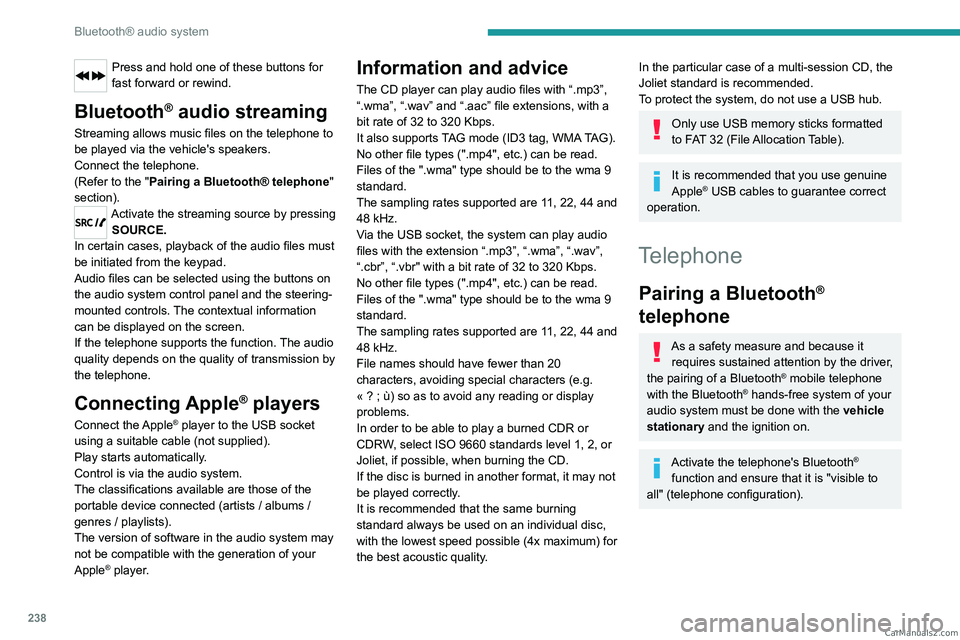
Press and hold one of these buttons for
fast forward or rewind.
Bluetooth® audio streaming
Streaming allows music files on the telephone to
be played via the vehicle's speakers.
Connect the telephone.
(Refer to the "Pairing a Bluetooth® telephone"
section).
Activate the streaming source by pressing SOURCE.
In certain cases, playback of the audio files must
be initiated from the keypad.
Audio files can be selected using the buttons on
the audio system control panel and the steering-
mounted controls. The contextual information
can be displayed on the screen.
If the telephone supports the function. The audio
quality depends on the quality of transmission by
the telephone.
Connecting Apple® players
Connect the Apple® player to the USB socket
using a suitable cable (not supplied).
Play starts automatically.
Control is via the audio system.
The classifications available are those of the
portable device connected (artists / albums /
genres / playlists).
The version of software in the audio system may
not be compatible with the generation of your
Apple
® player.
Information and advice
The CD player can play audio files with “.mp3”,
“.wma”, “.wav” and “.aac” file extensions, with a
bit rate of 32 to 320 Kbps.
It also supports TAG mode (ID3 tag, WMA TAG).
No other file types (".mp4", etc.) can be read.
Files of the ".wma" type should be to the wma 9
standard.
The sampling rates supported are 11, 22, 44 and
48 kHz.
Via the USB socket, the system can play audio
files with the extension “.mp3”, “.wma”, “.wav”,
“.cbr”, “.vbr" with a bit rate of 32 to 320 Kbps.
No other file types (".mp4", etc.) can be read.
Files of the ".wma" type should be to the wma 9
standard.
The sampling rates supported are 11, 22, 44 and
48 kHz.
File names should have fewer than 20
characters, avoiding special characters (e.g.
«
? ; ù) so as to avoid any reading or display
problems.
In order to be able to play a burned CDR or
CDRW, select ISO 9660
standards level 1, 2, or
Joliet, if possible, when burning the CD.
If the disc is burned in another format, it may not
be played correctly.
It is recommended that the same burning
standard always
be used on an individual disc,
with the lowest speed possible (4x maximum) for
the best acoustic quality.
In the particular case of a multi-session CD, the
Joliet standard is recommended.
To protect the system, do not use a USB hub.
Only use USB memory sticks formatted
to FAT 32 (File Allocation Table).
It is recommended that you use genuine
Apple® USB cables to guarantee correct
operation.
Telephone
Pairing a Bluetooth®
telephone
As a safety measure and because it
requires sustained attention by the driver,
the pairing of a Bluetooth
® mobile telephone
with the Bluetooth® hands-free system of your
audio system must be done with the vehicle
stationary and the ignition on.
Activate the telephone's Bluetooth®
function and ensure that it is "visible to
all" (telephone configuration). CarM an uals 2 .c o m
Page 242 of 348
240
Bluetooth® audio system
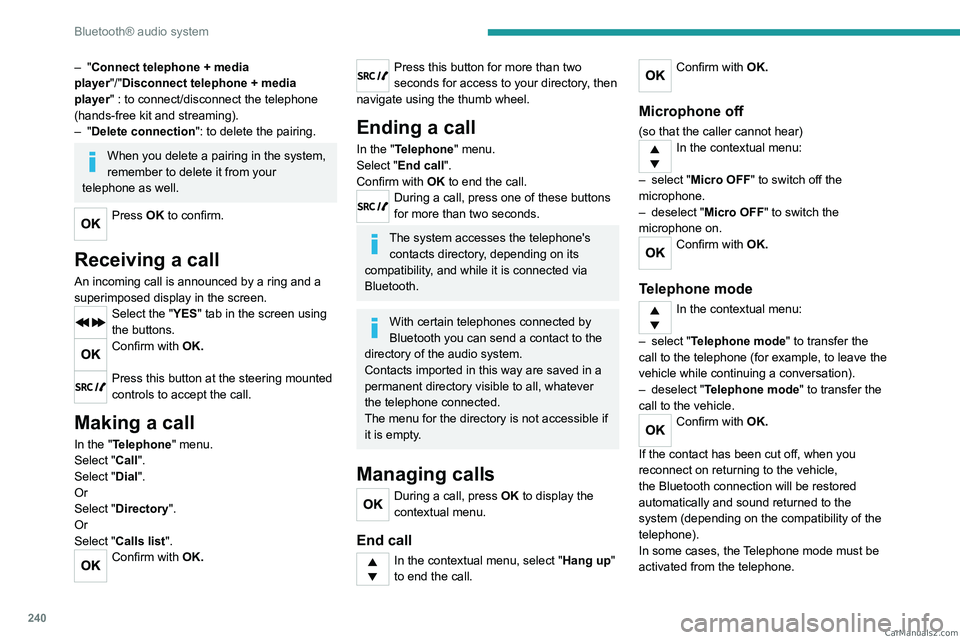
– "Connect telephone + media
player "/"Disconnect telephone + media
player" : to connect/disconnect the telephone
(hands-free kit and streaming).
–
"Delete connection": to delete the pairing.
When you delete a pairing in the system,
remember to delete it from your
telephone as well.
Press OK to confirm.
Receiving a call
An incoming call is announced by a ring and a
superimposed display in the screen.
Select the "YES" tab in the screen using
the buttons.
Confirm with OK.
Press this button at the steering mounted
controls to accept the call.
Making a call
In the "Telephone" menu.
Select "Call".
Select "Dial".
Or
Select "Directory ".
Or
Select "Calls list".
Confirm with OK.
Press this button for more than two
seconds for access to your directory, then
navigate using the thumb wheel.
Ending a call
In the "Telephone" menu.
Select "End call".
Confirm with OK to end the call.
During a call, press one of these buttons
for more than two seconds.
The system accesses the telephone's contacts directory, depending on its
compatibility, and while it is connected via
Bluetooth.
With certain telephones connected by
Bluetooth you can send a contact to the
directory of the audio system.
Contacts imported in this way are saved in a
permanent directory visible to all, whatever
the telephone connected.
The menu for the directory is not accessible if
it is empty.
Managing calls
During a call, press OK to display the
contextual menu.
End call
In the contextual menu, select "Hang up"
to end the call.
Confirm with OK.
Microphone off
(so that the caller cannot hear)In the contextual menu:
–
select "
Micro OFF " to switch off the
microphone.
–
deselect "
Micro OFF" to switch the
microphone on.
Confirm with OK.
Telephone mode
In the contextual menu:
–
select "
Telephone mode " to transfer the
call to the telephone (for example, to leave the
vehicle while continuing a conversation).
–
deselect "
Telephone mode" to transfer the
call to the vehicle.
Confirm with OK.
If the contact has been cut off, when you
reconnect on returning to the vehicle,
the Bluetooth connection will be restored
automatically and sound returned to the
system (depending on the compatibility of the
telephone).
In some cases, the Telephone mode must be
activated from the telephone. CarM an uals 2 .c o m
Page 243 of 348
241
Bluetooth® audio system
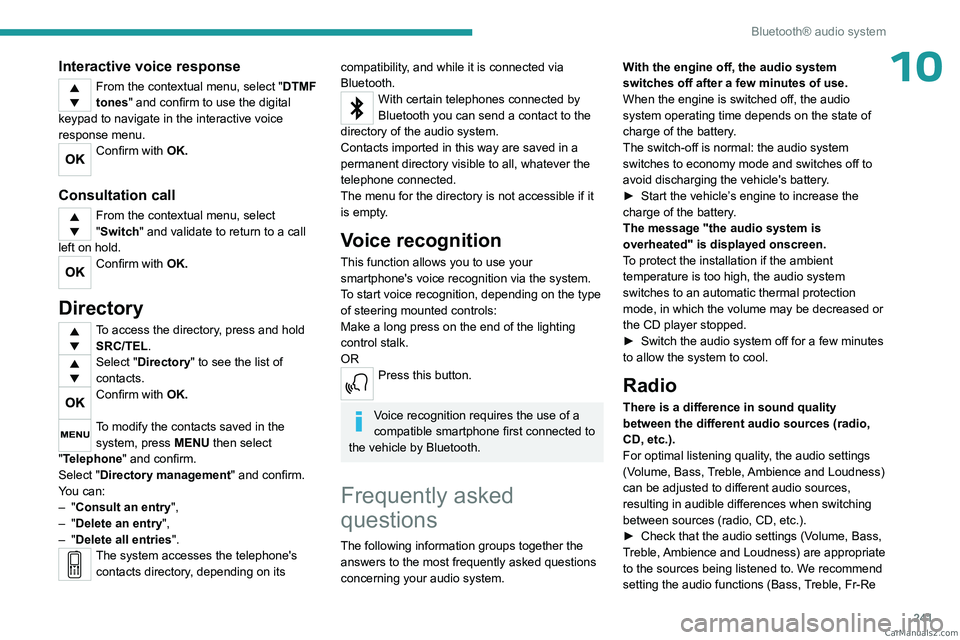
10Interactive voice response
From the contextual menu, select "DTMF
tones" and confirm to use the digital
keypad to navigate in the interactive voice
response menu.
Confirm with OK.
Consultation call
From the contextual menu, select
"Switch" and validate to return to a call
left on hold.
Confirm with OK.
Directory
To access the directory, press and hold SRC/TEL.
Select "Directory" to see the list of
contacts.
Confirm with OK.
To modify the contacts saved in the system, press MENU then select
"Telephone" and confirm.
Select "Directory management " and confirm.
You can:
–
"Consult an entry",
–
"Delete an entry",
–
"Delete all entries".
The system accesses the telephone's contacts directory, depending on its
compatibility, and while it is connected via
Bluetooth.
With certain telephones connected by
Bluetooth you can send a contact to the
directory of the audio system.
Contacts imported in this way are saved in a
permanent directory visible to all, whatever the
telephone connected.
The menu for the directory is not accessible if it
is empty.
Voice recognition
This function allows you to use your
smartphone's voice recognition via the system.
To start voice recognition, depending on the type
of steering mounted controls:
Make a long press on the end of the lighting
control stalk.
OR
Press this button.
Voice recognition requires the use of a
compatible smartphone first connected to
the vehicle by Bluetooth.
Frequently asked
questions
The following information groups together the answers to the most frequently asked questions
concerning your audio system. With the engine off, the audio system
switches off after a few minutes of use.
When the engine is switched off, the audio
system operating time depends on the state of
charge of the battery.
The switch-off is normal: the audio system
switches to economy mode and switches off to
avoid discharging the vehicle's battery.
►
Start the vehicle’
s engine to increase the
charge of the battery.
The message "the audio system is
overheated" is displayed onscreen.
To protect the installation if the ambient
temperature is too high, the audio system
switches to an automatic thermal protection
mode, in which the volume may be decreased or
the CD player stopped.
►
Switch the audio system off for a few minutes
to allow the system to cool.
Radio
There is a difference in sound quality
between the different audio sources (radio,
CD, etc.).
For optimal listening quality, the audio settings
(Volume, Bass, Treble, Ambience and Loudness)
can be adjusted to different audio sources,
resulting in audible differences when switching
between sources (radio, CD, etc.).
►
Check that the audio settings (V
olume, Bass,
Treble, Ambience and Loudness) are appropriate
to the sources being listened to. We recommend
setting the audio functions (Bass, Treble, Fr-Re CarM an uals 2 .c o m
Page 244 of 348
242
Bluetooth® audio system
balance and Le-Ri balance) to the middle
position, setting the musical ambience to "None",
setting loudness correction to "Active" in CD
mode and "Inactive" in Radio mode.
The preset stations do not function (no
sound, 87.5 MHz is displayed, etc.).
The wrong waveband is selected.
►
Press the BAND button to return to the
waveband (FM, FM2, DAB,
AM) on which the
stations are preset.
Traffic announcement (TA) is shown but I
receive no traffic information.
The radio station is not part of the regional traffic
information network.
►
T
une to a radio station that broadcasts traffic
information.
The reception quality of the tuned radio
station gradually deteriorates or the station
presets are inoperative (no sound, 87.5 MHz
is displayed, etc.).
The vehicle is too far from the selected station’s
transmitter, or no transmitter is present in the
geographical area.
►
Activate the RDS function to allow the system
to check for a more powerful transmitter in the
area.
The environment (hills, buildings, tunnels,
basement car parks, etc.) may block reception,
including in RDS mode.
This is a perfectly normal phenomenon, and is
not indicative of an audio system malfunction. The aerial is absent or has been damaged (for
example when going through an automatic car
wash or in an underground car park).
►
Have the aerial checked by a dealer
.
The sound intermittently cuts out for 1 or 2
seconds in radio mode.
During this brief sound cut-out, the RDS
searches for another frequency giving better
reception of the station.
►
Switch off the RDS function if the
phenomenon occurs too frequently and always
on the same route.
Media
The Bluetooth connection is cut.
The battery in the peripheral device may not be
sufficiently charged.
►
Charge the battery in the peripheral device.
The message "USB device error" is displayed
in the screen.
The USB stick has not been recognised, or may
be corrupted.
►
Reformat the USB memory stick.
The CD is systematically ejected or is not
played.
The CD is upside down, cannot be read, does
not contain audio files or contains audio files of a
format not recognised by the audio system.
The CD is protected by an anti-pirating system
not recognised by the audio system.
►
Check that the CD is inserted in the player
the right way up. ►
Check the condition of the CD: the CD cannot
be played if it is too badly damaged.
►
Check the content in the case of a burned
CD: read the recommendations in the "Audio"
section.
Due to poor quality
, certain burned CDs will not
be played by the audio system.
The CD audio quality is is poor.
The CD is scratched or of poor quality.
►
Insert good quality CDs and store them in
suitable conditions.
The audio settings (bass, treble, ambience) are
unsuitable.
►
Return bass and treble settings to 0, without
selecting an ambience.
I am unable to play the music files on my
smartphone via the USB port.
Depending on the smartphone, access by the
audio system to music on the smartphone may
have to be approved on the latter
.
►
Manually activate the MTP
profile on the
smartphone (USB settings menu).
Telephone
I am unable to access my voicemail.
Few telephones or service providers allow the
use of this function.
►
Call your voicemail, via the telephone menu,
using the number provided by your operator
.
I am unable to access my directory of
contacts.
►
Check the compatibility of your telephone. CarM an uals 2 .c o m
Page 246 of 348
244
Audio System with Touch Screen
Audio System with Touch Screen
Multimedia audio system -
Applications - Bluetooth
®
telephone
The functions and settings described
vary according to the vehicle version and
configuration, as well as the country of sale.
For safety reasons and because they
require sustained attention by the driver,
the following operations must be carried out
with the vehicle stationary and the ignition
on:
–
Pairing the smartphone with the system via
Bluetooth.
–
Using the smartphone.
–
Connecting to the CarPlay® or Android
Auto applications (certain applications stop
displaying when the vehicle is moving).
–
Changing the system settings and
configuration.
The system is protected so that it only operates in the vehicle.
The message Energy economy mode is
displayed when the system is about to go into
standby.
The system’s Open Source Software (OSS) source codes are available at the
following addresses:
https://www.groupe-psa.com/fr/oss/
https://www.groupe-psa.com/en/oss/
First steps
With the engine running, a press mutes
the sound.
With the ignition off, a press turns the system on.
Increase or decrease the volume using
the wheel or the "plus" or "minus" buttons
(depending on the equipment).
Use the buttons on either side of or below the
touch screen to access the menus, then press
the virtual buttons on the touch screen.
Depending on the model, use the "Source" and
"Menu" buttons on the left of the touch screen to
access the menus, then press the virtual buttons
on the touch screen.
At all times it is possible to display the rolling
menus by pressing the screen briefly with three
fingers.
All touch-sensitive areas on the screen are
white.
On pages with multiple tabs at the bottom of the
screen, you can switch between pages either
by tapping the tab for the desired page or by
swiping the pages to the left or right with your
finger.
Press in the shaded area to go back up a level
or confirm.
Press the back arrow to go back a level or
confirm.
The touch screen is of the "capacitive" type.
To clean the screen, use a soft, non-abrasive
cloth (e.g. spectacles cloth) with no additional
product.
Do not use sharp objects on the screen.
Do not touch the screen with wet hands.
Certain information is displayed permanently in
the upper bar of the touch screen:
–
Air conditioning status information (depending
on version), and direct access to the
corresponding menu.
–
Radio Media and
Telephone menu status
information.
–
Privacy status information.
–
Access to the touch screen and digital
instrument panel settings.
Audio source selection (depending on
equipment):
–
FM/DAB/AM radio stations (depending on
equipment).
–
T
elephone connected via Bluetooth and
Bluetooth multimedia broadcast (streaming).
–
USB Memory stick.
–
Media player connected via the auxiliary
socket (depending on equipment).
CarM an uals 2 .c o m