ad blue PEUGEOT EXPERT 2023 Workshop Manual
[x] Cancel search | Manufacturer: PEUGEOT, Model Year: 2023, Model line: EXPERT, Model: PEUGEOT EXPERT 2023Pages: 348, PDF Size: 12 MB
Page 271 of 348
269
3D Connected Navigation
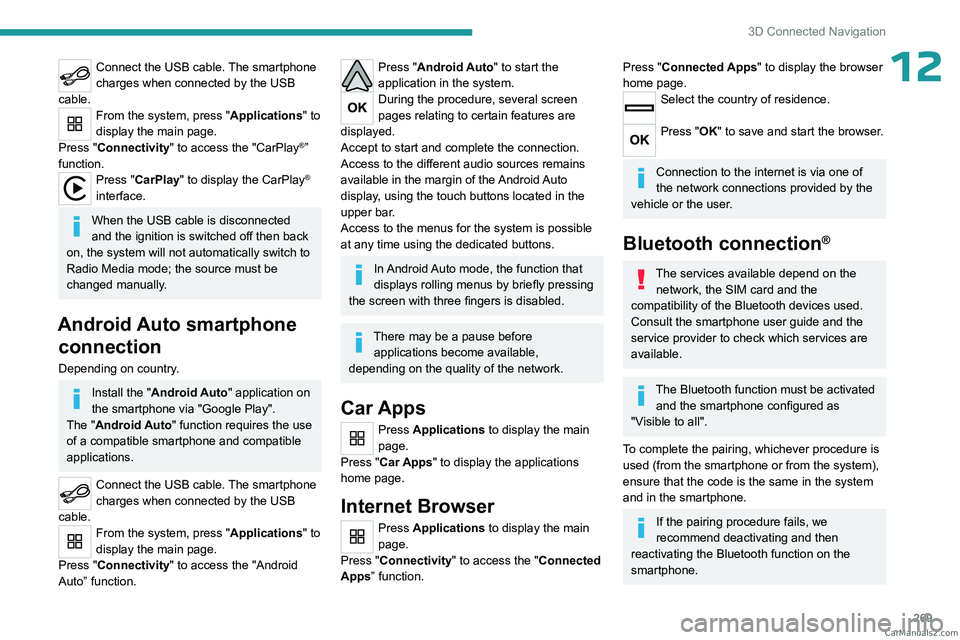
12Connect the USB cable. The smartphone
charges when connected by the USB
cable.
From the system, press "Applications " to
display the main page.
Press "Connectivity" to access the "CarPlay
®”
function.
Press "CarPlay" to display the CarPlay®
interface.
When the USB cable is disconnected
and the ignition is switched off then back
on, the system will not automatically switch to
Radio Media mode; the source must be
changed manually.
Android Auto smartphone connection
Depending on country.
Install the "Android Auto" application on
the smartphone via "Google Play".
The "Android Auto" function requires the use
of a compatible smartphone and compatible
applications.
Connect the USB cable. The smartphone
charges when connected by the USB
cable.
From the system, press "Applications " to
display the main page.
Press "Connectivity" to access the "Android
Auto” function.
Press "Android Auto" to start the
application in the system.
During the procedure, several screen
pages relating to certain features are
displayed.
Accept to start and complete the connection.
Access to the different audio sources remains
available in the margin of the Android Auto
display, using the touch buttons located in the
upper bar.
Access to the menus for the system is possible
at any time using the dedicated buttons.
In Android Auto mode, the function that
displays rolling menus by briefly pressing
the screen with three fingers is disabled.
There may be a pause before applications become available,
depending on the quality of the network.
Car Apps
Press Applications to display the main
page.
Press "Car Apps" to display the applications
home page.
Internet Browser
Press Applications to display the main
page.
Press "Connectivity" to access the "Connected
Apps” function.
Press "Connected Apps" to display the browser
home page.
Select the country of residence.
Press "OK" to save and start the browser.
Connection to the internet is via one of
the network connections provided by the
vehicle or the user.
Bluetooth connection®
The services available depend on the network, the SIM card and the
compatibility of the Bluetooth devices used.
Consult the smartphone user guide and the
service provider to check which services are
available.
The Bluetooth function must be activated and the smartphone configured as
"Visible to all".
To complete the pairing, whichever procedure is
used (from the smartphone or from the system),
ensure that the code is the same in the system
and in the smartphone.
If the pairing procedure fails, we
recommend deactivating and then
reactivating the Bluetooth function on the
smartphone. CarM an uals 2 .c o m
Page 272 of 348
270
3D Connected Navigation
Procedure from the smartphone
Select the name of the system in the list
of detected devices.
In the system, accept the connection request
from the smartphone.
Procedure from the system
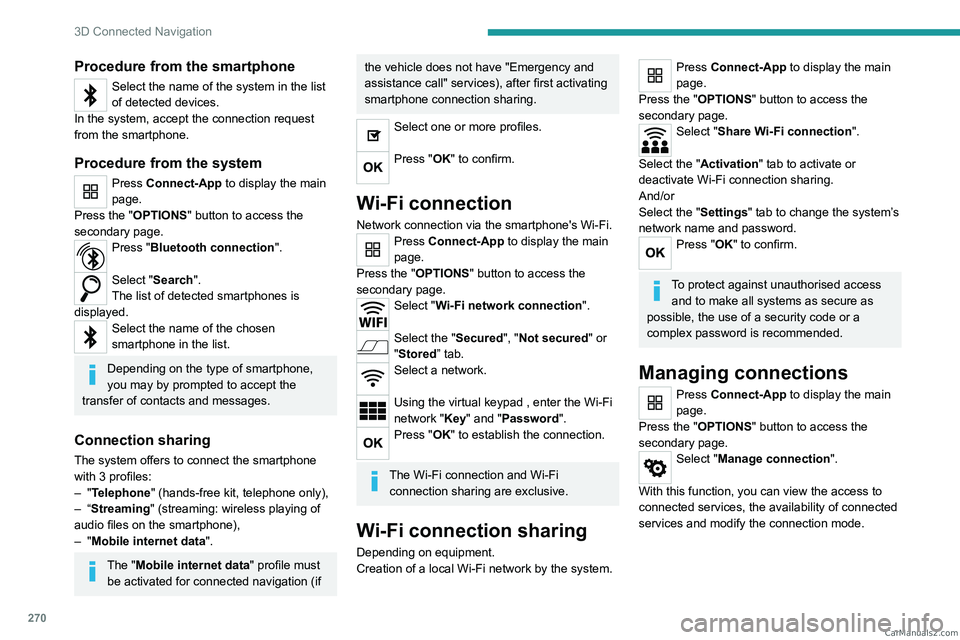
Press Connect-App to display the main
page.
Press the "OPTIONS " button to access the
secondary page.
Press "Bluetooth connection".
Select "Search".
The list of detected smartphones is
displayed.
Select the name of the chosen
smartphone in the list.
Depending on the type of smartphone,
you may by prompted to accept the
transfer of contacts and messages.
Connection sharing
The system offers to connect the smartphone
with 3 profiles:
–
"Telephone" (hands-free kit, telephone only),
–
“Streaming" (streaming: wireless playing of
audio files on the smartphone),
–
"Mobile internet data ".
The "Mobile internet data " profile must
be activated for connected navigation (if
the vehicle does not have "Emergency and
assistance call" services), after first activating
smartphone connection sharing.
Select one or more profiles.
Press "OK" to confirm.
Wi-Fi connection
Network connection via the smartphone's Wi-Fi.Press Connect-App to display the main
page.
Press the "OPTIONS " button to access the
secondary page.
Select "Wi-Fi network connection".
Select the "Secured", "Not secured" or
"Stored” tab.
Select a network.
Using the virtual keypad , enter the Wi-Fi
network "Key" and "Password".
Press "OK" to establish the connection.
The Wi-Fi connection and Wi-Fi connection sharing are exclusive.
Wi-Fi connection sharing
Depending on equipment.
Creation of a local Wi-Fi network by the system.
Press Connect-App to display the main
page.
Press the "OPTIONS " button to access the
secondary page.
Select "Share Wi-Fi connection".
Select the "Activation" tab to activate or
deactivate Wi-Fi connection sharing.
And/or
Select the "Settings" tab to change the system’s
network name and password.
Press "OK" to confirm.
To protect against unauthorised access and to make all systems as secure as
possible, the use of a security code or a
complex password is recommended.
Managing connections
Press Connect-App to display the main
page.
Press the "OPTIONS " button to access the
secondary page.
Select "Manage connection".
With this function, you can view the access to
connected services, the availability of connected
services and modify the connection mode. CarM an uals 2 .c o m
Page 275 of 348
273
3D Connected Navigation
12Selecting the source
Press Radio Media to display the main
page.
Select "SOURCES".
Select the source.
Watching a video
Depending on equipment/Depending on version/
Depending on country.
Insert a USB memory stick in the USB port.
Video control commands are accessible
only through the touch screen.
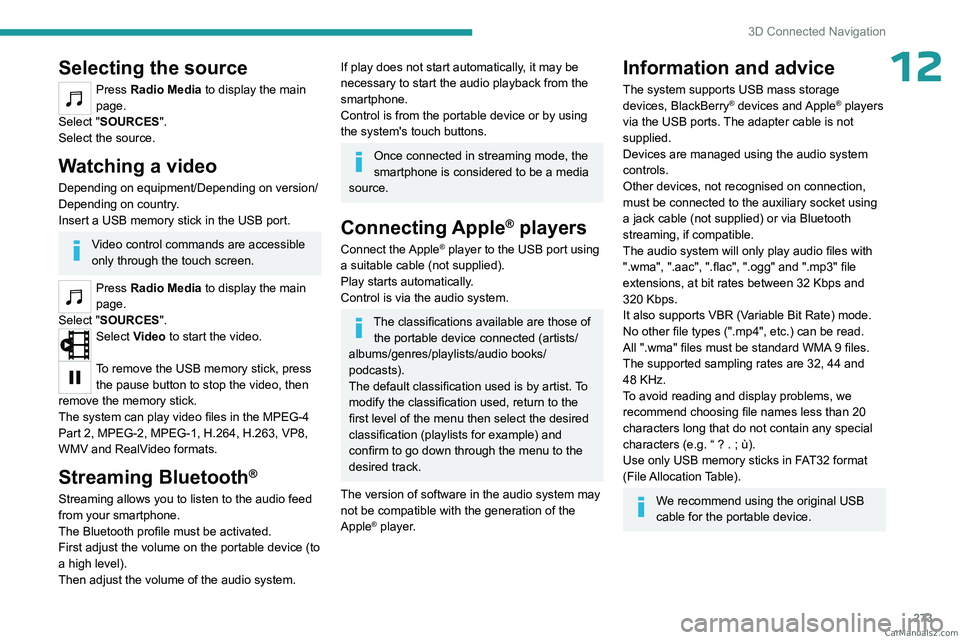
Press Radio Media to display the main
page.
Select "SOURCES".
Select Video to start the video.
To remove the USB memory stick, press the pause button to stop the video, then
remove the memory stick.
The system can play video files in the MPEG-4
Part 2, MPEG-2, MPEG-1, H.264, H.263, VP8,
WMV and RealVideo formats.
Streaming Bluetooth®
Streaming allows you to listen to the audio feed
from your smartphone.
The Bluetooth profile must be activated.
First adjust the volume on the portable device (to
a high level).
Then adjust the volume of the audio system.
If play does not start automatically, it may be
necessary to start the audio playback from the
smartphone.
Control is from the portable device or by using
the system's touch buttons.
Once connected in streaming mode, the
smartphone is considered to be a media
source.
Connecting Apple® players
Connect the Apple® player to the USB port using
a suitable cable (not supplied).
Play starts automatically.
Control is via the audio system.
The classifications available are those of the portable device connected (artists/
albums/genres/playlists/audio books/
podcasts).
The default classification used is by artist. To
modify the classification used, return to the
first level of the menu then select the desired
classification (playlists for example) and
confirm to go down through the menu to the
desired track.
The version of software in the audio system may
not be compatible with the generation of the
Apple
® player.
Information and advice
The system supports USB mass storage
devices, BlackBerry® devices and Apple® players
via the USB ports. The adapter cable is not
supplied.
Devices are managed using the audio system
controls.
Other devices, not recognised on connection,
must be connected to the auxiliary socket using
a jack cable (not supplied) or via Bluetooth
streaming, if compatible.
The audio system will only play audio files with
".wma", ".aac", ".flac", ".ogg" and ".mp3" file
extensions, at bit rates between 32 Kbps and
320 Kbps.
It also supports VBR (Variable Bit Rate) mode.
No other file types (".mp4", etc.) can be read.
All ".wma" files must be standard WMA 9 files.
The supported sampling rates are 32, 44 and
48 KHz.
To avoid reading and display problems, we
recommend choosing file names less than 20
characters long that do not contain any special
characters (e.g. “ ? .
; ù).
Use only USB memory sticks in FAT32 format
(File Allocation Table).
We recommend using the original USB
cable for the portable device. CarM an uals 2 .c o m
Page 276 of 348
274
3D Connected Navigation
Telephone
Pairing a Bluetooth®
telephone
The services available depend on the
network, the SIM card and the
compatibility of the Bluetooth
® devices used.
Consult the telephone user guide and the
service provider to check which services are
available.
The Bluetooth® function must be
activated and the telephone configured
as "Visible to all” (in the telephone settings).
To complete the pairing, whichever procedure is
used (from the telephone or from the system),
ensure that the code is the same in the system
and in the telephone.
If the pairing procedure fails, we
recommend deactivating and then
reactivating the Bluetooth
® function on the
telephone.
Procedure from the telephone
Select the system name in the list of
detected devices.
In the system, accept the connection request
from the telephone.
Procedure from the system
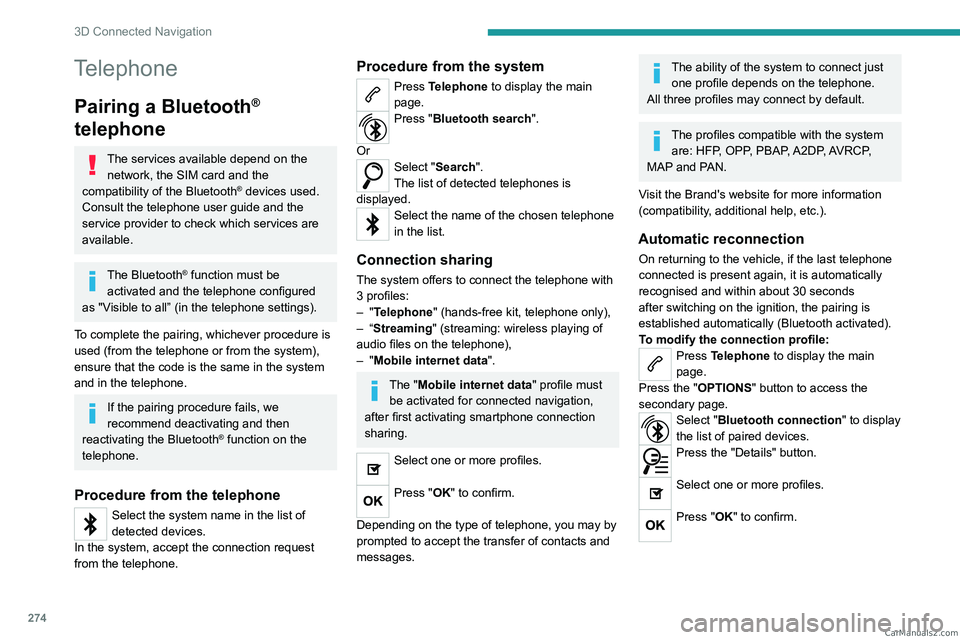
Press Telephone to display the main
page.
Press "Bluetooth search".
Or
Select "Search".
The list of detected telephones is
displayed.
Select the name of the chosen telephone
in the list.
Connection sharing
The system offers to connect the telephone with
3 profiles:
–
"Telephone" (hands-free kit, telephone only),
–
“Streaming" (streaming: wireless playing of
audio files on the telephone),
–
"Mobile internet data ".
The "Mobile internet data " profile must
be activated for connected navigation,
after first activating smartphone connection
sharing.
Select one or more profiles.
Press "OK" to confirm.
Depending on the type of telephone, you may by
prompted to accept the transfer of contacts and
messages.
The ability of the system to connect just one profile depends on the telephone.
All three profiles may connect by default.
The profiles compatible with the system are: HFP, OPP, PBAP, A2DP, AVRCP,
MAP and PAN.
Visit the Brand's website for more information
(compatibility, additional help, etc.).
Automatic reconnection
On returning to the vehicle, if the last telephone
connected is present again, it is automatically
recognised and within about 30 seconds
after switching on the ignition, the pairing is
established automatically (Bluetooth activated).
To modify the connection profile:
Press Telephone to display the main
page.
Press the "OPTIONS " button to access the
secondary page.
Select "Bluetooth connection" to display
the list of paired devices.
Press the "Details" button.
Select one or more profiles.
Press "OK" to confirm. CarM an uals 2 .c o m
Page 277 of 348
275
3D Connected Navigation
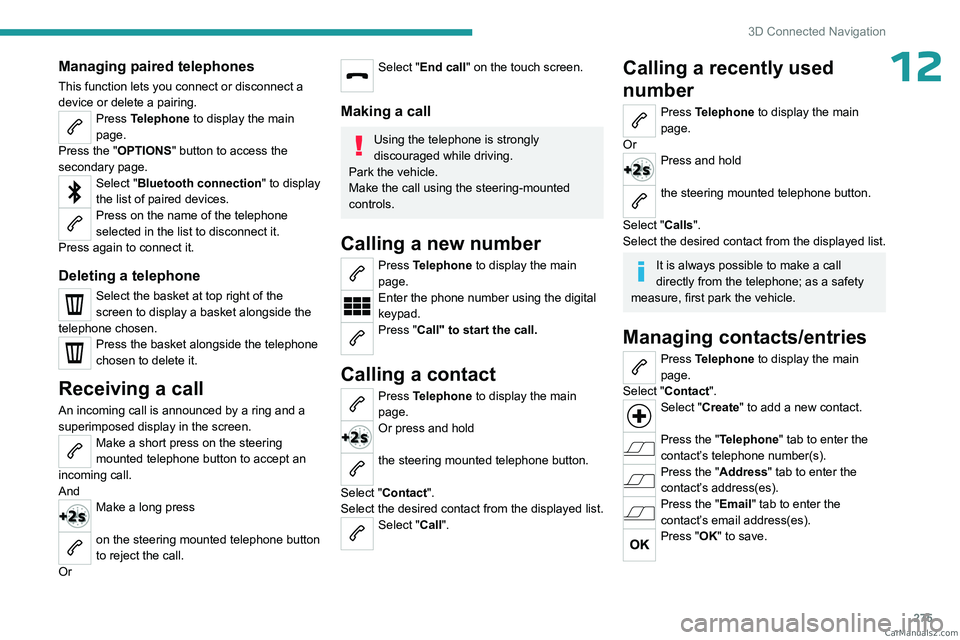
12Managing paired telephones
This function lets you connect or disconnect a
device or delete a pairing.
Press Telephone to display the main
page.
Press the "OPTIONS " button to access the
secondary page.
Select "Bluetooth connection" to display
the list of paired devices.
Press on the name of the telephone
selected in the list to disconnect it.
Press again to connect it.
Deleting a telephone
Select the basket at top right of the
screen to display a basket alongside the
telephone chosen.
Press the basket alongside the telephone
chosen to delete it.
Receiving a call
An incoming call is announced by a ring and a
superimposed display in the screen.
Make a short press on the steering
mounted telephone button to accept an
incoming call.
And
Make a long press
on the steering mounted telephone button
to reject the call.
Or
Select "End call" on the touch screen.
Making a call
Using the telephone is strongly
discouraged while driving.
Park the vehicle.
Make the call using the steering-mounted
controls.
Calling a new number
Press Telephone to display the main
page.
Enter the phone number using the digital
keypad.
Press "Call" to start the call.
Calling a contact
Press Telephone to display the main
page.
Or press and hold
the steering mounted telephone button.
Select "Contact".
Select the desired contact from the displayed list.
Select "Call".
Calling a recently used
number
Press Telephone to display the main
page.
Or
Press and hold
the steering mounted telephone button.
Select "Calls".
Select the desired contact from the displayed list.
It is always possible to make a call
directly from the telephone; as a safety
measure, first park the vehicle.
Managing contacts/entries
Press Telephone to display the main
page.
Select "Contact".
Select "Create" to add a new contact.
Press the "Telephone " tab to enter the
contact’s telephone number(s).
Press the "Address" tab to enter the
contact’s address(es).
Press the "Email" tab to enter the
contact’s email address(es).
Press "OK" to save. CarM an uals 2 .c o m
Page 282 of 348
280
3D Connected Navigation
The system reads a variety of data (folder, title,
artist, etc.). This can take from a few seconds to
a few minutes.
This is perfectly normal.
Some characters in information about the
currently playing media may not be displayed
correctly.
The audio system is unable to process certain
types of character.
►
Use standard characters to name tracks and
folders.
Playback of streaming files does not start.
The connected device does not automatically
launch playback.
►
Start playback from the device.
T
rack names and playing times are not
displayed on the audio streaming screen.
The Bluetooth profile does not allow the transfer
of this information.
Telephone
I am unable to connect my Bluetooth
telephone.
The telephone's Bluetooth function may be
switched off or the device may not be visible.
►
Check that the telephone has Bluetooth
switched on.
►
Check in the telephone settings that it is
"visible to all".
►
Deactivate then reactivate the telephone’
s
Bluetooth function.
The Bluetooth telephone is not compatible with
the system. ►
Y
ou can check the compatibility of the
telephone on the Brand's website (services).
Android Auto and/or CarPlay do not work.
Android Auto and CarPlay may not activate if the
USB cables are of poor quality.
►
Use genuine USB cables to ensure
compatibility
.
Android Auto and/or CarPlay do not work.
Android Auto and CarPlay are not available in all
countries.
►
Check the list of supported countries via
these
websites: Google Android Auto or Apple.
The volume of the telephone connected via
Bluetooth is too low.
The volume depends on both the system and the
telephone.
►
Increase the volume of the audio system, to
maximum if required, and increase the volume of
the telephone if necessary
.
Ambient noise affects the quality of the
telephone call.
► Reduce ambient noise (e.g. close the
windows, reduce ventilation, slow down).
Some contacts are duplicated in the list.
The options for synchronising contacts are:
synchronise the contacts on the SIM card, the
contacts on the telephone, or both. When both
synchronisations are selected, some contacts
may be duplicated.
►
Select "Display SIM card contacts" or
"Display telephone contacts".
The contacts are not listed in alphabetical
order
.Some telephones offer display options.
Depending on the settings chosen, contacts can
be transferred in a specific order.
►
Modify the telephone directory display
settings.
The system is not receiving SMS text
messages.
Bluetooth mode does not allow SMS text
messages to be sent to the system.
Settings
When the treble and bass settings are
changed, the ambience is deselected.
When the ambience is changed, the treble
and bass settings are reset.
Selecting an ambience imposes the treble and
bass settings, and vice versa.
►
Modify the treble and bass or ambience
settings to obtain the desired musical ambience.
When the balance settings are changed, the
distribution is deselected.
When the distribution setting is changed, the
balance settings are deselected.
Selecting a distribution setting imposes the
balance settings, and vice versa.
►
Modify the balance setting or the distribution
setting to obtain the desired sound quality
.
There is a difference in sound quality
between audio sources.
To allow for optimal listening quality, the sound
settings can be tailored to different audio
sources, which can generate audible differences
when changing source. CarM an uals 2 .c o m
Page 287 of 348
285
Alphabetical index
A
ABS 100
Accelerated charging unit (Wallbox)
179
Accessories
97
Access to the 3rd row
57, 59
Access to the spare wheel
208
Active Safety Brake
162, 164
AdBlue®
20, 196
AdBlue® tank
197
Additive, Diesel
193–194
Adjusting head restraints
49
Adjusting seat
48–49
Adjusting the air distribution
79–80
Adjusting the air flow
79–80
Adjusting the date
28, 255, 277
Adjusting the height and reach
of the steering wheel
51
Adjusting the lumbar support
48
Adjusting the seat angle
48–49
Adjusting the seat belt height
105
Adjusting the temperature
79–80
Adjusting the time
28, 254, 278
Advanced Grip Control
102
Advice on care and maintenance
177, 199
Advice on driving
7, 132–133
Airbags
107–109, 111
Airbags, curtain
108–109
Airbags, front
107, 109, 112
Airbags, lateral
108–109
Air conditioning
77, 79, 79–80, 82
Air conditioning, dual-zone
81
Air conditioning, dual-zone automatic 79–80
Air conditioning, manual
78–79, 81
Air intake
79–81
Air vents
77
Alarm
45–46
Anti-lock braking system (ABS)
100
Anti-pinch
74
Antitheft / Immobiliser
30
Applications
269
Area, loading
72
Armrest, front
50
Assistance call
98
Assistance, emergency braking
100, 163
Audio streaming (Bluetooth)
238, 250, 273
B
Battery, 12 V 187, 194, 216–219
Battery, ancillaries
216
Battery, charging
218–219
Battery, remote control
36, 84
Bench seat, heated
50
Bench seat, one-piece, fixed
57–58
Blind, panoramic roof
74
Blind spot monitoring
167
Blind spot monitoring system
168
Blinds, side
73
BlueHDi
20, 193, 202
Bluetooth (hands-free)
238–239, 252, 274
Bluetooth (telephone)
252–253, 274–275
Bodywork
200
Bonnet 190–191
Boot
44
Boot lid
33–34
Brake discs
195
Brake lamps
214, 216
Brakes
195
Braking
146
Braking assistance system
100
Braking, automatic emergency
162, 164
Braking, dynamic emergency
139–140
Brightness
254
Bulbs
2 11
Bulbs (changing)
211, 214
C
Cable, audio 272
Cable, Jack
272
Capacity, fuel tank
174–175
Cap, fuel filler
174–175
Care of the bodywork
200
CD
237
CD, MP3
237
Central locking
29, 33, 37
Changing a bulb
211, 214, 216
Changing a bulb (side-hinged doors)
214
Changing a fuse
216
Changing a wheel
207
Changing a wiper blade
95
Changing the remote control battery
36
Changing to free-wheeling
198, 220 CarM an uals 2 .c o m
Page 288 of 348
286
Alphabetical index
Charge level indicator (Electric) 22
Charging cable
180
Charging cable (Electric)
179
Charging connector
(Electric)
178, 183, 185–186
Charging flap (Electric)
178, 183, 185–186
Charging system (Electric)
5, 8, 27, 176, 191
Charging the traction battery
(Electric)
22, 176, 183, 185–186
Checking the engine oil level
19
Checking the levels
191–193
Checking tyre pressures
(using the kit)
204, 206–207
Checks
191, 194–196
Checks, routine
194–195
Child lock
131
Child lock on rear windows
131
Children
106, 113, 119–121, 128, 128–129
Children (safety)
131
Child seats
106, 109–116, 128
Child seats, conventional
112–116
Child seats, i-Size
128
Child seats, ISOFIX
119–121, 128, 128–129
Cleaning (advice)
177, 199–201
Closing the boot
44
Closing the doors
29, 33, 43–44
Collision Risk Alert
162–163
Compressor, tyre inflation
204
Configuration, vehicle
26–27
Connected applications
269
Connection, Android Auto
251, 269
Connection, Apple CarPlay
251, 268Connection,
Bluetooth
239, 252–253, 269–270, 274–275
Connection, Wi-Fi network
270
Connectivity
268
Consumptions
27
Container, AdBlue®
197
Control, emergency boot release
36
Control, emergency door
29, 34–35
Control, heated seats
50–51
Control stalk, lighting
88
Control stalk, wipers
93–95
Control unit
179–180
Courtesy lamp
86
Courtesy lamp, front
86–87, 215
Courtesy lamp, rear
86–87, 215
Courtesy lamps
86–87, 215
Crew cab, fixed
65–66
Crew cab, folding
66
Cruise control
151, 153–154, 156–158
Cruise control,
adaptive
153–154, 158, 161–163
Cruise control,
adaptive with Stop function
153–154
Cruise control by
speed limit recognition
153–154
D
DAB (Digital Audio Broadcasting) -
Digital radio
235–236, 249, 272
Date (setting)
28, 255, 277
Daytime running lamps 89, 212–213
Deactivating the passenger
airbag
107, 111–112
Deactivation of DSC (ESC)
101
Deadlocking
34
Deferred charging
27
Deferred charging (Electric)
27, 178, 183, 186
Defrosting
52, 81
Defrosting, rear screen
82
Demisting
81
Demisting, rear
82
Dimensions
229
Dipstick
19, 192
Direction indicators
(turn signals)
89, 212–214, 216
Display, head-up
11
Domestic charging
180
Domestic charging (Electric)
184–186, 227
Door pockets
68
Doors, rear
43–44
Doors, side
39
Doors, side-hinged
33–34, 43–44, 214
Drive,
electric
5, 8, 27, 176, 189, 191, 216, 220, 227
Driver’s attention warning
166
Drive selector (Electric)
145, 195
Driving
132–133
Driving aids camera (warnings)
150
Driving aids (recommendations)
150
Driving economically
7
Driving modes
146
Driving modes (Electric)
146–147 CarM an uals 2 .c o m
Page 289 of 348
287
Alphabetical index
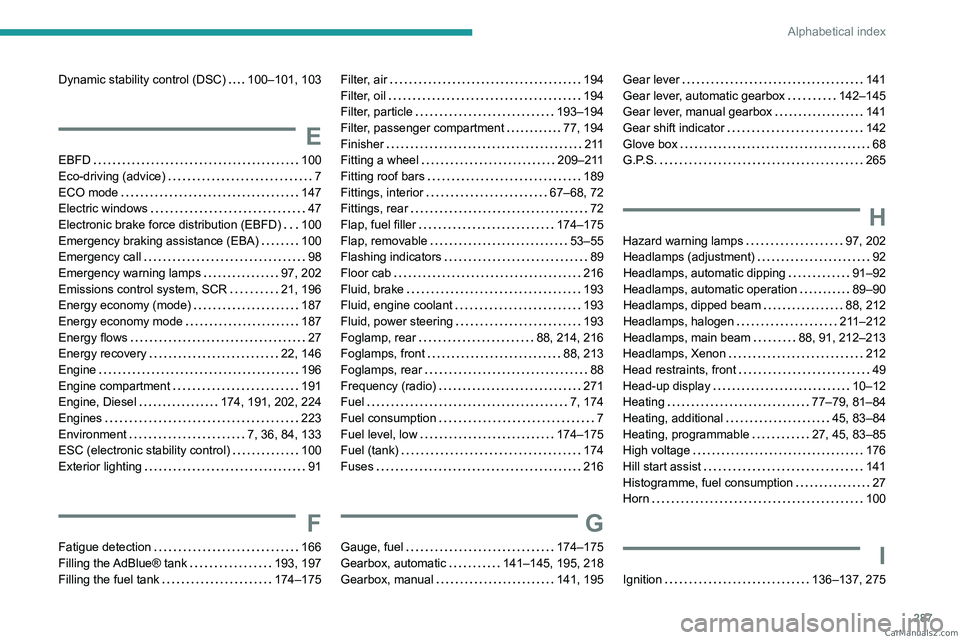
Dynamic stability control (DSC) 100–101, 103
E
EBFD 100
Eco-driving (advice)
7
ECO mode
147
Electric windows
47
Electronic brake force distribution (EBFD)
100
Emergency braking assistance (EBA)
100
Emergency call
98
Emergency warning lamps
97, 202
Emissions control system, SCR
21, 196
Energy economy (mode)
187
Energy economy mode
187
Energy flows
27
Energy recovery
22, 146
Engine
196
Engine compartment
191
Engine, Diesel
174, 191, 202, 224
Engines
223
Environment
7, 36, 84, 133
ESC (electronic stability control)
100
Exterior lighting
91
F
Fatigue detection 166
Filling the AdBlue® tank
193, 197
Filling the fuel tank
174–175
Filter, air 194
Filter, oil
194
Filter, particle
193–194
Filter, passenger compartment
77, 194
Finisher
2 11
Fitting a wheel
209–211
Fitting roof bars
189
Fittings, interior
67–68, 72
Fittings, rear
72
Flap, fuel filler
174–175
Flap, removable
53–55
Flashing indicators
89
Floor cab
216
Fluid, brake
193
Fluid, engine coolant
193
Fluid, power steering
193
Foglamp, rear
88, 214, 216
Foglamps, front
88, 213
Foglamps, rear
88
Frequency (radio)
271
Fuel
7, 174
Fuel consumption
7
Fuel level, low
174–175
Fuel (tank)
174
Fuses
216
G
Gauge, fuel 174–175
Gearbox, automatic
141–145, 195, 218
Gearbox, manual
141, 195
Gear lever 141
Gear lever, automatic gearbox
142–145
Gear lever, manual gearbox
141
Gear shift indicator
142
Glove box
68
G.P.S.
265
H
Hazard warning lamps 97, 202
Headlamps (adjustment)
92
Headlamps, automatic dipping
91–92
Headlamps, automatic operation
89–90
Headlamps, dipped beam
88, 212
Headlamps, halogen
211–212
Headlamps, main beam
88, 91, 212–213
Headlamps, Xenon
212
Head restraints, front
49
Head-up display
10–12
Heating
77–79, 81–84
Heating, additional
45, 83–84
Heating, programmable
27, 45, 83–85
High voltage
176
Hill start assist
141
Histogramme, fuel consumption
27
Horn
100
I
Ignition 136–137, 275 CarM an uals 2 .c o m
Page 290 of 348
288
Alphabetical index
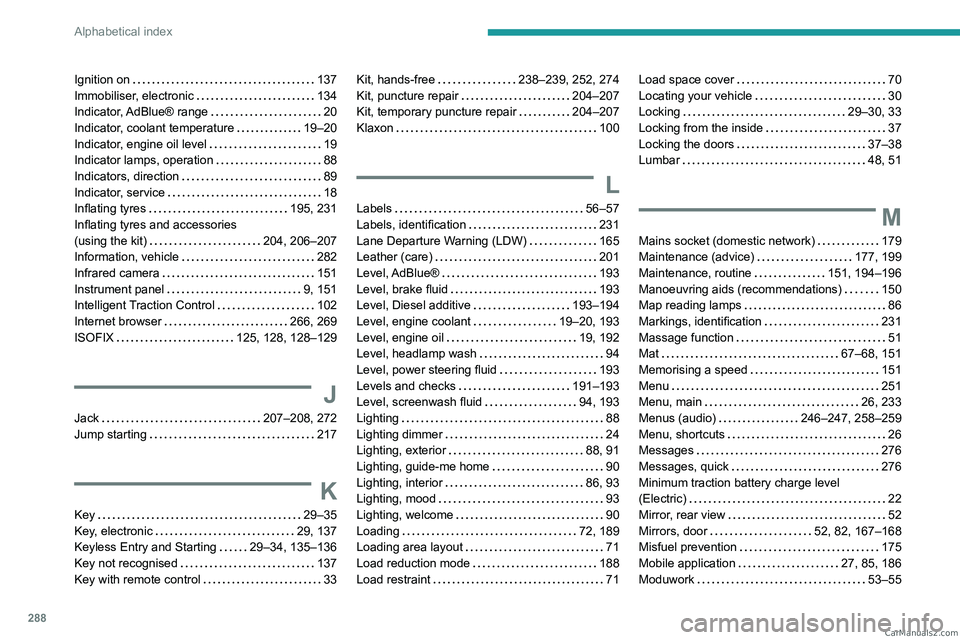
Ignition on 137
Immobiliser, electronic
134
Indicator, AdBlue® range
20
Indicator, coolant temperature
19–20
Indicator, engine oil level
19
Indicator lamps, operation
88
Indicators, direction
89
Indicator, service
18
Inflating tyres
195, 231
Inflating tyres and accessories
(using the kit)
204, 206–207
Information, vehicle
282
Infrared camera
151
Instrument panel
9, 151
Intelligent Traction Control
102
Internet browser
266, 269
ISOFIX
125, 128, 128–129
J
Jack 207–208, 272
Jump starting
217
K
Key 29–35
Key, electronic
29, 137
Keyless Entry and Starting
29–34, 135–136
Key not recognised
137
Key with remote control
33
Kit, hands-free 238–239, 252, 274
Kit, puncture repair
204–207
Kit, temporary puncture repair
204–207
Klaxon
100
L
Labels 56–57
Labels, identification
231
Lane Departure Warning (LDW)
165
Leather (care)
201
Level, AdBlue®
193
Level, brake fluid
193
Level, Diesel additive
193–194
Level, engine coolant
19–20, 193
Level, engine oil
19, 192
Level, headlamp wash
94
Level, power steering fluid
193
Levels and checks
191–193
Level, screenwash fluid
94, 193
Lighting
88
Lighting dimmer
24
Lighting, exterior
88, 91
Lighting, guide-me home
90
Lighting, interior
86, 93
Lighting, mood
93
Lighting, welcome
90
Loading
72, 189
Loading area layout
71
Load reduction mode
188
Load restraint
71
Load space cover 70
Locating your vehicle
30
Locking
29–30, 33
Locking from the inside
37
Locking the doors
37–38
Lumbar
48, 51
M
Mains socket (domestic network) 179
Maintenance (advice)
177, 199
Maintenance, routine
151, 194–196
Manoeuvring aids (recommendations)
150
Map reading lamps
86
Markings, identification
231
Massage function
51
Mat
67–68, 151
Memorising a speed
151
Menu
251
Menu, main
26, 233
Menus (audio)
246–247, 258–259
Menu, shortcuts
26
Messages
276
Messages, quick
276
Minimum traction battery charge level
(Electric)
22
Mirror, rear view
52
Mirrors, door
52, 82, 167–168
Misfuel prevention
175
Mobile application
27, 85, 186
Moduwork
53–55 CarM an uals 2 .c o m