ESP Peugeot Expert VU 2011 Owner's Guide
[x] Cancel search | Manufacturer: PEUGEOT, Model Year: 2011, Model line: Expert VU, Model: Peugeot Expert VU 2011Pages: 260, PDF Size: 9.46 MB
Page 128 of 260
126
Changing a fuse
CHANGING A FUSE
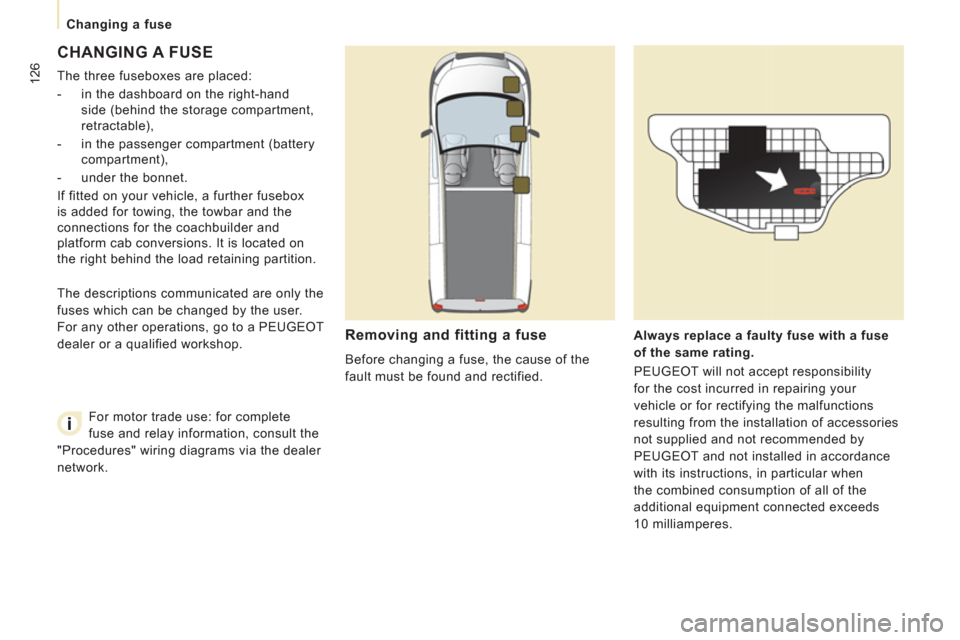
The three fuseboxes are placed:
- in the dashboard on the right-hand
side (behind the storage compartment,
retractable),
- in the passenger compartment (battery
compartment),
- under the bonnet.
If fitted on your vehicle, a further fusebox
is added for towing, the towbar and the
connections for the coachbuilder and
platform cab conversions. It is located on
the right behind the load retaining partition.
Removing and fitting a fuse
Before changing a fuse, the cause of the
fault must be found and rectified.
Always replace a faulty fuse with a fuse
of the same rating.
PEUGEOT will not accept responsibility
for the cost incurred in repairing your
vehicle or for rectifying the malfunctions
resulting from the installation of accessories
not supplied and not recommended by
PEUGEOT and not installed in accordance
with its instructions, in particular when
the combined consumption of all of the
additional equipment connected exceeds
10 milliamperes. The descriptions communicated are only the
fuses which can be changed by the user.
For any other operations, go to a PEUGEOT
dealer or a qualified workshop.
For motor trade use: for complete
fuse and relay information, consult the
"Procedures" wiring diagrams via the dealer
network.
Page 129 of 260
12
7
Changing a fuse
QUICK HELP
7
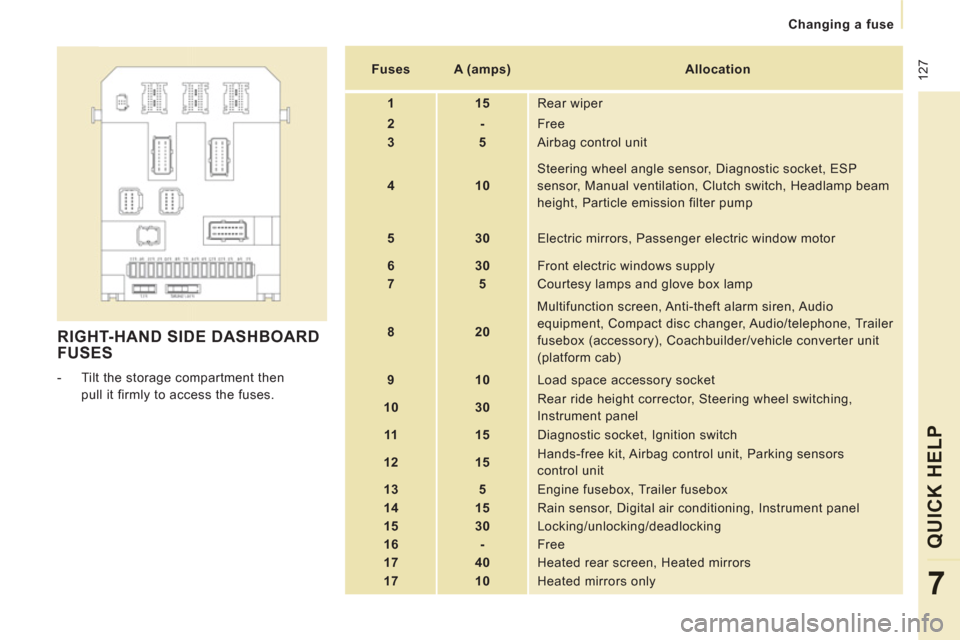
RIGHT-HAND SIDE DASHBOARD
FUSES
- Tilt the storage compartment then
pull it firmly to access the fuses.
Fuses
A (amps)
Allocation
1
15
Rear wiper
2
-
Free
3
5
Airbag control unit
4
10
Steering wheel angle sensor, Diagnostic socket, ESP
sensor, Manual ventilation, Clutch switch, Headlamp beam
height, Particle emission filter pump
5
30
Electric mirrors, Passenger electric window motor
6
30
Front electric windows supply
7
5
Courtesy lamps and glove box lamp
8
20
Multifunction screen, Anti-theft alarm siren, Audio
equipment, Compact disc changer, Audio/telephone, Trailer
fusebox (accessory), Coachbuilder/vehicle converter unit
(platform cab)
9
10
Load space accessory socket
10
30
Rear ride height corrector, Steering wheel switching,
Instrument panel
11
15
Diagnostic socket, Ignition switch
12
15
Hands-free kit, Airbag control unit, Parking sensors
control unit
13
5
Engine fusebox, Trailer fusebox
14
15
Rain sensor, Digital air conditioning, Instrument panel
15
30
Locking/unlocking/deadlocking
16
-
Free
17
40 Heated rear screen, Heated mirrors
17
10
Heated mirrors only
Page 131 of 260
12
9
Changing a fuse
QUICK HELP
7
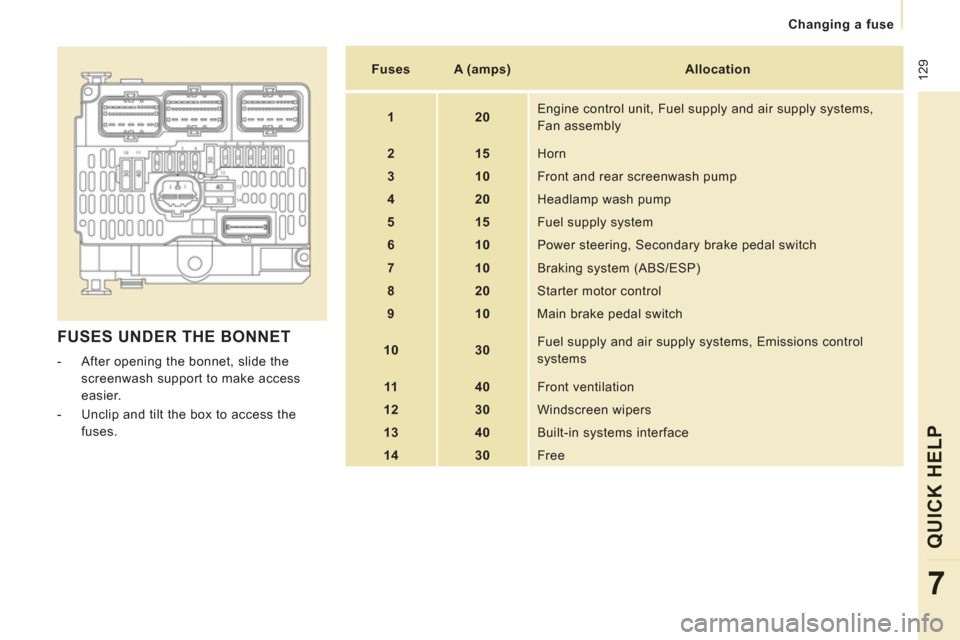
FUSES UNDER THE BONNET
- After opening the bonnet, slide the
screenwash support to make access
easier.
- Unclip and tilt the box to access the
fuses.
Fuses
A (amps)
Allocation
1
20
Engine control unit, Fuel supply and air supply systems,
Fan assembly
2
15
Horn
3
10
Front and rear screenwash pump
4
20
Headlamp wash pump
5
15
Fuel supply system
6
10
Power steering, Secondary brake pedal switch
7
10
Braking system (ABS/ESP)
8
20
Starter motor control
9
10
Main brake pedal switch
10
30
Fuel supply and air supply systems, Emissions control systems
11
40
Front ventilation
12
30 Windscreen wipers
13
40
Built-in systems interface
14
30
Free
Page 170 of 260
9.26
06
1
2
4
3
5
1
2
3
AUDIO/VIDEO
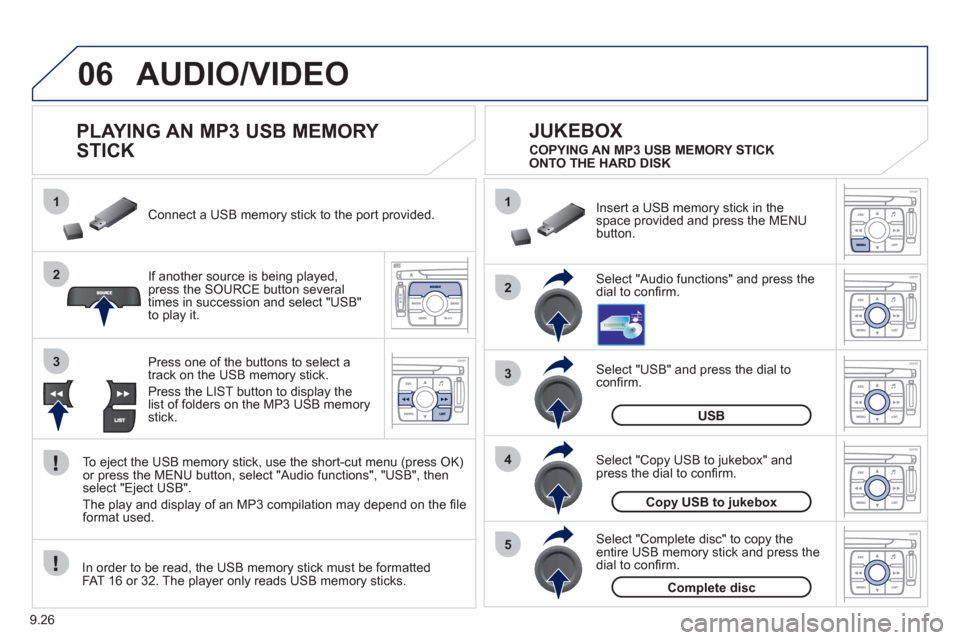
PLAYING AN MP3 USB MEMORY
STICK
If another source is being played,press the SOURCE button several
times in succession and select "USB"
to play it. Connect a USB memor
y stick to the port provided.
To e
ject the USB memory stick, use the short-cut menu (press OK)or press the MENU button, select "Audio functions", "USB", then
select "Eject USB".
The pla
y and display of an MP3 compilation may depend on the fi le
format used.
Select "USB" and press the dial toconfi rm.
Insert a U
SB memory stick in thespace provided and press the MENUbutton.
JUKEBOX
USB
Select "Complete disc" to copy theentire USB memory stick and press thedial to confi rm.
Complete disc
Select "Copy USB to jukebox" andpress the dial to confi rm.
Copy USB to jukebox
Select "Audio functions" and press the dial to confi rm.
Pr
ess one of the buttons to select atrack on the USB memory stick.
Press the LIST button to displa
y the list of folders on the MP3 USB memorystick. COPYING AN MP3 USB MEMORY STICK
ONTO THE HARD DISK
In order to be read, the USB memor
y stick must be formatted
FAT 16 or 32. The player only reads USB memory sticks.
Page 209 of 260
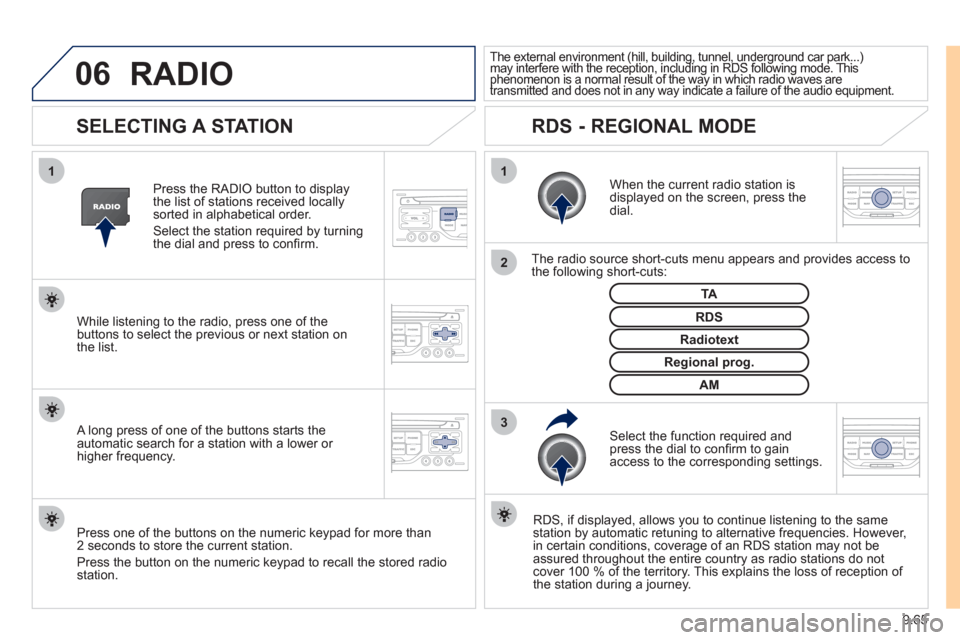
9.65
06
3 2 1 1
SELECTING A STATION
When the current radio station isdisplayed on the screen, press thedial.
The radio source short-cuts menu appears and provides access to
the following short-cuts:
Select the function re
quired and press the dial to confi rm to gain
access to the corresponding settings.
TA
RDS, if displayed, allows you to continue listening to the same station by automatic retuning to alternative frequencies. However,
in certain conditions, coverage of an RDS station may not be
assured throughout the entire country as radio stations do notcover 100 % of the territory. This explains the loss of reception of
the station during a journey.
The external environment (hill, building, tunnel, underground car park...)may interfere with the reception, including in RDS following mode. This(g gp(, g, , g p
phenomenon is a normal result of the way in which radio waves are ypggyp,g
transmitted and does not in any way indicate a failure of the audio equipment.pypy
RDS - REGIONAL MODE
Press the RADIO button to display
the list of stations received locally sorted in alphabetical order.
Select the station required by turningthe dial and press to confi rm.
Re
gional prog.
Radiotext
RDSWhile listening to the radio, press one of the
buttons to select the previous or next station on
the list.
Press one o
f the buttons on the numeric keypad for more than
2 seconds to store the current station.
Press the button on the numeric keypad to recall the stored radio
station.
AM
A long press of one of the buttons starts theautomatic search for a station with a lower or
higher frequency.
RADIO
Page 220 of 260
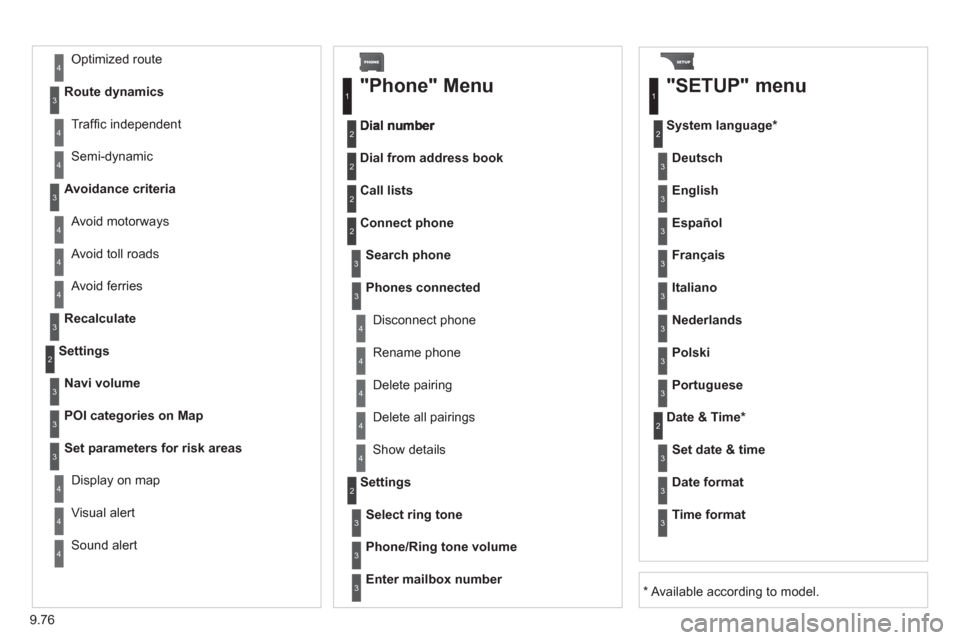
9.76
Avoid ferries
Recalculate
Settings
Navi volum
e
POI categories on Map
Set
parameters for risk areas
Displa
y on map
Vi
sual alert
Sound alert
3
2
4
3
3
3
4
4
4
Dial from address book
"Phone" Menu
Search phone
Call lists
Connect
phone
Select rin
g tone
Phone/Ring tone volume
Phones connected
Enter mailbox number
Settin
gs Disconnect phone
Rename phone
Delete pairing
Delete all pairings
Show details
"SETUP" menu
System language *
English
Español
Deutsch
Italiano
Français
Nederlands
Polski
Portuguese
Date & Time *
Set date & tim
e
Date format
Time format
1
2
2
2
2
3
3
4
4
4
4
4
2
3
3
3
1
2
3
3
3
3
3
3
3
3
3
3
3
2
Avoid motorways Route d
ynamics
Traffi c inde
pendent
Semi-d
ynamic
Avoidance criteria
Avoid toll roads
Optimized route
3
3
4
4
4
4
4
*
Available according to model.
Page 224 of 260
9.80
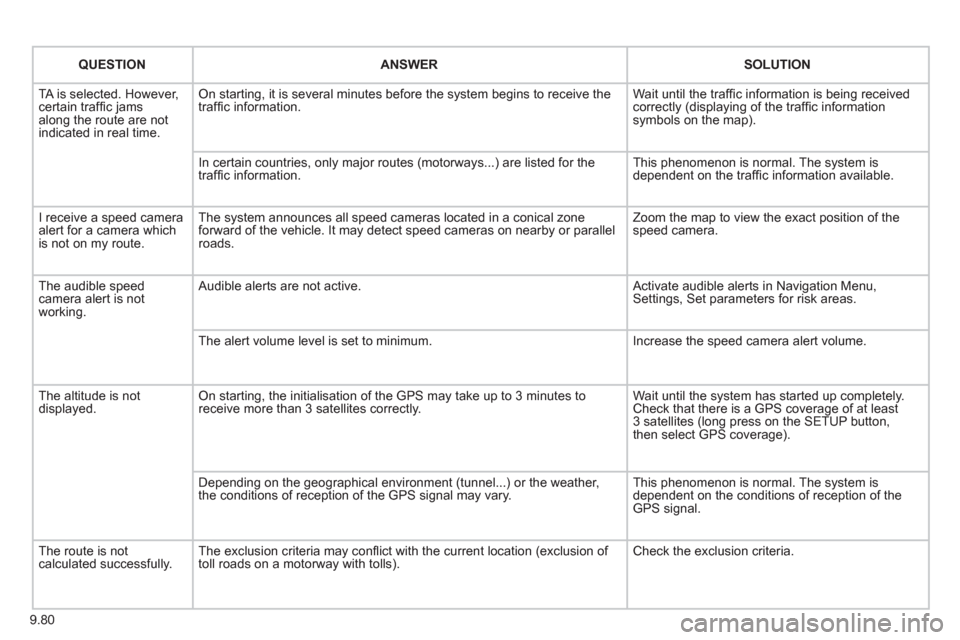
QUESTIONANSWER SOLUTION
TA is selected. However, certain traffi c jams
along the route are not
indicated in real time.
On starting, it is several minutes before the system begins to receive the
traffi c information. Wait until the traffi c information is being received correctly (displaying of the traffi c information symbols on the map).
In certain countries, onl
y major routes (motorways...) are listed for the
traffi c information. This phenomenon is normal. The system is
dependent on the traffi c information available.
I receive a speed camera
alert for a camera which
is not on my route.The system announces all speed cameras located in a conical zoneforward of the vehicle. It may detect speed cameras on nearby or parallel roads. Zoom the map to view the exact position o
f thespeed camera.
The audible speed
camera alert is not
working. A
udible alerts are not active. Activate audible alerts in Navigation Menu, Settings, Set parameters for risk areas.
Th
e alert volume level is set to minimum. Increase the speed camera alert volume.
Th
e altitude is not displayed. On starting, the initialisation of the GPS may take up to 3 minutes toreceive more than 3 satellites correctly. Wait until the system has started up completely.
Check that there is a GPS coverage of at least
3 satellites (long press on the SETUP button,
then select GPS coverage).
Dependin
g on the geographical environment (tunnel...) or the weather,
the conditions of reception of the GPS signal may vary. This phenomenon is normal. The system is
dependent on the conditions of reception of the
GPS signal.
The route is notcalculated successfully.The exclusion criteria may confl ict with the current location (exclusion of
toll roads on a motorway with tolls). Check the exclusion criteria.
Page 243 of 260
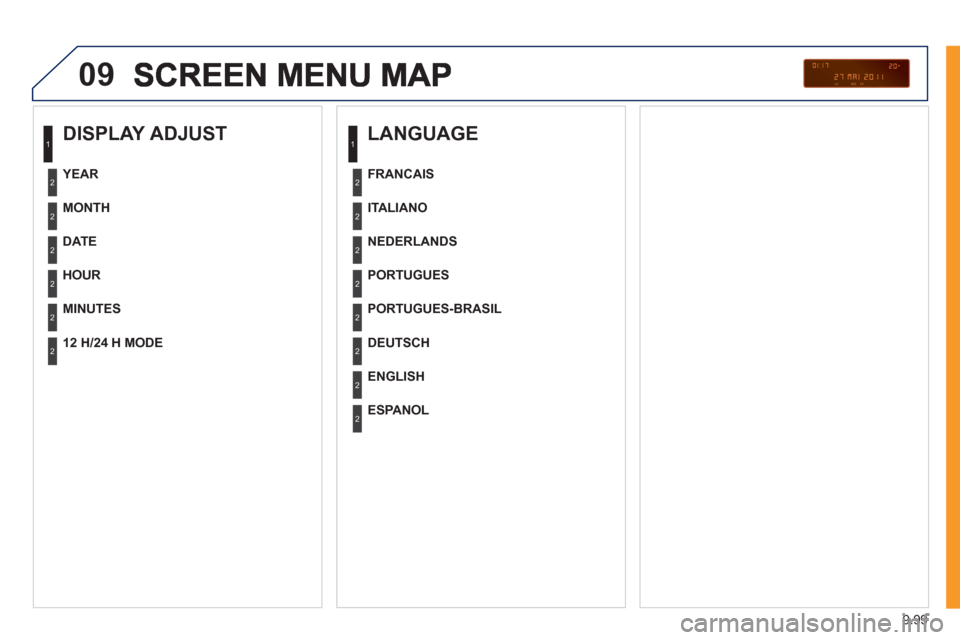
9.99
09
DISPLAY ADJUST
MONTH
DATE
HOUR
MINUTES
YEAR
12 H/24 H MODE
LANGUAGE
ITALIANO
NEDERLANDS
PORTUGUES
PORTUGUES-BRASIL
FRANCAIS
DEUTSCH
ENGLISH
ESPANOL
1
2
2
2
2
2
2
1
2
2
2
2
2
2
2
2
Page 249 of 260
14
3
Exterior
VISUAL SEARCH
10
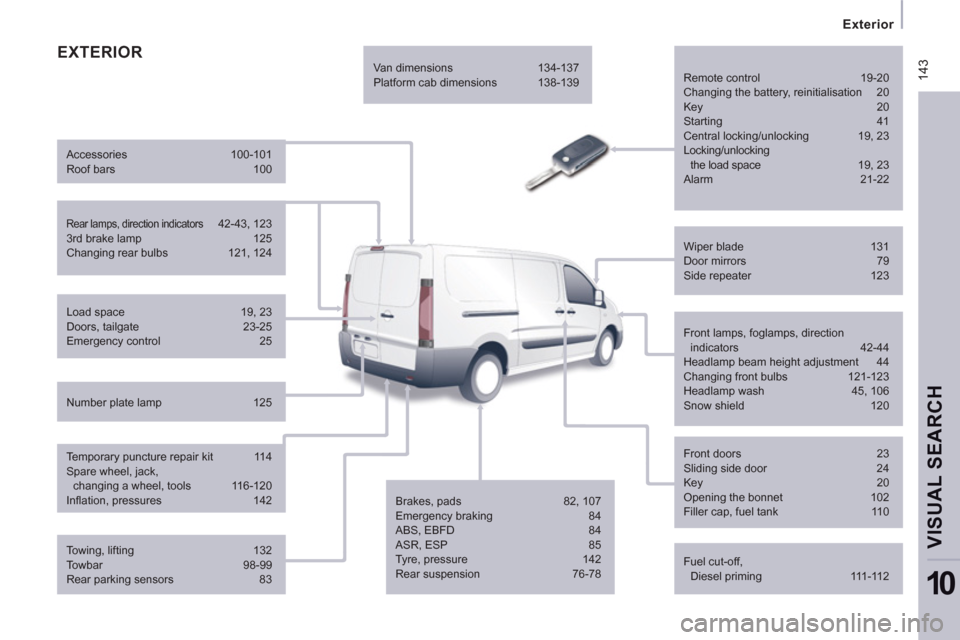
EXTERIOR
Remote control 19-20
Changing the battery, reinitialisation 20
Key 20
Starting 41
Central locking/unlocking 19, 23
Locking/unlocking
the load space 19, 23
Alarm 21-22
Fuel cut-off,
Diesel priming 111-112 Wiper blade 131
Door mirrors 79
Side repeater 123
Front lamps, foglamps, direction
indicators 42-44
Headlamp beam height adjustment 44
Changing front bulbs 121-123
Headlamp wash 45, 106
Snow shield 120
Front doors 23
Sliding side door 24
Key 20
Opening the bonnet 102
Filler cap, fuel tank 110
Towing, lifting 132
Towbar 98-99
Rear parking sensors 83 Load space 19, 23
Doors, tailgate 23-25
Emergency control 25
Temporary puncture repair kit 114
Spare wheel, jack,
changing a wheel, tools 116-120
Infl ation, pressures 142
Rear lamps, direction indicators 42-43, 123
3rd brake lamp 125
Changing rear bulbs 121, 124 Accessories 100-101
Roof bars 100
Number plate lamp 125 Van dimensions 134-137
Platform cab dimensions 138-139
Brakes, pads 82, 107
Emergency braking 84
ABS, EBFD 84
ASR, ESP 85
Tyre, pressure 142
Rear suspension 76-78
Page 251 of 260
145
Instruments and controls
VISUAL SEARCH
10
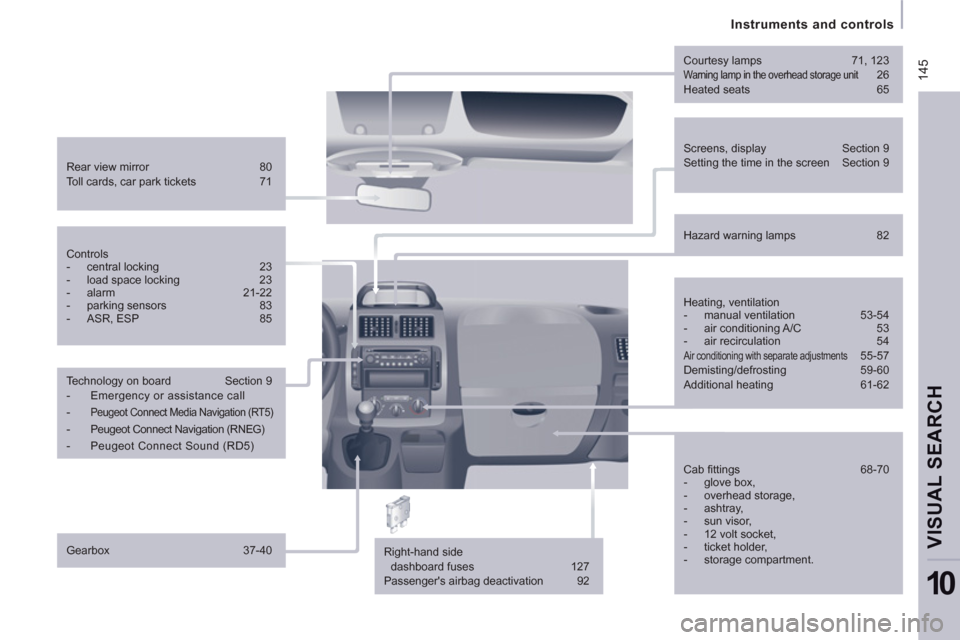
Screens, display Section 9
Setting the time in the screen Section 9
Rear view mirror 80
Toll cards, car park tickets 71
Courtesy lamps 71, 123
Warning lamp in the overhead storage unit 26
Heated seats 65
Right-hand side
dashboard fuses 127
Passenger's airbag deactivation 92
Controls
- central locking 23
- load space locking 23
- alarm 21-22
- parking sensors 83
- ASR, ESP 85
Technology on board Section 9
- Emergency or assistance call
-
Peugeot Connect Media Navigation (RT5)
- Peugeot Connect Navigation (RNEG)
- Peugeot Connect Sound (RD5)
Gearbox 37-40
Hazard warning lamps 82
Heating, ventilation
- manual ventilation 53-54
- air conditioning A/C 53
- air recirculation 54
Air conditioning with separate adjustments 55-57
Demisting/defrosting 59-60
Additional heating 61-62
Cab fi ttings 68-70
- glove box,
- overhead storage,
- ashtray,
- sun visor,
- 12 volt socket,
- ticket holder,
- storage compartment.