navigation Peugeot Expert VU 2016 User Guide
[x] Cancel search | Manufacturer: PEUGEOT, Model Year: 2016, Model line: Expert VU, Model: Peugeot Expert VU 2016Pages: 599, PDF Size: 13.14 MB
Page 347 of 599
345
12:13
23 °C12:13
23 °C531 kHz
FM/87.5 MHz
87.5MHz 12:13
23 °C 87.5 MHz
12:13
23 °C531 kHz12:13
23 °C
Expert_en_Chap10b_NAC-1_ed01-2016
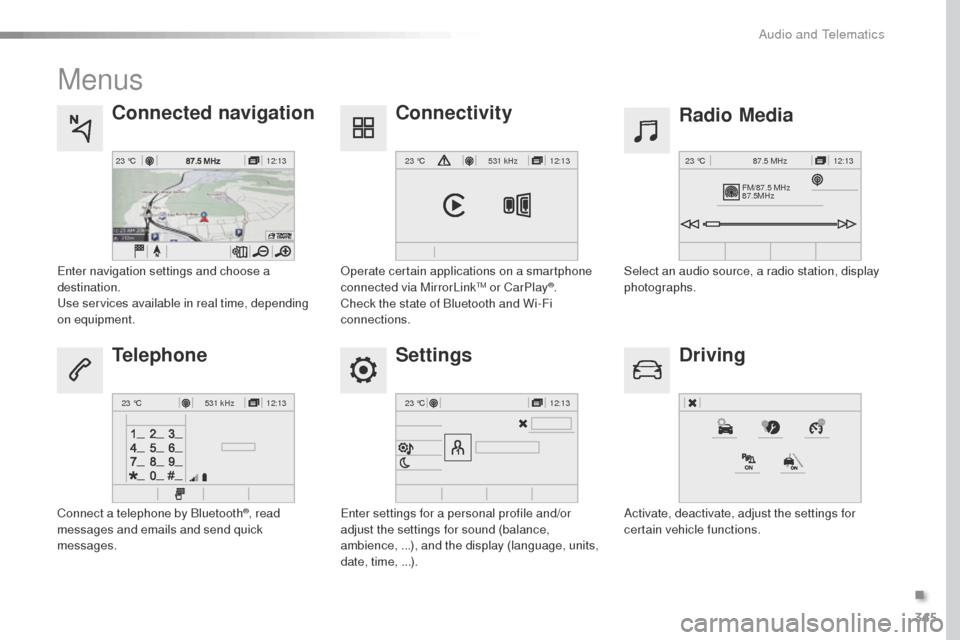
Menus
Settings Radio Media
Connected navigation
Driving
Connectivity
Telephone
Enter settings for a personal profile and/or
adjust the settings for sound (balance,
ambience, ...), and the display (language, units,
date, time, ...). Select an audio source, a radio station, display
photographs.
Enter navigation settings and choose a
destination.
use
services available in real time, depending
on equipment.
Activate, deactivate, adjust the settings for
certain vehicle functions.
op
erate certain applications on a smartphone
connected via MirrorLink
tM or CarPlay®.
Check the state of Bluetooth and Wi-Fi
connections.
Connect a telephone by Bluetooth
®, read
messages and emails and send quick
messages.
.
Audio and telematics
Page 348 of 599
346
Expert_en_Chap10b_NAC-1_ed01-2016
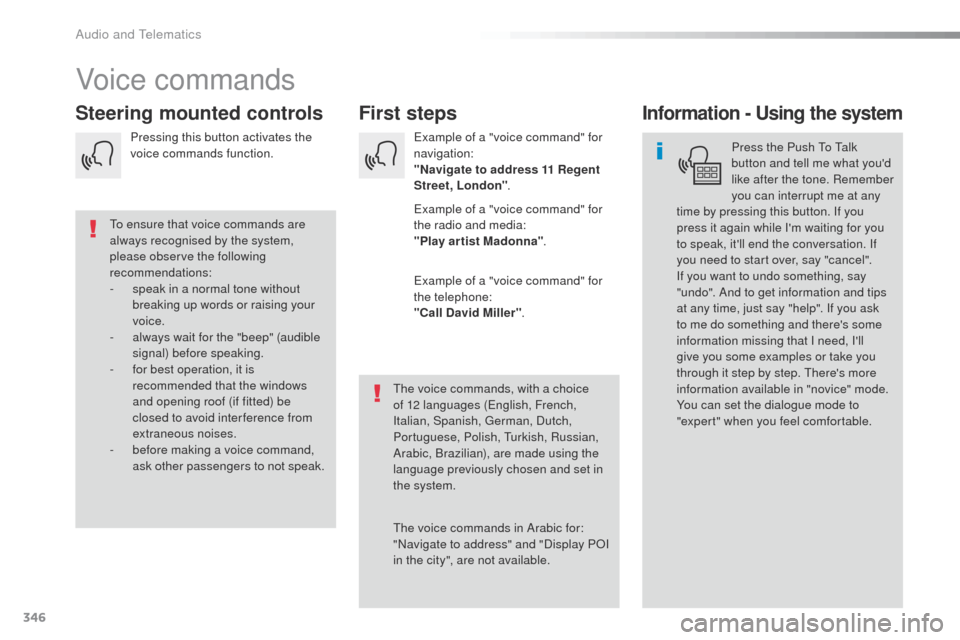
Voice commands
First steps
Steering mounted controlsInformation - Using the system
Press the Push to ta lk
button and tell me what you'd
like after the tone. Remember
you can interrupt me at any
time by pressing this button. If you
press it again while I'm waiting for you
to speak, it'll end the conversation. If
you need to start over, say "cancel".
If you want to undo something, say
"undo". And to get information and tips
at any time, just say "help". If you ask
to me do something and there's some
information missing that I need, I'll
give you some examples or take you
through it step by step.
t
h
ere's more
information available in "novice" mode.
You can set the dialogue mode to
"expert" when you feel comfortable.
to e
nsure that voice commands are
always recognised by the system,
please observe the following
recommendations:
-
s
peak in a normal tone without
breaking up words or raising your
voice.
-
a
lways wait for the "beep" (audible
signal) before speaking.
-
f
or best operation, it is
recommended that the windows
and opening roof (if fitted) be
closed to avoid inter ference from
extraneous noises.
-
b
efore making a voice command,
ask other passengers to not speak.
th
e voice commands, with a choice
of 12 languages (English, French,
Italian, Spanish,
g
e
rman, Dutch,
Portuguese, Polish,
t
u
rkish, Russian,
Arabic, Brazilian), are made using the
language previously chosen and set in
the system.
th
e voice commands in Arabic for:
"Navigate to address" and "Display P
oI
i
n the city", are not available. Example of a "voice command" for
navigation:
"Navigate to address 11 Regent
Street, London
".
Example of a "voice command" for
the radio and media:
"Play ar tist Madonna" .
Example of a "voice command" for
the telephone:
"Call David Miller" .
Pressing this button activates the
voice commands function.
Audio and telematics
Page 349 of 599
347
Expert_en_Chap10b_NAC-1_ed01-2016
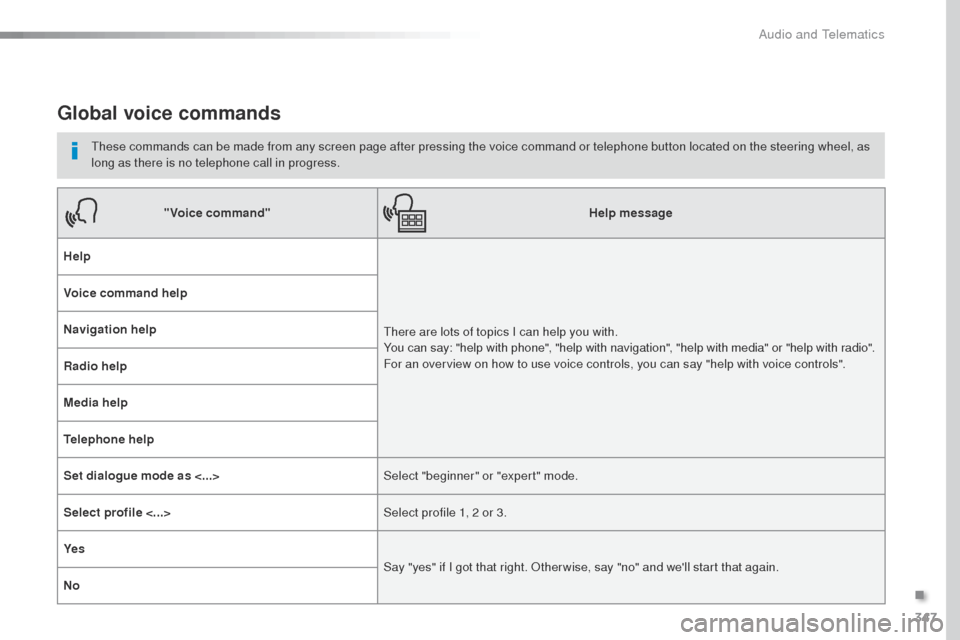
Global voice commands
these commands can be made from any screen page after pressing the voice command or telephone button located on the steering wheel, as
long as there is no telephone call in progress."Voice command" Help message
Help
th
ere are lots of topics I can help you with.
You can say: "help with phone", "help with navigation", "help with media" or "help with radio".
For an overview on how to use voice controls, you can say "help with voice controls".
Voice command help
Navigation help
Radio help
Media help
Telephone help
Set dialogue mode as <...>
Select "beginner" or "expert" mode.
Select profile <...> Select profile 1, 2 or 3.
Ye s Say "yes" if I got that right.
o
t
her wise, say "no" and we'll start that again.
No
.
Audio and telematics
Page 350 of 599
348
Expert_en_Chap10b_NAC-1_ed01-2016
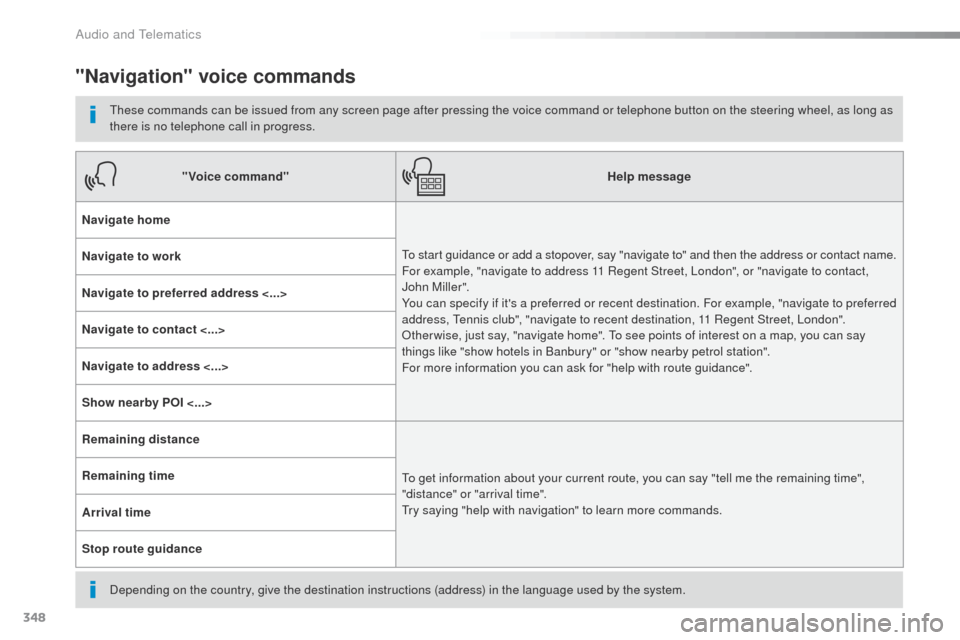
"Navigation" voice commands
these commands can be issued from any screen page after pressing the voice command or telephone button on the steering wheel, as long as
there is no telephone call in progress.
Depending on the country, give the destination instructions (address) in the language used by the system."Voice command"
Help message
Navigate home
to s
tart guidance or add a stopover, say "navigate to" and then the address or contact name.
For example, "navigate to address 11 Regent Street, London", or "navigate to contact,
John Miller".
You can specify if it's a preferred or recent destination. For example, "navigate to preferred
address,
t
e
nnis club", "navigate to recent destination, 11 Regent Street, London".
ot
her wise, just say, "navigate home". t
o s
ee points of interest on a map, you can say
things like "show hotels in Banbury" or "show nearby petrol station".
For more information you can ask for "help with route guidance".
Navigate to work
Navigate to preferred address <...>
Navigate to contact <...>
Navigate to address <...>
Show nearby POI <...>
Remaining distance
to g
et information about your current route, you can say "tell me the remaining time",
"distance" or "arrival time".
tr
y saying "help with navigation" to learn more commands.
Remaining time
Arrival time
Stop route guidance
Audio and telematics
Page 354 of 599
352
12:13
23 °C
1
12:13
23 °C
Expert_en_Chap10b_NAC-1_ed01-2016
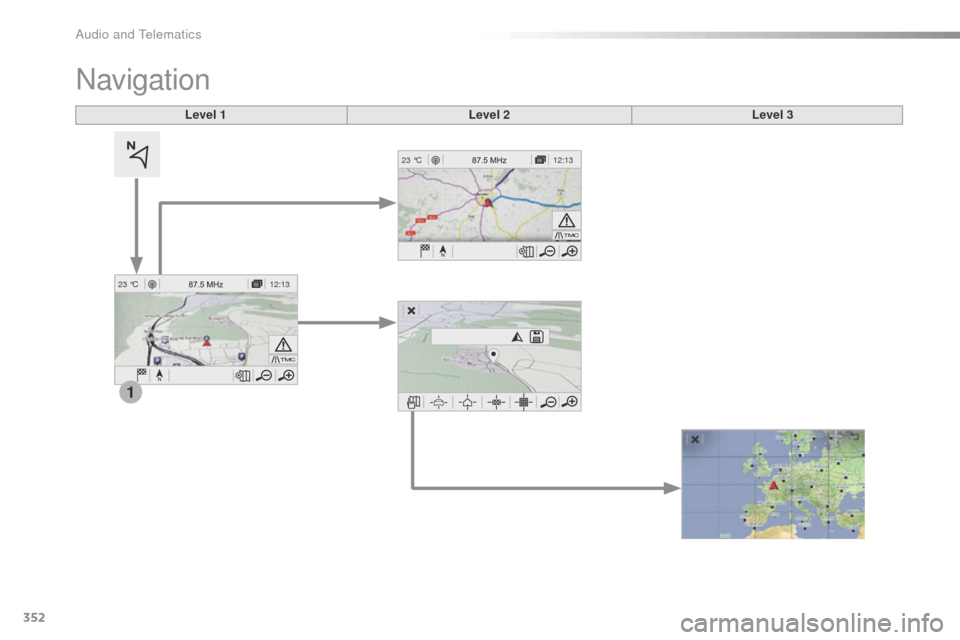
Level 1 Level 2Level 3
Navigation
Audio and Telematics
Page 355 of 599
353
Expert_en_Chap10b_NAC-1_ed01-2016
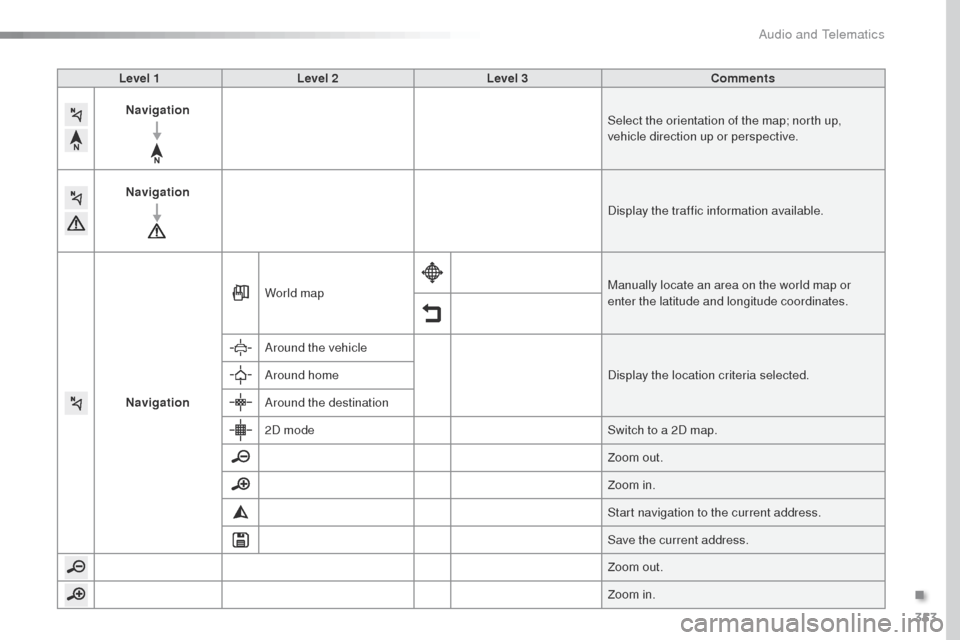
Level 1Level 2 Level 3 Comments
Navigation Select the orientation of the map; north up,
vehicle direction up or perspective.
Navigation Display the traffic information available.
Navigation World map
Manually locate an area on the world map or
enter the latitude and longitude coordinates.
Around the vehicle Display the location criteria selected.
Around home
Around the destination
2D mode Switch to a 2D map.
Zoom out.
Zoom in.
Start navigation to the current address.
Save the current address.
Zoom out.
Zoom in.
.
Audio and telematics
Page 357 of 599
355
7
2
3
4
5
6
Expert_en_Chap10b_NAC-1_ed01-2016
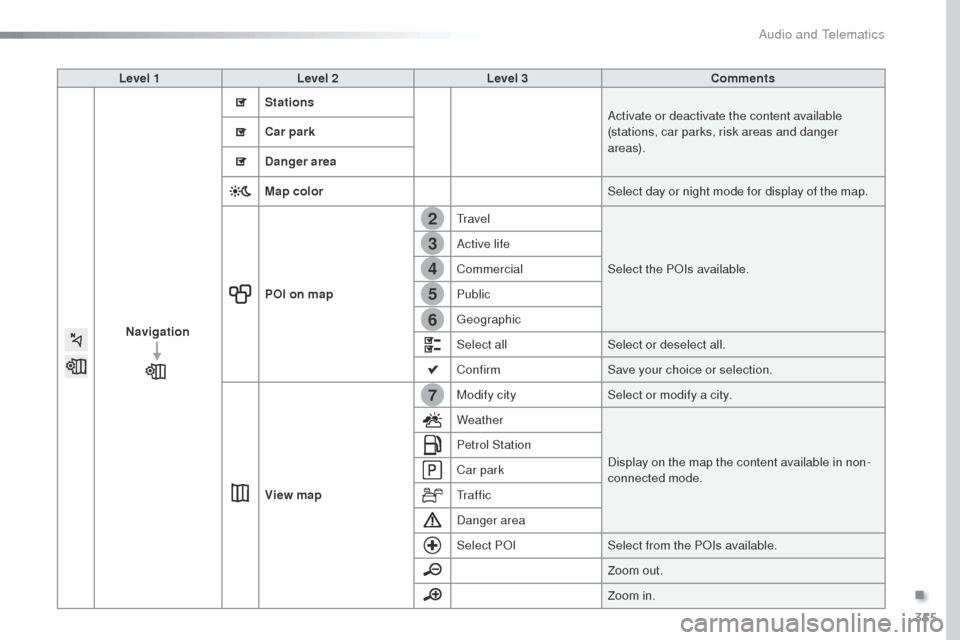
Level 1Level 2 Level 3 Comments
Navigation Stations
Activate or deactivate the content available
(stations, car parks, risk areas and danger
a r e a s).
Car park
Danger area
Map color
Select day or night mode for display of the map.
POI on map
tra
velSelect the P
o
Is
available.
Active life
Commercial
Public
ge
ographic
Select all Select or deselect all.
Confirm Save your choice or selection.
View map Modify city
Select or modify a city.
Weather
Display on the map the content available in non-
connected mode.
Petrol Station
Car park
t
r a f f i c
Danger area
Select P
o
ISel
ect from the P o
Is
available.
Zoom out.
Zoom in.
.
Audio and Telematics
Page 362 of 599
360
1
17
18
8
11
9
12
10
13
16
1415
Expert_en_Chap10b_NAC-1_ed01-2016
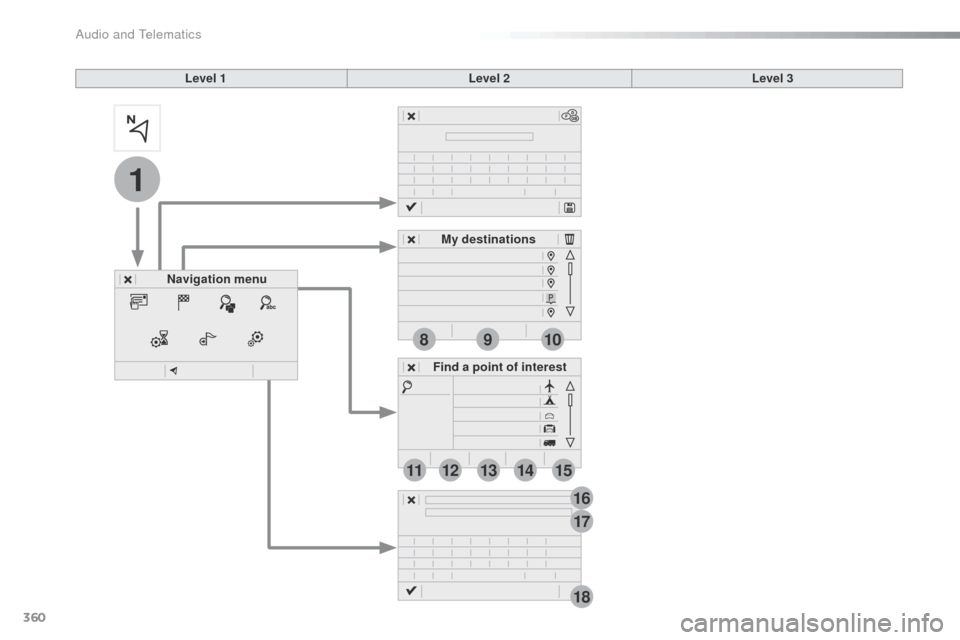
Level 1Level 2Level 3
Navigation menu My destinations
Find a point of interest
Audio and Telematics
Page 363 of 599
361
1
1
1
1
17
18
8
11
9
12
10
13
16
14
15
Expert_en_Chap10b_NAC-1_ed01-2016
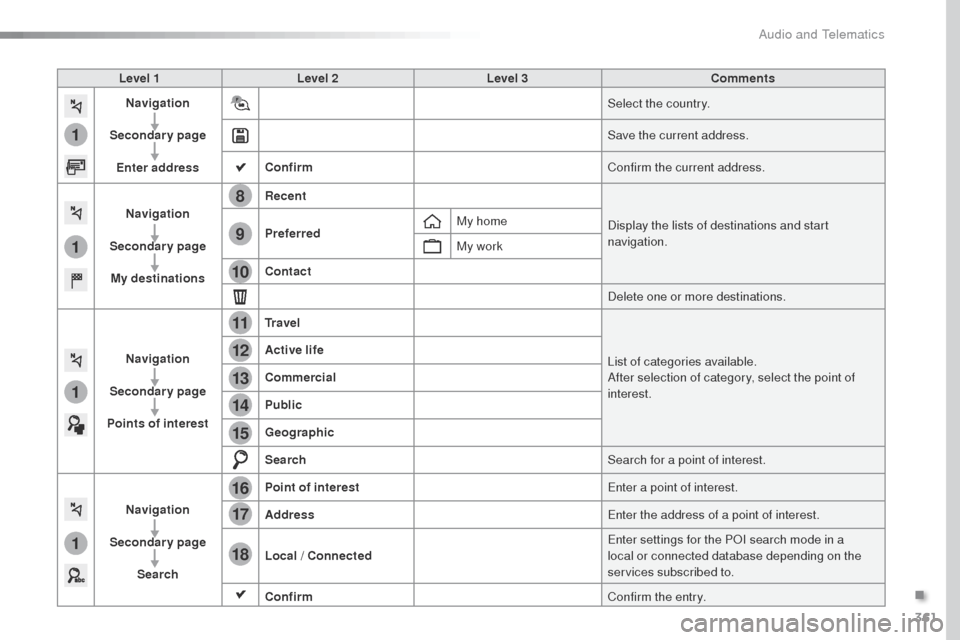
Level 1Level 2 Level 3 Comments
Navigation
Secondary page Enter address Select the country.
Save the current address.
Confirm Confirm the current address.
Navigation
Secondary page My destinations Recent
Display the lists of destinations and start
navigation.
Preferred My home
My work
Contact Delete one or more destinations.
Navigation
Secondary page
Points of interest Tr a v e l
List of categories available.
After selection of category, select the point of
interest.
Active life
Commercial
Public
Geographic
Search
Search for a point of interest.
Navigation
Secondary page Search Point of interest
Enter a point of interest.
Address Enter the address of a point of interest.
Local / Connected Enter settings for the P
oI s
earch mode in a
local or connected database depending on the
services subscribed to.
Confirm Confirm the entry.
.
Audio and Telematics
Page 364 of 599
362
1
19
21
20
22232425
Expert_en_Chap10b_NAC-1_ed01-2016
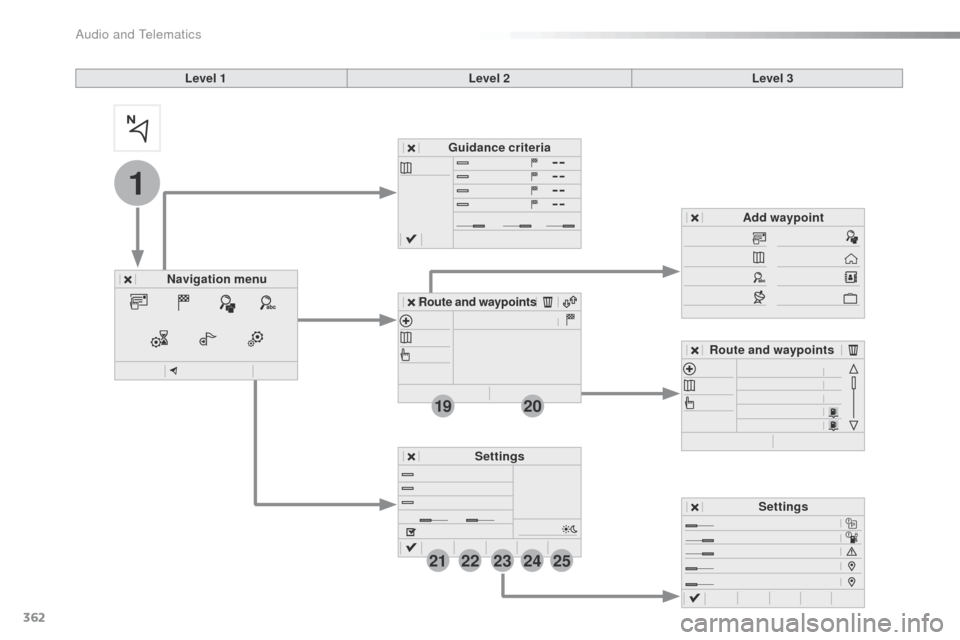
Level 1Level 2Level 3
Navigation menu Guidance criteria
Route and waypoints Add waypoint
Settings
Route and waypoints
Settings
Audio and Telematics