navigation system Peugeot Expert VU 2016 User Guide
[x] Cancel search | Manufacturer: PEUGEOT, Model Year: 2016, Model line: Expert VU, Model: Peugeot Expert VU 2016Pages: 599, PDF Size: 13.14 MB
Page 350 of 599
348
Expert_en_Chap10b_NAC-1_ed01-2016
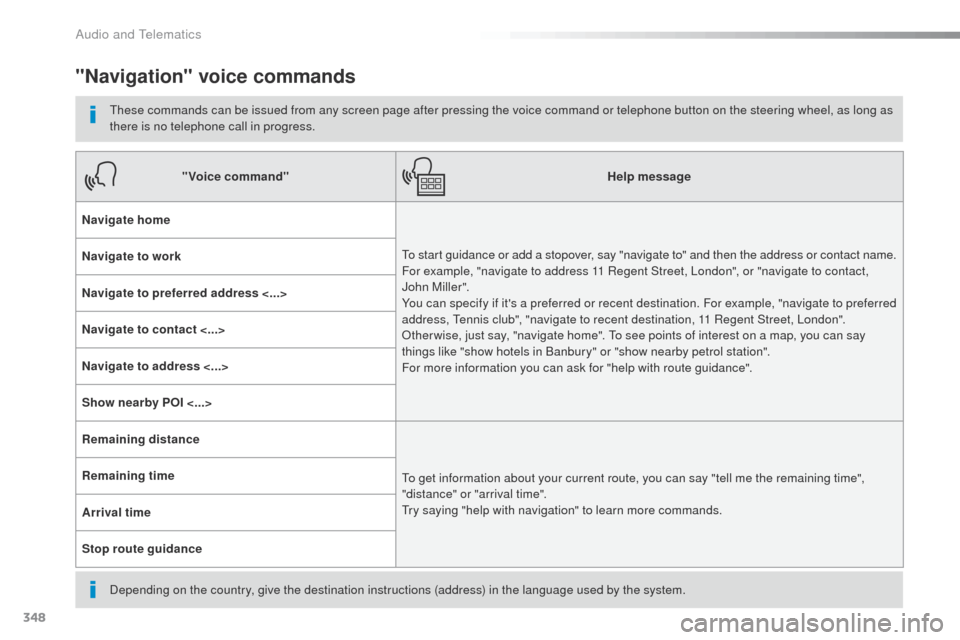
"Navigation" voice commands
these commands can be issued from any screen page after pressing the voice command or telephone button on the steering wheel, as long as
there is no telephone call in progress.
Depending on the country, give the destination instructions (address) in the language used by the system."Voice command"
Help message
Navigate home
to s
tart guidance or add a stopover, say "navigate to" and then the address or contact name.
For example, "navigate to address 11 Regent Street, London", or "navigate to contact,
John Miller".
You can specify if it's a preferred or recent destination. For example, "navigate to preferred
address,
t
e
nnis club", "navigate to recent destination, 11 Regent Street, London".
ot
her wise, just say, "navigate home". t
o s
ee points of interest on a map, you can say
things like "show hotels in Banbury" or "show nearby petrol station".
For more information you can ask for "help with route guidance".
Navigate to work
Navigate to preferred address <...>
Navigate to contact <...>
Navigate to address <...>
Show nearby POI <...>
Remaining distance
to g
et information about your current route, you can say "tell me the remaining time",
"distance" or "arrival time".
tr
y saying "help with navigation" to learn more commands.
Remaining time
Arrival time
Stop route guidance
Audio and telematics
Page 366 of 599
364
1
1
8
Expert_en_Chap10b_NAC-1_ed01-2016
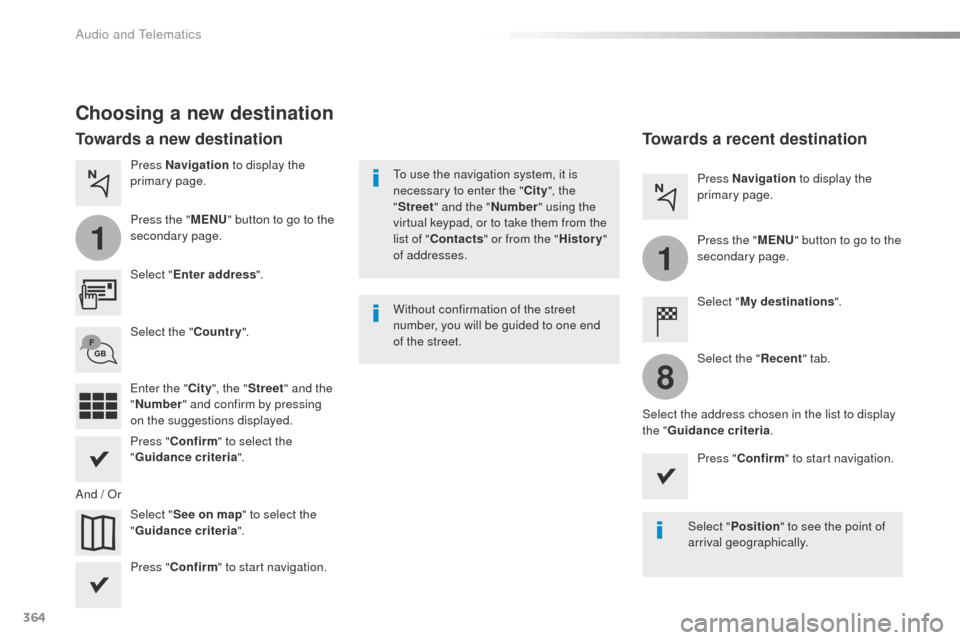
Choosing a new destination
Select "Enter address ".
Select " See on map " to select the
" Guidance criteria ".
Select the "
Country".
Press " Confirm " to select the
" Guidance criteria ".
Press " Confirm " to start navigation. Press "
Confirm " to start navigation.
And /
o
r P
ress Navigation
to display the
primary page.
Press the " MENU" button to go to the
secondary page.
Towards a new destination Towards a recent destination
Select "My destinations ".
Press Navigation
to display the
primary page.
Press the " MENU" button to go to the
secondary page.
Enter the " City", the " Street " and the
" Number " and confirm by pressing
on the suggestions displayed. Select the "
Recent" tab.
Select the address chosen in the list to display
the " Guidance criteria .
to u
se the navigation system, it is
necessary to enter the " City", the
" Street " and the " Number" using the
virtual keypad, or to take them from the
list of " Contacts " or from the " History"
of addresses.
Without confirmation of the street
number, you will be guided to one end
of the street.
Select "Position " to see the point of
arrival geographically.
Audio and Telematics
Page 369 of 599
367
Expert_en_Chap10b_NAC-1_ed01-2016
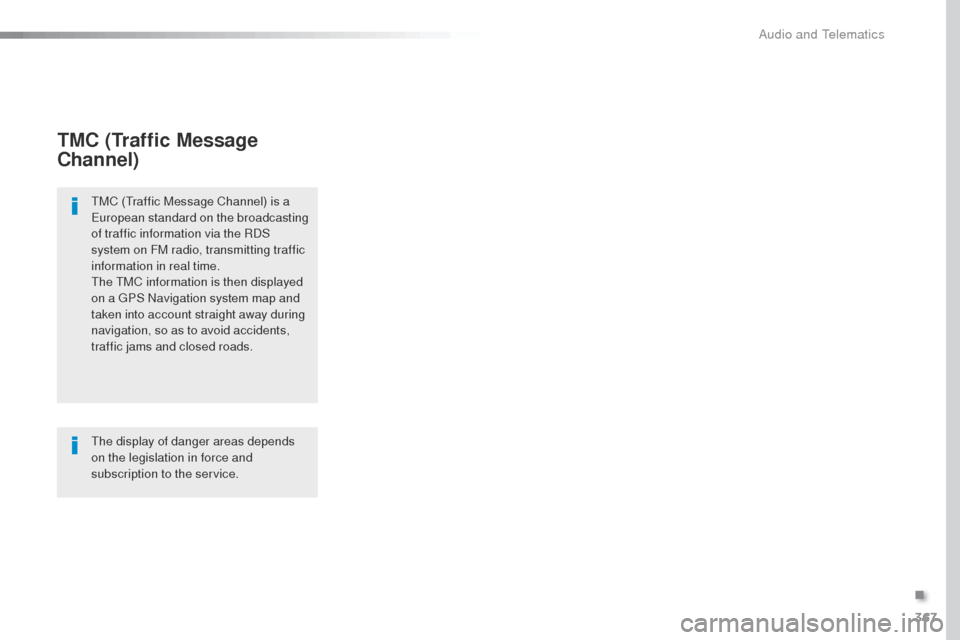
TMC (Traffic Message
Channel)
tMC (traffic Message Channel) is a
European standard on the broadcasting
of traffic information via the RDS
system on FM radio, transmitting traffic
information in real time.
th
e t
M
C information is then displayed
on a
g
P
S Navigation system map and
taken into account straight away during
navigation, so as to avoid accidents,
traffic jams and closed roads.
the
display of danger areas depends
on the legislation in force and
subscription to the service.
.
Audio and telematics
Page 371 of 599
369
Expert_en_Chap10b_NAC-1_ed01-2016
As a safety measure and because it
requires sustained attention by the
driver, using a smartphone when
driving is prohibited.
All operations must be done with the
vehicle stationary.
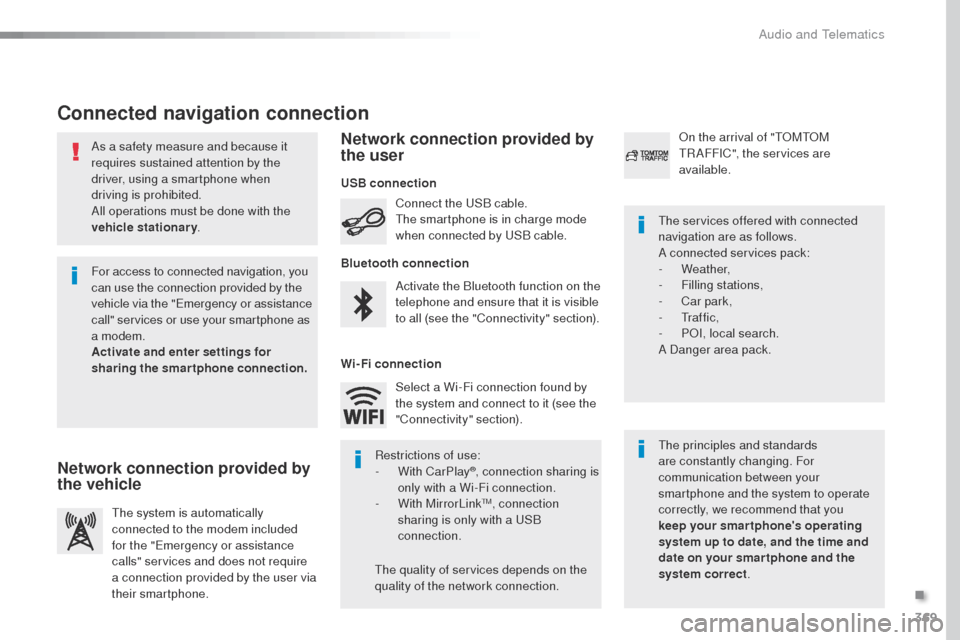
Connected navigation connection
the principles and standards
are constantly changing. For
communication between your
smartphone and the system to operate
correctly, we recommend that you
keep your smar tphone's operating
system up to date, and the time and
date on your smar tphone and the
system correct.
th
e services offered with connected
navigation are as follows.
A connected services pack:
-
Weather,
-
F
illing stations,
-
C
ar park,
-
t
r a f f i c ,
-
PoI
, local search.
A Danger area pack.
Activate the Bluetooth function on the
telephone and ensure that it is visible
to all (see the "Connectivity" section). Connect the
u
S
B cable.
th
e smartphone is in charge mode
when connected by
u
S
B cable.
th
e system is automatically
connected to the modem included
for the "Emergency or assistance
calls" services and does not require
a connection provided by the user via
their smartphone.
on t
he arrival of "
t
o
Mt
o
M tR
AFFIC", the services are
available.
For access to connected navigation, you
can use the connection provided by the
vehicle via the "Emergency or assistance
call" services or use your smartphone as
a modem.
Activate and enter settings for
sharing the smartphone connection. Restrictions of use:
-
W
ith CarPlay
®, connection sharing is
only with a Wi-Fi connection.
-
W
ith MirrorLink
tM, connection
sharing is only with a uS B
connection.
th
e quality of services depends on the
quality of the network connection. Select a Wi-Fi connection found by
the system and connect to it (see the
"Connectivity" section).
USB connection
Network connection provided by
the vehicle Network connection provided by
the user
Bluetooth connection
Wi-Fi connection
.
Audio and telematics
Page 373 of 599
371
7
28
27
26
29
30
Expert_en_Chap10b_NAC-1_ed01-2016
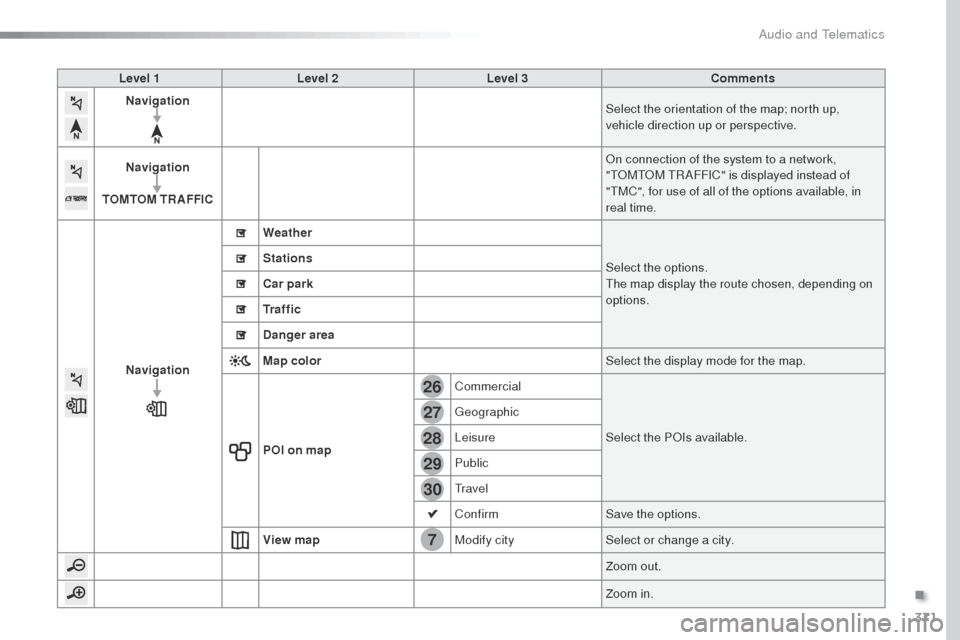
Level 1Level 2 Level 3 Comments
Navigation Select the orientation of the map; north up,
vehicle direction up or perspective.
Navigation
TOMTOM TR AFFIC
on c
onnection of the system to a network,
"
t
o
Mt
o
M
t
R
AFFIC" is displayed instead of
"
tM
C", for use of all of the options available, in
real time.
Navigation Weather
Select the options.
the
map display the route chosen, depending on
options.
Stations
Car park
Tr a f f i c
Danger area
Map color
Select the display mode for the map.
POI on map Commercial
Select the P
o
Is
available.
ge
ographic
Leisure
Public
tra
vel
Confirm Save the options.
View map Modify citySelect or change a city.
Zoom out.
Zoom in.
.
Audio and Telematics
Page 379 of 599
377
Expert_en_Chap10b_NAC-1_ed01-2016
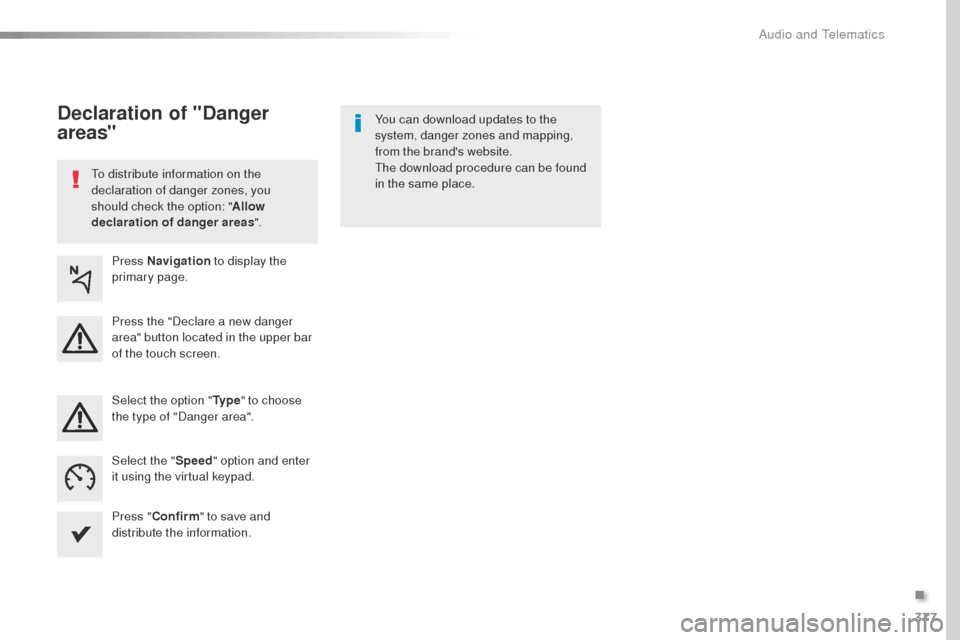
to distribute information on the
declaration of danger zones, you
should check the option: "Allow
declaration of danger areas ".You can download updates to the
system, danger zones and mapping,
from the brand's website.th
e download procedure can be found
in the same place.
Declaration of "Danger
areas"
Press Navigation to display the
primary page.
Press the "Declare a new danger
area" button located in the upper bar
of the touch screen.
Select the option " Ty p e" to choose
the type of "Danger area".
Select the " Speed" option and enter
it using the virtual keypad.
Press " Confirm " to save and
distribute the information.
.
Audio and telematics
Page 382 of 599
380
1
Expert_en_Chap10b_NAC-1_ed01-2016
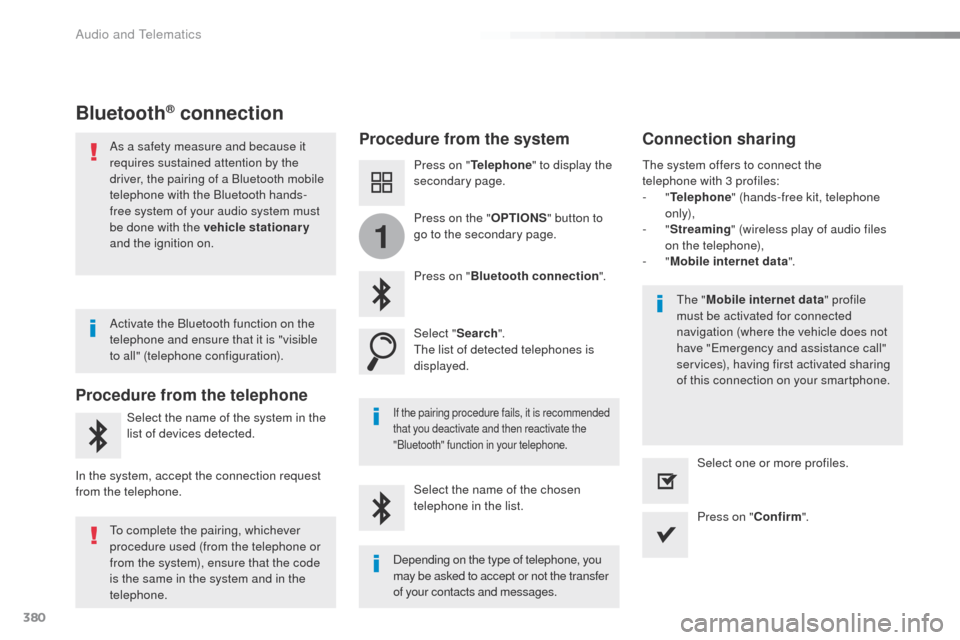
Bluetooth® connection
Procedure from the systemConnection sharing
Press on "Telephone " to display the
secondary page.
Press on " Bluetooth connection ".
Select " Search".
th
e list of detected telephones is
displayed.
If the pairing procedure fails, it is recommended
that you deactivate and then reactivate the
"Bluetooth" function in your telephone.
the " Mobile internet data " profile
must be activated for connected
navigation (where the vehicle does not
have "Emergency and assistance call"
services), having first activated sharing
of this connection on your smartphone.
th
e system offers to connect the
telephone
with 3 profiles:
-
"
Telephone " (hands-free kit, telephone
only),
-
"
Streaming " (wireless play of audio files
on the telephone),
-
"
Mobile internet data ".
Select the name of the chosen
telephone in the list. Press on "Confirm".
Select one or more profiles.
Press on the "
OPTIONS" button to
go to the secondary page.
As a safety measure and because it
requires sustained attention by the
driver, the pairing of a Bluetooth mobile
telephone with the Bluetooth hands-
free system of your audio system must
be done with the vehicle stationary
and the ignition on.
Procedure from the telephone
Select the name of the system in the
list of devices detected.
In the system, accept the connection request
from the telephone. Activate the Bluetooth function on the
telephone and ensure that it is "visible
to all" (telephone configuration).
to c
omplete the pairing, whichever
procedure used (from the telephone or
from the system), ensure that the code
is the same in the system and in the
telephone. Depending on the type of telephone, you
may be asked to accept or not the transfer
of your contacts and messages.
Audio and Telematics
Page 408 of 599
406
Expert_en_Chap10b_NAC-1_ed01-2016
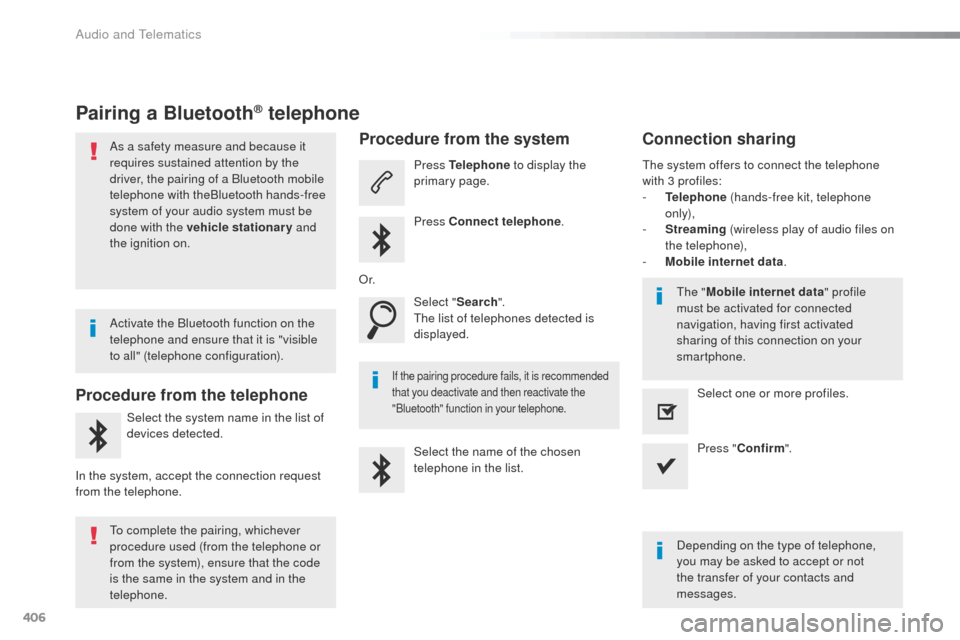
Pairing a Bluetooth® telephone
As a safety measure and because it
requires sustained attention by the
driver, the pairing of a Bluetooth mobile
telephone with theBluetooth hands-free
system of your audio system must be
done with the vehicle stationary and
the ignition on.
Procedure from the telephone
Select the system name in the list of
devices detected.
In the system, accept the connection request
from the telephone.
Procedure from the system
Press Telephone to display the
primary page.
Press Connect telephone .
Select " Search".
th
e list of telephones detected is
displayed.
If the pairing procedure fails, it is recommended
that you deactivate and then reactivate the
"Bluetooth" function in your telephone.
the system offers to connect the telephone
with 3 profiles:
-
T
elephone (hands-free kit, telephone
only),
-
S
treaming (wireless play of audio files on
the telephone),
-
M
obile internet data .
Depending on the type of telephone,
you may be asked to accept or not
the transfer of your contacts and
messages.
Select the name of the chosen
telephone in the list.
Press "
Confirm ".
Select one or more profiles.
or.
A
ctivate the Bluetooth function on the
telephone and ensure that it is "visible
to all" (telephone configuration).
to c
omplete the pairing, whichever
procedure used (from the telephone or
from the system), ensure that the code
is the same in the system and in the
telephone.
th
e "Mobile internet data " profile
must be activated for connected
navigation, having first activated
sharing of this connection on your
smartphone.
Connection sharing
Audio and telematics
Page 424 of 599
422
Expert_en_Chap10b_NAC-1_ed01-2016
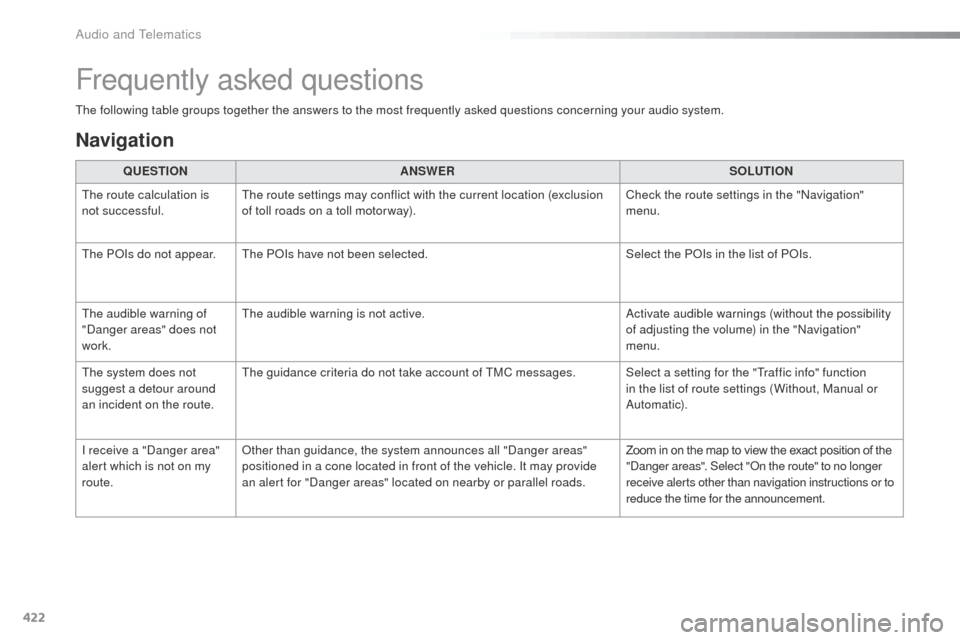
the following table groups together the answers to the most frequently asked questions concerning your audio system.QUESTION ANSWER SOLUTION
th
e route calculation is
not successful.
th
e route settings may conflict with the current location (exclusion
of toll roads on a toll motor way). Check the route settings in the "Navigation"
menu.
th
e P
oI
s do not appear.
th
e P o
Is
have not been selected. Select the P
oI
s in the list of P
oI
s.
th
e audible warning of
"Danger areas" does not
work.
th
e audible warning is not active. Activate audible warnings (without the possibility
of adjusting the volume) in the "Navigation"
menu.
th
e system does not
suggest a detour around
an incident on the route.
th
e guidance criteria do not take account of t
M
C messages. Select a setting for the "
tr
affic info" function
in the list of route settings (Without, Manual or
Automatic).
I receive a "Danger area"
alert which is not on my
route.
ot
her than guidance, the system announces all "Danger areas"
positioned in a cone located in front of the vehicle. It may provide
an alert for "Danger areas" located on nearby or parallel roads. Zoom in on the map to view the exact position of the
"Danger areas". Select "
on t
he route" to no longer
receive alerts other than navigation instructions or to
reduce the time for the announcement.
Frequently asked questions
Navigation
Audio and telematics
Page 511 of 599
509
Expert_en_Chap11_index-alpha_ed01-2016
Instrument panel ........................................14 -16
Instrument panel, LCD ........................14, 3 5 - 37
Instrument panel, LCD text
.............................15
Instrument panel, matrix
.................................16
Intelligent
t
ra
ction Control
............................ 16
2
IS
oFI
X
.................................................. 187, 190
Key
................................... 47-50, 71, 74, 75, 199
Key, electronic
......................................... 4 7, 2 0 4
Keyless Entry and Starting
....55, 59, 60, 63 - 65,
68, 70, 71, 74, 75, 202, 205
Key with remote control
...........50, 64, 199, 205
Kit, hands-free
.............406, 407, 462, 463, 497
Kit, puncture repair
....................................... 290
Kit, temporary puncture repair
.............289, 290 Labels
......................................................11, 11 6
Labels, identification ..................................... 3
37
Ladder
...........................................................272
Lane Departure Warning System (LDWS)
.........................................29, 248, 249
Level, brake fluid
...........................................2
79
Level, Diesel additive
............................280, 281
Level, engine coolant
..............................31, 279
Level, engine oil
...............................
.......34, 278
Level, headlamp wash
..........................15 8, 28 0
Level, power steering fluid
............................2
79
Levels and checks
................................27 7-2 8 0
Level, screenwash fluid
........................15 8, 28 0
Lighting
................
....................................3 0, 146
Lighting, cornering
........................................152
Lighting dimmer
..............................
................39
Lighting, guide-me home
..............................150
Lighting, welcome
.........................................151
Loading
...................................................12, 273
Loading area fittings
..................................... 12
2
Load reduction mode
....................................270
Load restraint
................................................12 2
Locating your vehicle
................................ 52
, 67
Locking
....................................50, 55, 57, 64, 71
Locking from the inside
.............................7
2, 73
Low fuel level
..........................................20, 265
Lumbar
..........................................................10 0
Jack
........
.............................. 122, 296, 398, 454
Navigation
....................352, 354, 356, 360, 362
Navigation, connected
..................370, 372, 374
Net, cargo...................................................... 10 6
Net, high load retaining
.................................123
Number plate lamps
.............................. 31
1, 314
J
NK
L
Maintenance, routine ...................................... 12
Markings, identification .................................337
Mat
........................................................ 11 9 , 2 0 2
Memorising a speed
..................................... 224
Menu
........... 352, 354, 356, 360, 362, 370, 372,
374, 378, 384, 386, 388, 390, 392,
400, 402, 404, 412, 414, 416, 434, 440, 442,
444, 446, 448, 456, 458, 460, 468, 470, 472
Menu, main
................................................... 487
Menus (audio)
...................................... 345, 433
Messages
...............................
...............410 , 4 6 6
Messages, quick
................................... 411, 4 6 7
Mirror, rear view
............................................ 145
Mirrors, door ..................133, 134, 143, 144, 252
Mirror, vanity
..............................
...................11 9
Misfuel prevention
...............................
..........266
Moduwork ...................................................... 10 6
Mountings, Isofix
................................... 18 6, 19 0
MP3 CD
......................................................... 494
M
.
Alphabetical index