ECO mode Peugeot Expert VU 2016 Workshop Manual
[x] Cancel search | Manufacturer: PEUGEOT, Model Year: 2016, Model line: Expert VU, Model: Peugeot Expert VU 2016Pages: 599, PDF Size: 13.14 MB
Page 452 of 599
450
1
2
2
2
Expert_en_Chap10c_RCC-1_ed01-2016
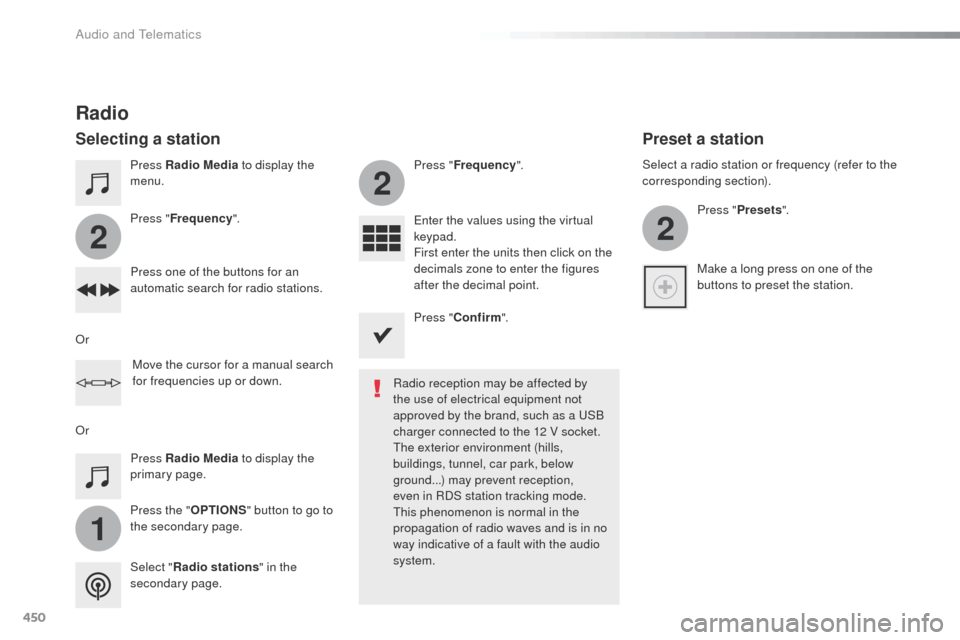
Press Radio Media to display the
menu.
Press the " OPTIONS" button to go to
the secondary page. Press " Frequency ". Press "
Frequency ".
Enter the values using the virtual
keypad.
First enter the units then click on the
decimals zone to enter the figures
after the decimal point.
Press one of the buttons for an
automatic search for radio stations.
Press Radio Media
to display the
primary page.
Radio
Selecting a station
Radio reception may be affected by
the use of electrical equipment not
approved by the brand, such as a
u
S
B
charger connected to the 12 V socket.
th
e exterior environment (hills,
buildings, tunnel, car park, below
ground...) may prevent reception,
even in RDS station tracking mode.
th
is phenomenon is normal in the
propagation of radio waves and is in no
way indicative of a fault with the audio
system.
Select " Radio stations " in the
secondary page.
o
r
o
r Move the cursor for a manual search
for frequencies up or down. Select a radio station or frequency (refer to the
corresponding section).
Press "Presets ".
Make a long press on one of the
buttons to preset the station.
Preset a station
Press " Confirm ".
Audio and Telematics
Page 456 of 599
454
Expert_en_Chap10c_RCC-1_ed01-2016
Media
USB playerSelecting the source
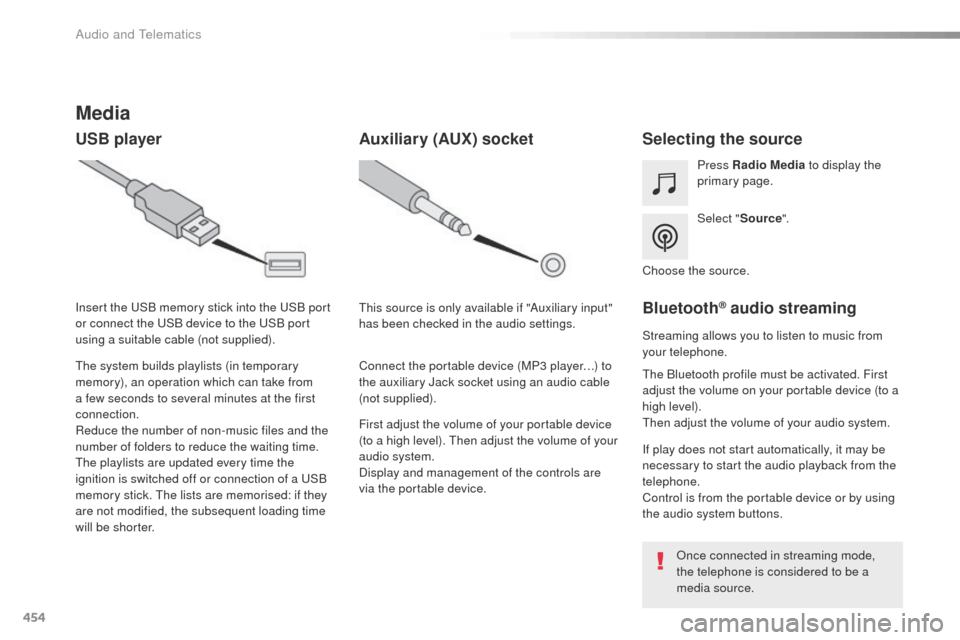
Select "Source".
Press Radio Media
to display the
primary page.
th
e system builds playlists (in temporary
memory), an operation which can take from
a few seconds to several minutes at the first
connection.
Reduce the number of non-music files and the
number of folders to reduce the waiting time.
th
e playlists are updated every time the
ignition is switched off or connection of a
u
S
B
memory stick.
t
h
e lists are memorised: if they
are not modified, the subsequent loading time
will be shorter. Insert the
u
S
B memory stick into the
u
S
B port
or connect the
u
S
B device to the
u
S
B port
using a suitable cable (not supplied).
Auxiliary (AUX) socket
First adjust the volume of your portable device
(to a high level). th en adjust the volume of your
audio system.
Display and management of the controls are
via the portable device.
th
is source is only available if "Auxiliary input"
has been checked in the audio settings.
Connect the portable device (MP3 player…) to
the auxiliary Jack socket using an audio cable
(not supplied). Choose the source.
Bluetooth® audio streaming
Streaming allows you to listen to music from
your telephone.
th
e Bluetooth profile must be activated. First
adjust the volume on your portable device (to a
high level).
th
en adjust the volume of your audio system.
If play does not start automatically, it may be
necessary to start the audio playback from the
telephone.
Control is from the portable device or by using
the audio system buttons.
on
ce connected in streaming mode,
the telephone is considered to be a
media source.
Audio and telematics
Page 457 of 599
455
Expert_en_Chap10c_RCC-1_ed01-2016
Connecting Apple® players
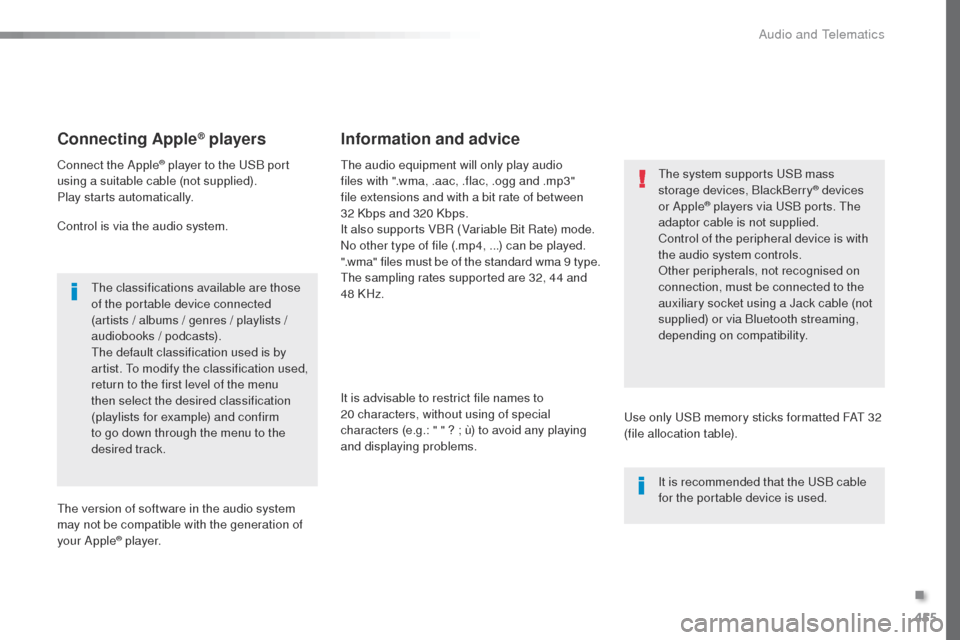
Connect the Apple® player to the uSB port
using a suitable cable (not supplied).
Play starts automatically.
Control is via the audio system.
th
e classifications available are those
of the portable device connected
(artists / albums / genres / playlists /
audiobooks / podcasts).
th
e default classification used is by
artist.
t
o m
odify the classification used,
return to the first level of the menu
then select the desired classification
(playlists for example) and confirm
to go down through the menu to the
desired track.
th
e version of software in the audio system
may not be compatible with the generation of
your Apple
® p l aye r.
th
e audio equipment will only play audio
files with ".wma, .aac, .flac, .ogg and .mp3"
file extensions and with a bit rate of between
32 Kbps and 320 Kbps.
It also supports VBR (Variable Bit Rate) mode.
No other type of file (.mp4, ...) can be played.
".wma" files must be of the standard wma 9 type.
th
e sampling rates supported are 32, 44 and
48 KHz.
It is advisable to restrict file names to
20
characters, without using of special
characters (e.g.: " " ? ; ù) to avoid any playing
and displaying problems.
Information and advice
use only uS B memory sticks formatted FAt 32
(file allocation table).
th
e system supports u
S
B mass
storage devices, BlackBerry
® devices
or Apple® players via uS B ports. th e
adaptor cable is not supplied.
Control of the peripheral device is with
the audio system controls.
ot
her peripherals, not recognised on
connection, must be connected to the
auxiliary socket using a Jack cable (not
supplied) or via Bluetooth streaming,
depending on compatibility.
It is recommended that the
u
S
B cable
for the portable device is used.
.
Audio and telematics
Page 480 of 599
478
Expert_en_Chap10c_RCC-1_ed01-2016
Radio
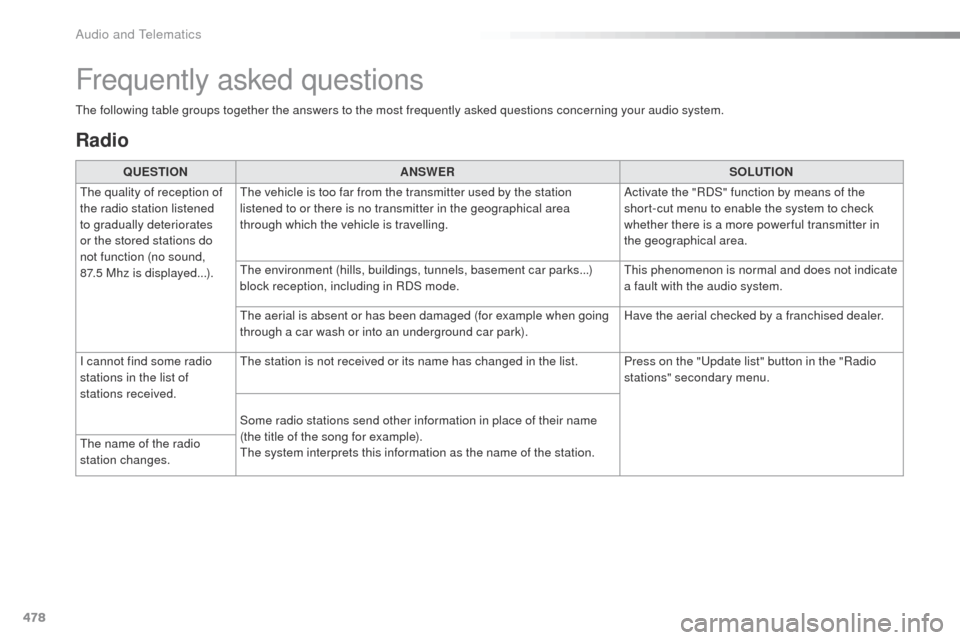
QUESTIONANSWER SOLUTION
th
e quality of reception of
the radio station listened
to gradually deteriorates
or the stored stations do
not function (no sound,
87.5
Mhz is displayed...).
th
e vehicle is too far from the transmitter used by the station
listened to or there is no transmitter in the geographical area
through which the vehicle is travelling. Activate the "RDS" function by means of the
short-cut menu to enable the system to check
whether there is a more power ful transmitter in
the geographical area.
th
e environment (hills, buildings, tunnels, basement car parks...)
block reception, including in RDS mode.
th
is phenomenon is normal and does not indicate
a fault with the audio system.
th
e aerial is absent or has been damaged (for example when going
through a car wash or into an underground car park). Have the aerial checked by a franchised dealer.
I cannot find some radio
stations in the list of
stations received.
th
e station is not received or its name has changed in the list. Press on the "
up
date list" button in the "Radio
stations" secondary menu.
Some radio stations send other information in place of their name
(the title of the song for example).
th
e system interprets this information as the name of the station.
th
e name of the radio
station changes.
Frequently asked questions
the following table groups together the answers to the most frequently asked questions concerning your audio system.
Audio and telematics
Page 484 of 599
482
Expert_en_Chap10c_RCC-1_ed01-2016
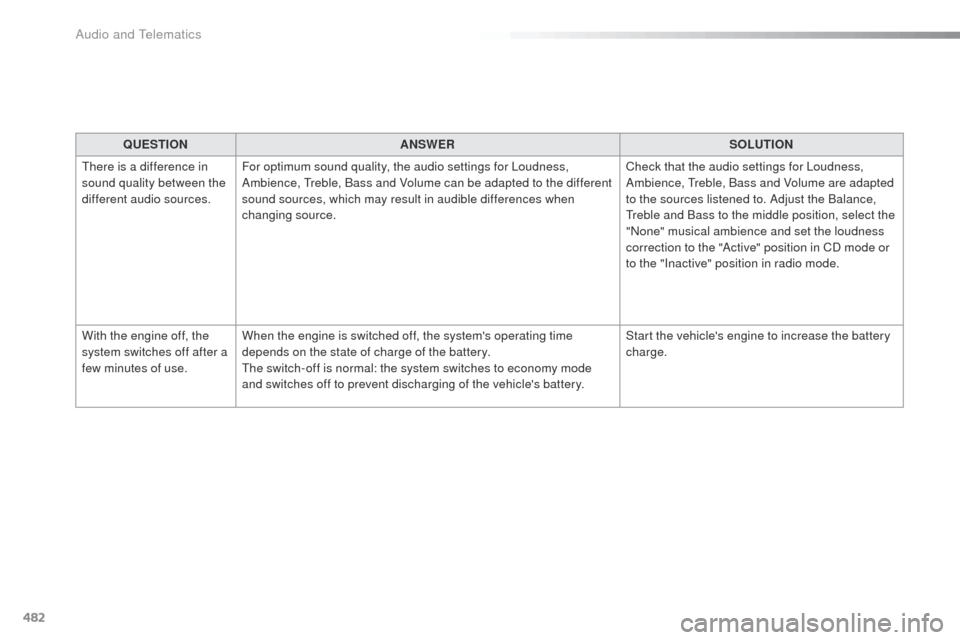
QUESTIONANSWER SOLUTION
th
ere is a difference in
sound quality between the
different audio sources. For optimum sound quality, the audio settings for Loudness,
Ambience,
t
r
eble, Bass and Volume can be adapted to the different
sound sources, which may result in audible differences when
changing source. Check that the audio settings for Loudness,
Ambience,
t
r
eble, Bass and Volume are adapted
to the sources listened to. Adjust the Balance,
tr
eble and Bass to the middle position, select the
"None" musical ambience and set the loudness
correction to the "Active" position in CD mode or
to the "Inactive" position in radio mode.
With the engine off, the
system switches off after a
few minutes of use. When the engine is switched off, the system's operating time
depends on the state of charge of the battery.
th
e switch-off is normal: the system switches to economy mode
and switches off to prevent discharging of the vehicle's battery. Start the vehicle's engine to increase the battery
charge.
Audio and telematics
Page 490 of 599
488
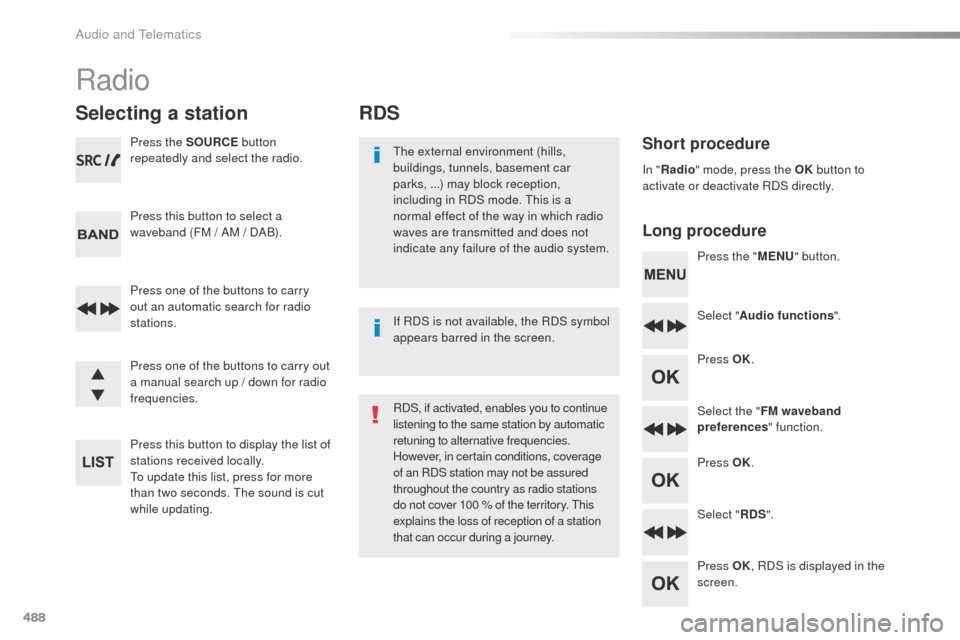
RDS
Short procedure
Long procedurethe external environment (hills,
buildings, tunnels, basement car
parks, ...) may block reception,
including in RDS mode.
t
h
is is a
normal effect of the way in which radio
waves are transmitted and does not
indicate any failure of the audio system. Press the "MENU" button.
Select " Audio functions ".
Press OK.
Select the " FM waveband
preferences " function.
Press OK.
Select " RDS".
Press OK , RDS is displayed in the
screen.
In "
Radio " mode, press the OK button to
activate or deactivate RDS directly.
RDS, if activated, enables you to continue
listening to the same station by automatic
retuning to alternative frequencies.
However, in certain conditions, coverage
of an RDS station may not be assured
throughout the country as radio stations
do not cover 100 % of the territory.
t
h
is
explains the loss of reception of a station
that can occur during a journey. If RDS is not available, the RDS symbol
appears barred in the screen.
Radio
Selecting a station
Press the SOURCE button
repeatedly and select the radio.
Press this button to select a
waveband (FM / AM / DAB).
Press one of the buttons to carry
out an automatic search for radio
stations.
Press one of the buttons to carry out
a manual search up / down for radio
frequencies.
Press this button to display the list of
stations received locally.
to u
pdate this list, press for more
than two seconds.
t
h
e sound is cut
while updating.
Audio and Telematics
Page 494 of 599
492
Media
USB player
this unit consists of a uS B port and an
auxiliary Jack socket, depending on model.
Insert a
u
S
B memory stick into the u
S
B port
or connect a
u
S
B peripheral device to the u
S
B
port using a suitable cable (not supplied).
th
e system changes automatically to "
uS
B"
source.
th
e system creates playlists
(temporary memory), which can take
from a few seconds to several minutes
on the first connection.
Reducing the number of non-music
files and the number of folders reduces
this waiting time. Playlists are updated
every time a new
u
S
B memory stick is
connected.
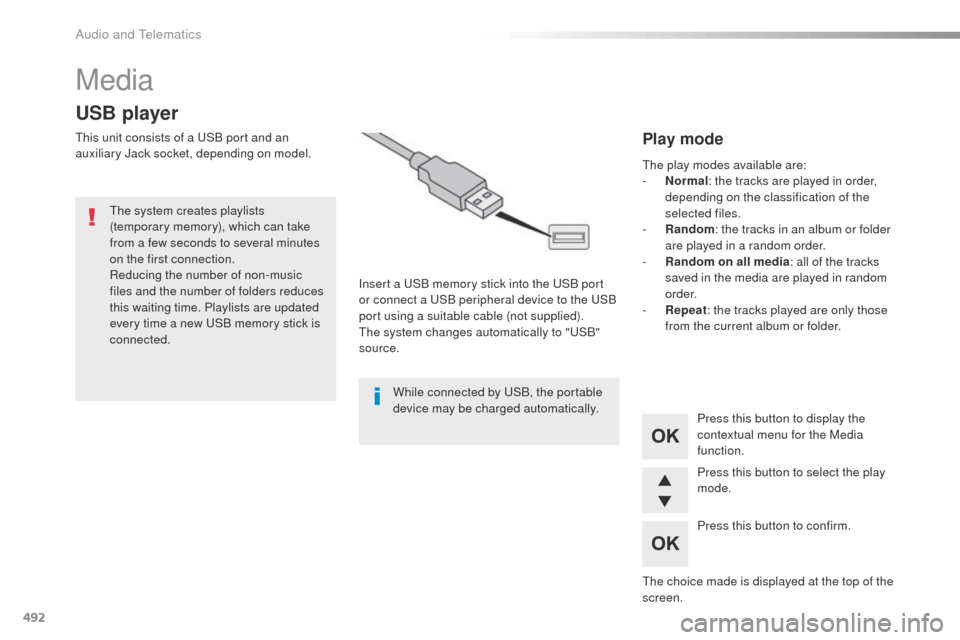
Press this button to display the
contextual menu for the Media
function.
Press this button to select the play
mode.
Press this button to confirm.Play mode
the play modes available are:
- No rmal: the tracks are played in order,
depending on the classification of the
selected files.
-
R
andom : the tracks in an album or folder
are played in a random order.
-
R
andom on all media : all of the tracks
saved in the media are played in random
o r d e r.
-
R
epeat : the tracks played are only those
from the current album or folder.
th
e choice made is displayed at the top of the
screen.
While connected by
u
S
B, the portable
device may be charged automatically.
Audio and telematics
Page 498 of 599
496
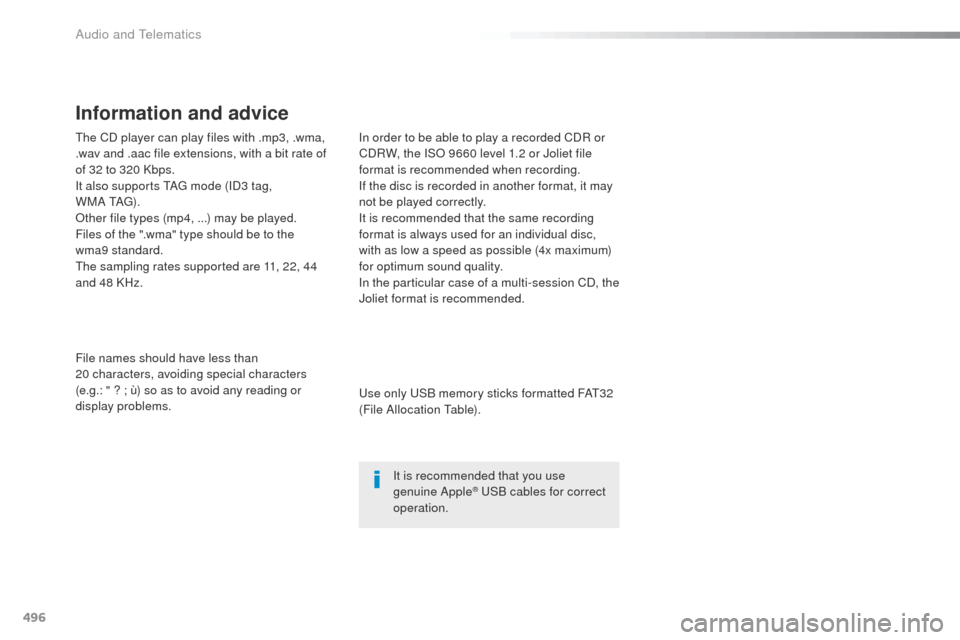
the CD player can play files with .mp3, .wma,
.wav and .aac file extensions, with a bit rate of
of 32 to 320 Kbps.
It also supports t
Ag
mode (ID3 tag,
W M A
t A
g)
.
ot
her file types (mp4, ...) may be played.
Files of the ".wma" type should be to the
wma9 standard.
th
e sampling rates supported are 11, 22, 44
and 48 KHz.
File names should have less than
20
characters, avoiding special characters
(e.g.: " ?
; ù) so as to avoid any reading or
display problems. In order to be able to play a recorded CDR or
CDRW, the ISo
9660 level 1.2 or Joliet file
format is recommended when recording.
If the disc is recorded in another format, it may
not be played correctly.
It is recommended that the same recording
format is always used for an individual disc,
with as low a speed as possible (4x maximum)
for optimum sound quality.
In the particular case of a multi-session CD, the
Joliet format is recommended.
Information and advice
use only uS B memory sticks formatted FAt3 2
(File Allocation ta ble).
It is recommended that you use
genuine Apple
® uSB cables for correct
operation.
Audio and telematics
Page 502 of 599
500
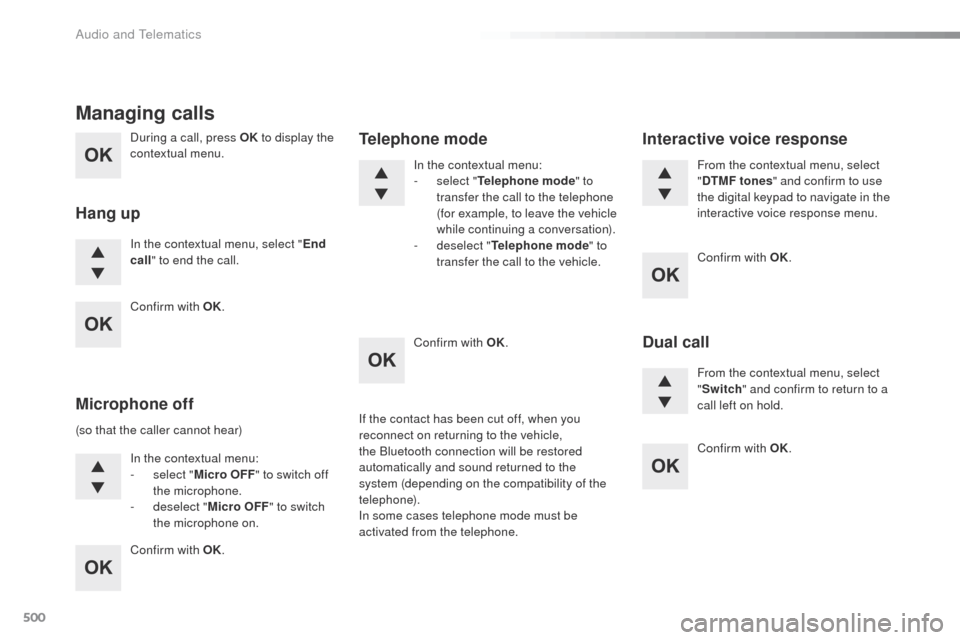
During a call, press OK to display the
contextual menu.
In the contextual menu, select " End
call " to end the call.
Managing calls
Hang up
(so that the caller cannot hear)
In the contextual menu:
-
s
elect "Micro OFF " to switch off
the microphone.
-
d
eselect "Micro OFF " to switch
the microphone on. In the contextual menu:
-
s
elect "
Telephone mode " to
transfer the call to the telephone
(for example, to leave the vehicle
while continuing a conversation).
-
d
eselect "
Telephone mode " to
transfer the call to the vehicle.
Microphone off Telephone modeIf the contact has been cut off, when you
reconnect on returning to the vehicle,
the Bluetooth connection will be restored
automatically and sound returned to the
system (depending on the compatibility of the
telephone).
In some cases telephone mode must be
activated from the telephone. From the contextual menu, select
"
DTMF tones " and confirm to use
the digital keypad to navigate in the
interactive voice response menu.
From the contextual menu, select
" Switch " and confirm to return to a
call left on hold.
Interactive voice response
Dual call
Confirm with OK.
Confirm with OK. Confirm with OK.
Confirm with OK.
Confirm with OK.
Audio and telematics
Page 504 of 599
502
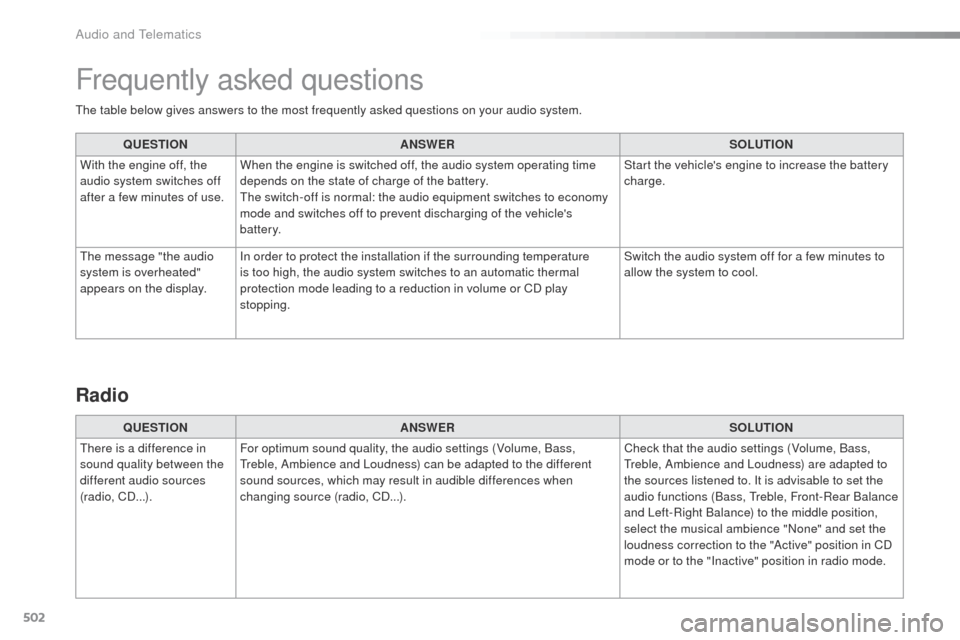
the table below gives answers to the most frequently asked questions on your audio system.QUESTION ANSWER SOLUTION
With the engine off, the
audio system switches off
after a few minutes of use. When the engine is switched off, the audio system operating time
depends on the state of charge of the battery.
th
e switch-off is normal: the audio equipment switches to economy
mode and switches off to prevent discharging of the vehicle's
battery. Start the vehicle's engine to increase the battery
charge.
th
e message "the audio
system is overheated"
appears on the display. In order to protect the installation if the surrounding temperature
is too high, the audio system switches to an automatic thermal
protection mode leading to a reduction in volume or CD play
stopping. Switch the audio system off for a few minutes to
allow the system to cool.
Frequently asked questions
QUESTION
ANSWER SOLUTION
th
ere is a difference in
sound quality between the
different audio sources
(radio, CD...). For optimum sound quality, the audio settings (Volume, Bass,
tr
eble, Ambience and Loudness) can be adapted to the different
sound sources, which may result in audible differences when
changing source (radio, CD...). Check that the audio settings (Volume, Bass,
tr
eble, Ambience and Loudness) are adapted to
the sources listened to. It is advisable to set the
audio functions (Bass,
t
r
eble, Front-Rear Balance
and Left-Right Balance) to the middle position,
select the musical ambience "None" and set the
loudness correction to the "Active" position in CD
mode or to the "Inactive" position in radio mode.
Radio
Audio and telematics