Peugeot Partner 2016 User Guide
Partner 2016
Peugeot
Peugeot
https://www.carmanualsonline.info/img/29/15983/w960_15983-0.png
Peugeot Partner 2016 User Guide
Page 174 of 260
172
Partner-2-Vu_en_Chap10a_SMEGplus_ed02-2015
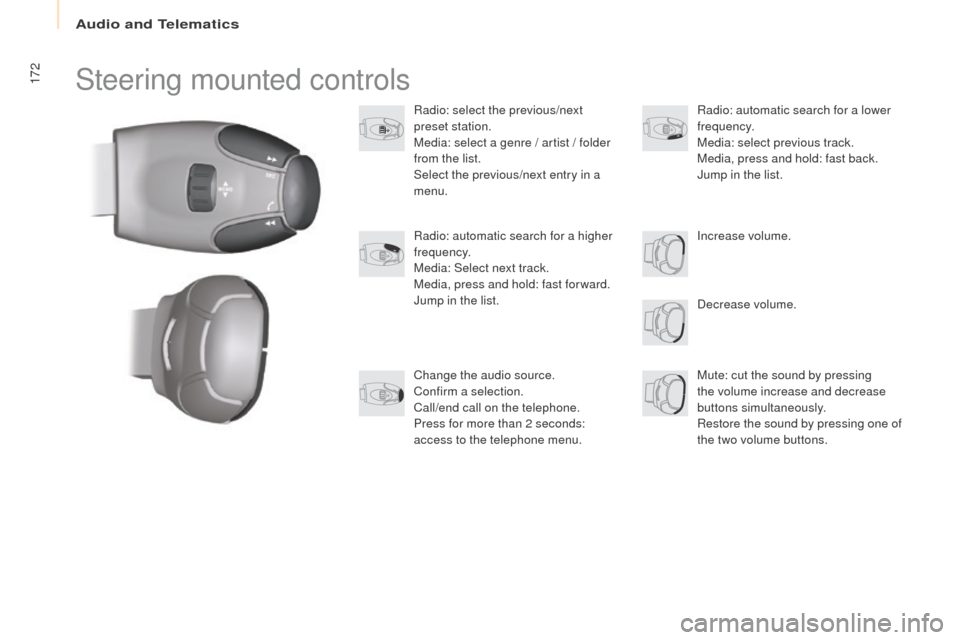
Steering mounted controls
Radio: select the previous/next
preset station.
Media: select a genre / artist / folder
from the list.
Select the previous/next entry in a
menu.Decrease volume.
Radio: automatic search for a higher
frequency.
Media: Select next track.
Media, press and hold: fast for ward.
Jump in the list.
Mute: cut the sound by pressing
the volume increase and decrease
buttons simultaneously.
Restore the sound by pressing one of
the two volume buttons. Radio: automatic search for a lower
frequency.
Media: select previous track.
Media, press and hold: fast back.
Jump in the list.
Change the audio source.
Confirm a selection.
Call/end call on the telephone.
Press for more than 2 seconds:
access to the telephone menu. Increase volume.
Audio and Telematics
Page 175 of 260
173
Partner-2-Vu_en_Chap10a_SMEGplus_ed02-2015
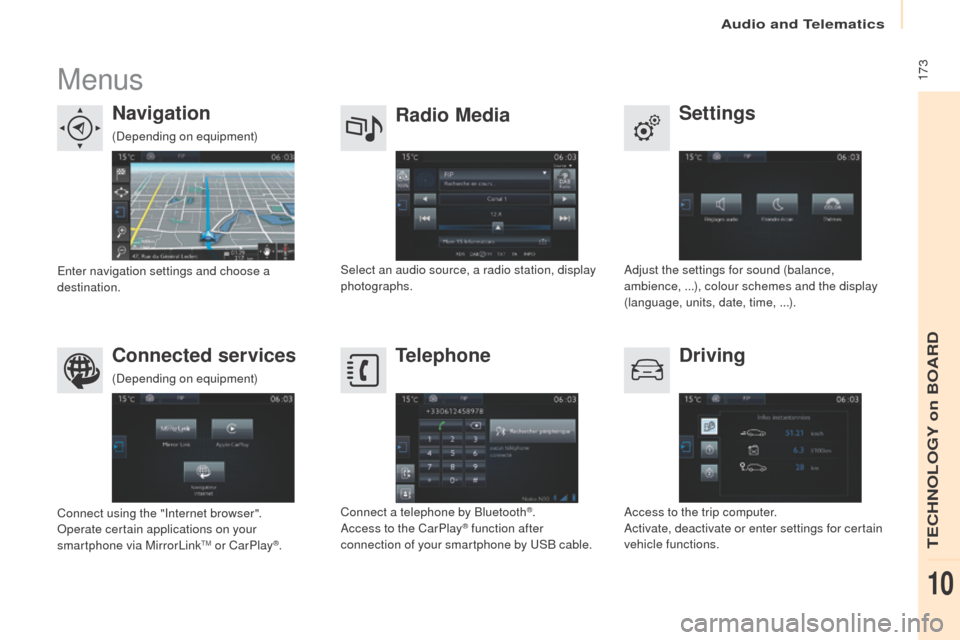
Menus
Settings
Radio Media
Navigation
Driving
Connected services Telephone
Adjust the settings for sound (balance,
ambience,
...), colour schemes and the display
(language, units, date, time,
...).
Select an audio source, a radio station, display
photographs.
Enter navigation settings and choose a
destination.
Access to the trip computer.
Activate, deactivate or enter settings for certain
vehicle functions.
Connect using the "Internet browser".
Operate certain applications on your
smartphone via MirrorLink
TM or CarPlay®. Connect a telephone by Bluetooth
®.
Access to the CarPlay® function after
connection of your smartphone by USB cable.
(Depending on equipment)
(Depending on equipment)
Audio and Telematics
TECHNOLOGY on BOARD
10
Page 176 of 260
174
Partner-2-Vu_en_Chap10a_SMEGplus_ed02-2015
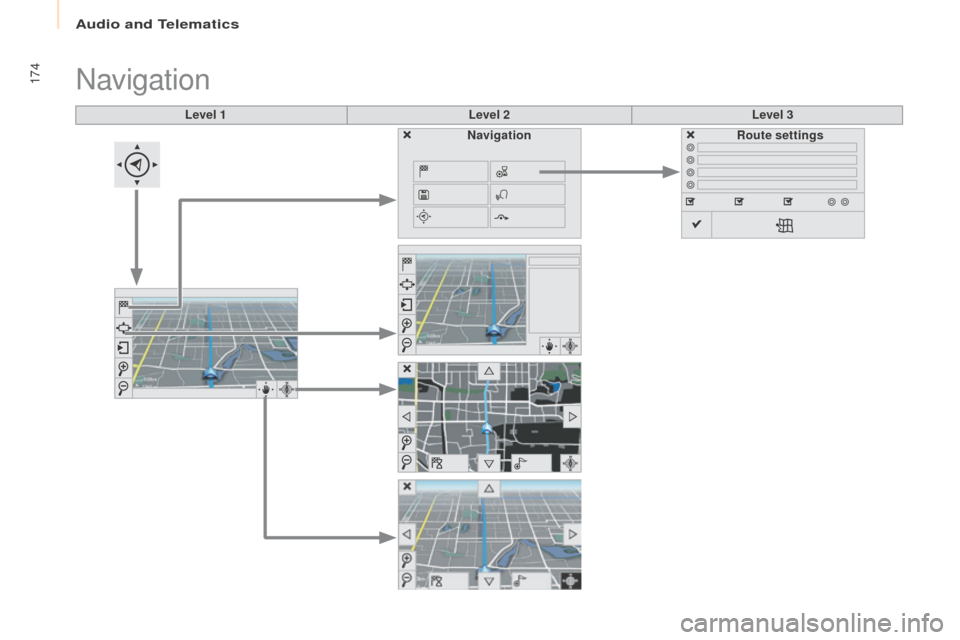
Level 1Level 2Level 3
Navigation
NavigationRoute settings
Audio and Telematics
Page 177 of 260
175
Partner-2-Vu_en_Chap10a_SMEGplus_ed02-2015
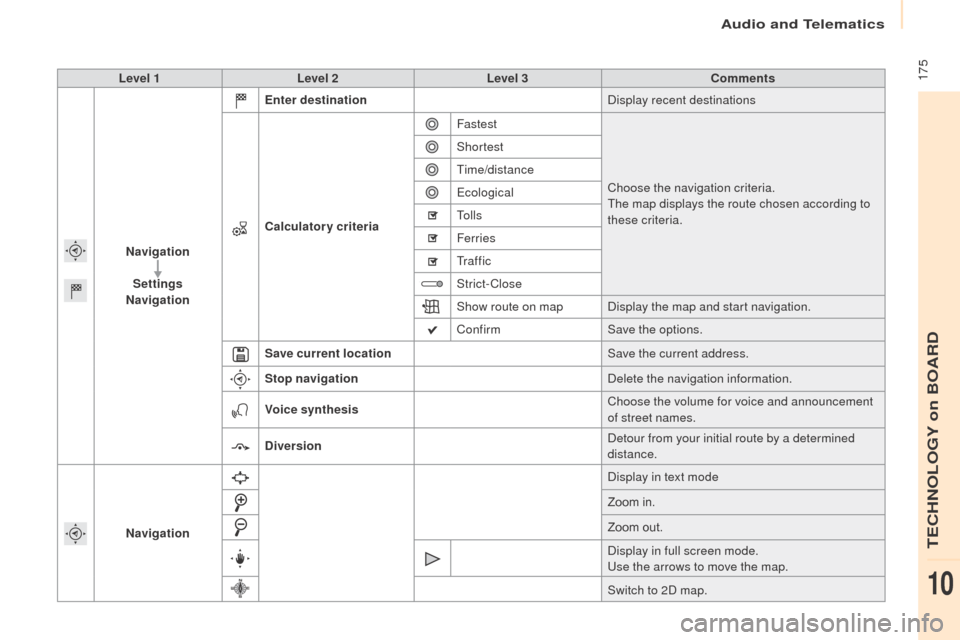
Level 1Level 2 Level 3 Comments
Navigation Settings
Navigation Enter destination
Display recent destinations
Calculatory criteria Fastest
Choose the navigation criteria.
The map displays the route chosen according to
these criteria.
Shortest
Time/distance
Ecological
To l l s
Ferries
Tr a f f i c
Strict-Close
Show route on map
Display the map and start navigation.
Confirm Save the options.
Save current location Save the current address.
Stop navigation Delete the navigation information.
Voice synthesis Choose the volume for voice and announcement
of street names.
Diversion Detour from your initial route by a determined
distance.
Navigation Display in text mode
Zoom in.
Zoom out.
Display in full screen mode.
Use the arrows to move the map.
Switch to 2D map.
Audio and Telematics
TECHNOLOGY on BOARD
10
Page 178 of 260
176
Partner-2-Vu_en_Chap10a_SMEGplus_ed02-2015
Level 1Level 2Level 3
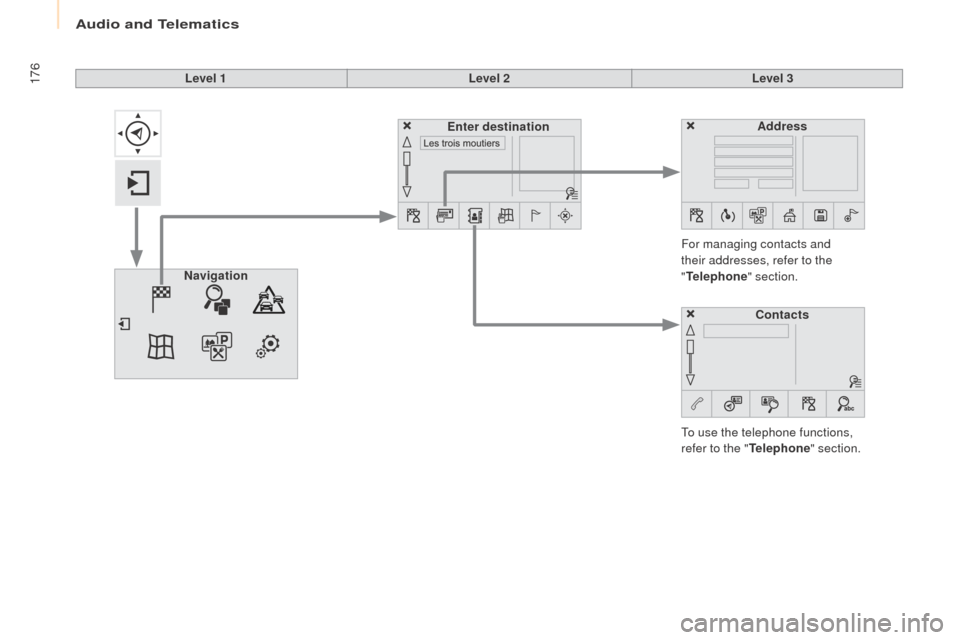
To use the telephone functions,
refer to the " Telephone" section.
For managing contacts and
their addresses, refer to the
"
Telephone " section.
Navigation Address
Enter destination
Contacts
Audio and Telematics
Page 179 of 260
177
Partner-2-Vu_en_Chap10a_SMEGplus_ed02-2015
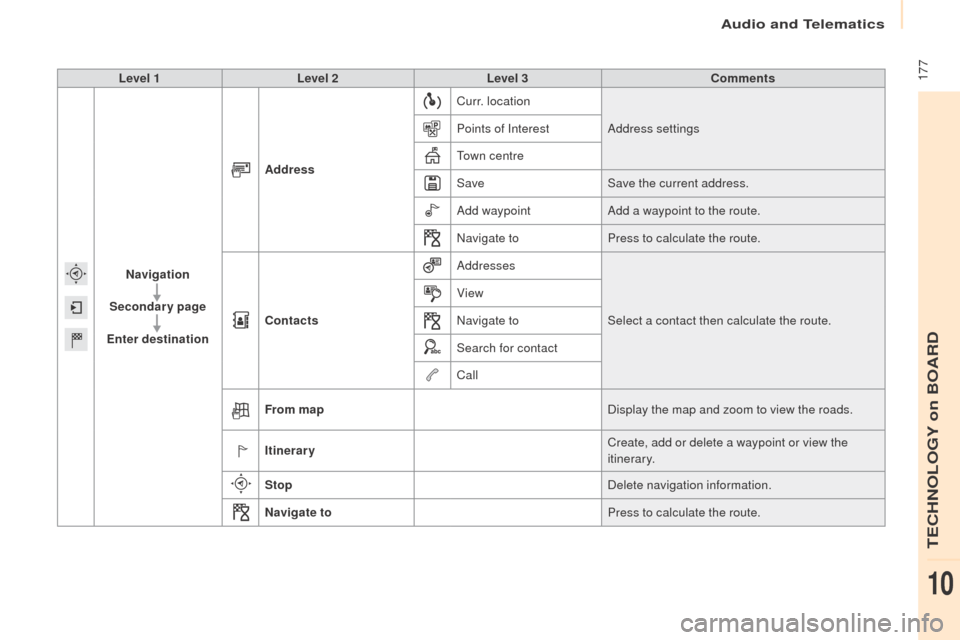
Level 1Level 2 Level 3 Comments
Navigation
Secondary page
Enter destination Address
Curr. location
Address settings
Points of Interest
Town centre
Save Save the current address.
Add waypoint Add a waypoint to the route.
Navigate to Press to calculate the route.
Contacts Addresses
Select a contact then calculate the route.
View
Navigate to
Search for contact
Call
From map Display the map and zoom to view the roads.
Itinerary Create, add or delete a waypoint or view the
itinerary.
Stop Delete navigation information.
Navigate to Press to calculate the route.
Audio and Telematics
TECHNOLOGY on BOARD
10
Page 180 of 260
178
Partner-2-Vu_en_Chap10a_SMEGplus_ed02-2015
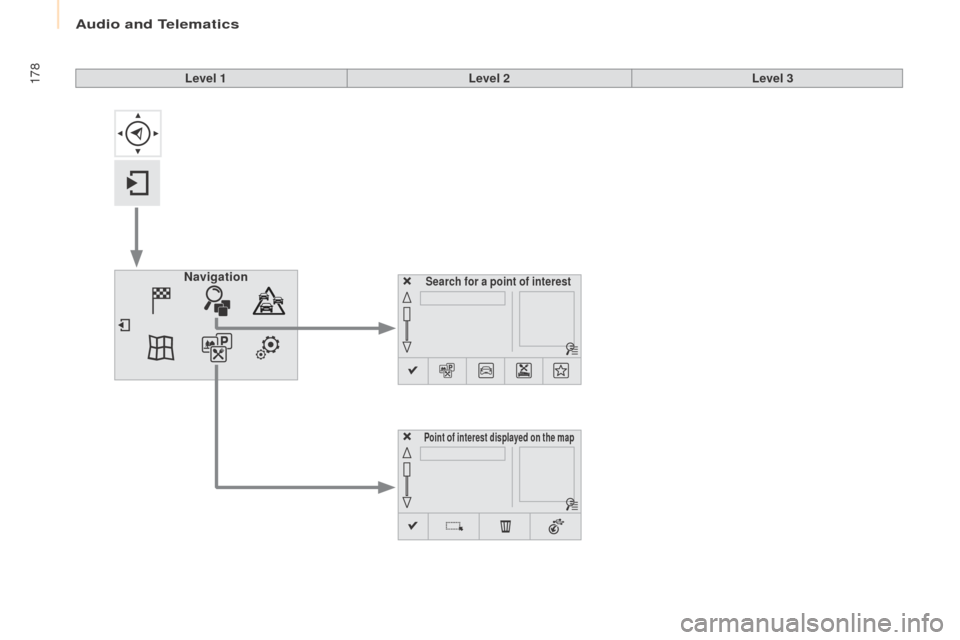
Search for a point of interestNavigation
Point of interest displayed on the map
Level 1Level 2Level 3
Audio and Telematics
Page 181 of 260
179
Partner-2-Vu_en_Chap10a_SMEGplus_ed02-2015
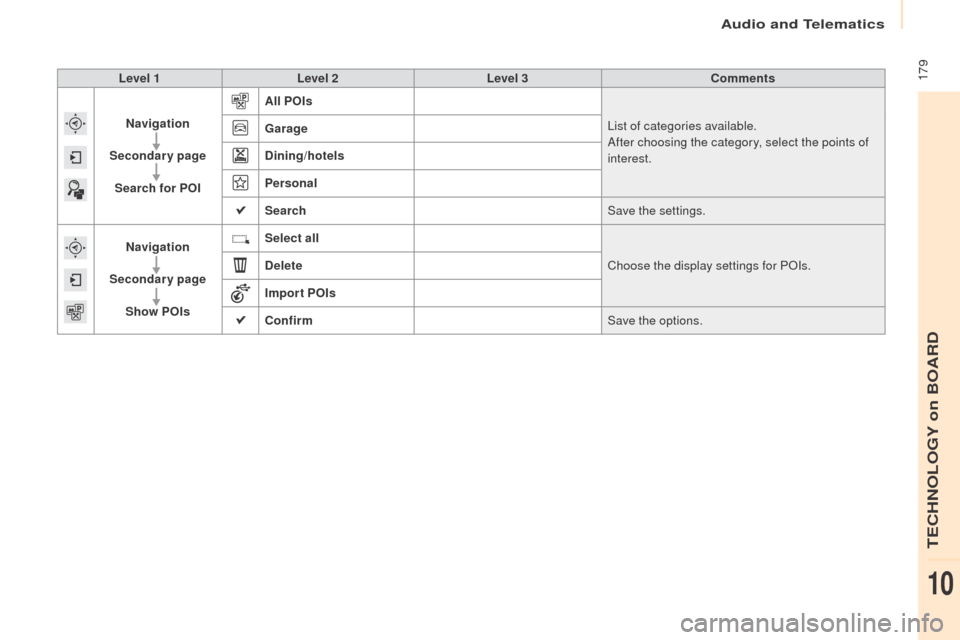
Level 1Level 2 Level 3 Comments
Navigation
Secondary page Search for POI All POIs
List of categories available.
After choosing the category, select the points of
interest.
Garage
Dining/hotels
Personal
Search
Save the settings.
Navigation
Secondary page Show POIs Select all
Choose the display settings for POIs.
Delete
Import POIs
Confirm Save the options.
Audio and Telematics
TECHNOLOGY on BOARD
10
Page 182 of 260
180
Partner-2-Vu_en_Chap10a_SMEGplus_ed02-2015
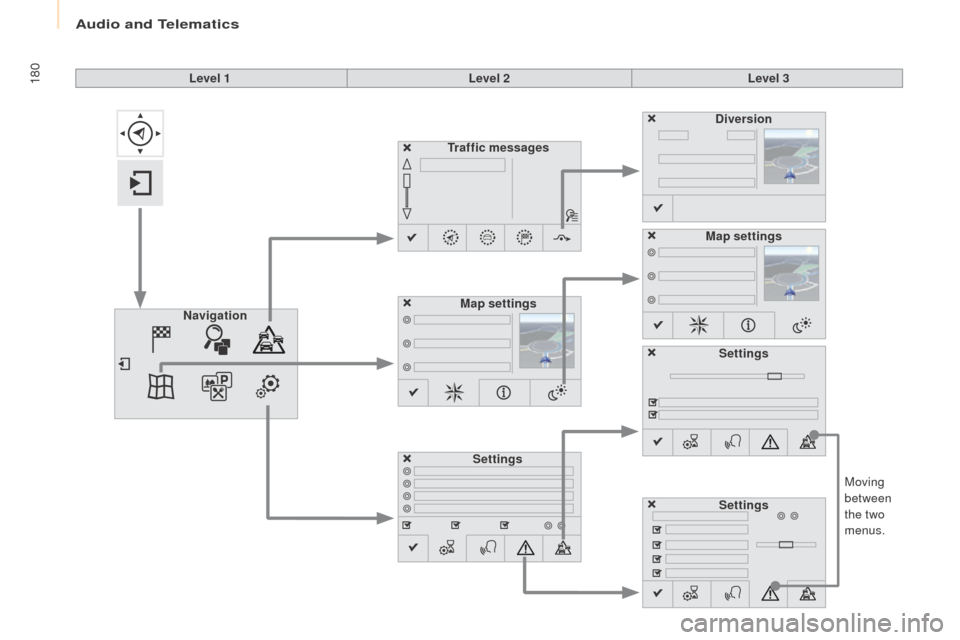
Moving
between
the two
menus.
Level 1
Level 2Level 3
Traffic messages
Settings Diversion
Map settings
Navigation Map settings
Settings
Settings
Audio and Telematics
Page 183 of 260
181
Partner-2-Vu_en_Chap10a_SMEGplus_ed02-2015
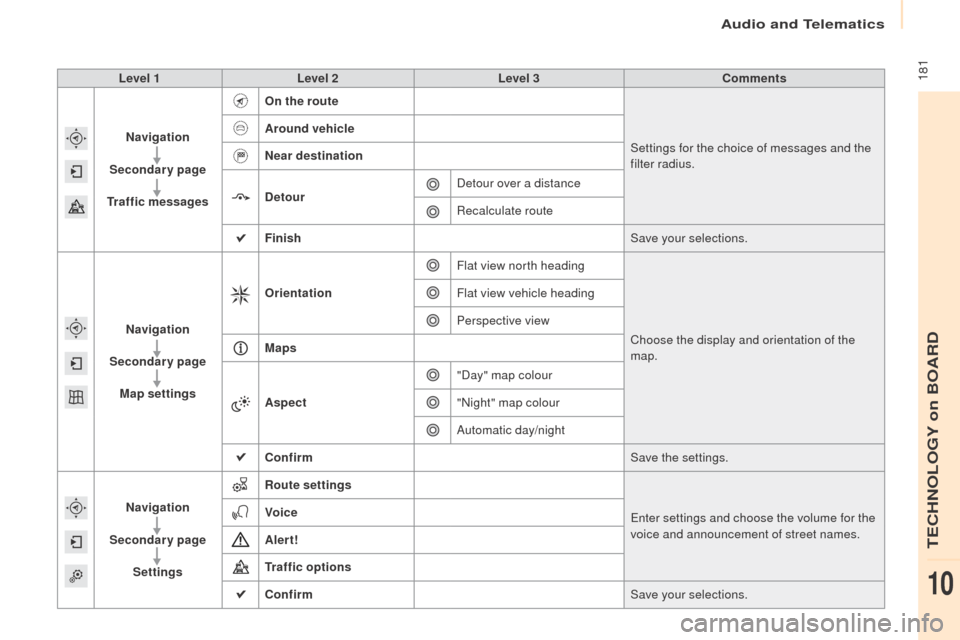
Level 1Level 2 Level 3 Comments
Navigation
Secondary page
Traffic messages On the route
Settings for the choice of messages and the
filter radius.
Around vehicle
Near destination
Detour
Detour over a distance
Recalculate route
Finish Save your selections.
Navigation
Secondary page Map settings Orientation
Flat view north heading
Choose the display and orientation of the
map.
Flat view vehicle heading
Perspective view
Maps
Aspect "Day" map colour
"Night" map colour
Automatic day/night
Confirm Save the settings.
Navigation
Secondary page Settings Route settings
Enter settings and choose the volume for the
voice and announcement of street names.
Voice
Alert!
Traffic options
Confirm
Save your selections.
Audio and Telematics
TECHNOLOGY on BOARD
10