ad blue Peugeot Partner 2016 Owner's Guide
[x] Cancel search | Manufacturer: PEUGEOT, Model Year: 2016, Model line: Partner, Model: Peugeot Partner 2016Pages: 260, PDF Size: 8.83 MB
Page 175 of 260
173
Partner-2-Vu_en_Chap10a_SMEGplus_ed02-2015
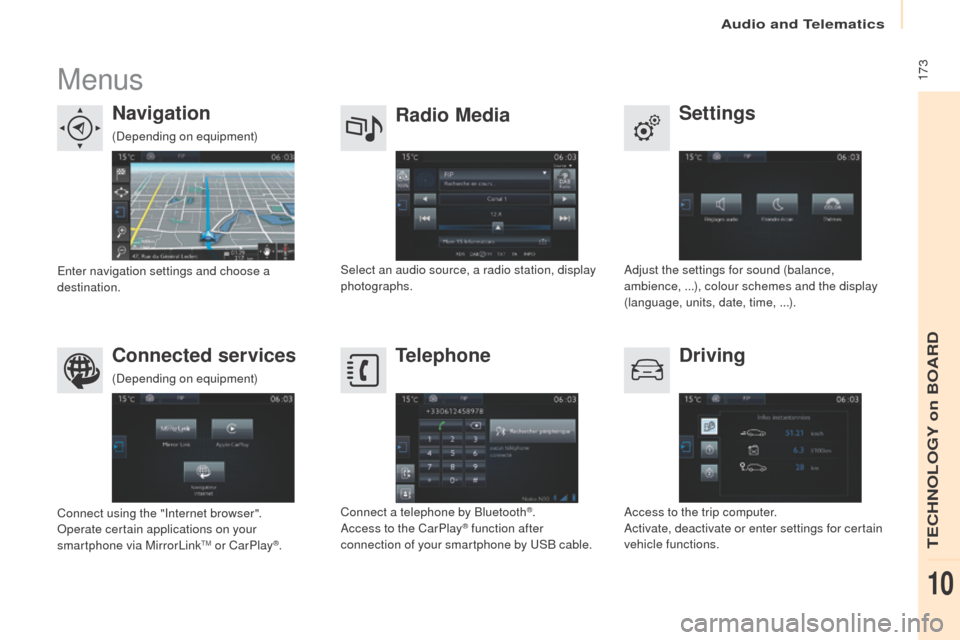
Menus
Settings
Radio Media
Navigation
Driving
Connected services Telephone
Adjust the settings for sound (balance,
ambience,
...), colour schemes and the display
(language, units, date, time,
...).
Select an audio source, a radio station, display
photographs.
Enter navigation settings and choose a
destination.
Access to the trip computer.
Activate, deactivate or enter settings for certain
vehicle functions.
Connect using the "Internet browser".
Operate certain applications on your
smartphone via MirrorLink
TM or CarPlay®. Connect a telephone by Bluetooth
®.
Access to the CarPlay® function after
connection of your smartphone by USB cable.
(Depending on equipment)
(Depending on equipment)
Audio and Telematics
TECHNOLOGY on BOARD
10
Page 191 of 260
189
Partner-2-Vu_en_Chap10a_SMEGplus_ed02-2015
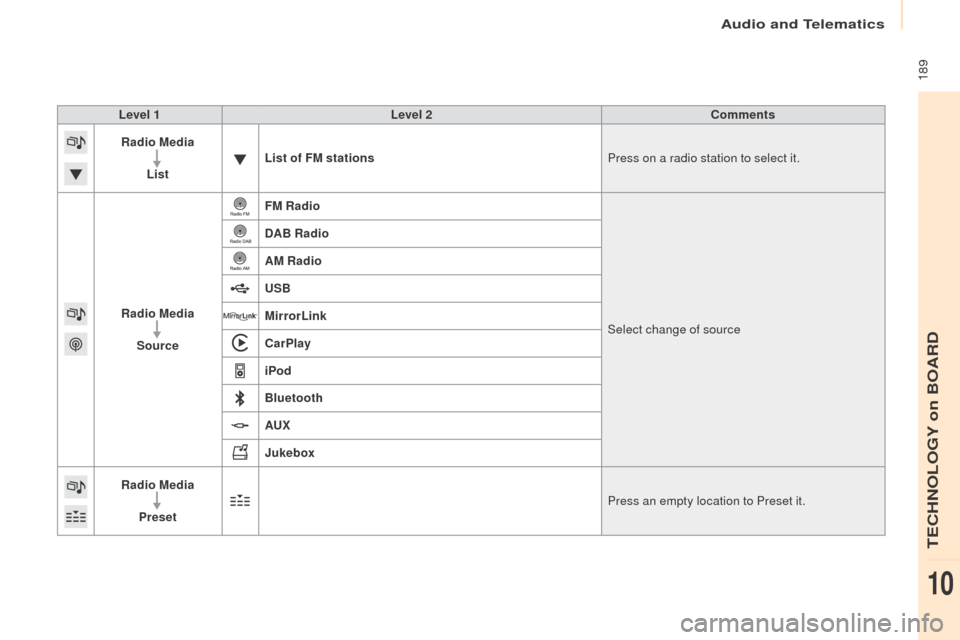
Level 1Level 2 Comments
Radio Media
List List of FM stations
Press on a radio station to select it.
Radio Media Source FM Radio
Select change of source
DAB Radio
AM Radio
USB
MirrorLink
CarPlay
iPod
Bluetooth
AU
x
J
ukebox
Radio Media
Preset Press an empty location to Preset it.
Audio and Telematics
TECHNOLOGY on BOARD
10
Page 202 of 260
200
Partner-2-Vu_en_Chap10a_SMEGplus_ed02-2015
Bluetooth® audio streaming
Streaming allows audio files on your telephone
to be played through the vehicle's speakers.
Connect the telephone: see the "Telephone"
section, then " Bluetooth".
Choose the " Audio" or "All" profile.
If play does not start automatically, it may be
necessary to start the audio playback from the
telephone.
Control is from the peripheral device or by
using the audio system buttons.
Once connected in streaming mode,
the telephone is considered to be a
media source.
It is recommended that you activate
"Repeat " on the Bluetooth peripheral.
Connecting Apple® players
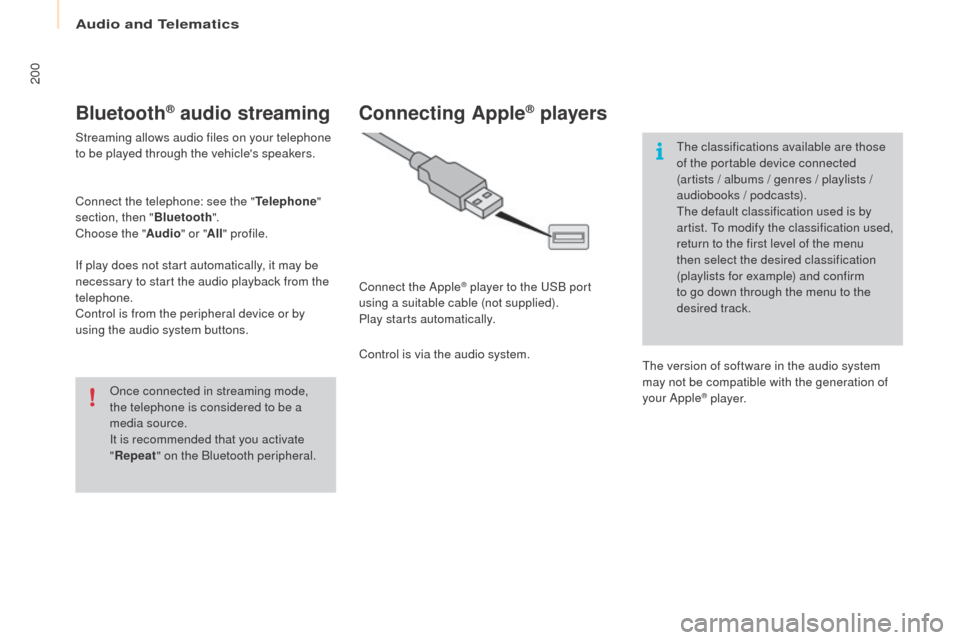
Connect the Apple® player to the USB port
using a suitable cable (not supplied).
Play starts automatically.
Control is via the audio system. The classifications available are those
of the portable device connected
(artists / albums / genres / playlists /
audiobooks / podcasts).
The default classification used is by
artist. To modify the classification used,
return to the first level of the menu
then select the desired classification
(playlists for example) and confirm
to go down through the menu to the
desired track.
The version of software in the audio system
may not be compatible with the generation of
your Apple
® p l aye r.
Audio and Telematics
Page 213 of 260
2 11
Partner-2-Vu_en_Chap10a_SMEGplus_ed02-2015
Internet browser
Authentication for Internet browsing via
a smartphone is done using the Dial-Up
Networking (DUN) standard.Press on "
Internet browser " to
displays the browser's home page;
first connect your smartphone by
Bluetooth, option "Internet", see the
" Telephone " section.
Some smartphones of the latest
generation do not support this
standard. Press on Connected services
to
display the primary page.
Audio and Telematics
TECHNOLOGY on BOARD
10
Page 214 of 260
212
Partner-2-Vu_en_Chap10a_SMEGplus_ed02-2015
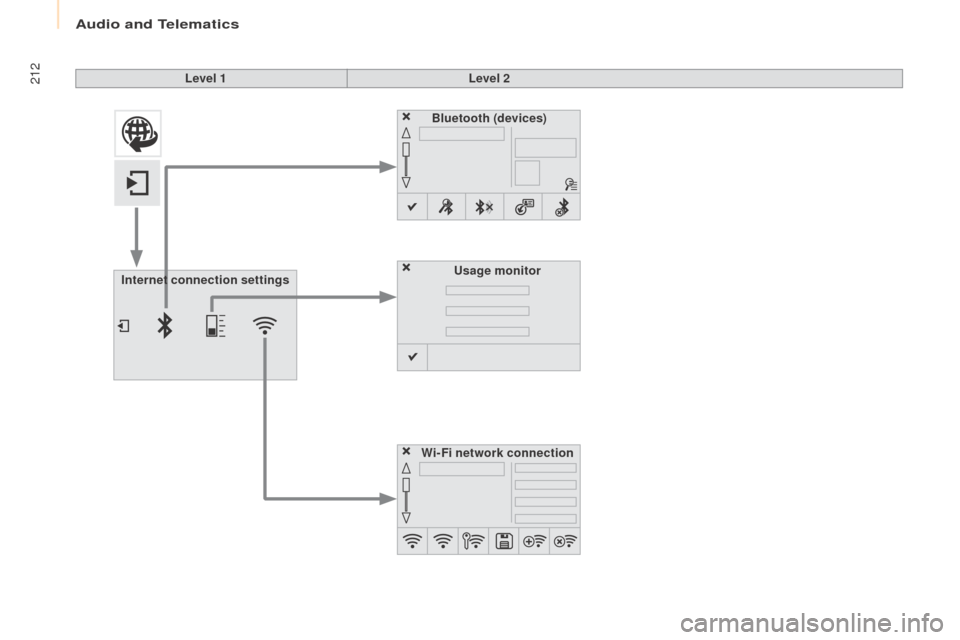
Level 1Level 2
Internet connection settings Wi-Fi network connection
Bluetooth
(devices)
Usage monitor
Audio and Telematics
Page 215 of 260
213
Partner-2-Vu_en_Chap10a_SMEGplus_ed02-2015
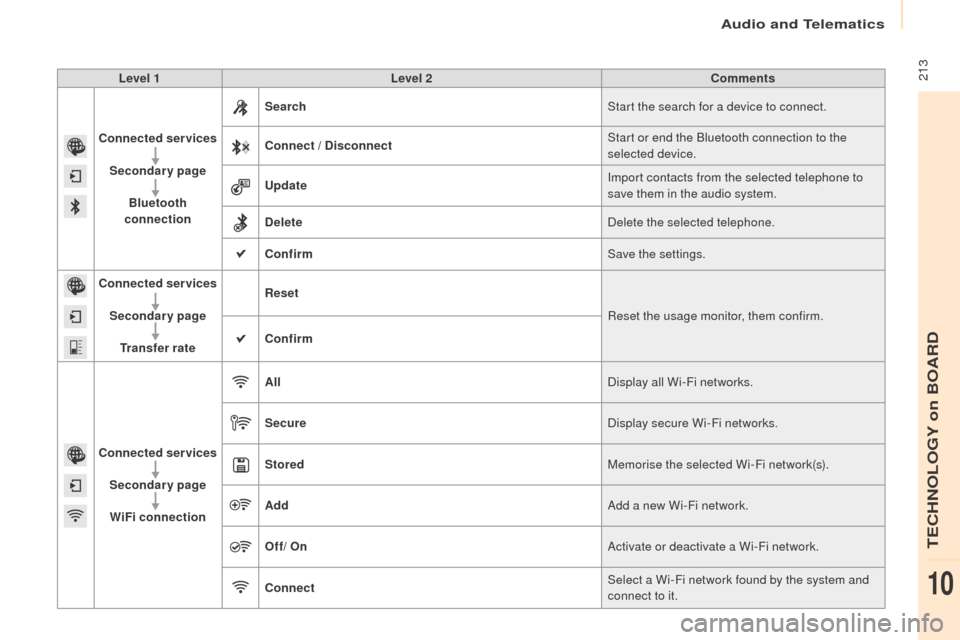
Level 1Level 2 Comments
Connected services Secondary page Bluetooth
connection Search
Start the search for a device to connect.
Connect / Disconnect Start or end the Bluetooth connection to the
selected device.
Update Import contacts from the selected telephone to
save them in the audio system.
Delete Delete the selected telephone.
Confirm Save the settings.
Connected services
Secondary pageTransfer rate Reset
Reset the usage monitor, them confirm.
Confirm
Connected services Secondary pageWiFi connection All
Display all Wi-Fi networks.
Secure Display secure Wi-Fi networks.
Stored Memorise the selected Wi-Fi network(s).
Add Add a new Wi-Fi network.
Off/ On Activate or deactivate a Wi-Fi network.
Connect Select a Wi-Fi network found by the system and
connect to it.
Audio and Telematics
TECHNOLOGY on BOARD
10
Page 217 of 260
215
Partner-2-Vu_en_Chap10a_SMEGplus_ed02-2015
As a safety measure and because it
requires sustained attention by the
driver, using a smartphone when
driving is prohibited.
All operations must be done with the
vehicle stationary.
As a safety measure, applications
can only be viewed with the vehicle
stationary; display is interrupted once
the vehicle is moving. The synchronisation of a smartphone
allows applications on a smartphone
that are adapted to the MirrorLink
TM
technology to be displayed in the
vehicle's screen.
As the principles and standards are
constantly evolving, it is recommended
that you update the operating system of
your smartphone.
For the list of eligible smartphones,
connect to the brand's internet website
in your country. Please note:
-
i
f your smartphone is supported, to
make it "MirrorLink
TM" compatible,
some phone manufacturers
nevertheless invite you to first
download a dedicated application.
When connecting a smartphone to
the system, it is recommended that
Bluetooth
® be started on the smartphone
Start the application on the
smartphone (optional, depending
on the smartphone and operating
syste m). During the procedure, several screen
pages relating to certain functions
are displayed.
Accept to start and end the
connection.
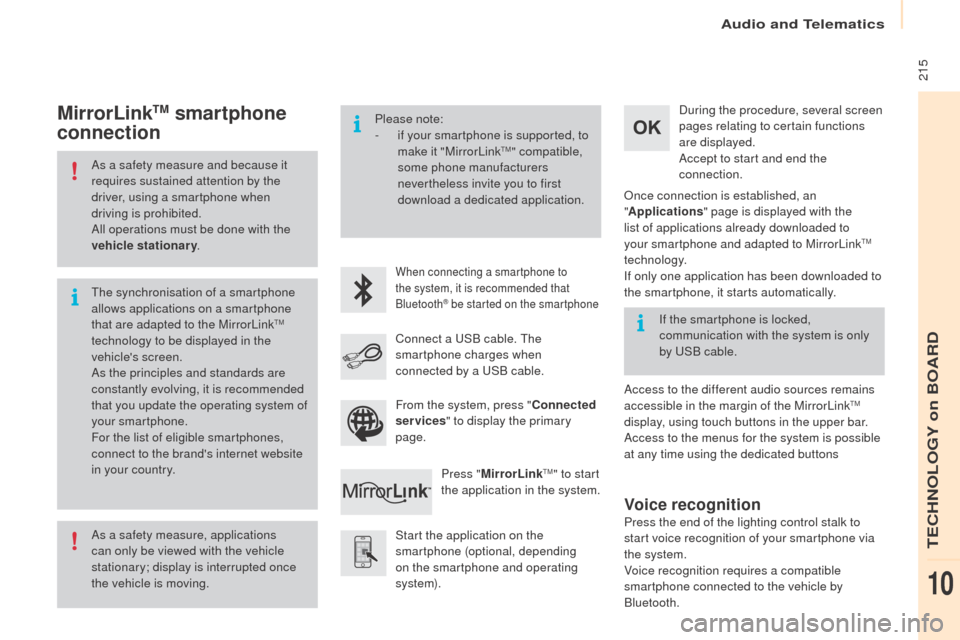
Connect a USB cable. The
smartphone charges when
connected by a USB cable. Press "MirrorLink
TM" to start
the application in the system. Once connection is established, an
"
Applications " page is displayed with the
list of applications already downloaded to
your smartphone and adapted to MirrorLink
TM
technology.
If only one application has been downloaded to
the smartphone, it starts automatically.
MirrorLinkTM smartphone
connection
Access to the different audio sources remains
accessible in the margin of the MirrorLinkTM
display, using touch buttons in the upper bar.
Access to the menus for the system is possible
at any time using the dedicated buttons If the smartphone is locked,
communication with the system is only
by USB cable.
From the system, press " Connected
services " to display the primary
page.
Voice recognition
Press the end of the lighting control stalk to
start voice recognition of your smartphone via
the system.
Voice recognition requires a compatible
smartphone connected to the vehicle by
Bluetooth.
Audio and Telematics
TECHNOLOGY on BOARD
10
Page 226 of 260
224
Partner-2-Vu_en_Chap10a_SMEGplus_ed02-2015
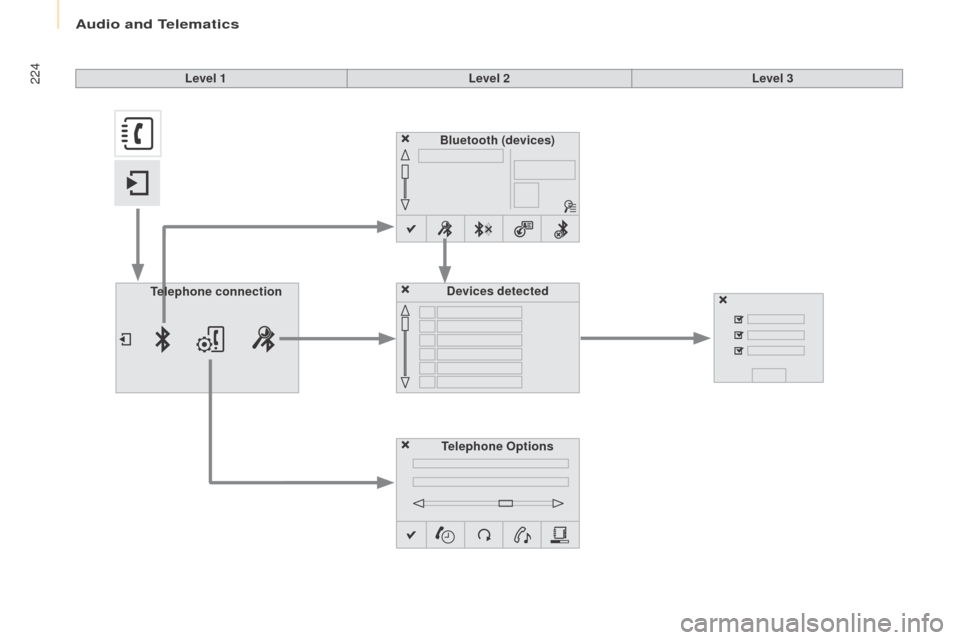
Bluetooth (devices)Telephone Options Devices detected
Telephone connection
Level 1
Level 2Level 3
Audio and Telematics
Page 227 of 260
225
Partner-2-Vu_en_Chap10a_SMEGplus_ed02-2015
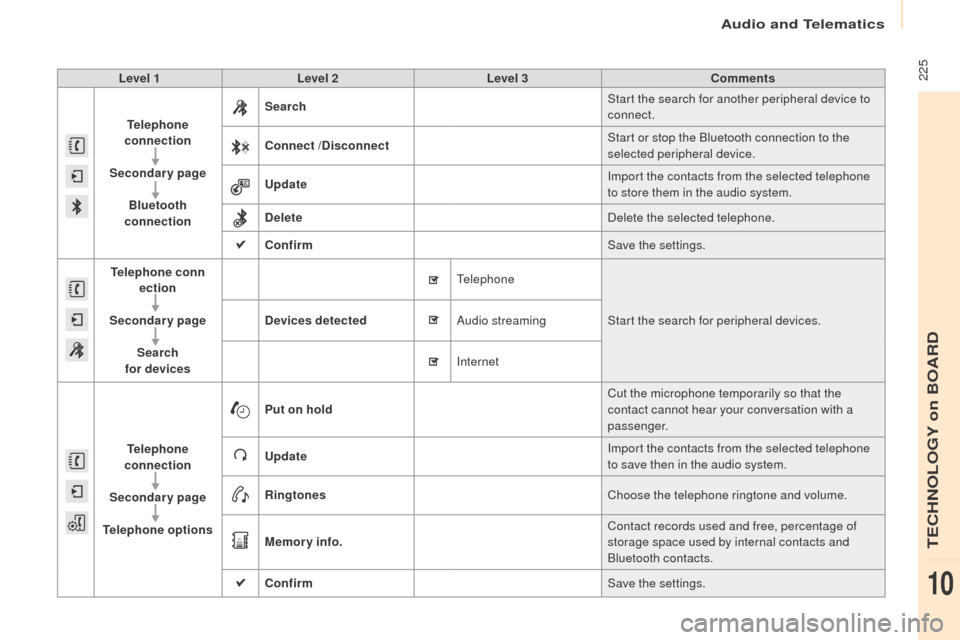
Level 1Level 2 Level 3 Comments
Telephone
connection
Secondary page Bluetooth
connection Search
Start the search for another peripheral device to
connect.
Connect /Disconnect Start or stop the Bluetooth connection to the
selected peripheral device.
Update Import the contacts from the selected telephone
to store them in the audio system.
Delete Delete the selected telephone.
Confirm Save the settings.
Telephone conn
ection
Secondary page Search
for devices Devices detected
Telephone
Start the search for peripheral devices.
Audio streaming
Internet
Telephone
connection
Secondary page
Telephone options Put on hold
Cut the microphone temporarily so that the
contact cannot hear your conversation with a
passenger.
Update Import the contacts from the selected telephone
to save then in the audio system.
Ringtones Choose the telephone ringtone and volume.
Memory info. Contact records used and free, percentage of
storage space used by internal contacts and
Bluetooth contacts.
Confirm Save the settings.
Audio and Telematics
TECHNOLOGY on BOARD
10
Page 228 of 260
226
Partner-2-Vu_en_Chap10a_SMEGplus_ed02-2015
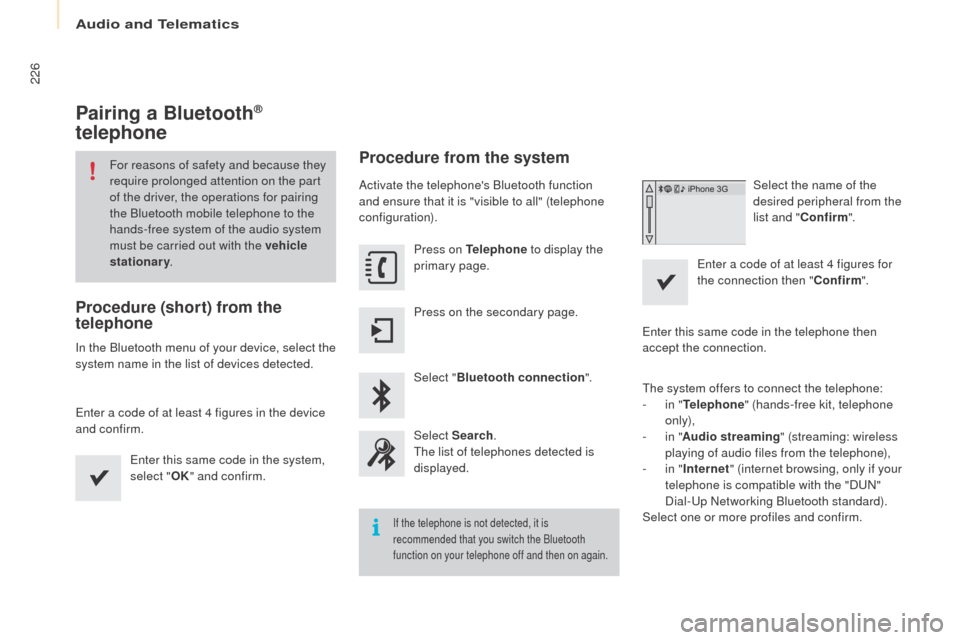
Pairing a Bluetooth®
telephone
For reasons of safety and because they
require prolonged attention on the part
of the driver, the operations for pairing
the Bluetooth mobile telephone to the
hands-free system of the audio system
must be carried out with the vehicle
stationary .
Procedure (short) from the
telephone
In the Bluetooth menu of your device, select the
system name in the list of devices detected.
Enter a code of at least 4 figures in the device
and confirm.
Enter this same code in the system,
select "OK" and confirm.
Procedure from the system
Activate the telephone's Bluetooth function
and ensure that it is "visible to all" (telephone
configuration).
Press on Telephone to display the
primary page.
Press on the secondary page.
Select " Bluetooth connection ".
Select Search .
The list of telephones detected is
displayed.
If the telephone is not detected, it is
recommended that you switch the Bluetooth
function on your telephone off and then on again.
Select the name of the
desired peripheral from the
list and " Confirm ".
Enter a code of at least 4 figures for
the connection then " Confirm".
Enter this same code in the telephone then
accept the connection.
The system offers to connect the telephone:
-
i
n " Telephone " (hands-free kit, telephone
only),
-
i
n " Audio streaming " (streaming: wireless
playing of audio files from the telephone),
-
i
n " Internet " (internet browsing, only if your
telephone is compatible with the "DUN"
Dial-Up Networking Bluetooth standard).
Select one or more profiles and confirm.
Audio and Telematics