mirror Peugeot Partner 2016 Owner's Guide
[x] Cancel search | Manufacturer: PEUGEOT, Model Year: 2016, Model line: Partner, Model: Peugeot Partner 2016Pages: 260, PDF Size: 8.83 MB
Page 165 of 260
163
Partner-2-Vu_en_Chap09_Caract-technique_ed02-2015
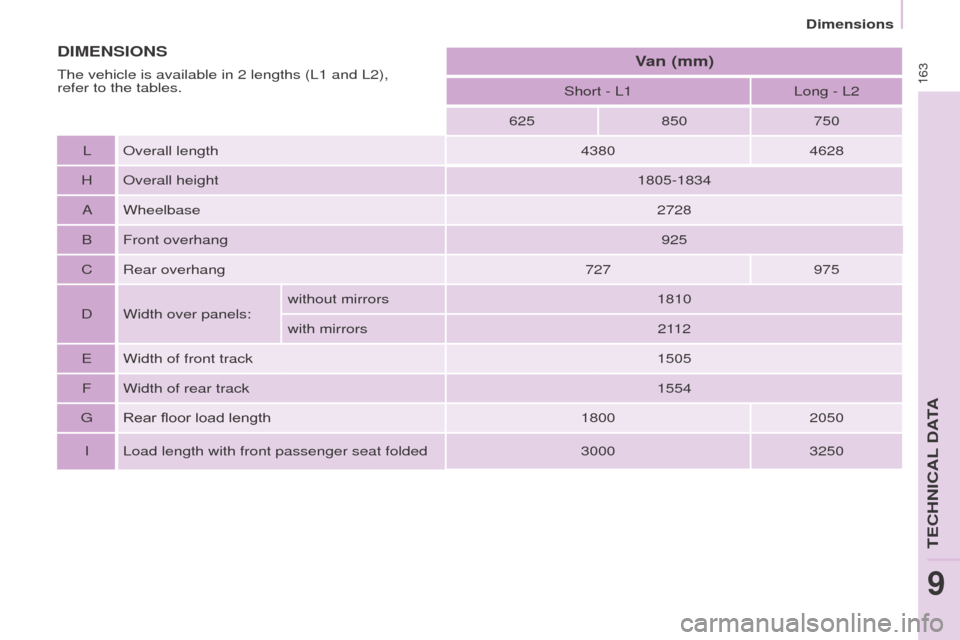
Short - L1Long - L2
625 850750
L Overall length 43804628
H Overall height 1805-1834
A Wheelbase 2728
B Front overhang 925
C Rear overhang 727975
D Width over panels: without mirrors
1810
with mirrors 2112
E Width of front track 1505
F Width of rear track 1554
G Rear floor load length 18002050
I Load length with front passenger seat folded 30003250
DIMENSIONSV
an (mm)
The vehicle is available in 2 lengths (L1 and L2),
refer to the tables.
Dimensions
TECHNICAL DATA
9
Page 168 of 260
166
Partner-2-Vu_en_Chap09_Caract-technique_ed02-2015
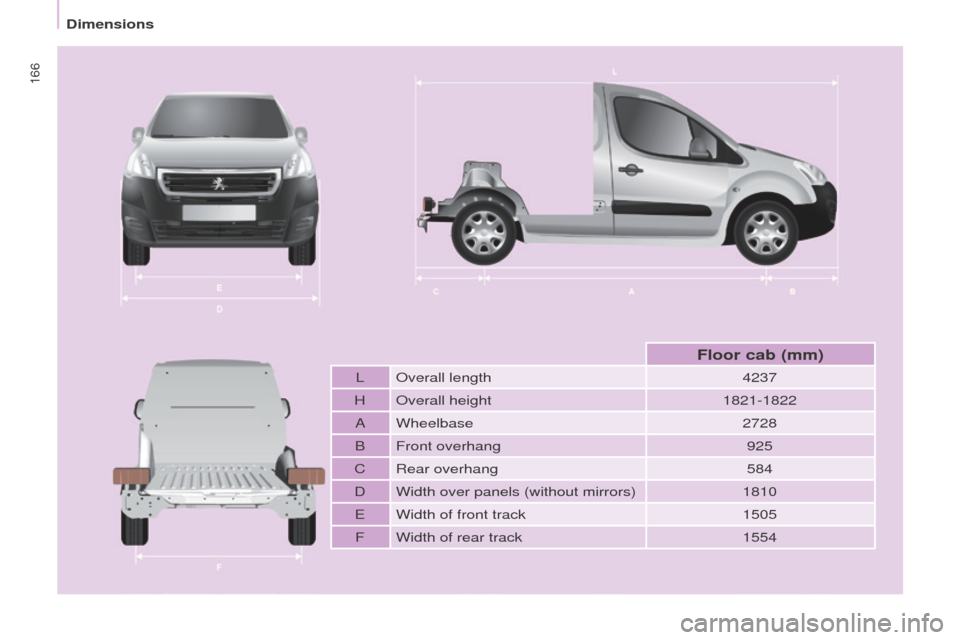
L Overall length4237
H Overall height 1821-1822
A Wheelbase 2728
B Front overhang 925
C Rear overhang 584
D Width over panels (without mirrors) 1810
E Width of front track 1505
F Width of rear track 1554
Floor cab (mm)
Dimensions
Page 171 of 260
169
Partner-2-Vu_en_Chap10a_SMEGplus_ed02-2015
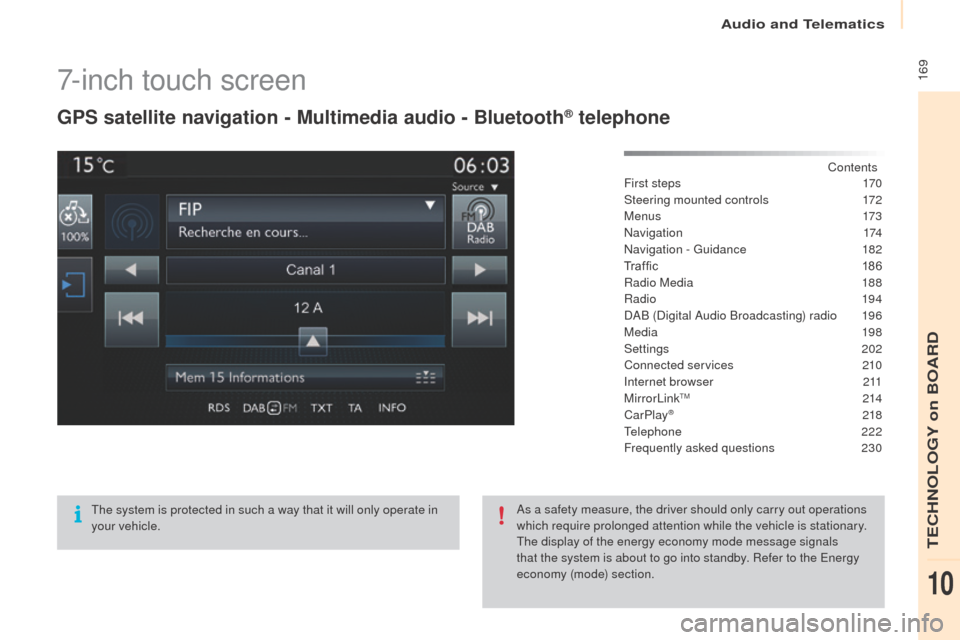
7-inch touch screen
GPS satellite navigation - Multimedia audio - Bluetooth® telephone
Contents
First steps
1 70
Steering mounted controls
1
72
M e n u s
173
Navigation
174
Navigation - Guidance
1
82
Tr a f fi c
1
8 6
Radio Media
1
88
Radio
19 4
DAB (Digital Audio Broadcasting) radio
1
96
Media
19
8
Settings
202
Connected services
2
10
Internet browser
2
11
MirrorLink
TM 2 14
CarPlay® 218
T
elephone
222
Frequently asked questions
23
0
The system is protected in such a way that it will only operate in
your vehicle. As a safety measure, the driver should only carry out operations
which require prolonged attention while the vehicle is stationary.
The display of the energy economy mode message signals
that the system is about to go into standby. Refer to the Energy
economy (mode) section.
Audio and Telematics
TECHNOLOGY on BOARD
10
Page 173 of 260
171
Partner-2-Vu_en_Chap10a_SMEGplus_ed02-2015
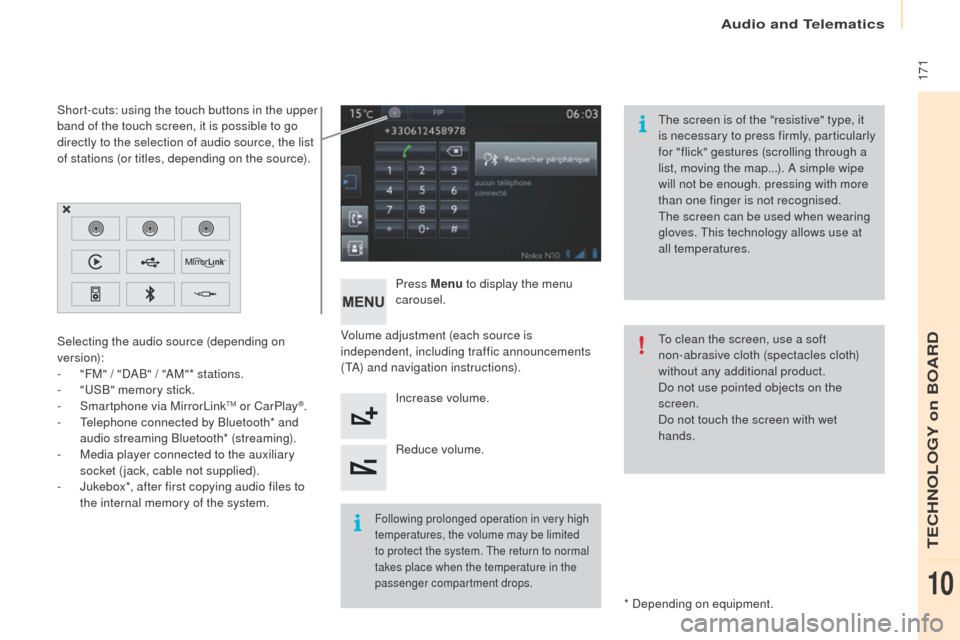
Volume adjustment (each source is
independent, including traffic announcements
(TA) and navigation instructions).Press Menu
to display the menu
carousel.
Increase volume.
Reduce volume.
Selecting the audio source (depending on
version):
-
"
FM" / "DAB" / "AM"* stations.
-
"
USB" memory stick.
-
S
martphone via MirrorLink
TM or CarPlay®.
-
T
elephone connected by Bluetooth* and
audio streaming Bluetooth* (streaming).
-
M
edia player connected to the auxiliary
socket (jack, cable not supplied).
-
J
ukebox*, after first copying audio files to
the internal memory of the system.
* Depending on equipment.
Short-cuts: using the touch buttons in the upper
band of the touch screen, it is possible to go
directly to the selection of audio source, the list
of stations (or titles, depending on the source).
The screen is of the "resistive" type, it
is necessary to press firmly, particularly
for "flick" gestures (scrolling through a
list, moving the map...). A simple wipe
will not be enough. pressing with more
than one finger is not recognised.
The screen can be used when wearing
gloves. This technology allows use at
all temperatures.
Following prolonged operation in very high
temperatures, the volume may be limited
to protect the system. The return to normal
takes place when the temperature in the
passenger compartment drops.
To clean the screen, use a soft
non-abrasive cloth (spectacles cloth)
without any additional product.
Do not use pointed objects on the
screen.
Do not touch the screen with wet
hands.
Audio and Telematics
TECHNOLOGY on BOARD
10
Page 175 of 260
173
Partner-2-Vu_en_Chap10a_SMEGplus_ed02-2015
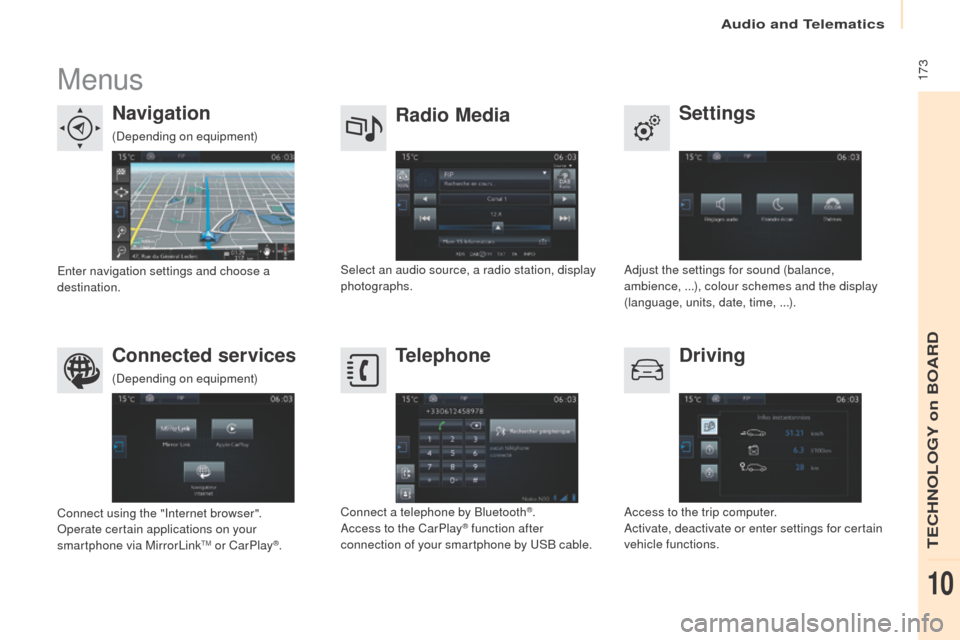
Menus
Settings
Radio Media
Navigation
Driving
Connected services Telephone
Adjust the settings for sound (balance,
ambience,
...), colour schemes and the display
(language, units, date, time,
...).
Select an audio source, a radio station, display
photographs.
Enter navigation settings and choose a
destination.
Access to the trip computer.
Activate, deactivate or enter settings for certain
vehicle functions.
Connect using the "Internet browser".
Operate certain applications on your
smartphone via MirrorLink
TM or CarPlay®. Connect a telephone by Bluetooth
®.
Access to the CarPlay® function after
connection of your smartphone by USB cable.
(Depending on equipment)
(Depending on equipment)
Audio and Telematics
TECHNOLOGY on BOARD
10
Page 191 of 260
189
Partner-2-Vu_en_Chap10a_SMEGplus_ed02-2015
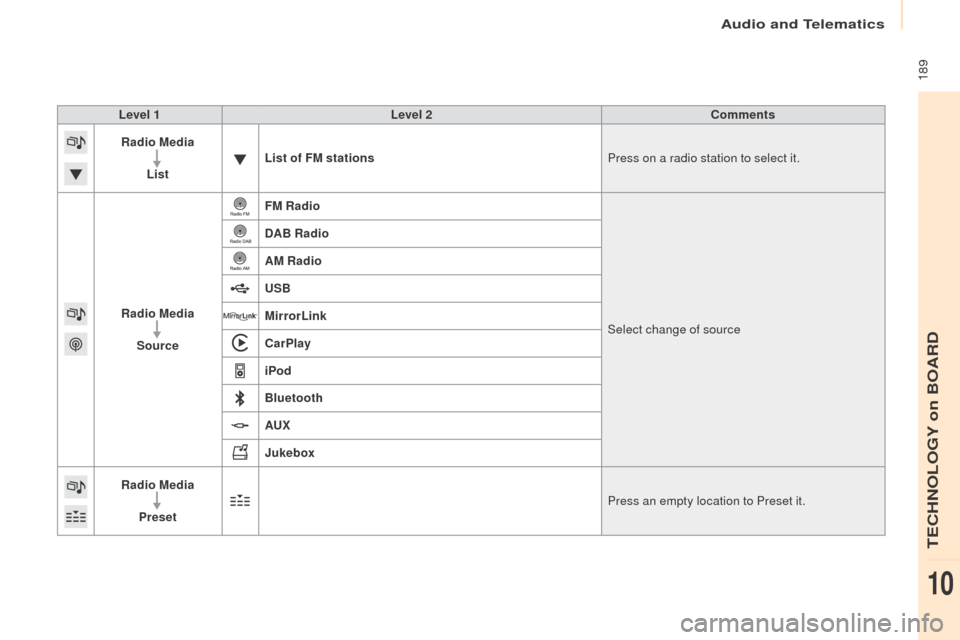
Level 1Level 2 Comments
Radio Media
List List of FM stations
Press on a radio station to select it.
Radio Media Source FM Radio
Select change of source
DAB Radio
AM Radio
USB
MirrorLink
CarPlay
iPod
Bluetooth
AU
x
J
ukebox
Radio Media
Preset Press an empty location to Preset it.
Audio and Telematics
TECHNOLOGY on BOARD
10
Page 216 of 260
214
Partner-2-Vu_en_Chap10a_SMEGplus_ed02-2015
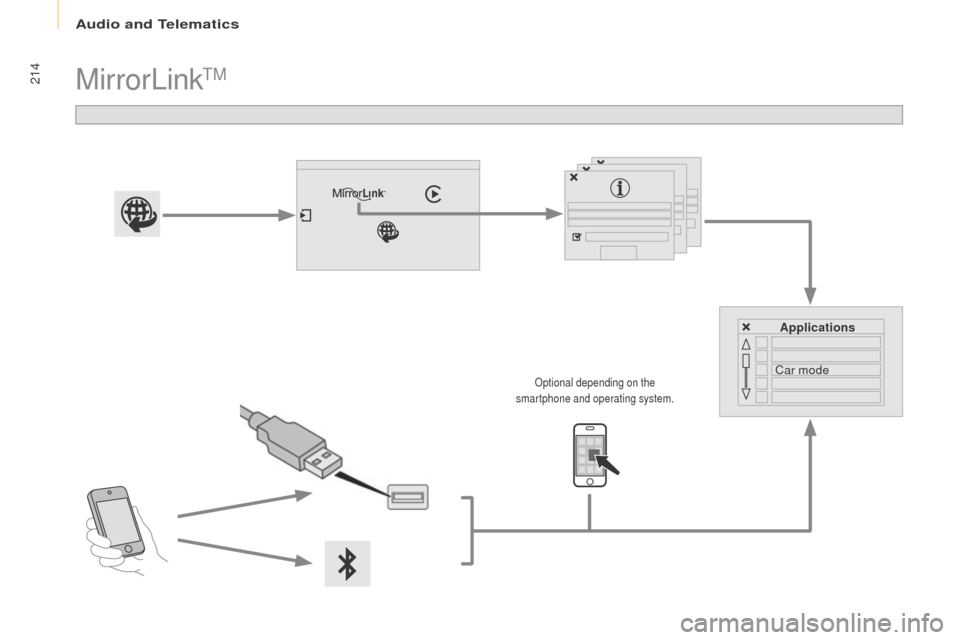
MirrorLinkTM
Applications
Car mode
Optional depending on the
smartphone and operating system.
Audio and Telematics
Page 217 of 260
215
Partner-2-Vu_en_Chap10a_SMEGplus_ed02-2015
As a safety measure and because it
requires sustained attention by the
driver, using a smartphone when
driving is prohibited.
All operations must be done with the
vehicle stationary.
As a safety measure, applications
can only be viewed with the vehicle
stationary; display is interrupted once
the vehicle is moving. The synchronisation of a smartphone
allows applications on a smartphone
that are adapted to the MirrorLink
TM
technology to be displayed in the
vehicle's screen.
As the principles and standards are
constantly evolving, it is recommended
that you update the operating system of
your smartphone.
For the list of eligible smartphones,
connect to the brand's internet website
in your country. Please note:
-
i
f your smartphone is supported, to
make it "MirrorLink
TM" compatible,
some phone manufacturers
nevertheless invite you to first
download a dedicated application.
When connecting a smartphone to
the system, it is recommended that
Bluetooth
® be started on the smartphone
Start the application on the
smartphone (optional, depending
on the smartphone and operating
syste m). During the procedure, several screen
pages relating to certain functions
are displayed.
Accept to start and end the
connection.
Connect a USB cable. The
smartphone charges when
connected by a USB cable. Press "MirrorLink
TM" to start
the application in the system. Once connection is established, an
"
Applications " page is displayed with the
list of applications already downloaded to
your smartphone and adapted to MirrorLink
TM
technology.
If only one application has been downloaded to
the smartphone, it starts automatically.
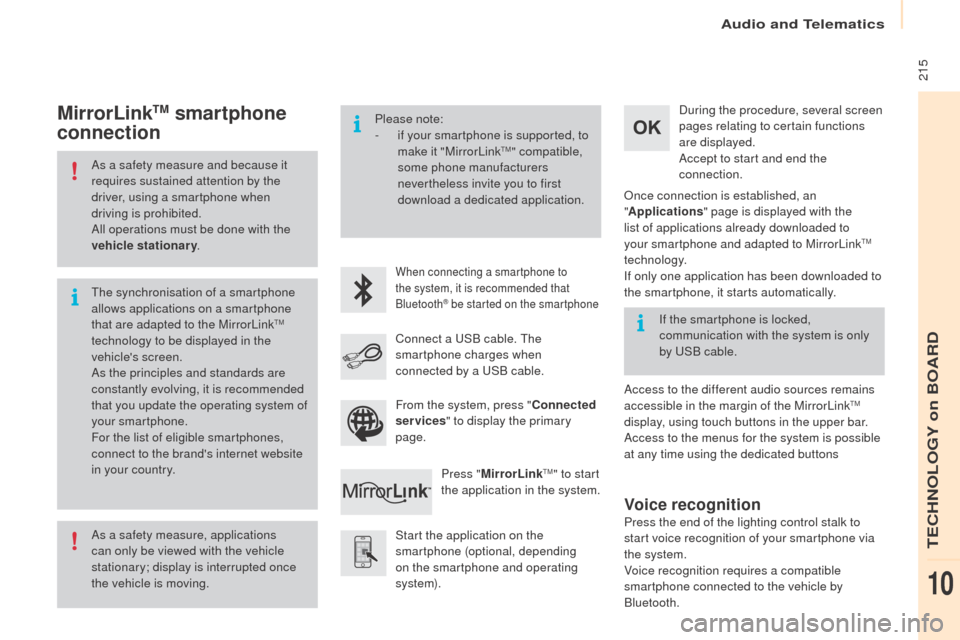
MirrorLinkTM smartphone
connection
Access to the different audio sources remains
accessible in the margin of the MirrorLinkTM
display, using touch buttons in the upper bar.
Access to the menus for the system is possible
at any time using the dedicated buttons If the smartphone is locked,
communication with the system is only
by USB cable.
From the system, press " Connected
services " to display the primary
page.
Voice recognition
Press the end of the lighting control stalk to
start voice recognition of your smartphone via
the system.
Voice recognition requires a compatible
smartphone connected to the vehicle by
Bluetooth.
Audio and Telematics
TECHNOLOGY on BOARD
10
Page 219 of 260
217
Partner-2-Vu_en_Chap10a_SMEGplus_ed02-2015
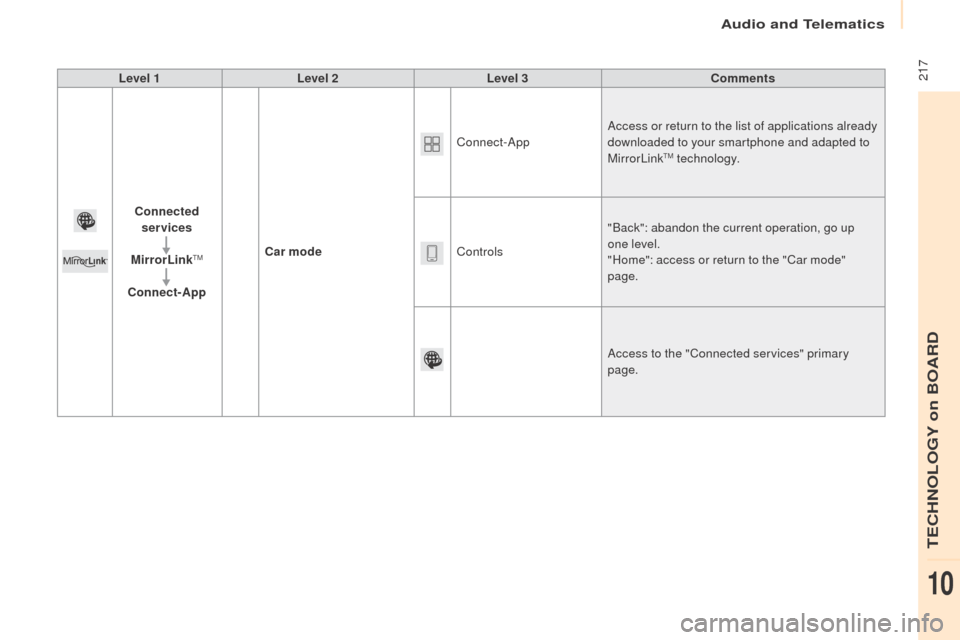
Level 1Level 2 Level 3 Comments
Connected services
MirrorLink
TM
Connect-App Car mode Connect-App
Access or return to the list of applications already
downloaded to your smartphone and adapted to
MirrorLink
TM technology.
Controls "Back": abandon the current operation, go up
one level.
"Home": access or return to the "Car mode"
page.
Access to the "Connected services" primary
page.
Audio and Telematics
TECHNOLOGY on BOARD
10