USB port Peugeot Partner 2019 Owner's Manual
[x] Cancel search | Manufacturer: PEUGEOT, Model Year: 2019, Model line: Partner, Model: Peugeot Partner 2019Pages: 312, PDF Size: 9.56 MB
Page 7 of 312
5
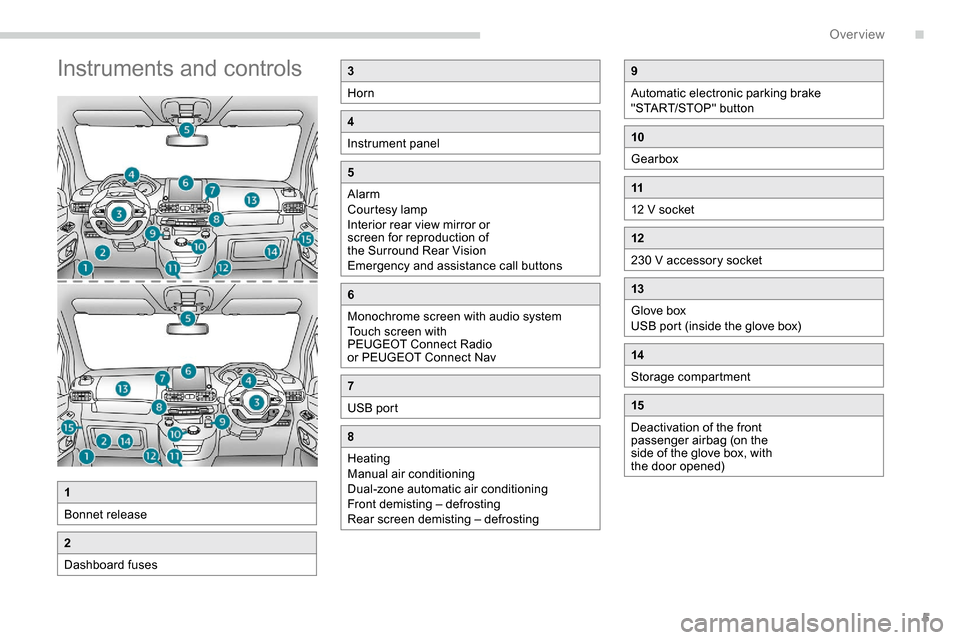
Instruments and controls3
Horn
4
Instrument panel
5
Alarm
Courtesy lamp
Interior rear view mirror or
screen for reproduction of
the Surround Rear Vision
Emergency and assistance call buttons
6
Monochrome screen with audio system
Touch screen with
PEUGEOT Connect Radio
or PEUGEOT Connect Nav
7
USB port
8
Heating
Manual air conditioning
Dual-zone automatic air conditioning
Front demisting – defrosting
Rear screen demisting – defrosting
1
Bonnet release
2
Dashboard fuses
9
Automatic electronic parking brake
"START/STOP" button
10
Gearbox
11
12 V socket
12
230 V accessory socket
13
Glove box
USB port (inside the glove box)
14
Storage compartment
15
Deactivation of the front
passenger airbag (on the
side of the glove box, with
the door opened)
.
Over view
Page 67 of 312
65
Refitting
To refit the mat on the driver's side:
F p osition the mat correctly,
F
r
eattach the fixings by pressing,
F
c
heck that the mat is secured correctly.
To avoid any risk of jamming the pedals:
-
o
nly use mats which are suited to the
fixings already present in the vehicle;
these fixings must be used.
-
n
ever place one mat on top of another.
The use of mats not approved by
PEUGEOT may inter fere with access to
the pedals and hinder the operation of the
cruise control/speed limiter.
The mats approved by PEUGEOT have
two fixings located below the seat.
Overhead storage unit
It is located above the sun visors and can be
used to store various objects.
12 V socket(s)
(Depending on version.)
F
T
o connect a 12 V accessory (maximum
power: 120 watts), lift the cover and plug in
the correct adapter.
Do not exceed the maximum power rating
of the socket (other wise there is a risk of
damaging your portable device).
The connection of an electrical device
not approved by PEUGEOT, such as a
USB charger, may adversely affect the
operation of vehicle electrical systems,
causing faults such as poor radio
reception or inter ference with displays in
the screens.
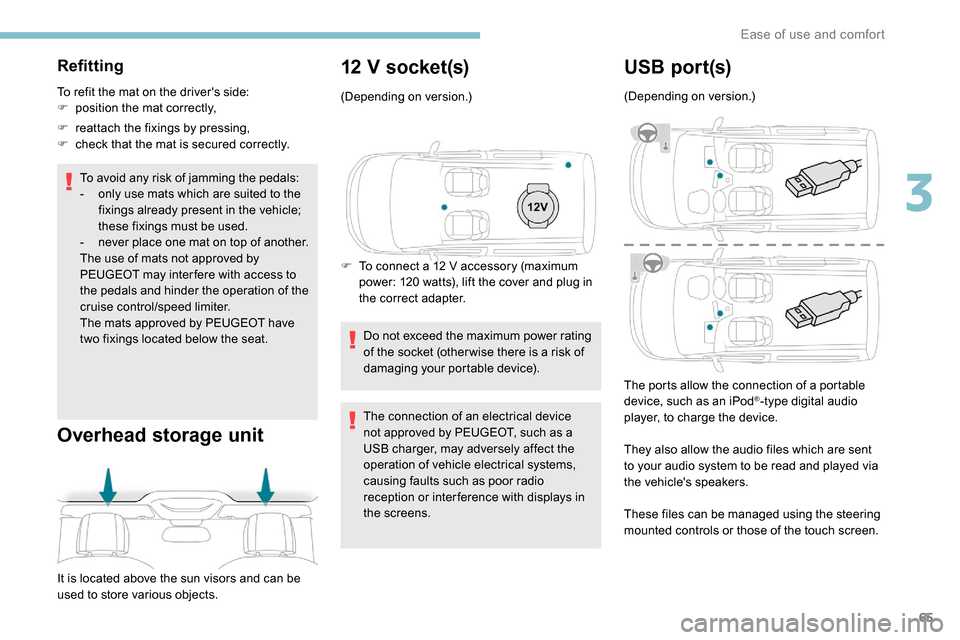
USB por t(s)
(Depending on version.)
The ports allow the connection of a portable
device, such as an iPod
®-type digital audio
player, to charge the device.
They also allow the audio files which are sent
to your audio system to be read and played via
the vehicle's speakers.
These files can be managed using the steering
mounted controls or those of the touch screen.
3
Ease of use and comfort
Page 68 of 312
66
AC 220V
50Hz120W
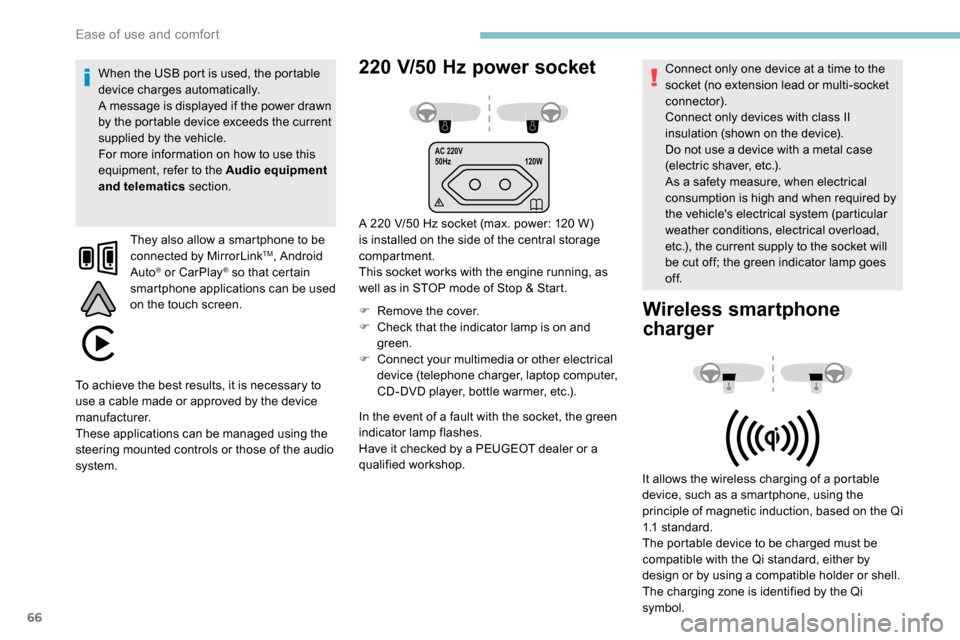
220 V/50 Hz power socket
A 220 V/50 Hz socket (max. power: 120 W)
i s installed on the side of the central storage
compartment.
This socket works with the engine running, as
well as in STOP mode of Stop & Start.
F
R
emove the cover.
F
C
heck that the indicator lamp is on and
green.
F
C
onnect your multimedia or other electrical
device (telephone charger, laptop computer,
CD-DVD player, bottle warmer, etc.).
When the USB port is used, the portable
device charges automatically.
A message is displayed if the power drawn
by the portable device exceeds the current
supplied by the vehicle.
For more information on how to use this
equipment, refer to the Audio equipment
and telematics
section.
They also allow a smartphone to be
connected by MirrorLink
TM, Android
Auto® or CarPlay® so that certain
smartphone applications can be used
on the touch screen.
In the event of a fault with the socket, the green
indicator lamp flashes.
Have it checked by a PEUGEOT dealer or a
qualified workshop. Connect only one device at a time to the
socket (no extension lead or multi-socket
connector).
Connect only devices with class II
insulation (shown on the device).
Do not use a device with a metal case
(electric shaver, etc.).
As a safety measure, when electrical
consumption is high and when required by
the vehicle's electrical system (particular
weather conditions, electrical overload,
etc.), the current supply to the socket will
be cut off; the green indicator lamp goes
of f.
Wireless smartphone
charger
It allows the wireless charging of a portable
device, such as a smartphone, using the
principle of magnetic induction, based on the Qi
1.1 standard.
The portable device to be charged must be
compatible with the Qi standard, either by
design or by using a compatible holder or shell.
The charging zone is identified by the Qi
symbol.
To achieve the best results, it is necessary to
use a cable made or approved by the device
manufacturer.
These applications can be managed using the
steering mounted controls or those of the audio
system.
Ease of use and comfort
Page 204 of 312
202
Fuse No.Rating (A) Functions
F1 10Wireless smartphone charger, electrochrome interior mirror.
F4 15Horn.
F6 20Screenwash pump.
F7 1012
V socket (rear).
F10 30Electric locks module.
F13 10Telematics and radio controls.
F14 5Alarm, overload indicator, advanced telematic unit.
F19 3Trailer inter face unit.
F22 3Surround Rear Vision display screen.
F23 5Generic trailer interface unit.
F27 5Additional heating.
F29 20Audio system, touch screen.
F32 1512
V socket (front).
F34 5Mirrors control.
F36 5USB port.
For more information on installing a
towbar or equipment of the TA XI type,
contact a PEUGEOT dealer.
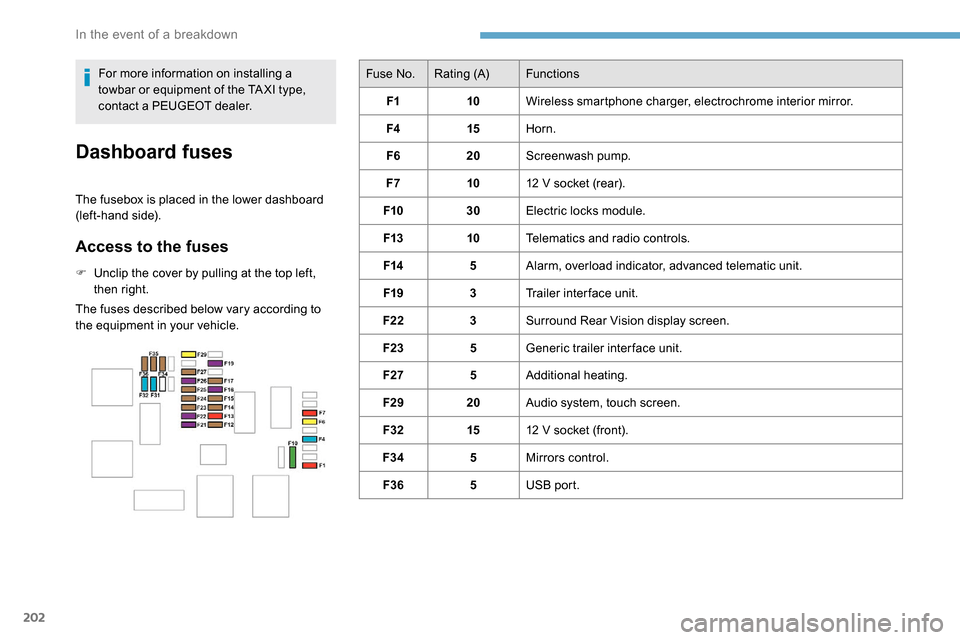
Dashboard fuses
The fusebox is placed in the lower dashboard
(left-hand side).
Access to the fuses
F Unclip the cover by pulling at the top left,
then right.
The fuses described below vary according to
the equipment in your vehicle.
In the event of a breakdown
Page 225 of 312
5
The RDS, if activated, enables you to continue
listening to the same station by automatic
retuning to alternative frequencies. However,
in certain conditions, coverage of an RDS
station may not be assured throughout the
entire country as radio stations do not cover
100% of the territory. This explains the loss of
reception of the station during a journey.
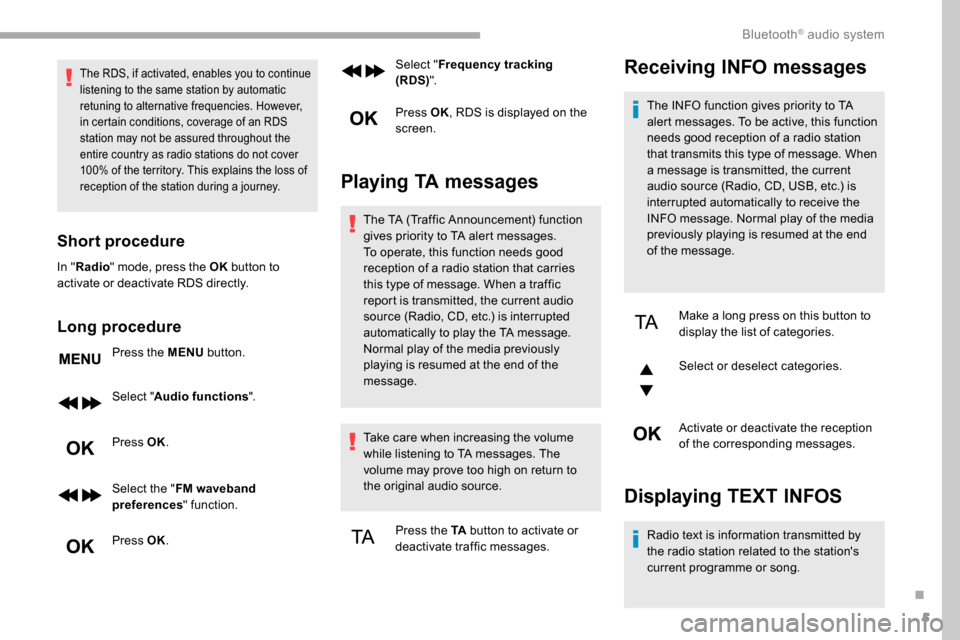
Short procedure
In "Radio " mode, press the OK button to
activate or deactivate RDS directly.
Long procedure
Press the MENU button.
Select " Audio functions ".
Press OK.
Select the " FM waveband
preferences " function.
Press OK. Select "
Frequency tracking
(RDS) ".
Press OK , RDS is displayed on the
screen.
Playing TA messages
The TA (Traffic Announcement) function
gives priority to TA alert messages.
To operate, this function needs good
reception of a radio station that carries
this type of message. When a traffic
report is transmitted, the current audio
source (Radio, CD, etc.) is interrupted
automatically to play the TA message.
Normal play of the media previously
playing is resumed at the end of the
message.
Take care when increasing the volume
while listening to TA messages. The
volume may prove too high on return to
the original audio source.
Press the TA button to activate or
deactivate traffic messages.
Receiving INFO messages
The INFO function gives priority to TA
alert messages. To be active, this function
needs good reception of a radio station
that transmits this type of message. When
a message is transmitted, the current
audio source (Radio, CD, USB, etc.) is
interrupted automatically to receive the
INFO message. Normal play of the media
previously playing is resumed at the end
of the message.
Make a long press on this button to
display the list of categories.
Select or deselect categories.
Activate or deactivate the reception
of the corresponding messages.
Displaying TEXT INFOS
Radio text is information transmitted by
the radio station related to the station's
current programme or song.
.
Bluetooth® audio system
Page 227 of 312
7
DAB/FM station tracking
"DAB" does not have 100% coverage of
the country.
When the digital signal is weak,
"DAB / FM auto tracking" allows you to
continue listening to the same station,
by automatically switching to the
corresponding analogue FM station (if it
ex i st s).
When the "DAB
/ FM auto tracking" is
active, the DAB station will be selected
automatically.
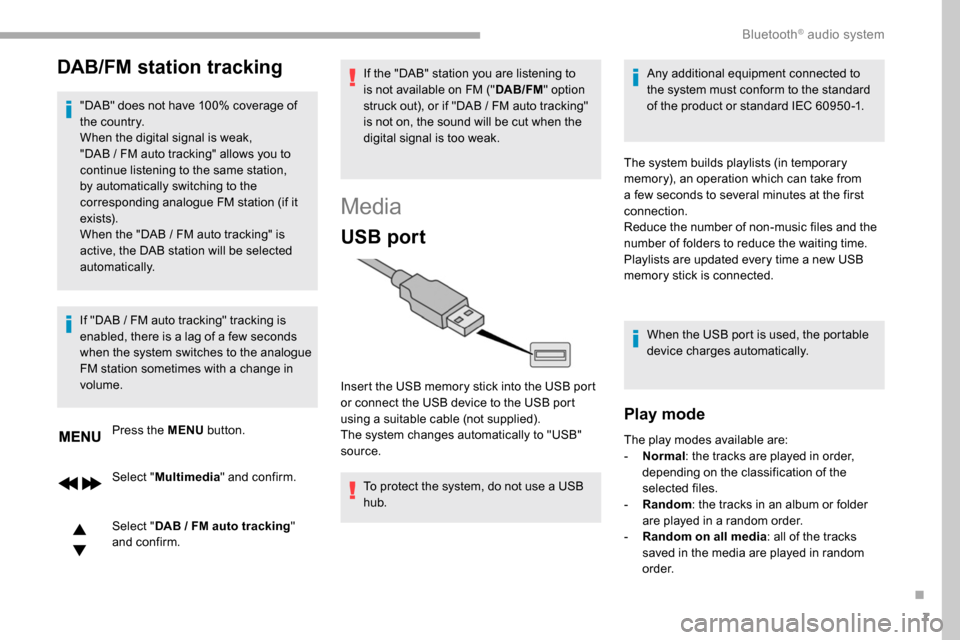
Press the MENU button.
Select " Multimedia " and confirm.
Select " DAB
/ FM auto tracking"
and confirm.
If "DAB
/ FM auto tracking" tracking is
enabled, there is a lag of a few seconds
when the system switches to the analogue
FM station sometimes with a change in
volume. If the "DAB" station you are listening to
is not available on FM ("
DAB/FM" option
struck out), or if "DAB / FM auto tracking"
is not on, the sound will be cut when the
digital signal is too weak.
Media
USB port
To protect the system, do not use a USB
hub. Any additional equipment connected to
the system must conform to the standard
of the product or standard IEC 60950 -1.
Insert the USB memory stick into the USB port
or connect the USB device to the USB port
using a suitable cable (not supplied).
The system changes automatically to "USB"
source. The system builds playlists (in temporary
memory), an operation which can take from
a few seconds to several minutes at the first
connection.
Reduce the number of non-music files and the
number of folders to reduce the waiting time.
Playlists are updated every time a new USB
memory stick is connected.
When the USB port is used, the portable
device charges automatically.
Play mode
The play modes available are:
- No rmal: the tracks are played in order,
depending on the classification of the
selected files.
-
Ra
ndom: the tracks in an album or folder
are played in a random order.
-
R
andom on all media: all of the tracks
saved in the media are played in random
o r d e r.
.
Bluetooth® audio system
Page 228 of 312
8
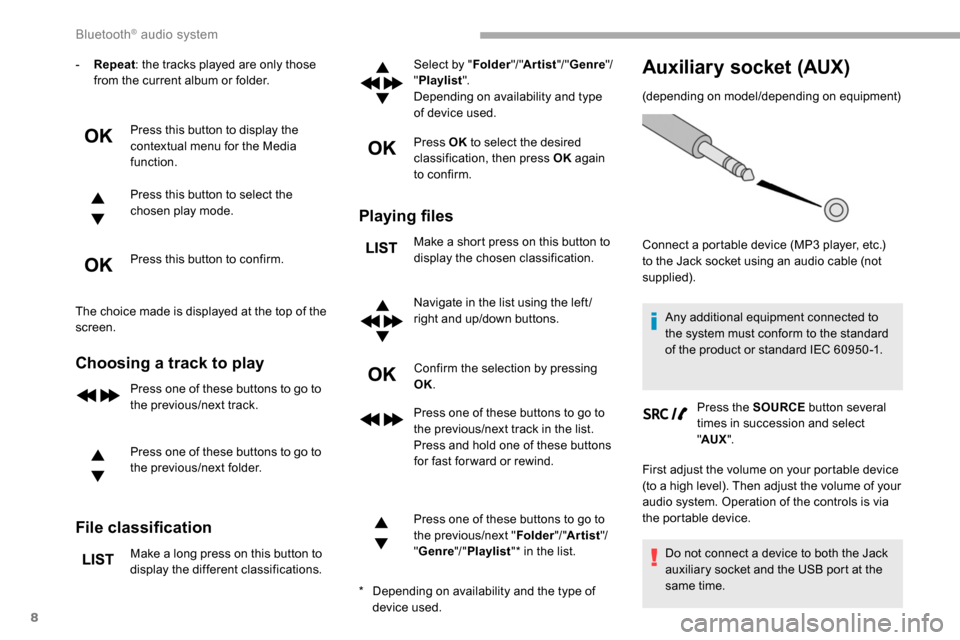
- Repeat: the tracks played are only those
from the current album or folder.
Press this button to display the
contextual menu for the Media
function.
Press this button to select the
chosen play mode.
Press this button to confirm.
The choice made is displayed at the top of the
screen.
Choosing a track to play
Press one of these buttons to go to
the previous/next track.
Press one of these buttons to go to
the previous/next folder.
File classification
Make a long press on this button to
display the different classifications. Select by "
Folder"/ "Artist "/ "Genre "/
" Playlist ".
Depending on availability and type
of device used.
Press OK to select the desired
classification, then press OK again
to confirm.
Playing files
Make a short press on this button to
display the chosen classification.
Navigate in the list using the left /
right and up/down buttons.
Confirm the selection by pressing
OK.
Press one of these buttons to go to
the previous/next track in the list.
Press and hold one of these buttons
for fast for ward or rewind.
Press one of these buttons to go to
the previous/next " Folder"/ "Artist "/
" Genre "/ "Playlist "* in the list.
Auxiliary socket (AUX)
(depending on model/depending on equipment)
*
D
epending on availability and the type of
device used. Connect a portable device (MP3 player, etc.)
to the Jack socket using an audio cable (not
supplied).
Any additional equipment connected to
the system must conform to the standard
of the product or standard IEC 60950 -1.
Press the SOURCE button several
times in succession and select
" AUX ".
First adjust the volume on your portable device
(to a high level). Then adjust the volume of your
audio system. Operation of the controls is via
the portable device.
Do not connect a device to both the Jack
auxiliary socket and the USB port at the
same time.
Bluetooth® audio system
Page 229 of 312
9
CD player
Insert circular compact discs only.
Some anti-pirating systems, on original discs
or CDs copied using a personal recorder, may
cause faults which are no reflection on the
quality of the original player.
Insert a CD in the player, play begins
automatically.External CD players connected via the
USB port are not recognised by the
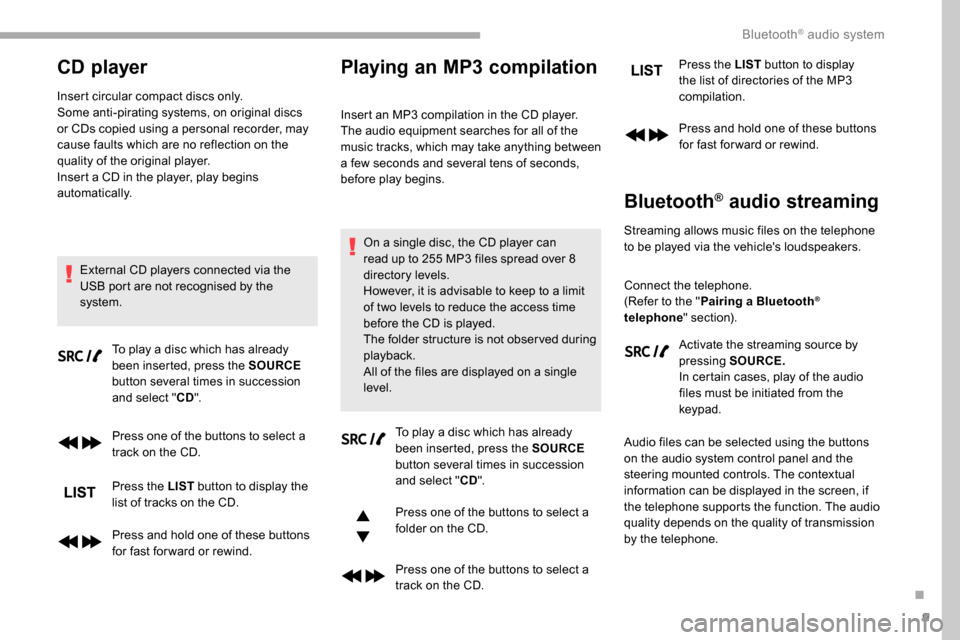
system. To play a disc which has already
been inserted, press the SOURCE
button several times in succession
and select " CD".
Press one of the buttons to select a
track on the CD.
Press the LIST button to display the
list of tracks on the CD.
Press and hold one of these buttons
for fast for ward or rewind.
Playing an MP3 compilation
Insert an MP3 compilation in the CD player.
The audio equipment searches for all of the
music tracks, which may take anything between
a few seconds and several tens of seconds,
before play begins.
On a single disc, the CD player can
read up to 255 MP3 files spread over 8
directory levels.
However, it is advisable to keep to a limit
of two levels to reduce the access time
before the CD is played.
The folder structure is not obser ved during
playback.
All of the files are displayed on a single
level. To play a disc which has already
been inserted, press the SOURCE
button several times in succession
and select " CD".
Press one of the buttons to select a
folder on the CD.
Press one of the buttons to select a
track on the CD. Press the LIST
button to display
the list of directories of the MP3
compilation.
Press and hold one of these buttons
for fast for ward or rewind.
Bluetooth® audio streaming
Streaming allows music files on the telephone
to be played via the vehicle's loudspeakers.
Connect the telephone.
(Refer to the " Pairing a Bluetooth
®
telephone " section).
Activate the streaming source by
pressing SOURCE.
In certain cases, play of the audio
files must be initiated from the
keypad.
Audio files can be selected using the buttons
on the audio system control panel and the
steering mounted controls. The contextual
information can be displayed in the screen, if
the telephone supports the function. The audio
quality depends on the quality of transmission
by the telephone.
.
Bluetooth® audio system
Page 230 of 312
10
Connecting Apple® players
Connect the Apple® player to the USB port
using a suitable cable (not supplied).
Play starts automatically.
Control is via the audio system.
The classifications available are those of the
portable device connected (artists/albums/
genres/playlists).
The version of software in the audio system
may not be compatible with the generation of
your Apple
® p l aye r.
Information and advice
The CD player can play files with “.mp3",
“.wma", “.wav" and “.aac" file extensions, with a
bit rate of 32 to 320
Kbps.
It also supports TAG mode (ID3 tag, WMA
TAG) .
No other file types (“.mp"4, etc.) can be read.
Files of the ".wma" type should be to the wma
9 standard.
The sampling rates supported are 11, 22, 44
and 48
kHz. Files of the ".wma" type should be to the wma
9 standard.
The sampling rates supported are 11, 22, 44
and 48
kHz.
File names should have fewer than 20
characters, avoiding special characters (e.g.
« ? ; ù) so as to avoid any reading or display
problems.
In order to be able to play a burned CDR or
CDRW, select standards ISO 9660 level 1, 2, or
Joliet, if possible, when burning the CD.
If the disc is burned in another format, it may
not be played correctly.
It is recommended that the same burning
standard be always used on an individual disc,
with the lowest speed possible (4x maximum)
for the best acoustic quality.
In the particular case of a multi-session CD, the
Joliet standard is recommended.
To protect the system, do not use a USB hub.
Use only USB memory sticks formatted
FAT 32 (File Allocation Table).
Via the USB port, the system can play audio
files with the extension ".mp3", “.wma", “.wav",
“.cbr", “.vbr" with a bit rate of 32 to 320
Kbps.
No other file types (“.mp4", etc.) can be read. It is recommended that you use genuine
Apple
® USB cables for correct operation.
Telephone
Pairing a Bluetooth®
telephone
As a safety measure and because they
require prolonged attention on the part
of the driver, the operations for pairing
of the Bluetooth mobile telephone with
the Bluetooth hands-free system of your
audio system must be carried out with the
vehicle stationary and the ignition on.
Activate the telephone's Bluetooth
function and ensure that it is "visible to all"
(telephone configuration).
The services available depend on
the network, the SIM card and the
compatibility of the Bluetooth telephone
used.
Check the instructions for your telephone
and with your ser vice provider for the
ser vices to which you have access.
Bluetooth® audio system
Page 237 of 312
17
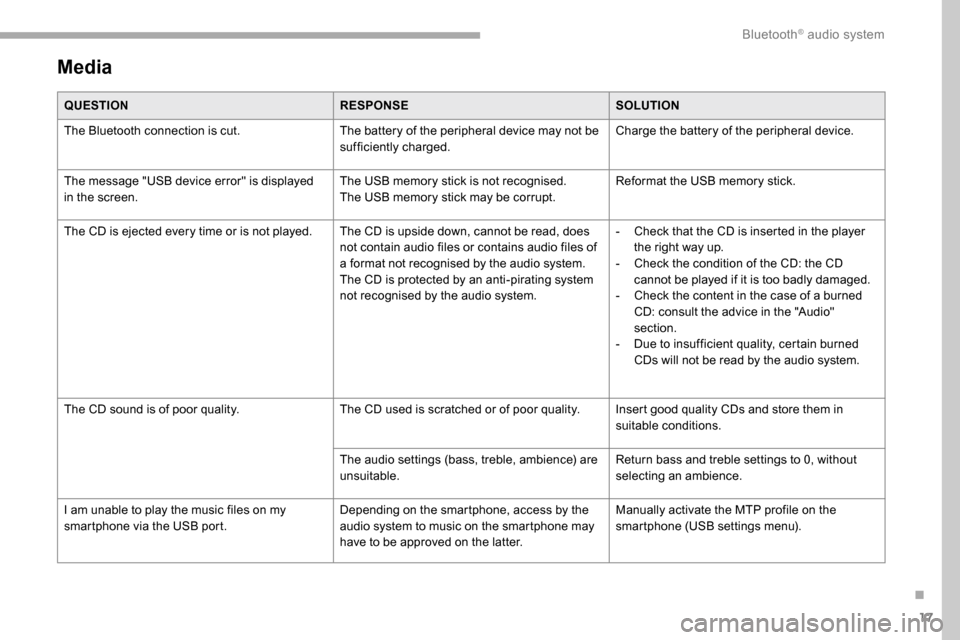
Media
QUESTIONRESPONSESOLUTION
The Bluetooth connection is cut. The battery of the peripheral device may not be
sufficiently charged.Charge the battery of the peripheral device.
The message "USB device error" is displayed
in the screen. The USB memory stick is not recognised.
The USB memory stick may be corrupt.Reformat the USB memory stick.
The CD is ejected every time or is not played. The CD is upside down, cannot be read, does not contain audio files or contains audio files of
a format not recognised by the audio system.
The CD is protected by an anti-pirating system
not recognised by the audio system.-
C
heck that the CD is inserted in the player
the right way up.
-
C
heck the condition of the CD: the CD
cannot be played if it is too badly damaged.
-
C
heck the content in the case of a burned
CD: consult the advice in the "Audio"
section.
-
D
ue to insufficient quality, certain burned
CDs will not be read by the audio system.
The CD sound is of poor quality. The CD used is scratched or of poor quality. Insert good quality CDs and store them in
suitable conditions.
The audio settings (bass, treble, ambience) are
unsuitable. Return bass and treble settings to 0, without
selecting an ambience.
I am unable to play the music files on my
smartphone via the USB port. Depending on the smartphone, access by the
audio system to music on the smartphone may
have to be approved on the latter.Manually activate the MTP profile on the
smartphone (USB settings menu).
.
Bluetooth® audio system