window Peugeot Partner 2020 Owner's Guide
[x] Cancel search | Manufacturer: PEUGEOT, Model Year: 2020, Model line: Partner, Model: Peugeot Partner 2020Pages: 260, PDF Size: 7.76 MB
Page 208 of 260
206
PEUGEOT Connect Nav
step. There's more information available in
"novice" mode. You can set the dialogue mode to
"expert" when you feel comfortable.
Global voice commands
Voice commands
Set dialogue mode as novice - expert
Select user 1 / Select profile John
Increase temperature
Decrease temperature
Help messages
There are lots of topics I can help you with.
You can say: "help with phone", "help with
navigation", "help with media" or "help with
radio". For an overview on how to use voice
controls, you can say "help with voice controls".
Say "yes" if I got that right. Otherwise, say "no"
and we'll start that again.
"Navigation" voice
commands
Voice commands
Navigate home
Navigate to work
Navigate to preferred address, Tennis club
Navigate to contact, John Miller
Navigate to address 11 regent street, London
Help messages
Voice commands
Steering wheel-mounted
controls
Voice commands:
Voice commands can be issued from any
screen page after a short press on the "Voice
commands" button located on the steering
wheel or at the end of the lighting control stalk
(depending on equipment), as long as there is no
telephone call in progress.
To ensure that voice commands are always recognised by the system, please
follow these recommendations:
–
use natural language in a normal tone
without breaking up words or raising your
voice.
–
always wait for the "beep" (audible signal)
before speaking.
–
for best results, closing the windows and
sunroof is recommended, to avoid extraneous
interference (depending on version).
–
before issuing a voice command, ask any
other passengers to refrain from speaking.
First steps
Example of a "voice command" for
navigation:
"Navigate to address 11 regent street,
London"
Example of a "voice command" for the radio and
media:
"Play artist Madonna"
Example of a "voice command" for the
telephone:
"Call David Miller"
The voice commands, with a choice of 17 languages (Arabic, Brazilian, Czech,
Danish, Dutch, English, Farsi, French,
German, Italian, Norwegian, Polish,
Portuguese, Russian, Spanish, Swedish,
Turkish), are made using the language
previously chosen and set in the system.
For some voice commands, there are
alternative synonyms.
Example: Guide to / Navigate to / Go to / ...
The voice commands in Arabic for: "Navigate
to address" and "Display POI in the city", are
not available.
Information - Using the
system
When voice commands are activated, by
briefly pressing the button, help is
displayed on the touch screen, offering various
menus and enabling voice-based interaction with
the system.
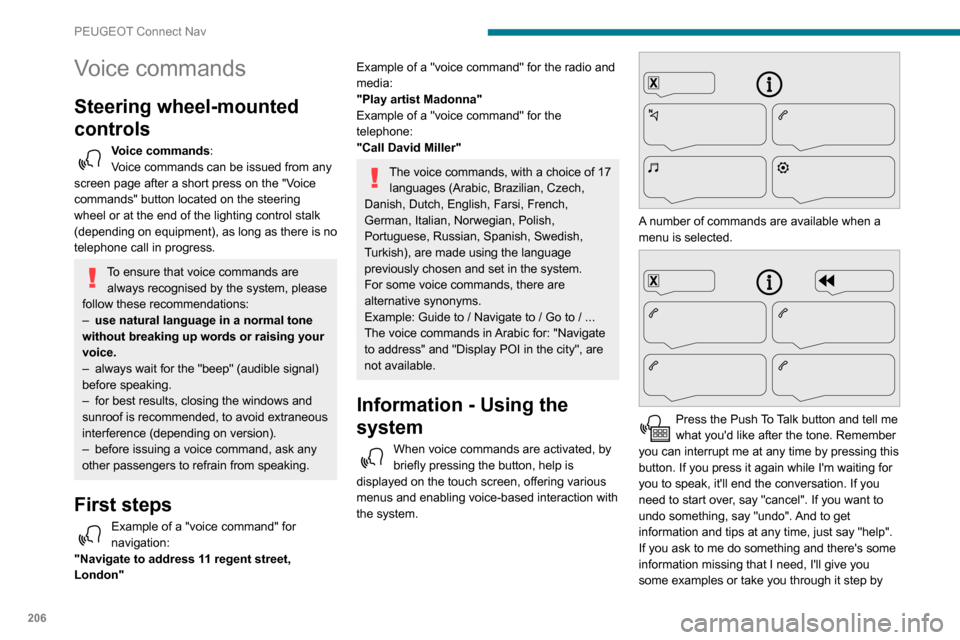
A number of commands are available when a
menu is selected.
Press the Push To Talk button and tell me
what you'd like after the tone. Remember
you can interrupt me at any time by pressing this
button. If you press it again while I'm waiting for
you to speak, it'll end the conversation. If you
need to start over, say "cancel". If you want to
undo something, say "undo". And to get
information and tips at any time, just say "help".
If you ask to me do something and there's some
information missing that I need, I'll give you
some examples or take you through it step by
Page 228 of 260
226
PEUGEOT Connect Nav
Settings
When the treble and bass settings are
changed, the ambience is deselected.
When the ambience is changed, the treble
and bass settings are reset.
Selecting an ambience imposes the treble and
bass settings, and vice versa.
► Modify the treble and bass or ambience
settings to obtain the desired musical ambience.
When the balance settings are changed, the
distribution is deselected.
When the distribution setting is changed, the
balance settings are deselected.
Selecting a distribution setting imposes the
balance settings, and vice versa.
► Modify the balance setting or the distribution
setting to obtain the desired sound quality.
There is a difference in sound quality
between audio sources.
To allow for optimal listening quality, the sound
settings can be tailored to different audio
sources, which can generate audible differences
when changing source.
► Check that the sound settings are appropriate
to the sources listened to. We recommend
setting the sound functions (Bass:, Treble:,
Balance) to the middle position, setting the
musical ambience to "None", setting loudness
correction to "Active" in USB mode and "Inactive"
in Radio mode.
► In all cases, after applying sound settings,
adjust the volume level on the portable device (to
The aerial is missing or has been damaged
(for example while entering a car wash or
underground car park).
►
Have the aerial checked by a dealer
.
The environment (hills, buildings, tunnels,
basement car parks, etc.) is blocking reception,
including in RDS mode.
This is a perfectly normal phenomenon, and is
not indicative of an audio system malfunction.
I cannot find some radio stations in the list of
stations received.
The name of the radio station changes.
The station is no longer received or its name has
changed in the list.
Some radio stations send other information
in place of their name (the title of the song for
example).
The system interprets these details as the station
name.
►
Press the "Update list" button in the "Radio
stations” secondary menu.
Media
Playback of my USB memory stick starts only
after a very long wait (around 2 to 3 minutes).
Some files supplied with the memory stick may
greatly slow down access to reading the memory
stick (multiplication by 10 of the cataloguing
time).
►
Delete the files supplied with the memory
stick and limit the number of sub-folders in the
file structure on the memory stick. There may be an extended pause after
inserting a USB stick.
The system reads a variety of data (folder
, title,
artist, etc.). This can take from a few seconds to
a few minutes.
This is perfectly normal.
Some characters in information about the
currently playing media may not be displayed
correctly.
The audio system is unable to process certain
types of character.
►
Use standard characters to name tracks and
folders.
Playback of streaming files does not start.
The connected device does not automatically
launch playback.
►
Start playback from the device.
T
rack names and playing times are not
displayed on the audio streaming screen.
The Bluetooth profile does not allow the transfer
of this information.
Telephone
I cannot connect my Bluetooth telephone.
The telephone's Bluetooth function may be
switched off or the telephone may not be visible.
►
Check that the telephone has Bluetooth
switched on.
►
Check in the telephone settings that it is
"visible to all".
►
Deactivate then reactivate the telphone’
s
Bluetooth function. The Bluetooth telephone is not compatible with
the system.
►
Y
ou can check that your telephone is
compatible on the Brand's website (services).
The volume of the telephone connected in
Bluetooth mode is inaudible.
The volume depends on both the system and the
telephone.
►
Increase the volume of the audio system, to
maximum if required, and increase the volume of
the telephone if necessary
.
Ambient noise affects the quality of the
telephone call.
►
Reduce the ambient noise level (close
windows, reduce ventilation, slow down, etc.).
Some contacts are duplicated in the list.
The options for synchronising contacts are:
synchronise the contacts on the SIM card, the
contacts on the telephone, or both. When both
synchronisations are selected, some contacts
may be duplicated.
►
Select "Display SIM card contacts" or
"Display telephone contacts".
The contacts are not listed in alphabetical
order
.
Some telephones offer display options.
Depending on the settings chosen, contacts can
be transferred in a specific order.
►
Modify the telephone directory display
settings.
The system does not receive SMS.
SMS text messages cannot be sent to the
system in Bluetooth mode.
Page 231 of 260
229
Alphabetical index
Checking tyre pressures
(using the kit)
151, 153
Checks
142–143, 144–145
Checks, routine
144–145
Child lock
89
Children
80, 87
Children (safety)
89
Child seats
80, 84–85, 87
Child seats, conventional
86
Cleaning (advice)
148–149
Closing the doors
24, 29
Collision Risk Alert
118–119
Connected applications
216
Connection, Bluetooth
184, 197–198,
216, 220–221
Connection, MirrorLink
196–197, 215
Connection, Wi-Fi network
216–217
Connectivity
214
Container, AdBlue®
147
Control, emergency boot release
31
Control, emergency door
24, 30
Control, heated seats
42
Control stalk, lighting
63, 65
Control stalk, wipers
67–69
Courtesy lamp
62
Courtesy lamp, front
62
Courtesy lamp, rear
62
Courtesy lamps
62
Cruise control
109, 112–114, 117–118
Cruise control, adaptive
11 4
Cruise control by speed limit recognition
109
Cruise control, dynamic with Stop function
109Cup holder 47
D
DAB (Digital Audio Broadcasting) -
Digital radio
180, 194–195, 218
Date (setting)
200, 224
Daytime running lamps
65, 157–158
Daytime running lamps, LED
159
Deactivating the passenger airbag
82, 86
Deactivation of DSC (ESC)
76
Deadlocking
29–30
Defrosting
43, 58–59
Demisting
58–59
Demisting, rear
43, 59
Demisting, rear screen
43, 59
Dimensions
169
Dipstick
142
Direction indicators
64–65, 157, 159–160
Doors, side
35
Doors, side-hinged
29–30
Driver’s attention warning
126
Driving
90
Driving abroad
64
Driving aids camera (warnings)
106
Driving aids (recommendations)
105
Driving economically
7
Dynamic stability control (DSC)
75, 77
E
EBFD 75
Eco-driving (advice)
7
Economy mode
139
Electric windows
39
Electronic brake force distribution
(EBFD)
75–76
Emergency braking assistance (EBA)
75
Emergency call
71–73
Emergency warning lamps
74
Emissions control system, SCR
146
Energy economy mode
139
Engine compartment
142–143
Engine, Diesel
134, 142, 150, 174–175
Engine, petrol
142, 173
Engines
173–175
Environment
7, 32, 62
ESC (electronic stability control)
75
Expanded traffic sign recognition
11 0
F
Fatigue detection 126
Filling the AdBlue® tank
144, 147
Filling the fuel tank
134–135
Filter, air
144
Filter, oil
144
Filter, particle
144–145
Filter, passenger compartment
55, 144
Finisher
156
Page 235 of 260
233
Alphabetical index
Three flashes (direction indicators) 64
Time (setting)
200, 224
TMC (Traffic info)
2 11
Tools
150
Topping-up AdBlue®
147
Towbar
76, 136–137
Towed loads
173–175
Towing another vehicle
167–168
Towing device
137
Towing eye
168
Traction control (ASR)
75, 77
Traffic information (TA)
179
Traffic information (TMC)
2 11
Trailer
76, 136
Trailer stability assist (TSA)
76
Trajectory control systems
75–76
Trip computer
21–22
Type of bulbs
157
Tyres
145, 176
Tyre under-inflation detection
104, 153
U
Under-inflation (detection) 104
Unlocking
24, 26–28
Unlocking from the inside
33–34
Unlocking, selective
26–27
Unlocking, total
26–27
Updating the date
200, 224
Updating the time
200, 224
USB
181, 195, 214, 219
V
Ventilation 55–56, 60–61
Video
219
Voice commands
206–208
W
Warning and indicator lamps 11
Warning lamp, driver''s seat belt
not fastened
80
Warning lamps
11
Warning lamp, seat belts
80
Warnings and indicators
11
Washer jets, heated
59
Washing
106
Washing (advice)
148–149
Weights
173–175
Welcome lighting
25
Wheel,
spare
104, 145, 150–151, 153–154, 156
Windows, rear doors
39
Windscreen, heated
59
Windscreen wipers
67
Wiper blades (changing)
68–69
Wiper, rear
68
Wipers
67, 69
Wipers, automatic rain sensitive
67, 69