display Peugeot Partner Tepee 2015 Owner's Guide
[x] Cancel search | Manufacturer: PEUGEOT, Model Year: 2015, Model line: Partner Tepee, Model: Peugeot Partner Tepee 2015Pages: 276, PDF Size: 12.76 MB
Page 154 of 276
152
Partner_2_VP_en_Chap07_Verification_ed02-2014
In the event of a fault with the the
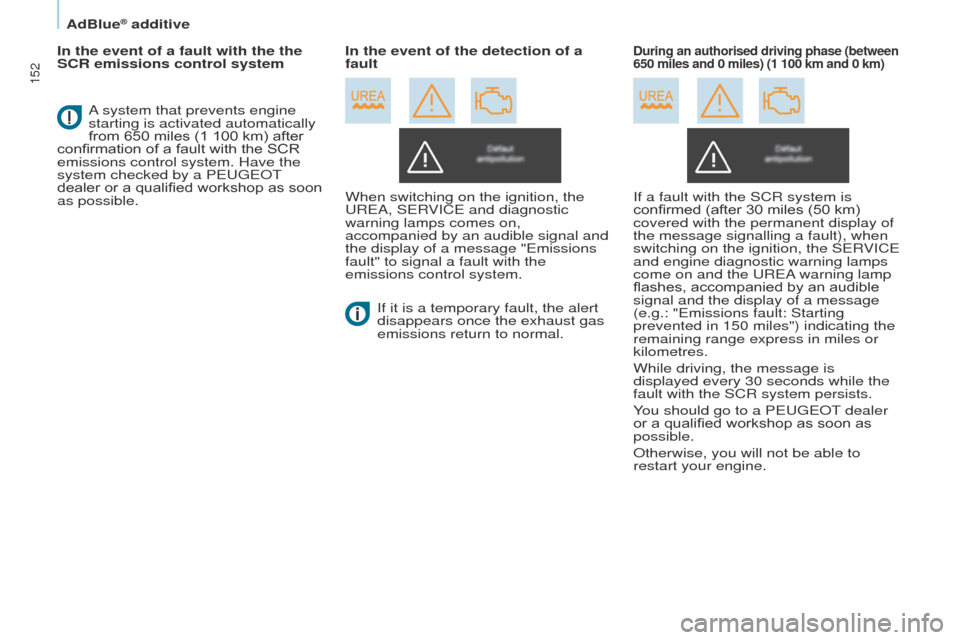
SCR emissions control systemWhen switching on the ignition, the
u
R e A, S e RVIC e and diagnostic
warning lamps comes on,
accompanied by an audible signal and
the display of a message "
e missions
fault" to signal a fault with the
emissions control system.
If it is a temporary fault, the alert
disappears once the exhaust gas
emissions return to normal.During an authorised driving phase (between
650 miles and 0 miles) (1 100 km and 0 km)
A system that prevents engine
starting is activated automatically
from 650 miles (1 100 km) after
confirmation of a fault with the SCR
emissions control system. Have the
system checked by a P
euge O t
dealer or a qualified workshop as soon
as possible. In the event of the detection of a
fault
If a fault with the SCR system is
confirmed (after 30 miles (50 km)
covered with the permanent display of
the message signallin
g a fault), when
switching on the ignition, the S
e RVIC e
and engine diagnostic warning lamps
come on and the
u R e A warning lamp
flashes, accompanied by an audible
signal and the display of a message
(e.g.: "
e missions fault: Starting
prevented in 150 miles") indicating the
remaining range express in miles or
kilometres.
While driving, the message is
displayed every 30 seconds while the
fault with the SCR system persists.
You should go to a P
euge O t
dealer
or a qualified workshop as soon as
possible.
Otherwise, you will not be able to
restart your engine.
AdBlue® additive
Page 155 of 276
153
Partner_2_VP_en_Chap07_Verification_ed02-2014
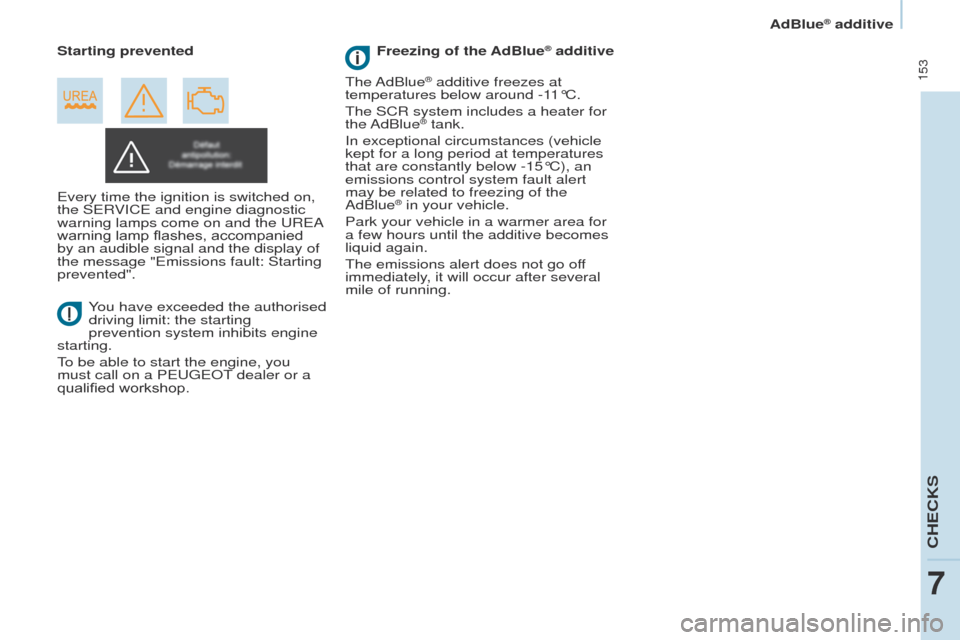
every time the ignition is switched on,
the S e RVIC e and engine diagnostic
warning lamps come on and the
u R e A
warning lamp flashes, accompanied
by an audible signal and the display of
the message "
e missions fault: Starting
prevented".
You have exceeded the authorised
driving limit: the starting
prevention system inhibits engine
starting.
to be able to start the engine, you
must call on a P
euge O t
dealer or a
qualified workshop. Starting prevented
t
he AdBlue
® additive freezes at
temperatures below around -11°C.
t
he SCR system includes a heater for
the AdBlue
® tank.
In exceptional circumstances (vehicle
kept for a long period at temperatures
that are constantly below -15°C), an
emissions control system fault alert
may be related to freezing of the
AdBlue
® in your vehicle.
Park your vehicle in a warmer area for
a few hours until the additive becomes
liquid again.
t
he emissions alert does not go off
immediately, it will occur after several
mile of running. Freezing of the AdBlue
® additive
AdBlue® additive
CHeCKS
7
Page 194 of 276
01
10.4
Partner_2_VP_en_Chap10b_RT6-2-8_ed02-2014
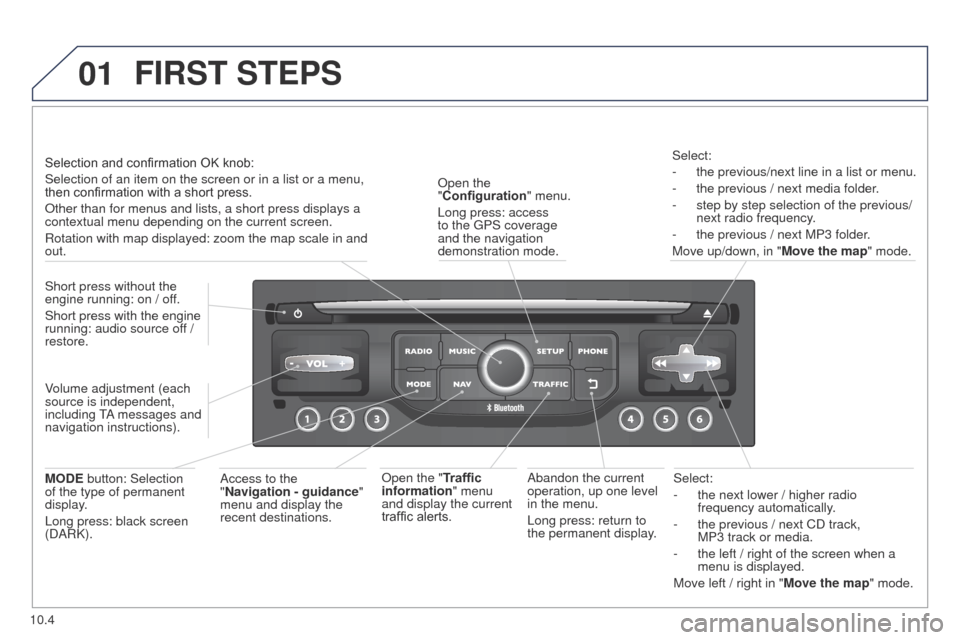
Select:
-
the next lower / higher radio
frequency automatically
.
-
the previous / next CD track,
MP3
track or media.
-
the left / right of the screen when a
menu is displayed.
Move left / right in "
Move the map" mode.
Abandon the current
operation, up one level
in the menu.
Long press: return to
the permanent display.
Open the
"Configuration
" menu.
Long press: access
to the
g
PS coverage
and the navigation
demonstration mode.
Open the "Traffic
information" menu
and display the current
traffic alerts. Select:
-
the previous/next line in a list or menu.
-
the previous / next media folder
.
-
step by step selection of the previous/
next radio frequency
.
-
the previous / next MP3 folder
.
Move up/down, in " Move the map" mode.
FIRST STEPS
Access to the
"Navigation - guidance "
menu and display the
recent destinations.
Short press without the
engine running: on / off.
Short press with the engine
running: audio source off
/
restore.
MODE button: Selection
of the type of permanent
display.
Long press: black screen
(DARK). Selection and confirmation OK knob:
Selection of an item on the screen or in a list or a menu,
then confirmation with a short press.
Other than for menus and lists, a short press displays a
contextual menu depending on the current screen.
Rotation with map displayed: zoom the map scale in and
out.
Volume adjustment (each
source is independent,
including
tA
messages and
navigation instructions).
Page 195 of 276
01
10.5
Partner_2_VP_en_Chap10b_RT6-2-8_ed02-2014
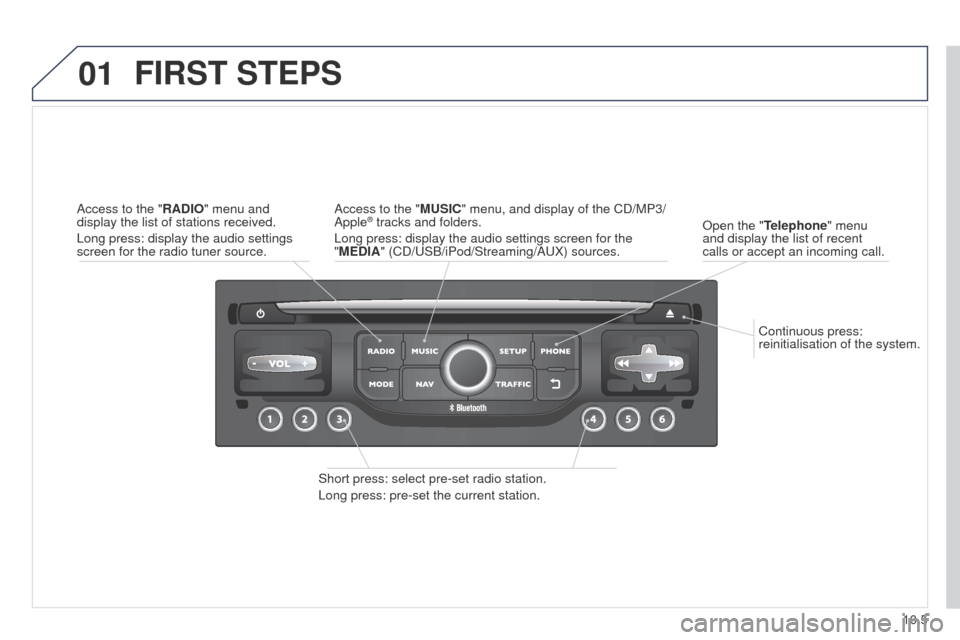
Continuous press:
reinitialisation of the system.
Open the "Telephone" menu
and display the list of recent
calls or accept an incoming call.
FIRST STEPS
Short press: select pre-set radio station.
Long press: pre-set the current station. Access to the "MUSIC" menu, and display of the CD/MP3/
Apple
® tracks and folders.
Long press: display the audio settings screen for the
"MEDIA" (CD/
u SB/iPod/Streaming/A u X) sources.
Access to the "RADIO" menu and
display the list of stations received.
Long press: display the audio settings
screen for the radio tuner source.
Page 197 of 276
03
10.7
Partner_2_VP_en_Chap10b_RT6-2-8_ed02-2014
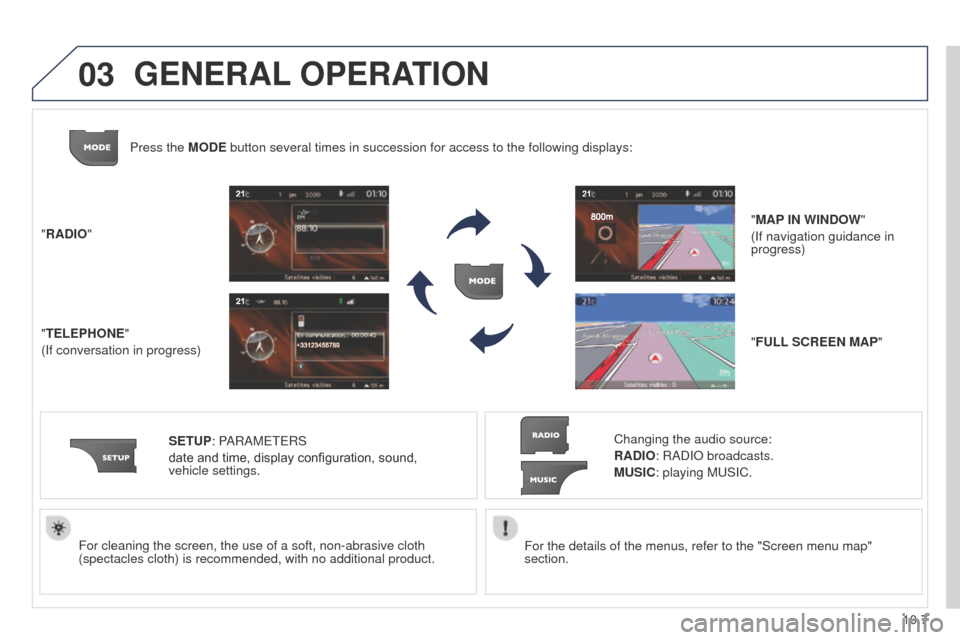
For the details of the menus, refer to the "Screen menu map"
section.
For cleaning the screen, the use of a soft, non-abrasive cloth
(spectacles cloth) is recommended, with no additional product.
"RADIO"
"TELEPHONE"
(If conversation in progress)
SETUP: PARAM
ete
RS
date and time, display configuration, sound,
vehicle
settings.
Changing the audio source:
RADIO: RADIO broadcasts.
MUSIC: playing Mu SIC.
Press the MODE button several times in succession for access to the following displays\
:
"FULL SCREEN MAP" "MAP IN WINDOW"
(If navigation guidance in
progress)
GENERAL OPERATION
Page 198 of 276
03
10.8
Partner_2_VP_en_Chap10b_RT6-2-8_ed02-2014
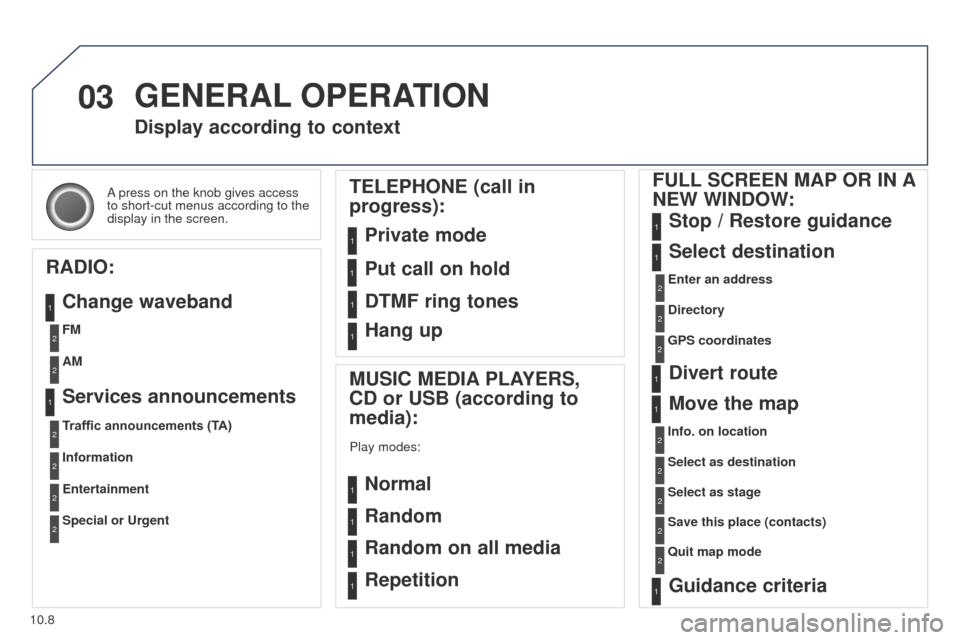
A press on the knob gives access
to short-cut menus according to the
display in the screen.
Display according to context
RADIO: Change waveband
MUSIC MEDIA PLAYERS,
CD or USB (according to
media):
Play modes:
Normal
Random
Random on all media
Repetition
TELEPHONE (call in
progress):
Private mode FULL SCREEN MAP OR IN A
NEW WINDOW:
Stop / Restore guidance
Select destination
Enter an address
Directory
GPS coordinates
Divert route
Move the map
Info. on location
Select as destination Select as stage
Save this place (contacts)
Quit map mode
Guidance criteria
Put call on hold
DTMF ring tones
Hang up
1
1
1
1
1
1
1
2
2
2
2
2
1
2
2
2
1
1
1
1
1
1FM
Traffic announcements (TA) AM
Information
Entertainment
Special or Urgent2
2
2
2
2
2
Services announcements1
GENERAL OPERATION
Page 200 of 276
04
10.10
Partner_2_VP_en_Chap10b_RT6-2-8_ed02-2014
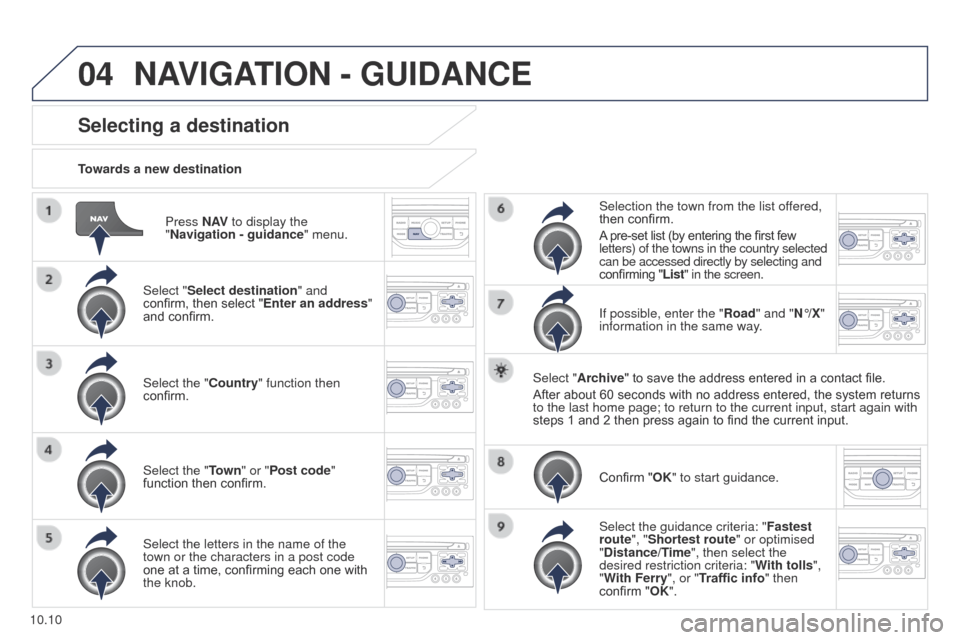
Press N AV to display the
"Navigation - guidance " menu.
Towards a new destination
Selecting a destination
Select "Select destination" and
confirm, then select "Enter an address"
and confirm.
Select the "Country" function then
confirm.
Select the "Town
" or "Post code"
function then confirm.
Select the letters in the name of the
town or the characters in a post code
one at a time, confirming each one with
the knob. Selection the town from the list offered,
then confirm.
A pre-set list (by entering the first few
letters) of the towns in the country selected
can be accessed directly by selecting and
confirming "List" in the screen.
If possible, enter the "Road" and "N°/X"
information in the same way.
Select "Archive" to save the address entered in a contact file.
After about 60 seconds with no address entered, the system returns
to the last home page; to return to the current input, start again with \
steps 1 and 2 then press again to find the current input.
Confirm "OK" to start guidance.
Select the guidance criteria: " Fastest
route", "Shortest route" or optimised
"Distance/Time", then select the
desired restriction criteria: " With tolls",
"With Ferry", or "Traffic info" then
confirm "OK".
NAVIGATION - GUIDANCE
Page 201 of 276
04
10.11
Partner_2_VP_en_Chap10b_RT6-2-8_ed02-2014
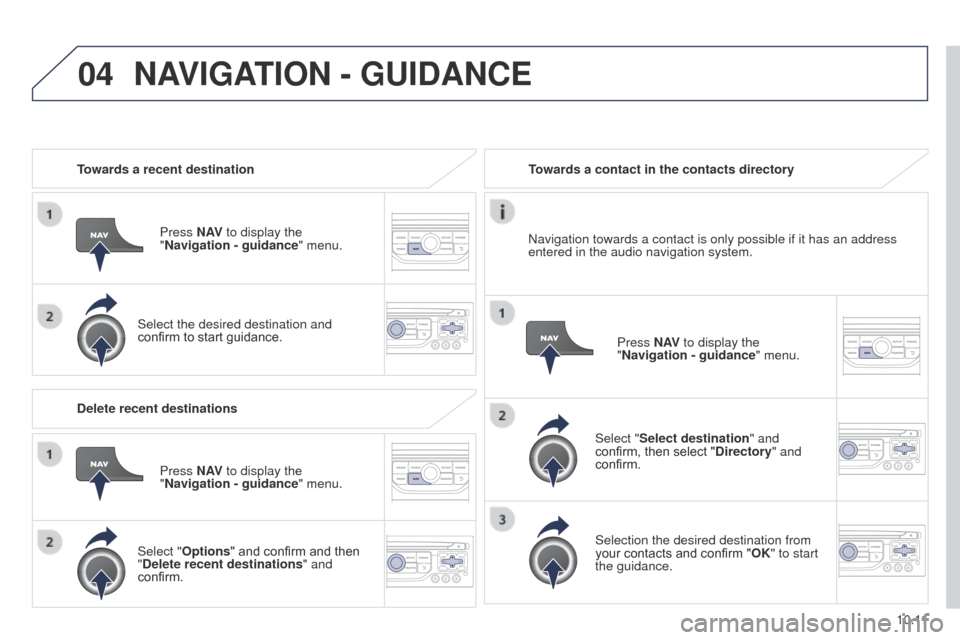
Towards a recent destinationPress N AV to display the
"Navigation - guidance " menu.
Select the desired destination and
confirm to start guidance. Towards a contact in the contacts directory
Select "Select destination" and
confirm, then select "Directory " and
confirm.
Selection the desired destination from
your contacts and confirm "OK" to start
the guidance. Press N AV
to display the
"Navigation - guidance " menu.
Navigation towards a contact is only possible if it has an address
entered in the audio navigation system.
Delete recent destinations Press N AV to display the
"Navigation - guidance " menu.
Select "Options " and confirm and then
"Delete recent destinations" and
confirm.
NAVIGATION - GUIDANCE
Page 202 of 276
04
10.12
Partner_2_VP_en_Chap10b_RT6-2-8_ed02-2014
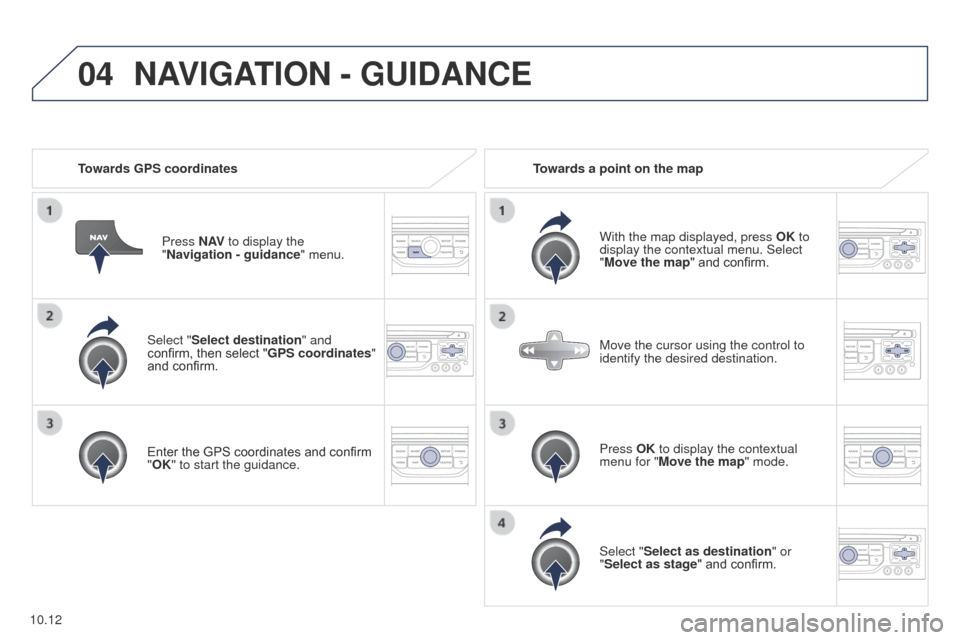
Select "Select destination" and
confirm, then select "GPS coordinates"
and confirm.
Enter the GPS coordinates and confirm
"OK" to start the guidance.Press N AV
to display the
"Navigation - guidance " menu.
Towards GPS coordinates
Towards a point on the map
With the map displayed, press OK to
display the contextual menu. Select
"Move the map" and confirm.
Press OK to display the contextual
menu for "Move the map" mode.
Select "Select as destination" or
"Select as stage" and confirm. Move the cursor using the control to
identify the desired destination.
NAVIGATION - GUIDANCE
Page 203 of 276
the points of interest (POI) indicate all of the service locations in t\
he vicinity
(hotels, various businesses, ai")
04
10.13
Partner_2_VP_en_Chap10b_RT6-2-8_ed02-2014
Towards points of interest (POI)the points of interest (POI) indicate all of the service locations in t\
he vicinity
(hotels, various businesses, airports...).
Select the "Enter an address" function
and confirm, then select Select
destination and confirm.
to select a POI close to your current
location, select " POI
" and confirm, then
select "Around the current place" and
confirm.
to select a POI as a stage on the route,
select "
POI" and confirm, then select "On
the route" and confirm.
To select a POI as a destination, first
enter the country and town (see "
t
owards
a new destination"), select " POI
" and
confirm, finally select " Near" and confirm. Search for POIs in the categories
suggested in the following pages.
Select "Search by Name
" to search for POIs by name and not by
proximity.
Select the POI and confirm "OK" to start
the guidance.
Press N AV
to display the
"Navigation - guidance " menu.
NAVIGATION - GUIDANCE