navigation Peugeot Partner Tepee 2015 Owner's Guide
[x] Cancel search | Manufacturer: PEUGEOT, Model Year: 2015, Model line: Partner Tepee, Model: Peugeot Partner Tepee 2015Pages: 276, PDF Size: 12.76 MB
Page 213 of 276
05
10.23
Partner_2_VP_en_Chap10b_RT6-2-8_ed02-2014
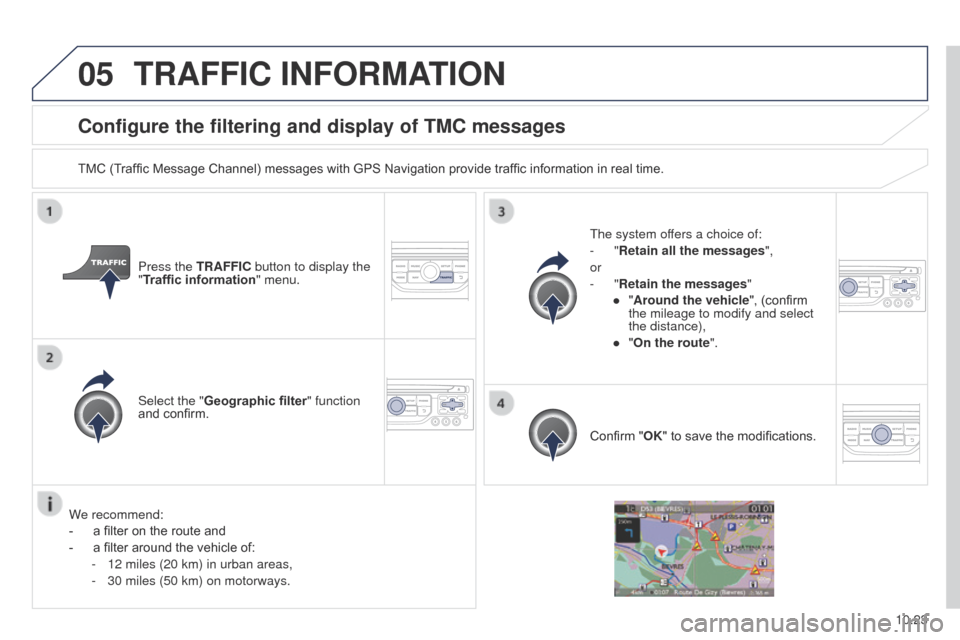
Configure the filtering and display of TMC messages
TMC (Traffic Message Channel) messages with GPS Navigation provide traffic information in real time.Press the TRAFFIC button to display the
"Traffic information" menu.
Select the "Geographic filter" function
and confirm.
t
he system offers a choice of:
-
"Retain all the messages",
or
-
"Retain the messages"
●
"
Around the vehicle", (confirm
the mileage to modify and select
the distance),
●
"
On the route".
Confirm "OK" to save the modifications.
We recommend:
-
a filter on the route and
-
a filter around the vehicle of:
-
12 miles (20 km) in urban areas,
-
30 miles (50 km) on motorways.
TRAFFIC INFORMATION
Page 237 of 276
11
10.47
Partner_2_VP_en_Chap10b_RT6-2-8_ed02-2014
TRIP COMPUTER
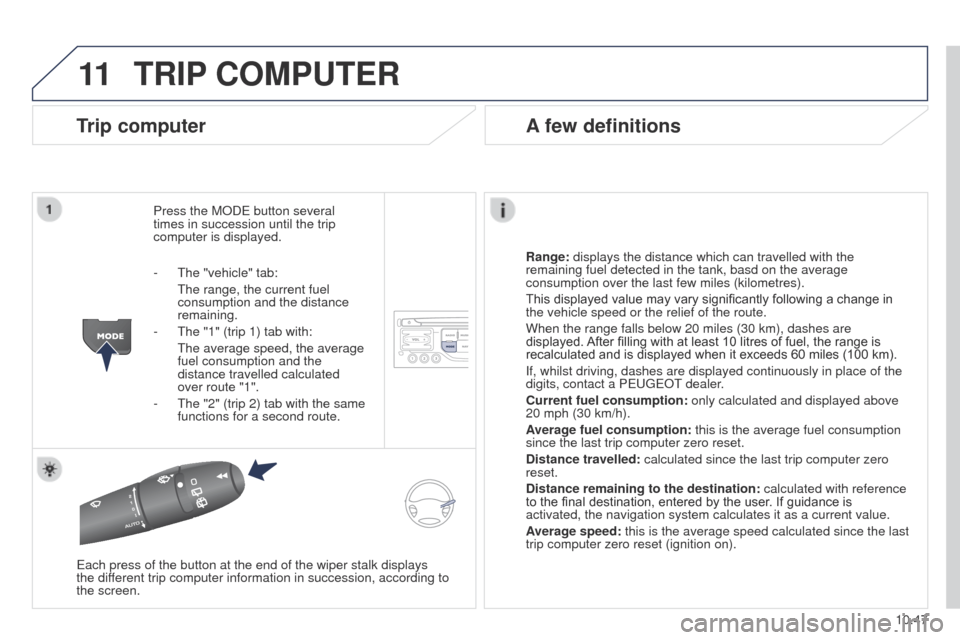
Trip computer
Press the MODe button several
times in succession until the trip
computer is displayed.
Range:
displays the distance which can travelled with the
remaining fuel detected in the tank, basd on the average
consumption over the last few miles (kilometres).
This displayed value may vary significantly following a change in
the vehicle speed or the relief of the route.
When the range falls below 20 miles (30 km), dashes are
displayed. After filling with at least 10 litres of fuel, the range is
recalculated and is displayed when it exceeds 60 miles (100 km).
If, whilst driving, dashes are displayed continuously in place of the
digits, contact a P
euge O t
dealer
.
Current fuel consumption:
only calculated and displayed above
20 mph (30 km/h).
Average fuel consumption: this is the average fuel consumption
since the last trip computer zero reset.
Distance travelled: calculated since the last trip computer zero
reset.
Distance remaining to the destination:
calculated with reference
to the final destination, entered by the user. If guidance is
activated, the navigation system calculates it as a current value.
Average speed: this is the average speed calculated since the last
trip computer zero reset (ignition on).
e
ach press of the button at the end of the wiper stalk displays
the
different trip computer information in succession, according to
the screen.
A few definitions
- the "vehicle" tab:
t he range, the current fuel
consumption and the distance
remaining.
-
t he "1" (trip 1) tab with:
t he average speed, the average
fuel consumption and the
distance travelled calculated
over route "1".
-
t he "2" (trip 2) tab with the same
functions for a second route.
Page 238 of 276
12
10.48
Partner_2_VP_en_Chap10b_RT6-2-8_ed02-2014
SCREEN MENU MAP(S)
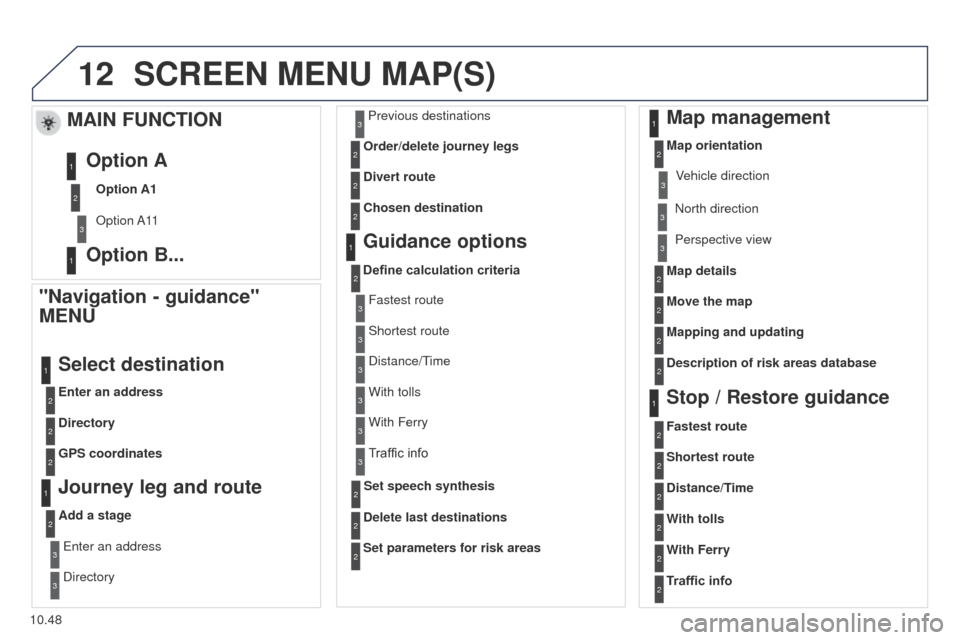
"Navigation - guidance"
MENU
Enter an address
Select destination
Directory
GPS coordinates
Journey leg and route
Add a stage
e
nter an address
Directory Previous destinations
Order/delete journey legs
Divert route
Chosen destination
Guidance options
Define calculation criteria
Delete last destinations
Map management
Map orientation
MAIN FUNCTION
Option A1
Option A11
Option A
Option B...
Map details
Move the map
Mapping and updating
Description of risk areas database
Stop / Restore guidance
1
2
3
1
3
3
2
2
2
2
1
3
1
1
2
2
2
2
2
2
2
2
2
2
1
1
Set parameters for risk areas2
Fastest route2
Shortest route
Distance/Time
With tolls2
2
2
With Ferry2
Traffic info2
Set speech synthesis Fastest route
Shortest route
3
3
2
Distance/time
With tolls3
3
With Ferry
Traffic info3
3
3
3
3
North direction Vehicle direction
Perspective view
Page 242 of 276

10.52
Partner_2_VP_en_Chap10b_RT6-2-8_ed02-2014
the following table groups together the answers to the most frequently as\
ked questions concerning your audio system.
FREQUENTLY ASKED QUESTIONS
QUESTION ANSWER SOLUTION
t
he route calculation is
not successful. The guidance criteria may conflict with the current location (exclusion of
toll roads on a toll motorway). Check the guidance criteria on the Navigation
Menu, "Guidance options"\ "Define calculation
criteria".
I am unable to enter my
post code.
t
he system only accepts post codes of up to 7 characters.
t
he POIs do not appear.
t
he POIs have not been selected. Select the POIs in the list of POIs.
t
he risk areas audible
warning does not work.
t
he audible warning is not active. Activate audible warnings in the
g uidance options
menu, "Navigation - guidance", "Set parameters
for risk areas".
t
he system does not
suggest a detour around
an incident on the route.
t
he guidance criteria do not take account of
t
MC messages.Select the "Traffic info" function in the list of
guidance criteria.
I receive a Risk area alert
which is not on my route. Other than guidance, the system announces all Risk areas positioned in a\
cone located in front of the vehicle. It may provide an alert for a Risk\
area
located on nearby or parallel roads. Zoom in on the map to view the exact position of
the Risk area. Select "On the route" to no longer
receive alerts other than guidance or to reduce the
time for the announcement.
Page 256 of 276
05
10.66
Partner_2_VP_en_Chap10c_RD45_ed02_2014
PEUGEOT CONNECT USB
the system puts together playlists (temporary memory) created
over a period which depends on the capacity of the u SB device.
t
he other sources are available during this time.
t
he playlists are updated each time the ignition is switched off or
each time a
u SB memory stick is connected.
When connecting for the first time, the classification suggested
is by folder. When you reconnect, the classification selected
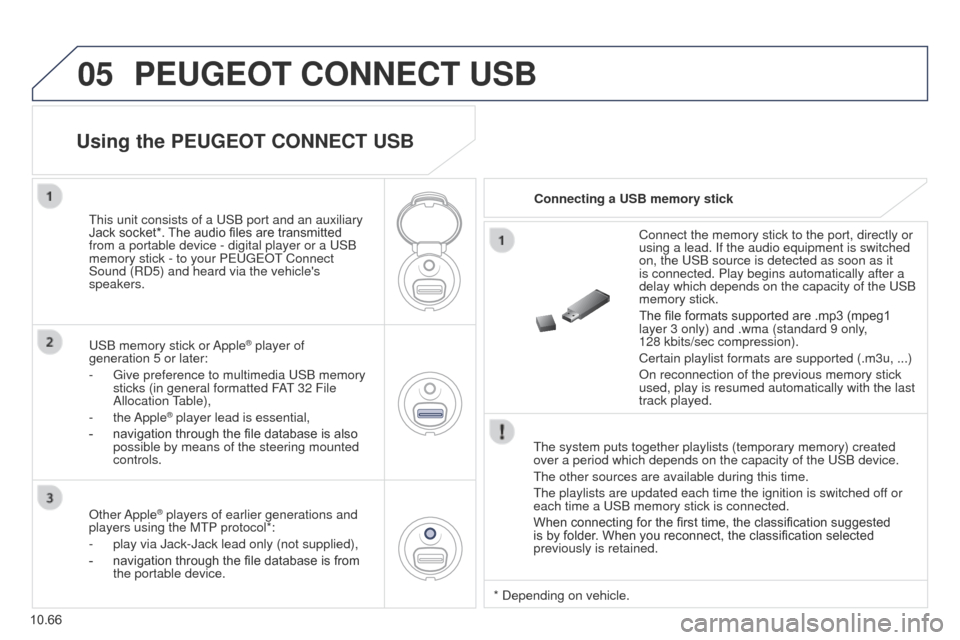
previously is retained. Connect the memory stick to the port, directly or
using a lead. If the audio equipment is switched
on, the
u SB source is detected as soon as it
is connected. Play begins automatically after a
delay which depends on the capacity of the u SB
memory stick.
The file formats supported are .mp3 (mpeg1
layer 3 only) and .wma (standard 9 only,
128 kbits/sec compression).
Certain playlist formats are supported (.m3u, ...)
On reconnection of the previous memory stick
used, play is resumed automatically with the last
track played.
t
his unit consists of a
u
SB port and an auxiliary
Jack socket*. The audio files are transmitted
from a portable device - digital player or a
u
SB
memory stick - to your P
euge
O
t
Connect
Sound (RD5) and heard via the vehicle's
speakers.
u
SB memory stick or Apple
® player of
generation 5 or later:
-
g
ive preference to multimedia u SB memory
sticks (in general formatted FA
t 32 File
Allocation table),
-
the Apple® player lead is essential,
-
navigation through the file database is also
possible by means of the steering mounted
controls.
Using the PEUGEOT CONNECT USB
Connecting a USB memory stick
Other Apple
® players of earlier generations and
players using the M t P protocol*:
-
play via Jack-Jack lead only (not supplied),
-
navigation through the file database is from
the portable device. * Depending on vehicle.
Page 257 of 276
05
10.67
Partner_2_VP_en_Chap10c_RD45_ed02_2014
Using the PEUGEOT CONNECT USB
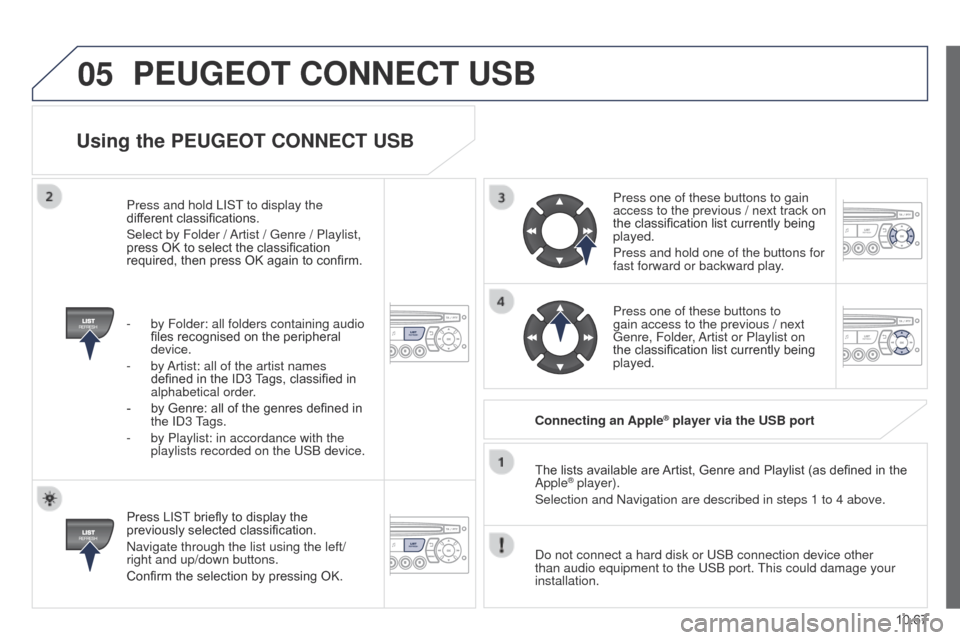
Press LIST briefly to display the
previously selected classification.
Navigate through the list using the left/
right and up/down buttons.
Confirm the selection by pressing OK.The lists available are Artist, Genre and Playlist (as defined in the
Apple
® player).
Selection and Navigation are described in steps 1 to 4 above.
Do not connect a hard disk or
u SB connection device other
than audio equipment to the
u SB port.
t
his could damage your
installation. Connecting an Apple
® player via the USB port
Press one of these buttons to gain
access to the previous / next track on
the classification list currently being
played.
Press and hold one of the buttons for
fast forward or backward play.
Press one of these buttons to
gain access to the previous / next
g
enre, Folder, Artist or Playlist on
the classification list currently being
played.
Press and hold LIS
t
to display the
dif
ferent classifications.
Select by Folder / Artist /
g
enre / Playlist,
press OK to select the classification
required, then press OK again to confirm.
-
by Folder: all folders containing audio
files recognised on the peripheral
device.
-
by
Artist: all of the artist names
defined in the ID3 Tags, classified in
alphabetical order.
-
by Genre: all of the genres defined in
the
ID3
tags.
-
by Playlist: in accordance with the
playlists recorded on the
u
SB device.
PEUGEOT CONNECT USB
Page 263 of 276
08
14
10.73
Partner_2_VP_en_Chap10c_RD45_ed02_2014
TRIP COMPUTER
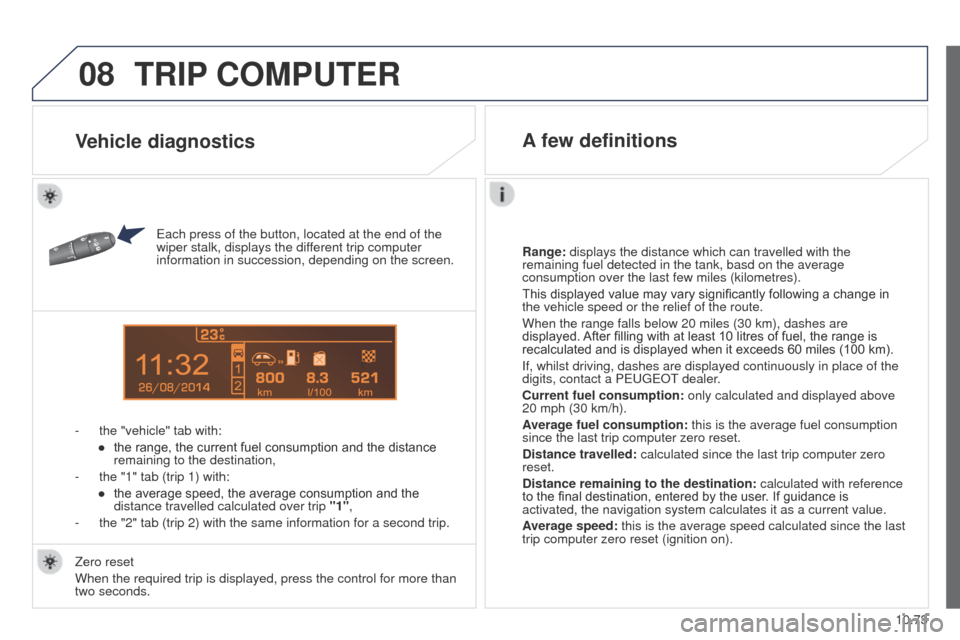
each press of the button, located at the end of the
wiper stalk, displays the dif ferent trip computer
information in succession, depending on the screen.
-
the "vehicle" tab with:
●
the range, the current fuel consumption and the distance
remaining to the destination,
-
the "1" tab (trip 1) with:
●
the average speed, the average consumption and the
distance travelled calculated over trip "1"
,
-
the "2" tab (trip 2) with the same information for a second trip. Range:
displays the distance which can travelled with the
remaining fuel detected in the tank, basd on the average
consumption over the last few miles (kilometres).
This displayed value may vary significantly following a change in
the vehicle speed or the relief of the route.
When the range falls below 20 miles (30 km), dashes are
displayed. After filling with at least 10 litres of fuel, the range is
recalculated and is displayed when it exceeds 60 miles (100 km).
If, whilst driving, dashes are displayed continuously in place of the
digits, contact a P
euge O t
dealer
.
Current fuel consumption:
only calculated and displayed above
20 mph (30 km/h).
Average fuel consumption: this is the average fuel consumption
since the last trip computer zero reset.
Distance travelled: calculated since the last trip computer zero
reset.
Distance remaining to the destination:
calculated with reference
to the final destination, entered by the user. If guidance is
activated, the navigation system calculates it as a current value.
Average speed: this is the average speed calculated since the last
trip computer zero reset (ignition on).
Zero reset
When the required trip is displayed, press the control for more than
two seconds.
Vehicle diagnostics A few definitions