phone Peugeot Partner Tepee 2015 Owner's Manual
[x] Cancel search | Manufacturer: PEUGEOT, Model Year: 2015, Model line: Partner Tepee, Model: Peugeot Partner Tepee 2015Pages: 276, PDF Size: 12.76 MB
Page 22 of 276
20
Partner_2_VP_en_Chap03_Pret-a-partir_ed02-2014
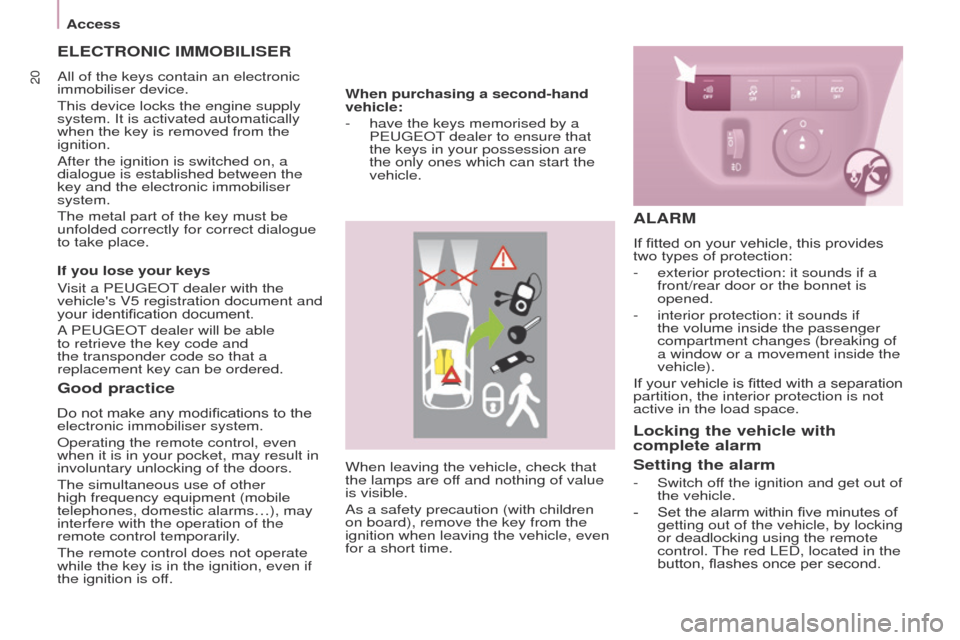
When leaving the vehicle, check that
the lamps are off and nothing of value
is visible.
As a safety precaution (with children
on board), remove the key from the
ignition when leaving the vehicle, even
for a short time.
Good practice
Do not make any modifications to the
electronic immobiliser system.
Operating the remote control, even
when it is in your pocket, may result in
involuntary unlocking of the doors.
t
he simultaneous use of other
high frequency equipment (mobile
telephones, domestic alarms…), may
interfere with the operation of the
remote control temporarily.
t
he remote control does not operate
while the key is in the ignition, even if
the ignition is off.
ELECTRONIC IMMOBILISER
All of the keys contain an electronic
immobiliser device.
t
his device locks the engine supply
system. It is activated automatically
when the key is removed from the
ignition.
After the ignition is switched on, a
dialogue is established between the
key and the electronic immobiliser
system.
t
he metal part of the key must be
unfolded correctly for correct dialogue
to take place.
If you lose your keys
Visit a P
euge O t
dealer with the
vehicle's V5 registration document and
your identification document.
A
P euge O t
dealer will be able
to retrieve the key code and
the transponder code so that a
replacement key can be ordered. When purchasing a second-hand
vehicle:
-
have the keys memorised by a
P
euge O t
dealer to ensure that
the keys in your possession are
the only ones which can start the
vehicle.
ALARM
If fitted on your vehicle, this provides
two types of protection:
-
exterior protection: it sounds if a
front/rear door or the bonnet is
opened.
-
interior protection: it sounds if
the volume inside the passenger
compartment changes (breaking of
a window or a movement inside the
vehicle).
If
your vehicle is fitted with a separation
partition, the interior protection is not
active in the load space.
Locking the vehicle with
complete alarm
Setting the alarm
- Switch of f the ignition and get out of
the vehicle.
-
Set the alarm within five minutes of
getting out of the vehicle, by locking
or deadlocking using the remote
control.
t
he red L e D, located in the
button, flashes once per second.
Access
Page 176 of 276
174
Partner_2_VP_en_Chap08_Aide-rapide_ed02-2014
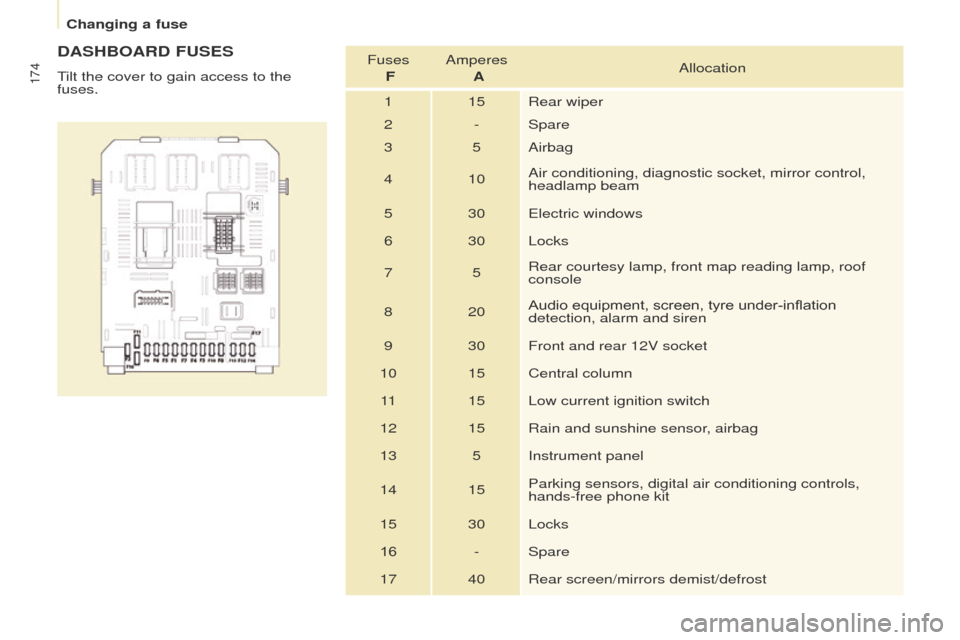
DASHBOARD FUSES
tilt the cover to gain access to the
fuses. Fuses
FAmperes
A Allocation
1 15 Rear wiper
2 - Spare
3 5 Airbag
4 10 Air conditioning, diagnostic socket, mirror control,
headlamp beam
5 30
e
lectric windows
6 30 Locks
7 5Rear courtesy lamp, front map reading lamp, roof
console
8 20 Audio equipment, screen, tyre under-inflation
detection, alarm and siren
9 30 Front and rear 12V socket
10 15 Central column 11 15 Low current ignition switch
12 15 Rain and sunshine sensor, airbag
13 5 Instrument panel
14 15 Parking sensors, digital air conditioning controls,
hands-free phone kit
15 30 Locks
16 - Spare
17 40 Rear screen/mirrors demist/defrost
Changing a fuse
Page 193 of 276
10.3
Partner_2_VP_en_Chap10b_RT6-2-8_ed02-2014
the system is protected in such a way that it will only
operate in your vehicle.
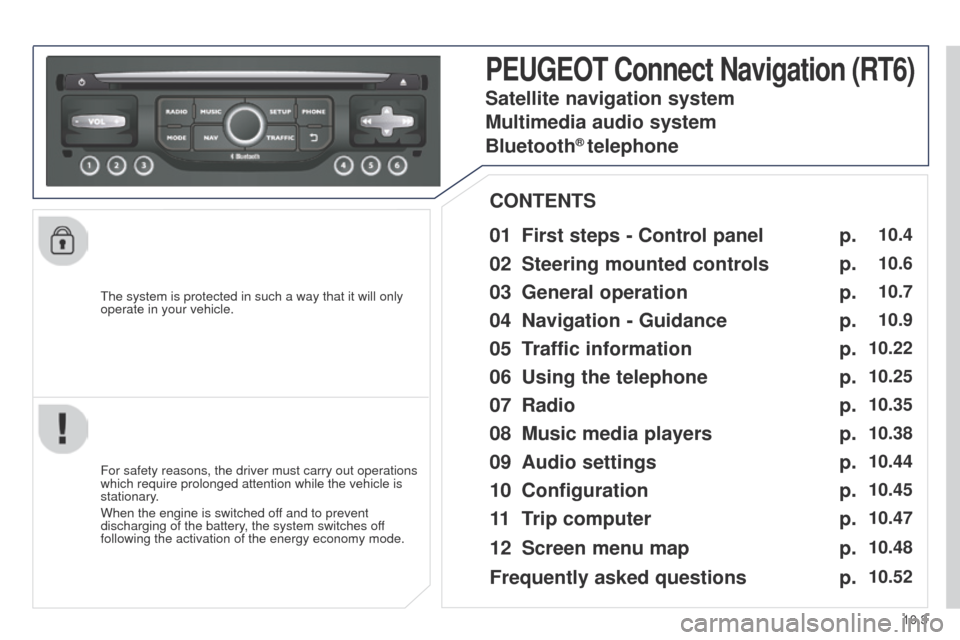
PEUGEOT Connect Navigation (RT6)
01 First steps - Control panel
For safety reasons, the driver must carry out operations
which require prolonged attention while the vehicle is
stationary.
When the engine is switched off and to prevent
discharging of the battery, the system switches off
following the activation of the energy economy mode.
CONTENTS
02
Steering mounted
controls
03
General operation
04
Navigation
- Guidance
05
T
raffic information
06
Using
the telephone
07
Radio
08
Music media players
09
Audio
settings
10
Configuration
11
T
rip computer
Satellite navigation system
Multimedia audio system
Bluetooth
® telephone
12
Screen menu
map
Frequently asked questions p.
p.
p.
p.
p.
p.
p.
p.
p.
p.
p.
p.
p.
10.4
10.6
10.7
10.9
10.22
10.25
10.35
10.38
10.44
10.45
10.47
10.48
10.52
Page 195 of 276
01
10.5
Partner_2_VP_en_Chap10b_RT6-2-8_ed02-2014
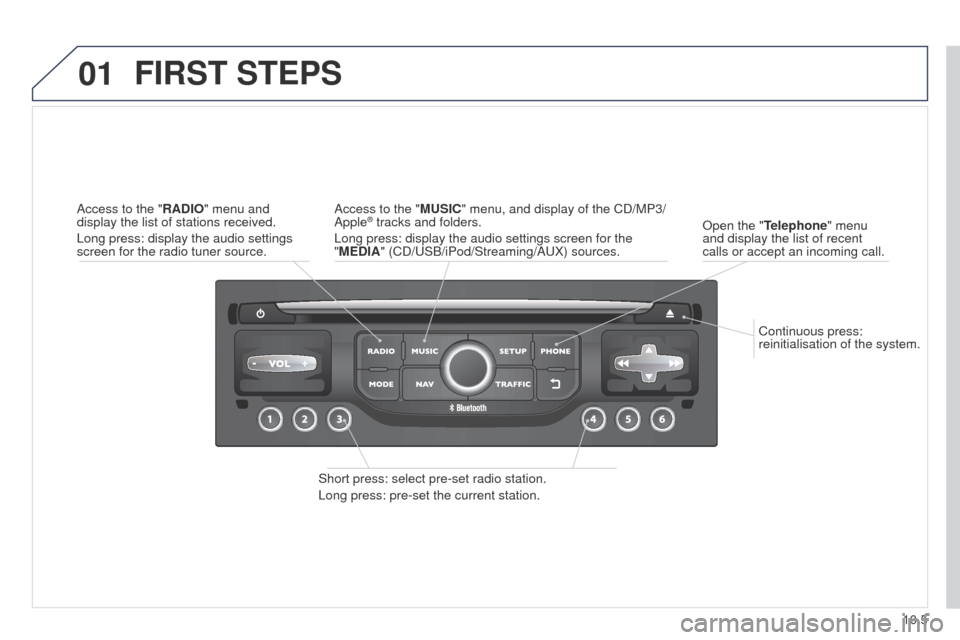
Continuous press:
reinitialisation of the system.
Open the "Telephone" menu
and display the list of recent
calls or accept an incoming call.
FIRST STEPS
Short press: select pre-set radio station.
Long press: pre-set the current station. Access to the "MUSIC" menu, and display of the CD/MP3/
Apple
® tracks and folders.
Long press: display the audio settings screen for the
"MEDIA" (CD/
u SB/iPod/Streaming/A u X) sources.
Access to the "RADIO" menu and
display the list of stations received.
Long press: display the audio settings
screen for the radio tuner source.
Page 196 of 276
02
10.6
Partner_2_VP_en_Chap10b_RT6-2-8_ed02-2014
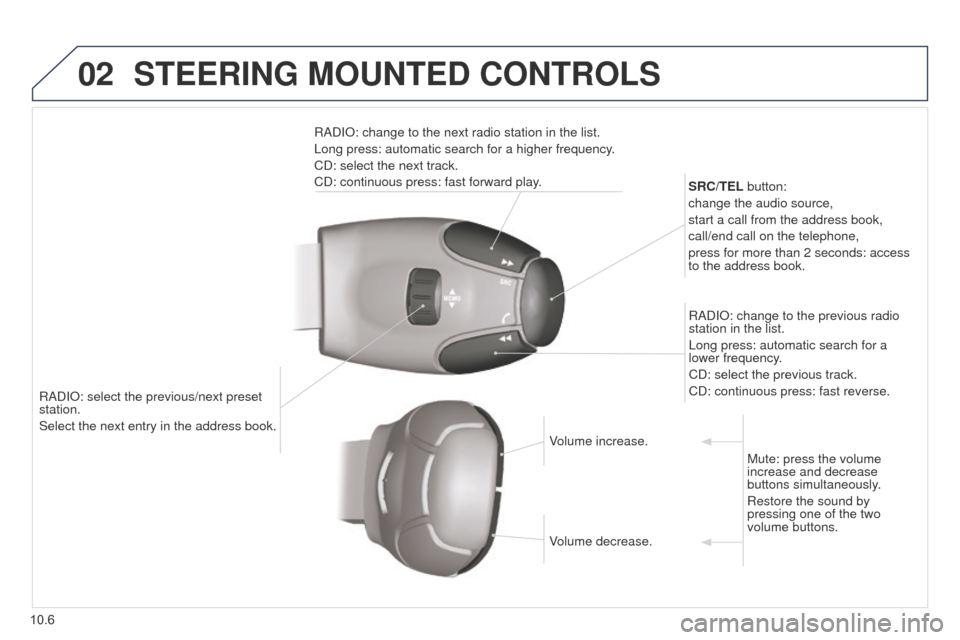
RADIO: select the previous/next preset
station.
Select the next entry in the address book.SRC/TEL button:
change the audio source,
start a call from the address book,
call/end call on the telephone,
press for more than 2 seconds: access
to the address book.
RADIO: change to the previous radio
station in the list.
Long press: automatic search for a
lower frequency.
CD: select the previous track.
CD: continuous press: fast reverse.
RADIO: change to the next radio station in the list.
Long press: automatic search for a higher frequency.
CD: select the next track.
CD: continuous press: fast forward play.
Volume increase.
Volume decrease.Mute: press the volume
increase and decrease
buttons simultaneously.
Restore the sound by
pressing one of the two
volume buttons.
STEERING MOUNTED CONTROLS
Page 197 of 276
03
10.7
Partner_2_VP_en_Chap10b_RT6-2-8_ed02-2014
For the details of the menus, refer to the "Screen menu map"
section.
For cleaning the screen, the use of a soft, non-abrasive cloth
(spectacles cloth) is recommended, with no additional product.
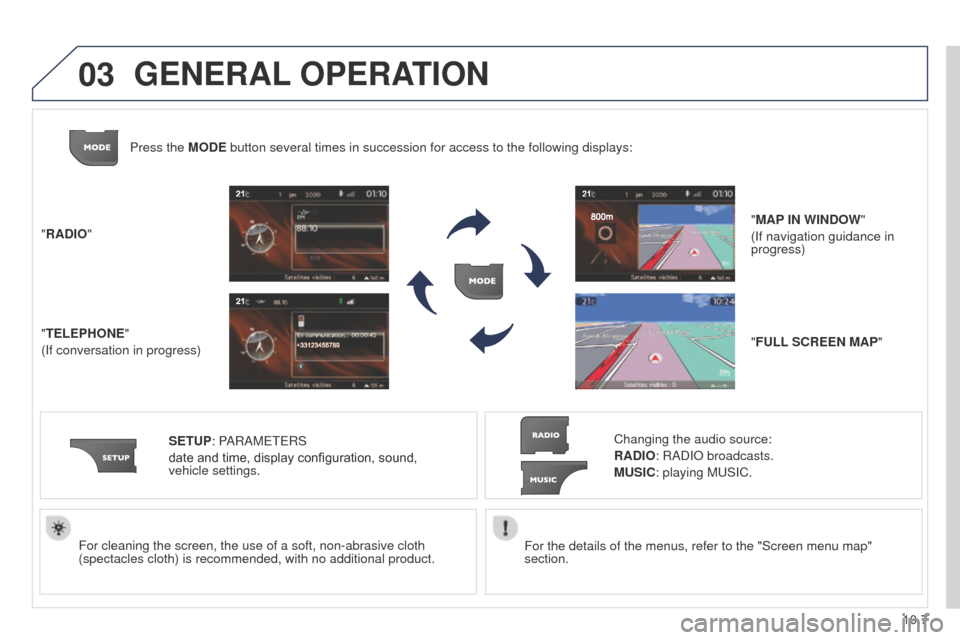
"RADIO"
"TELEPHONE"
(If conversation in progress)
SETUP: PARAM
ete
RS
date and time, display configuration, sound,
vehicle
settings.
Changing the audio source:
RADIO: RADIO broadcasts.
MUSIC: playing Mu SIC.
Press the MODE button several times in succession for access to the following displays\
:
"FULL SCREEN MAP" "MAP IN WINDOW"
(If navigation guidance in
progress)
GENERAL OPERATION
Page 198 of 276
03
10.8
Partner_2_VP_en_Chap10b_RT6-2-8_ed02-2014
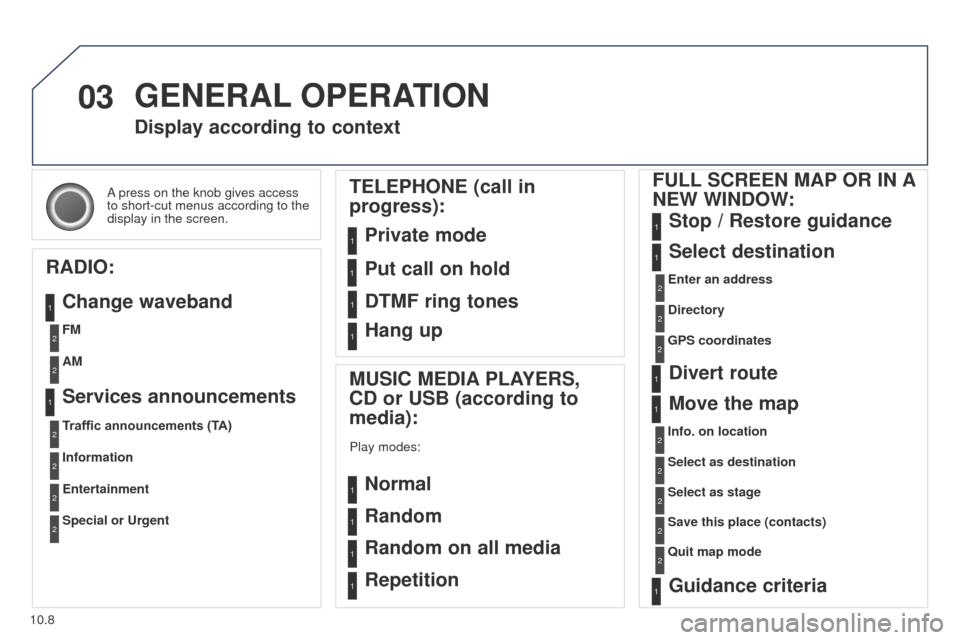
A press on the knob gives access
to short-cut menus according to the
display in the screen.
Display according to context
RADIO: Change waveband
MUSIC MEDIA PLAYERS,
CD or USB (according to
media):
Play modes:
Normal
Random
Random on all media
Repetition
TELEPHONE (call in
progress):
Private mode FULL SCREEN MAP OR IN A
NEW WINDOW:
Stop / Restore guidance
Select destination
Enter an address
Directory
GPS coordinates
Divert route
Move the map
Info. on location
Select as destination Select as stage
Save this place (contacts)
Quit map mode
Guidance criteria
Put call on hold
DTMF ring tones
Hang up
1
1
1
1
1
1
1
2
2
2
2
2
1
2
2
2
1
1
1
1
1
1FM
Traffic announcements (TA) AM
Information
Entertainment
Special or Urgent2
2
2
2
2
2
Services announcements1
GENERAL OPERATION
Page 215 of 276
06
10.25
Partner_2_VP_en_Chap10b_RT6-2-8_ed02-2014
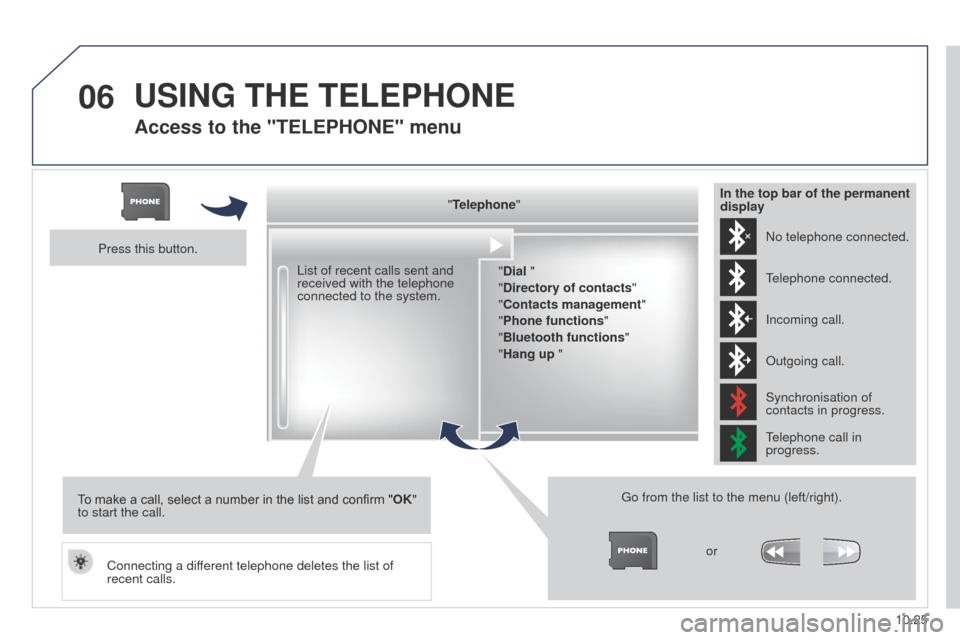
Access to the "TELEPHONE" menu
"Telephone""Dial "
"Directory of contacts"
"Contacts management "
"Phone functions "
"Bluetooth functions "
"Hang up "
g
o from the list to the menu (left/right).or
List of recent calls sent and
received with the telephone
connected to the system.
Press this button.
To make a call, select a number in the list and confirm " OK"
to start the call.
Connecting a different telephone deletes the list of
recent calls. No telephone connected.
telephone connected.
Incoming call.
Outgoing call.
Synchronisation of
contacts in progress.
telephone call in
progress.
In the top bar of the permanent
display
USING THE TELEPHONE
Page 216 of 276
06
10.26
Partner_2_VP_en_Chap10b_RT6-2-8_ed02-2014
USING THE TELEPHONE
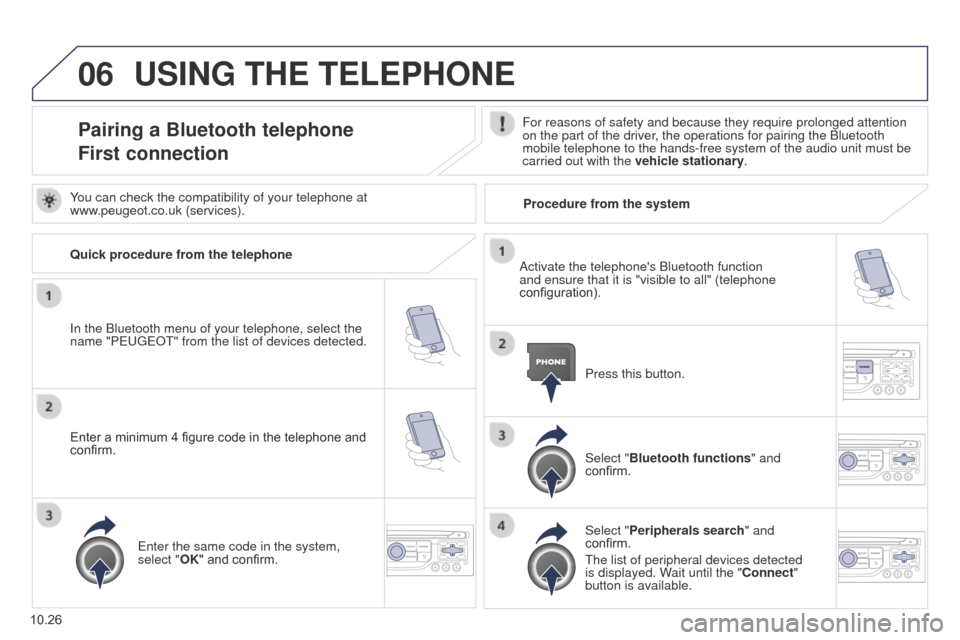
Pairing a Bluetooth telephone
First connectionFor reasons of safety and because they require prolonged attention
on the part of the driver, the operations for pairing the Bluetooth
mobile telephone to the hands-free system of the audio unit must be
carried out with the vehicle stationary.
In the Bluetooth menu of your telephone, select the
name "Peuge
O
t" from the list of devices detected. Press this button.
Select "Bluetooth functions" and
confirm.
Select "Peripherals search " and
confirm.
t
he list of peripheral devices detected
is displayed. Wait until the "Connect"
button is available.
You can check the compatibility of your telephone at
www.peugeot.co.uk (services).
Activate the telephone's Bluetooth function
and ensure that it is "visible to all" (telephone
configuration).
Quick procedure from the telephone
Enter a minimum 4 figure code in the telephone and
confirm.
e
nter the same code in the system,
select "OK" and confirm. Procedure from the system
Page 217 of 276
06
10.27
Partner_2_VP_en_Chap10b_RT6-2-8_ed02-2014
USING THE TELEPHONE
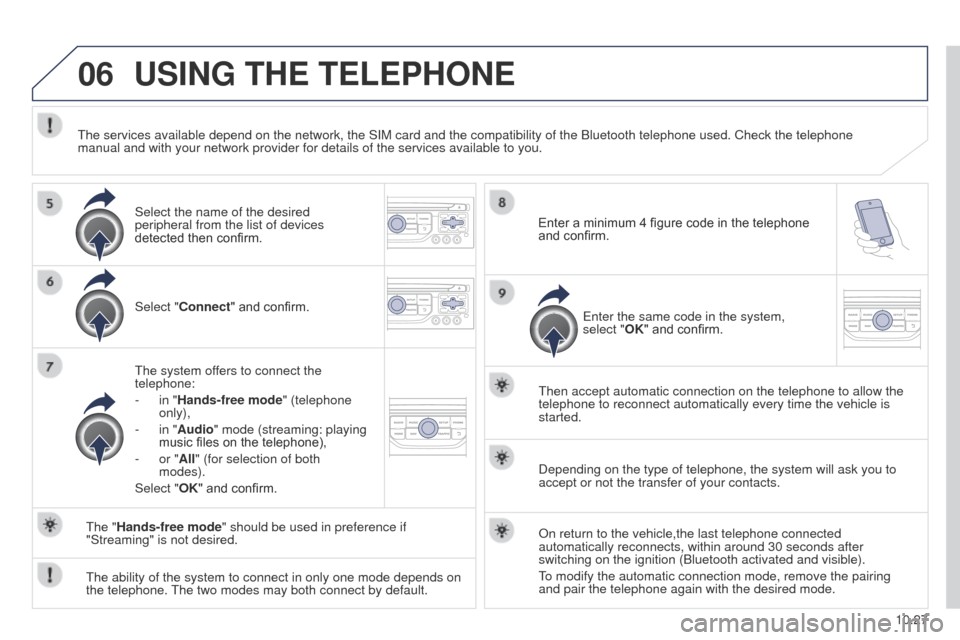
Select "Connect" and confirm.
t
he system offers to connect the
telephone:
-
in "
Hands-free mode" (telephone
only),
-
in "
Audio" mode (streaming: playing
music files on the telephone),
-
or "
All" (for selection of both
modes).
Select "OK" and confirm.
t
hen accept automatic connection on the telephone to allow the
telephone to reconnect automatically every time the vehicle is
started.
t
he ability of the system to connect in only one mode depends on
the telephone.
t
he two modes may both connect by default.
t
he "Hands-free mode" should be used in preference if
"Streaming" is not desired.
t
he services available depend on the network, the SIM card and the compat\
ibility of the Bluetooth telephone used. Check the telephone
manual and with your network provider for details of the services availa\
ble to you.
Depending on the type of telephone, the system will ask you to
accept or not the transfer of your contacts.
On return to the vehicle,the last telephone connected
automatically reconnects, within around 30 seconds after
switching on the ignition (Bluetooth activated and visible).
to modify the automatic connection mode, remove the pairing
and pair the telephone again with the desired mode.
Enter a minimum 4 figure code in the telephone
and confirm.
e
nter the same code in the system,
select "OK" and confirm.
Select the name of the desired
peripheral from the list of devices
detected then confirm.