auto Peugeot Partner Tepee 2016 Workshop Manual
[x] Cancel search | Manufacturer: PEUGEOT, Model Year: 2016, Model line: Partner Tepee, Model: Peugeot Partner Tepee 2016Pages: 296, PDF Size: 10.76 MB
Page 243 of 296
241
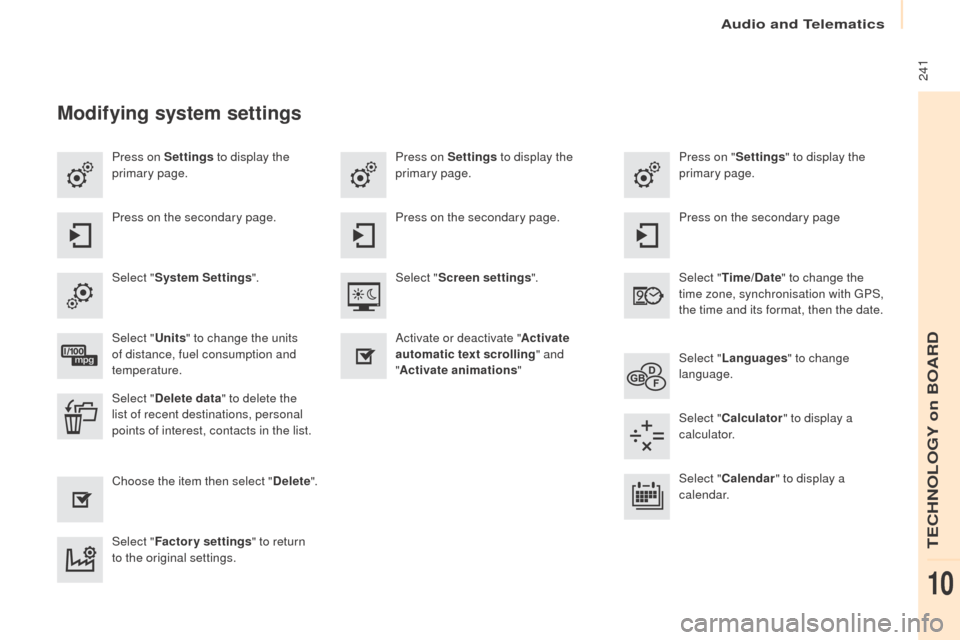
Press on Settings to display the
primary page. Press on "
Settings" to display the
primary page.
Press on Settings
to display the
primary page.
Press on the secondary page. Press on the secondary page
Press on the secondary page.
Select " System Settings ". Select "
ti
me/Date" to change the
time zone, synchronisation with
g
P
S,
the time and its format, then the date.
Select "
Screen settings ".
Select "
u
nits" to change the units
of distance, fuel consumption and
temperature. Select "
Languages " to change
language.
Activate or deactivate "
Activate
automatic text scrolling " and
" Activate animations "
Select " Delete data " to delete the
list of recent destinations, personal
points of interest, contacts in the list. Select "
Calculator " to display a
calculator.
Choose the item then select " Delete". Select "
Calendar " to display a
calendar.
Select " Factory settings " to return
to the original settings.
Modifying system settings
Audio and Telematics
TeCHNoLogY on BoARD
10
Page 249 of 296
247
As a safety measure and because it
requires sustained attention by the
driver, using a smartphone when
driving is prohibited.
All operations must be done with the
vehicle stationary.
As a safety measure, applications
can only be viewed with the vehicle
stationary; display is interrupted once
the vehicle is moving. The synchronisation of a
smartphone allows applications on a
smartphone that are adapted to the
MirrorLink
TM technology to be displayed
i
n the vehicle's screen.
As the principles and standards are
constantly evolving, it is recommended
that you update the operating system of
your smartphone.
For the list of eligible smartphones,
connect to the brand's internet website
in your country. Please note:
-
i
f your smartphone is supported, to
make it "MirrorLink
TM" compatible,
some phone manufacturers
nevertheless invite you to first
download a dedicated application.
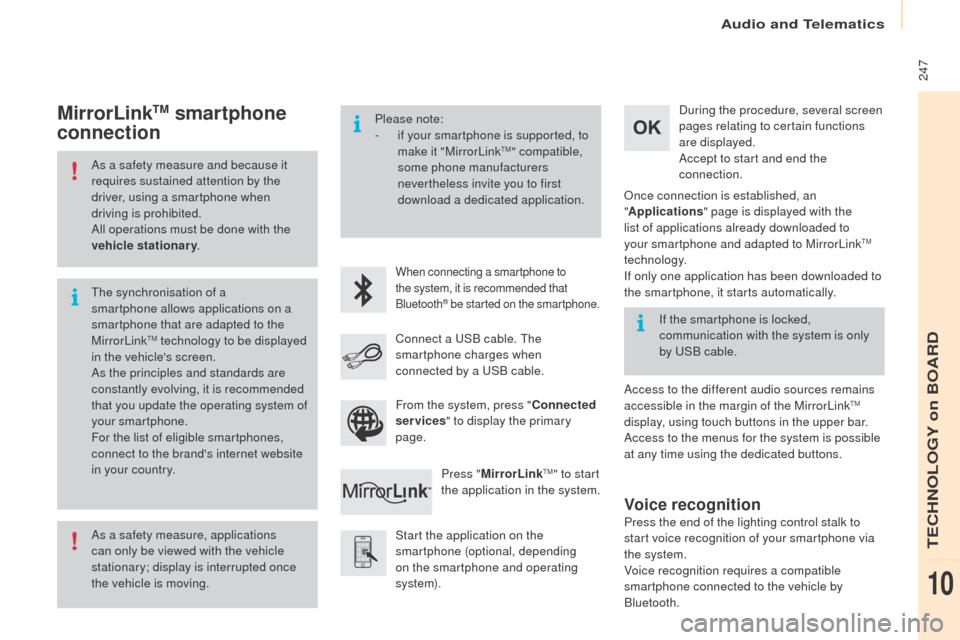
When connecting a smartphone to
the system, it is recommended that
Bluetooth
® be started on the smartphone.
Start the application on the
smartphone (optional, depending
on the smartphone and operating
syste m). During the procedure, several screen
pages relating to certain functions
are displayed.
Accept to start and end the
connection.
Connect a u
S
B cable. The
smartphone charges when
connected by a u
S
B cable.
Press " MirrorLink
TM" to start
the application in the system.
on
ce connection is established, an
" Applications " page is displayed with the
list of applications already downloaded to
your smartphone and adapted to MirrorLink
TM
technology.
If only one application has been downloaded to
the smartphone, it starts automatically.
MirrorLinktM smartphone
connection
Access to the different audio sources remains
accessible in the margin of the MirrorLinkTM
display, using touch buttons in the upper bar.
Access to the menus for the system is possible
at any time using the dedicated buttons. If the smartphone is locked,
communication with the system is only
by
u
S
B cable.
From the system, press " Connected
services " to display the primary
page.
Voice recognition
Press the end of the lighting control stalk to
start voice recognition of your smartphone via
the system.
Voice recognition requires a compatible
smartphone connected to the vehicle by
Bluetooth.
Audio and Telematics
TeCHNoLogY on BoARD
10
Page 255 of 296
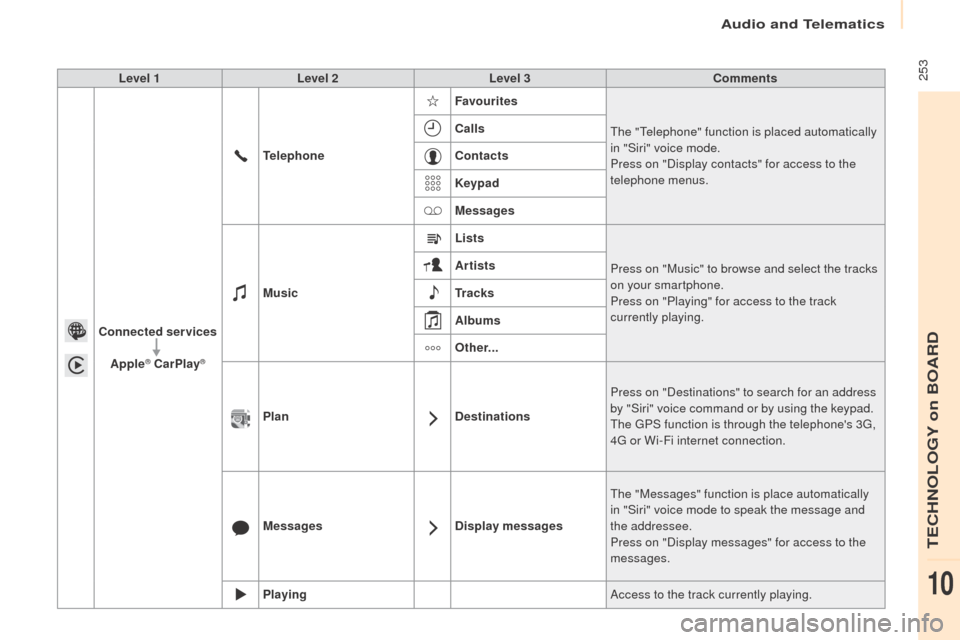
253Level 1Level 2 Level 3 Comments
Connected services Apple
® CarPlay®
telephone Favourites
The "Telephone" function is placed automatically
in "Siri" voice mode.
Press on "Display contacts" for access to the
telephone menus.
Calls
Contacts
Keypad
Messages
Music Lists
Press on "Music" to browse and select the tracks
on your smartphone.
Press on "Playing" for access to the track
currently playing.
Artists
tr
a c k s
Albums
ot
her...
Plan DestinationsPress on "Destinations" to search for an address
by "Siri" voice command or by using the keypad.
The
g
P
S function is through the telephone's 3
g,
4g
or Wi-Fi internet connection.
Messages Display messagesThe "Messages" function is place automatically
in "Siri" voice mode to speak the message and
the addressee.
Press on "Display messages" for access to the
messages.
Playing Access to the track currently playing.
Audio and Telematics
TeCHNoLogY on BoARD
10
Page 261 of 296
259
The services available depend on
the network, the SIM card and the
compatibility of the Bluetooth telephone
used. Check the telephone manual and
with your network provider for details of
the services available to you.
The ability of the system to connect
with only one profile depends on the
telephone. The three profiles may all
connect by default.
Visit www.peugeot.co.uk for more information
(compatibility, additional help, ...).
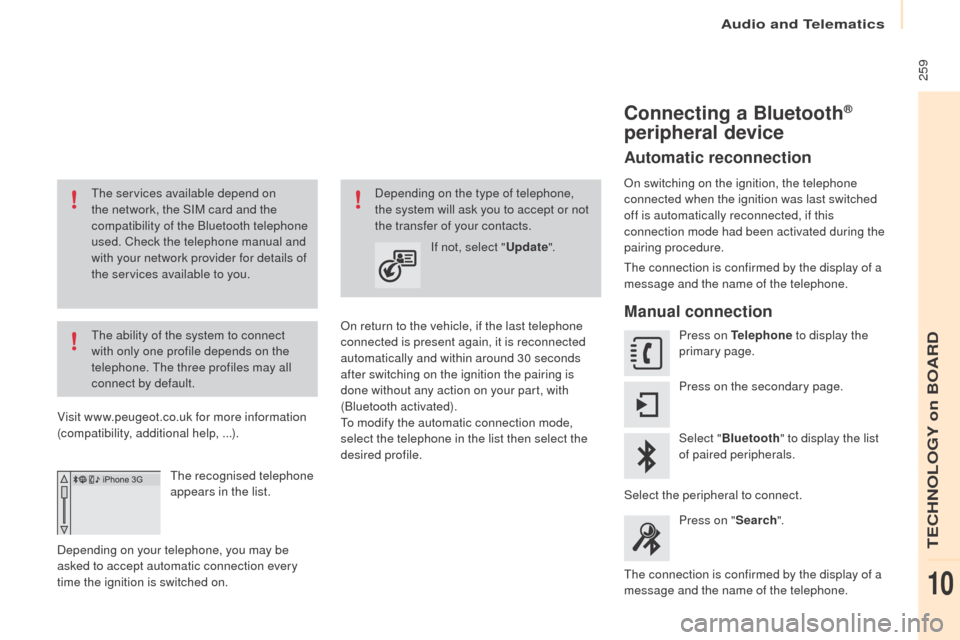
The recognised telephone
appears in the list.
Depending on your telephone, you may be
asked to accept automatic connection every
time the ignition is switched on.
on r
eturn to the vehicle, if the last telephone
connected is present again, it is reconnected
automatically and within around 30 seconds
after switching on the ignition the pairing is
done without any action on your part, with
(Bluetooth activated).
To modify the automatic connection mode,
select the telephone in the list then select the
desired profile. Depending on the type of telephone,
the system will ask you to accept or not
the transfer of your contacts.
If not, select "
upd
ate".
Connecting a Bluetooth®
peripheral device
Automatic reconnection
on switching on the ignition, the telephone
connected when the ignition was last switched
off is automatically reconnected, if this
connection mode had been activated during the
pairing procedure.
The connection is confirmed by the display of a
message and the name of the telephone.
Manual connection
Press on tel ephone to display the
primary page.
Press on the secondary page.
Select " Bluetooth " to display the list
of paired peripherals.
Select the peripheral to connect. Press on " Search".
The connection is confirmed by the display of a
message and the name of the telephone.
Audio and Telematics
TeCHNoLogY on BoARD
10
Page 267 of 296
265
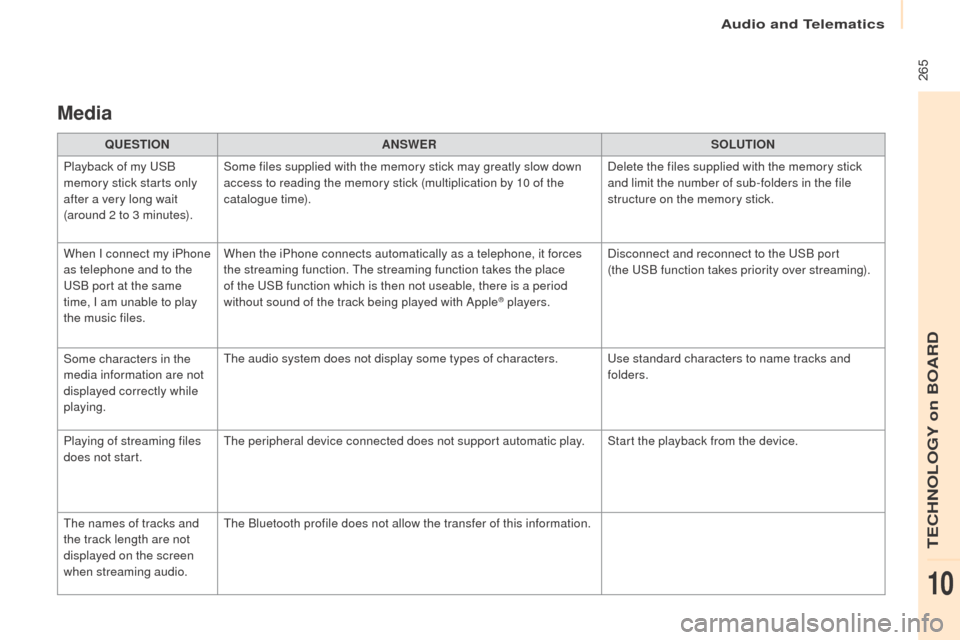
Media
QueStIoNA NSWeRS oLutIoN
P
layback of my u
S
B
memory stick starts only
after a very long wait
(around 2 to 3 minutes). Some files supplied with the memory stick may greatly slow down
access to reading the memory stick (multiplication by 10 of the
catalogue time).
Delete the files supplied with the memory stick
and limit the number of sub-folders in the file
structure on the memory stick.
When I connect my iPhone
as telephone and to the
uS
B port at the same
time, I am unable to play
the music files. When the iPhone connects automatically as a telephone, it forces
the streaming function. The streaming function takes the place
of the
u
S
B function which is then not useable, there is a period
without sound of the track being played with Apple
® players. Disconnect and reconnect to the u
S
B port
(the u
S
B function takes priority over streaming).
Some characters in the
media information are not
displayed correctly while
playing. The audio system does not display some types of characters.
u
se standard characters to name tracks and
folders.
Playing of streaming files
does not start. The peripheral device connected does not support automatic play. Start the playback from the device.
The names of tracks and
the track length are not
displayed on the screen
when streaming audio. The Bluetooth profile does not allow the transfer of this information.
Audio and telematics
teCHNoLogY on BoARD
10
Page 272 of 296
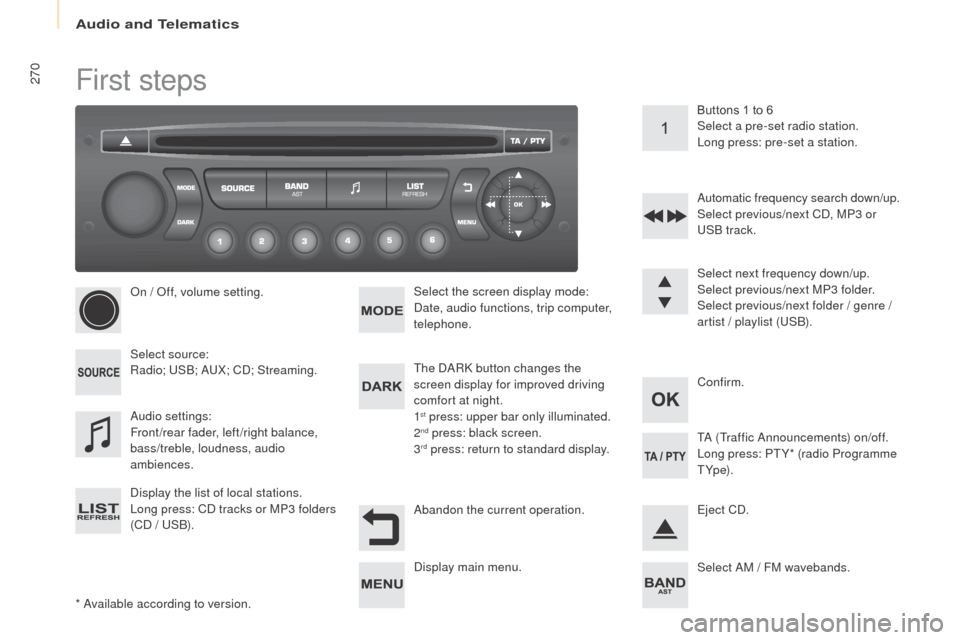
270First steps
* Available according to version.
on /
o
f
f, volume setting.
Select source:
Radio; u
S
B; A
uX
; CD; Streaming.
Display the list of local stations.
Long press: CD tracks or MP3 folders
(CD / u
S
B). Select the screen display mode:
Date, audio functions, trip computer,
telephone.
Audio settings:
Front/rear fader, left/right balance,
bass/treble, loudness, audio
ambiences. The DARK button changes the
screen display for improved driving
comfort at night.
1
st press: upper bar only illuminated.
2nd press: black screen.
3rd press: return to standard display. Select next frequency down/up.
Select previous/next MP3 folder.
Select previous/next folder / genre /
artist / playlist (
uS
B).
Abandon the current operation. Confirm. Buttons 1 to 6
Select a pre-set radio station.
Long press: pre-set a station.
Automatic frequency search down/up.
Select previous/next CD, MP3 or
uS
B track.
ej
ect CD.
Display main menu. TA (Traffic Announcements) on/off.
Long press: PT Y* (radio Programme
T Yp e).
Select AM / FM wavebands.
Audio and Telematics
Page 273 of 296
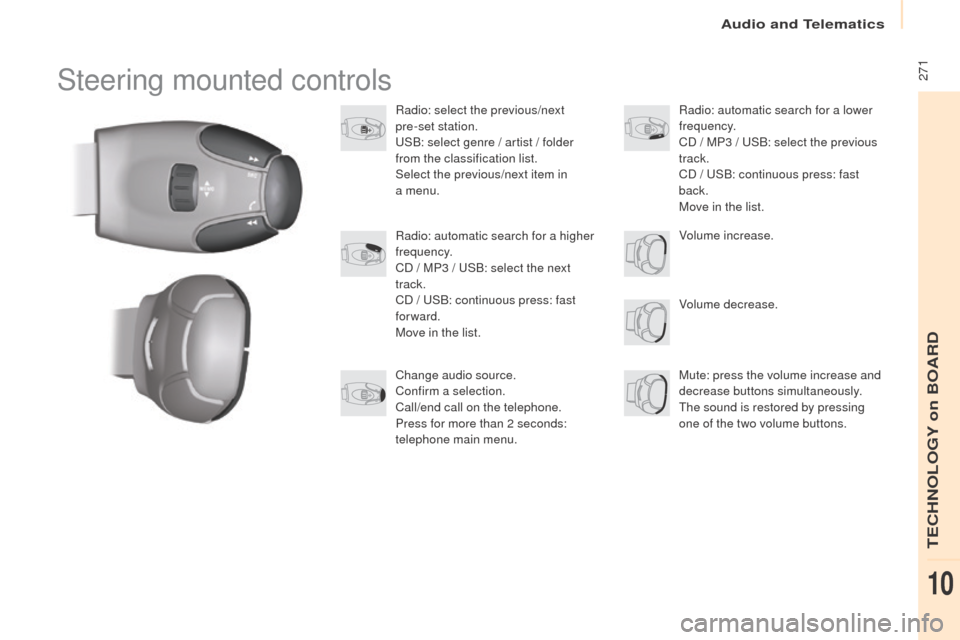
271Steering mounted controls
Radio: select the previous/next
pre-set station.
uS
B: select genre / artist / folder
from the classification list.
Select the previous/next item in
a
menu.
Volume decrease.
Radio: automatic search for a higher
frequency.
CD / MP3 /
u
S
B: select the next
track.
CD /
u
S
B: continuous press: fast
forward.
Move in the list.
Mute: press the volume increase and
decrease buttons simultaneously.
The sound is restored by pressing
one of the two volume buttons. Radio: automatic search for a lower
frequency.
CD / MP3 / u
S
B: select the previous
track.
CD /
u
S
B: continuous press: fast
back.
Move in the list.
Change audio source.
Confirm a selection.
Call/end call on the telephone.
Press for more than 2 seconds:
telephone main menu. Volume increase.
Audio and Telematics
TeCHNoLogY on BoARD
10
Page 274 of 296
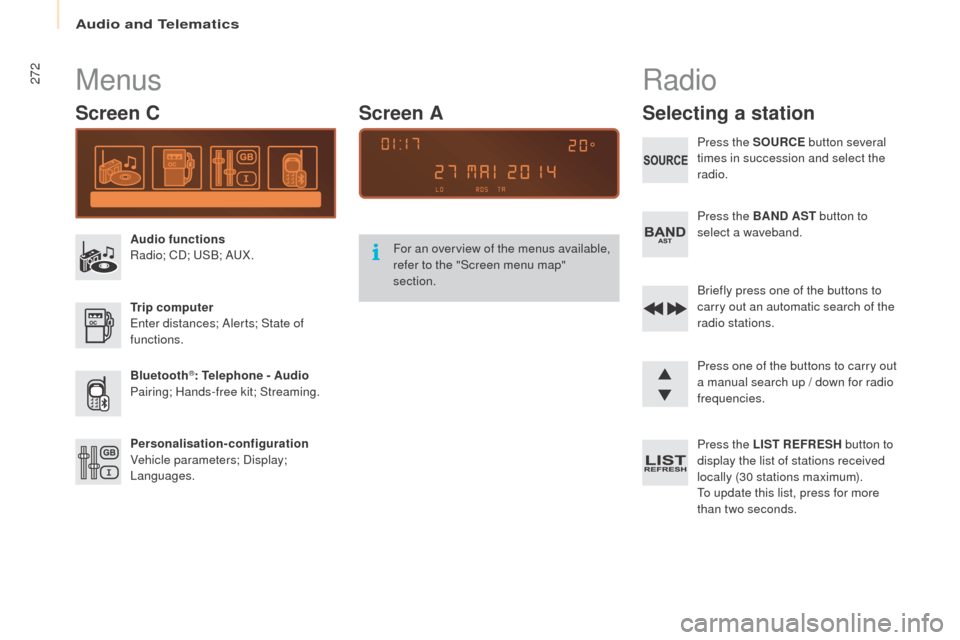
272Menus
Screen C
Audio functions
Radio; CD; uS B; AuX .
tr
ip computer
en
ter distances; Alerts; State of
functions.
Bluetooth
®: telephone - Audio
Pairing; Hands-free kit; Streaming.
Personalisation-configuration
Vehicle parameters; Display;
Languages. For an overview of the menus available,
refer to the "Screen menu map"
section.
Screen A
Radio
Selecting a station
Press the So
uRCe b utton several
times in succession and select the
radio.
Press the BAND AS
t
button to
select a waveband.
Briefly press one of the buttons to
carry out an automatic search of the
radio stations.
Press one of the buttons to carry out
a manual search up / down for radio
frequencies.
Press the LIS
t ReF
R
eS
H button to
display the list of stations received
locally (30 stations maximum).
To update this list, press for more
than two seconds.
Audio and Telematics
Page 275 of 296
273
RDS
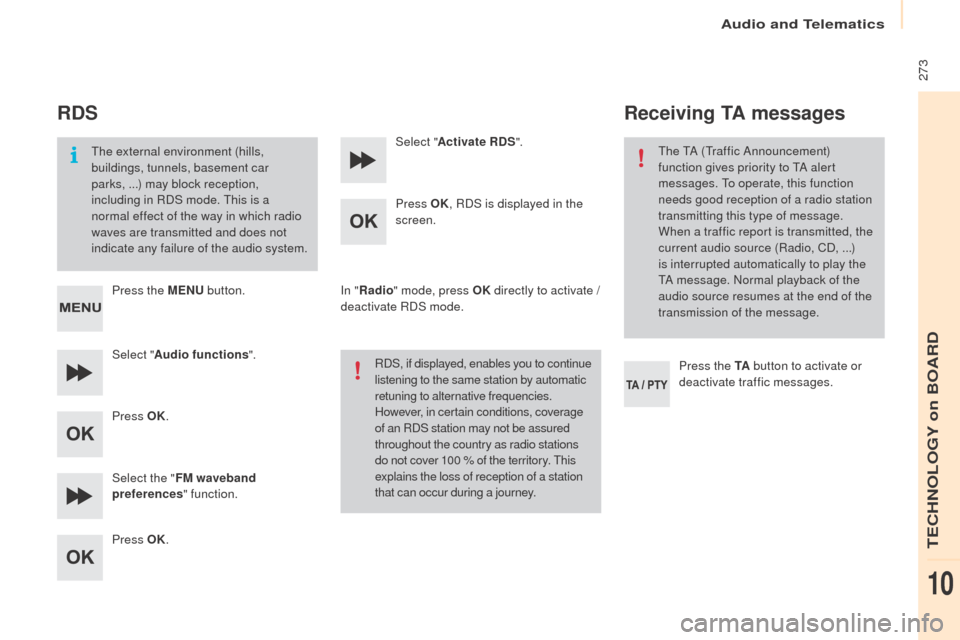
The external environment (hills,
buildings, tunnels, basement car
parks, ...) may block reception,
including in RDS mode. This is a
normal effect of the way in which radio
waves are transmitted and does not
indicate any failure of the audio system.
Press the M
eN
u
b
utton.
Select " Audio functions ".
Press
o
K
.
Select the " FM waveband
preferences " function.
Press
o
K
. Select "
Activate RDS ".
Press o
K, R
DS is displayed in the
screen.
In " Radio " mode, press
o
K d
irectly to activate /
deactivate RDS mode.
RDS, if displayed, enables you to continue
listening to the same station by automatic
retuning to alternative frequencies.
However, in certain conditions, coverage
of an RDS station may not be assured
throughout the country as radio stations
do not cover 100 % of the territory. This
explains the loss of reception of a station
that can occur during a journey.
Receiving tA messages
Press the tA b utton to activate or
deactivate traffic messages.
The TA (Traffic Announcement)
function gives priority to TA alert
messages. To operate, this function
needs good reception of a radio station
transmitting this type of message.
When a traffic report is transmitted, the
current audio source (Radio, CD, ...)
is interrupted automatically to play the
TA message. Normal playback of the
audio source resumes at the end of the
transmission of the message.
Audio and Telematics
TeCHNoLogY on BoARD
10
Page 277 of 296
275
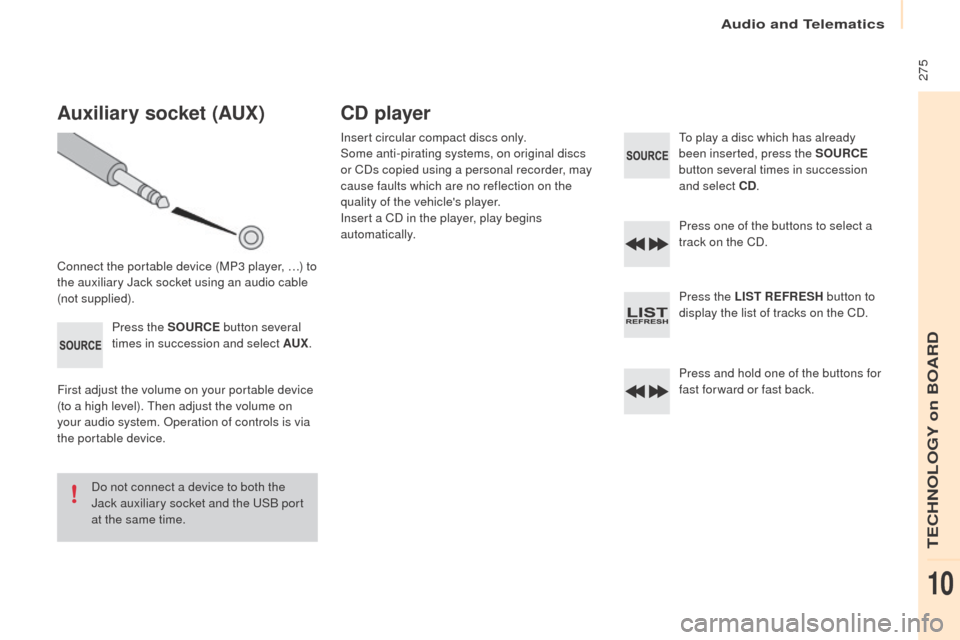
Auxiliary socket (Aux)
Connect the portable device (MP3 player, …) to
the auxiliary Jack socket using an audio cable
(not supplied).
Press the S
o
u
RCe b
utton several
times in succession and select A
ux
.
F
irst adjust the volume on your portable device
(to a high level). Then adjust the volume on
your audio system.
o
p
eration of controls is via
the portable device.
Do not connect a device to both the
Jack auxiliary socket and the
u
S
B port
at the same time.
CD player
Insert circular compact discs only.
Some anti-pirating systems, on original discs
or CDs copied using a personal recorder, may
cause faults which are no reflection on the
quality of the vehicle's player.
Insert a CD in the player, play begins
automatically. To play a disc which has already
been inserted, press the So
uRCe
b
utton several times in succession
and select CD .
Press one of the buttons to select a
track on the CD.
Press the LIS
t ReF
R
eS
H button to
display the list of tracks on the CD.
Press and hold one of the buttons for
fast for ward or fast back.
Audio and Telematics
TeCHNoLogY on BoARD
10