radio PEUGEOT PARTNER TEPEE 2020 Owners Manual
[x] Cancel search | Manufacturer: PEUGEOT, Model Year: 2020, Model line: PARTNER TEPEE, Model: PEUGEOT PARTNER TEPEE 2020Pages: 216, PDF Size: 8.46 MB
Page 63 of 216
61
The connection of an electrical device
not approved by PEUGEOT, such as a
USB charger, may adversely affect the
operation of vehicle electrical systems,
causing faults such as poor radio
reception or inter ference with displays in
the screens.
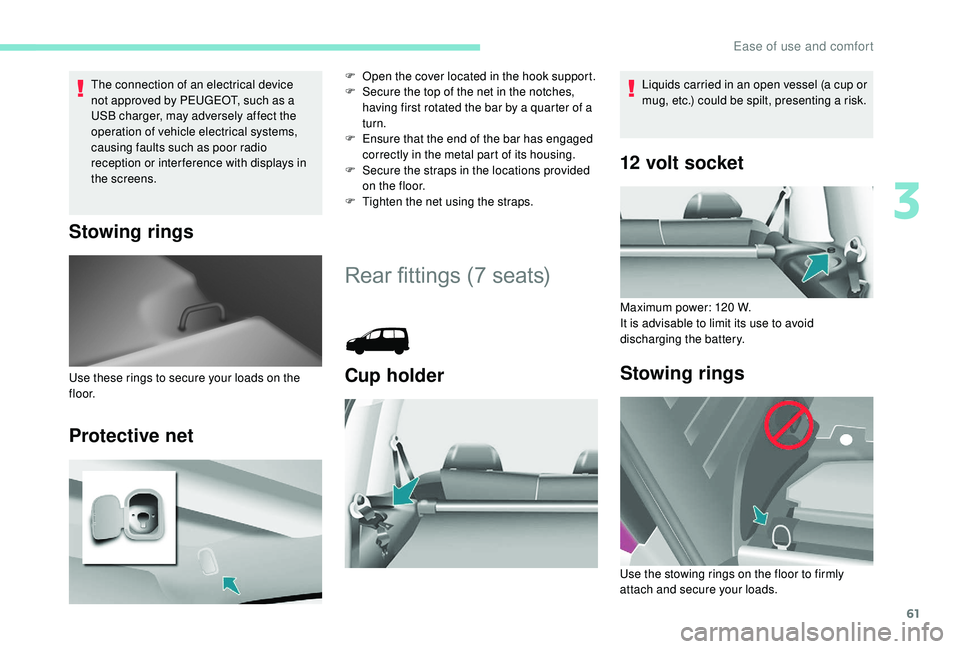
Stowing rings
Protective net
F Open the cover located in the hook support.
F S ecure the top of the net in the notches,
having first rotated the bar by a quarter of a
turn.
F
E
nsure that the end of the bar has engaged
correctly in the metal part of its housing.
F
S
ecure the straps in the locations provided
on the floor.
F
T
ighten the net using the straps.
Rear fittings (7 seats)
Cup holderUse these rings to secure your loads on the
f l o o r.
12 volt socket
Maximum power: 120 W.
I t is advisable to limit its use to avoid
discharging the battery.
Stowing rings
Liquids carried in an open vessel (a cup or
mug, etc.) could be spilt, presenting a risk.
Use the stowing rings on the floor to firmly
attach and secure your loads.
3
Ease of use and comfort
Page 66 of 216
64
F Arrange the two flaps and close the hatch.
Load space layout
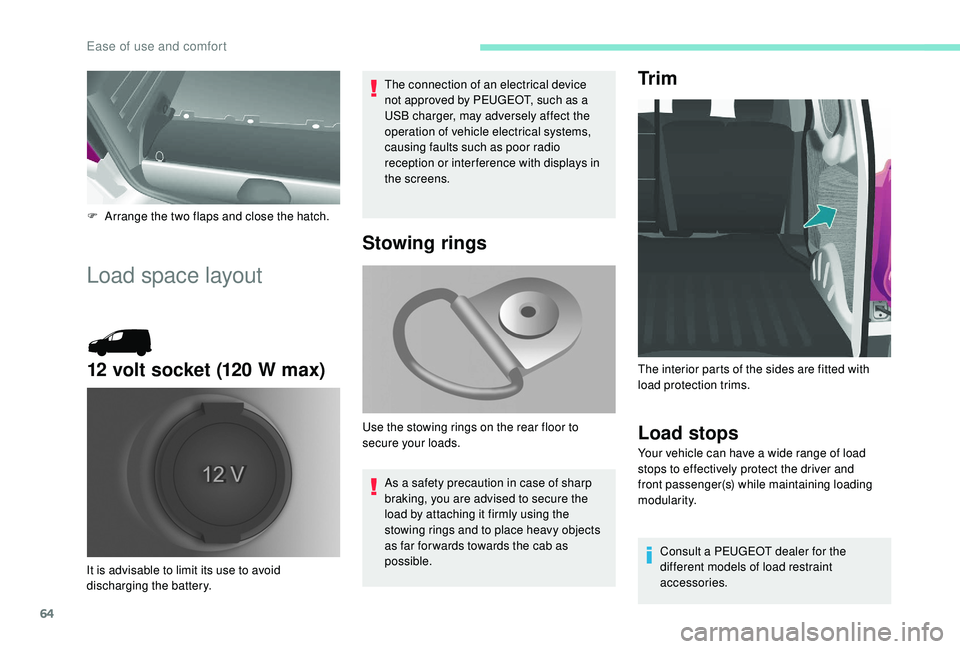
12 volt socket (120 W max)
The connection of an electrical device
not approved by PEUGEOT, such as a
USB charger, may adversely affect the
operation of vehicle electrical systems,
causing faults such as poor radio
reception or inter ference with displays in
the screens.
It is advisable to limit its use to avoid
discharging the battery.
Stowing rings
As a safety precaution in case of sharp
braking, you are advised to secure the
load by attaching it firmly using the
stowing rings and to place heavy objects
as far for wards towards the cab as
possible.
Use the stowing rings on the rear floor to
secure your loads.
Tr i m
Load stops
Your vehicle can have a wide range of load
stops to effectively protect the driver and
front passenger(s) while maintaining loading
modularity.
Consult a PEUGEOT dealer for the
different models of load restraint
accessories.
The interior parts of the sides are fitted with
load protection trims.
Ease of use and comfort
Page 78 of 216
76
General safety
recommendations
Labels are affixed in different locations on
your vehicle. They include safety warnings
and vehicle identification information. Do
not remove them: they are an integral part
of your vehicle.
For all work on your vehicle, use a
qualified workshop that has the technical
information, skills and equipment required,
all of which a PEUGEOT dealer is able to
provide.We draw your attention to the following
points:
-
T
he fitting of electrical equipment
or accessories not approved by
PEUGEOT may cause excessive
current consumption and faults and
failures with the electrical system of
your vehicle. Contact a PEUGEOT
dealer for information on the range of
recommended accessories.
-
A
s a safety measure, access to
the diagnostic socket, used for the
vehicle's electronic systems, is
reser ved strictly for PEUGEOT dealers
or qualified workshops, equipped
with the special tools required (risk
of malfunctions of the vehicle's
electronic systems that could cause
breakdowns or serious accidents).
The manufacturer cannot be held
responsible if this advice is not
followed.
-
A
ny modification or adaptation not
intended or authorised by PEUGEOT
or carried out without meeting the
technical requirements defined by
the manufacturer will result in the
suspension of the legal and contractual
warranties. Installation of accessory radio
communication transmitters
Before installing a radio communication
transmitter, you must contact a PEUGEOT
dealer for the specification of transmitters
which can be fitted (frequency, maximum
power, aerial position, specific installation
requirements), in line with the Vehicle
Electromagnetic Compatibility Directive
(2004/104/EC).
Depending on country regulations, some
safety equipment may be compulsory:
high visibility safety vests, warning
triangles, breathalysers, spare bulbs,
spare fuses, fire extinguisher, first aid kit,
mud flaps at the rear of the vehicle, etc.
Safety
Page 177 of 216
1
7-inch touch screen
GPS satellite navigation –
Multimedia audio system –
Bluetooth
® telephone
Contents
First steps
1
S
teering mounted controls
2
M
enus
3
N
avigation
4
Radio
7
DAB (Digital Audio Broadcasting) radio
8
M
edia 9
Settings
11
Connected services
1
2
Telephone
1
4
Frequently asked questions
1
7The system is protected in such a way that
it will only operate in your vehicle.
For safety reasons, the vehicle must
always be stationary for the driver to
perform operations that require close
attention.
The display of the energy economy mode
message signals that the system is about
to go into standby. Refer to the Energy
Economy Mode section.
First steps
Use the buttons provided above the touch
screen to access the menu carousel, then
press the virtual buttons in the touch screen.
Each menu is displayed in one or two pages
(primary page and secondary page).
In very hot conditions, the system may
go into standby (screen and sound
completely off) for a minimum period of
5
minutes.
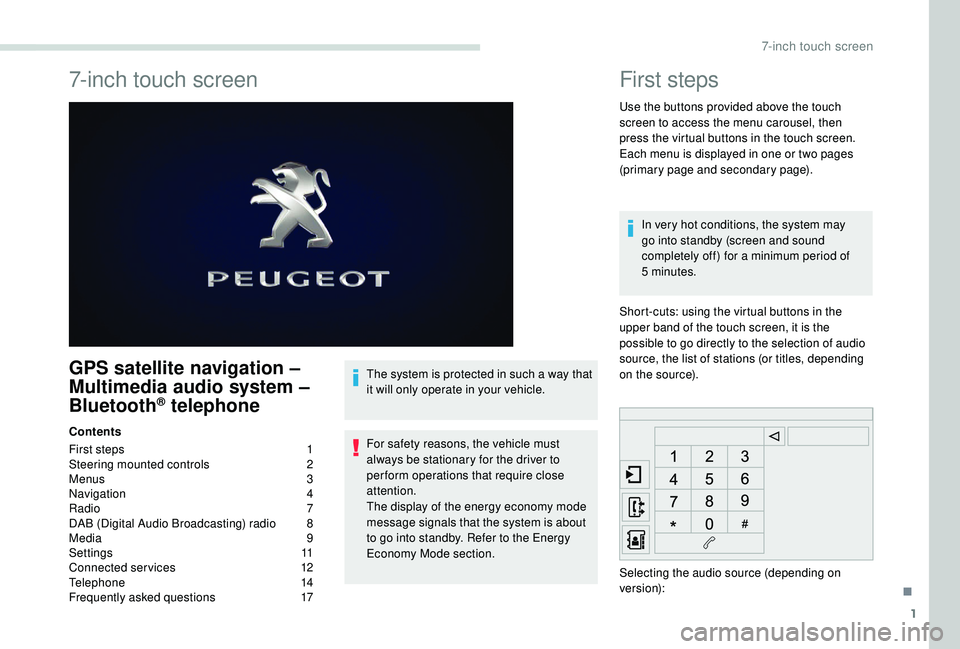
Short-cuts: using the virtual buttons in the
upper band of the touch screen, it is the
possible to go directly to the selection of audio
source, the list of stations (or titles, depending
on the source).
Selecting the audio source (depending on
version):
.
7-inch touch screen
Page 178 of 216
2
* Depending on equipment. Press Menu to display the menu
carousel.
Volume adjustment (each source is
independent, including traffic announcements
(TA) and navigation instructions). Increase volume.
Decrease volume.
Mute by pressing the volume increase and
decrease buttons simultaneously. In very hot conditions, the volume may be
limited to protect the system. The return to
normal takes place when the temperature
in the passenger compartment drops.
The screen is of the "resistive" type, it is
necessary to press firmly, particularly for
"flick" gestures (scrolling through a list,
moving the map, etc.). A simple swipe will
not be enough. Pressing with more than
one finger is not recognised.
The screen can be used with gloves. This
technology allows use at all temperatures.
To clean the screen, use a soft non-
abrasive cloth (spectacles cloth) without
any additional product.
Do not use sharp objects on the screen.
Do not touch the screen with wet hands.
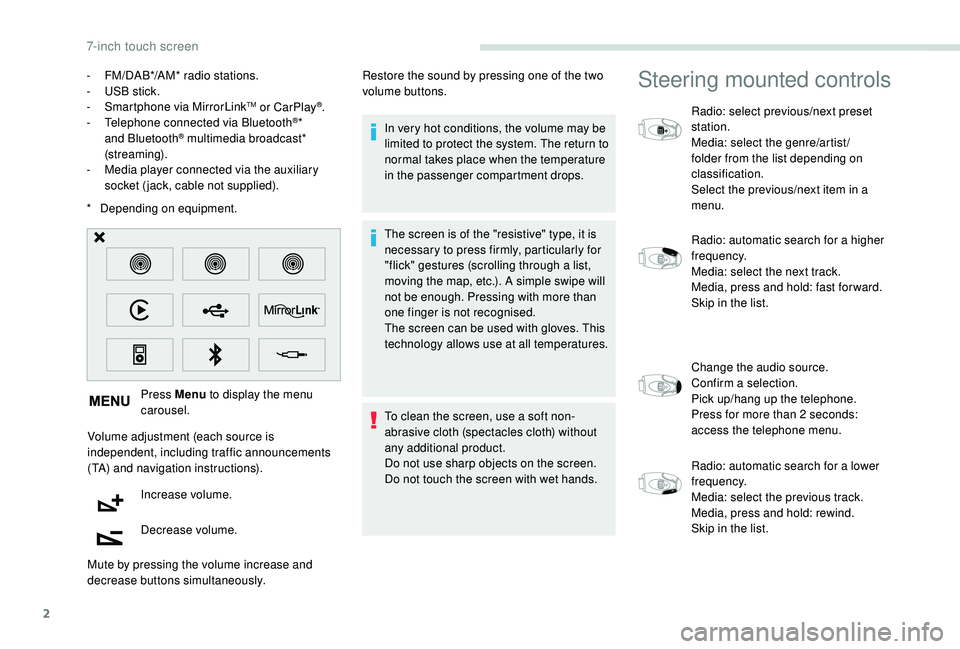
-
F
M/DAB*/AM* radio stations.
-
U
SB stick.
-
S
martphone via MirrorLink
TM or CarPlay®.
- T
elephone connected via Bluetooth®*
and Bluetooth® multimedia broadcast*
(streaming).
-
M
edia player connected via the auxiliary
socket (jack, cable not supplied). Restore the sound by pressing one of the two
volume buttons.
Steering mounted controls
Radio: select previous/next preset
station.
Media: select the genre/artist/
folder from the list depending on
classification.
Select the previous/next item in a
menu.
Radio: automatic search for a higher
frequency.
Media: select the next track.
Media, press and hold: fast for ward.
Skip in the list.
Change the audio source.
Confirm a selection.
Pick up/hang up the telephone.
Press for more than 2
seconds:
access the telephone menu.
Radio: automatic search for a lower
frequency.
Media: select the previous track.
Media, press and hold: rewind.
Skip in the list.
7-inch touch screen
Page 179 of 216
3
Increase volume.
Decrease volume.
Mute on: cut the sound by
simultaneously pressing the volume
up and down buttons.
Mute off: press one of the two
volume buttons.
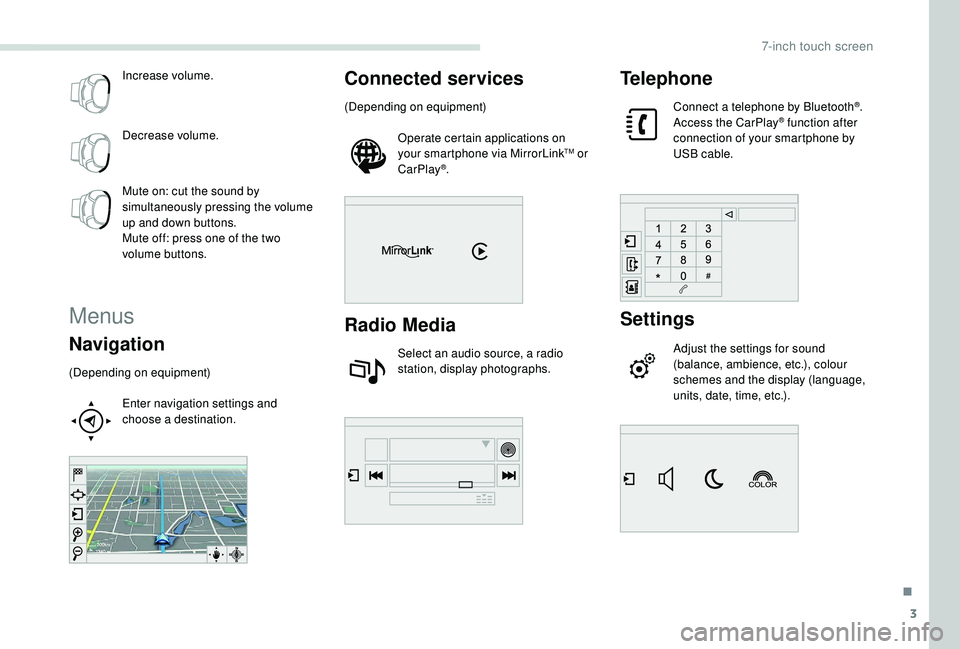
Menus
Navigation
(Depending on equipment)Enter navigation settings and
choose a destination.
Connected services
(Depending on equipment)Operate certain applications on
your smartphone via MirrorLink
TM or
CarPlay®.
Radio Media
Select an audio source, a radio
station, display photographs.
Telephone
Connect a telephone by Bluetooth®.
Access the CarPlay® function after
connection of your smartphone by
USB cable.
Settings
Adjust the settings for sound
(balance, ambience, etc.), colour
schemes and the display (language,
units, date, time, etc.).
.
7-inch touch screen
Page 183 of 216
7
The TA (Traffic Announcement) function
gives priority to TA alert messages.
To operate, this function needs good
reception of a radio station that carries this
type of message. While traffic information
is being broadcast, the current medium is
automatically interrupted so that the TA
message can be heard. Normal play of the
medium previously playing is resumed at
the end of the message.
Radio
Selecting a station
Press Radio Media to display the
primary page.
Select " List" in the primary page.
Or Press Radio Media to display the
primary page.
Press the secondary page. Select "Radio list " on the
secondary page. Select a radio station from the list offered.
Select "Update list " to refresh the
list.
To select a preset radio station.
Press Radio Media to display the
primary page.
Select " Preset".
Select a preset radio station in the list.
If necessary, select change of source.
Select "FM Radio ".
Or "AM Radio ". Radio reception may be affected by the
use of electrical equipment not approved
by PEUGEOT, such as a USB charger
connected to the 12
V socket.
The external environment (hills, buildings,
tunnels, basement car parks, etc.) may
block reception, including in RDS mode.
This is a normal effect of the way in
which radio waves are transmitted and
does not indicate any failure of the audio
equipment.
Changing a frequency
Press Radio Media to display the
primary page.
By automatic frequency search
Press 3 or 4 or move the cursor for an
automatic search down or up for a radio
frequency.
THEN
Select change source. Select "FM Radio ".
Or
.
7-inch touch screen
Page 184 of 216
8
"AM Radio ".
OR Press Radio Media to display the
primary page.
Press the secondary page.
Press " Frequency ".
THEN
Enter the frequency in full (e.g.:
92.10
MHz) using the keypad then
" Confirm ".
Changing radio station
Pressing the name of the current radio station
brings up a list.
To change radio station press the name of the
desired station.
Presetting a station
Select a radio station or frequency (refer to the
corresponding section).
Press " Preset".
Select a number in the list to preset the
previously chosen/set radio station. Or
A press on the button in the upper-right part of
the screen presets all of the stations one after
the other.
Recalling preset stations
Press Radio Media
to display the
primary page.
Select " Preset".
Activating/Deactivating RDS
Press Radio Media to display the
primary page.
Press the secondary page. Select "Settings ".
Select " Radio".
Activate/Deactivate " RDS options".
RDS, if activated, allows you to
continue listening to the same station
by automatically retuning to alternative
frequencies. However, in certain conditions,
coverage of an RDS station may not be
assured throughout the entire country as
radio stations do not cover 100% of the
territory. This explains the loss of reception
of the station during a journey.A long press on a number saves (presets) the
station.
DAB (Digital Audio
Broadcasting) radio
Digital radio
Digital radio provides higher quality
reception and also the graphical display
of current information on the radio station
being listened to. Select "List" in the
primary page.
The different multiplexes offer a choice
of radio stations arranged in alphabetical
o r d e r.
Press Radio Media to display the
primary page.
Select change of source. Select "DAB Radio ".
7-inch touch screen
Page 185 of 216
9
Select "List" in the primary page.
or
Select " Radio list " on the
secondary page.
Select a radio station from the list offered.
DAB/FM station tracking
"DAB" does not cover 100% of the
te r r i to r y.
When the digital radio signal is poor,
the "DAB/FM station tracking" allows
you to continue listening to the same
station, by automatically switching to the
corresponding FM analogue station (if
there is one). Press Radio Media to display the
primary page.
Press the secondary page. Select "Settings ".
Select " Radio".
Select " Digital/FM tracking " then "Confirm ". If "DAB/FM station tracking" is activated
there is a delay of a few seconds when the
system switches to analogue radio "FM",
sometimes with a change in volume.
Once the digital signal quality is restored,
the system automatically changes back
to " DA B ".
If the "DAB" station being listened to is
not available on "FM" ("
DAB/FM" option
greyed out), or "DAB/FM station tracking"
is not activated, the sound will cut out
while the digital signal is too weak.
Media
USB port
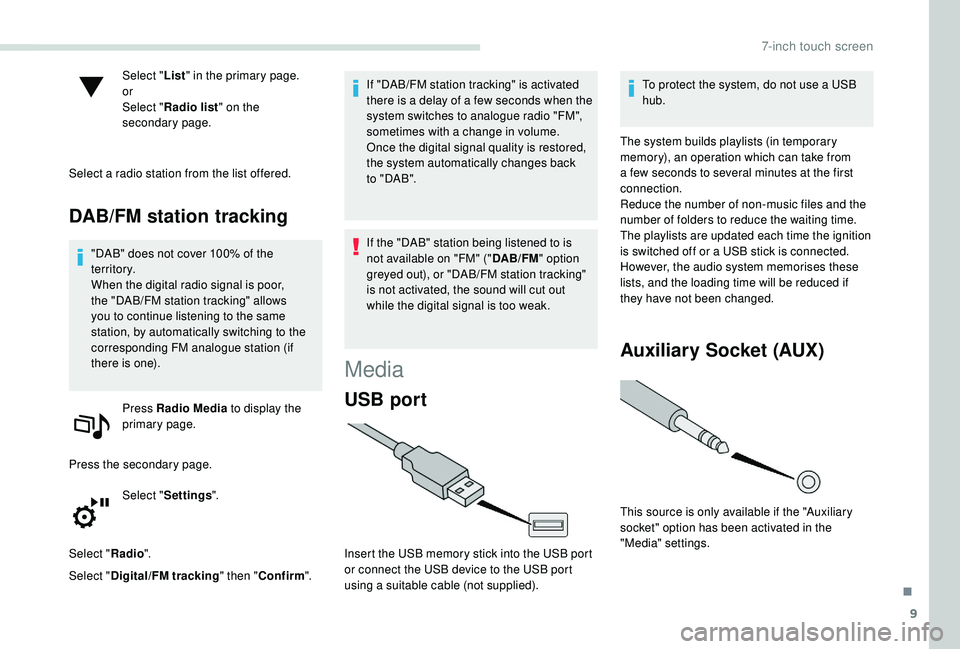
Insert the USB memory stick into the USB port
or connect the USB device to the USB port
using a suitable cable (not supplied). To protect the system, do not use a USB
hub.
The system builds playlists (in temporary
memory), an operation which can take from
a few seconds to several minutes at the first
connection.
Reduce the number of non-music files and the
number of folders to reduce the waiting time.
The playlists are updated each time the ignition
is switched off or a USB stick is connected.
However, the audio system memorises these
lists, and the loading time will be reduced if
they have not been changed.
Auxiliary Socket (AUX)
This source is only available if the "Auxiliary
socket" option has been activated in the
"Media" settings.
.
7-inch touch screen
Page 186 of 216
10
Connect the portable device (MP3 player, etc.)
to the jack socket using an audio cable (not
supplied).
First adjust the volume of your portable device
(to a high level). Then adjust the volume of your
audio system.
Operation of controls is via the portable device.
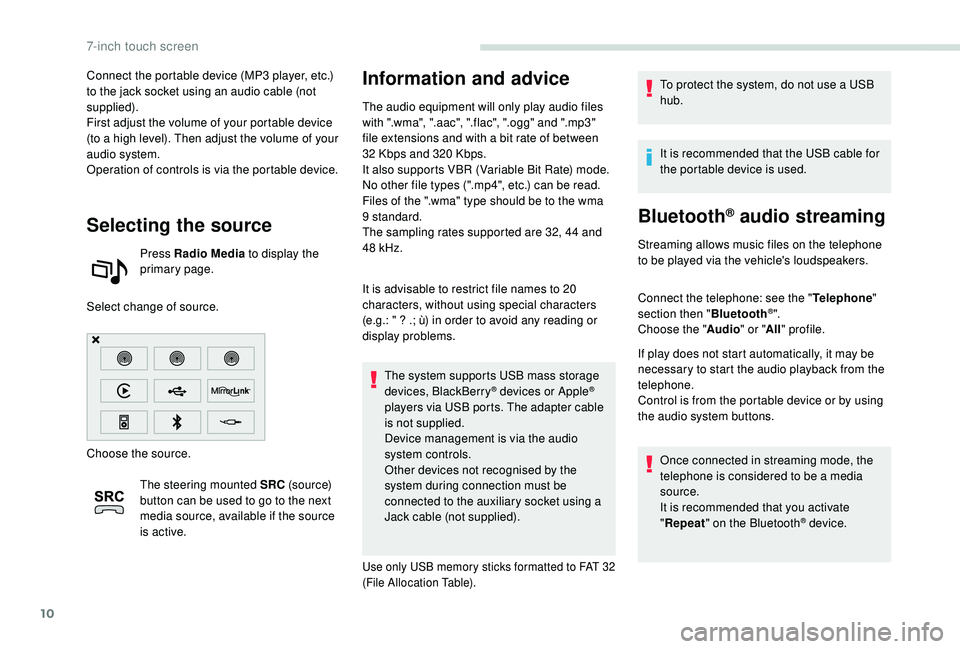
Selecting the source
Press Radio Media to display the
primary page.
Select change of source.
Choose the source. The steering mounted SRC (s o u r c e)
button can be used to go to the next
media source, available if the source
is active.
Information and advice
The audio equipment will only play audio files
with ".wma", ".aac", ".flac", ".ogg" and ".mp3"
file extensions and with a bit rate of between
32
Kbps and 320 Kbps.
It also supports VBR (Variable Bit Rate) mode.
No other file types (".mp4", etc.) can be read.
Files of the ".wma" type should be to the wma
9 standard.
The sampling rates supported are 32, 44 and
48
kHz.
It is advisable to restrict file names to 20
characters, without using special characters
(e.g.: " ? .; ù) in order to avoid any reading or
display problems. The system supports USB mass storage
devices, BlackBerry
® devices or Apple®
players via USB ports. The adapter cable
is not supplied.
Device management is via the audio
system controls.
Other devices not recognised by the
system during connection must be
connected to the auxiliary socket using a
Jack cable (not supplied).
Use only USB memory sticks formatted to FAT 32
(File Allocation Table).
To protect the system, do not use a USB
hub.
It is recommended that the USB cable for
the portable device is used.
Bluetooth® audio streaming
Streaming allows music files on the telephone
to be played via the vehicle's loudspeakers.
Connect the telephone: see the " Telephone"
section then " Bluetooth
®".
Choose the " Audio" or "All" profile.
If play does not start automatically, it may be
necessary to start the audio playback from the
telephone.
Control is from the portable device or by using
the audio system buttons.
Once connected in streaming mode, the
telephone is considered to be a media
source.
It is recommended that you activate
"Repeat " on the Bluetooth
® device.
7-inch touch screen