ignition PONTIAC BONNEVILLE 2003 Workshop Manual
[x] Cancel search | Manufacturer: PONTIAC, Model Year: 2003, Model line: BONNEVILLE, Model: PONTIAC BONNEVILLE 2003Pages: 418, PDF Size: 20.24 MB
Page 182 of 418

Memory Seats
If your vehicle has this feature, the memory seat and
mirror positions will be recalled for the identified
driver when the remote keyless entry transmitter is used
to enter the vehicle.
You can program this feature to be active by choosing
ON when the SEAT RECALL choice appears, or
inactive by choosing
OFF when the SEAT RECALL
choice appears on the DIC. Make your choices
by pressing the RESET button and store them to
memory by pressing the SELECT button.
You can also program this feature
to recall your
memory seat position or the exit seat position.
Memory Position: Choose ON when the SEAT
RECALL choice appears and then choose
MEMORY when the RECALL POSITION choice
appears.
Ex!! PesW?!?: Chwse ON when the SEAT
RECALL choice appears and then choose
EXIT
when the RECALL POSITION choice appears.
The seat will move when you enter the vehicle after
unlocking it with a remote keyless entry transmitter.
This will allow for easy entry.
For more information on this feature, see
Memory Seat
and Mirrors on page 2-48.
Outside Curb View Assist Mirror
If your vehicle has this feature, the outside curb view
assist mirror, which tips the passenger mirror while the
vehicle is in REVERSE
(R), can be made active or
inactive through the DIC. When TILT MIRROR
-OFF/ON
appears on the display, use the RESET button to
toggle the arrow between
OFF and ON. When you have
made your choice, press the SELECT button to record
your selection. For more information on this feature, see
Outside Curb View Assist Mirror on page 2-39.
Driver ID
This feature displays the DRIVER ID, as identified by
the
DIC. If this feature is ON, the DRIVER ID will
be displayed every time the ignition
is turned on. If the
DRIVER ID
is OFF, the DRIVER ID can be displayed
by pressing either a button on the remote keyless entry
transmitter or a memory seat button.
3-67
Page 186 of 418
Audio System(s)
Notice: Before you add any sound equipment to
your vehicle
- like a tape player, CB radio, mobile
telephone or two-way radio
- be sure you can
add what you want. If you can, it’s very important to
do
it properly. Added sound equipment may
interfere with the operation of your vehicle’s engine,
Delphi Electronics radio or other systems, and
even damage them. Your vehicle’s systems may interfere with the operation of sound equipment that
has been added improperly.
So, before adding sound equipment, check with
your dealer and be sure to check federal rules
covering mobile radio and telephone units.
Your audio system has been designed
to operate easily
and
to give years of listening pleasure. You will get
the most enjoyment out of it
if you acquaint yourself with
it first. Find out what your audio system can do and
how to operate all of its controls to be sure you’re getting
LI It: II IUS1 vu1 VI 11 IC UUVUl IUUU ”1 ‘y“ I””. .. .
into it.
I‘- - --* -. .+ -g +h -A-r-nmmA nnninonrinn +hat
,ant 3 -..-- ..-..-
Your vehicle has a feature called Retained Accessory
Power (RAP). With RAP, you can play your audio
system even after the ignition is turned
off. See
“Retained Accessory Power (RAP)” under lgnition
Positions on page 2-25.
Setting the Time
Press and hold HR or MIN for two seconds. Then press
and hold
HR until the correct hour appears on the
display. AM will also appear. Press and hold MIN until
the correct minute appears on the display. The time may
be
set with the ignition on or off.
To synchronize the time with an FM station broadcasting
Radio Data System
(RDS) Information, press and
hold HR and MIN at the same time until UPDATED and
the clock symbol appear on the display.
If the time is
not available from the station, NO UPDATE will appear
on the display instead.
3-71
Page 188 of 418
Set the volume at the desired level. Press this button to
select MIN, MED or MAX. Each higher choice allows
for more volume compensation at faster vehicle speeds.
Then, as you drive, SCV automatically increases the
volume, as necessary, to overcome noise at any speed.
The volume level should always sound the same to
you as you drive.
If you don’t want to use SCV,
select
OFF.
RCL (Recall): Push this knob to switch the display
between the radio station frequency and the time.
Pushing this knob with the ignition off will display the
time.
For
XMTM (USA only, if your radio is equipped with
XMTM Satellite Radio Service), pressing this button while
in XMTM mode to retrieve various pieces of information
related to the current song or channel. By pressing
and releasing the RCL knob, you may retrieve
four different categories of information: Artist, Song
Title, Category or PTY, Channel Number/ Cnannei hame.
To change the default on the display, push the knob
until you see the display you want, then hold the knob
until the display flashes. The selected display will
now be the default.
Finding a Station
BAND: Press this button to switch between AM, FM,
FM2, or XMI, XM2 (USA only,
if your radio is equipped
with XMTM Satellite Radio Service). The display will
show your selection.
TUNE: Turn this knob to choose radio stations.
A SEEK v : Press the up or the down arrow to go to
the next or to the previous station and stay there.
The radio will seek only to stations that are in the
selected band and only to those with a strong signal.
SCAN v : Press and hold one of the SCAN arrows
for two seconds until SCAN appears on the display
and you hear a beep. The radio will go to a station, play
for a few seconds, then go on to the next station.
Press one of the SCAN arrows again to stop scanning.
To scan preset stations, press and hold one of the
SCAN arrows for more man Tour seconas uniii FSGAi<
and the preset number appear on the display. You
will hear a double beep. The radio will go to the first
preset station stored on your pushbuttons, play for a few
seconds, then go on to the next preset station. Press
one of the SCAN arrows again to stop scanning presets.
The radio will scan only to stations that are
in the
selected band and only to those with a strong signal.
3-73
Page 195 of 418
XMTM Radio
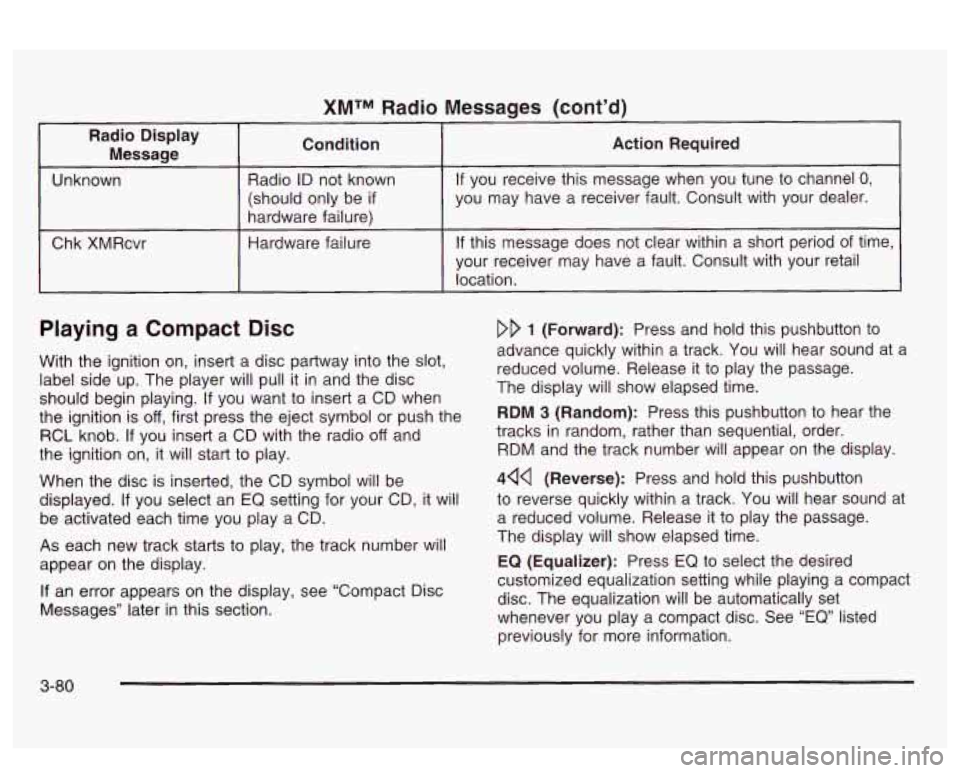
Radio Display Message Condition
Unknown
Radio ID not known
(should only be
if
hardware failure)
Chk XMRcvr Hardware failure
Messages (cont’d)
Action Required
If you
receive this message when you tune to channel 0,
you may have a receiver fault. Consult with your dealer.
If this message does not clear within a short period of time,
your receiver may have a fault. Consult with your retail
location.
Playing a Compact Disc
With the ignition on, insert a disc partway into the slot,
label side up. The player will pull it in and the disc
should begin playing.
If you want to insert a CD when
the ignition is
off, first press the eject symbol or push the
RCL knob.
If you insert a CD with the radio off and
the ignition on, it will start to play.
When the disc is inserted, the CD symbol will be
displayed.
If you select an EQ setting for your CD, it will
be activated each time you play a CD.
As each new track starts to play, the track number will
appear on the display.
If an error appears on the display, see “Compact Disc
Messages’’ later in this section.
DD 1 (Forward): Press and hold this pushbutton to
advance quickly within a track. You will hear sound at a
reduced volume. Release
it to play the passage.
The display
will show elapsed time.
RDM 3 (Random): Press this pushbutton to hear the
tracks in random, rather than sequential, order.
RDM and the track number will appear on the display.
444 (Reverse): Press and hold this pushbutton
to reverse quickly within a track. You will hear sound at
a reduced volume. Release it to play the passage.
The display will show elapsed time.
EQ (Equalizer): Press EQ to select the desired
customized equalization setting while playing a compact
disc. The equalization will be automatically set
whenever you play a compact disc. See
“EQ” listed
previously for more information.
3-80
Page 196 of 418
SEEK v : Press the down arrow while playing a
CD to go to the start of the current track
if more
than eight seconds have played. Press the up arrow to
go to the next track. If you hold the button or press
it more than once, the player will continue moving
backward or forward through the disc.
SCAN v : Press and hold one of the arrows for
more than two seconds until SCAN and the track
number appear on the display and you hear a beep.
The disc will go to the next track, play for a few seconds,
then go on to the next track. Press this button again
to stop scanning.
RCL (Recall): Push this buttcn to see how long the
current track has been playing.
To change the default on
the display (track or elapsed time), push the knob
until you see the display you want, then hold the knob
until the display flashes. The selected display will
now be the default. While elapsed time is showing, CD
TIME will appear on the display.
BAND: Press this button to listen to the radio when a
CD is playing. The inactive CD will remain safely
inside the radio for future listening.
A (Eject): Press this button to eject a CD. Eject may
be activated with either the ignition or radio
off. CDs
may be loaded with the radio and ignition
off if this
button
is pressed first.
Compact Disc Messages
CHECK CD: If this message appears on the radio
display and the disc comes out, it could be for one of
the following reasons:
You’re driving on a very rough road. When the road
becomes smoother, the disc should play.
The disc is dirty, scratched, wet or upside down.
The air is very humid. if so, wait about an hour and
try again.
If the CD is not playing correctly, for any other reason,
try a known good CD.
If any error occurs repeatedly or
if an error can’t be
corrected, contact your dealer. If your radio displays an
error message, wrire it down ana proviae
ii io your
dealer when reporting the problem.
CD AUX (Auxiliary): Press this button to play a
compact disc when listening to the radio. CD will appear
on the display when a compact disc is loaded.
3-8 1
Page 198 of 418
Set the volume at the desired level. Press this button to
select MIN,
MED or MAX. Each higher choice allows
for more volume compensation at faster vehicle speeds.
Then, as you drive,
SCV automatically increases the
volume, as necessary, to overcome noise at any speed.
The volume level should always sound the same to
you as you drive.
If you don’t want to use SCV,
select OFF.
RCL (Recall): Push this knob to switch the display
between the radio station frequency and the time.
Pushing this knob with the ignition off will display
the time.
For XMTM (USA only, if your radio is equipped with
XMTM Satellite Radio Service), pressing this button while
in XMTM mode to retrieve various pieces of information
related to the current song or channel. By pressing
and releasing the RCL knob, you may retrieve
four different categories of information: Artist, Song
Title, Category or PTY, Channel Number/
Cnannei iiame.
To change the default on the display, push the knob
until you see the display you want, then hold the knob
until the display flashes. The selected display will
now be the default.
Finding a Station
BAND: Press this button to switch between AM, FM1,
FM2, or XM1,
XM2 if your radio is equipped with
XM Satellite Radio Service. The display will show your
selection.
TUNE: Turn this knob to choose radio stations.
A SEEK v : Press the up or the down arrow to go to
the next or to the previous station and stay there.
The radio will seek only to stations that are in the
selected band and only to those with a strong signal.
A SCAN v : Press and hold one of the SCAN arrows
for two seconds until SCAN appears on the display
and you hear a beep. The radio will
go to a station, play
for a few seconds, then go on to the next station.
Press one of the SCAN arrows again to stop scanning.
To scan preset stations, press and hold one of the
SCAN arrows for more than four seconds until
PSCAN
and the preset number appear on the display. You
will hear a double beep. The radio will go to the first
preset station stored on your pushbuttons, play for
a few
seconds, then go on to the next preset station. Press
one of the SCAN arrows again to stop scanning presets.
The radio will scan only to stations that are in the
selected band and only to those with a strong signal.
3-83
Page 205 of 418
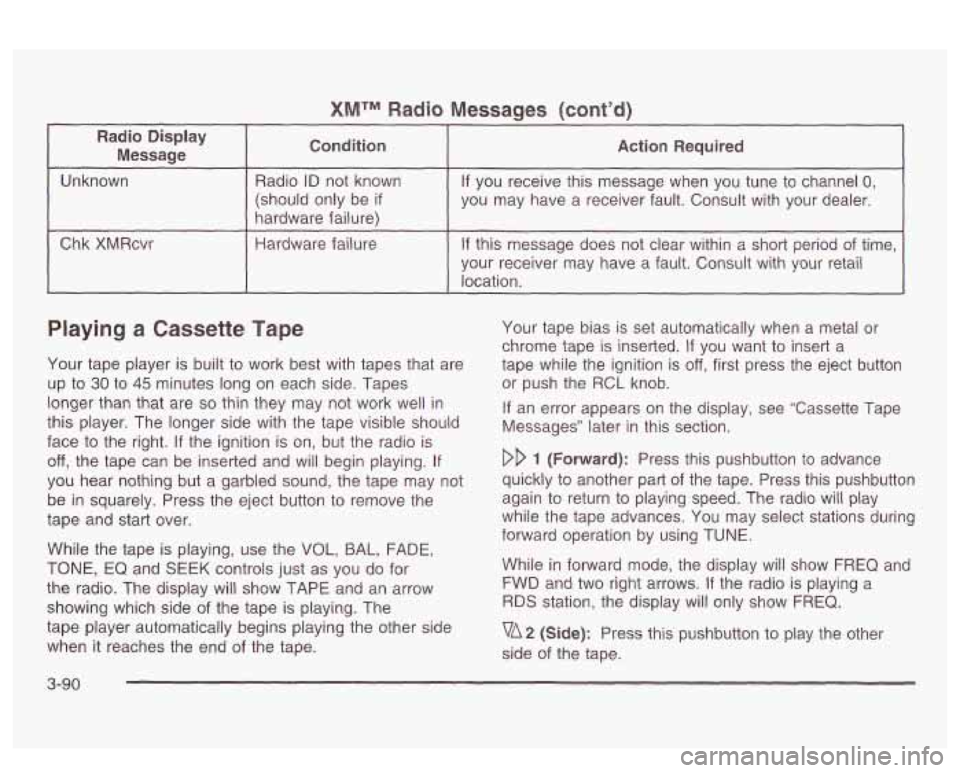
XMTM Radio Messaqes (cont’d)
I
Radio Display Message Condition
I Action Required -
Unknown
hardware failure) you may have a
receiver fault. Consult with your dealer.
(should only
be
if
If you receive this message when you tune to channel 0, Radio ID not known
I Chk XMRcvr I Hardware failure I If this message does not clear within a short period of time,
~ ~~~ ~ ~~~ -
your receiver may have a fault. Consult with your retail
location.
Playing a Cassette Tape
Your tape player is built to work best with tapes that are
up
to 30 to 45 minutes long on each side. Tapes
longer than that are
so thin they may not work well in
this player. The longer side with the tape visible should
face to the right. If the ignition is on, but the radio is
off, the tape can be inserted and will begin playing. If
you hear nothing but a garbled sound, the tape may not
be in squarely. Press the eject button to remove the
tape and start over.
While the tape is playing, use the
VOL, BAL, FADE,
TONE, EQ and SEEK controls just as you do for
the radio. The display will show TAPE and an arrow
showing which side
of the tape is playing. The
tape player automatically begins playing the other side
when it reaches the end of the tape. Your
tape bias is set automatically when a metal or
chrome tape is inserted.
If you want to insert a
tape while the ignition is
off, first press the eject button
or push the RCL knob.
If an error appears on the display, see “Cassette Tape
Messages” later in this section.
DD 1 (Forward): Press this pushbutton to advance
quickly to another part of the tape. Press this pushbutton
again to return to playing speed. The radio will play
while the tape advances. You may select stations during
forward operation by using TUNE.
While in forward mode, the display will show FREQ and
FWD and two right arrows. If the radio is playing a
RDS station, the display will only show FREQ.
vA2 (Side): Press this pushbutton to play the other
side of the tape.
3-90
Page 206 of 418
44Q (Reverse): Press this pushbutton to reverse the
tape rapidly. Press
it again to return to playing speed.
The radio will play the tape reverses. You may
select stations during reverse operation by using
TUNE.
EQ (Equalizer): Press EQ to select the desired
customized equalization setting while playing a cassette.
The equalization will be automatically set whenever
you play a cassette tape. See
“EQ” listed previously for
more information.
A SEEK v : Your tape must have at least three
seconds of silence between each selection for seek to
work. Press the up or the down arrow to search for
the next or the previous selection on the tape. You can
skip as many as nine selections up or down on the
tape. Choose how many selections you want to skip,
then press the SEEK arrow that many times. The
number of selections to be skipped will appear on the
display.
A SCAN v : Press and hold one of the arrows for
more than two seconds until
SCAN appears on
the display and you hear a beep. The tape will go to the
next selection, play for a few seconds, then go on to
the next selection. The tape will scan in forward
only. Press this button again to stop scanning.
BAND: Press fnis button to iisten io the radio When a
tape is playing. The inactive tape or CD will remain
safely inside the radio for future listening.
CD TAPE: Press this button to switch between playing
a cassette tape and a compact disc,
if both are
loaded, when listening to the radio. The display will
show tape and
CD symbols.
(Eject): Press this button, located next to the
cassette tape slot, to eject a tape. Eject may be
activated with either the ignition or radio
off. Cassettes
may be loaded with the radio and ignition
off if this
button is pressed first.
Cassette Tape Messages
If an error occurs while trying to play a cassette tape, it
could be for one of the following reasons:
TEGHT TAPE: This message is displayed when the
tape is tight and the player can’t turn the tape hubs.
Remove the tape. Hold the tape with the open end down
and try to turn the right hub counterclockwise with a
pencil. Turn the tape over and repeat. If the hubs do nor
turn easily, your tape may be damaged and should
not be used in the player. Try a new tape to make sure
your
piayer is wur kir ry p,-upt.ily.
BROKEN TAPE: This message is displayed when the
tape is broken. Try a new tape.
WRAPPED TAPE: This message is displayed when the
tape is wrapped around the tape head. Attempt to get
the cassette out. Try a new tape.
3-91
Page 207 of 418
CLEAN PLAYER: If this message appears on the
display, the cassette tape player needs to be cleaned.
It will still play tapes, but you should clean it as soon as
possible
to prevent damage to the tapes and player.
See
Care of Your Cassette Tape Player on page 3-100.
If any error occurs repeatedly or if an error can’t be
corrected, contact your dealer.
If your radio displays an
error message, write it down and provide it
to your
dealer when reporting the problem.
CD Adapter Kits
It is possible to use a portable CD player adapter kit
with your cassette tape player after disabling the tight/loose tape sensing feature on your tape player.
To disable the feature, use the following steps:
1. Turn the ignition on.
2. Turn the radio off.
3. Press and hold the CD TAPE button. The radio will
display READY and flash the cassette symbol.
4. Insert the adapter into the cassette slot. It will
power up the radio and begin playing.
The override feature will remain active until the eject button is pressed.
Playing a Compact Disc
With the ignition on, insert a disc partway into the slot,
label side up. The player will pull it in and the disc
should begin playing.
If you want to insert a CD when the
ignition is
off, first press the eject symbol or push
the
RCL knob. If you insert a CD with the radio off and
the ignition on, it will start to play.
When the disc
is inserted, the CD symbol will be
displayed.
If you select an EQ setting for your CD, it will
be activated each time you play a CD.
As each new track starts to play, the track number will
appear on the display.
If an error appears on the display, see “Compact Disc
Messages” later in this section.
DD 1 (Forward): Press and hold this pushbutton to
advance quickly within a track. You will hear sound at a
reduced volume. Release
it to play the passage.
The display will show elapsed time.
RDM
3 (Random): Press this pushbutton to hear the
tracks in random, rather than sequential, order.
RDM and the track number will appear on the display.
4QQ (Reverse): Press and hold this pushbutton
to reverse quickly within a track.
You will hear sound at
a reduced volume. Release it to play the passage.
The display will show elapsed time.
EQ
(Equalizer): Press EQ to select the desired
customized equalization setting while playing a compact
disc. The equalization will be automatically set
whenever you play a compact disc. See
“EQ“ listed
previously for more information.
3-92
Page 208 of 418
SEEK v : Press the down arrow while playing a
CD to go to the start of the current track if more
than eight seconds have played. Press the up arrow to
go to the next track.
If you hold the button or press
it more than once, the player will continue moving
backward or forward through the
disc.
A SCAN v : Press and hold one of the arrows for
more than two seconds until SCAN and the track
number appear on the display and you hear a beep.
The disc will go to the next track, play for a few seconds,
then go on to the next track. Press this button again
to stop scanning.
RCL (Recall): Push this knob to see how long the
current track has been piaying.
To change ‘rhe default
on the display (track or elapsed time), push the
knob until you see the display you want, then hold the
knob until the display flashes. The selected display
will now be the default. While elapsed time is showing,
CD TIME will appear on the display.
CD is playing.
YMIbY. r~ *~n. I Dr-e~ ~uaa +hie ta IIU VUIIVS hl I++nn m tc !isfen the r21in \!/hen 8
CD TAPE: Press this button to switch between playing
a cassette tape and a compact disc
if both are
loaded, when listening to the radio. The inactive tape or
CD will remain safely inside the radio for future
listening. The display will show tape and
CD symbols.
4 (Eject): Press this button, located next to the CD
slot, to eject a CD. Eject may be activated with either
the ignition or radio
off. CDs may be loaded with
the radio and ignition
off if this button is pressed first.
Compact Disc Messages
CHECK CD: If this message appears on the radio
display and the disc comes out, it could be for one
of
the following reasons:
You’re driving on a very rough road. When the road
The disc is dirty, scratched, wet or upside down.
becomes
smoother, the disc should play.
The air is very humid. If so, wait about an hour and
try again.
If the CD is not playing correctly, for any other reason,
try a known good
CD.
If any error occurs repeatedly or if an error can’t be
corrected, contact your dealer.
If your radio displays an
eyer ~PSS~~P, write it down and provide it to vour
dealer when reporting the problem.
3-93