change time PONTIAC G6 2010 User Guide
[x] Cancel search | Manufacturer: PONTIAC, Model Year: 2010, Model line: G6, Model: PONTIAC G6 2010Pages: 448, PDF Size: 2.5 MB
Page 197 of 448

TOP TOO COLD
If your vehicle has a retractable hardtop, this message
displays when the retractable hardtop button is
pressed and the hardtop pump motor temperature is too
cold. Wait for the hardtop pump motor to warm up
before using the retractable hardtop. SeeLowering the
Retractable Hardtop on page 3-38andRaising the
Retractable Hardtop on page 3-41for more information.
TRACTION OFF
If your vehicle has the Traction Control System (TCS),
this message displays and the TCS light on the
instrument panel cluster comes on solid when the
system is turned off. Adjust your driving accordingly.
SeeTraction Control System (TCS) on page 5-6
andTraction Off Light on page 4-32for more
information. Have the system serviced by your
dealer/retailer as soon as possible.
TRUNK AJAR
This message displays when the trunk is not closed
completely. Make sure that the trunk is closed
completely. SeeTrunk on page 3-11for more
information.
TRUNK NOT ALLOW
This message will appear when attempting to open the
trunk with the ignition on while the retractable hard
top is down and stowed in the trunk. This is to protect
the hardtop against any possible damage. The trunk can
be opened once the hardtop is raised and secured.
SeeTrunk on page 3-11,Lowering the Retractable
Hardtop on page 3-38, andRaising the Retractable
Hardtop on page 3-41for more information.
DIC Vehicle Personalization
Your vehicle has personalization capabilities that allow
you to program certain features to a preferred setting.
All of the features listed may not be available on
your vehicle. Only the features available will be
displayed on the DIC.
The default settings for the features were set when your
vehicle left the factory, but may have been changed
from their default state since that time.
4-47
Page 198 of 448
To change feature settings, use the following procedure:
Entering Personalization Menu
1. Turn the ignition on while the vehicle is stopped.
To avoid excessive drain on the battery, it is
recommended that the headlamps are turned off.
2. Press and hold the information and reset buttons at
the same time for one second, then release to enter
the personalization menu.
If the vehicle speed is greater than 3 km/h (2 mph),
only the UNITS menu will be accessible.
3. Press the information button to scroll through the
available personalization menu modes.
Press the reset button to scroll through the available
settings for each mode.
If you do not make a selection within ten seconds,
the display will go back to the previous information
displayed.
Personalization Menu Modes
OIL LIFE RESET
When this feature is displayed, you can reset the engine
oil life system. To reset the system, seeEngine Oil
Life System on page 6-24. See “OIL LIFE” underDIC
Operation and Displays on page 4-40for more
information.
UNITS
This feature allows you to select the units of
measurement in which the DIC will display the vehicle
information. When UNITS appears on the display, press
and hold the reset button for at least one second to
scroll through the available settings:
ENGLISH (default in United States):All information
will be displayed in English units.
METRIC (default in Canada):All information will be
displayed in metric units.
To select a setting and move on to the next feature,
press the information button while the desired setting is
displayed on the DIC.
TIRE LEARN?
If your vehicle has the Tire Pressure Monitor System
(TPMS) and does not have Remote Keyless Entry
(RKE), this feature allows the TPMS to relearn the tire
positions. After rotating the tires or after replacing a
tire or sensor, the TPMS must re-learn the tire positions.
To re-learn the tire positions, seeTire Pressure
Monitor Operation on page 6-67,Tire Inspection and
Rotation on page 6-73, andDIC Warnings and
Messages on page 4-42for more information.
4-48
Page 203 of 448
Audio System(s)
Determine which radio the vehicle has and read the
following pages to become familiar with its features.
{WARNING:
Taking your eyes off the road for extended periods
could cause a crash resulting in injury or death to
you or others. Do not give extended attention to
entertainment tasks while driving.
This system provides access to many audio and non
audio listings.
To minimize taking your eyes off the road while driving,
do the following while the vehicle is parked:
•Become familiar with the operation and controls of
the audio system.
•Set up the tone, speaker adjustments, and preset
radio stations.
For more information, seeDefensive Driving on
page 5-2.Notice:Contact your dealer/retailer before adding
any equipment.
Adding audio or communication equipment could
interfere with the operation of the vehicle’s engine,
radio, or other systems, and could damage them.
Follow federal rules covering mobile radio and
telephone equipment.
The vehicle has Retained Accessory Power (RAP). With
RAP, the audio system can be played even after the
ignition is turned off. SeeRetained Accessory Power
(RAP) on page 3-21for more information.
Setting the Clock
To set the time and date:
1. Turn the ignition key to ACC/ACCESSORY or
ON/RUN. Press
Oto turn the radio on.
2. Press
Hand the HR, MIN, MM, DD, YYYY (hour,
minute, month, day, and year) displays.
3. Press the softkey located below any one of the tabs
that you want to change.
4-53
Page 204 of 448
4. To increase the time or date do one of the following:
•Press the softkey located below the selected tab.
•Press¨SEEK, or\FWD.
•Turnfclockwise.
5. To decrease the time or date do one of the
following:
•Press©SEEK orsREV.
•Turnfcounterclockwise.
The date does not automatically display. To see the
date press
Hwhile the radio is on. The date with display
times out after a few seconds and goes back to the
normal radio and time display.
To change the time default setting from 12 hour to 24
hour or to change the date default setting from
month/day/year to day/month/year:
1. Press
Hand then the softkey located below the
forward arrow label. Once the time 12H and 24H,
and the date MM/DD/YYYY (month, day, and
year) and DD/MM/YYYY (day, month, and year)
displays.
2. Press the softkey located below the desired option.
3. Press
Hagain to apply the selected default, or
let the screen time out.
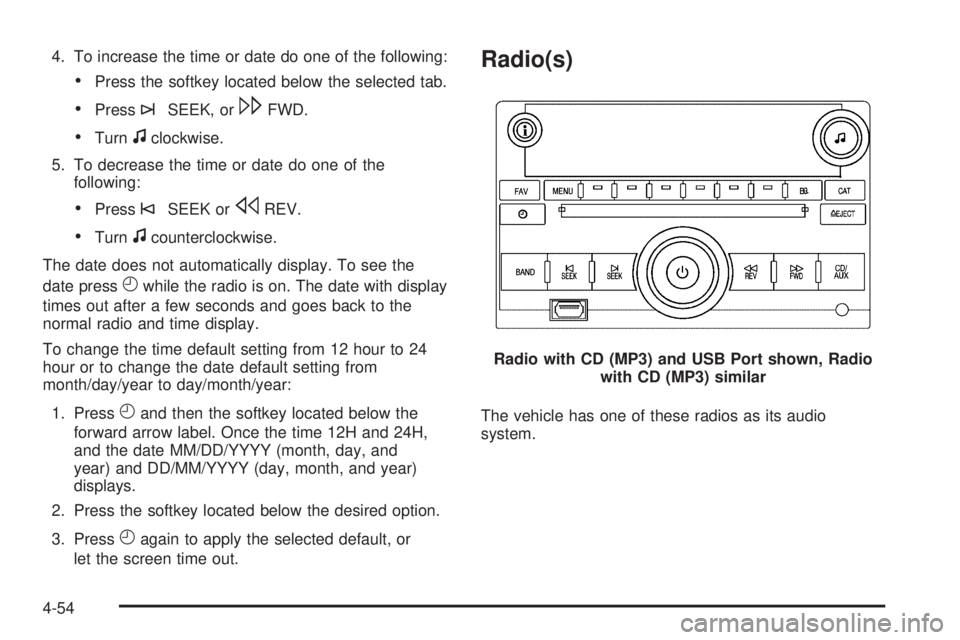
Radio(s)
The vehicle has one of these radios as its audio
system.Radio with CD (MP3) and USB Port shown, Radio
with CD (MP3) similar
4-54
Page 212 of 448
Care of the CD Player
Do not add labels to a CD, it could get caught in the
CD player. Use a marking pen to write on the top of the
CD if a description is needed.
Do not use CD lens cleaners, they could damage the
CD player.
Notice:If a label is added to a CD, or more than
one CD is inserted into the slot at a time, or an
attempt is made to play scratched or damaged CDs,
the CD player could be damaged. While using the
CD player, use only CDs in good condition without
any label, load one CD at a time, and keep the
CD player and the loading slot free of foreign
materials, liquids, and debris.
If an error displays, see “CD Messages” earlier in this
section.
Using the Auxiliary Input Jack
The radio system may have an auxiliary input jack
located on the lower right side of the faceplate. This is
not an audio output; do not plug the headphone set
into the front auxiliary input jack. An external audio
device such as an iPod
®, laptop computer, MP3 player,
CD changer, etc. can be connected to the auxiliary
input jack for use as another audio source.Drivers are encouraged to set up any auxiliary device
while the vehicle is in P (Park). SeeDefensive
Driving on page 5-2for more information on driver
distraction.
To use a portable audio player, connect a 3.5 mm
(1/8 in) cable to the radio’s front auxiliary input jack.
When a device is connected, press the radio CD/AUX
button to begin playing audio from the device over
the vehicle speakers.
O(Power/Volume):Turn to adjust the volume.
Additional volume adjustments may have to be made
from the portable device if the volume is too quiet or
not loud.
BAND:Press to listen to the radio while a portable
audio device is playing. The portable audio device
continues playing until it is stopped or turned off.
CD/AUX (CD/Auxiliary):Press to play a CD while a
portable audio device is playing. Press again and
the system begins playing audio from the connected
portable audio player. If a portable audio player is
not connected, No Aux Input Device Found may display.
4-62
Page 223 of 448
Pairing Information:
•Up to five cell phones can be paired to the in-vehicle
Bluetooth system.
•The pairing process is disabled when the vehicle is
moving.
•The in-vehicle Bluetooth system automatically links
with the first available paired cell phone in the
order the phone was paired.
•Only one paired cell phone can be connected to the
in-vehicle Bluetooth system at a time.
•Pairing should only need to be completed once,
unless changes to the pairing information have
been made or the phone is deleted.
To link to a different paired phone, see Linking to a
Different Phone later in this section.
Pairing a Phone
1. Press and holdbgfor two seconds. The system
responds with “Ready” followed by a tone.
2. Say “Bluetooth”. The system responds with
“Bluetooth ready” followed by a tone.
3. Say “Pair”. The system responds with instructions
and a four digit PIN number. The PIN number will
be used in Step 4.4. Start the Pairing process on the cell phone that will
be paired to the vehicle. Reference the cell phone
manufacturers user guide for information on
this process.
Locate the device named “General Motors” in the
list on the cellular phone and follow the instructions
on the cell phone to enter the four digit PIN
number that was provided in Step 3.
5. The system prompts for a name for the phone. Use
a name that best describes the phone. This name
will be used to indicate which phone is connected.
The system then confirms the name provided.
6. The system responds with “
been successfully paired” after the pairing process
is complete.
7. Repeat Steps 1 through 7 for additional phones to
be paired.
Listing All Paired and Connected Phones
1. Press and holdbgfor two seconds. The
system responds with “Ready” followed by a tone.
2. Say “Bluetooth”. The system responds with
“Bluetooth ready” followed by a tone.
3. Say “List”. The system lists all the paired Bluetooth
devices. If a phone is connected to the vehicle, the
system will say “Is connected” after the connected
phone.
4-73
Page 239 of 448

ABS can change the brake pressure to each wheel, as
required, faster than any driver could. This can help
the driver steer around the obstacle while braking hard.
As the brakes are applied, the computer keeps receiving
updates on wheel speed and controls braking pressure
accordingly.
Remember: ABS does not change the time needed to get
a foot up to the brake pedal or always decrease stopping
distance. If you get too close to the vehicle in front of you,
there will not be enough time to apply the brakes if that
vehicle suddenly slows or stops. Always leave enough
room up ahead to stop, even with ABS.
Using ABS
Do not pump the brakes. Just hold the brake pedal
down firmly and let antilock work. The antilock pump or
motor might be heard operating and the brake pedal
might be felt to pulsate, but this is normal.
Braking in Emergencies
ABS allows the driver to steer and brake at the same
time. In many emergencies, steering can help more than
even the very best braking.
Electronic Stability Control (ESC)
The vehicle has an Electronic Stability Control system
called StabiliTrak which combines antilock brake,
traction and stability control systems and helps the driver
maintain directional control of the vehicle in most driving
conditions.
StabiliTrak activates when the computer senses a
discrepancy between the intended path and the direction
the vehicle is actually traveling. StabiliTrak selectively
applies braking pressure at any one of the vehicle’s
brakes to help steer the vehicle in the intended direction.
This light comes on when
StabiliTrak is activated.
When you first start the vehicle and begin to drive away,
the system performs several diagnostic checks to ensure
there are no problems. The system may be heard or felt
while it is working. This is normal and does not mean
there is a problem with the vehicle.
5-5
Page 261 of 448

Towing a Trailer
{WARNING:
The driver can lose control when pulling a trailer if
the correct equipment is not used or the vehicle is
not driven properly. For example, if the trailer is too
heavy, the brakes may not work well — or even at
all. The driver and passengers could be seriously
injured. The vehicle may also be damaged; the
resulting repairs would not be covered by the
vehicle warranty. Pull a trailer only if all the steps in
this section have been followed. Ask your dealer/
retailer for advice and information about towing a
trailer with the vehicle.
Notice:Pulling a trailer improperly can damage the
vehicle and result in costly repairs not covered by the
vehicle warranty. To pull a trailer correctly, follow the
advice in this section and see your dealer/retailer for
important information about towing a trailer with the
vehicle.The vehicle can tow a trailer if it is equipped with the
proper trailer towing equipment. To identify the trailering
capacity of the vehicle, read the information in “Weight of
the Trailer” that appears later in this section. Trailering is
different than just driving the vehicle by itself. Trailering
means changes in handling, acceleration, braking,
durability and fuel economy. Successful, safe trailering
takes correct equipment, and it has to be used properly.
The following information has many time-tested,
important trailering tips and safety rules. Many of
these are important for the safety of the driver and
the passengers. So please read this section carefully
before pulling a trailer.
Load-pulling components such as the engine,
transmission, axles, wheel assemblies and tires are
forced to work harder against the drag of the added
weight. The engine is required to operate at relatively
higher speeds and under greater loads, generating
extra heat. The trailer also adds considerably to wind
resistance, increasing the pulling requirements.
5-27
Page 278 of 448

To ensure quick starts in the wintertime, the E85 fuel
must be formulated properly for your climate according to
ASTM specification D 5798. If you have trouble starting
on E85, it could be because the E85 fuel is not properly
formulated for your climate. If this happens, switching to
gasoline or adding gasoline to the fuel tank can improve
starting. For good starting and heater efficiency below
32°F (0°C), the fuel mix in the fuel tank should contain
no more than 70% ethanol. It is best not to alternate
repeatedly between gasoline and E85. If you do switch
fuels, it is recommended that you add as much fuel as
possible — do not add less than three gallons (11 L)
when refueling. You should drive the vehicle immediately
after refueling for at least seven miles (11 km) to allow the
vehicle to adapt to the change in ethanol concentration.E85 has less energy per gallon than gasoline,
so you will need to refill the fuel tank more often
when using E85 than when you are using gasoline.
SeeFilling the Tank on page 6-11.
Notice:Some additives are not compatible with
E85 fuel and can harm the vehicle’s fuel system.
Do not add anything to E85. Damage caused
by additives would not be covered by the vehicle
warranty.
Notice:This vehicle was not designed for fuel
that contains methanol. Do not use fuel containing
methanol. It can corrode metal parts in the fuel
system and also damage plastic and rubber parts.
That damage would not be covered under the vehicle
warranty.
6-10
Page 292 of 448

Engine Oil Additives / Engine Oil
Flushes
Do not add anything to the oil. The recommended
oils with the starburst symbol that meet GM Standard
GM6094M are all that is needed for good performance
and engine protection.
Engine oil system flushes are not recommended and
could cause engine damage not covered by the vehicle
warranty.
Engine Oil Life System
When to Change Engine Oil
This vehicle has a computer system that indicates when
to change the engine oil and filter. This is based on
engine revolutions and engine temperature, and not on
mileage. Based on driving conditions, the mileage at
which an oil change is indicated can vary considerably.
For the oil life system to work properly, the system must
be reset every time the oil is changed.When the system has calculated that oil life has been
diminished, it indicates that an oil change is necessary.
A CHANGE OIL SOON message comes on. SeeDIC
Warnings and Messages on page 4-42. Change the oil
as soon as possible within the next 600 miles (1 000 km).
It is possible that, if driving under the best conditions, the
oil life system might not indicate that an oil change is
necessary for over a year. However, the engine oil and
filter must be changed at least once a year and at this
time the system must be reset. Your dealer/retailer has
trained service people who will perform this work using
genuine parts and reset the system. It is also important to
check the oil regularly and keep it at the proper level.
If the system is ever reset accidentally, the oil must be
changed at 3,000 miles (5 000 km) since the last oil
change. Remember to reset the oil life system whenever
the oil is changed.
6-24