service PONTIAC G6 2010 Owner's Guide
[x] Cancel search | Manufacturer: PONTIAC, Model Year: 2010, Model line: G6, Model: PONTIAC G6 2010Pages: 448, PDF Size: 2.5 MB
Page 195 of 448
SERVICE ESC (ELECTRONIC STABILITY
CONTROL)
If your vehicle has Electronic Stability Control (ESC),
this message displays and a chime sounds if there has
been a problem detected with ESC. The ESC light
also appears on the instrument panel cluster. When this
message displays, the system is not working. Adjust
your driving accordingly. SeeElectronic Stability Control
(ESC) on page 5-5andElectronic Stability Control
Indicator Light on page 4-32for more information.
If this message turns on while you are driving, pull off
the road as soon as possible and stop carefully.
Try resetting the system by turning the ignition off and
then back on. If this message still stays on or turns back
on again while you are driving, your vehicle needs
service. Have the ESC inspected by your dealer/retailer
as soon as possible.
SERVICE TRACTION
If your vehicle has the Traction Control System (TCS),
this message displays and a chime sounds when
the system is not functioning properly. The TCS light
may also appears on the instrument panel cluster. When
this message displays, the system is not working.
Adjust your driving accordingly. SeeTraction Control
System (TCS) on page 5-6andTraction Off Light
on page 4-32for more information. Have the system
serviced by your dealer/retailer as soon as possible.
SVC (Service) TIRE MONITOR
On vehicles with the Tire Pressure Monitor System
(TPMS), this message displays if a part on the TPMS is
not working properly. The tire pressure light also
flashes and then remains on during the same ignition
cycle. SeeTire Pressure Light on page 4-33. Several
conditions may cause this message to appear. SeeTire
Pressure Monitor Operation on page 6-67for more
information. If the warning comes on and stays on, there
may be a problem with the TPMS. See your
dealer/retailer.
TIRE LEARN ON
On vehicles without the Remote Keyless Entry (RKE)
system, this message displays when the Tire Pressure
Monitor System (TPMS) is re-learning the tire
positions on your vehicle. The tire positions must be
re-learned after rotating the tires or after replacing a tire
or sensor. SeeTire Inspection and Rotation on
page 6-73,Tire Pressure Monitor System on page 6-66,
andInation - Tire Pressure on page 6-64for more
information.
4-45
Page 197 of 448

TOP TOO COLD
If your vehicle has a retractable hardtop, this message
displays when the retractable hardtop button is
pressed and the hardtop pump motor temperature is too
cold. Wait for the hardtop pump motor to warm up
before using the retractable hardtop. SeeLowering the
Retractable Hardtop on page 3-38andRaising the
Retractable Hardtop on page 3-41for more information.
TRACTION OFF
If your vehicle has the Traction Control System (TCS),
this message displays and the TCS light on the
instrument panel cluster comes on solid when the
system is turned off. Adjust your driving accordingly.
SeeTraction Control System (TCS) on page 5-6
andTraction Off Light on page 4-32for more
information. Have the system serviced by your
dealer/retailer as soon as possible.
TRUNK AJAR
This message displays when the trunk is not closed
completely. Make sure that the trunk is closed
completely. SeeTrunk on page 3-11for more
information.
TRUNK NOT ALLOW
This message will appear when attempting to open the
trunk with the ignition on while the retractable hard
top is down and stowed in the trunk. This is to protect
the hardtop against any possible damage. The trunk can
be opened once the hardtop is raised and secured.
SeeTrunk on page 3-11,Lowering the Retractable
Hardtop on page 3-38, andRaising the Retractable
Hardtop on page 3-41for more information.
DIC Vehicle Personalization
Your vehicle has personalization capabilities that allow
you to program certain features to a preferred setting.
All of the features listed may not be available on
your vehicle. Only the features available will be
displayed on the DIC.
The default settings for the features were set when your
vehicle left the factory, but may have been changed
from their default state since that time.
4-47
Page 207 of 448
To store a station as a favorite:
1. Tune to the desired radio station and set the
balance/fade and tone settings to the desired levels.
2. Press FAV to display the page where to store the
station.
3. Press and hold one of the six softkeys until a beep
sounds.
4. Repeat the steps for each radio station to be stored
as a favorite.
To setup the number of favorites pages:
1. Press MENU to display the radio setup menu.
2. Press the softkey located below the FAV 1-6 tab.
3. Select the desired number of favorites pages
by pressing the softkey located below the displayed
page numbers.
4. Press FAV, or let the menu time out, to return to
the original main radio screen showing the radio
station frequency tabs and to begin programming
favorites.
Auto Text (Satellite Radio Service, CD, MP3, and
WMA features):If additional information is available
for the current song being played, Auto Text will
automatically page/scroll the information every
three seconds above the FAV presets on the
radio display.To activate Auto Text:
1. Press MENU to display the radio setup menu.
2. Press the softkey under AUTO TXT tab on the radio
display.
3. Press the softkey under the ON tab on the radio
display.
If
4is pressed and the song title or artist information is
longer than what can be displayed, the extra
information will page every three seconds when Auto
Text is activated.
Setting the Tone
(Bass/Midrange/Treble)
BASS/MID/TREB (Bass, Midrange, or Treble):The
radio may display some or all tones such as BASS, MID,
and TREB.
To adjust the tone settings:
1. Press
funtil the tone control tabs display.
2. Press the softkey below the desired tab, then turn
fto adjust the highlighted setting. The highlighted
setting can also be adjusted by pressing either
SEEK arrow, or by pressing
\FWD orsREV.
4-57
Page 208 of 448
The radio may be capable of adjusting bass, midrange,
or treble to the middle position by pressing the
softkey below the BASS, MID, or TREB tab for more
than two seconds. The radio beeps once and the level
adjusts to the middle position.
The radio may also be capable of adjusting all tone and
speaker controls to the middle position by pressing
f
for more than two seconds until the radio beeps once.
If a station’s frequency is weak, or has static, decrease
the treble.
EQ (Equalization):Press this button to select preset
equalization settings.
To return to the manual mode, press EQ until Manual
displays or start to manually adjust the bass, midrange,
or treble by pressing
f.
Adjusting the Speakers (Balance/Fade)
To adjust balance or fade:
1. Press
funtil the speaker control labels display.
2. Press the softkey under the desired tab, or continue
pressing
fto highlight the desired tab.3. Turn
fto adjust the highlighted setting. The
highlighted setting can also be adjusted by pressing
either SEEK arrow.
On some radios,
\FWD andsREV can also
be used to adjust the highlighted level.
The radio may be capable of adjusting balance or fade to
the middle position by pressing the softkey below the BAL
or FADE tab for more than two seconds. The radio beeps
once and the level adjusts to the middle position.
The radio may also be capable of adjusting all tone and
speaker controls to the middle position by pressing
f
for more than two seconds until the radio beeps once.
Finding a Category (CAT) Station
(XM Satellite Radio Service Only)
CAT (Category):The radio may have the CAT button
feature.
To select and find a desired category:
1. Press BAND until the XM frequency displays.
2. Press CAT to display the category labels on the
radio display. Continue pressing the CAT button
until the desired category name displays.
3. Press either of the two softkeys below the desired
category tab to immediately tune to the first XM
station associated with that category.
4-58
Page 209 of 448
4. To go to the previous or to the next XM station
within the selected category, do one of the
following:
•Turnf.
•Press the softkeys below the right or left arrows
on the radio display.
•Press©SEEK or¨SEEK.
5. To exit the category search mode, press the FAV
button or BAND button to display the favorites
again.
Undesired XM categories can be removed through the
setup menu. To remove an undesired category:
1. Press MENU to display the radio setup menu.
2. Press the softkey below the XM CAT tab.
3. Turn
fto display the category to be removed.
4. Press the softkey below the Remove tab until the
category name along with the word Removed
displays.
5. Repeat the steps to remove additional categories.
Removed categories can be restored by pressing the
softkey under the Add tab when a removed category
displays or by pressing the softkey below the Restore
All tab.
Categories cannot be removed or added while the
vehicle is moving faster than 5 mph (8 km/h).
Radio Messages
Calibration Error:Displays if the radio is no longer
calibrated properly for the vehicle. The vehicle must be
returned to your dealer/retailer for service.
Loc or Locked:Displays when the THEFTLOCK
®
system has activated. Take the vehicle to your
dealer/retailer for service.
If any error occurs repeatedly or if an error cannot be
corrected, contact your dealer/retailer.
XM Satellite Radio Service
XM is a satellite radio service that is based in the
48 contiguous United States and 10 Canadian
provinces. XM Satellite Radio has a wide variety
of programming and commercial-free music,
coast-to-coast, and in digital-quality sound. A service
fee is required to receive the XM service. For more
information, contact XM at www.xmradio.com or
call 1-800-929-2100 in the U.S. and www.xmradio.ca
or call 1-877-438-9677 in Canada.
Radio Messages for XM Only
SeeXM Radio Messages on page 4-70later in this
section for further detail.
4-59
Page 220 of 448
Shuffle Functionality
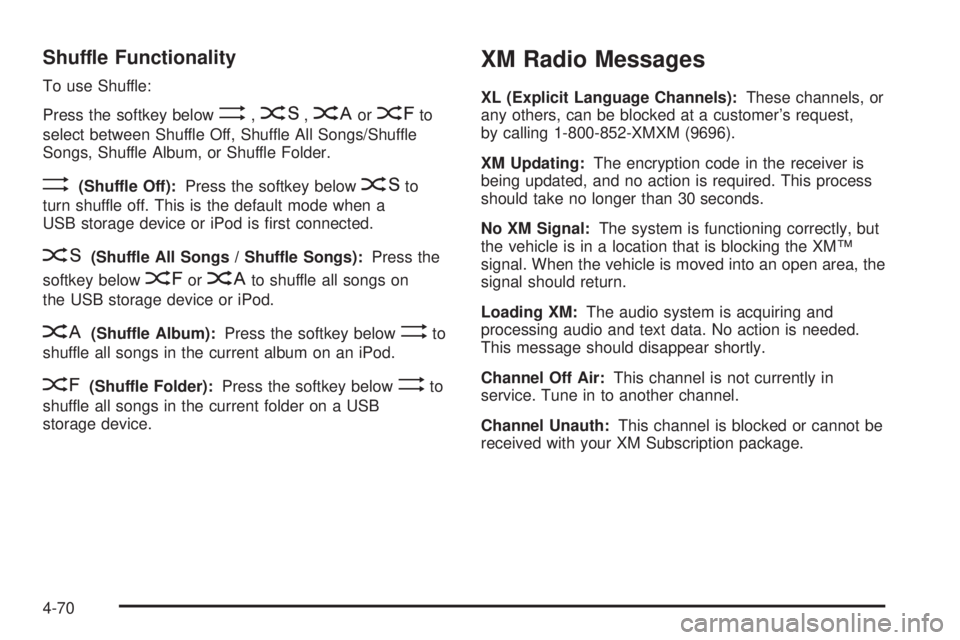
To use Shuffle:
Press the softkey below
>,2,
Songs, Shuffle Album, or Shuffle Folder.
>(Shuffle Off):Press the softkey below2to
turn shuffle off. This is the default mode when a
USB storage device or iPod is first connected.
2(Shuffle All Songs / Shuffle Songs):Press the
softkey below
=or
<(Shuffle Album):Press the softkey below>to
shuffle all songs in the current album on an iPod.
=(Shuffle Folder):Press the softkey below>to
shuffle all songs in the current folder on a USB
storage device.
XM Radio Messages
XL (Explicit Language Channels):These channels, or
any others, can be blocked at a customer’s request,
by calling 1-800-852-XMXM (9696).
XM Updating:The encryption code in the receiver is
being updated, and no action is required. This process
should take no longer than 30 seconds.
No XM Signal:The system is functioning correctly, but
the vehicle is in a location that is blocking the XM™
signal. When the vehicle is moved into an open area, the
signal should return.
Loading XM:The audio system is acquiring and
processing audio and text data. No action is needed.
This message should disappear shortly.
Channel Off Air:This channel is not currently in
service. Tune in to another channel.
Channel Unauth:This channel is blocked or cannot be
received with your XM Subscription package.
4-70
Page 221 of 448
Channel Unavail:This previously assigned channel is
no longer assigned. Tune to another station. If this
station was one of the presets, choose another station
for that preset button.
No Artist Info:No artist information is available at this
time on this channel. The system is working properly.
No Title Info:No song title information is available
at this time on this channel. The system is working
properly.
No CAT Info:No category information is available at
this time on this channel. The system is working
properly.
No Information:No text or informational messages are
available at this time on this channel. The system is
working properly.
CAT Not Found:There are no channels available for
the selected category. The system is working properly.
XM Theftlocked:The XM receiver in the vehicle
could have previously been in another vehicle. For
security purposes, XM receivers cannot be swapped
between vehicles. If this message is received after
having the vehicle serviced, check with your
dealer/retailer.XM Radio ID:If tuned to channel 0, this message
alternates with the XM™ Radio 8 digit radio ID label.
This label is needed to activate the service.
Unknown:If this message is received when tuned to
channel 0, there could be a receiver fault. Consult
with your dealer/retailer.
Check XM Receivr:If this message does not clear
within a short period of time, the receiver could have a
fault. Consult with your dealer/retailer.
XM Not Available:If this message does not clear
within a short period of time, the receiver could have a
fault. Consult with your dealer/retailer.
Bluetooth®
Vehicles with a Bluetooth system can use a Bluetooth
capable cell phone with a Hands Free Profile to
make and receive phone calls. The system can be used
while the key is in ON/RUN or ACC/ACCESSORY
position. The range of the Bluetooth system can be up
to 9.1 m (30 ft.). Not all phones support all functions,
and not all phones are guaranteed to work with
the in-vehicle Bluetooth system. See gm.com/bluetooth
for more information on compatible phones.
4-71
Page 228 of 448
3. Say the name tag of the person to call.
•If the system clearly recognizes the name tag it
responds with “OK, calling,
dials the number.
•If the system is unsure it recognizes the right
name tag, it confirms the name tag followed
by a tone. If the name tag is correct, say “Yes”.
The system responds with “OK, calling,
tag is not correct, say “No”. The system will
ask for the name tag to be re-entered.
Once connected, the person called will be heard
through the audio speakers.
Using the Re-dial Command
1. Press and holdbgfor two seconds. The system
responds with “Ready” followed by a tone.
2. After the tone, say “Re-dial”. The system responds
with “Re-dial using
last number called from the connected Bluetooth
phone.
Once connected, the person called will be heard
through the audio speakers.
Receiving a Call
When an incoming call is received, the audio system
mutes and a ring tone is heard in the vehicle.
•Pressbgand begin speaking to answer the call.
•Presscxto ignore a call.
Call Waiting
Call waiting must be supported on the Bluetooth phone
and enabled by the wireless service carrier to work.
•Pressbgto answer an incoming call when
another call is active. The original call is placed
on hold.
•Pressbgagain to return to the original call.
•To ignore the incoming call, continue with the
original call with no action.
•Presscxto disconnect the current call and
switch to the call on hold.
4-78
Page 229 of 448
Three-Way Calling
Three-Way Calling must be supported on the Bluetooth
phone and enabled by the wireless service carrier
to work.
1. While on a call press
bg. The system responds
with “Ready” followed by a tone.
2. Say “Three-way call”. The system responds with
“Three-way call, please say dial or call”.
3. Use the dial or call command to dial the number of
the third party to be called.
4. Once the call is connected, press
bgto link all
the callers together.
Ending a Call
Presscxto end a call.
Muting a Call
During a call, all sounds from inside the vehicle can be
muted so that the person on the other end of the
call cannot hear them.
To Mute a call
1. Pressbg. The system responds with “Ready”
followed by a tone.
2. Say “Mute Call”. The system responds with “Call
muted”.
To Cancel Mute
1. Pressbg. The system responds with “Ready”
followed by a tone.
2. After the tone, say “Mute Call”. The system
responds with “Resuming call”.
Transferring a Call
Audio can be transferred between the in-vehicle
Bluetooth system and the cell phone.
To Transfer Audio to the Cell Phone
During a call with the audio in the vehicle:
1. Press
bg. The system responds with “Ready”
followed by a tone.
2. Say “Transfer Call.” The system responds with
“Transferring call” and the audio will switch from
the vehicle to the cell phone.
4-79
Page 233 of 448

c(End):Press to reject an incoming call, or end a
current call.
bg(Mute / Voice Recognition):Press to silence the
vehicle speakers only. Press again to turn the sound on.
For vehicles with Bluetooth
®or OnStar®systems press
and hold
bgfor longer than two seconds to interact
with those systems. SeeBluetooth®on page 4-71and
the OnStar Owner’s Guide for more information.
Radio Reception
Frequency interference and static can occur during
normal radio reception if items such as cell phone
chargers, vehicle convenience accessories, and external
electronic devices are plugged into the accessory
power outlet. If there is interference or static, unplug the
item from the accessory power outlet.
AM
The range for most AM stations is greater than for FM,
especially at night. The longer range can cause station
frequencies to interfere with each other. For better radio
reception, most AM radio stations boost the power levels
during the day, and then reduce these levels during the
night. Static can also occur when things like storms and
power lines interfere with radio reception. When this
happens, try reducing the treble on the radio.
FM Stereo
FM signals only reach about 10 to 40 miles
(16 to 65 km). Although the radio has a built-in electronic
circuit that automatically works to reduce interference,
some static can occur, especially around tall buildings or
hills, causing the sound to fade in and out.
XM™ Satellite Radio Service
XM Satellite Radio Service gives digital radio reception
from coast-to-coast in the 48 contiguous United States,
and in Canada. Just as with FM, tall buildings or hills can
interfere with satellite radio signals, causing the sound to
fade in and out. In addition, traveling or standing under
heavy foliage, bridges, garages, or tunnels may cause
loss of the XM signal for a period of time.
Cellular Phone Usage
Cellular phone usage may cause interference with the
vehicle’s radio. This interference may occur when
making or receiving phone calls, charging the phone’s
battery, or simply having the phone on. This interference
causes an increased level of static while listening to
the radio. If static is received while listening to the radio,
unplug the cellular phone and turn it off.
4-83