service reset PONTIAC GRAND AM 2003 Owners Manual
[x] Cancel search | Manufacturer: PONTIAC, Model Year: 2003, Model line: GRAND AM, Model: PONTIAC GRAND AM 2003Pages: 354, PDF Size: 16.3 MB
Page 135 of 354
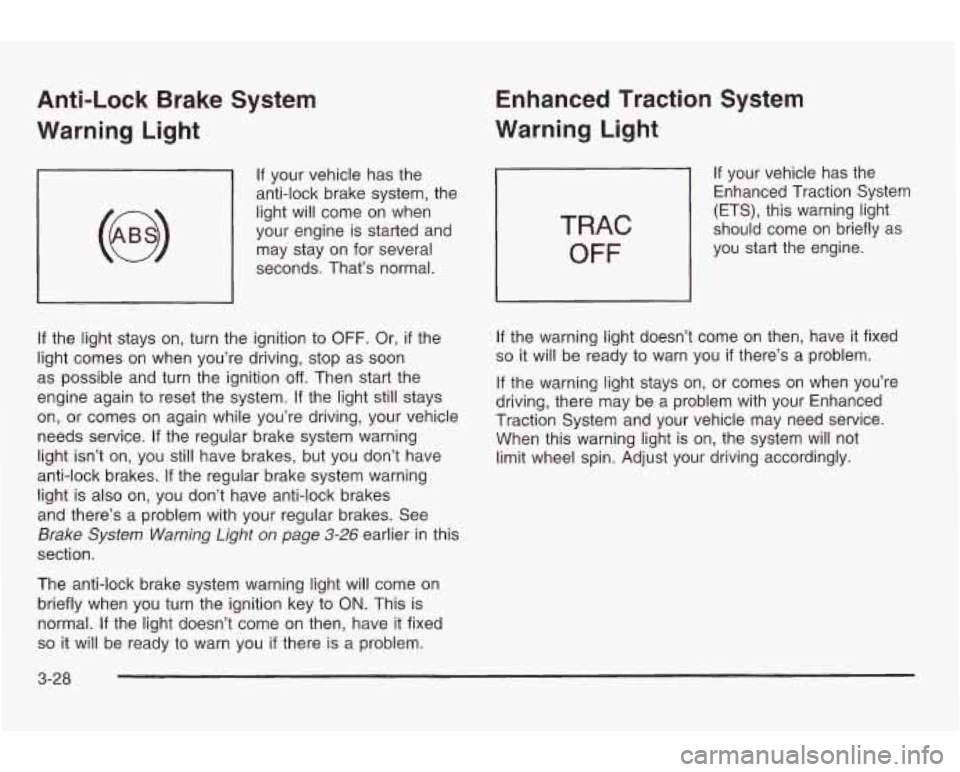
Anti-Lock Brake System
Warning Light
If your vehicle has the
anti-lock brake system, the
light will come on when
your engine is started and
may stay on for several
seconds. That’s normal.
If the light stays on, turn the ignition to OFF. Or, if the
light comes on when you’re driving, stop as soon
as possible and turn the ignition
off. Then start the
engine again to reset the system. If the light still stays
on, or comes on again while you’re driving, your vehicle
needs service. If the regular brake system warning
light isn’t on, you still have brakes, but you don’t have
anti-lock brakes. If the regular brake system warning
light is also on, you don’t have anti-lock brakes
and there’s a problem with your regular brakes. See
Brake System Warning Light on page 3-26 earlier in this
section.
The anti-lock brake system warning light will come on
briefly when you turn the ignition key
to ON. This is
normal.
If the light doesn’t come on then, have it fixed
so it will be ready to warn you if there is a problem.
Enhanced Traction System
Warning Light
TRAC
OFF
If your vehicle has the
Enhanced Traction System
(ETS), this warning light
should come on briefly as
you start the engine.
If the warning light doesn’t come on then, have it fixed
so it will be ready to warn you if there’s a problem.
If the warning light stays on, or comes on when you’re
driving, there may be a problem with your Enhanced
Traction System and your vehicle may need service.
When this warning light is on, the system will not
limit wheel spin. Adjust your driving accordingly.
3-28
Page 142 of 354
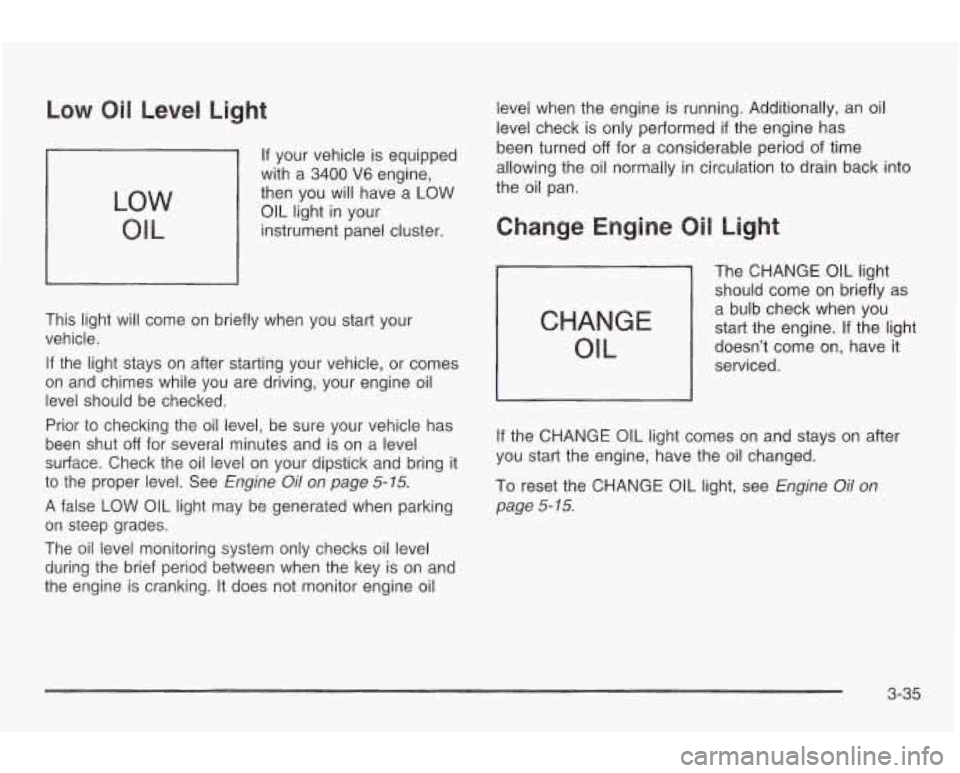
Low Oil Level Light
LOW
OIL
If your vehicle is equipped
with a
3400 V6 engine,
then you will have a
LOW
OIL light in your
instrument panel cluster.
This light will come on briefly when you start your
vehicle.
If the light stays on after starting your vehicle, or comes
on and chimes while you are driving, your engine oil
level should be checked.
Prior to checking the oil level, be sure your vehicle has
been shut
off for several minutes and is on a level
surface. Check the oil level on your dipstick and bring it
to the proper level. See Engine Oil on page 5-15.
A false LOW OIL light may be generated when parking
on steep grades.
The oil level monitoring system only checks oil level
during the brief period between when the key is on and
the engine is cranking.
It does not monitor engine oil level
when the engine is running. Additionally, an oil
level check is only performed
if the engine has
been turned
off for a considerable period of time
allowing the
oil normally in circulation to drain back into
the oil pan.
CHANGE
OIL
The CHANGE OIL light
should come on briefly as
a bulb check when you start the engine. If the light
doesn’t come on, have it
serviced.
If the CHANGE OIL light comes on and stays on after
you start the engine, have the oil changed.
To reset the CHANGE
OIL light, see Engine oil On
page
5- 15.
3-35
Page 153 of 354
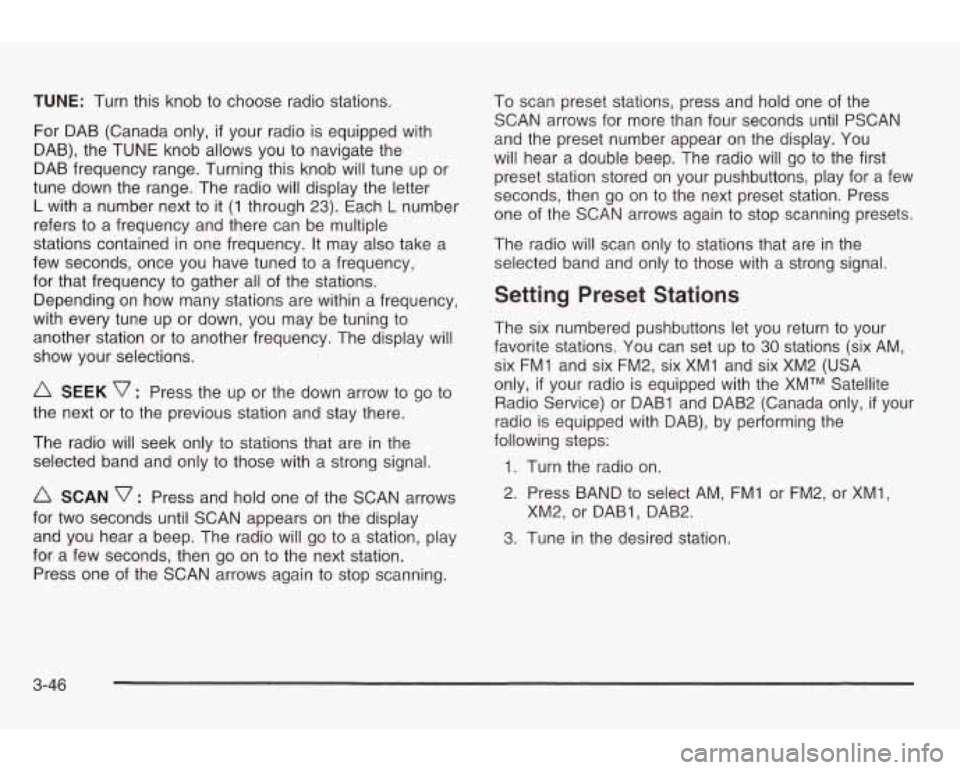
TUNE: Turn this knob to choose radio stations.
For DAB (Canada only,
if your radio is equipped with
DAB), the TUNE knob allows you
to navigate the
DAB frequency range. Turning this knob will tune up or
tune down the range. The radio will display the letter
L with a number next to it (1 through 23). Each L number
refers
to a frequency and there can be multiple
stations contained in one frequency.
It may also take a
few seconds, once you have tuned to a frequency,
for that frequency
to gather all of the stations.
Depending on how many stations are within a frequency,
with every tune up or down, you may be tuning to
another station or
to another frequency. The display will
show your selections.
A SEEK 7 : Press the up or the down arrow to go to
the next or to the previous station and stay there.
The radio will seek only to stations that are in the
selected band and only
to those with a strong signal.
A SCAN v : Press and hold one of the SCAN arrows
for two seconds until SCAN appears on the display
and you hear a beep. The radio will go to a station, play
for a few seconds, then
go on to the next station.
Press one of the SCAN arrows again
to stop scanning. To
scan preset stations, press and hold one of the
SCAN arrows for more than four seconds until PSCAN
and the preset number appear on the display. You
will hear a double beep. The radio will go
to the first
preset station stored on your pushbuttons, play for
a few
seconds, then go on to the next preset station. Press
one of the SCAN arrows again
to stop scanning presets.
The radio will scan only to stations that are in the
selected band and only to those with a strong signal.
Setting Preset Stations
The six numbered pushbuttons let you return to your
favorite stations. You can set up to
30 stations (six AM,
six FMI and six FM2, six XMI and six XM2 (USA
only,
if your radio is equipped with the XMTM Satellite
Radio Service) or DAB1 and DAB2 (Canada only,
if your
radio is equipped with DAB), by performing the
following steps:
1. Turn the radio on.
2. Press BAND to select AM, FMI or FM2, or XMI,
3. Tune in the desired station.
XM2, or
DABI, DAB2.
3-46
Page 158 of 354
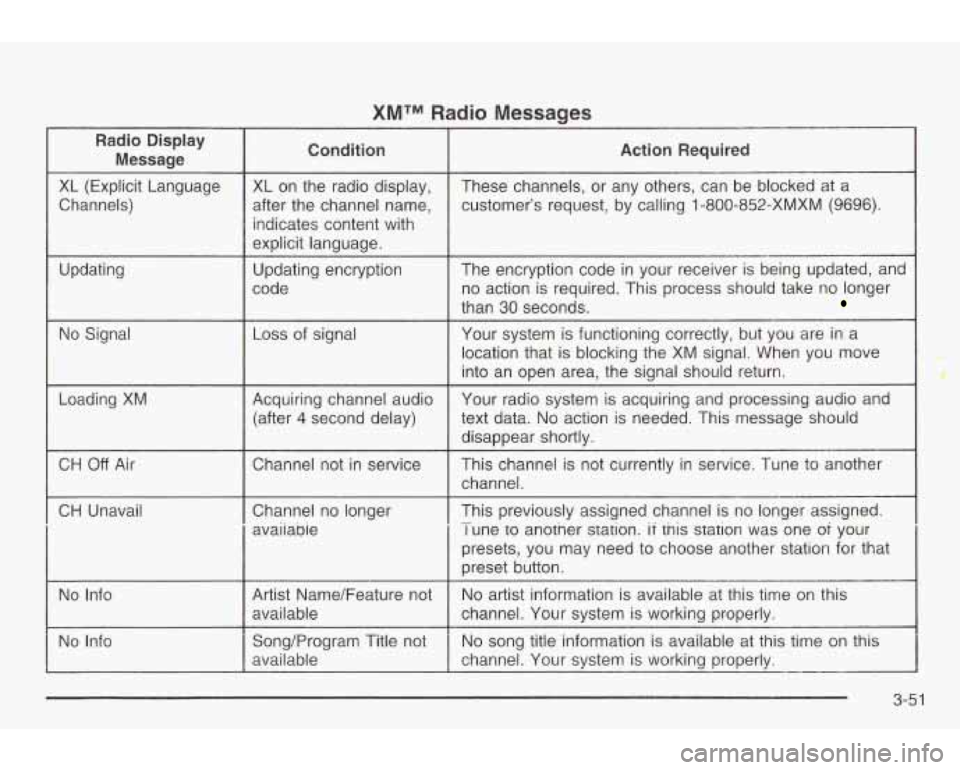
XMTM Radio Messages
Radio Display
Message condition Action Required
XL (Explicit Language
Channels)
Updating
No Signal
Loading
XM
XL on the radio display,
after the channel name, indicates content with
explicit language.
Updating encryption
code
Loss of signal
Acquiring channel audio (after
4 second delay) These channels,
or any others, can be blocked at a
customer’s request, by calling 1 -800-852-XMXM
(9696).
The encryption code in your receiver is being updated, and
no action is required. This process should take no longer
than 30 seconds.
Your system is functioning correctly, but you are in a
location that is blocking the XM signal. When you move
into an open area, the signal should return.
Your radio system
is acquiring and processing audio and
text data.
No action is needed. This message should
disappear shortly.
CH Off Air I Channel not in service
CH Unavail
I Channel no longer
I avaiiabie This channel
is not currently
in service. Tune to another
channel.
This previously assigned channel is no longer assigned.
I une to another station. if tnis station was one oi your
presets, you may need
to choose another station for that
preset button.
-
No Info Artist Name/Feature not
channel. Your system is working properly. available
No
artist information is available at this time on this
No Info No
song title information
is available at this time on this
Song/Program Title not
available channel. Your system is working properly.
--
3-51
Page 164 of 354
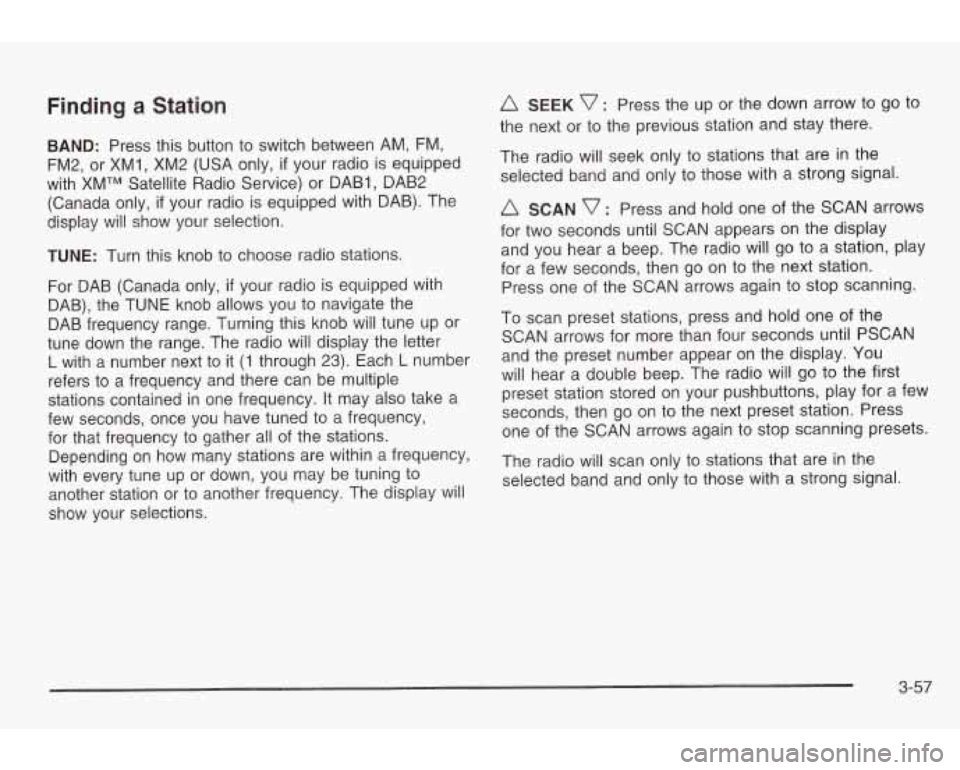
Finding a Station
BAND: Press this button to switch between AM, FM,
FM2, or XM1, XM2 (USA only,
if your radio is equipped
with XMTM Satellite Radio Service) or DAB1, DAB2
(Canada only,
if your radio is equipped with DAB). The
display will show your selection.
TUNE: Turn this knob to choose radio stations.
For DAB (Canada only,
if your radio is equipped with
DAB), the TUNE knob allows you to navigate the
DAB frequency range. Turning this knob will tune up or
tune down the range. The radio will display the letter
L with a number next to it (1 through 23). Each L number
refers to a frequency and there can be multiple
stations contained in one frequency.
It may also take a
few seconds, once you have tuned to a frequency,
for that frequency
to gather all of the stations.
Depending on how many stations are within a frequency,
with every tune up or down, you may be tuning
to
another station or to another frequency. The display will
show your selections.
A SEEK v : Press the up or the down arrow to go to
the next or to the previous station and stay there.
The radio will seek only to stations that are in the
selected band and only to those with a strong signal.
A SCAN v : Press and hold one of the SCAN arrows
for two seconds until SCAN appears on the display
and you hear a beep. The radio will go to a station, play
for a few seconds, then go on to the next station.
Press one of the SCAN arrows again to stop scanning.
To scan preset stations, press and hold one of the
SCAN arrows for more than four seconds until PSCAN
and the preset number appear on the display. You
will hear a double beep. The radio will
go to the first
preset station stored on your pushbuttons, play for a few
seconds, then go on to the next preset station. Press
one of the SCAN arrows again
to stop scanning presets.
The radio will scan only to stations that are in the
selected band and only to those with
a strong signal
3-57
Page 165 of 354
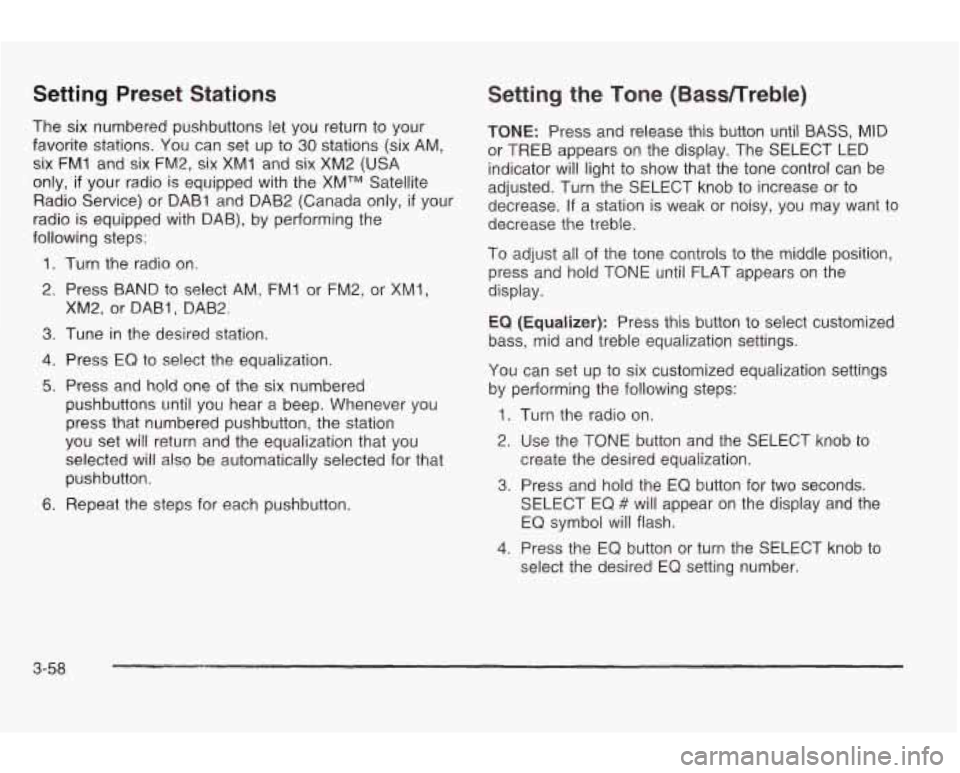
Setting Preset Stations
The six numbered pushbuttons let you return to your
favorite stations.
You can set up to 30 stations (six AM,
six
FM1 and six FM2, six XM1 and six XM2 (USA
only, if your radio is equipped with the XMTM Satellite
Radio Service) or DAB1 and DAB2 (Canada only,
if your
radio is equipped with DAB), by performing the
following
steps:
1. Turn the radio on.
2. Press BAND
to select AM, FM1 or FM2, or XM1,
XM2, or DABI, DAB2
3. Tune in the desired station.
4. Press EQ to select the equalization.
5. Press and hold one of the six numbered
pushbuttons until you hear a beep. Whenever you
press that numbered pushbutton, the station
you set will return and the equalization that you
selected will also be automatically selected for that
pushbutton.
6. Repeat the steps for each pushbutton.
Setting the Tone (BassRreble)
TONE: Press and release this button until BASS, MID
or TREB appears
on the display. The SELECT LED
indicator will light
to show that the tone control can be
adjusted. Turn the SELECT knob
to increase or to
decrease. If a station is weak or noisy, you may want to
decrease the treble.
To adjust all of the tone controls
to the middle position,
press and hold TONE until
FLAT appears on the
display.
EQ (Equalizer): Press this button to select customized
bass, mid and treble equalization settings.
You can set up
to six customized equalization settings
by performing the following steps:
1. Turn the radio on.
2. Use the TONE button and the SELECT knob to
3. Press and hold the EQ button for two seconds.
create the desired equalization.
SELECT
EQ # will appear on the display and the
EQ symbol will flash.
4. Press the EQ button or turn the SELECT knob to
select the desired EQ setting number.
3-58
Page 169 of 354
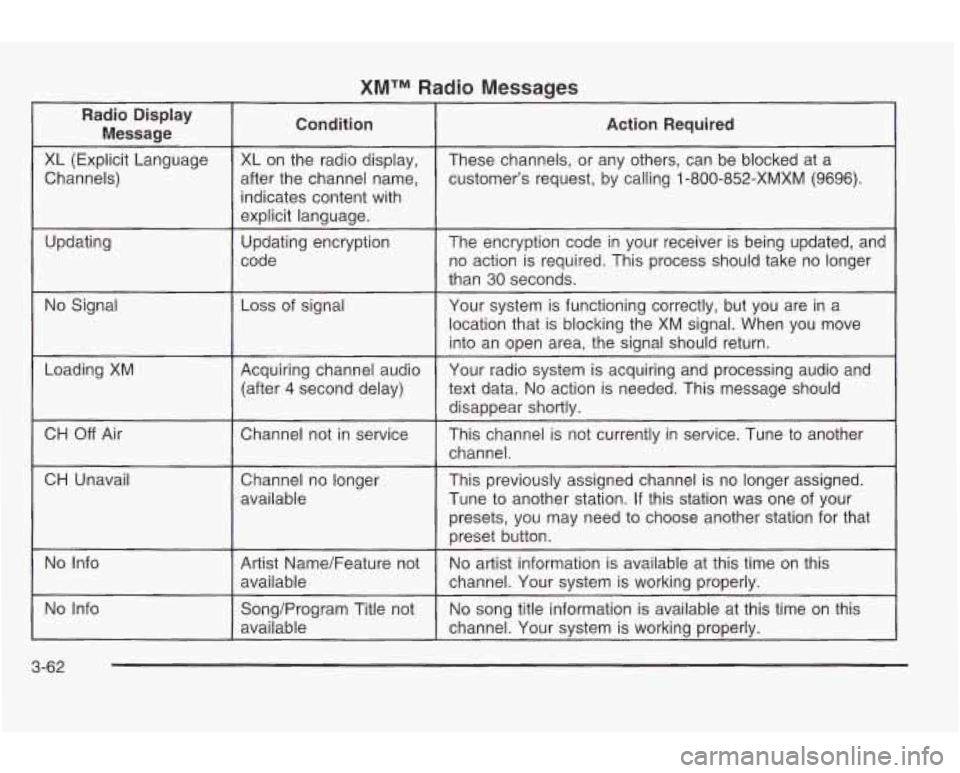
XMTM Radio Messages
Radio Display Message Condition
Action
Required
XL (Explicit Language
customer’s request, by calling
1-800-852-XMXM (9696).
after
the channel name,
Channels) These channels,
or any others, can be blocked at a
XL on the radio display,
indicates content with
explicit language.
code no action is required. This process should take no longer
Updating
The encryption code
in your receiver
is being updated, and
Updating encryption
than
30 seconds.
No Signal Loss
of signal
Your system is functioning correctly, but you are in a
location that is blocking the XM signal. When you move
into an open area, the signal should return.
Loading XM
CH
Off Air
CH Unavail Acquiring channel audio
text data.
No action is needed. This message should
(after 4 second delay) Your
radio system is acquiring and processing audio and
disappear shortlv.
..
Chatme1 not in service
This channel is not currently in service. Tune to another
channel.
Channel no longer
available This previously assigned channel
is no longer assigned.
Tune
to another station. If this station was one of your
presets, you may need
to choose another station for that
preset button.
No Info
No song title information is available at this time on this
Song/Program Title not
No Info
No artist information is available at this time on this
Artist Name/Feature not
available
channel. Your system is working properly.
available channel.
Your system is working properly.
3-62
Page 177 of 354
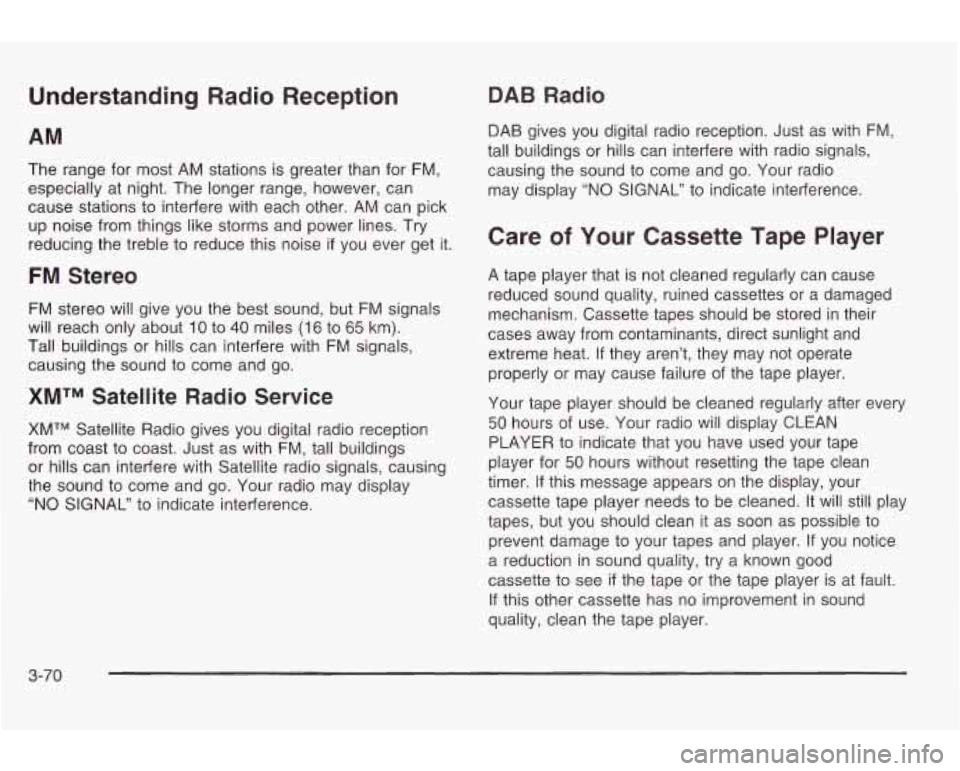
Understanding Radio Reception
The range for most AM stations is greater than for FM,
especially at night. The longer range, however, can
cause stations to interfere with each other. AM can pick
up noise from things like storms and power lines. Try
reducing the treble
to reduce this noise if you ever get it.
FM Stereo
FM stereo will give you the best sound, but FM signals
will reach only about
10 to 40 miles (16 to 65 km).
Tall buildings or hills can interfere with FM signals,
causing the sound
to come and go.
XMTM Satellite Radio Service
XMTM Satellite Radio gives you digital radio reception
from coast
to coast. Just as with FM, tall buildings
or hills can interfere with Satellite radio signals, causing
the sound
to come and go. Your radio may display
"NO SIGNAL"
to indicate interference.
DAB Radio
DAB gives you digital radio reception. Just as with FM,
tall buildings or hills can interfere with radio signals,
causing the sound
to come and go. Your radio
may display
"NO SIGNAL" to indicate interference.
Care of Your Cassette Tape Player
A tape player that is not cleaned regularly can cause
reduced sound quality, ruined cassettes or a damaged
mechanism. Cassette tapes should be stored in their
cases away from contaminants, direct sunlight and
extreme heat. If they aren't, they may not operate
properly or may cause failure of the tape player.
Your tape player should be cleaned regularly after every
50 hours of use. Your radio will display CLEAN
PLAYER to indicate that you have used your tape
player for
50 hours without resetting the tape clean
timer. If this message appears on the display, your
cassette tape player needs
to be cleaned. It will still play
tapes, but you should clean it as soon as possible
to
prevent damage to your tapes and player. If you notice
a reduction in sound quality, try a known good
cassette to see
if the tape or the tape player is at fault.
If this other cassette has no improvement in sound
quality, clean the tape player.
3-70
Page 178 of 354
For best results, use a scrubbing action, non-abrasive
cleaning cassette with pads which scrub the tape
head as the hubs of the cleaner cassette turn. The
recommended cleaning cassette is available through
your dealership.
The broken tape detection feature of your cassette tape
player may identify the cleaning cassette as
a
damaged tape, in error. To prevent the cleaning cassette
from being ejected, use the following steps:
1. Turn the ignition on.
2. Turn the radio off.
3. Press and hold the CD TAPE button for five
seconds. READY
will appear on the display for five
seconds.
4. Insert the scrubbing action cleaning cassette.
5. Eject the cleaning cassette after the manufacturer’s
recommended cleaning time.
After the cleaning cassette is ejected, the broken tape
detection feature will be active again.
You may also choose a non-scrubbing action, wet-type
cleaner which uses a cassette with a fabric belt
to
clean the tape head. This type of cleaning cassette will not eject on
its own. A non-scrubbing action cleaner
may not clean as thoroughly as the scrubbing type
cleaner. The use
of a non-scrubbing action, dry-type
cleaning cassette is not recommended.
After you clean the player, press and hold the eject
button for five seconds
to reset the CLEAN PLAYER
indicator. The radio will display CLEANED
to show the
indicator was reset.
Cassettes are subject
to wear and the sound quality
may degrade over time. Always make sure the cassette
tape is in good condition before you have your tape
player serviced.
Care of Your CDs
Handle discs carefully. Store them in their original cases
or other protective cases and away from direct sunlight
and dust.
If the surface of a disc is soiled, dampen
a clean, soft cloth in a mild, neutral detergent solution
and clean it, wiping from the center
to the edge.
Be sure never
to touch the side without writing when
nanaiing aiscs. Pick up aiscs by grasping ihe ouier
edges or the edge of the hole and the outer edge.
3-71
Page 243 of 354
How to Reset the Change Oil Light
The GM Oil Life SystemTM calculates when to change
your engine oil and filter based on vehicle use. Anytime
your oil is changed, reset the system
so it can
calculate when the next oil change is required.
If a
situation occurs where you change your oil prior
to a
CHANGE OIL light being turned on, reset the system.
After changing the engine oil, the system must be reset.
To reset the oil life indicator, do the following steps:
1. With the ignition key in ON (a short time after
turning
off the engine), press the RESET button
located in the driver’s side instrument panel
fuse block. See “Instrument Panel Fuse Block”
under
Fuses and Circuit Breakers on page 5-81.
2. When the CHANGE OIL light starts to flash, press
and hold the RESET button again.
The reset is complete when you hear the chimes and
the CHANGE OIL light goes out.
If your vehicle is equipped with a 2.2L L4 ECOTEC
engine, it has a unique oil filter element. When
reinstalling the filter cap do not exceed
18 Ib ft (25 N*m ).
Inspect the condition of the O-ring and replace if
damaged.
What to Do with Used Oil
Used engine oil contains certain elements that may be
unhealthy for your skin and could even cause cancer.
Don’t let used oil stay on your skin for very long. Clean
your skin and nails with soap and water, or a
good
hand cleaner. Wash or properly dispose of clothing or
rags containing used engine oil. See the manufacturer’s
warnings about the use and disposal of oil products.
Used oil can be a threat
to the environment. If you
change your own oil, be sure to drain all the oil from the
filter before disposal. Never dispose of oil by putting it
in the trash, pouring it on the ground, into sewers, or into
streams or bodies of water. Instead, recycle it by
taking it to a place that collects used oil. If you have a
problem properly disposing of your used oil, ask
your dealer, a service station or a local recycling center
for help.
See your dealer for additional information.
5-20