phone PONTIAC TORRENT 2009 Owner's Manual
[x] Cancel search | Manufacturer: PONTIAC, Model Year: 2009, Model line: TORRENT, Model: PONTIAC TORRENT 2009Pages: 436, PDF Size: 2.43 MB
Page 235 of 436
Battery Replacement
To change the batteries on the headphones, do the
following:
1. Turn the screw to loosen the battery door located
on the left side of the headphones. Slide the
battery door open.
2. Replace the two batteries in the compartment.
Make sure that they are installed correctly,
using the diagram on the inside of the battery
compartment.
3. Replace the battery door and tighten the door
screw.
If the headphones are to be stored for a long period of
time, remove the batteries and keep them in a cool,
dry place.
Audio/Video (A/V) Jacks
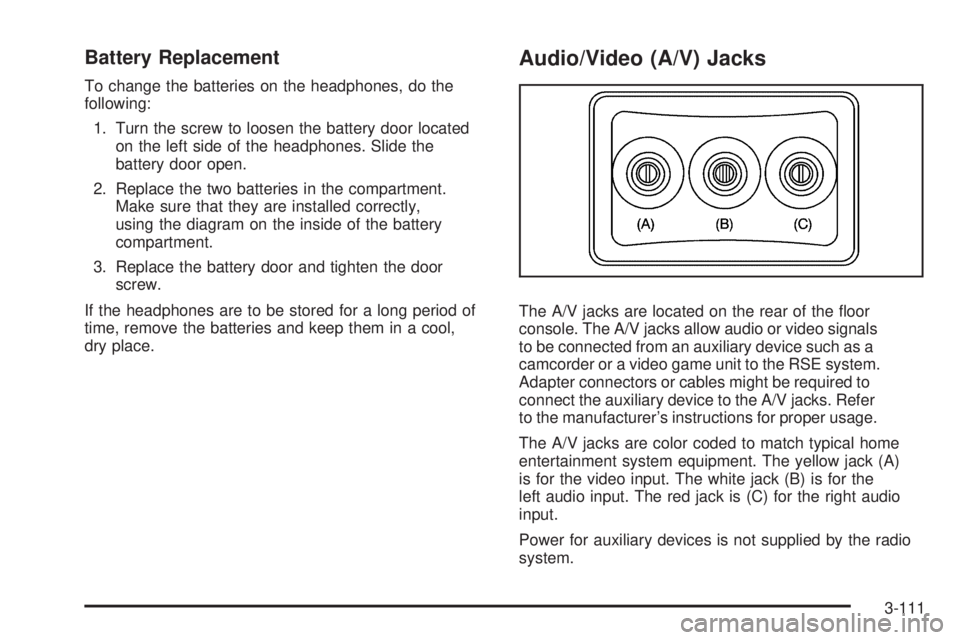
The A/V jacks are located on the rear of the oor
console. The A/V jacks allow audio or video signals
to be connected from an auxiliary device such as a
camcorder or a video game unit to the RSE system.
Adapter connectors or cables might be required to
connect the auxiliary device to the A/V jacks. Refer
to the manufacturer’s instructions for proper usage.
The A/V jacks are color coded to match typical home
entertainment system equipment. The yellow jack (A)
is for the video input. The white jack (B) is for the
left audio input. The red jack is (C) for the right audio
input.
Power for auxiliary devices is not supplied by the radio
system.
3-111
Page 236 of 436
To use the auxiliary inputs of the RSE system, connect
an external auxiliary device to the color-coded A/V jacks
and turn both the auxiliary device and the video screen
power on. If the video screen is in the DVD player mode,
pressing the AUX button on the remote control switches
the video screen from the DVD player mode to the
auxiliary device. The radio can listen to the audio of
the connected auxiliary device by sourcing to auxiliary.
SeeRadio(s) on page 3-67for more information.
How to Change the RSE Video Screen
Settings
The screen display mode (normal, full, and zoom),
screen brightness, and setup menu language can be
changed from the on screen setup menu. To change
any feature, perform the following:
1. Press the
z(display menu) button on the remote
control.
2. Use the remote control menu
n,q,p,o
(navigation) arrows and ther(enter) button to
use the setup menu.
3. Press the
zbutton again to remove the setup
menu from the screen.
Audio Output
Audio from the DVD player or auxiliary inputs may be
heard through the following possible sources:
Wireless Headphones
Vehicle Speakers
Vehicle wired headphone jacks on the rear seat
audio system, if the vehicle has this feature.
The RSE system always transmits the audio signal to
the wireless headphones, if there is audio available.
See “Headphones” earlier in this section for more
information.
When a device is connected to the radio’s auxiliary
input jack, if the vehicle has this feature, or A/V jacks,
the rear seat passengers are able to hear audio from
the auxiliary device through the wireless or wired
headphones. The front seat passengers are able to
listen to playback from this device through the vehicle
speakers by selecting AUX as the source on the radio.
3-112
Page 237 of 436
Video Screen
The video screen is located in the overhead console.
To use the video screen, do the following:
1. Push the release button located on the overhead
console.
2. Move the screen to the desired position.
When the video screen is not in use, push it up into its
locked position.
If a DVD is playing and the screen is raised to its locked
position, the screen remains on, this is normal, and
the DVD continues to play through the previous audio
source. Use the remote control
Obutton orZthe disc
to turn off the screen.
The overhead console contains the IR transmitters
for the wireless headphones and the IR receivers for
the remote control. They are located at the rear of
the console.
Notice:Avoid directly touching the video screen,
as damage may occur. See “Cleaning the Video
Screen” later in this section for more information.
Remote Control
To use the remote control, aim it at the transmitter
window at the rear of the RSE overhead console and
press the desired button. Direct sunlight or very bright
light can affect the ability of the RSE transmitter to
receive signals from the remote control. If the remote
control does not seem to be working, the batteries may
need to be replaced. See “Battery Replacement” later in
this section. Objects blocking the line of sight can also
affect the function of the remote control.
If a CD or DVD is in the Radio DVD slot, the remote
control power button can be used to turn on the video
screen display and start the disc. The radio can also
turn on the video screen display. SeeRadio(s) on
page 3-67for more information.
Notice:Storing the remote control in a hot area or
in direct sunlight can damage it, and the repairs will
not be covered by the warranty. Storage in extreme
cold can weaken the batteries. Keep the remote
control stored in a cool, dry place.
3-113
Page 241 of 436
Problem Recommended Action
The auxiliary source is
running but there is no
picture or sound.Check that the RSE video
screen is in the auxiliary
source mode.
Check the auxiliary input
connections at both
devices.
Sometimes the wireless
headphone audio cuts out
or buzzes.Check for obstructions,
low batteries, reception
range, and interference
from cellular telephone
towers or by using a
cellular telephone in
the vehicle.
Check that the
headphones are on
correctly using the L (left)
and R (right) on the
headphones.
I lost the remote and/or
the headphones.See your dealer/retailer
for assistance.
The DVD is playing, but
there is no picture or
sound.Check that the RSE video
screen is sourced to the
DVD player.DVD Display Error Messages
The DVD display error message depends on which
radio the vehicle has. The video screen can display
one of the following:
Disc Load/Eject Error:This message displays when
there are disc load or eject problems.
Disc Format Error:This message displays, if the disc
is inserted with the disc label wrong side up, or if the disc
is damaged.
Disc Region Error:This message displays, if the disc
is not from a correct region.
No Disc Inserted:This message displays, if no disc is
present when the
Zbutton is pressed on the radio.
DVD Distortion
Video distortion may occur when operating cellular
phones, scanners, CB radios, Global Position Systems
(GPS)*, two-way radios, mobile fax, or walkie talkies.
It may be necessary to turn off the DVD player
when operating one of these devices in or near the
vehicle.
*Excludes the OnStar
®System.
3-117
Page 243 of 436
xc(Previous / Phone On Hook):Press to go
to the previous radio station stored as a favorite, the
previous track if a CD/DVD is playing, to reject an
incoming call, or end a current call.
bg(Push to Talk / Mute):Press to silence the
vehicle speakers only. Press again to turn the sound on.
For vehicles with OnStar
®or Bluetooth systems
press and hold
bgfor longer than two seconds to
interact with those systems. SeeOnStar®System
on page 2-38andBluetooth®on page 3-98in this
manual for more information.
Radio Reception
Frequency interference and static can occur during
normal radio reception if items such as cell phone
chargers, vehicle convenience accessories, and external
electronic devices are plugged into the accessory power
outlet. If there is interference or static, unplug the item
from the accessory power outlet.
AM
The range for most AM stations is greater than for FM,
especially at night. The longer range can cause station
frequencies to interfere with each other. For better radio
reception, most AM radio stations boost the power levels
during the day, and then reduce these levels during the
night. Static can also occur when things like storms and
power lines interfere with radio reception. When this
happens, try reducing the treble on the radio.
FM Stereo
FM signals only reach about 10 to 40 miles
(16 to 65 km). Although the radio has a built-in electronic
circuit that automatically works to reduce interference,
some static can occur, especially around tall buildings
or hills, causing the sound to fade in and out.
3-119
Page 244 of 436
XM™ Satellite Radio Service
XM Satellite Radio Service gives digital radio reception
from coast-to-coast in the 48 contiguous United States,
and in Canada. Just as with FM, tall buildings or hills can
interfere with satellite radio signals, causing the sound to
fade in and out. In addition, traveling or standing under
heavy foliage, bridges, garages, or tunnels may cause
loss of the XM signal for a period of time.
Cellular Phone Usage
Cellular phone usage may cause interference with the
vehicle’s radio. This interference may occur when making
or receiving phone calls, charging the phone’s battery,
or simply having the phone on. This interference causes
an increased level of static while listening to the radio.
If static is received while listening to the radio, unplug
the cellular phone and turn it off.
Multi-Band Antenna
The multi-band antenna is located on the roof of the
vehicle. The antenna is used for the AM/FM radio,
OnStar
®and the XM™ Satellite Radio Service System,
if the vehicle has these features. Keep the antenna
clear of obstructions for clear reception. If the vehicle
has a sunroof, the performance of the AM/FM radio,
OnStar
®, and the XM system may be affected if
the sunroof is open.
3-120
Page 292 of 436
Filling the Tank
{CAUTION:
Fuel vapor burns violently and a fuel re can
cause bad injuries. To help avoid injuries to you
and others, read and follow all the instructions on
the pump island. Turn off the engine when you are
refueling. Do not smoke if you are near fuel or
refueling the vehicle. Do not use cellular phones.
Keep sparks, ames, and smoking materials away
from fuel. Do not leave the fuel pump unattended
when refueling the vehicle. This is against the law
in some places. Do not re-enter the vehicle while
pumping fuel. Keep children away from the fuel
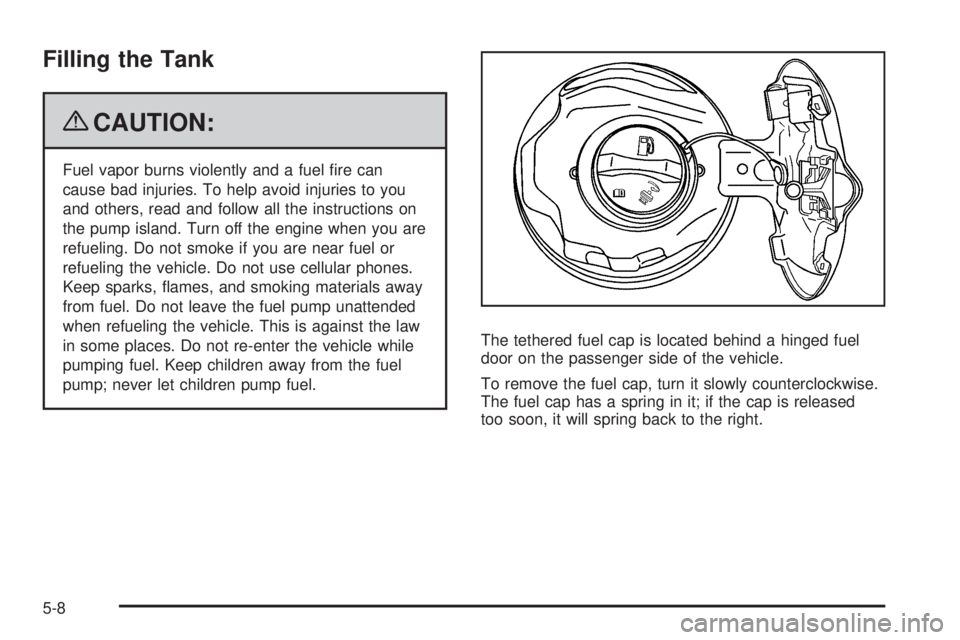
pump; never let children pump fuel.The tethered fuel cap is located behind a hinged fuel
door on the passenger side of the vehicle.
To remove the fuel cap, turn it slowly counterclockwise.
The fuel cap has a spring in it; if the cap is released
too soon, it will spring back to the right.
5-8
Page 294 of 436
Filling a Portable Fuel Container
{CAUTION:
Never ll a portable fuel container while it is in
the vehicle. Static electricity discharge from the
container can ignite the fuel vapor. You can be
badly burned and the vehicle damaged if this
occurs. To help avoid injury to you and others:
Dispense fuel only into approved containers.
Do not ll a container while it is inside a
vehicle, in a vehicle’s trunk, pickup bed,
or on any surface other than the ground.
Bring the ll nozzle in contact with the inside
of the ll opening before operating the nozzle.
Contact should be maintained until the lling
is complete.
Do not smoke while pumping fuel.
Do not use a cellular phone while
pumping fuel.
Checking Things Under
the Hood
{CAUTION:
An electric fan under the hood can start up and
injure you even when the engine is not running.
Keep hands, clothing, and tools away from any
underhood electric fan.
{CAUTION:
Things that burn can get on hot engine parts and
start a re. These include liquids like fuel, oil,
coolant, brake uid, windshield washer and other
uids, and plastic or rubber. You or others could
be burned. Be careful not to drop or spill things
that will burn onto a hot engine.
5-10
Page 403 of 436
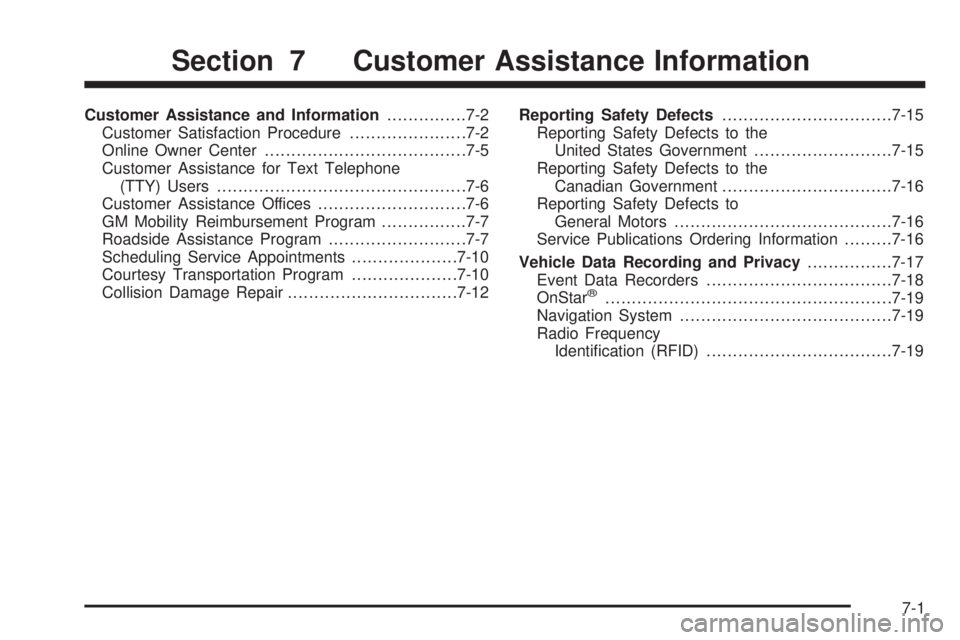
Customer Assistance and Information...............7-2
Customer Satisfaction Procedure......................7-2
Online Owner Center......................................7-5
Customer Assistance for Text Telephone
(TTY) Users...............................................7-6
Customer Assistance Offices............................7-6
GM Mobility Reimbursement Program................7-7
Roadside Assistance Program..........................7-7
Scheduling Service Appointments....................7-10
Courtesy Transportation Program....................7-10
Collision Damage Repair................................7-12Reporting Safety Defects................................7-15
Reporting Safety Defects to the
United States Government..........................7-15
Reporting Safety Defects to the
Canadian Government................................7-16
Reporting Safety Defects to
General Motors.........................................7-16
Service Publications Ordering Information.........7-16
Vehicle Data Recording and Privacy................7-17
Event Data Recorders...................................7-18
OnStar
®......................................................7-19
Navigation System........................................7-19
Radio Frequency
Identication (RFID)...................................7-19
Section 7 Customer Assistance Information
7-1
Page 405 of 436
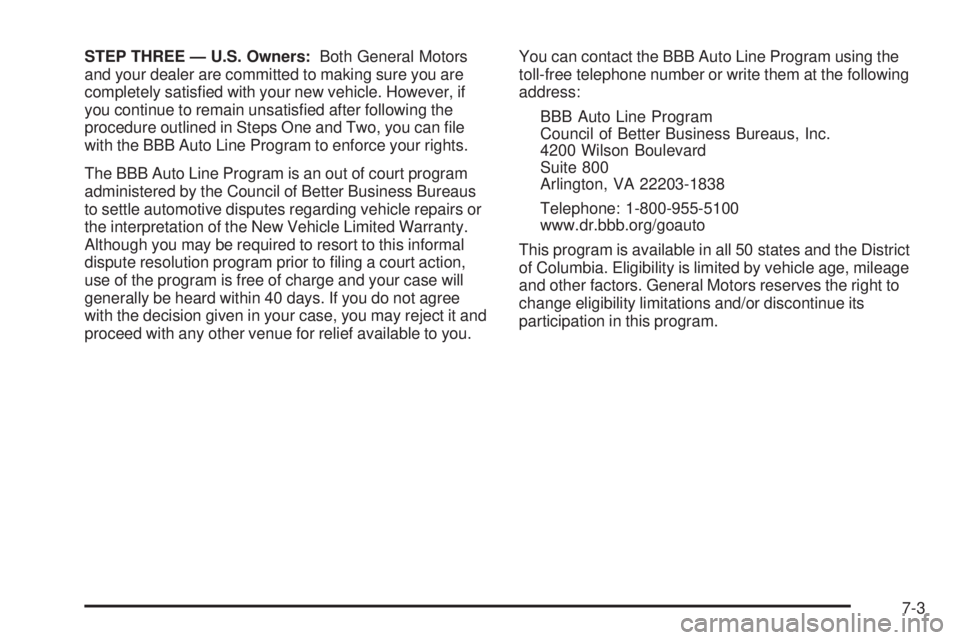
STEP THREE — U.S. Owners:Both General Motors
and your dealer are committed to making sure you are
completely satised with your new vehicle. However, if
you continue to remain unsatised after following the
procedure outlined in Steps One and Two, you can le
with the BBB Auto Line Program to enforce your rights.
The BBB Auto Line Program is an out of court program
administered by the Council of Better Business Bureaus
to settle automotive disputes regarding vehicle repairs or
the interpretation of the New Vehicle Limited Warranty.
Although you may be required to resort to this informal
dispute resolution program prior to ling a court action,
use of the program is free of charge and your case will
generally be heard within 40 days. If you do not agree
with the decision given in your case, you may reject it and
proceed with any other venue for relief available to you.You can contact the BBB Auto Line Program using the
toll-free telephone number or write them at the following
address:
BBB Auto Line Program
Council of Better Business Bureaus, Inc.
4200 Wilson Boulevard
Suite 800
Arlington, VA 22203-1838
Telephone: 1-800-955-5100
www.dr.bbb.org/goauto
This program is available in all 50 states and the District
of Columbia. Eligibility is limited by vehicle age, mileage
and other factors. General Motors reserves the right to
change eligibility limitations and/or discontinue its
participation in this program.
7-3