ignition Ram 1500 2009 Repair Manual
[x] Cancel search | Manufacturer: RAM, Model Year: 2009, Model line: 1500, Model: Ram 1500 2009Pages: 543, PDF Size: 7.75 MB
Page 254 of 543
Trip Functions
Press and release the ODOMETER/TRIP ODOMETER
button until one of the following Trip Functions displays
in the EVIC:
•Trip A
•Trip B
•Elapsed Time
Press the ODOMETER/TRIP ODOMETER button to
cycle through all the Trip Computer functions.
The Trip Functions mode displays the following informa-
tion.
•Trip A
Shows the total distance traveled for Trip A since the last
reset.
•Trip B
Shows the total distance traveled for Trip B since the last
reset.
•Elapsed Time
Shows the total elapsed time of travel since the last reset
when the ignition switch is in the ACC position. Elapsed
time will increment when the ignition switch is in the ON
or START position.
To Reset The Display
Reset will only occur while a resettable function is being
displayed. Press and release the ODOMETER/TRIP
ODOMETER button once to clear the resettable function
being displayed. To reset all resettable functions, press
and release the ODOMETER/TRIP ODOMETER button a
second time within three seconds of resetting the
currently-displayed function. (Reset ALL will display
during this three-second window).
252 UNDERSTANDING YOUR INSTRUMENT PANEL
Page 256 of 543
Manual Compass Calibration
If the compass appears erratic and the CAL indicator
does not appear in the EVIC display, you must put the
compass into the Calibration Mode manually, as follows:
1. Turn ON the ignition switch.
2. Press the UP or DOWN button until the Setup
(Customer-Programmable Features) menu is reached,
then press the SELECT button.
3. Press the DOWN button until “Calibrate Compass” is
displayed in the EVIC.
4. Press and release the SELECT button to start the
calibration. The “CAL” indicator will be displayed in the
EVIC.
5. Complete one or more 360–degree turns (in an area
free from large metal or metallic objects) until the “CAL”
indicator turns off. The compass will now function
normally.
Compass Variance
Compass Variance is the difference between Magnetic
North and Geographic North. To compensate for the
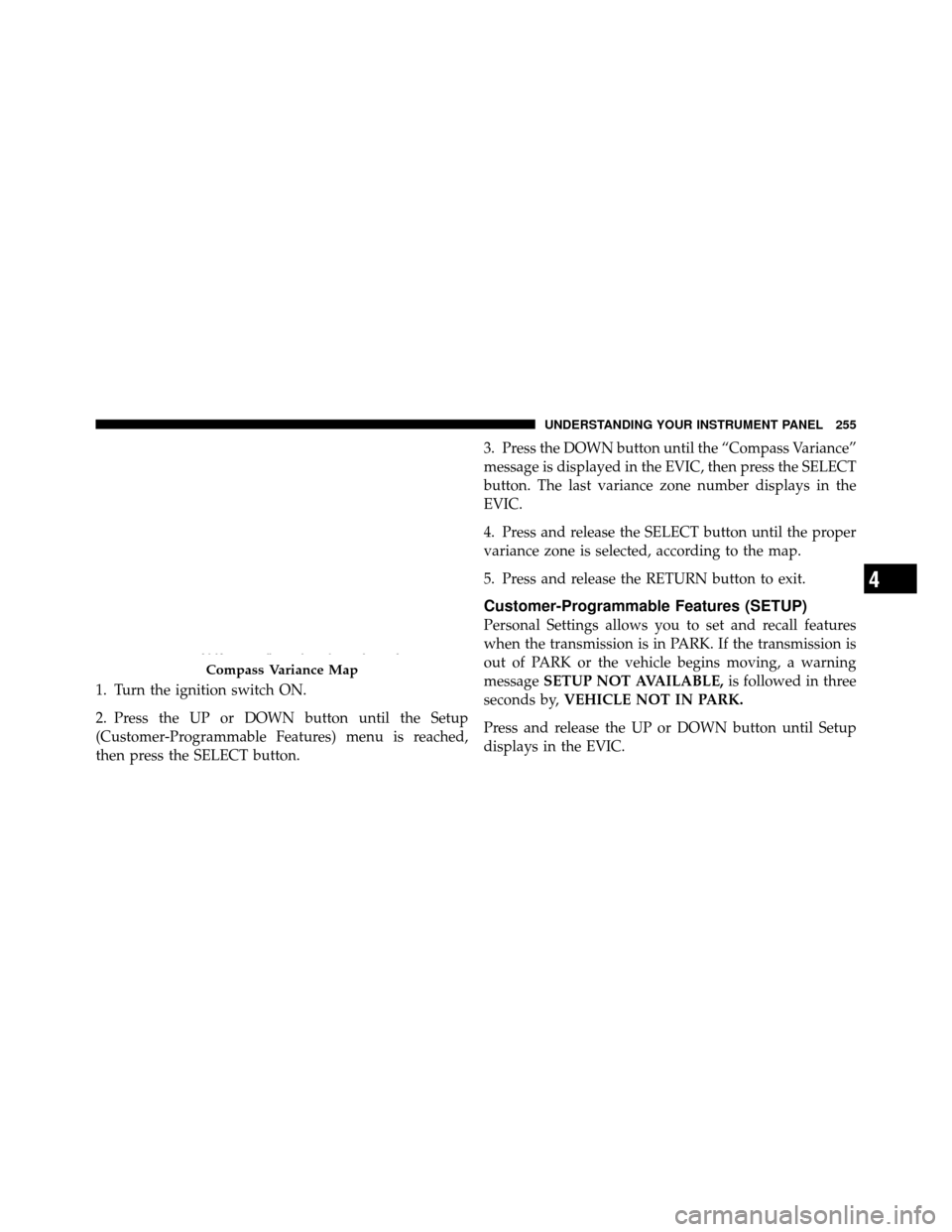
differences the variance should be set for the zone where
the vehicle is driven, per the zone map. Once properly
set, the compass will automatically compensate for the
differences, and provide the most accurate compass
heading. For the most accurate compass performance, the
compass must be set using the following steps.
NOTE:Keep magnetic materials away from the top of
the instrument panel, such as iPod’s, Cell Phones, Lap-
tops and Radar Detectors. This is where the compass
module is located, and it can cause interference with the
compass sensor, and it may give false readings.
254 UNDERSTANDING YOUR INSTRUMENT PANEL
Page 257 of 543
1. Turn the ignition switch ON.
2. Press the UP or DOWN button until the Setup
(Customer-Programmable Features) menu is reached,
then press the SELECT button.3. Press the DOWN button until the “Compass Variance”
message is displayed in the EVIC, then press the SELECT
button. The last variance zone number displays in the
EVIC.
4. Press and release the SELECT button until the proper
variance zone is selected, according to the map.
5. Press and release the RETURN button to exit.
Customer-Programmable Features (SETUP)
Personal Settings allows you to set and recall features
when the transmission is in PARK. If the transmission is
out of PARK or the vehicle begins moving, a warning
message
SETUP NOT AVAILABLE, is followed in three
seconds by, VEHICLE NOT IN PARK.
Press and release the UP or DOWN button until Setup
displays in the EVIC.
Compass Variance Map
4
UNDERSTANDING YOUR INSTRUMENT PANEL 255
Page 261 of 543
after the ignition switch is turned OFF. Opening a vehicle
door will cancel this feature. To make your selection,
press and release the SELECT button until Off, 45 sec.,
5 min., or 10 min. appears.
Illuminated Approach
When this feature is selected, the headlights will activate
and remain on for up to 90 seconds when the doors are
unlocked with the RKE transmitter. To make your selec-
tion, press and release the SELECT button until “OFF,”
“30 sec.,” “60 sec.,” or “90 sec.” appears.
Hill Start Assist (HSA)
When on is selected, the HSA system is active. Refer to
“HSA (Hill Start Assistance)” under “Electronic Brake
Control System” in Section 5 of this manual for systemfunction and operating information. To make your selec-
tion, press and release the SELECT button until a check-
mark appears next to the feature showing the system has
been activated or the check-mark is removed, showing
the system has been deactivated.
Display Fuel Saver — If Equipped
The “Fuel Saver Mode” message is located in the
Compass/Temperature display, this message can be
turned on or off. To make your selection, press and
release the FUNCTION SELECT button until “ON” or
“OFF” appears.
Easy Exit Seat
When this feature is selected it provides automatic driver
seat positioning to enhance driver mobility when enter-
ing and exiting the vehicle. To make your selection, press
4
UNDERSTANDING YOUR INSTRUMENT PANEL 259
Page 263 of 543
units of measure. To make your selection, press and
release the SELECT button until ENGLISH or METRIC
appears.
ELECTRONIC DIGITAL CLOCK
The clock and radio each use the display panel built into
the radio. A digital readout shows the frequency and/or
time in hours and minutes (depending on your radio
model) whenever the ignition switch is in the ON or ACC
position.
When the ignition switch is in the OFF position, or when
the radio frequency is being displayed, time keeping is
accurately maintained.
On the REQ radio the time button alternates the location
of the time and frequency on the display. On the RES only
time or frequency is displayed at a time. The RES/RSC
with satellite radio will display both time and frequency,
and alternate between time and frequency when the time
button is pressed.
Clock Setting Procedure
1. Press and hold the time button until the hours blink.
2. Adjust the hours by turning the right side Tune/
Audio control.
3. After the hours are adjusted, press the right side
Tune/Audio control to set the minutes.
4. Adjust the minutes using the right side Tune/Audio
control.
5. To exit, press any button/knob or wait approximately
five seconds.
SALES CODE (RER/REN) — AM/FM/CD/DVD
RADIO – IF EQUIPPED
NOTE:The sales code is located on the lower right side
of the unit’s faceplate.
4
UNDERSTANDING YOUR INSTRUMENT PANEL 261
Page 266 of 543
Changing the Time Zone
1. Turn on the radio.
2. Touch the screen where the time is displayed. The
clock setting menu will appear on the screen.
3. Touch the screen where the words “Set Time Zone” are
displayed. The time zone selection menu will appear on
the screen.
4. Select a time zone by touching the screen where your
selection appears. If you do not see a time zone that you
want to select, touch the screen where the word “Page” is
displayed to view additional time zones in the menu.
5. Touch the screen where the word “Save” is displayed.
SALES CODE RES — AM/FM STEREO RADIO
WITH CD PLAYER (MP3 AUX JACK)
NOTE:The radio sales code is located on the lower right
side of the radio faceplate.
Operating Instructions — Radio Mode
NOTE: The ignition switch must be in the ON or ACC
position to operate the radio.
RES Radio
264 UNDERSTANDING YOUR INSTRUMENT PANEL
Page 269 of 543
SET/RND Button — To Set the Pushbutton
Memory
When you are receiving a station that you wish to
commit to pushbutton memory, press the SET/RND
button. The symbol SET 1 will now show in the display
window. Select the button (1 to 6) you wish to lock onto
this station and press and release that button. If a button
is not selected within five seconds after pressing the
SET/RND button, the station will continue to play but
will not be stored into pushbutton memory.
You may add a second station to each pushbutton by
repeating the above procedure with this exception: Press
the SET/RND button twice and SET 2 will show in the
display window. Each button can be set for SET 1 and
SET 2 in both AM and FM. This allows a total of 12 AM
and 12 FM stations to be stored into pushbutton memory.
The stations stored in SET 2 memory can be selected by
pressing the pushbutton twice.Every time a preset button is used, a corresponding
button number will display.Buttons 1 - 6
These buttons tune the radio to the stations that you commit
to pushbutton memory (12 AM and 12 FM stations).
DISC Button
Pressing the DISC button will allow you to switch from
AM/FM modes to Disc modes.
Operation Instructions — CD MODE For CD And
MP3 Audio Play
NOTE:
•The ignition switch must be in the ON or ACC
position to operate the radio.
•This radio is capable of playing compact discs (CD),
recordable compact discs (CD-R), rewritable compact
discs (CD-RW), compact discs with MP3 tracks and
multisession compact discs with CD and MP3 tracks.
4
UNDERSTANDING YOUR INSTRUMENT PANEL 267
Page 270 of 543
Inserting Compact Disc(s)
Gently insert one CD into the CD player with the CD
label facing up. The CD will automatically be pulled into
the CD player and the CD icon will illuminate on the
radio display. If a CD does not go into the slot more than
1.0 in (2.5 cm), a disc may already be loaded and must be
ejected before a new disc can be loaded.
If you insert a disc with the ignition ON and the radio
ON, the unit will switch from radio to CD mode and
begin to play when you insert the disc. The display will
show the track number, and index time in minutes and
seconds. Play will begin at the start of track 1.CAUTION!
•This CD player will accept 4-3/4 in (12 cm) discs
only. The use of other sized discs may damage the
CD player mechanism.
•Do not use adhesive labels. These labels can peel
away and jam the player mechanism.
•RES is a single CD player. Do not attempt to insert
a second CD if one is already loaded.
•Dual-media disc types (one side is a DVD, the
other side is a CD) should not be used, and they
can cause damage to the player.
EJECT Button - Ejecting a CD
Press the EJECT button to eject the CD.
268 UNDERSTANDING YOUR INSTRUMENT PANEL
Page 271 of 543
If you have ejected a disc and have not removed it within
10 seconds, it will be reloaded. If the CD is not removed,
the radio will reinsert the CD but will not play it.
A disc can be ejected with the radio and ignition OFF.
NOTE:Ejecting with the ignition OFF is not allowed on
convertible or soft-top models (if equipped).
SEEK Button
Press the right SEEK button for the next selection on the
CD. Press the left SEEK button to return to the beginning
of the current selection, or return to the beginning of the
previous selection if the CD is within the first second of
the current selection. Pressing and holding the SEEK
button will allow faster scrolling through the tracks in
CD and MP3 modes.
TIME Button
Press this button to change the display from a large CD
playing time display to a small CD playing time display.
RW/FF
Press and hold the FF (Fast Forward) button and the CD
player will begin to fast forward until FF is released, or
RW or another CD button is pressed. The RW (Reverse)
button works in a similar manner.
AM/FM Button
Press the button to select either AM or FM mode.
SET/RND Button (Random Play Button)
Press this button while the CD is playing to activate
Random Play. This feature plays the selections on the
compact disc in random order to provide an interesting
change of pace.
Press the right SEEK button to move to the next ran-
domly selected track.
Press the RND button a second time to stop Random
Play.
4
UNDERSTANDING YOUR INSTRUMENT PANEL 269
Page 274 of 543
Playback of MP3 Files
When a medium containing MP3 data is loaded, the
radio checks all files on the medium. If the medium
contains a lot of folders or files, the radio will take more
time to start playing the MP3 files.
Loading times for playback of MP3 files may be affected
by the following:
•Media - CD-RW media may take longer to load than
CD-R media
•Medium formats - Multisession discs may take longer
to load than non-multisession discs
•Number of files and folders - Loading times will
increase with more files and folders
To increase the speed of disc loading, it is recommended
to use CD-R media and single-session discs. To create a
single-session disc, enable the “Disc at Once” option
before writing to the disc.
Operation Instructions - Auxiliary Mode
The auxiliary (AUX) jack is an audio input jack, which
allows the user to plug in a portable device, such as an
MP3 player, or cassette player, and utilize the vehicle’s
audio system to amplify the source and play through the
vehicle speakers.
Pressing the DISC/AUX button will change the mode to
auxiliary device if the AUX jack is connected.
NOTE: The AUX device must be turned on and the
device’s volume set to proper level. If the AUX audio is
not loud enough, turn the device’s volume up. If the AUX
audio sounds distorted, turn the device’s volume down.
TIME Button (Auxiliary Mode)
Press this button to change the display to time of day. The
time of day will display for five seconds (when ignition is
OFF).
272 UNDERSTANDING YOUR INSTRUMENT PANEL