clock Ram 1500 2015 User Guide
[x] Cancel search | Manufacturer: RAM, Model Year: 2015, Model line: 1500, Model: Ram 1500 2015Pages: 871, PDF Size: 24.83 MB
Page 377 of 871
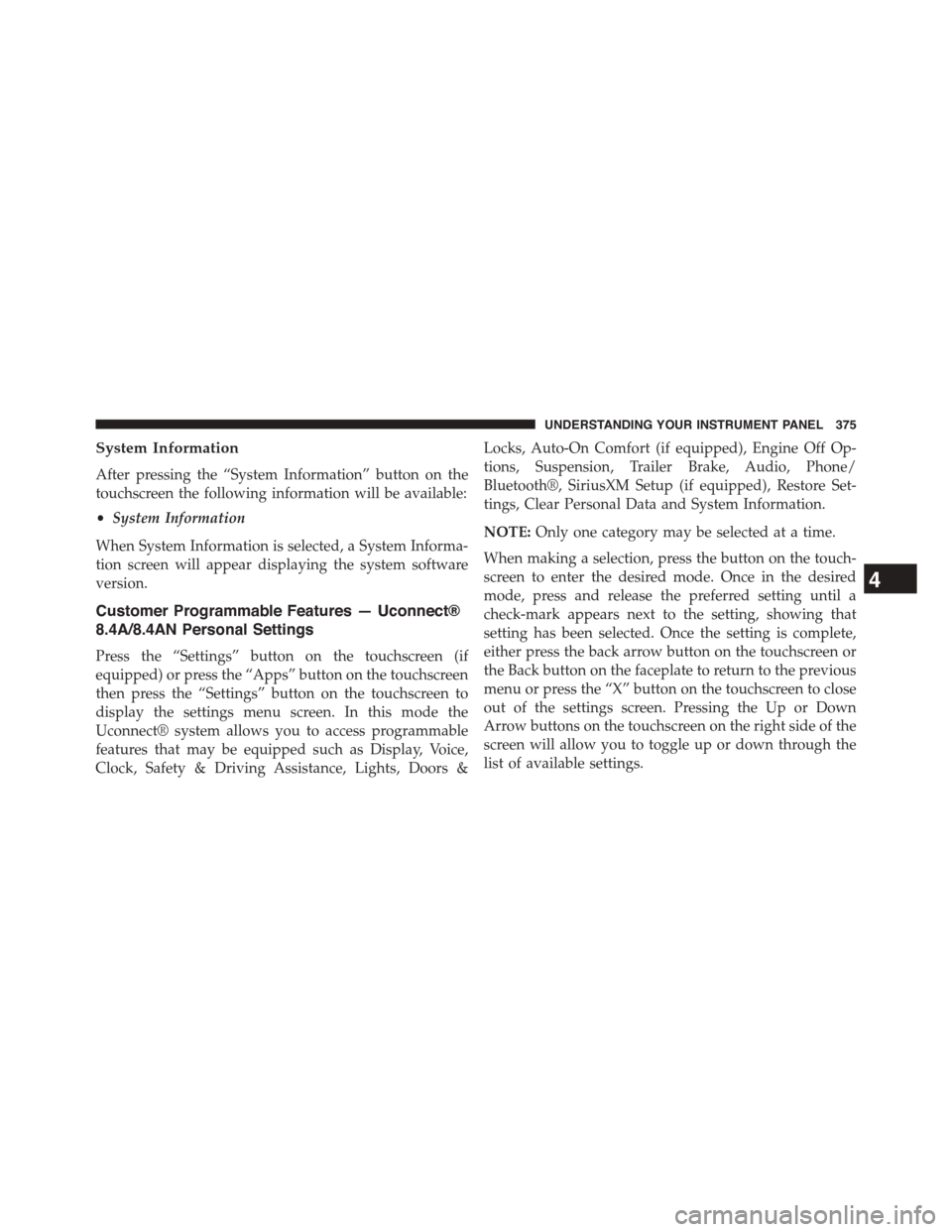
System Information
After pressing the “System Information” button on the
touchscreen the following information will be available:
•System Information
When System Information is selected, a System Informa-
tion screen will appear displaying the system software
version.
Customer Programmable Features — Uconnect®
8.4A/8.4AN Personal Settings
Press the “Settings” button on the touchscreen (if
equipped) or press the “Apps” button on the touchscreen
then press the “Settings” button on the touchscreen to
display the settings menu screen. In this mode the
Uconnect® system allows you to access programmable
features that may be equipped such as Display, Voice,
Clock, Safety & Driving Assistance, Lights, Doors &
Locks, Auto-On Comfort (if equipped), Engine Off Op-
tions, Suspension, Trailer Brake, Audio, Phone/
Bluetooth®, SiriusXM Setup (if equipped), Restore Set-
tings, Clear Personal Data and System Information.
NOTE:Only one category may be selected at a time.
When making a selection, press the button on the touch-
screen to enter the desired mode. Once in the desired
mode, press and release the preferred setting until a
check-mark appears next to the setting, showing that
setting has been selected. Once the setting is complete,
either press the back arrow button on the touchscreen or
the Back button on the faceplate to return to the previous
menu or press the “X” button on the touchscreen to close
out of the settings screen. Pressing the Up or Down
Arrow buttons on the touchscreen on the right side of the
screen will allow you to toggle up or down through the
list of available settings.
4
UNDERSTANDING YOUR INSTRUMENT PANEL 375
Page 381 of 871
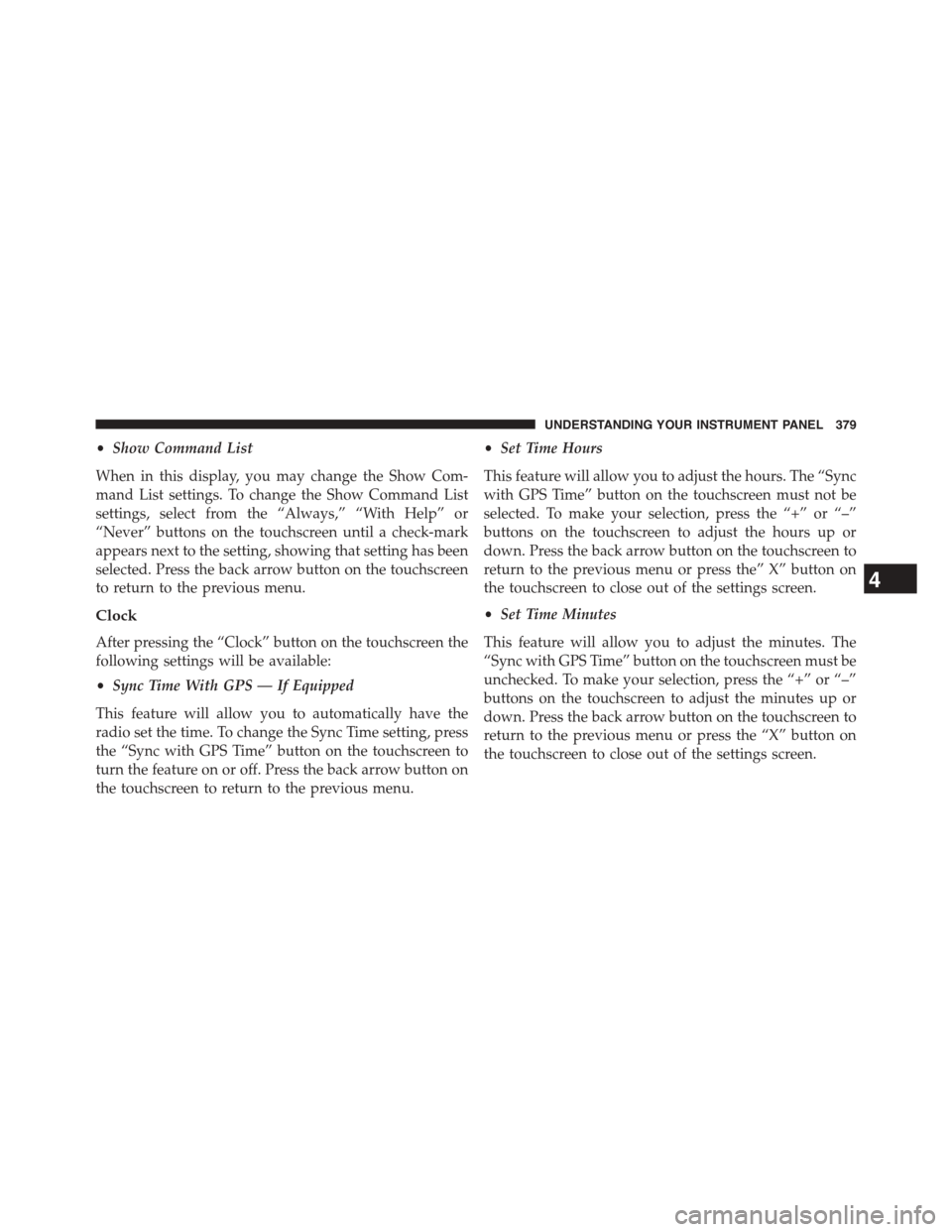
•Show Command List
When in this display, you may change the Show Com-
mand List settings. To change the Show Command List
settings, select from the “Always,” “With Help” or
“Never” buttons on the touchscreen until a check-mark
appears next to the setting, showing that setting has been
selected. Press the back arrow button on the touchscreen
to return to the previous menu.
Clock
After pressing the “Clock” button on the touchscreen the
following settings will be available:
•Sync Time With GPS — If Equipped
This feature will allow you to automatically have the
radio set the time. To change the Sync Time setting, press
the “Sync with GPS Time” button on the touchscreen to
turn the feature on or off. Press the back arrow button on
the touchscreen to return to the previous menu.
•Set Time Hours
This feature will allow you to adjust the hours. The “Sync
with GPS Time” button on the touchscreen must not be
selected. To make your selection, press the “+” or “–”
buttons on the touchscreen to adjust the hours up or
down. Press the back arrow button on the touchscreen to
return to the previous menu or press the” X” button on
the touchscreen to close out of the settings screen.
•Set Time Minutes
This feature will allow you to adjust the minutes. The
“Sync with GPS Time” button on the touchscreen must be
unchecked. To make your selection, press the “+” or “–”
buttons on the touchscreen to adjust the minutes up or
down. Press the back arrow button on the touchscreen to
return to the previous menu or press the “X” button on
the touchscreen to close out of the settings screen.
4
UNDERSTANDING YOUR INSTRUMENT PANEL 379
Page 382 of 871
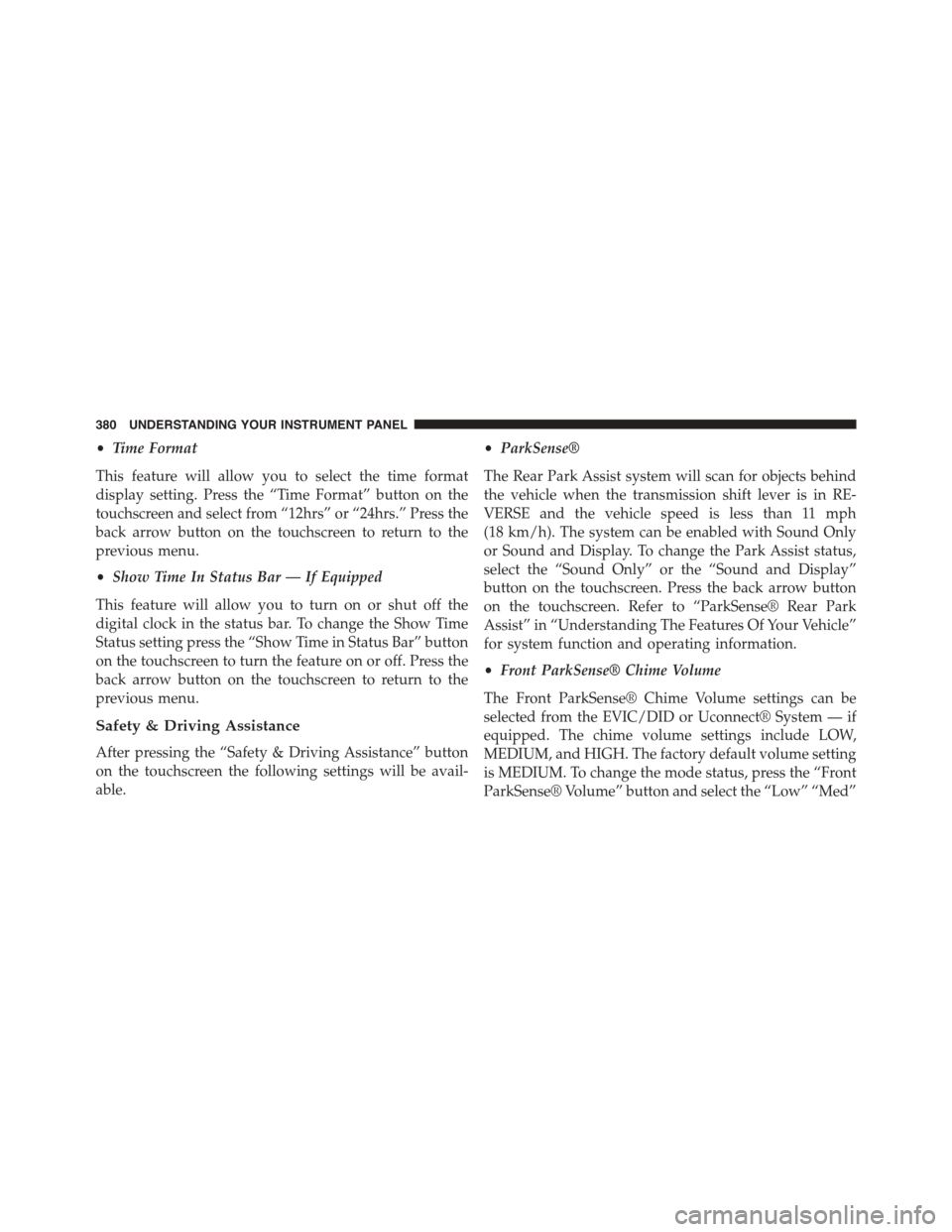
•Time Format
This feature will allow you to select the time format
display setting. Press the “Time Format” button on the
touchscreen and select from “12hrs” or “24hrs.” Press the
back arrow button on the touchscreen to return to the
previous menu.
•Show Time In Status Bar — If Equipped
This feature will allow you to turn on or shut off the
digital clock in the status bar. To change the Show Time
Status setting press the “Show Time in Status Bar” button
on the touchscreen to turn the feature on or off. Press the
back arrow button on the touchscreen to return to the
previous menu.
Safety & Driving Assistance
After pressing the “Safety & Driving Assistance” button
on the touchscreen the following settings will be avail-
able.
•ParkSense®
The Rear Park Assist system will scan for objects behind
the vehicle when the transmission shift lever is in RE-
VERSE and the vehicle speed is less than 11 mph
(18 km/h). The system can be enabled with Sound Only
or Sound and Display. To change the Park Assist status,
select the “Sound Only” or the “Sound and Display”
button on the touchscreen. Press the back arrow button
on the touchscreen. Refer to “ParkSense® Rear Park
Assist” in “Understanding The Features Of Your Vehicle”
for system function and operating information.
•Front ParkSense® Chime Volume
The Front ParkSense® Chime Volume settings can be
selected from the EVIC/DID or Uconnect® System — if
equipped. The chime volume settings include LOW,
MEDIUM, and HIGH. The factory default volume setting
is MEDIUM. To change the mode status, press the “Front
ParkSense® Volume” button and select the “Low” “Med”
380 UNDERSTANDING YOUR INSTRUMENT PANEL
Page 395 of 871
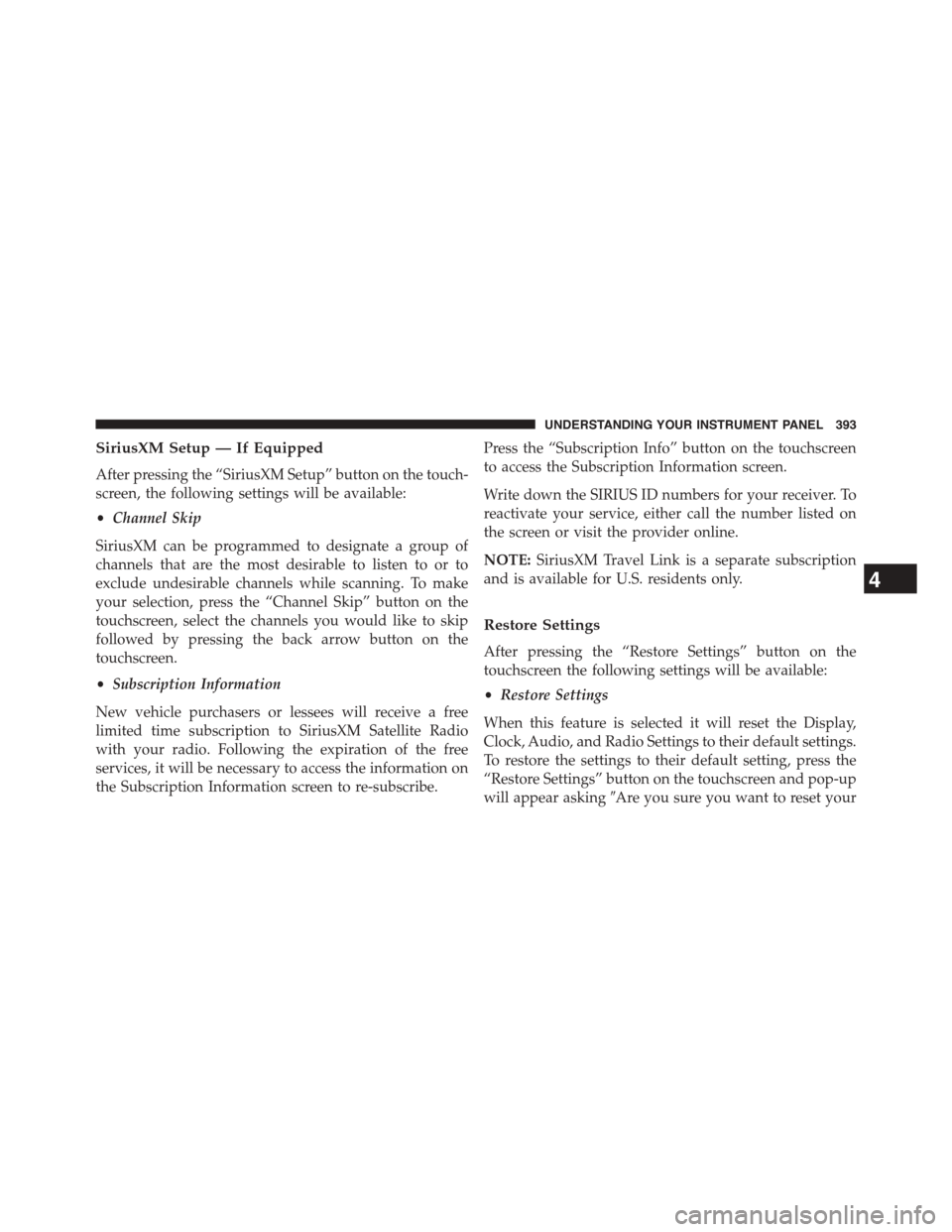
SiriusXM Setup — If Equipped
After pressing the “SiriusXM Setup” button on the touch-
screen, the following settings will be available:
•Channel Skip
SiriusXM can be programmed to designate a group of
channels that are the most desirable to listen to or to
exclude undesirable channels while scanning. To make
your selection, press the “Channel Skip” button on the
touchscreen, select the channels you would like to skip
followed by pressing the back arrow button on the
touchscreen.
•Subscription Information
New vehicle purchasers or lessees will receive a free
limited time subscription to SiriusXM Satellite Radio
with your radio. Following the expiration of the free
services, it will be necessary to access the information on
the Subscription Information screen to re-subscribe.
Press the “Subscription Info” button on the touchscreen
to access the Subscription Information screen.
Write down the SIRIUS ID numbers for your receiver. To
reactivate your service, either call the number listed on
the screen or visit the provider online.
NOTE:SiriusXM Travel Link is a separate subscription
and is available for U.S. residents only.
Restore Settings
After pressing the “Restore Settings” button on the
touchscreen the following settings will be available:
•Restore Settings
When this feature is selected it will reset the Display,
Clock, Audio, and Radio Settings to their default settings.
To restore the settings to their default setting, press the
“Restore Settings” button on the touchscreen and pop-up
will appear asking#Are you sure you want to reset your
4
UNDERSTANDING YOUR INSTRUMENT PANEL 393
Page 403 of 871
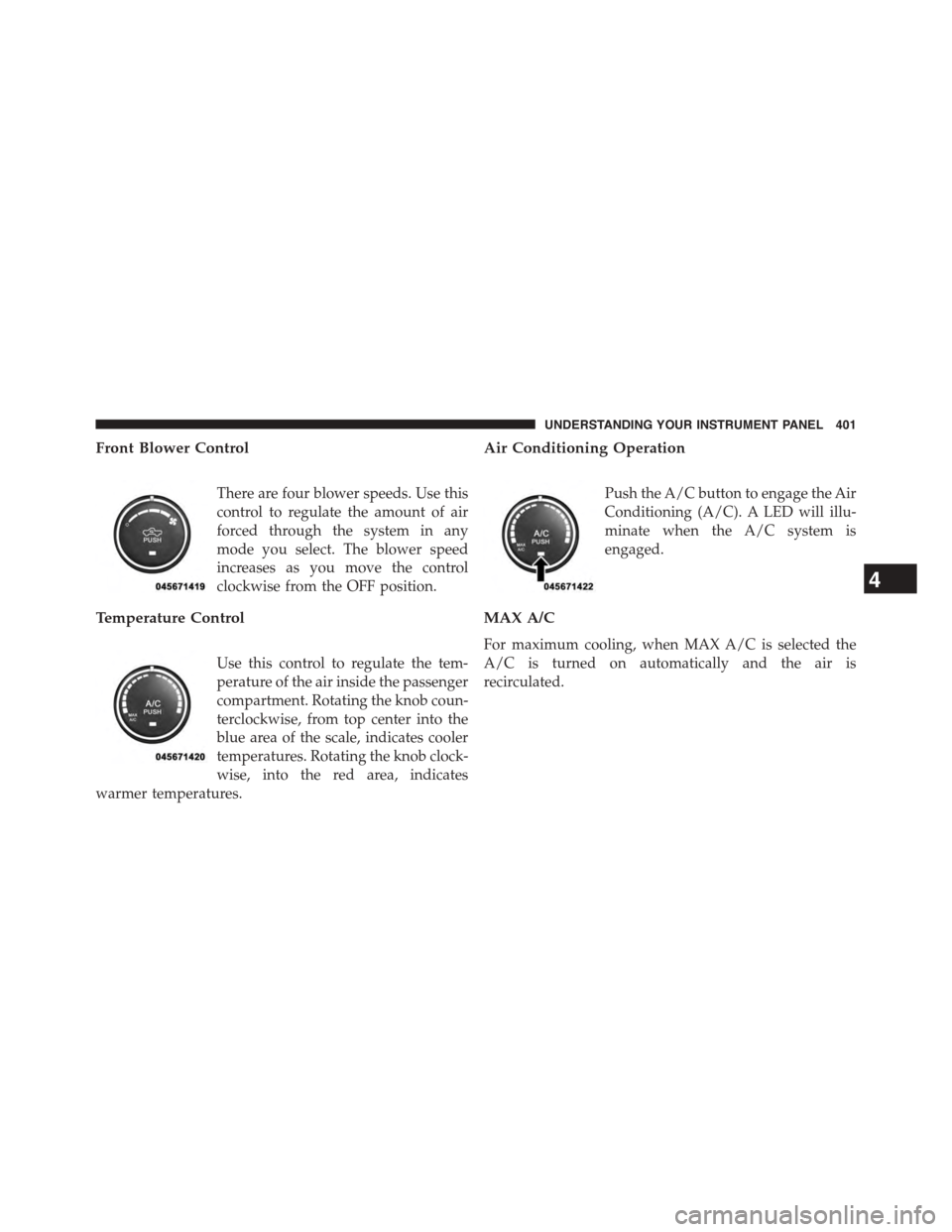
Front Blower Control
There are four blower speeds. Use this
control to regulate the amount of air
forced through the system in any
mode you select. The blower speed
increases as you move the control
clockwise from the OFF position.
Temperature Control
Use this control to regulate the tem-
perature of the air inside the passenger
compartment. Rotating the knob coun-
terclockwise, from top center into the
blue area of the scale, indicates cooler
temperatures. Rotating the knob clock-
wise, into the red area, indicates
warmer temperatures.
Air Conditioning Operation
Push the A/C button to engage the Air
Conditioning (A/C). A LED will illu-
minate when the A/C system is
engaged.
MAX A/C
For maximum cooling, when MAX A/C is selected the
A/C is turned on automatically and the air is
recirculated.
4
UNDERSTANDING YOUR INSTRUMENT PANEL 401
Page 410 of 871
NOTE:BI-LEVEL mode is designed under comfort con-
ditions to provide cooler air out of the panel outlets and
warmer air from the floor outlets.
•Floor Mode
Air comes from the floor outlets. A slight
amount of air is directed through the defrost
and side window demister outlets.
•Mix Mode
Air comes from the floor, defrost and side
window demister outlets. This mode works
best in cold or snowy conditions.
NOTE:The air conditioning compressor operates in MIX
and DEFROST modes even if the A/C button is not
pressed. This dehumidifies the air to help dry the wind-
shield. To improve fuel economy, utilize these modes
only when required.
7. Blower Control
Blower control is used to regulate the amount of air
forced through the climate system. There are seven
blower speeds available. Adjusting the blower will cause
automatic mode to switch to manual operation. The
speeds can be selected using either buttons on the
faceplate or buttons on the touchscreen as follows:
Blower Control Knob On The Faceplate
The blower speed increases as you turn the control
clockwise from the lowest blower setting. The blower
speed decreases as you turn the blower control knob
counterclockwise.
Buttons On The Touchscreen
Use the small blower icon to reduce the blower setting
and the large blower icon to increase the blower setting.
Blower can also be selected by pressing the blower bar
area between the icons.
408 UNDERSTANDING YOUR INSTRUMENT PANEL
Page 416 of 871
when this feature is enabled. Sync is used to synchronize
the passenger temperature setting with the driver tem-
perature setting. Changing the passenger temperature
setting while in Sync will automatically exit this feature.
10. Blower Control
Blower control is used to regulate the amount of air
forced through the climate system. There are seven
blower speeds available. Adjusting the blower will cause
automatic mode to switch to manual operation. The
speeds can be selected using either Buttons on the
faceplate or buttons on the touchscreen as follows:
Blower Control Knob On The Faceplate
The blower speed increases as you turn the control
clockwise from the lowest blower setting. The blower
speed decreases as you turn the blower control knob
counterclockwise.
Button On The Touchscreen
Use the small blower icon to reduce the blower setting
and the large blower icon to increase the blower setting.
Blower can also be selected by pressing the blower bar
area between the icons.
11. Modes
The airflow distribution mode can be adjusted so air
comes from the instrument panel outlets, floor outlets,
demist outlets and defrost outlets. The Mode settings are
as follows:
•Panel Mode
Air comes from the outlets in the instrument
panel. Each of these outlets can be individually
adjusted to direct the flow of air. The air vanes of the
center outlets and outboard outlets can be moved up and
down or side to side to regulate airflow direction. There
is a shut off wheel located below the air vanes to shut off
or adjust the amount of airflow from these outlets.
414 UNDERSTANDING YOUR INSTRUMENT PANEL
Page 476 of 871
CAUTION!
•Before moving the shift lever out of PARK, you
must turn the ignition switch from the LOCK/OFF
position to the ON/RUN position, and also press
the brake pedal. Otherwise, damage to the shift
lever could result.
•DO NOT race the engine when shifting from
PARK or NEUTRAL into another gear range, as this
can damage the drivetrain.
The following indicators should be used to ensure that
you have engaged the transmission into the PARK posi-
tion:
•When shifting into PARK, pull the column-mounted
shift lever toward you and move it all the way
counterclockwise until it stops. For console-mounted
shifter, firmly move the shift lever all the way forward
and to the left until it stops.
•Release the shift lever and make sure it is fully seated
in the PARK gate.
•Look at the transmission gear position display and
verify that it indicates the PARK position.
•With brake pedal released, verify that the shift lever
will not move out of PARK.
REVERSE (R)
This range is for moving the vehicle backward. Shift into
Reverse only after the vehicle has come to a complete
stop.
NEUTRAL (N)
Use this range when the vehicle is standing for prolonged
periods with the engine running. The engine may be
started in this range. Apply the parking brake and shift
the transmission into PARK if you must leave the vehicle.
474 STARTING AND OPERATING
Page 488 of 871
WARNING!(Continued)
•Never leave children alone in a vehicle, or with
access to an unlocked vehicle. Allowing children to
be in a vehicle unattended is dangerous for a
number of reasons. A child or others could be
seriously or fatally injured. Children should be
warned not to touch the parking brake, brake pedal
or the shift lever.
•Do not leave the key fob in or near the vehicle (or
in a location accessible to children), and do not
leave the ignition (in a vehicle equipped with
Keyless Enter-N-Go™) in the ACC or ON/RUN
position. A child could operate power windows,
other controls, or move the vehicle.
CAUTION!
•Before moving the shift lever out of PARK, you
must turn the ignition switch from the LOCK/OFF
position to the ON/RUN position, and also press
the brake pedal. Otherwise, damage to the shift
lever could result.
•DO NOT race the engine when shifting from
PARK or NEUTRAL into another gear range, as this
can damage the drivetrain.
The following indicators should be used to ensure that
you have engaged the transmission into the PARK posi-
tion:
•When shifting into PARK, pull the shift lever toward
you and move it all the way counterclockwise until it
stops.
486 STARTING AND OPERATING
Page 645 of 871
Maintenance
CAUTION!
Do not use ethanol mixture greater than 85% in your
vehicle. It will cause difficulty in cold starting and
may affect drivability.
ADDING FUEL
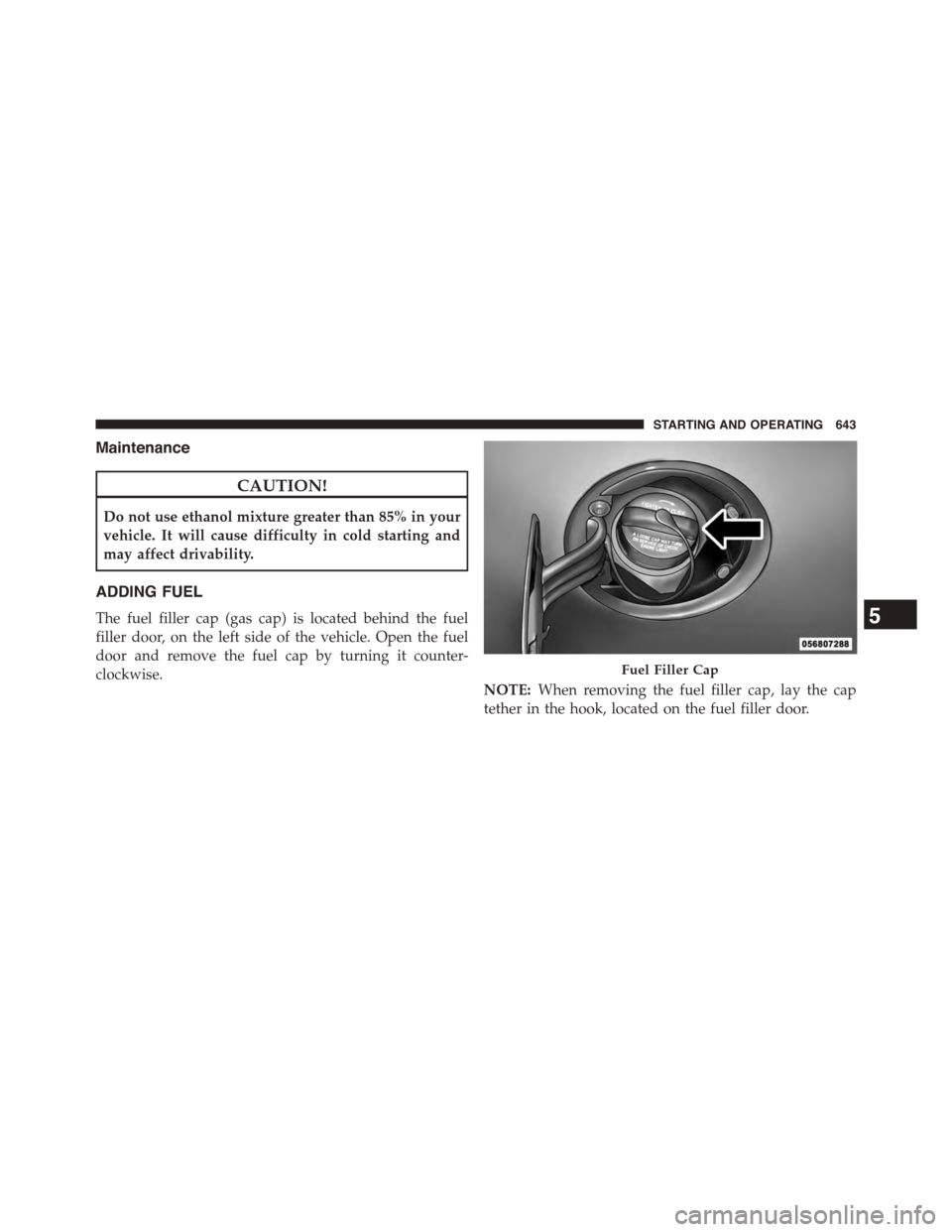
The fuel filler cap (gas cap) is located behind the fuel
filler door, on the left side of the vehicle. Open the fuel
door and remove the fuel cap by turning it counter-
clockwise.
NOTE:When removing the fuel filler cap, lay the cap
tether in the hook, located on the fuel filler door.
Fuel Filler Cap
5
STARTING AND OPERATING 643