drive mode Ram 1500 2016 Owner's Guide
[x] Cancel search | Manufacturer: RAM, Model Year: 2016, Model line: 1500, Model: Ram 1500 2016Pages: 916, PDF Size: 7.55 MB
Page 328 of 916
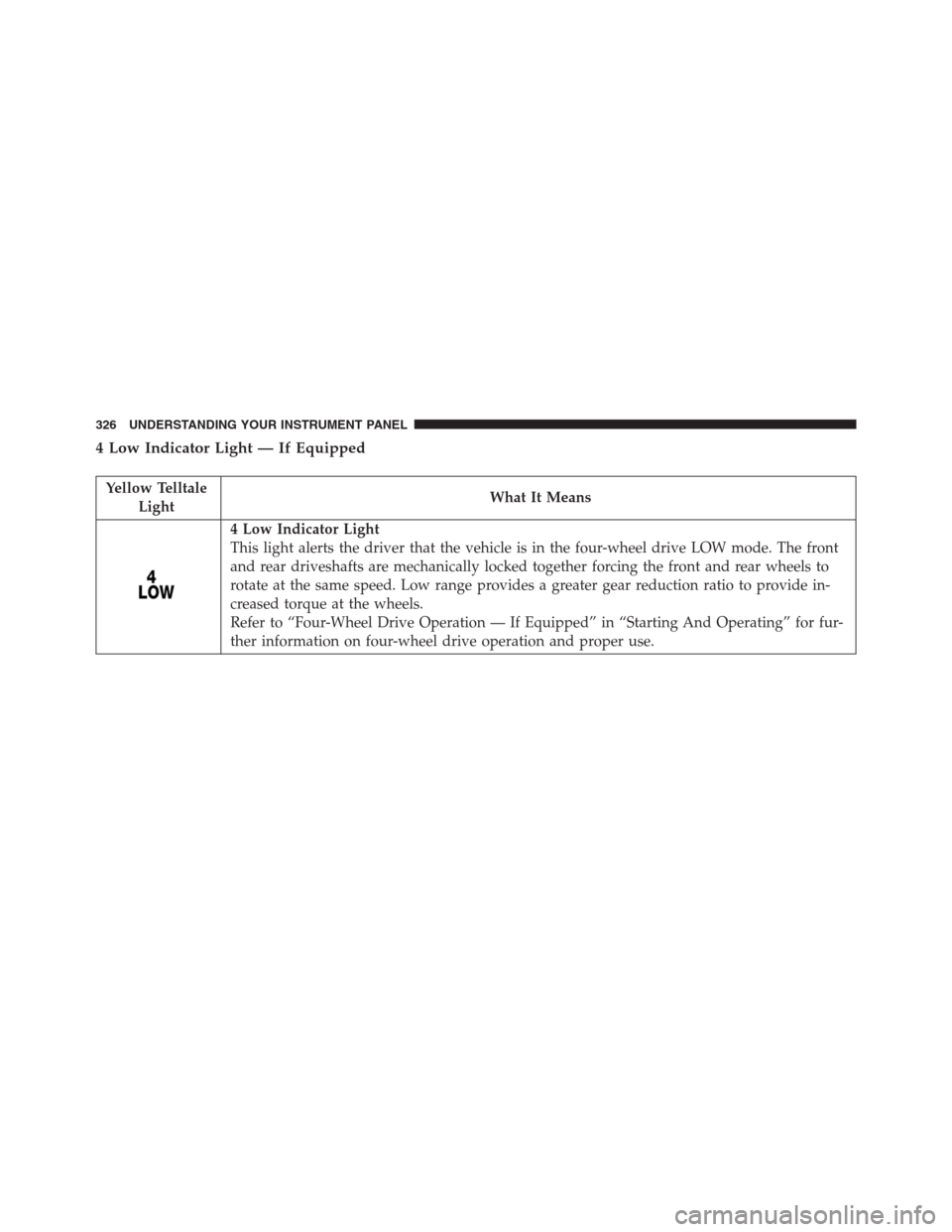
4 Low Indicator Light — If Equipped
Yellow Telltale
LightWhat It Means
4 Low Indicator Light
This light alerts the driver that the vehicle is in the four-wheel drive LOW mode. The front
and rear driveshafts are mechanically locked together forcing the front and rear wheels to
rotate at the same speed. Low range provides a greater gear reduction ratio to provide in-
creased torque at the wheels.
Refer to “Four-Wheel Drive Operation — If Equipped” in “Starting And Operating” for fur-
ther information on four-wheel drive operation and proper use.
326 UNDERSTANDING YOUR INSTRUMENT PANEL
Page 329 of 916

Service 4WD Indicator Light — If Equipped
Yellow Telltale
LightWhat It Means
Service 4WD Indicator Light
If the light stays on or comes on during driving, it means that the 4WD system is not func-
tioning properly and that service is required. We recommend you drive to the nearest ser-
vice center and have the vehicle serviced immediately.
2WD Indicator Light — If Equipped
Yellow Telltale
LightWhat It Means
2WD Indicator Light
This light alerts the driver that the vehicle is in the two-wheel drive mode.
4
UNDERSTANDING YOUR INSTRUMENT PANEL 327
Page 333 of 916
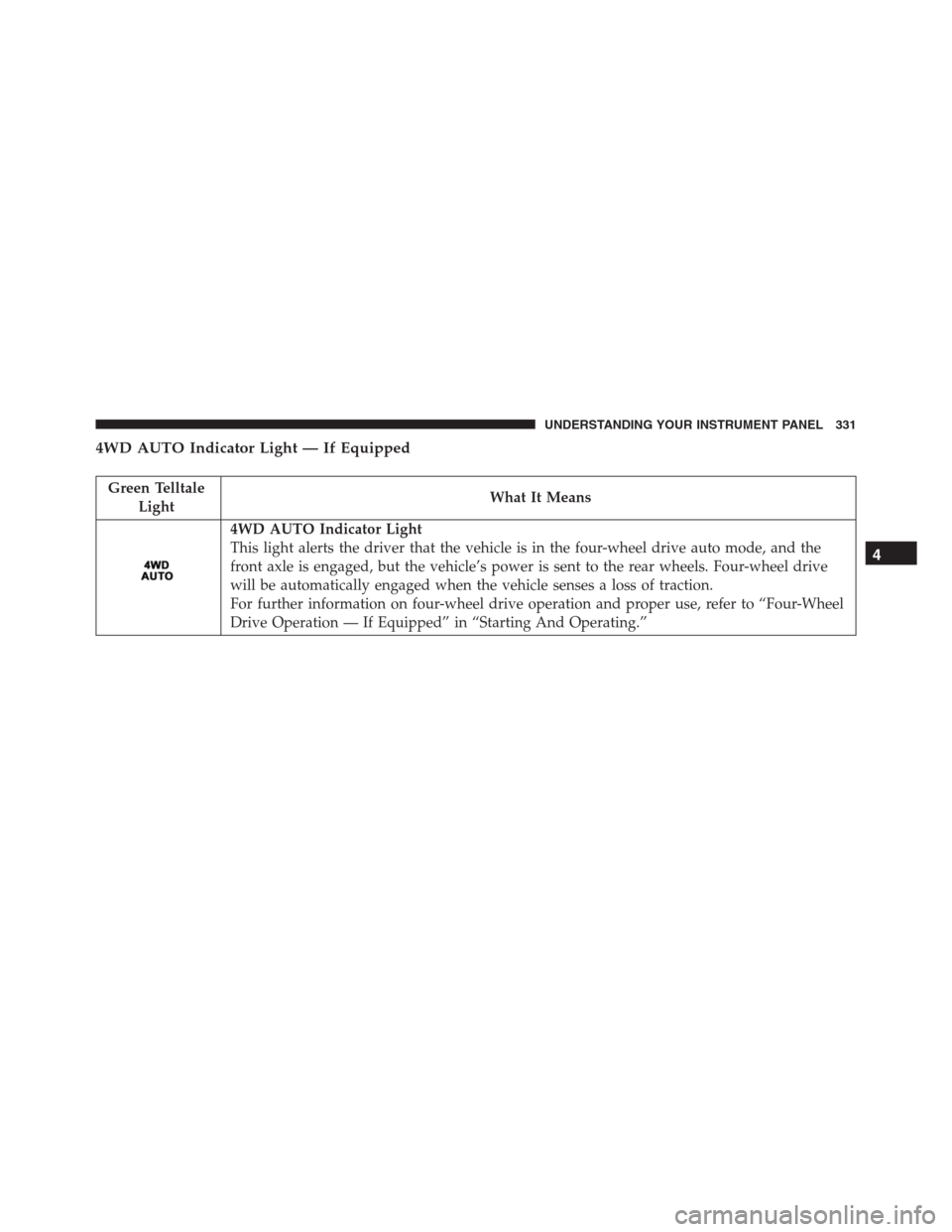
4WD AUTO Indicator Light — If Equipped
Green Telltale
LightWhat It Means
4WD AUTO Indicator Light
This light alerts the driver that the vehicle is in the four-wheel drive auto mode, and the
front axle is engaged, but the vehicle’s power is sent to the rear wheels. Four-wheel drive
will be automatically engaged when the vehicle senses a loss of traction.
For further information on four-wheel drive operation and proper use, refer to “Four-Wheel
Drive Operation — If Equipped” in “Starting And Operating.”
4
UNDERSTANDING YOUR INSTRUMENT PANEL 331
Page 353 of 916
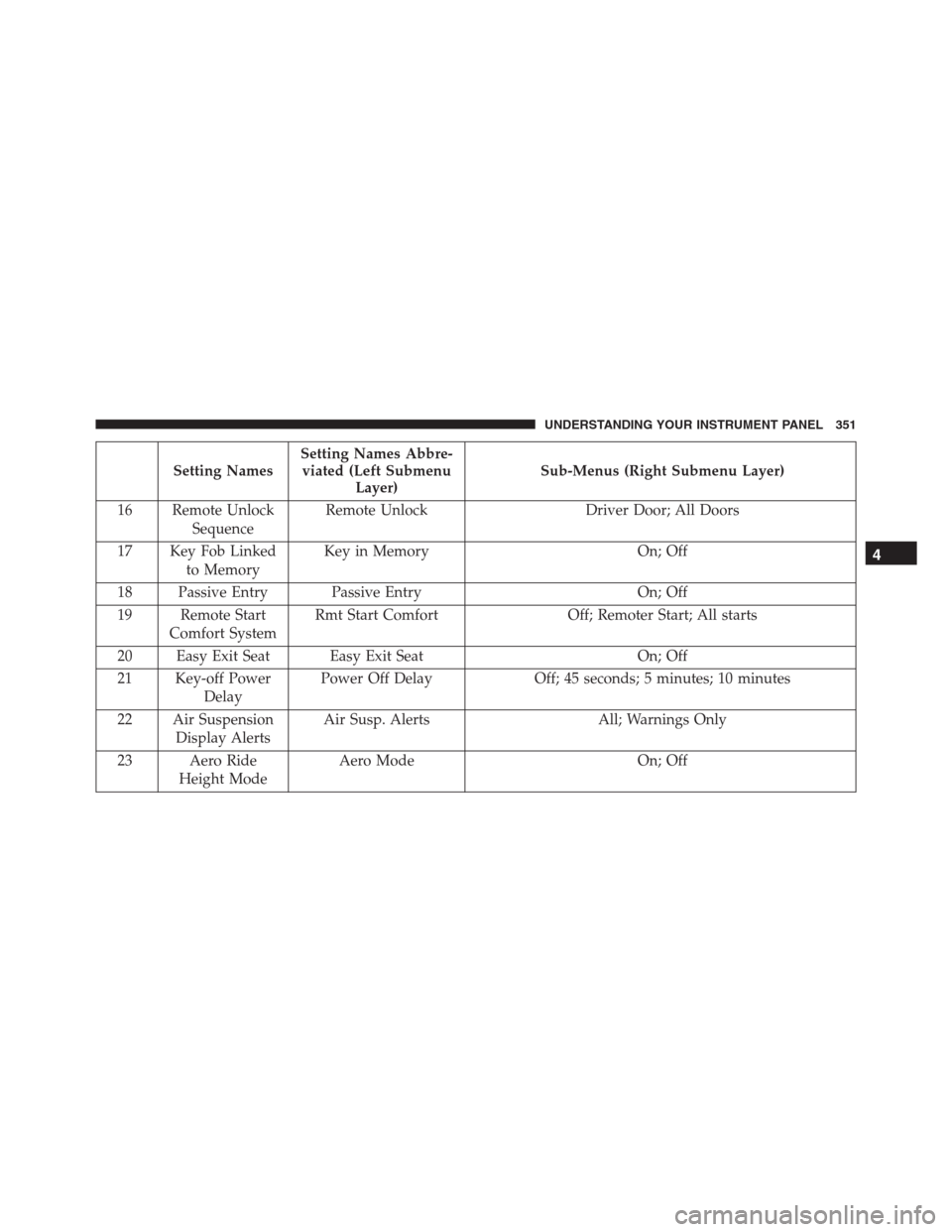
Setting NamesSetting Names Abbre-
viated (Left Submenu
Layer)Sub-Menus (Right Submenu Layer)
16 Remote Unlock
SequenceRemote Unlock Driver Door; All Doors
17 Key Fob Linked
to MemoryKey in Memory On; Off
18 Passive Entry Passive Entry On; Off
19 Remote Start
Comfort SystemRmt Start Comfort Off; Remoter Start; All starts
20 Easy Exit Seat Easy Exit Seat On; Off
21 Key-off Power
DelayPower Off Delay Off; 45 seconds; 5 minutes; 10 minutes
22 Air Suspension
Display AlertsAir Susp. Alerts All; Warnings Only
23 Aero Ride
Height ModeAero Mode On; Off
4
UNDERSTANDING YOUR INSTRUMENT PANEL 351
Page 385 of 916
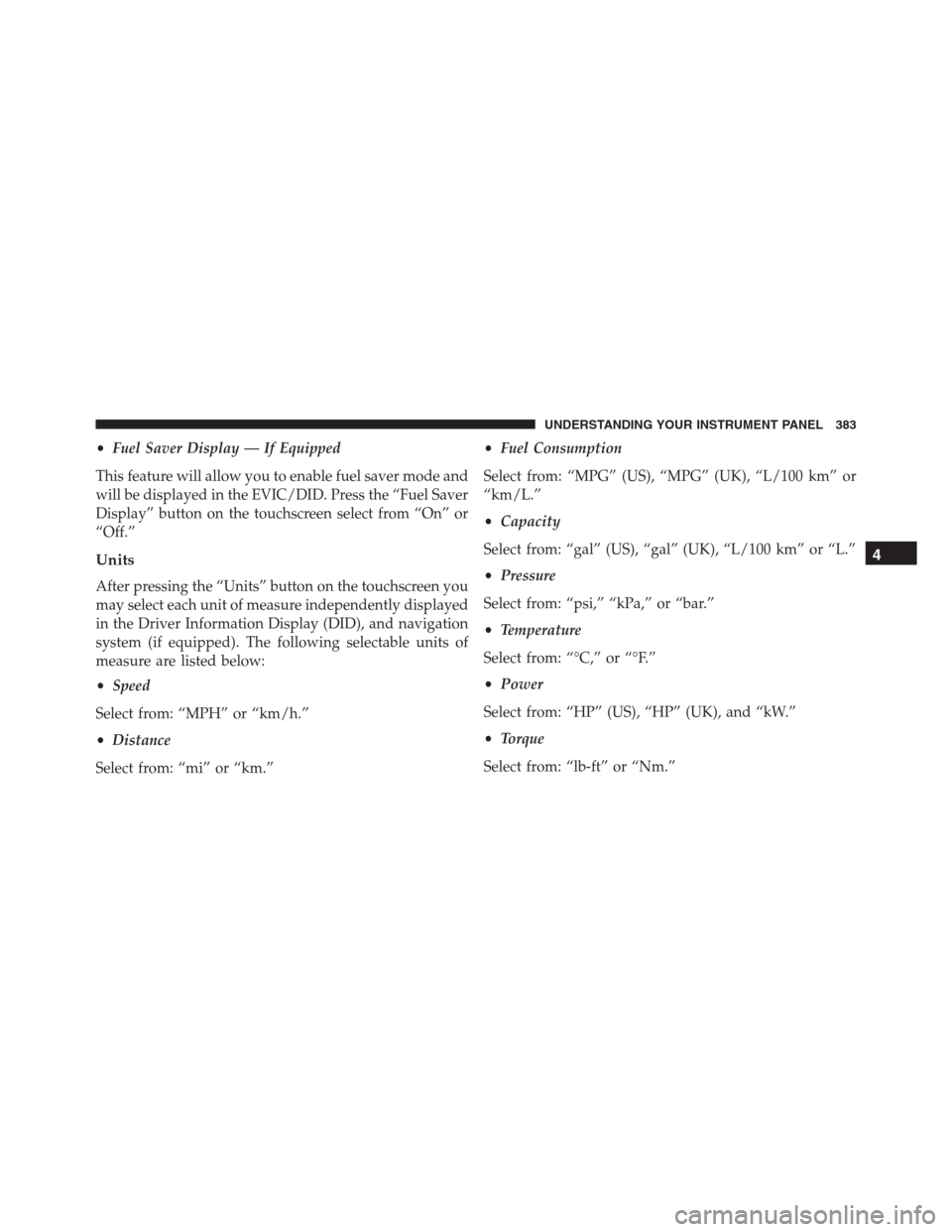
•Fuel Saver Display — If Equipped
This feature will allow you to enable fuel saver mode and
will be displayed in the EVIC/DID. Press the “Fuel Saver
Display” button on the touchscreen select from “On” or
“Off.”
Units
After pressing the “Units” button on the touchscreen you
may select each unit of measure independently displayed
in the Driver Information Display (DID), and navigation
system (if equipped). The following selectable units of
measure are listed below:
•Speed
Select from: “MPH” or “km/h.”
•Distance
Select from: “mi” or “km.”•Fuel Consumption
Select from: “MPG” (US), “MPG” (UK), “L/100 km” or
“km/L.”
•Capacity
Select from: “gal” (US), “gal” (UK), “L/100 km” or “L.”
•Pressure
Select from: “psi,” “kPa,” or “bar.”
•Temperature
Select from: “°C,” or “°F.”
•Power
Select from: “HP” (US), “HP” (UK), and “kW.”
•Torque
Select from: “lb-ft” or “Nm.”
4
UNDERSTANDING YOUR INSTRUMENT PANEL 383
Page 403 of 916
•Controls Screen Time-Out — If Equipped
When this feature is selected, the Controls Screen will
stay open for five seconds before the screen times out.
With the feature deselected, the screen will stay open
until it is manually closed. Press the “Controls Screen
Time-Out” button on the touchscreen, until a check-mark
appears next to the setting, showing that setting has been
selected.
•Fuel Saver Display — If Equipped
This feature will allow you to enable fuel saver mode and
will be displayed in the DID. Press the “Fuel Saver
Display” button on the touchscreen, until a check-mark
appears next to the setting, showing that setting has been
selected.
Units
After pressing the “Units” button on the touchscreen you
may select each unit of measure independently displayedin the Driver Information Display (DID), and navigation
system (if equipped). The following selectable units of
measure are listed below:
•Speed
Select from: “MPH” or “km/h.”
•Distance
Select from: “mi” or “km.”
•Fuel Consumption
Select from: “MPG” (US), “MPG” (UK), “L/100 km” or
“km/L.”
•Capacity
Select from: “gal” (US), “gal” (UK), “L/100 km” or “L.”
•Pressure
Select from: “psi,” “kPa,” or “bar.”
4
UNDERSTANDING YOUR INSTRUMENT PANEL 401
Page 408 of 916
•ParkView Backup Camera Delay
When this feature is enabled, it will allow the ParkView
Backup Camera display to remain on while in drive for
up to 10 seconds, or 8 mph. To make your selection, press
the “ParkView Backup Camera Delay” button on the
touchscreen to select from on or off.
•Rain Sensing Auto Wipers — If Equipped
When this feature is selected, the system will automati-
cally activate the windshield wipers if it senses moisture
on the windshield. To make your selection, press the
“Rain Sensing” button on the touchscreen to select from
on or off.
•Hill Start Assist — If Equipped
When this feature is selected, the Hill Start Assist (HSA)
system is active. Refer to “Electronic Brake Control
System” in “Starting And Operating” for system functionand operating information. To make your selection, press
the “Hill Start Assist” button on the touchscreen to select
from on or off.
•Two Or Four Corner Air Suspension Modes — If
Equipped
There are four air suspension modes designed to protect
the system in unique situations. Tire Jack Mode is se-
lected to assist in changing a spare tire. Transport Mode
is selected to assist when the vehicle is being flat bed
towed. Wheel Alignment Mode is selected before per-
forming a wheel alignment, refer to your authorized
dealer for information. Protection Mode will automati-
cally be selected to “protect” the air suspension system
when the payload has been exceeded or load leveling
cannot be achieved.
Lights
After pressing the “Lights” button on the touchscreen the
following settings will be available.
406 UNDERSTANDING YOUR INSTRUMENT PANEL
Page 438 of 916
when this feature is enabled. Sync is used to synchronize
the passenger temperature setting with the driver tem-
perature setting. Changing the passenger temperature
setting while in Sync will automatically exit this feature.
10. Blower Control
Blower control is used to regulate the amount of air
forced through the climate system. There are seven
blower speeds available. Adjusting the blower will cause
automatic mode to switch to manual operation. The
speeds can be selected using either the blower control
knob on the faceplate or buttons on the touchscreen as
follows:
Blower Control Knob On The Faceplate
The blower speed increases as you turn the blower
control knob clockwise from the lowest blower setting.
The blower speed decreases as you turn the blower
control knob counterclockwise.Button On The Touchscreen
Use the small blower icon to reduce the blower setting
and the large blower icon to increase the blower setting.
Blower can also be selected by pressing the blower bar
area between the icons.
11. Modes
The airflow distribution mode can be adjusted so air
comes from the instrument panel outlets, floor outlets,
demist outlets and defrost outlets. The Mode settings are
as follows:
•Panel Mode
Air comes from the outlets in the instrument
panel. Each of these outlets can be individu-
ally adjusted to direct the flow of air. The air vanes of
the center outlets and outboard outlets can be moved
up and down or side to side to regulate airflow
436 UNDERSTANDING YOUR INSTRUMENT PANEL
Page 439 of 916
direction. There is a shut off wheel located below the
air vanes to shut off or adjust the amount of airflow
from these outlets.
•Bi-Level Mode
Air comes from the instrument panel outlets
and floor outlets. A slight amount of air is
directed through the defrost and side window demis-
ter outlets.
NOTE:BI-LEVEL mode is designed under comfort con-
ditions to provide cooler air out of the panel outlets and
warmer air from the floor outlets.
•Floor Mode
Air comes from the floor outlets. A slight
amount of air is directed through the defrost
and side window demister outlets.•Mix Mode
Air comes from the floor, defrost and side
window demist outlets. This mode works best
in cold or snowy conditions.
12. Climate Control OFF Button
Press and release this button to turn the Climate Control
ON/OFF.
13. Driver Temperature Control Down Button (Uconnect
8.4)
Provides the driver with independent temperature con-
trol. Push the button on the faceplate for cooler tempera-
ture settings or on the touchscreen, press and slide the
temperature bar towards the blue arrow for cooler tem-
perature settings.
NOTE:
In Sync mode, this button will also automatically
adjust the passenger temperature setting at the same time.
4
UNDERSTANDING YOUR INSTRUMENT PANEL 437
Page 440 of 916
14.Driver Temperature Control Up Button (Uconnect 8.4)
Provides the driver with independent temperature con-
trol. Push the button on the faceplate button for warmer
temperature settings or on the touchscreen, press and
slide the temperature bar towards the red arrow for
warmer temperature settings.
NOTE:In Sync mode, this button will also automatically
adjust the passenger temperature setting at the same
time.
15. Temperature Control (Uconnect 5.0)
Press the temperature button on the touchscreen to
regulate the temperature of the air inside the passenger
compartment. Moving the temperature bar into the red
area, indicates warmer temperatures. Moving the tem-
perature bar into the blue area indicates cooler tempera-
tures.
Climate Control Functions
A/C (Air Conditioning)
The Air Conditioning (A/C) button allows the operator
to manually activate or deactivate the air conditioning
system. When the air conditioning system is turned on,
cool dehumidified air will flow through the outlets into
the cabin. For improved fuel economy, press the A/C
button to turn off the air conditioning and manually
adjust the blower and airflow mode settings. Also, make
sure to select only Panel, Bi-Level or Floor modes.
NOTE:
•For Manual Climate Controls, if the system is in Mix,
Floor or Defrost Mode, the A/C can be turned off, but
the A/C system shall remain active to prevent fogging
of the windows.
438 UNDERSTANDING YOUR INSTRUMENT PANEL