Uconnect Ram 1500 2016 Service Manual
[x] Cancel search | Manufacturer: RAM, Model Year: 2016, Model line: 1500, Model: Ram 1500 2016Pages: 916, PDF Size: 7.55 MB
Page 336 of 916
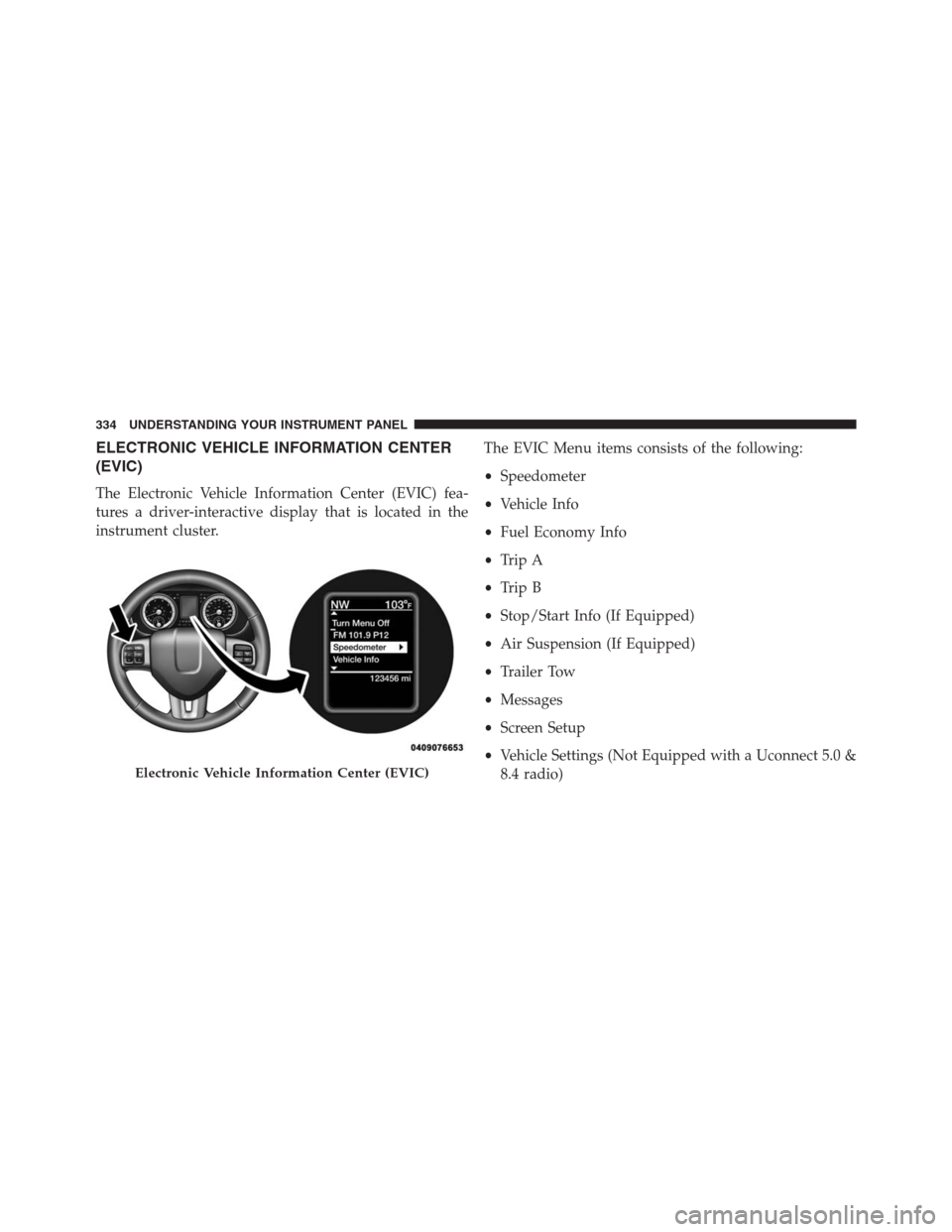
ELECTRONIC VEHICLE INFORMATION CENTER
(EVIC)
The Electronic Vehicle Information Center (EVIC) fea-
tures a driver-interactive display that is located in the
instrument cluster.The EVIC Menu items consists of the following:
•Speedometer
•Vehicle Info
•Fuel Economy Info
•Trip A
•Trip B
•Stop/Start Info (If Equipped)
•Air Suspension (If Equipped)
•Trailer Tow
•Messages
•Screen Setup
•Vehicle Settings (Not Equipped with a Uconnect 5.0 &
8.4 radio)
Electronic Vehicle Information Center (EVIC)
334 UNDERSTANDING YOUR INSTRUMENT PANEL
Page 339 of 916
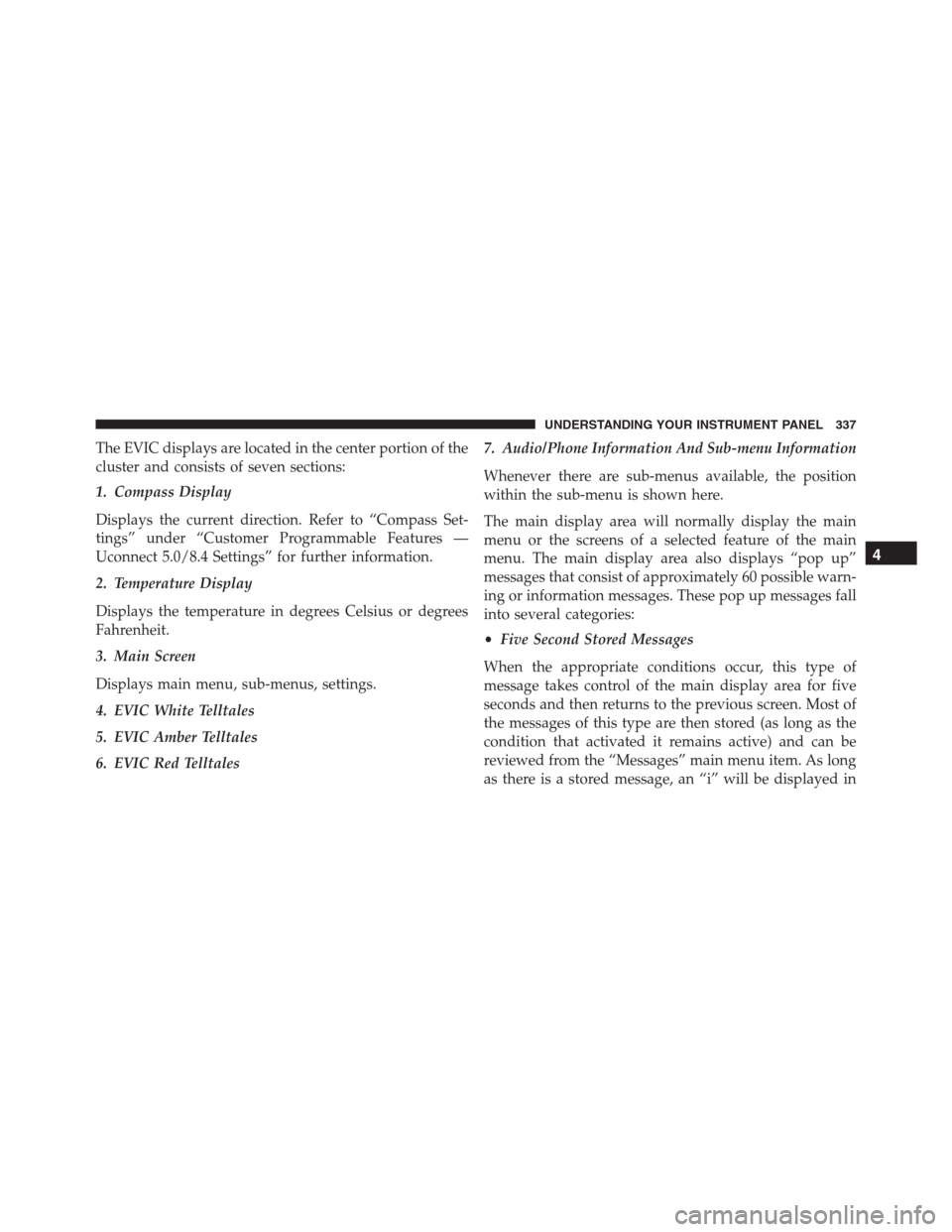
The EVIC displays are located in the center portion of the
cluster and consists of seven sections:
1. Compass Display
Displays the current direction. Refer to “Compass Set-
tings” under “Customer Programmable Features —
Uconnect 5.0/8.4 Settings” for further information.
2. Temperature Display
Displays the temperature in degrees Celsius or degrees
Fahrenheit.
3. Main Screen
Displays main menu, sub-menus, settings.
4. EVIC White Telltales
5. EVIC Amber Telltales
6. EVIC Red Telltales7. Audio/Phone Information And Sub-menu Information
Whenever there are sub-menus available, the position
within the sub-menu is shown here.
The main display area will normally display the main
menu or the screens of a selected feature of the main
menu. The main display area also displays “pop up”
messages that consist of approximately 60 possible warn-
ing or information messages. These pop up messages fall
into several categories:
•Five Second Stored Messages
When the appropriate conditions occur, this type of
message takes control of the main display area for five
seconds and then returns to the previous screen. Most of
the messages of this type are then stored (as long as the
condition that activated it remains active) and can be
reviewed from the “Messages” main menu item. As long
as there is a stored message, an “i” will be displayed in
4
UNDERSTANDING YOUR INSTRUMENT PANEL 337
Page 357 of 916
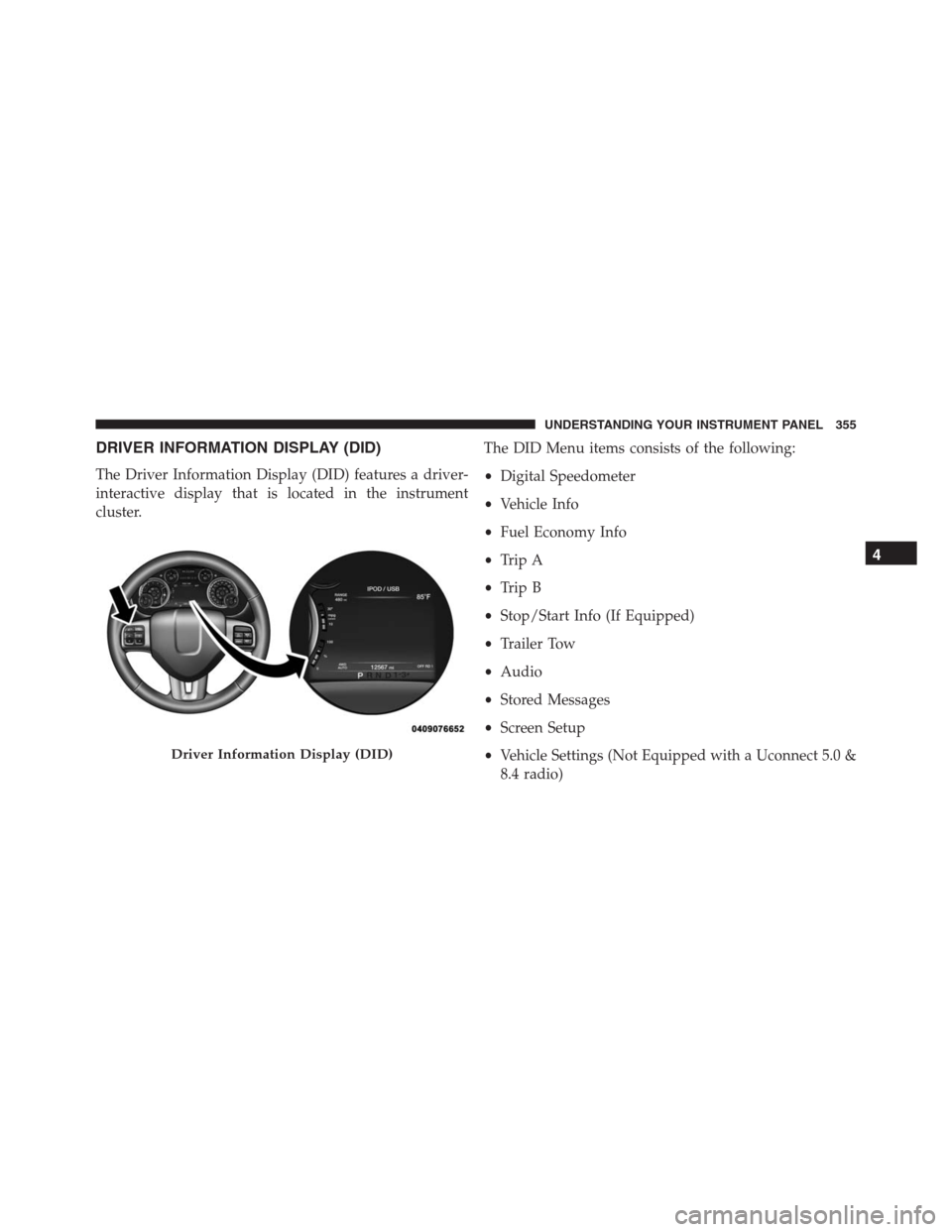
DRIVER INFORMATION DISPLAY (DID)
The Driver Information Display (DID) features a driver-
interactive display that is located in the instrument
cluster.The DID Menu items consists of the following:
•Digital Speedometer
•Vehicle Info
•Fuel Economy Info
•Trip A
•Trip B
•Stop/Start Info (If Equipped)
•Trailer Tow
•Audio
•Stored Messages
•Screen Setup
•Vehicle Settings (Not Equipped with a Uconnect 5.0 &
8.4 radio)
Driver Information Display (DID)
4
UNDERSTANDING YOUR INSTRUMENT PANEL 355
Page 375 of 916
Settings Options
6 Lower Gauge
•None
•Trans Temp.
•Oil Temp.
•Oil Life
•Current MPG
•Trailer Brake Gain
7 Odometer•000
•000.0
8 Restore Defaults•Cancel
•OK
Vehicles Settings (Customer-Programmable Features)
NOTE:This feature is only available on 5.0 and
8.4 Uconnect RadiosPersonal Settings allows the driver to set and recall
features when the transmission is in PARK.
Push and release theUPandDOWNbutton until Per-
sonal Settings displays in the DID.
Follow the prompts to display and set any of the follow-
ing Personal Settings.
4
UNDERSTANDING YOUR INSTRUMENT PANEL 373
Page 381 of 916
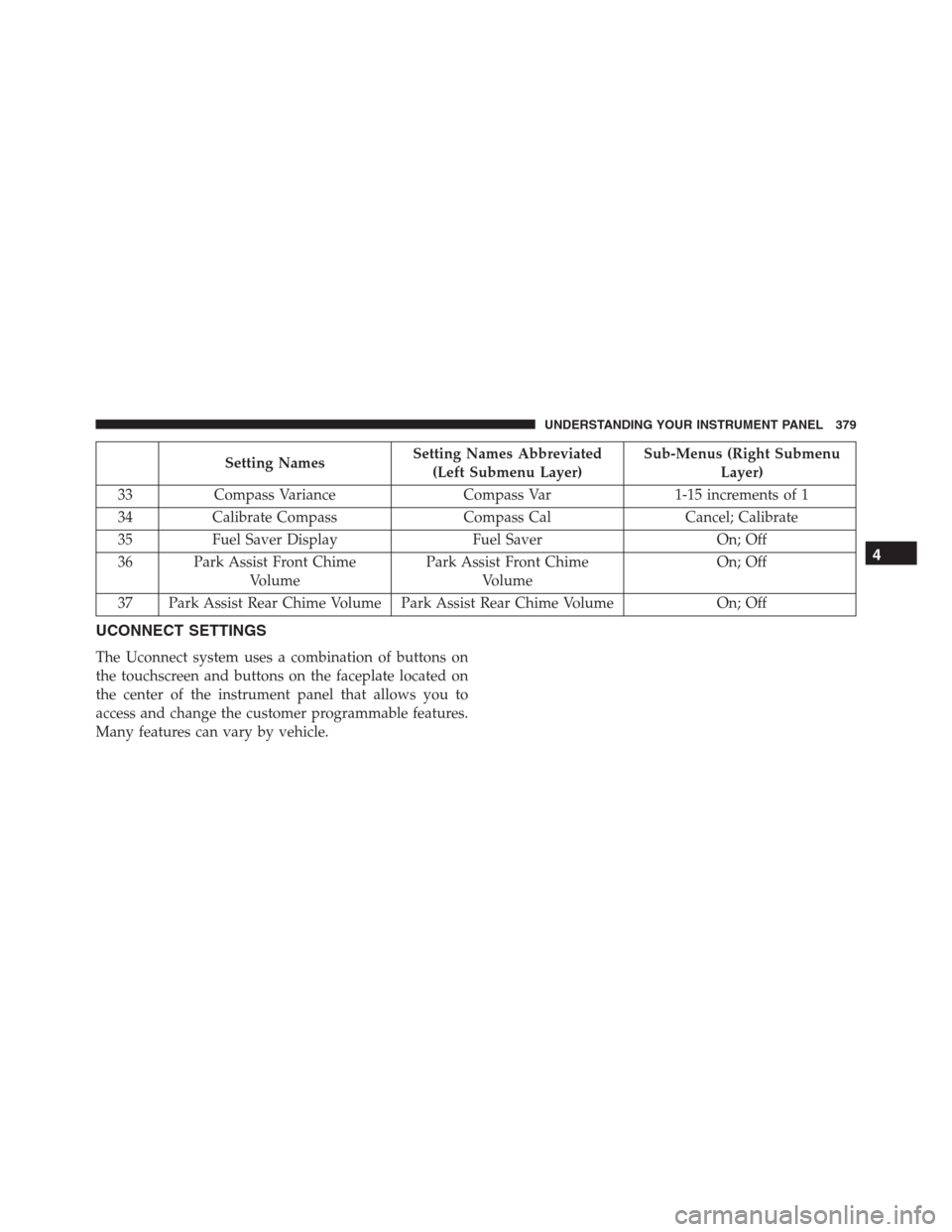
Setting NamesSetting Names Abbreviated
(Left Submenu Layer)Sub-Menus (Right Submenu
Layer)
33 Compass Variance Compass Var 1-15 increments of 1
34 Calibrate Compass Compass Cal Cancel; Calibrate
35 Fuel Saver Display Fuel Saver On; Off
36 Park Assist Front Chime
VolumePark Assist Front Chime
VolumeOn; Off
37 Park Assist Rear Chime Volume Park Assist Rear Chime Volume On; Off
UCONNECT SETTINGS
The Uconnect system uses a combination of buttons on
the touchscreen and buttons on the faceplate located on
the center of the instrument panel that allows you to
access and change the customer programmable features.
Many features can vary by vehicle.
4
UNDERSTANDING YOUR INSTRUMENT PANEL 379
Page 382 of 916
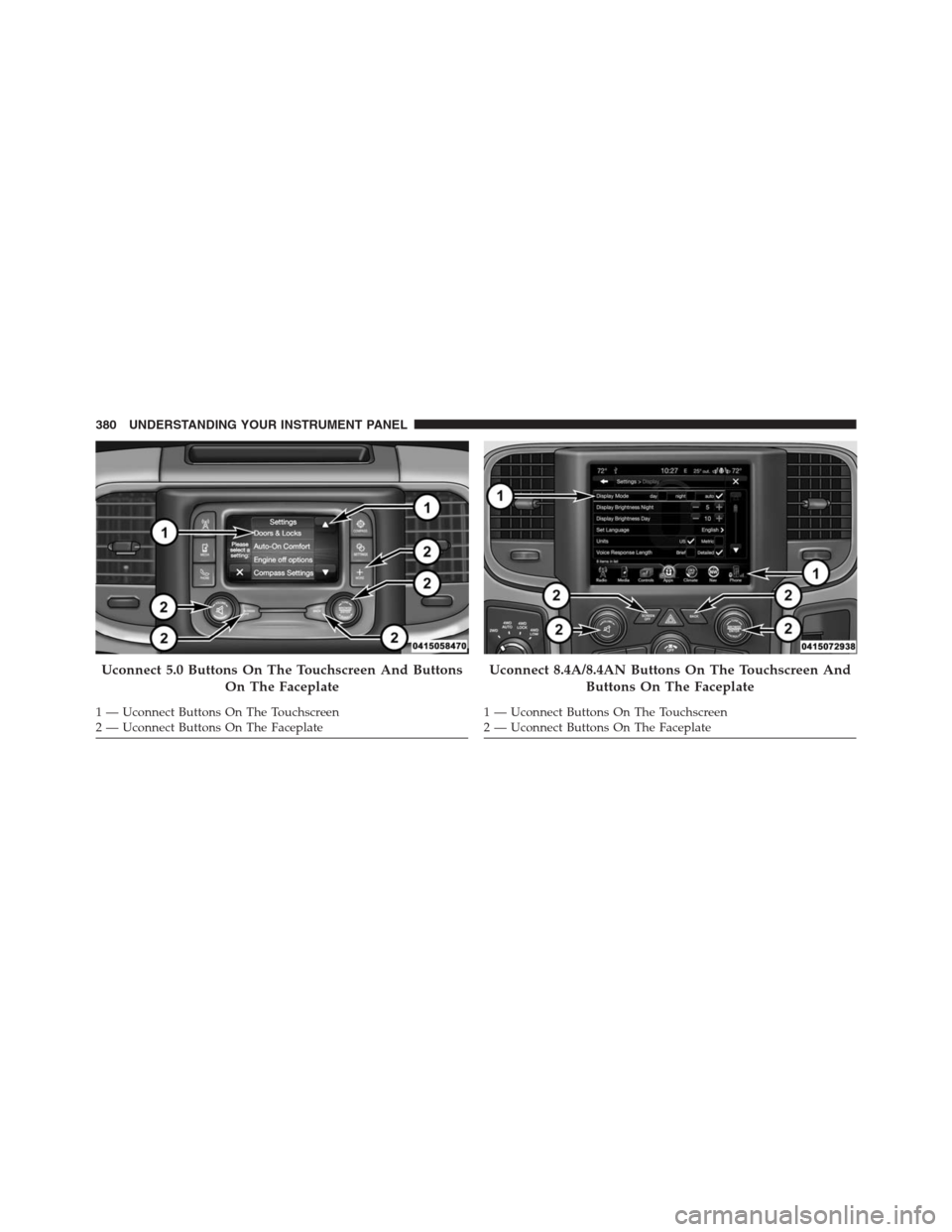
Uconnect 5.0 Buttons On The Touchscreen And Buttons
On The Faceplate
1 — Uconnect Buttons On The Touchscreen
2 — Uconnect Buttons On The Faceplate
Uconnect 8.4A/8.4AN Buttons On The Touchscreen And
Buttons On The Faceplate
1 — Uconnect Buttons On The Touchscreen
2 — Uconnect Buttons On The Faceplate 380 UNDERSTANDING YOUR INSTRUMENT PANEL
Page 383 of 916
Buttons On The Faceplate
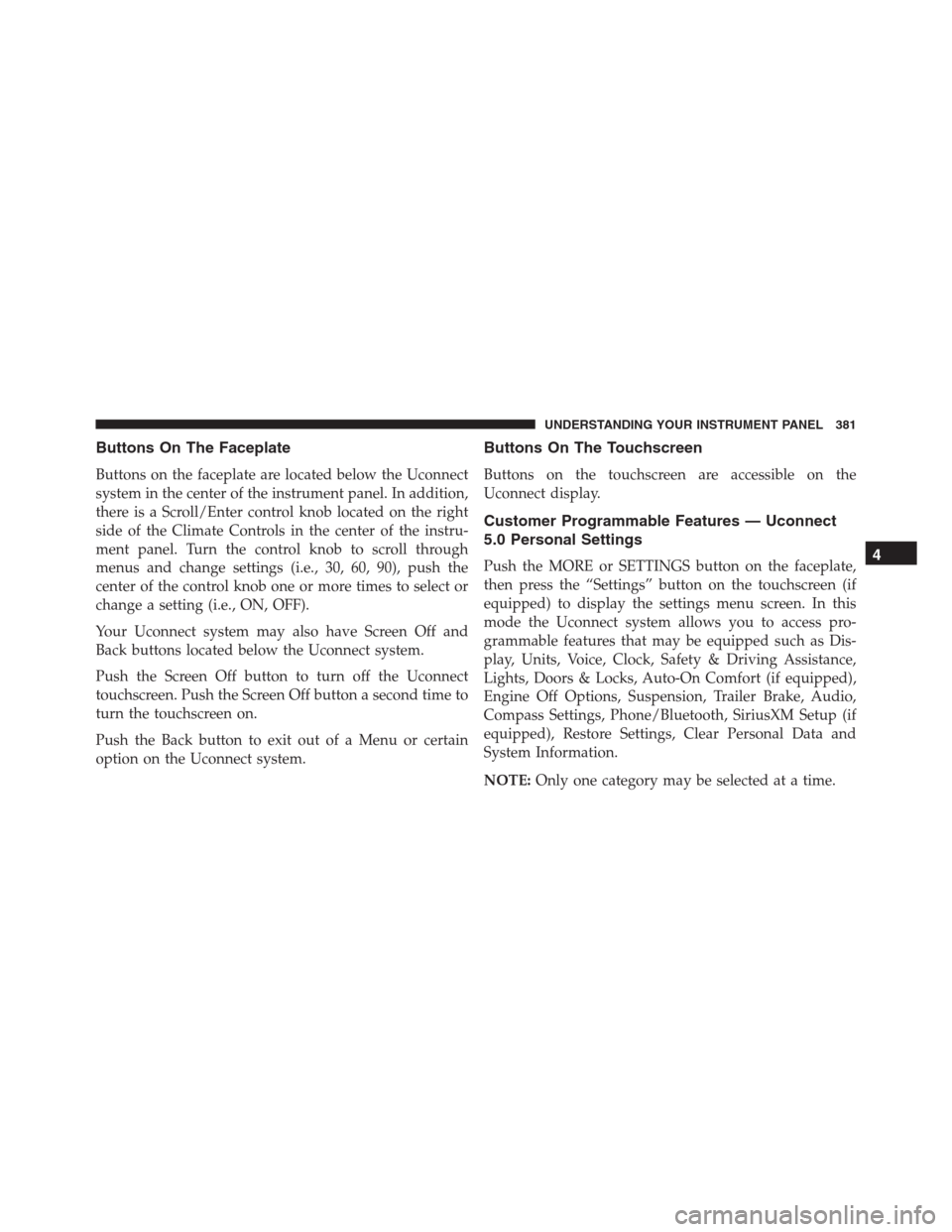
Buttons on the faceplate are located below the Uconnect
system in the center of the instrument panel. In addition,
there is a Scroll/Enter control knob located on the right
side of the Climate Controls in the center of the instru-
ment panel. Turn the control knob to scroll through
menus and change settings (i.e., 30, 60, 90), push the
center of the control knob one or more times to select or
change a setting (i.e., ON, OFF).
Your Uconnect system may also have Screen Off and
Back buttons located below the Uconnect system.
Push the Screen Off button to turn off the Uconnect
touchscreen. Push the Screen Off button a second time to
turn the touchscreen on.
Push the Back button to exit out of a Menu or certain
option on the Uconnect system.
Buttons On The Touchscreen
Buttons on the touchscreen are accessible on the
Uconnect display.
Customer Programmable Features — Uconnect
5.0 Personal Settings
Push the MORE or SETTINGS button on the faceplate,
then press the “Settings” button on the touchscreen (if
equipped) to display the settings menu screen. In this
mode the Uconnect system allows you to access pro-
grammable features that may be equipped such as Dis-
play, Units, Voice, Clock, Safety & Driving Assistance,
Lights, Doors & Locks, Auto-On Comfort (if equipped),
Engine Off Options, Suspension, Trailer Brake, Audio,
Compass Settings, Phone/Bluetooth, SiriusXM Setup (if
equipped), Restore Settings, Clear Personal Data and
System Information.
NOTE:Only one category may be selected at a time.4
UNDERSTANDING YOUR INSTRUMENT PANEL 381
Page 387 of 916
Safety/Assistance
After pressing the “Safety/Assistance” button on the
touchscreen the following settings will be available:
•ParkSense — If Equipped
The ParkSense system will scan for objects behind the
vehicle when the transmission shift lever/gear selector is
in REVERSE and the vehicle speed is less than 11 mph
(18 km/h). It will provide an alert (audible and/or
visual) to indicate the proximity to other objects. The
system can be enabled with Sound Only, or Sound and
Display. To change the ParkSense status, press and re-
lease the “Sound Only” or “Sounds and Display” button.
Refer to “ParkSense” in “Understanding The Features Of
Your Vehicle” for system function and operating infor-
mation.•Front ParkSense Chime Volume
The Front ParkSense Chime Volume settings can be
selected from the EVIC/DID or Uconnect System — if
equipped. The chime volume settings include LOW,
MEDIUM, and HIGH. The factory default volume setting
is MEDIUM. To change the mode status, press the “Front
ParkSense Volume” button and select the “Low” “Med”
or “High” buttons on the touchscreen. ParkSense will
retain its last known configuration state through ignition
cycles.
•Rear ParkSense Chime Volume — If Equipped
The Rear ParkSense Chime Volume settings can be se-
lected from the EVIC/DID or Uconnect System — if
equipped. The chime volume settings include LOW,
MEDIUM, and HIGH. The factory default volume setting
is MEDIUM. To change the mode status, press the “Rear
ParkSense Volume” button and select the “Low” “Med”
4
UNDERSTANDING YOUR INSTRUMENT PANEL 385
Page 393 of 916
Auto Comfort Systems — If Equipped
After pressing the “Auto-On Comfort” button on the
touchscreen the following settings will be available:
•Auto-On Driver Heated/Ventilated Seat & Steering
Wheel With Vehicle Start — If Equipped
When this feature is selected the driver’s heated seat and
heated steering wheel will automatically turn ON when
temperatures are below 40° F (4.4° C). When tempera-
tures are above 80° F (26.7° C) the driver vented seat will
turn ON. To make your selection, press the “Auto Heated
Seats” button on the touchscreen, then select either “On”
or “Off.”
Engine Off Options
After pressing the “Engine Off Options” button on the
touchscreen the following settings will be available.•Easy Exit Seats — If Equipped
When this feature is selected, the Driver ’s seat will
automatically move rearward once the engine is shut off.
To make your selection, press the “Easy Exit Seats”
button on the touchscreen and make your selection.
•Headlight Off Delay
When this feature is selected, the driver can choose to
have the headlights remain on for 0, 30, 60, or 90 seconds
when exiting the vehicle. Press the “Headlight Off Delay”
button on the touchscreen and choose from “0,” “30,”
“60,” or “90” seconds to select your desired time interval.
•Engine Off Power Delay
When this feature is selected, the power window
switches, radio, Uconnect phone system (if equipped),
DVD video system (if equipped), power sunroof (if
equipped), and power outlets will remain active for up to
10 minutes after the ignition is cycled to OFF. Opening
4
UNDERSTANDING YOUR INSTRUMENT PANEL 391
Page 398 of 916
•Perform Compass Calibration
Press the “Calibration” button on the touchscreen to
change this setting. This compass is self-calibrating,
which eliminates the need to manually reset the compass.
When the vehicle is new, the compass may appear erratic
until it is calibrated. You may also calibrate the compass
by pressing the “ON” button on the touchscreen and
completing one or more 360-degree turns (in an area free
from large metal or metallic objects). The compass will
now function normally.
Phone/Bluetooth
After pressing the “Phone/Bluetooth” button on the
touchscreen the following settings will be available:
•Paired Devices
This feature shows which phones are paired to the
Phone/Bluetooth system. For further information, refer
to your Uconnect Supplement Manual.
SiriusXM Setup — If Equipped
After pressing the “SiriusXM Setup” button on the touch-
screen, the following settings will be available:
•Channel Skip
SiriusXM can be programmed to exclude undesirable
channels while scanning. To make your selection, press
the “Channel Skip” button on the touchscreen, select the
channels you would like to skip.
•Subscription Information
New vehicle purchasers or lessees will receive a free
limited time subscription to SiriusXM Satellite Radio
with your radio. Following the expiration of the free
services, it will be necessary to access the information on
the Subscription Information screen to re-subscribe.
Press the “Subscription Info” button on the touchscreen
to access the Subscription Information screen.
396 UNDERSTANDING YOUR INSTRUMENT PANEL