Uconnect Ram 1500 2016 Workshop Manual
[x] Cancel search | Manufacturer: RAM, Model Year: 2016, Model line: 1500, Model: Ram 1500 2016Pages: 916, PDF Size: 7.55 MB
Page 400 of 916
System Information
After pressing the “System Information” button on the
touchscreen the following information will be available:
•System Information
When System Information is selected, a System Informa-
tion screen will appear displaying the system software
version.
Customer Programmable Features — Uconnect
8.4A/8.4AN Personal Settings
Press the “Apps” button on the touchscreen then press
the “Settings” button on the touchscreen to display the
settings menu screen. In this mode the Uconnect system
allows you to access programmable features that may be
equipped such as Display, Voice, Clock, Safety & Driving
Assistance, Lights, Doors & Locks, Auto-On Comfort (if
equipped), Engine Off Options, Suspension, TrailerBrake, Audio, Phone/Bluetooth, SiriusXM Setup (if
equipped), Restore Settings, Clear Personal Data and
System Information.
NOTE:Only one category may be selected at a time.
When making a selection, press the button on the touch-
screen to enter the desired mode. Once in the desired
mode, press and release the preferred setting until a
check-mark appears next to the setting, showing that
setting has been selected. Once the setting is complete,
either press the back arrow button on the touchscreen or
the Back button on the faceplate to return to the previous
menu or press the “X” button on the touchscreen to close
out of the settings screen. Pressing the Up or Down
Arrow buttons on the touchscreen on the right side of the
screen will allow you to toggle up or down through the
list of available settings.
NOTE:All settings should be changed with the ignition
in the “Run” position.
398 UNDERSTANDING YOUR INSTRUMENT PANEL
Page 406 of 916
Safety & Driving Assistance
After pressing the “Safety & Driving Assistance” button
on the touchscreen the following settings will be avail-
able.
•ParkSense
The Rear Park Assist system will scan for objects behind
the vehicle when the transmission shift lever is in RE-
VERSE and the vehicle speed is less than 11 mph
(18 km/h). The system can be enabled with Sound Only
or Sound and Display. To change the Park Assist status,
select the “Sound Only” or the “Sound and Display”
button on the touchscreen. Refer to “ParkSense Rear Park
Assist” in “Understanding The Features Of Your Vehicle”
for system function and operating information.
•Front ParkSense Chime Volume
The Front ParkSense Chime Volume settings can be
selected from the EVIC/DID or Uconnect System — ifequipped. The chime volume settings include LOW,
MEDIUM, and HIGH. The factory default volume setting
is MEDIUM. To change the mode status, press the “Front
ParkSense Volume” button and select the “Low” “Med”
or “High” buttons on the touchscreen. ParkSense will
retain its last known configuration state through ignition
cycles.
•Rear ParkSense Chime Volume
The Rear ParkSense Chime Volume settings can be se-
lected from the EVIC/DID or Uconnect System — if
equipped. The chime volume settings include LOW,
MEDIUM, and HIGH. The factory default volume setting
is MEDIUM. To change the mode status, press the “Rear
ParkSense Volume” button and select the “Low” “Med”
or “High” buttons on the touchscreen. ParkSense will
retain its last known configuration state through ignition
cycles.
404 UNDERSTANDING YOUR INSTRUMENT PANEL
Page 413 of 916
turn ON. To make your selection, press the “Auto Heated
Seats” button on the touchscreen, then select either “Off,”
“Remote Start” or “All Starts”.
Engine Off Options
After pressing the “Engine Off Options” button on the
touchscreen the following settings will be available.
•Easy Exit Seat — If Equipped
When this feature is selected, the Driver ’s seat will
automatically move rearward once the engine is shut off.
To make your selection, press the “Easy Exit Seat” button
on the touchscreen until a check-mark appears next to
setting, showing that setting has been selected.•Engine Off Power Delay
When this feature is selected, the power window
switches, radio, Uconnect phone system (if equipped),
DVD video system (if equipped), power sunroof (if
equipped), and power outlets will remain active for up to
10 minutes after the ignition is cycled to OFF. Opening
either front door will cancel this feature. To change the
Engine Off Power Delay status press the “+” or “–”
buttons on the touchscreen to adjust the time delay up or
down.
•Headlight Off Delay
When this feature is selected, the driver can choose to
have the headlights remain on for 0, 30, 60, or 90 seconds
when exiting the vehicle. To make your selection press
the “+” or “–” buttons on the touchscreen to adjust the
seconds up or down.4
UNDERSTANDING YOUR INSTRUMENT PANEL 411
Page 417 of 916
Phone/Bluetooth
After pressing the “Phone/Bluetooth” button on the
touchscreen the following settings will be available:
•Paired Phones
This feature shows which phones are paired to the
Phone/Bluetooth system. For further information, refer
to the Uconnect Supplement Manual.
•Paired Audio Sources
This feature shows which audio devices are paired to the
Phone/Bluetooth system. For further information, refer
to the Uconnect Supplement Manual.
SiriusXM Setup — If Equipped
After pressing the “SiriusXM Setup” button on the touch-
screen, the following settings will be available:
•Channel Skip
SiriusXM can be programmed to designate a group of
channels that are the most desirable to listen to or to
exclude undesirable channels while scanning. To make
your selection, press the “Channel Skip” button on the
touchscreen, select the channels you would like to skip
followed by pressing the back arrow button on the
touchscreen.
•Subscription Information
New vehicle purchasers or lessees will receive a free
limited time subscription to SiriusXM Satellite Radio
with your radio. Following the expiration of the free
services, it will be necessary to access the information on
the Subscription Information screen to re-subscribe.
4
UNDERSTANDING YOUR INSTRUMENT PANEL 415
Page 419 of 916
System Information
After pressing the “System Information” button on the
touchscreen the following settings will be available:
•System Information
When System Information is selected, a System Informa-
tion screen will appear displaying the system software
version.
UCONNECT RADIOS
For detailed information about your Uconnect 3.0, 5.0
and 8.4A/AN radio, refer to your Uconnect Supplement
Manual.
iPod/USB/MP3 CONTROL — IF EQUIPPED
Located inside the center console upper lid, this feature
allows an iPod or external USB device to be plugged into
the USB port.
iPod control supports Mini, 4G, Photo, Nano, 5G iPod
and iPhone devices. Some iPod software versions may
not fully support the iPod control features. Please visit
Apple’s website for software updates.
4
UNDERSTANDING YOUR INSTRUMENT PANEL 417
Page 420 of 916
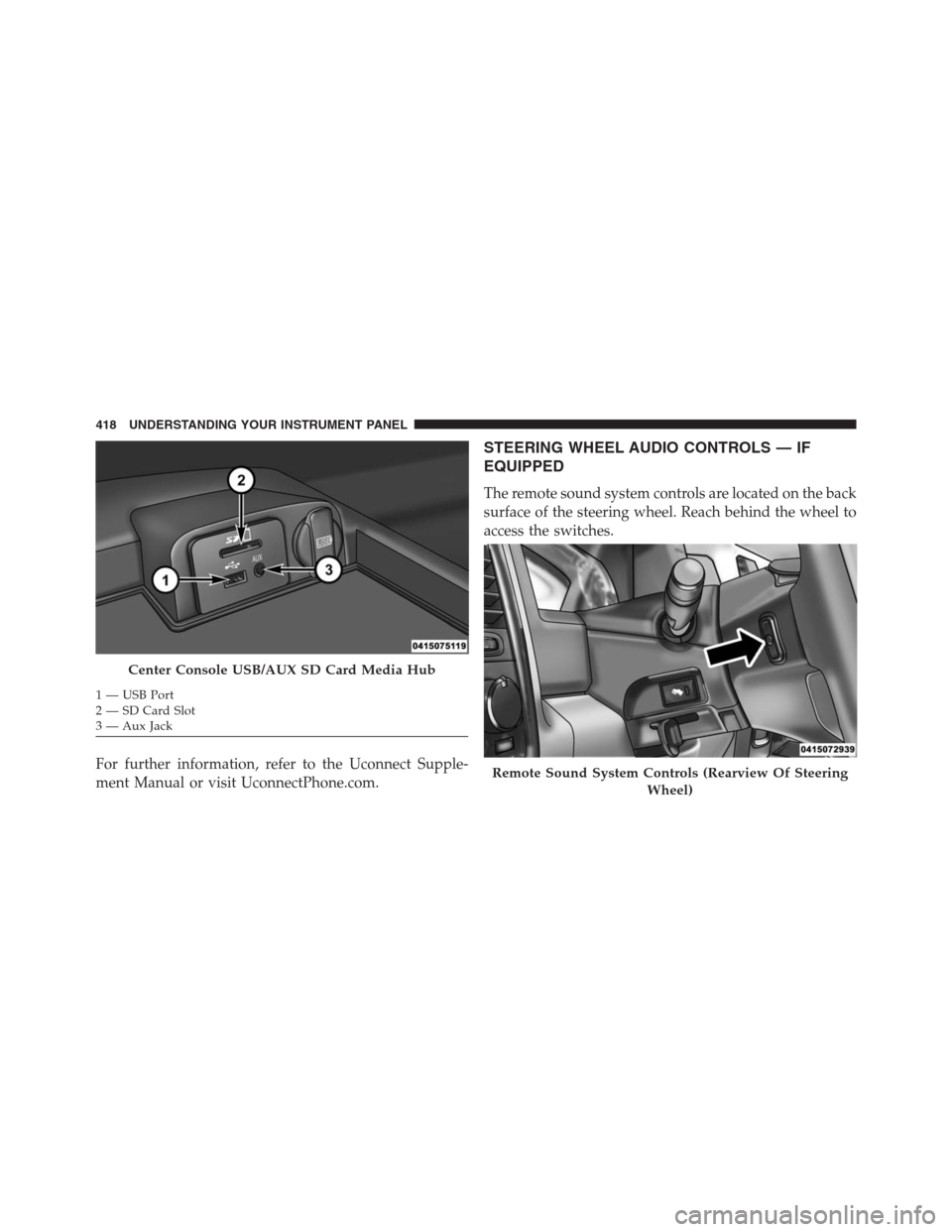
For further information, refer to the Uconnect Supple-
ment Manual or visit UconnectPhone.com.
STEERING WHEEL AUDIO CONTROLS — IF
EQUIPPED
The remote sound system controls are located on the back
surface of the steering wheel. Reach behind the wheel to
access the switches.
Center Console USB/AUX SD Card Media Hub
1 — USB Port
2 — SD Card Slot
3 — Aux Jack
Remote Sound System Controls (Rearview Of Steering
Wheel)
418 UNDERSTANDING YOUR INSTRUMENT PANEL
Page 422 of 916
2. If the disc is stained, clean the surface with a soft cloth,
wiping from center to edge.
3. Do not apply paper or tape to the disc; avoid scratch-
ing the disc.
4. Do not use solvents such as benzene, thinner, cleaners,
or anti-static sprays.
5. Store the disc in its case after playing.
6. Do not expose the disc to direct sunlight.
7. Do not store the disc where temperatures may become
too high.
NOTE:If you experience difficulty in playing a particular
disc, it may be damaged (e.g., scratched, reflective coat-
ing removed, a hair, moisture or dew on the disc)
oversized, or have protection encoding. Try a known
good disc before considering disc player service.RADIO OPERATION AND MOBILE DEVICES
Under certain conditions, the mobile device being on in
your vehicle can cause erratic or noisy performance from
your radio. This condition may be lessened or eliminated
by relocating the mobile device antenna. This condition is
not harmful to the radio. If your radio performance does
not satisfactorily “clear” by the repositioning of the
antenna, it is recommended that the radio volume be
turned down or off during mobile device operation when
not using Uconnect (if equipped).
Regulatory And Safety Information
USA/CANADA
Exposure to Radio Frequency Radiation
The radiated output power of the internal wireless radio
is far below the FCC radio frequency exposure limits.
420 UNDERSTANDING YOUR INSTRUMENT PANEL
Page 434 of 916
Recirculation Control
When outside air contains smoke, odors, or
high humidity, or if rapid cooling is desired,
you may wish to recirculate interior air by
pressing the RECIRCULATION control button.
Recirculation mode should only be used temporarily. The
recirculation LED will illuminate on the blower control
knob when this button is selected. Push the button a
second time to turn off the Recirculation mode LED and
allow outside air into the vehicle.
NOTE:In cold weather, use of Recirculation mode may
lead to excessive window fogging. The Recirculation
mode is not allowed in Defrost mode to improve window
clearing operation. Recirculation will be disabled auto-
matically if these modes are selected.
Automatic Climate Controls With Touchscreen —
If Equipped
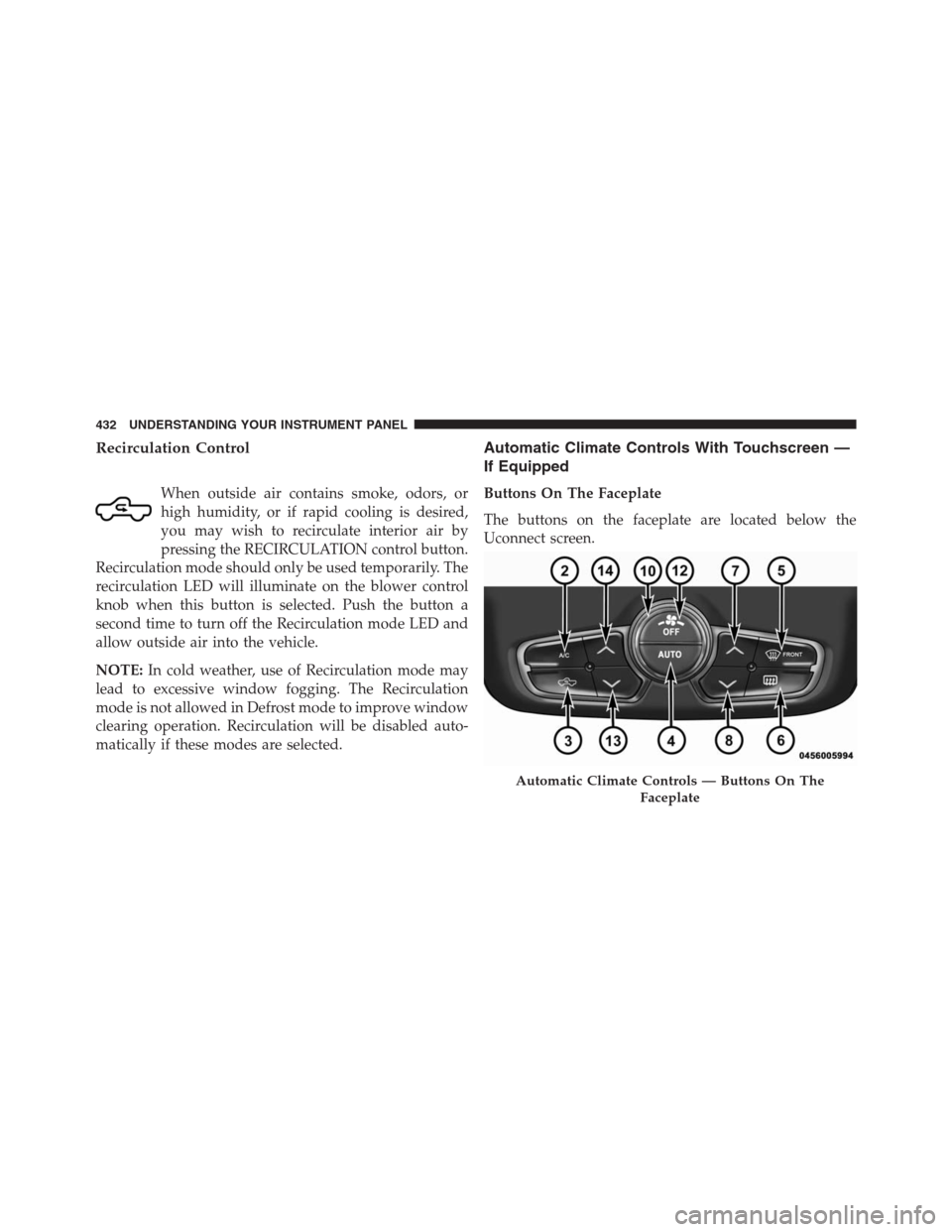
Buttons On The Faceplate
The buttons on the faceplate are located below the
Uconnect screen.
Automatic Climate Controls — Buttons On The
Faceplate
432 UNDERSTANDING YOUR INSTRUMENT PANEL
Page 435 of 916
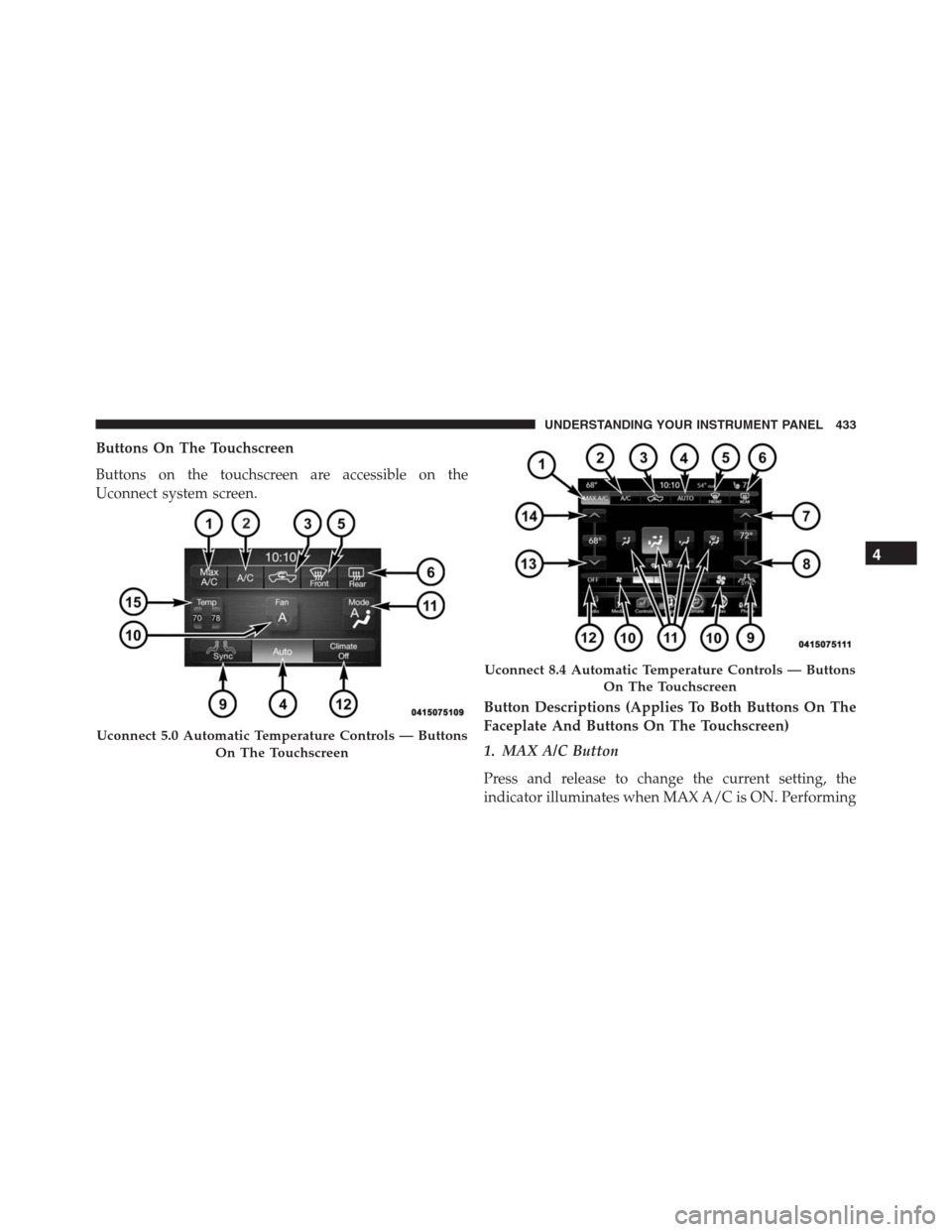
Buttons On The Touchscreen
Buttons on the touchscreen are accessible on the
Uconnect system screen.
Button Descriptions (Applies To Both Buttons On The
Faceplate And Buttons On The Touchscreen)
1. MAX A/C Button
Press and release to change the current setting, the
indicator illuminates when MAX A/C is ON. Performing
Uconnect 5.0 Automatic Temperature Controls — Buttons
On The Touchscreen
Uconnect 8.4 Automatic Temperature Controls — Buttons
On The Touchscreen
4
UNDERSTANDING YOUR INSTRUMENT PANEL 433
Page 437 of 916
CAUTION!
Failure to follow these cautions can cause damage to
the heating elements:
•Use care when washing the inside of the rear
window. Do not use abrasive window cleaners on
the interior surface of the window. Use a soft cloth
and a mild washing solution, wiping parallel to the
heating elements. Labels can be peeled off after
soaking with warm water.
•Do not use scrapers, sharp instruments, or abrasive
window cleaners on the interior surface of the
window.
•Keep all objects a safe distance from the window.
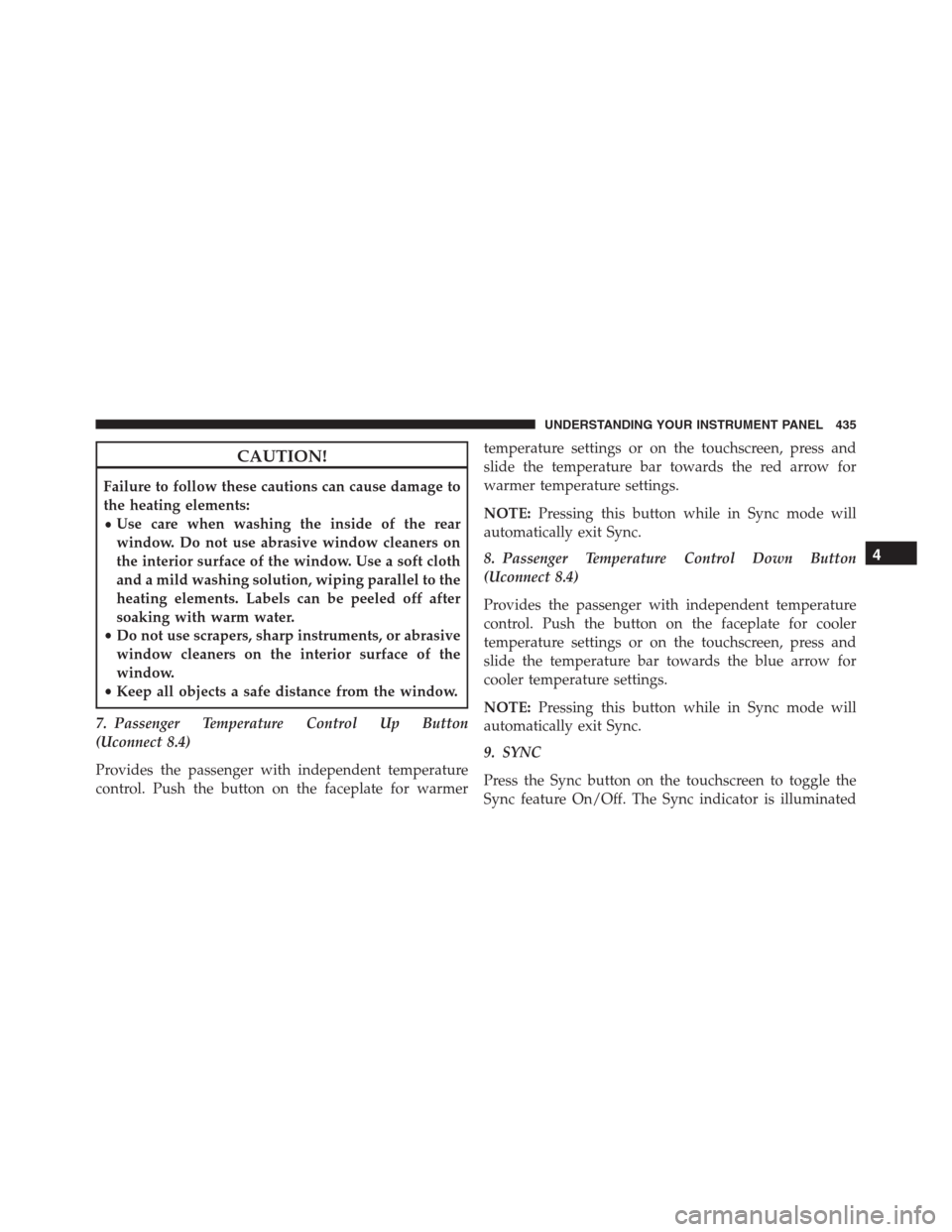
7. Passenger Temperature Control Up Button
(Uconnect 8.4)
Provides the passenger with independent temperature
control. Push the button on the faceplate for warmertemperature settings or on the touchscreen, press and
slide the temperature bar towards the red arrow for
warmer temperature settings.
NOTE:Pressing this button while in Sync mode will
automatically exit Sync.
8. Passenger Temperature Control Down Button
(Uconnect 8.4)
Provides the passenger with independent temperature
control. Push the button on the faceplate for cooler
temperature settings or on the touchscreen, press and
slide the temperature bar towards the blue arrow for
cooler temperature settings.
NOTE:Pressing this button while in Sync mode will
automatically exit Sync.
9. SYNC
Press the Sync button on the touchscreen to toggle the
Sync feature On/Off. The Sync indicator is illuminated
4
UNDERSTANDING YOUR INSTRUMENT PANEL 435