instrument panel Ram 1500 2019 Owner's Manual
[x] Cancel search | Manufacturer: RAM, Model Year: 2019, Model line: 1500, Model: Ram 1500 2019Pages: 698, PDF Size: 9.04 MB
Page 573 of 698
The risk of unauthorized and unlawful access to your
vehicle systems may still exist, even if the most recent
version of vehicle software (such as Uconnect software) is
installed.
WARNING!
•It is not possible to know or to predict all of the
possible outcomes if your vehicle’s systems are
breached. It may be possible that vehicle systems,
including safety related systems, could be impaired
or a loss of vehicle control could occur that may
result in an accident involving serious injury or
death.
• ONLY insert media (e.g., USB, SD card, or CD) into
your vehicle if it came from a trusted source. Media
of unknown origin could possibly contain malicious
software, and if installed in your vehicle, it may
increase the possibility for vehicle systems to be
breached.
• As always, if you experience unusual vehicle behav-
ior, take your vehicle to your nearest authorized
dealer immediately. NOTE:
•
FCA US LLC or your dealer may contact you directly
regarding software updates.
• To help further improve vehicle security and minimize
the potential risk of a security breach, vehicle owners
should:
• Routinely check www.driveuconnect.com/support/
software-update.html (U.S. Residents) or
www.driveuconnect.ca (Canadian Residents) to learn
about available Uconnect software updates.
• Only connect and use trusted media devices (e.g.
personal mobile phones, USBs, CDs).
Privacy of any wireless and wired communications cannot
be assured. Third parties may unlawfully intercept infor-
mation and private communications without your consent.
For further information, refer to “Data Collection & Pri-
vacy” in your Uconnect Owner ’s Manual Supplement or
“Onboard Diagnostic System (OBD II) Cybersecurity” in
“Getting To Know Your Instrument Panel”.
10
MULTIMEDIA 571
Page 574 of 698
UCONNECT SETTINGS
The Uconnect system uses a combination of buttons on the
touchscreen and buttons on the faceplate located on the
center of the instrument panel that allows you to access
and change the customer programmable features. Many
features can vary by vehicle.
Uconnect 3 Settings
Push the MORE or SETTINGS button on the faceplate, then
press the “Settings” button on the touchscreen (if
equipped) to display the settings menu screen. In this
mode the Uconnect system allows you to access program-
mable features that may be equipped such as Display,
Units, Voice, Clock, Safety & Driving Assistance, Lights,
Doors & Locks, Auto-On Comfort (if equipped), Engine Off
Options, Suspension, Trailer Brake, Audio, Compass Set-
tings, Phone/Bluetooth, SiriusXM Setup (if equipped),
Restore Settings, Clear Personal Data and System Informa-
tion.
NOTE:Only one category may be selected at a time.
When making a selection, press the button on the touch-
screen to enter the desired mode. Once in the desired
mode, press and release the preferred setting until the
button is highlighted. Once the setting is complete, either
press the back arrow or the “Done” button on the touch-
screen or the Back button on the faceplate to return to the
previous menu. Pressing the Up or Down Arrow buttons
on the touchscreen on the right side of the screen will allow
you to toggle up or down through the list of available
settings.
NOTE: All settings should be changed with the ignition in
the RUN position.
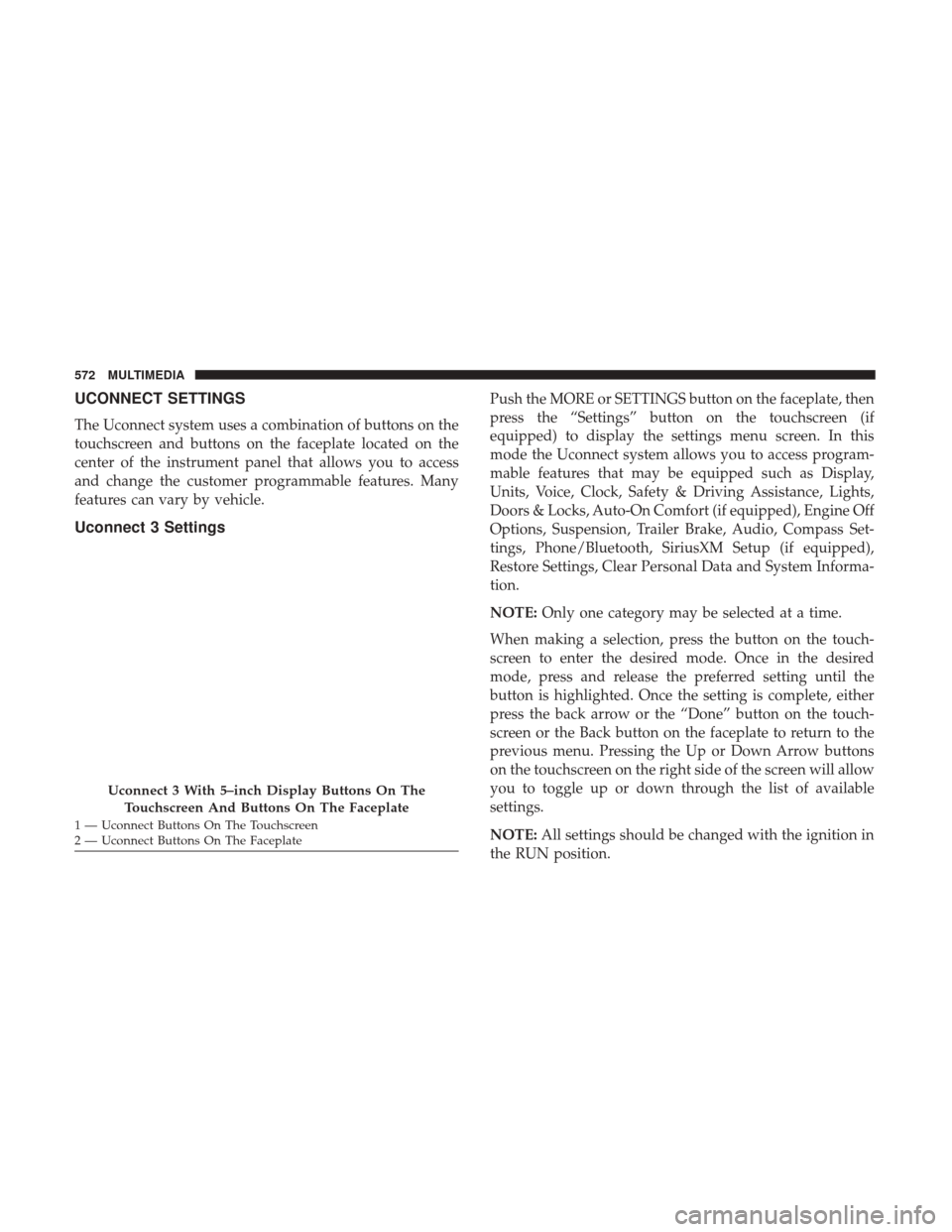
Uconnect 3 With 5–inch Display Buttons On The
Touchscreen And Buttons On The Faceplate
1 — Uconnect Buttons On The Touchscreen
2 — Uconnect Buttons On The Faceplate 572 MULTIMEDIA
Page 590 of 698
Compass Settings — If Equipped
After pressing the “Compass Settings” button on the
touchscreen, the following settings will be available:
Setting NameSelectable Options
Variance 123456789101112131415
NOTE:
•Compass Variance is the difference between Magnetic North and Geographic North. To compensate for the differ-
ences the variance should be set for the zone where the vehicle is driven, per the zone map. Once properly set, the
compass will automatically compensate for the differences, and provide the most accurate compass heading.
•Keep magnetic materials away from the top of the instrument panel, such as iPod’s, Mobile Phones, Laptops and
Radar Detectors. This is where the compass module is located, and it can cause interference with the compass sen-
sor, and it may give false readings.
Perform Compass Calibra- tion On Off
NOTE: Press the “Calibration” button on the touchscreen to change this setting. This compass is self-calibrating,
which eliminates the need to manually reset the compass. When the vehicle is new, the compass may appear erratic
until it is calibrated. You may also calibrate the compass by pressing the “ON” button on the touchscreen and com-
pleting one or more 360-degree turns (in an area free from large metal or metallic objects). The compass will now
function normally.
588 MULTIMEDIA
Page 644 of 698
IPOD/USB/MP3 CONTROL — IF EQUIPPED
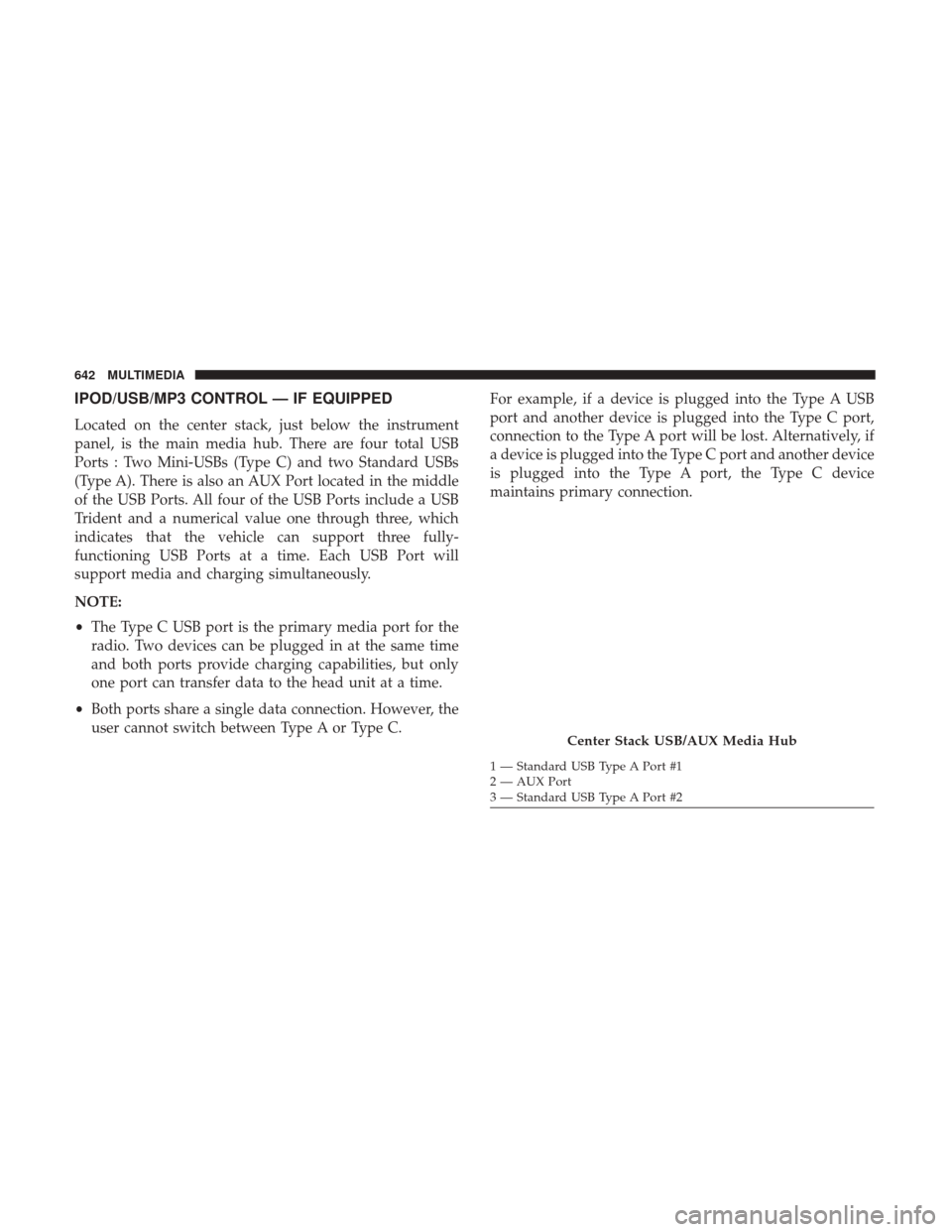
Located on the center stack, just below the instrument
panel, is the main media hub. There are four total USB
Ports : Two Mini-USBs (Type C) and two Standard USBs
(Type A). There is also an AUX Port located in the middle
of the USB Ports. All four of the USB Ports include a USB
Trident and a numerical value one through three, which
indicates that the vehicle can support three fully-
functioning USB Ports at a time. Each USB Port will
support media and charging simultaneously.
NOTE:
•The Type C USB port is the primary media port for the
radio. Two devices can be plugged in at the same time
and both ports provide charging capabilities, but only
one port can transfer data to the head unit at a time.
• Both ports share a single data connection. However, the
user cannot switch between Type A or Type C. For example, if a device is plugged into the Type A USB
port and another device is plugged into the Type C port,
connection to the Type A port will be lost. Alternatively, if
a device is plugged into the Type C port and another device
is plugged into the Type A port, the Type C device
maintains primary connection.
Center Stack USB/AUX Media Hub
1 — Standard USB Type A Port #1
2 — AUX Port
3 — Standard USB Type A Port #2
642 MULTIMEDIA
Page 687 of 698
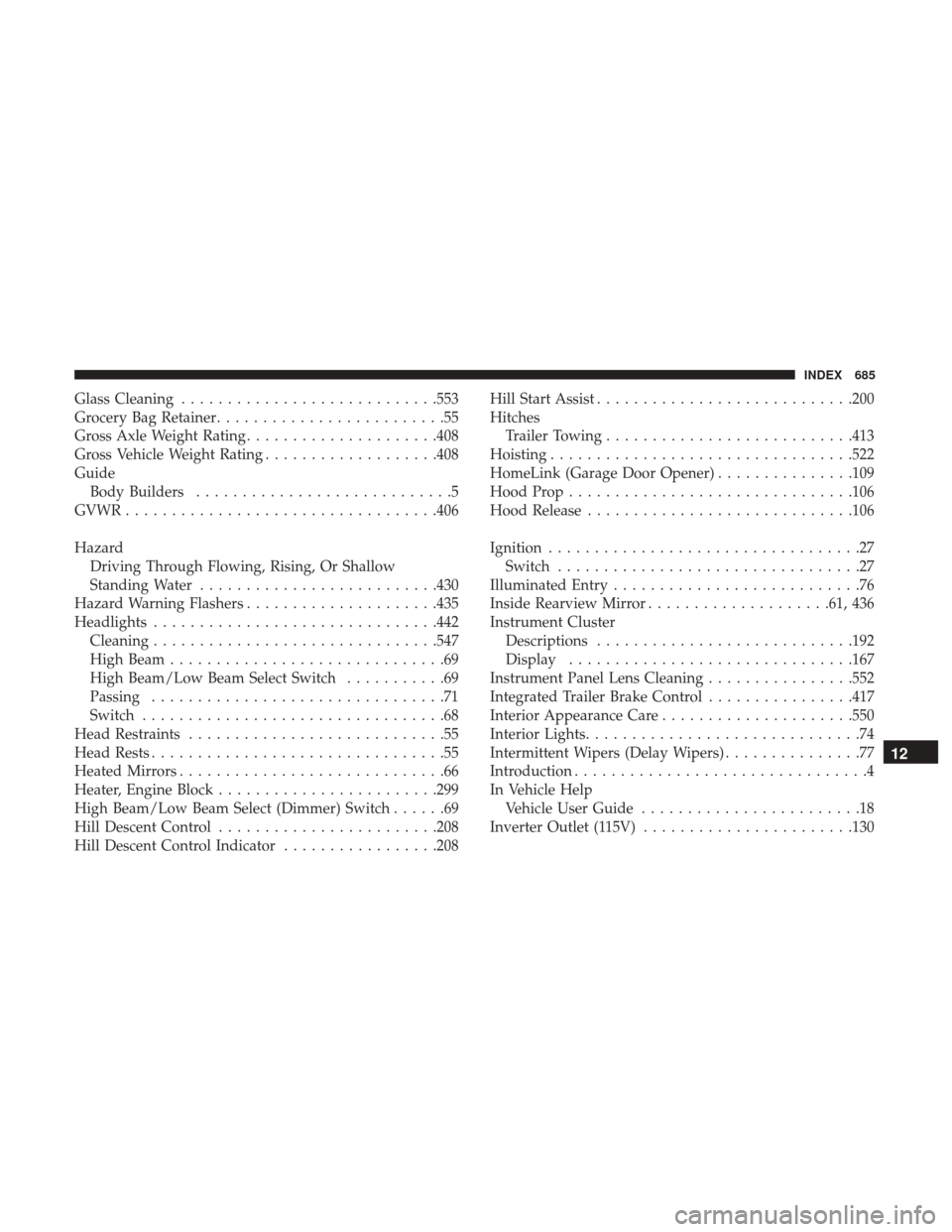
Glass Cleaning........................... .553
Grocery Bag Retainer .........................55
Gross Axle Weight Rating .....................408
Gross Vehicle Weight Rating ...................408
Guide Body Builders ............................5
GVWR ................................. .406
Hazard Driving Through Flowing, Rising, Or Shallow
Standing Water ......................... .430
Hazard Warning Flashers .....................435
Headlights .............................. .442
Cleaning .............................. .547
High Beam ..............................69
High Beam/Low Beam Select Switch ...........69
Passing ................................71
Switch .................................68
Head Restraints ............................55
Head Rests ................................55
Heated Mirrors .............................66
Heater, Engine Block ....................... .299
High Beam/Low Beam Select (Dimmer) Switch ......69
Hill Descent Control ....................... .208
Hill Descent Control Indicator .................208Hill Start Assist
........................... .200
Hitches Trailer Towing .......................... .413
Hoisting ................................ .522
HomeLink (Garage Door Opener) ...............109
Hood Prop .............................. .106
Hood Release ............................ .106
Ignition ..................................27
Switch .................................27
Illuminated Entry ...........................76
Inside Rearview Mirror ....................61, 436
Instrument Cluster Descriptions ........................... .192
Display .............................. .167
Instrument Panel Lens Cleaning ................552
Integrated Trailer Brake Control ................417
Interior Appearance Care .....................550
Interior Lights ..............................74
Intermittent Wipers (Delay Wipers) ...............
77
Introduction ................................4
In Vehicle Help Vehicle User Guide ........................18
Inverter Outlet (115V) ...................... .13012
INDEX 685