ERS Ram 1500 2019 Owner's Manual
[x] Cancel search | Manufacturer: RAM, Model Year: 2019, Model line: 1500, Model: Ram 1500 2019Pages: 698, PDF Size: 9.04 MB
Page 648 of 698
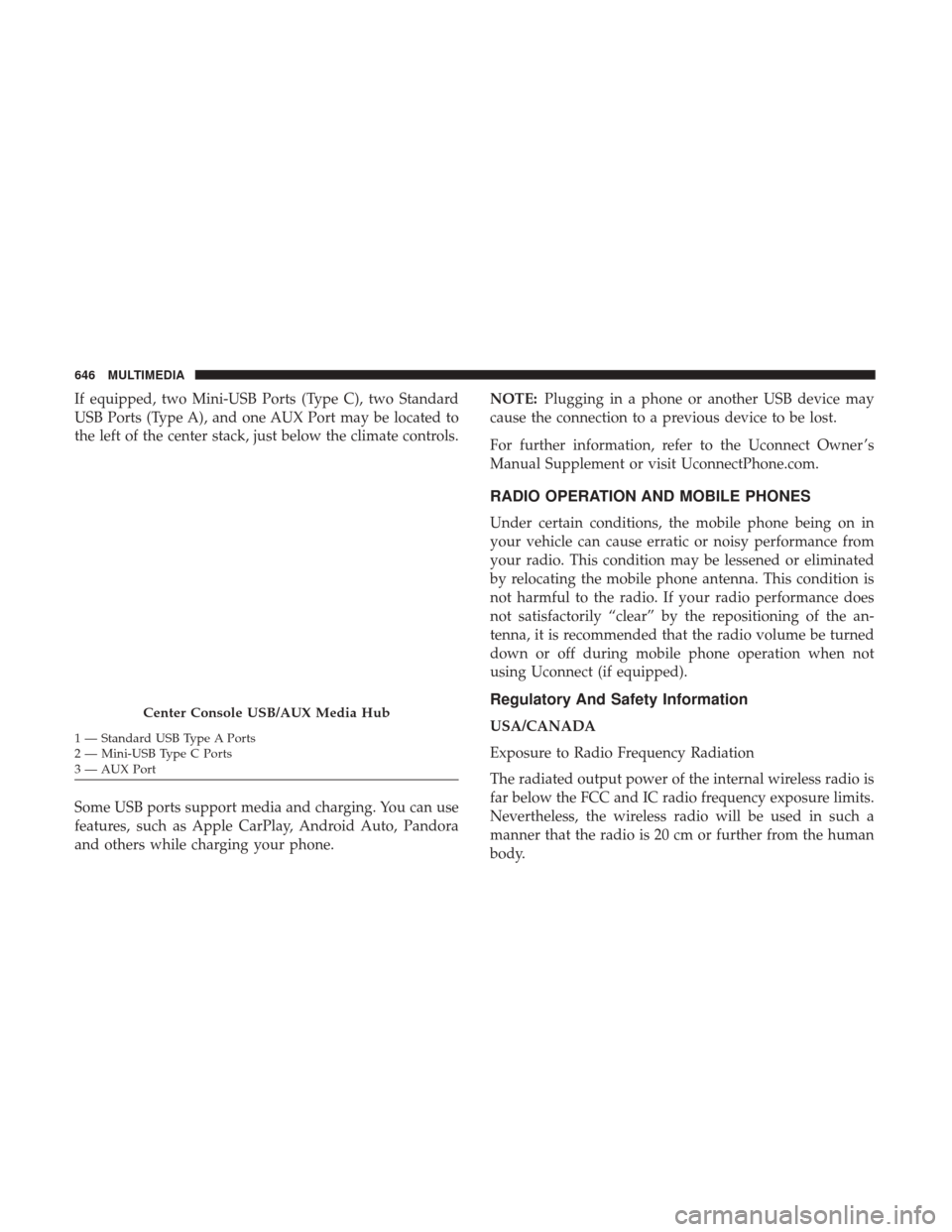
If equipped, two Mini-USB Ports (Type C), two Standard
USB Ports (Type A), and one AUX Port may be located to
the left of the center stack, just below the climate controls.
Some USB ports support media and charging. You can use
features, such as Apple CarPlay, Android Auto, Pandora
and others while charging your phone.NOTE:
Plugging in a phone or another USB device may
cause the connection to a previous device to be lost.
For further information, refer to the Uconnect Owner ’s
Manual Supplement or visit UconnectPhone.com.
RADIO OPERATION AND MOBILE PHONES
Under certain conditions, the mobile phone being on in
your vehicle can cause erratic or noisy performance from
your radio. This condition may be lessened or eliminated
by relocating the mobile phone antenna. This condition is
not harmful to the radio. If your radio performance does
not satisfactorily “clear” by the repositioning of the an-
tenna, it is recommended that the radio volume be turned
down or off during mobile phone operation when not
using Uconnect (if equipped).
Regulatory And Safety Information
USA/CANADA
Exposure to Radio Frequency Radiation
The radiated output power of the internal wireless radio is
far below the FCC and IC radio frequency exposure limits.
Nevertheless, the wireless radio will be used in such a
manner that the radio is 20 cm or further from the human
body.Center Console USB/AUX Media Hub
1 — Standard USB Type A Ports
2 — Mini-USB Type C Ports
3 — AUX Port 646 MULTIMEDIA
Page 649 of 698
The internal wireless radio operates within guidelines found
in radio frequency safety standards and recommendations,
which reflect the consensus of the scientific community.
The radio manufacturer believes the internal wireless radio
is safe for use by consumers. The level of energy emitted is
far less than the electromagnetic energy emitted by wire-
less devices such as mobile phones. However, the use of
wireless radios may be restricted in some situations or
environments, such as aboard airplanes. If you are unsure
of restrictions, you are encouraged to ask for authorization
before turning on the wireless radio.
The following regulatory statement applies to all Radio
Frequency (RF) devices equipped in this vehicle:
This device complies with Part 15 of the FCC Rules and
with Industry Canada license-exempt RSS standard(s).
Operation is subject to the following two conditions:
1. This device may not cause harmful interference, and
2. This device must accept any interference received, in-cluding interference that may cause undesired opera-
tion.
NOTE: Changes or modifications not expressly approved
by the party responsible for compliance could void the
user ’s authority to operate the equipment. NOTE:
•
This equipment has been tested and found to comply
with the limits for a Class B digital device, pursuant to
Part 15 of the FCC Rules. These limits are designed to
provide reasonable protection against harmful interfer-
ence in a residential installation. This equipment gener-
ates, uses and can radiate radio frequency energy and, if
not installed and used in accordance with the instruc-
tions, may cause harmful interference to radio commu-
nications. However, there is no guarantee that interfer-
ence will not occur in a particular installation.
• If this equipment does cause harmful interference to
radio or television reception, which can be determined
by turning the equipment off and on, the user is encour-
aged to try to correct the interference by one or more of
the following measures:
1. Increase the separation between the equipment and receiver.
2. Consult an authorized dealer or an experienced radio technician for help.
10
MULTIMEDIA 647
Page 650 of 698
VOICE COMMANDS
Introducing Uconnect
Start using Uconnect Voice Recognition with these helpful
quick tips. It provides the key Voice Commands and tips
you need to know to control your Uconnect system.
If you see the NAV icon on the bottom bar, or in the Apps
menus, of your touchscreen, you have the Uconnect 4C
NAV With 8.4–inch Display or the Uconnect 4C NAV With
12–inch Display system. If not, you have a Uconnect 4C
With 8.4–inch Display system.
Get Started
All you need to control your Uconnect system with your
voice are the buttons on your steering wheel.
1. Visit UconnectPhone.com to check mobile device andfeature compatibility and to find phone pairing instruc-
tions. 2. Reduce background noise. Wind noise and passenger
conversations are examples of noise that may impact
recognition.
3. Speak clearly at a normal pace and volume while facing straight ahead. The microphone is located in the head-
liner and aimed at the driver.
4. Each time you give a Voice Command, you must first push either the VR or Phone button, wait until afterthe
beep, then say your Voice Command.
5. You can interrupt the help message or system prompts by pushing the VR or Phone button and saying a Voice
Command from current category.
648 MULTIMEDIA
Page 655 of 698
Media
Uconnect offers connections via USB, Bluetooth and auxil-
iary ports (If Equipped). Voice operation is only available
for connected USB and AUX devices. (Remote CD player
optional and not available on all vehicles.)
Push the VR button
. After the beep, say one of the
following commands and follow the prompts to switch
your media source or choose an artist.
• “Change source to Bluetooth”
• “Change source to AUX”
• “Change source to USB”
• “Play artist Beethoven”; “ Play albumGreatest Hits”; “
Play song Moonlight Sonata”; “ Play genreClassical”
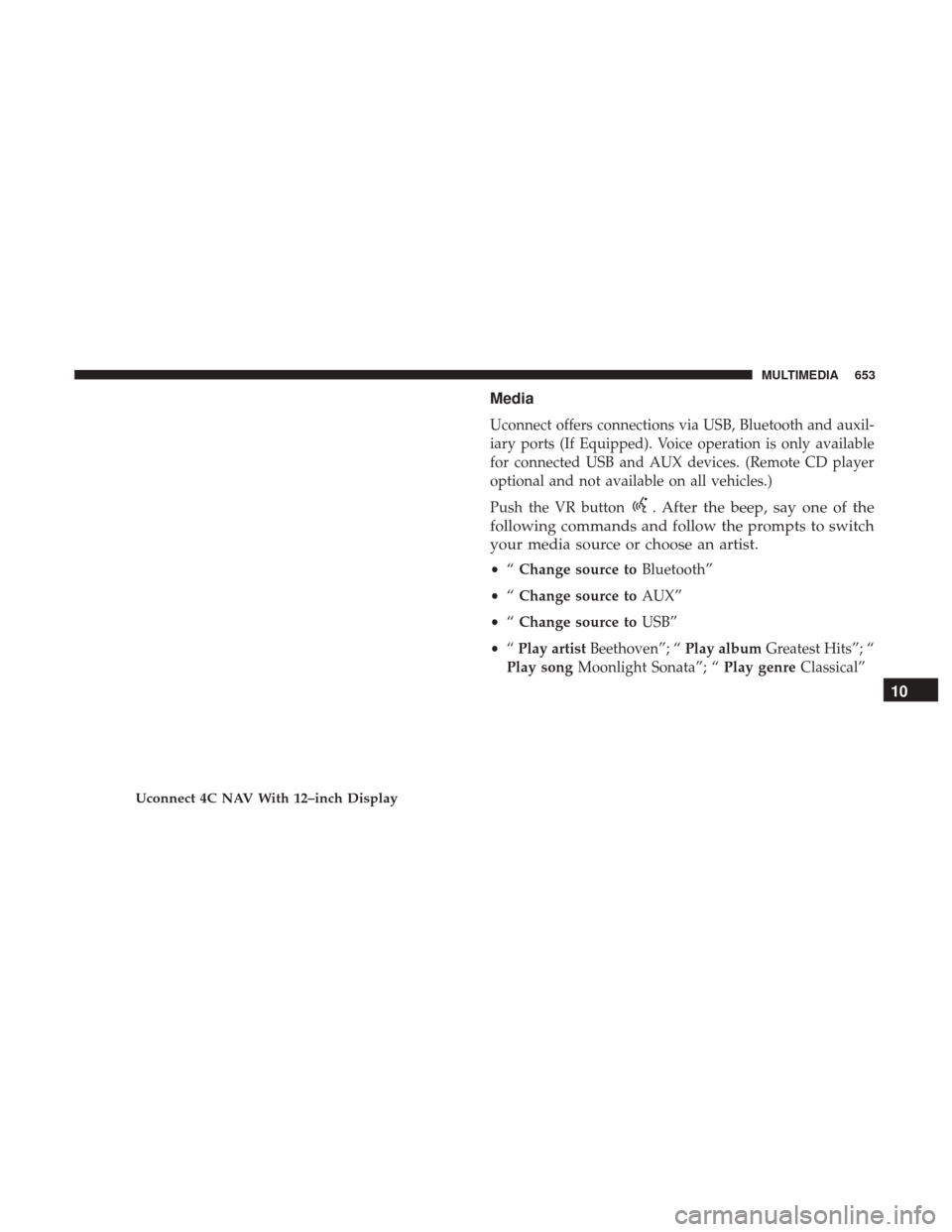
Uconnect 4C NAV With 12–inch Display
10
MULTIMEDIA 653
Page 658 of 698
TIP:When providing a Voice Command, push the Phone
button
and say “ Call,” then pronounce the name
exactly as it appears in your phone book. When a
contact has multiple phone numbers, you can say “ Call
John Smith work.”
Uconnect 3 Phone
Uconnect 4/4C/4C NAV With 8.4–inch Display
656 MULTIMEDIA
Page 665 of 698
Mobile App (4C/4C NAV)
You’re only a few steps away from using remote com-
mands and playing your favorite music in your car.
To use the Uconnect App:
•Download the Uconnect App to your mobile device. •
Press the Info button on the navigation bar at the bottom
of the app for Vehicle Info.
• Press the Remote button on the navigation bar at the
bottom of the app to Lock/Unlock, Remote Start, and
activate your horn and lights remotely.
• Press the Location button on the navigation bar at the
bottom of the app to bring up a map to locate your
vehicle or send a location to your vehicle’s navigation
system.
• Press the Settings button in the upper left corner of the
app to bring up app settings and access the Assist Call
Centers.
NOTE: For further information please visit
DriveUconnect.com (U.S. Residents) or DriveUconnect.ca
(Canadian Residents).
Mobile App10
MULTIMEDIA 663
Page 667 of 698
Siri Eyes Free — If Equipped
Siri lets you use your voice to send text messages, select
media, place phone calls and much more. Siri uses your
natural language to understand what you mean and re-
sponds back to confirm your requests. The system is
designed to keep your eyes on the road and your hands on
the wheel by letting Siri help you perform useful tasks.
To enable Siri, push and hold, then release the Uconnect
Voice Recognition (VR) button on the steering wheel. After
you hear a double beep you can ask Siri to play podcasts
and music, get directions, read text messages and many
other useful requests.
Uconnect 4C NAV With 12–inch Display SiriusXM TravelLink
10
MULTIMEDIA 665
Page 669 of 698
Using Do Not Disturb
With Do Not Disturb, you can disable notifications from
incoming calls and texts, allowing you to keep your eyes
on the road and hands on the wheel. For your convenience,
there is a counter display to keep track of your missed calls
and text messages while you were using Do Not Disturb.
Do Not Disturb can automatically reply with a text mes-
sage, a call or both, when declining an incoming call and
send it to voicemail.
Automatic reply messages can be:
•“I am driving right now, I will get back to you shortly.”
• Create a custom auto reply message up to 160 characters.
While in Do Not Disturb, Conference Call can be selected
so you can still place a second call without being inter-
rupted by incoming calls.
NOTE:
• Only the beginning of your custom message will be seen
on the touchscreen.
• Reply with text message is not compatible with iPhones.
• Auto reply with text message is only available on
phones that supporting Bluetooth MAP.
Android Auto — If Equipped
NOTE: Feature availability depends on your carrier and
mobile phone manufacturer. Some Android Auto features
may or may not be available in every region and/or
language.
Android Auto allows you to use your voice to interact with
Android’s best-in-class speech technology through your
vehicle’s voice recognition system, and use your smart-
phone’s data plan to project your Android powered smart-
phone and a number of its apps onto your Uconnect
touchscreen. Connect your Android 5.0 (Lollipop), or
higher, to one of the media USB ports, using the factory-
provided USB cable, and press the new Android Auto icon
that replaces your “Phone” icon on the main menu bar to
begin Android Auto. Push and hold the VR button on the
steering wheel, or press and hold the “Microphone” icon
within Android Auto, to activate Android’s VR, which
recognizes natural voice commands, to use a list of your
smartphone’s features:
• Maps
• Music
10
MULTIMEDIA 667
Page 673 of 698
Additional Information
© 2018 FCA US LLC. All rights reserved. Mopar and
Uconnect are registered trademarks and Mopar Owner
Connect is a trademark of FCA US LLC. Android is a
trademark of Google Inc. SiriusXM and all related marks
and logos are trademarks of SiriusXM Radio Inc.
Uconnect System Support:
•U.S. residents visit DriveUconnect.com or call: 1-877-
855-8400 (24 hours a day 7 days a week)
• Canadian residents visit DriveUconnect.ca or call: 1-800-
465-2001 (English) or 1-800-387-9983 (French)
SiriusXM Guardian services support:
• U.S. residents visit www.siriusxm.com/guardian or call:
1-844-796-4827
• Canadian residents visit www.siriusxm.ca/guardian or
call: 1-877-324-9091
CD/DVD DISC MAINTENANCE
To keep a CD/DVD in good condition, take the following
precautions:
1. Handle the disc by its edge; avoid touching the surface.
2. If the disc is stained, clean the surface with a soft cloth, wiping from center to edge.
3. Do not apply paper or tape to the disc; avoid scratching the disc.
4. Do not use solvents such as benzene, thinner, cleaners, or anti-static sprays.
5. Store the disc in its case after playing.
6. Do not expose the disc to direct sunlight.
7. Do not store the disc where temperatures may become too high.
NOTE: If you experience difficulty in playing a particular
disc, it may be damaged (e.g., scratched, reflective coating
removed, a hair, moisture or dew on the disc), oversized, or
have protection encoding. Try a known good disc before
considering disc player service.
10
MULTIMEDIA 671
Page 676 of 698
SUGGESTIONS FOR OBTAINING SERVICE FOR
YOUR VEHICLE
Prepare For The Appointment
If you are having warranty work done, be sure to have the
right papers with you. Take your warranty folder. All work
to be performed may not be covered by the warranty.
Discuss additional charges with the service manager. Keep
a maintenance log of your vehicle’s service history. This
can often provide a clue to the current problem.
Prepare A List
Make a written list of your vehicle’s problems or the
specific work you want done. If you’ve had an accident or
work done that is not on your maintenance log, let the
service advisor know.
Be Reasonable With Requests
If you list a number of items and you must have your
vehicle by the end of the day, discuss the situation with the
service advisor and list the items in order of priority. At
many authorized dealers, you may obtain a rental vehicle
at a minimal daily charge. If you need a rental, it is
advisable to make these arrangements when you call for an
appointment.
IF YOU NEED ASSISTANCE
The manufacturer and its authorized dealer are vitally
interested in your satisfaction. We want you to be happy
with our products and services.
Warranty service must be done by an authorized dealer. We
strongly recommend that you take the vehicle to an autho-
rized dealer. They know your vehicle the best, and are most
concerned that you get prompt and high quality service.
The manufacturer’s authorized dealer have the facilities,
factory-trained technicians, special tools, and the latest
information to ensure the vehicle is fixed correctly and in a
timely manner.
This is why you should always talk to an authorized dealer
service manager first. Most matters can be resolved with
this process.
•If for some reason you are still not satisfied, talk to the
general manager or owner of the authorized dealer.
They want to know if you need assistance.
• If an authorized dealer is unable to resolve the concern,
you may contact the manufacturer’s customer center.
674 CUSTOMER ASSISTANCE