lock Ram 1500 2020 Owner's Manual
[x] Cancel search | Manufacturer: RAM, Model Year: 2020, Model line: 1500, Model: Ram 1500 2020Pages: 674, PDF Size: 32.69 MB
Page 570 of 674

568 MULTIMEDIA
Power Side Steps — If Equipped
After pressing the Power Side Steps button on the touchscreen, the following settings will be available:Passive Entry — If Equipped
On Off
NOTE:
The “Passive Entry” feature allows you to lock and unlock the vehicle’s door(s) without having to push the key fob lock or
unlock buttons. It automatically unlocks the doors when the outside door handle is grabbed. Flash Lights With Lock On Off
NOTE:
When the “Flash Lights With Lock” feature is selected, the exterior lights flash when the doors are locked or unlocked with
the key fob. This feature may be selected with or without the “Sound Horn With Lock” feature selected. Setting Name
Selectable Options
Setting NameSelectable Options
Power Side Steps AutomaticStow
2020_DT_1500_OM_US.book Page 568
Page 577 of 674

MULTIMEDIA 575
Restore Settings
After pressing the Restore Settings button on the touchscreen, the following settings will be available:
Clear Personal Data
After pressing the Clear Personal Data Settings button on the touchscreen, the following settings will be available:Setting Name
Selectable Options
Restore Settings YesCancel
NOTE:
When the “Restore Settings” feature is selected, it will reset the Display, Clock, Audio, and Radio Settings to their default
settings. If “Yes” is selected, a pop-up will appear asking "Are you sure you want to reset your settings to default?” Select
“Yes” to restore or “Cancel” to exit.
Setting Name Selectable Options
Clear Personal Data YesCancel
NOTE:
When this feature is selected, it will remove all personal data including Bluetooth® devices and presets. If “Yes” is selected,
a pop-up will appear asking "Are you sure you want to clear all personal data?” Select “Yes” to Clear or “Cancel” to exit.
9
2020_DT_1500_OM_US.book Page 575
Page 578 of 674
576 MULTIMEDIA
Uconnect 4/4C/4C NAV Settings
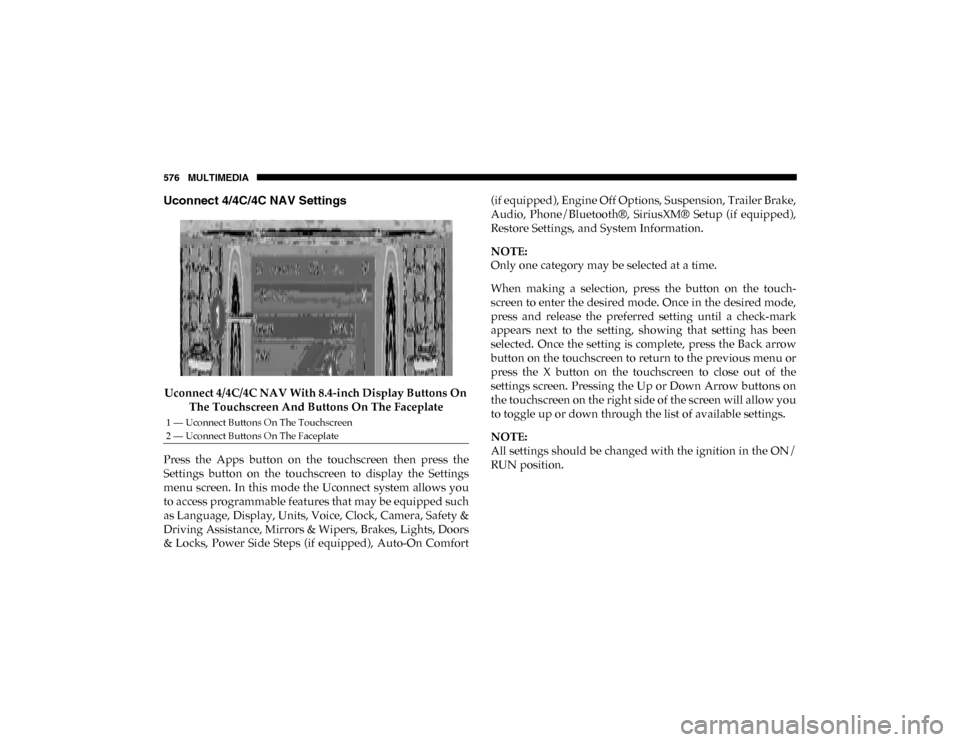
Uconnect 4/4C/4C NAV With 8.4-inch Display Buttons On The Touchscreen And Buttons On The Faceplate
Press the Apps button on the touchscreen then press the
Settings button on the touchscreen to display the Settings
menu screen. In this mode the Uconnect system allows you
to access programmable features that may be equipped such
as Language, Display, Units, Voice, Clock, Camera, Safety &
Driving Assistance, Mirrors & Wipers, Brakes, Lights, Doors
& Locks, Power Side Steps (if equipped), Auto-On Comfort (if equipped), Engine Off Options, Suspension, Trailer Brake,
Audio, Phone/Bluetooth®, SiriusXM® Setup (if equipped),
Restore Settings, and System Information.
NOTE:
Only one category may be selected at a time.
When making a selection, press the button on the touch
-
screen to enter the desired mode. Once in the desired mode,
press and release the preferred setting until a check-mark
appears next to the setting, showing that setting has been
selected. Once the setting is complete, press the Back arrow
button on the touchscreen to return to the previous menu or
press the X button on the touchscreen to close out of the
settings screen. Pressing the Up or Down Arrow buttons on
the touchscreen on the right side of the screen will allow you
to toggle up or down through the list of available settings.
NOTE:
All settings should be changed with the ignition in the ON/
RUN position.
1 — Uconnect Buttons On The Touchscreen
2 — Uconnect Buttons On The Faceplate
2020_DT_1500_OM_US.book Page 576
Page 582 of 674

580 MULTIMEDIA
Clock
After pressing the Clock button on the touchscreen, the following settings will be available:
Camera
After pressing the Camera button on the touchscreen, the following settings will be available:Setting Name
Selectable Options
Sync Time With GPS — If Equipped OnOff
Set Time Hours –+
Set Time Minutes –+
Time Format 12 hrs
24 hrs
AM PM
Show Time In Status Bar — If Equipped On
Off
NOTE:
The “Show Time In Status Bar” feature allows you to turn on or shut off the digital clock in the status bar.
Setting Name Selectable Options
ParkView Backup Camera Delay OnOff
NOTE:
The “ParkView Backup Camera Delay” setting determines whether or not the screen will display the rear view image with
dynamic grid lines for up to 10 seconds after the vehicle is shifted out of REVERSE. This delay will be canceled if the vehicle’s
speed exceeds 8 mph (13 km/h), the transmission is shifted into PARK, or the ignition is switched to the OFF position.
2020_DT_1500_OM_US.book Page 580
Page 587 of 674

MULTIMEDIA 585
Lights
After pressing the Lights button on the touchscreen, the following settings will be available:Setting Name Selectable Options
Headlight Off Delay –+
NOTE:
When the “Headlight Off Delay” feature is selected, the driver can choose to have the headlights remain on for 0, 30, 60, or
90 seconds when exiting the vehicle. Headlight Illumination On Approach –+
NOTE:
When the “Headlight Illumination On Approach” feature is selected, the headlights will activate and remain on for 0, 30, 60,
or 90 seconds when the doors are unlocked with the key fob. Headlights With Wipers — If Equipped On
Off
NOTE:
When the “Headlights With Wipers” feature is selected, and the headlight switch is in the AUTO position, the headlights
turn on approximately 10 seconds after the wipers are turned on. The headlights also turn off when the wipers are turned
off if they were turned on by this feature. Auto Dim High Beams — If Equipped OnOff
NOTE:
When the “Auto Dim High Beams” feature is selected, the high beam headlights deactivate automatically under certain
conditions.
9
2020_DT_1500_OM_US.book Page 585
Page 588 of 674

586 MULTIMEDIA
Doors & Locks
After pressing the Doors & Locks button on the touchscreen, the following settings will be available:Daytime Running Lights — If
Equipped On
Off
NOTE:
When the “Daytime Running Light” feature is selected, the daytime running lights can be turned on or off. This feature is
only allowed by law in the country of the vehicle purchase. Flash Lights With Lock OnOff
NOTE:
When the “Flash Lights With Lock” feature is selected, the exterior lamps flash when the doors are locked or unlocked with
the key fob. This feature may be selected with or without the sound horn on lock feature selected. Setting Name
Selectable Options
Setting NameSelectable Options
Auto Door Locks — If Equipped On
Off
NOTE:
When the “Auto Door Locks” feature is selected, all doors lock automatically when the vehicle reaches a speed of 15 mph
(24 km/h).
2020_DT_1500_OM_US.book Page 586
Page 589 of 674

MULTIMEDIA 587
Auto Unlock On ExitOn Off
NOTE:
When the “Auto Unlock On Exit” feature is selected, all doors unlock when the vehicle is stopped and the transmission is in
the PARK or NEUTRAL position and the driver's door is opened. Flash Lights With Lock On Off
NOTE:
When the “Flash Lights With Lock” feature is selected, the front and rear turn signals flash when the doors are locked or
unlocked with the key fob. This feature may be selected with or without the “Sound Horn With Lock” feature selected. Sound Horn With Lock Off1st Press 2nd Press
Sound Horn With Remote Start On
Off
Setting Name
Selectable Options
9
2020_DT_1500_OM_US.book Page 587
Page 590 of 674

588 MULTIMEDIA
1st Press Of Key Fob Unlocks Driver Door
All Doors
NOTE:
• When “1st Press Of Key Fob Unlocks: Driver Door” is selected, only the driver's door unlocks on the first press of the key fob unlock button. You must push the key fob unlock button twice to unlock the passengers’ doors.
• When “All Doors” is selected, all of the doors unlock on the first push of the key fob unlock button.
• If the vehicle is programmed “1st Press Of Key Fob Unlocks: All Doors”, all doors will unlock no matter which Passive Entry equipped door handle is grasped. If “1st Press Of Key Fob Unlocks: Driver Door” is programmed, only the driver’s
door will unlock when the driver’s door is grasped.
• With Passive Entry, if “1st Press Of Key Fob Unlocks: Driver Door” is programmed pushing the handle more than once only results in the driver’s door opening. If “Driver Door” is selected, once the driver’s door is opened, the interior door
lock/unlock switch can be used to unlock all doors (or use key fob).
Passive Entry — If Equipped On Off
NOTE:
The “Passive Entry” feature allows you to lock and unlock the vehicle’s door(s) without having to push the key fob lock or
unlock buttons. Setting Name
Selectable Options
2020_DT_1500_OM_US.book Page 588
Page 591 of 674

MULTIMEDIA 589
Power Side Steps — If Equipped
After pressing the Power Side Steps button on the touchscreen, the following settings will be available:Personal Settings Linked To
Key Fob — If Equipped On
Off
NOTE:
• The “Personal Settings Linked To Key Fob” feature provides automatic driver seat positioning to enhance driver mobility when entering and exiting the vehicle.
• The seats return to the memorized seat location (if “Personal Settings Linked To Key Fob” is set to on) when the key fob is used to unlock the door. Setting Name
Selectable Options
Setting NameSelectable Options
Power Side Steps AutomaticStow
9
2020_DT_1500_OM_US.book Page 589
Page 601 of 674

MULTIMEDIA 599
Reset — If Equipped
After pressing the Reset button on the touchscreen, the following settings will be available:
Restore Settings
After pressing the Restore Settings button on the touchscreen, the following settings will be available:
Clear Personal Data
After pressing the Clear Personal Data button on the touchscreen, the following settings will be available:Setting Name
Selectable Options
Reset App Drawer OKCancel
Setting Name Selectable Options
Restore Settings OKCancel
NOTE:
When the “Restore Settings” feature is selected, it resets clock, audio, and other features to their default settings.
Setting Name Selectable Options
Clear Personal Data OKCancel
NOTE:
When the “Clear Personal Data” feature is selected, it removes all personal data including Bluetooth® devices and presets.
9
2020_DT_1500_OM_US.book Page 599