phone Ram 1500 2020 Owner's Guide
[x] Cancel search | Manufacturer: RAM, Model Year: 2020, Model line: 1500, Model: Ram 1500 2020Pages: 674, PDF Size: 32.69 MB
Page 615 of 674

MULTIMEDIA 613
Engine Off Options
After pressing the Engine Off Options button on the touchscreen, the following settings will be available:Setting Name Selectable Options
Easy Exit Seat — If Equipped OnOff
NOTE:
When the “Easy Exit Seat” feature is selected, the Driver’s seat will automatically move rearward once the engine is shut off. Engine Off Power Delay +–
NOTE:
When the “Engine Off Power Delay” feature is selected, the power window switches, radio, Uconnect phone system (if
equipped), power sunroof (if equipped), and power outlets will remain active for up to 10 minutes after the ignition is cycled
to OFF. Opening either front door will cancel this feature. Headlight Off Delay +–
NOTE:
When the “Headlight Off Delay” feature is selected, the driver can choose to have the headlights remain on for 0, 30, 60, or
90 seconds when exiting the vehicle. Auto Entry/Exit — If Equipped OnOff
9
2020_DT_1500_OM_US.book Page 613
Page 621 of 674

MULTIMEDIA 619
Bluetooth®
After pressing the Bluetooth® button on the touchscreen, the following settings will be available:Setting Name Selectable Options
Phone Pop-Ups Displayed in Cluster OnOff
Do Not Disturb List of Settings
NOTE:
Press “Do Not Disturb” to access the available settings. The following settings are: Auto Reply (both, text, call), Auto Reply
Message (custom, default), and Custom Auto Reply Message (create message). Paired Phones and Audio Devices List Of Paired Phones and Audio Sources
NOTE:
The “Paired Phones and Audio Sources” feature shows which phones and audio sources are paired to the Phone and Audio
Sources Settings system. For further information, refer to the Uconnect Owner’s Manual Supplement. Projection Manager Smartphone Device Mirroring On Smartphone Device Mirroring Off
Enable CarPlay Projections OnOff
Automatically Display Pop-Ups in Cluster On
Off
Set as Default Device OnOff
9
2020_DT_1500_OM_US.book Page 619
Page 627 of 674
MULTIMEDIA 625
Different scenarios are shown below when a non-phone
device is plugged into the smaller and larger USB Ports and
when a phone device is plugged into the smaller and larger
USB Ports:Device Plugged In Message Screen Plugging in a phone or another USB device may cause the
connection to a previous device to be lost.
If equipped, your vehicle may also contain a USB Port
located on the top tray of the vehicles center console.
Center Console USB Port
9
2020_DT_1500_OM_US.book Page 625
Page 628 of 674
626 MULTIMEDIA
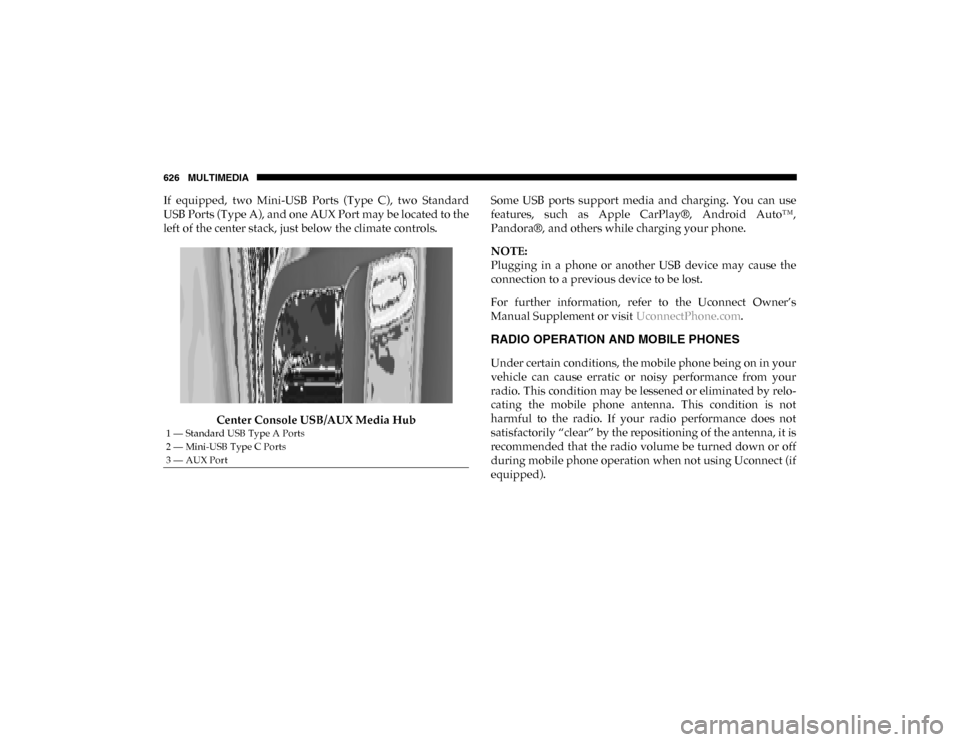
If equipped, two Mini-USB Ports (Type C), two Standard
USB Ports (Type A), and one AUX Port may be located to the
left of the center stack, just below the climate controls.Center Console USB/AUX Media Hub Some USB ports support media and charging. You can use
features, such as Apple CarPlay®, Android Auto™,
Pandora®, and others while charging your phone.
NOTE:
Plugging in a phone or another USB device may cause the
connection to a previous device to be lost.
For further information, refer to the Uconnect Owner’s
Manual Supplement or visit
UconnectPhone.com.
RADIO OPERATION AND MOBILE PHONES
Under certain conditions, the mobile phone being on in your
vehicle can cause erratic or noisy performance from your
radio. This condition may be lessened or eliminated by relo -
cating the mobile phone antenna. This condition is not
harmful to the radio. If your radio performance does not
satisfactorily “clear” by the repositioning of the antenna, it is
recommended that the radio volume be turned down or off
during mobile phone operation when not using Uconnect (if
equipped).
1 — Standard USB Type A Ports
2 — Mini-USB Type C Ports
3 — AUX Port
2020_DT_1500_OM_US.book Page 626
Page 629 of 674

MULTIMEDIA 627
Regulatory And Safety Information
USA/CANADA
Exposure to Radio Frequency Radiation
The radiated output power of the internal wireless radio is
far below the FCC and IC radio frequency exposure limits.
Nevertheless, the wireless radio will be used in such a
manner that the radio is 8 in (20 cm) or further from the
human body.
The internal wireless radio operates within guidelines found
in radio frequency safety standards and recommendations,
which reflect the consensus of the scientific community.
The radio manufacturer believes the internal wireless radio
is safe for use by consumers. The level of energy emitted is
far less than the electromagnetic energy emitted by wireless
devices such as mobile phones. However, the use of wireless
radios may be restricted in some situations or environments,
such as aboard airplanes. If you are unsure of restrictions,
you are encouraged to ask for authorization before turning
on the wireless radio.The following regulatory statement applies to all Radio
Frequency (RF) devices equipped in this vehicle:
This device complies with Part 15 of the FCC Rules and with
Innovation, Science and Economic Development Canada
license-exempt RSS standard(s). Operation is subject to the
following two conditions:
1. This device may not cause harmful interference.
2. This device must accept any interference received,
including interference that may cause undesired opera -
tion.
Le présent appareil est conforme aux CNR d`Innovation,
Science and Economic Development applicables aux appar -
eils radio exempts de licence. L'exploitation est autorisée aux
deux conditions suivantes:
1. l'appareil ne doit pas produire de brouillage, et
2. l'utilisateur de l'appareil doit accepter tout brouillage radioélectrique subi, même si le brouillage est susceptible
d'en compromettre le fonctionnement.
9
2020_DT_1500_OM_US.book Page 627
Page 631 of 674
MULTIMEDIA 629
Get Started
All you need to control your Uconnect system with your
voice are the buttons on your steering wheel.
1. Visit UconnectPhone.com to check mobile device and
feature compatibility and to find phone pairing instruc -
tions.
2. Reduce background noise. Wind noise and passenger conversations are examples of noise that may impact
recognition.
3. Speak clearly at a normal pace and volume while facing straight ahead. The microphone is located in the head -
liner and aimed at the driver.
4. Each time you give a Voice Command, you must first push either the VR or Phone button, wait until after the
beep, then say your Voice Command.
5. You can interrupt the help message or system prompts by pushing the VR or Phone button and saying a Voice
Command from current category.
Basic Voice Commands
The basic Voice Commands below can be given at any point
while using your Uconnect system.
Push the VR button . After the beep, say:
• “Cancel ” to stop a current voice session.
• “Help ” to hear a list of suggested Voice Commands.
• “Repeat ” to listen to the system prompts again.
Notice the visual cues that inform you of your voice recogni -
tion system’s status. Cues appear on the top of the touch -
screen.
Uconnect 3 With 5-inch Display
9
2020_DT_1500_OM_US.book Page 629
Page 636 of 674

634 MULTIMEDIA
Uconnect 4C NAV With 12-inch Display Media
Phone
Making and answering hands-free phone calls is easy with
Uconnect. When the Phonebook button is illuminated on
your touchscreen, your system is ready. Check Uconnect-
Phone.com for mobile phone compatibility and pairing
instructions.
Push the Phone button . After the beep, say one of the
following commands:
• “Call John Smith”
• “Dial 123-456-7890 and follow the system prompts”
• “Redial (call previous outgoing phone number)”
• “Call back (call previous incoming phone number)”
TIP:
When providing a Voice Command, push the Phone button and say “ Call,” then pronounce the name exactly as it
appears in your phone book. When a contact has multiple
phone numbers, you can say “ Call John Smith work.”
2020_DT_1500_OM_US.book Page 634
Page 637 of 674

MULTIMEDIA 635
Uconnect 3 PhoneUconnect 4/4C/4C NAV With 8.4-inch Display
9
2020_DT_1500_OM_US.book Page 635
Page 638 of 674
636 MULTIMEDIA
Uconnect 4C NAV With 12-inch Display Phone
Voice Text Reply
Uconnect announces incoming text messages. Push the VR
button or Phone button (if enabled) and say “ Listen.”
(Must have compatible mobile phone paired to Uconnect
system.)
1. Once an incoming text message is read to you, push the
VR button or Phone button (if enabled). After the
beep, say: “ Reply.”
2. Listen to the Uconnect prompts. After the beep, repeat one of the pre-defined messages and follow the system
prompts.
PRE-DEFINED VOICE TEXT REPLY RESPONSES
Yes. Stuck in traffic. See you later.No. Start without me. I’ll be late.
Okay. Where are you? I will be 5
Call me. Are you there yet?
I’ll call you later. I need directions. See you in 5
I’m on my way.
Can’t talk right
now.
I’m lost. Thanks.
2020_DT_1500_OM_US.book Page 636
Page 639 of 674
MULTIMEDIA 637
NOTE:
Only use the numbering listed, otherwise the system does
not transpose the message.
TIP:
Your mobile phone must have the full implementation of the
Message Access Profile (MAP) to take advantage of this
feature. For details about MAP, visit UconnectPhone.com.
Apple® iPhone® iOS 6 or later supports reading incoming
text messages only. To enable this feature on your Apple®
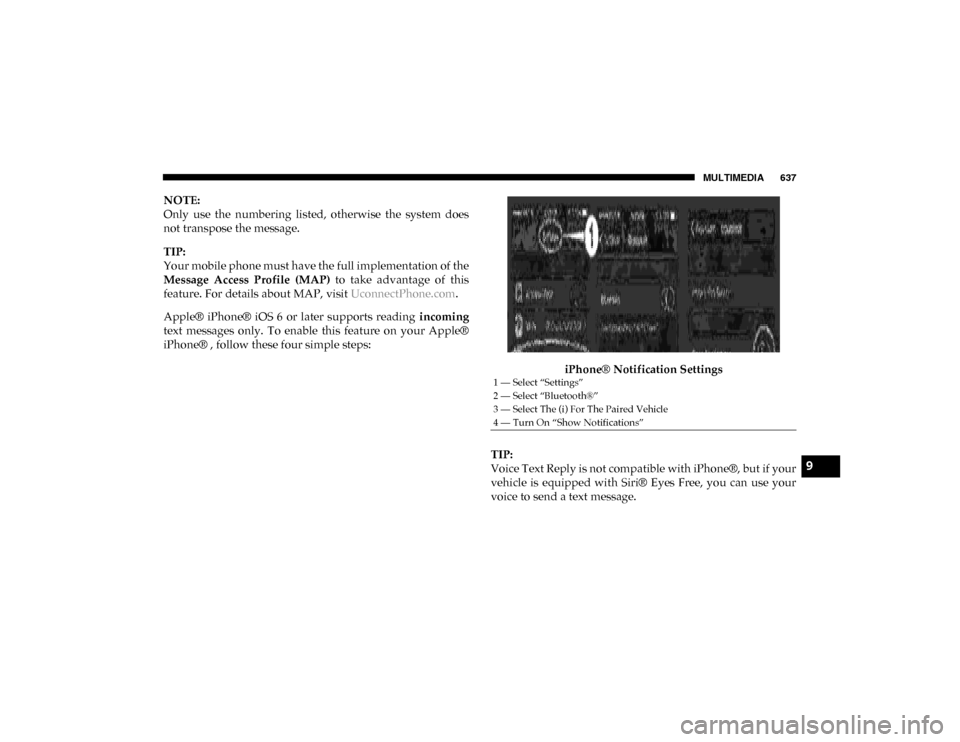
iPhone® , follow these four simple steps:
iPhone® Notification Settings
TIP:
Voice Text Reply is not compatible with iPhone®, but if your
vehicle is equipped with Siri® Eyes Free, you can use your
voice to send a text message.
1 — Select “Settings”
2 — Select “Bluetooth®”
3 — Select The (i) For The Paired Vehicle
4 — Turn On “Show Notifications”
9
2020_DT_1500_OM_US.book Page 637