reset Ram 1500 2020 Owner's Guide
[x] Cancel search | Manufacturer: RAM, Model Year: 2020, Model line: 1500, Model: Ram 1500 2020Pages: 674, PDF Size: 32.69 MB
Page 479 of 674

IN CASE OF EMERGENCY 477
NOTE:
When the lever is locked in the released position the access
cover cannot be reinstalled.
4. Behind the Manual Park Release access cover is theorange tether strap. Pull the tether strap out as far as it
will go, then release it. The tether and lever will remain
outside of the trim panel and the transmission should
now be in NEUTRAL, allowing the vehicle to be moved.
To Reset The Manual Park Release:
1. Apply firm pressure to the brake pedal while seated in the driver’s seat.
2. Pull the tether strap out again, then release it.
3. Allow the tether to retract with the lever back to its orig -
inal position.
4. Verify the transmission is in PARK.
5. Confirm that the tether has retracted fully and re-install the access cover. If the access cover cannot be reinstalled,
repeat steps 1 though 4.
6. Re-install the access cover.FREEING A STUCK VEHICLE
If your vehicle becomes stuck in mud, sand, or snow, it can
often be moved using a rocking motion. Turn the steering
wheel right and left to clear the area around the front wheels.
Then shift back and forth between DRIVE (D) and REVERSE
(R), while gently pressing the accelerator. Use the least
amount of accelerator pedal pressure that will maintain the
rocking motion, without spinning the wheels or racing the
engine.
NOTE:
Shifts between DRIVE and REVERSE can only be achieved at
wheel speeds of 5 mph (8 km/h) or less. Whenever the trans -
mission remains in NEUTRAL (N) for more than two
seconds, you must press the brake pedal to engage DRIVE or
REVERSE.
NOTE:
Push the “ESC Off” switch, to place the Electronic Stability
Control (ESC) system in “Partial Off” mode, before rocking
the vehicle. Refer to “Electronic Brake Control” in “Safety”
for further information. Once the vehicle has been freed,
push the “ESC Off” switch again to restore “ESC On” mode.
6
2020_DT_1500_OM_US.book Page 477
Page 484 of 674

482
SERVICING AND MAINTENANCE
SCHEDULED SERVICING
Your vehicle is equipped with an automatic oil change indi-
cator system. The oil change indicator system will remind
you that it is time to take your vehicle in for scheduled main -
tenance.
Based on engine operation conditions, the oil change indi -
cator message will illuminate. This means that service is
required for your vehicle. Operating conditions such as
frequent short-trips, trailer tow, and extremely hot or cold
ambient temperatures will influence when the “Oil Change
Required” message is displayed. Severe Operating Condi -
tions can cause the change oil message to illuminate as early
as 3,500 miles (5,600 km) since last reset. Have your vehicle
serviced as soon as possible, within the next 500 miles
(805 km).
An authorized dealer will reset the oil change indicator
message after completing the scheduled oil change. If a
scheduled oil change is performed by someone other than your authorized dealer, the message can be reset by referring
to the steps described under “Instrument Cluster Display” in
“Getting To Know Your Instrument Panel”.
NOTE:
Under no circumstances should oil change intervals exceed
10,000 miles (16,000 km), 12 months or 350 hours of engine
run time, whichever comes first. The 350 hours of engine run
or idle time is generally only a concern for fleet customers.
Severe Duty All Models
NOTE:
Change Engine Oil at 4,000 miles (6,500 km) or 350 hours of
engine run time if the vehicle is operated in a dusty and off
road environment or is operated predominantly at idle, or
only very low engine RPM. This type of vehicle use is consid
-
ered Severe Duty.
2020_DT_1500_OM_US.book Page 482
Page 516 of 674

514 SERVICING AND MAINTENANCE
Special Additives
The manufacturer strongly recommends against using any
special additives in the transmission. Automatic Transmis-
sion Fluid (ATF) is an engineered product and its perfor -
mance may be impaired by supplemental additives.
Therefore, do not add any fluid additives to the transmis -
sion. Avoid using transmission sealers as they may
adversely affect seals.
Fluid Level Check
The fluid level is preset at the factory and does not require
adjustment under normal operating conditions. Routine
fluid level checks are not required, therefore the transmis -
sion has no dipstick. An authorized dealer can check your
transmission fluid level using special service tools. If you notice fluid leakage or transmission malfunction, visit
an authorized dealer immediately to have the transmission
fluid level checked. Operating the vehicle with an improper
fluid level can cause severe transmission damage.
Fluid And Filter Changes
Under normal operating conditions, the fluid installed at the
factory will provide satisfactory lubrication for the life of the
vehicle.
Routine fluid and filter changes are not required. However,
change the fluid and filter if the fluid becomes contaminated
(with water, etc.), or if the transmission is disassembled for
any reason.
CAUTION!
Do not use chemical flushes in your transmission as the
chemicals can damage your transmission components.
Such damage is not covered by the New Vehicle Limited
Warranty.
CAUTION!
If a transmission fluid leak occurs, visit an authorized
dealer immediately. Severe transmission damage may
occur. An authorized dealer has the proper tools to adjust
the fluid level accurately.
2020_DT_1500_OM_US.book Page 514
Page 577 of 674

MULTIMEDIA 575
Restore Settings
After pressing the Restore Settings button on the touchscreen, the following settings will be available:
Clear Personal Data
After pressing the Clear Personal Data Settings button on the touchscreen, the following settings will be available:Setting Name
Selectable Options
Restore Settings YesCancel
NOTE:
When the “Restore Settings” feature is selected, it will reset the Display, Clock, Audio, and Radio Settings to their default
settings. If “Yes” is selected, a pop-up will appear asking "Are you sure you want to reset your settings to default?” Select
“Yes” to restore or “Cancel” to exit.
Setting Name Selectable Options
Clear Personal Data YesCancel
NOTE:
When this feature is selected, it will remove all personal data including Bluetooth® devices and presets. If “Yes” is selected,
a pop-up will appear asking "Are you sure you want to clear all personal data?” Select “Yes” to Clear or “Cancel” to exit.
9
2020_DT_1500_OM_US.book Page 575
Page 599 of 674

MULTIMEDIA 597
SiriusXM® Setup — If Equipped
After pressing the SiriusXM® Setup button on the touchscreen, the following settings will be available:Setting Name Selectable Options
Tune Start OnOff
NOTE:
The “Tune Start” feature begins playing the current song from the beginning when you tune to a music channel using one
of the twelve presets, so you can enjoy the complete song. This feature occurs the first time the preset is selected during that
current song. Tune Start works in the background, so you will not even realize it's on, except that you will miss the experience
of joining your favorite song with only a few seconds left to play. Channel Skip List of Channels
NOTE:
SiriusXM® can be programmed to designate a group of channels that are the most desirable to listen to or to exclude unde -
sirable channels while scanning. This feature allows you to select the channels you would like to skip.
9
2020_DT_1500_OM_US.book Page 597
Page 601 of 674

MULTIMEDIA 599
Reset — If Equipped
After pressing the Reset button on the touchscreen, the following settings will be available:
Restore Settings
After pressing the Restore Settings button on the touchscreen, the following settings will be available:
Clear Personal Data
After pressing the Clear Personal Data button on the touchscreen, the following settings will be available:Setting Name
Selectable Options
Reset App Drawer OKCancel
Setting Name Selectable Options
Restore Settings OKCancel
NOTE:
When the “Restore Settings” feature is selected, it resets clock, audio, and other features to their default settings.
Setting Name Selectable Options
Clear Personal Data OKCancel
NOTE:
When the “Clear Personal Data” feature is selected, it removes all personal data including Bluetooth® devices and presets.
9
2020_DT_1500_OM_US.book Page 599
Page 602 of 674
600 MULTIMEDIA
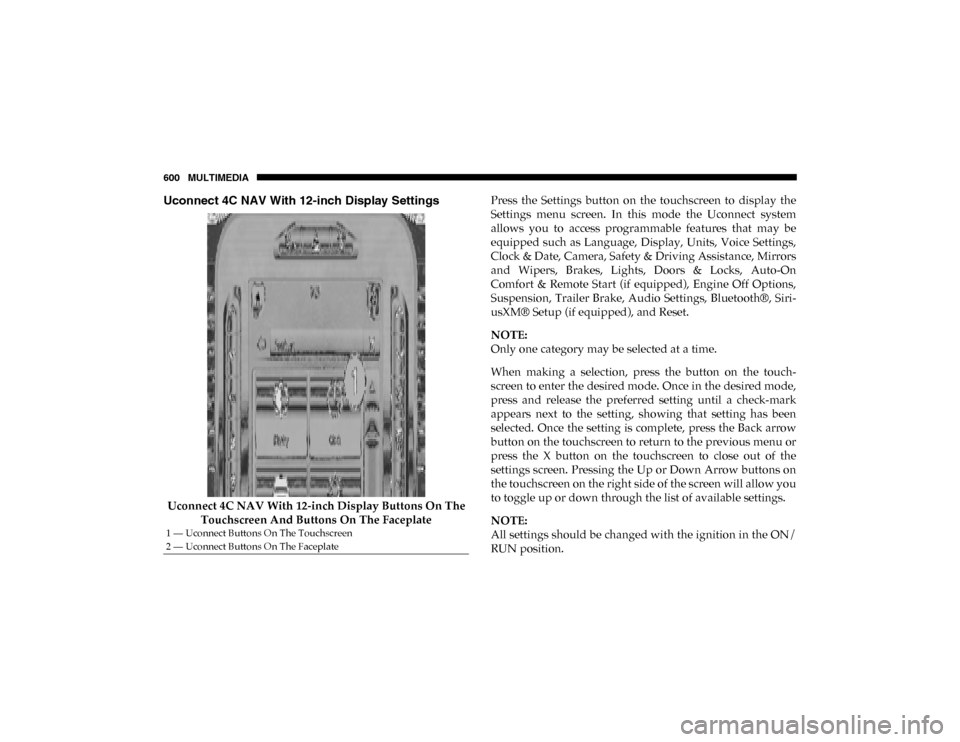
Uconnect 4C NAV With 12-inch Display Settings
Uconnect 4C NAV With 12-inch Display Buttons On The Touchscreen And Buttons On The Faceplate Press the Settings button on the touchscreen to display the
Settings menu screen. In this mode the Uconnect system
allows you to access programmable features that may be
equipped such as Language, Display, Units, Voice Settings,
Clock & Date, Camera, Safety & Driving Assistance, Mirrors
and Wipers, Brakes, Lights, Doors & Locks, Auto-On
Comfort & Remote Start (if equipped), Engine Off Options,
Suspension, Trailer Brake, Audio Settings, Bluetooth®, Siri
-
usXM® Setup (if equipped), and Reset.
NOTE:
Only one category may be selected at a time.
When making a selection, press the button on the touch -
screen to enter the desired mode. Once in the desired mode,
press and release the preferred setting until a check-mark
appears next to the setting, showing that setting has been
selected. Once the setting is complete, press the Back arrow
button on the touchscreen to return to the previous menu or
press the X button on the touchscreen to close out of the
settings screen. Pressing the Up or Down Arrow buttons on
the touchscreen on the right side of the screen will allow you
to toggle up or down through the list of available settings.
NOTE:
All settings should be changed with the ignition in the ON/
RUN position.
1 — Uconnect Buttons On The Touchscreen
2 — Uconnect Buttons On The Faceplate
2020_DT_1500_OM_US.book Page 600
Page 622 of 674

620 MULTIMEDIA
SiriusXM® Setup — If Equipped
After pressing the SiriusXM® Setup button on the touchscreen, the following settings will be available:Setting Name Selectable Options
Sirius All Access Choose a Subscription Package
Add Listener Add up to five profiles
NOTE:
The “Add Listener” feature allows you to add up to five different profiles for customizing personal music or satellite radio
choices. Listener Items Listening History List Of Options
Tune Start OnOff
NOTE:
The “Tune Start” feature begins playing the current song from the beginning when you tune to a music channel using one
of the 12 presets, so you can enjoy the complete song. This feature occurs the first time the preset is selected during that
current song. Tune Start works in the background, so you will not even realize it's on, except that you will miss the experience
of joining your favorite song with only a few seconds left to play. Channel Skip List of Channels
NOTE:
SiriusXM® can be programmed to designate a group of channels that are the most desirable to listen to or to exclude unde -
sirable channels while scanning. This feature allows you to select the channels you would like to skip.
2020_DT_1500_OM_US.book Page 620
Page 623 of 674

MULTIMEDIA 621
Reset
After pressing the Reset button on the touchscreen, the following settings will be available:Subscription Information
Sirius ID
NOTE:
New vehicle purchasers or lessees will receive a free limited time subscription to SiriusXM® Satellite Radio with your radio.
Following the expiration of the free services, it will be necessary to access the information on the Subscription Information
screen to re-subscribe.
1. Press the Subscription Information button on the touchscreen to access the Subscription Information screen.
2. Write down the Sirius ID numbers for your receiver. To reactivate your service, either call the number listed on the screen or visit the provider online.
SiriusXM® Travel Link is a separate subscription. Setting Name
Selectable Options
Setting NameSelectable Options
Reset App Drawer To Default Order YesCancel
Restore Settings YesCancel
NOTE:
When the “Restore Settings” feature is selected, it resets all settings to their default settings. Clear Personal Data YesCancel
NOTE:
When the “Clear Personal Data” feature is selected, it removes all personal data including Bluetooth® devices and presets. Clear SiriusXM® Data YesCancel
9
2020_DT_1500_OM_US.book Page 621
Page 624 of 674
622 MULTIMEDIA
STEERING WHEEL AUDIO CONTROLS — IF
EQUIPPED
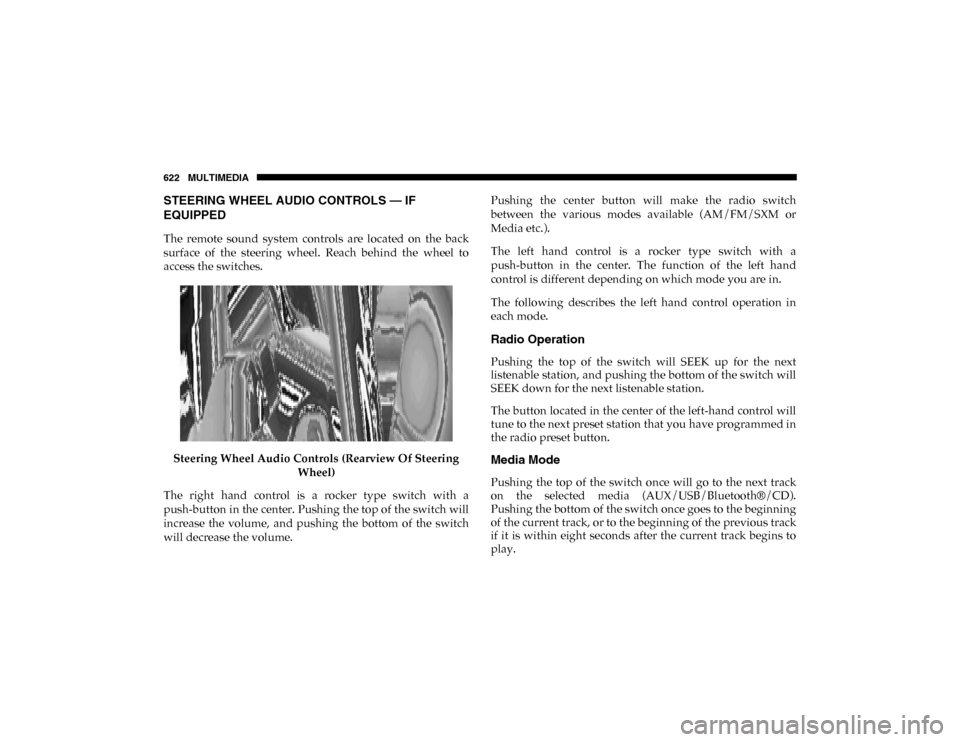
The remote sound system controls are located on the back
surface of the steering wheel. Reach behind the wheel to
access the switches.Steering Wheel Audio Controls (Rearview Of Steering Wheel)
The right hand control is a rocker type switch with a
push-button in the center. Pushing the top of the switch will
increase the volume, and pushing the bottom of the switch
will decrease the volume. Pushing the center button will make the radio switch
between the various modes available (AM/FM/SXM or
Media etc.).
The left hand control is a rocker type switch with a
push-button in the center. The function of the left hand
control is different depending on which mode you are in.
The following describes the left hand control operation in
each mode.
Radio Operation
Pushing the top of the switch will SEEK up for the next
listenable station, and pushing the bottom of the switch will
SEEK down for the next listenable station.
The button located in the center of the left-hand control will
tune to the next preset station that you have programmed in
the radio preset button.
Media Mode
Pushing the top of the switch once will go to the next track
on the selected media (AUX/USB/Bluetooth®/CD).
Pushing the bottom of the switch once goes to the beginning
of the current track, or to the beginning of the previous track
if it is within eight seconds after the current track begins to
play.
2020_DT_1500_OM_US.book Page 622