AUX RAM 1500 2021 User Guide
[x] Cancel search | Manufacturer: RAM, Model Year: 2021, Model line: 1500, Model: RAM 1500 2021Pages: 496, PDF Size: 20.89 MB
Page 254 of 496

252MULTIMEDIA
Phone/Bluetooth®
When the Phone/Bluetooth® button is pressed on the touchscreen, the system displays the options related to Bluetooth® connectivity from an external
audio device or smartphone. The list of paired audio devices or smartphones can be accessed from this menu.Speed Adjusted Volume
This setting will adjust audio volume as speeds increase. At a higher
setting, the volume will increase more as the vehicle speeds up. The
available setting are “Off”, “1”, “2”, and “3”.
Surround Sound — If Equipped This setting will turn the Surround Sound system on or off.
AUX Volume Offset This setting will tune the audio levels from a device connected through
the AUX port. The available settings are “+” and “-”.
Auto Play This setting will automatically begin playing audio from a connected
device.
Loudness This setting will improve audio quality at lower volumes.
Setting NameDescription
Setting NameDescription
Phone Pop-Ups Displayed In Cluster This setting will activate phone message pop-ups in the instrument
cluster display.
Do Not Disturb This setting will open the “Do Not Disturb” settings menu. The settings
are Auto Reply (both, text, call), Auto Reply Message (custom, default),
and Custom Auto Reply Message (create message).
Paired Phones This setting will show the list of paired phones.
Paired Audio Sources This setting will show the list of paired audio sources.
Paired Phones And Audio Devices This setting will show the list of paired phones and audio devices.
21_DT_OM_EN_USC_t.book Page 252
Page 261 of 496

MULTIMEDIA259
UCONNECT MODES
STEERING WHEEL AUDIO CONTROLS
The remote sound system controls are located
on the rear surface of the steering wheel at the
three and nine o’clock positions.
Remote Sound System Controls
The right-hand control is a rocker-type switch
with a push button in the center and controls
the volume and mode of the sound system.
Pushing the top of the rocker switch will
increase the volume, and pushing the bottom of
the rocker switch will decrease the volume.
Pushing the center button will make the radio
switch between the various modes available
(AM/FM/SXM or Media, etc.). The left-hand control is a rocker-type switch with
a push button in the center. The function of the
left-hand control is different depending on
which mode you are in.
The following describes the left-hand control
operation in each mode:
Radio Operation
Pushing the top of the switch will Seek Up for
the next available station and pushing the
bottom of the switch will Seek Down for the next
available station.
The button located in the center of the left-hand
control will tune to the next preset station that
you have programmed in the radio presets.
Media Mode
Pushing the top of the switch skips to the next
track on the selected media (AUX/USB/
Bluetooth®). Pushing the switch up twice will go
forward two tracks. Pushing the bottom switch
goes to the beginning of the current track, or the
beginning of the previous track if it is within
eight seconds after the current track begins to
play. Double pressing the bottom button switch
will skip to the previous track if it is after eight
seconds into the current track.
RADIO MODE
Radio Controls
Uconnect 3 With 5-inch Display
1 — Preset Radio Stations
2 — All Preset Radio Stations
3 — Seek Up
4 — Audio Settings
5 — Station Info
6 — Tune
7 — Radio Band (AM/FM)
8 — Seek Down
5
21_DT_OM_EN_USC_t.book Page 259
Page 268 of 496
266MULTIMEDIA
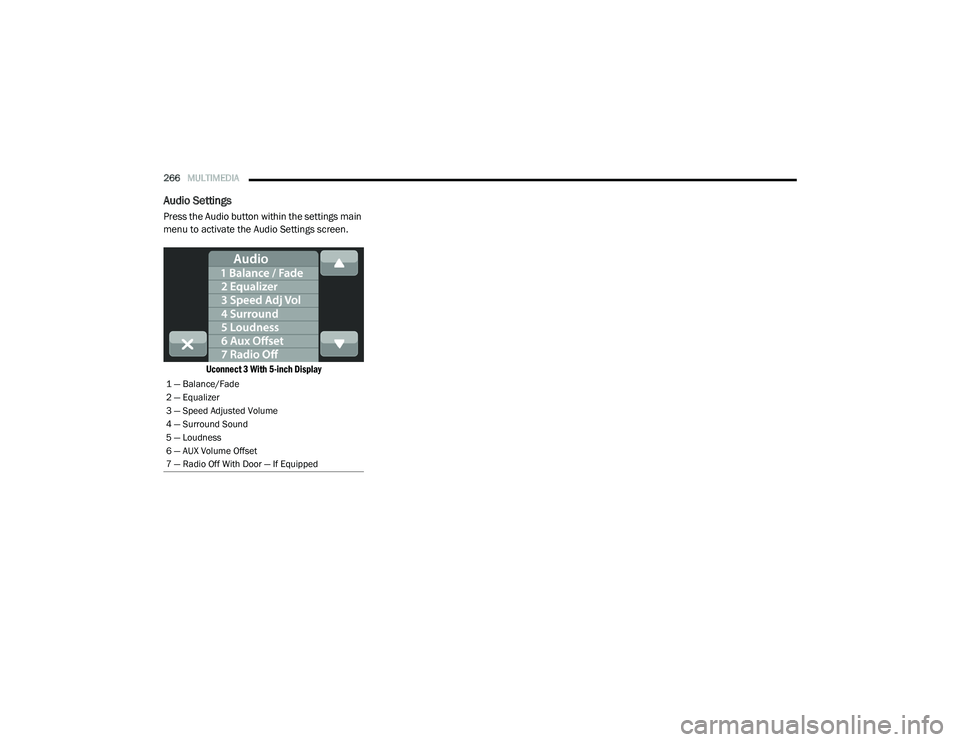
Audio Settings
Press the Audio button within the settings main
menu to activate the Audio Settings screen.
Uconnect 3 With 5-inch Display
1 — Balance/Fade
2 — Equalizer
3 — Speed Adjusted Volume
4 — Surround Sound
5 — Loudness
6 — AUX Volume Offset
7 — Radio Off With Door — If Equipped
21_DT_OM_EN_USC_t.book Page 266
Page 269 of 496
MULTIMEDIA267
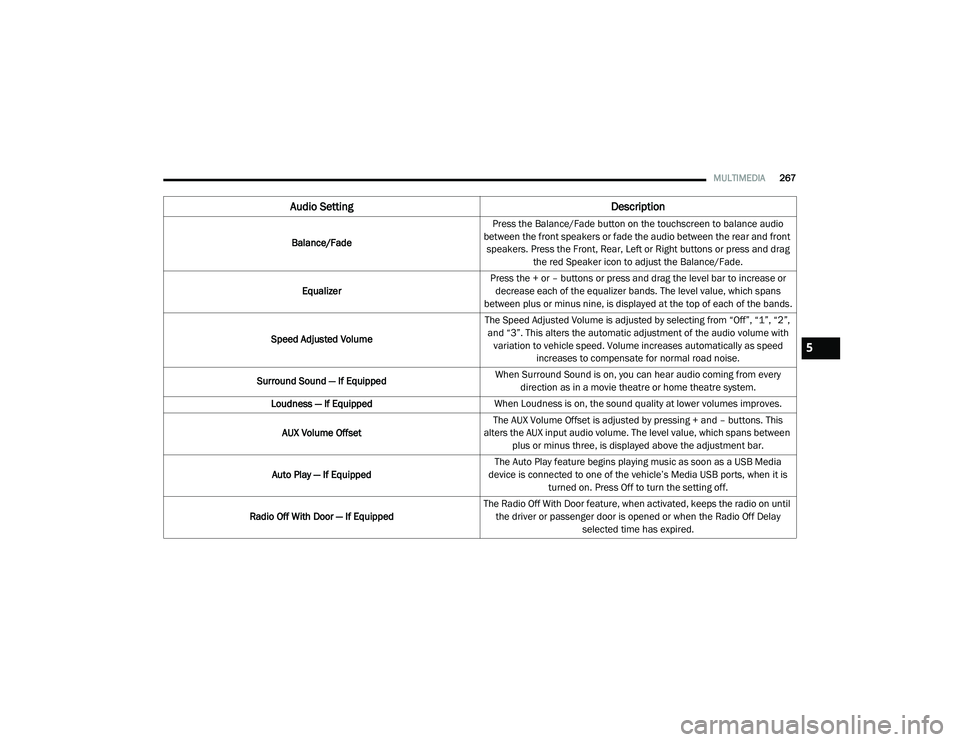
Audio Setting Description
Balance/FadePress the Balance/Fade button on the touchscreen to balance audio
between the front speakers or fade the audio between the rear and front speakers. Press the Front, Rear, Left or Right buttons or press and drag the red Speaker icon to adjust the Balance/Fade.
Equalizer Press the + or – buttons or press and drag the level bar to increase or
decrease each of the equalizer bands. The level value, which spans
between plus or minus nine, is displayed at the top of each of the bands.
Speed Adjusted Volume The Speed Adjusted Volume is adjusted by selecting from “Off”, “1”, “2”,
and “3”. This alters the automatic adjustment of the audio volume with variation to vehicle speed. Volume increases automatically as speed increases to compensate for normal road noise.
Surround Sound — If Equipped When Surround Sound is on, you can hear audio coming from every
direction as in a movie theatre or home theatre system.
Loudness — If Equipped When Loudness is on, the sound quality at lower volumes improves.
AUX Volume Offset The AUX Volume Offset is adjusted by pressing + and – buttons. This
alters the AUX input audio volume. The level value, which spans between plus or minus three, is displayed above the adjustment bar.
Auto Play — If Equipped The Auto Play feature begins playing music as soon as a USB Media
device is connected to one of the vehicle’s Media USB ports, when it is turned on. Press Off to turn the setting off.
Radio Off With Door — If Equipped The Radio Off With Door feature, when activated, keeps the radio on until
the driver or passenger door is opened or when the Radio Off Delay selected time has expired.
5
21_DT_OM_EN_USC_t.book Page 267
Page 270 of 496

268MULTIMEDIA
MEDIA MODE
Operating Media Mode
Uconnect 3 With 5-inch Display Operating Media Mode
Media Mode is entered by pushing the MEDIA
button located on the faceplate.
Audio Source Selection
Once in Media Mode, press the Source or
Source Select button on the touchscreen and the desired mode button on the touchscreen.
USB, AUX, and Bluetooth® are the Media
sources available. When available, you can
select the Browse button on the touchscreen to
be given these options:
Now Playing
Artists
Albums
Genres
Songs
Playlists
Folders
For the Uconnect 3 With 5-inch Display, Media
Mode is entered by pushing the Media button
located on the faceplate.
Types of Media Modes
USB Mode
Overview
USB Mode is entered by either inserting a USB
device into the USB Port, or by pressing the
Media button on the faceplate and then
selecting the USB button. On the Uconnect 3 with 5-inch Display, if you
insert a USB device with the ignition ON, the unit
will switch to USB Mode and begin to play. The
display will show the track number and index
time in minutes and seconds. Play will begin at
the start of track 1.
Bluetooth® Mode
Overview
Bluetooth® Streaming Audio or Bluetooth®
Mode is entered by pairing a Bluetooth®
device, containing music, to the Uconnect
system.
Before proceeding, the Bluetooth® device must
be paired to the Uconnect Phone to
communicate with the Uconnect system.
On the Uconnect 3 with 5-inch Display, push the
Media button located on the faceplate. Once in
Media Mode, press the Source button on the
touchscreen and select the Bluetooth® button
Ú
page 271.
To access Bluetooth® Mode, press the
Bluetooth® button on the left side of the
touchscreen or under the Source Select/Select
Source button (if equipped).
1 — Seek Down
2 — Seek Up
3 — Additional Functions
4 — Info
5 — Pause/Play
6 — Source
7 — Browse
21_DT_OM_EN_USC_t.book Page 268
Page 271 of 496

MULTIMEDIA269
AUX Mode
Overview
Auxiliary Mode (AUX) is entered by inserting an
AUX device using a cable with a 3.5 mm audio
jack into the AUX port or pushing the Media
button on the faceplate and then selecting the
Source button and then the AUX button.
To insert an Auxiliary device, gently insert the
Auxiliary device cable into the AUX Port. If you
insert an Auxiliary device with the ignition and
the radio on, the unit will switch to AUX Mode
and begin to play.
Controlling The Auxiliary Device
The control of the Auxiliary device (e.g.,
selecting playlists, play, fast forward, etc.)
cannot be provided by the radio; use the device
controls instead. Adjust the volume with the
Volume button, Volume/Mute rotary knob, or
the On/Off rotary knob, or with the volume of
the attached device.
NOTE:
The radio unit is acting as the amplifier for audio
output from the Auxiliary device. Therefore, if
the volume control on the Auxiliary device is set
too low, there will be insufficient audio signal for
the radio unit to play the music on the device. Seek Up
/ Seek Down
In USB Mode, press the Seek Up button on the
touchscreen for the next selection on the USB
device. Press and release the Seek Down
button on the touchscreen to return to the
beginning of the current selection, or to return
to the beginning of the previous selection if the
USB device is within the first three seconds of
the current selection.
In Bluetooth® Mode, press and release the
Seek Up button on the touchscreen for the next
selection on the Bluetooth® device. Press and
release the Seek Down button on the
touchscreen to return to the beginning of the
current selection, or return to the beginning of
the previous selection if the Bluetooth® device
is within the first second of the current
selection.
Browse
In USB Mode, press the Browse button on the
touchscreen to display the browse window. In
USB Mode, the left side of the browse window
displays a list of ways you can browse through
the contents of the USB device. If supported by
the device, you can browse by Folder, Artist,
Playlist, Album, Song, etc. Press the desired button on the touchscreen on the left side of the
screen. The center of the browse window shows
items and its sub-functions, which can be
scrolled through by pressing the Up and Down
buttons to the right. The Tune/Scroll knob can
also be used to scroll.
On the Uconnect 3 With 5-inch Display, rotate
the Browse button on the touchscreen to scroll
through and select a desired track on the
device. Press the Exit button on the
touchscreen if you wish to cancel the Browse
function.
Media Mode
In USB Mode, press the Media button on the
touchscreen to select the desired audio source:
USB.
In Bluetooth® Mode, press the Media button on
the touchscreen to select the desired audio
source: Bluetooth®.
In AUX Mode, press the Media button on the
touchscreen to select the desired audio source:
AUX.
5
21_DT_OM_EN_USC_t.book Page 269
Page 272 of 496

270MULTIMEDIA
Repeat
In USB Mode, press the Repeat button on the
touchscreen to toggle the repeat functionality.
The Repeat button on the touchscreen is
highlighted when active. The Radio will continue
to play the current track, repeatedly, as long as
the repeat is active. Press the Repeat button
again to enter Repeat All. The radio will continue
to play all the current tracks, repeatedly, as long
as the repeat function is active. To cancel
Repeat, press the Repeat button a third time.
Shuffle
In USB Mode, press the Shuffle button on the
touchscreen to play the selections on the USB
device in random order to provide an interesting
change of pace. Press the Shuffle button on the
touchscreen a second time to turn this feature
off.
Audio
Audio settings can be accessed by pressing the
Audio button Ú page 259. Info
In both Disc and USB Modes, press the Info
button on the touchscreen to display the
current track information. Press the Info or X
button on the touchscreen a second time to
cancel this feature.
Tracks
In both Disc and USB Modes, press the Tracks
button on the touchscreen to display a pop-up
with the Song List. The song currently playing is
indicated by an arrow and lines above and
below the song title. When in the Tracks List
screen you can rotate the Tune/Scroll knob to
highlight a track (indicated by the line above
and below the track name) and then push the
Enter/Browse knob to start playing that track.
In Bluetooth® Mode, if the Bluetooth® device
supports this feature, press the Tracks button
on the touchscreen to display a pop-up with the
Song List. The currently playing song is
indicated by a red arrow and lines above and
below the song title.
Pressing the Tracks button on the touchscreen
while the pop-up is displayed will close the
pop-up. Media Voice Commands
Uconnect offers connections via USB,
Bluetooth®, and auxiliary (AUX) ports. Voice
operation is only available for connected USB
and AUX devices.
Push the VR button located on the steering
wheel. After the beep, say one of the following
commands and follow the prompts to switch
your media source or choose an artist.
“
Change source to Bluetooth®”
“Change source to AUX”
“Change source to USB”
“Play artist Beethoven”; “ Play album
Greatest Hits”; “ Play song Moonlight
Sonata”; “ Play genre Classical”
Did You Know: Press the Browse button on the
touchscreen to see all of the music on your USB
device. Your Voice Command must match
exactly how the artist, album, song, and genre
information is displayed.
21_DT_OM_EN_USC_t.book Page 270
Page 320 of 496
318SAFETY
Ready Alert Braking (RAB)
RAB may reduce the time required to reach full
braking during emergency braking situations. It
anticipates when an emergency braking
situation may occur by monitoring how fast the
throttle is released by the driver. The Electronic
Brake Control System will prepare the brake
system for a panic stop.
Traction Control System (TCS)
TCS monitors the amount of wheel spin of each
of the driven wheels. If wheel spin is detected,
the TCS may apply brake pressure to the
spinning wheel(s) and/or reduce engine power
to provide enhanced acceleration and stability.
A feature of the TCS, Brake Limited Differential
(BLD), functions similarly to a limited slip
differential and controls the wheel spin across a
driven axle. If one wheel on a driven axle is
spinning faster than the other, the system will
apply the brake of the spinning wheel. This will
allow more engine torque to be applied to the
wheel that is not spinning. BLD may remain
enabled even if TCS and Electronic Stability
Control (ESC) are in reduced modes.
Trailer Sway Control (TSC)
TSC uses sensors in the vehicle to recognize an
excessively swaying trailer and will take the
appropriate actions to attempt to stop the sway.
NOTE:
TSC cannot stop all trailers from swaying.
Always use caution when towing a trailer and
follow the trailer tongue weight recommenda -
tions Ú page 214.
When TSC is functioning, the ESC Activation/
Malfunction Indicator Light will flash, the engine
power may be reduced and you may feel the
brakes being applied to individual wheels to
attempt to stop the trailer from swaying. TSC is
disabled when the ESC system is in the “Partial
Off” or “Full Off” modes.AUXILIARY DRIVING SYSTEMS
BLIND SPOT MONITORING (BSM) — IF
E
QUIPPED
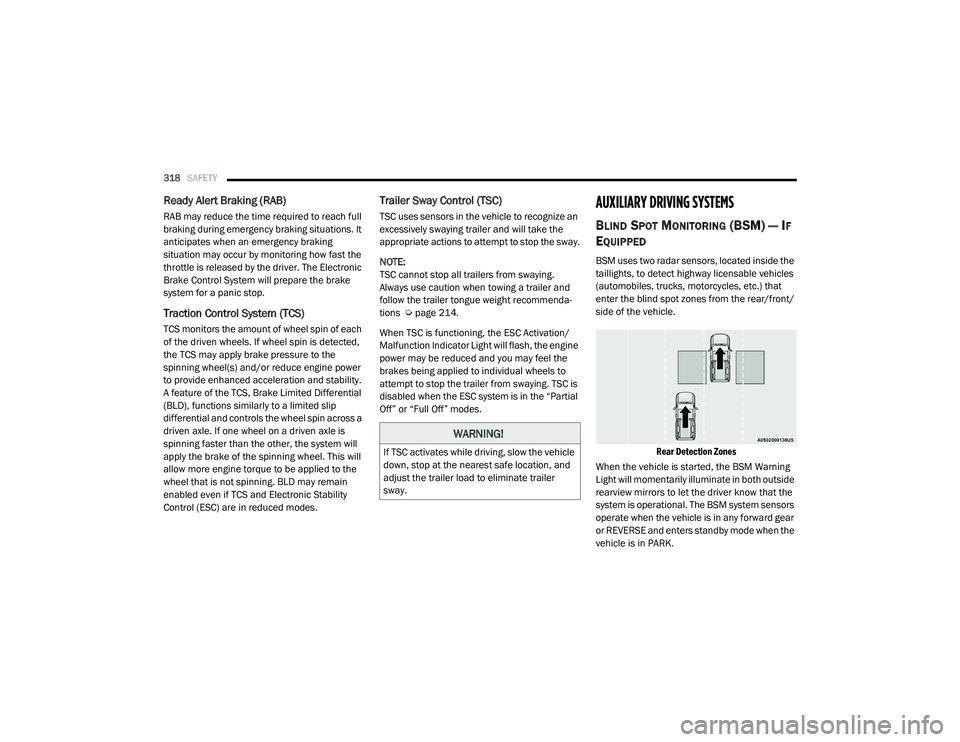
BSM uses two radar sensors, located inside the
taillights, to detect highway licensable vehicles
(automobiles, trucks, motorcycles, etc.) that
enter the blind spot zones from the rear/front/
side of the vehicle.
Rear Detection Zones
When the vehicle is started, the BSM Warning
Light will momentarily illuminate in both outside
rearview mirrors to let the driver know that the
system is operational. The BSM system sensors
operate when the vehicle is in any forward gear
or REVERSE and enters standby mode when the
vehicle is in PARK.
WARNING!
If TSC activates while driving, slow the vehicle
down, stop at the nearest safe location, and
adjust the trailer load to eliminate trailer
sway.
21_DT_OM_EN_USC_t.book Page 318
Page 432 of 496
430SERVICING AND MAINTENANCE
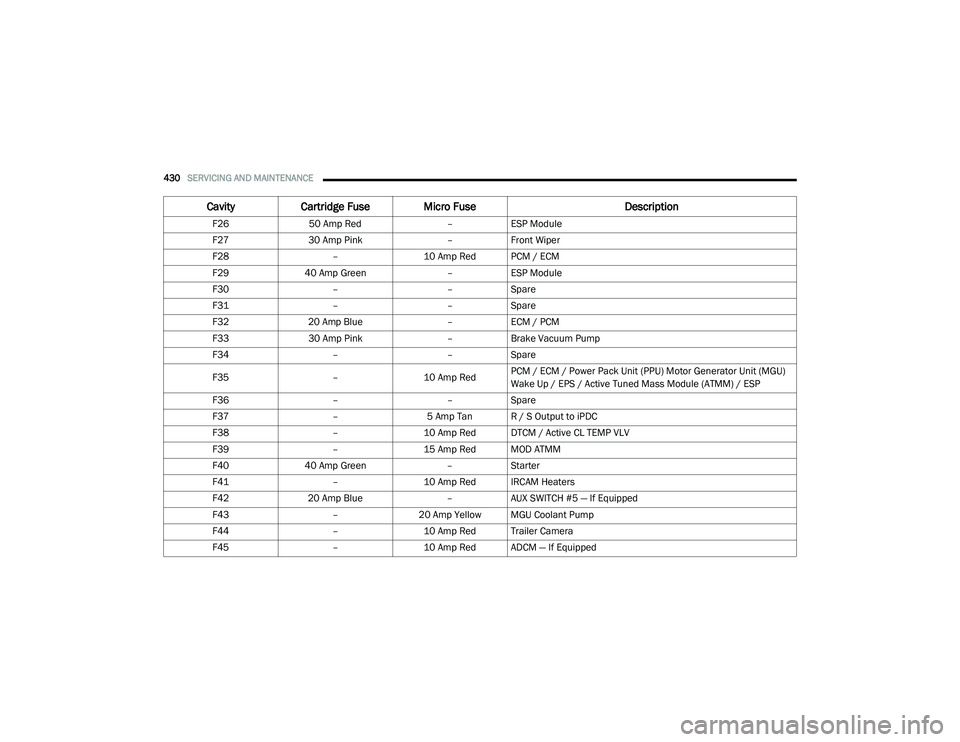
F2650 Amp Red –ESP Module
F27 30 Amp Pink –Front Wiper
F28 –10 Amp Red PCM / ECM
F29 40 Amp Green –ESP Module
F30 ––Spare
F31 ––Spare
F32 20 Amp Blue –ECM / PCM
F33 30 Amp Pink –Brake Vacuum Pump
F34 ––Spare
F35 –10 Amp RedPCM / ECM / Power Pack Unit (PPU) Motor Generator Unit (MGU)
Wake Up / EPS / Active Tuned Mass Module (ATMM) / ESP
F36 ––Spare
F37 –5 Amp Tan R / S Output to iPDC
F38 –10 Amp Red DTCM / Active CL TEMP VLV
F39 –15 Amp Red MOD ATMM
F40 40 Amp Green –Starter
F41 –10 Amp Red IRCAM Heaters
F42 20 Amp Blue –AUX SWITCH #5 — If Equipped
F43 –20 Amp Yellow MGU Coolant Pump
F44 –10 Amp Red Trailer Camera
F45 –10 Amp Red ADCM — If Equipped
CavityCartridge Fuse Micro Fuse Description
21_DT_OM_EN_USC_t.book Page 430
Page 433 of 496

SERVICING AND MAINTENANCE431
F4630 Amp Pink –Fuel Heater
F47 30 Amp Pink –Rear Defroster
F48 ––Spare
F49 30 Amp Pink –Htr Ctrl (Diesel Only)
F50 20 Amp Blue –AUX SWITCH #6 — If Equipped
F51 25 Amp White –FUEL PUMP MOTOR #1 — If Equipped
F52 ––Spare
F53 –10 Amp Red Supply / Purging Pump – If Equipped
F54 –15 Amp Blue PCM
F55 –15 Amp Blue Right HID Headlamp
F56 ––Spare
F57 –20 Amp Yellow Horn
F58 25 Amp White –FUEL PUMP MOTOR #2 — If Equipped
F59 –25 Amp Clear Injectors / IGN Coil / Glow Plug Module
F60 –20 Amp Yellow ECM / PCM / ACT Short Running Valve
F61 –15 Amp Blue Left HID Headlamp / Spare
F62 60 Amp Blue
40 Amp Green –
Glow Plug (DSL) / LTR Coolant Pump (TRX)
F63 20 Amp Blue –NOx Sensor
F64 –10 Amp Red PM Sensor – If Equipped
CavityCartridge Fuse Micro Fuse Description
8
21_DT_OM_EN_USC_t.book Page 431