MPH setting RAM 1500 2021 User Guide
[x] Cancel search | Manufacturer: RAM, Model Year: 2021, Model line: 1500, Model: RAM 1500 2021Pages: 496, PDF Size: 20.89 MB
Page 180 of 496

178STARTING AND OPERATING
second time. The cruise indicator light will turn
off. The system should be turned off when not in
use.
To Set A Desired Speed
Turn the Cruise Control on.
When the vehicle has reached the desired
speed, push the SET (+) or SET (-) button and
release. Release the accelerator and the
vehicle will operate at the selected speed.
NOTE:
The vehicle should be traveling at a steady
speed and on level ground before pushing the
SET (+) or SET (-) button.
To Vary The Speed Setting
To Increase Or Decrease The Set Speed
When the Cruise Control is set, you can increase
speed by pushing the SET (+) button, or
decrease speed by pushing the SET (-) button.
U.S. Speed (mph)
Pushing the SET (+), or SET (-) button once
will result in a 1 mph speed adjustment. Each
subsequent tap of the button results in an
adjustment of 1 mph.
If the button is continually pushed, the set
speed will continue to adjust until the button
is released, then the new set speed will be
established.
Metric Speed (km/h)
Pushing the SET (+), or SET (-) button once
will result in a 1 km/h speed adjustment.
Each subsequent tap of the button results in
an adjustment of 1 km/h.
If the button is continually pushed, the set
speed will continue to adjust until the button
is released, then the new set speed will be
established.
To Accelerate For Passing
While the Cruise Control is set, press the
accelerator to pass as you would normally.
When the pedal is released, the vehicle will
return to the set speed.
Using Cruise Control On Hills
The transmission may downshift on hills to
maintain the vehicle set speed.
NOTE:
The Cruise Control system maintains speed up
and down hills. A slight speed change on
moderate hills is normal.
On steep hills, a greater speed loss or gain may
occur so it may be preferable to drive without
Cruise Control.
WARNING!
Leaving the Cruise Control system on when
not in use is dangerous. You could
accidentally set the system or cause it to go
faster than you want. You could lose control
and have an accident. Always ensure the
system is off when you are not using it.
WARNING!
Cruise Control can be dangerous where the
system cannot maintain a constant speed.
Your vehicle could go too fast for the
conditions, and you could lose control and
have an accident. Do not use Cruise Control
in heavy traffic or on roads that are winding,
icy, snow-covered or slippery.
21_DT_OM_EN_USC_t.book Page 178
Page 183 of 496

STARTING AND OPERATING181
Adaptive Cruise Control Ready
When ACC is activated, but the vehicle speed
setting has not been selected, the display will
read “Adaptive Cruise Control Ready.”
Adaptive Cruise Control Set
When the SET (+) or the SET (-) button is
pushed, the display will read “ACC SET.”
When ACC is set, the set speed will show in the
instrument cluster display.
The ACC screen may display once again if any of
the following ACC activity occurs:
System Cancel
Driver Override
System Off
ACC Proximity Warning
ACC Unavailable Warning
The instrument cluster display will return to the
last display selected after five seconds of no
ACC display activity.
Activating Adaptive Cruise Control (ACC)
The minimum set speed for the ACC system is
20 mph (32 km/h).
When the system is turned on and in the ready
state, the instrument cluster display will read
“ACC Ready.”
When the system is off, the instrument cluster
display will read “Adaptive Cruise Control (ACC)
Off.”
NOTE:
You cannot engage ACC under the following
conditions:
When in 4WD Low
When the brakes are applied
When the parking brake is applied
When the automatic transmission is in PARK,
REVERSE or NEUTRAL
When the vehicle speed is below the
minimum speed range
When the brakes are overheated
When the driver’s door is open at low speeds
When the driver’s seat belt is unbuckled at
low speeds
When there is a stationary vehicle in front of
your vehicle in close proximity
ESC Full Off mode is active
To Activate/Deactivate
Push and release the Adaptive Cruise Control
(ACC) on/off button. The ACC menu in the
instrument cluster displays “ACC Ready.”
To turn the system off, push and release the
Adaptive Cruise Control (ACC) on/off button
again. At this time, the system will turn off and
the instrument cluster display will show
“Adaptive Cruise Control (ACC) Off.”
WARNING!
Leaving the Adaptive Cruise Control (ACC)
system on when not in use is dangerous. You
could accidentally set the system or cause it
to go faster than you want. You could lose
control and have a collision. Always leave the
system off when you are not using it.
4
21_DT_OM_EN_USC_t.book Page 181
Page 185 of 496

STARTING AND OPERATING183
To Turn Off
The system will turn off and clear the set speed
in memory if:
The Adaptive Cruise Control (ACC) on/off
button is pushed
The Fixed Speed Cruise Control on/off button
is pushed
The ignition is placed in the OFF position
4WD Low is engaged
To Resume
If there is a set speed in memory, push the RES
(resume) button and then remove your foot
from the accelerator pedal. The instrument
cluster display will display the last set speed.
Resume can be used at any speed above
20 mph (32 km/h) when only Fixed Speed
Cruise Control is being used.
Resume can be used at any speed above 0 mph
(0 km/h) when ACC is active. NOTE:
While in ACC mode when the vehicle comes
to a complete stop longer than two seconds,
the system will cancel. The driver will have to
apply the brakes to keep the vehicle at a
standstill.
ACC cannot be resumed if there is a
stationary vehicle in front of your vehicle in
close proximity.
To Vary The Speed Setting
To Increase Or Decrease The Set Speed
After setting a speed, you can increase the set
speed by pushing the SET
(+) button, or
decrease speed by pushing the SET (-) button. U.S. Speed (mph)
Pushing the SET
(+), or SET (-) button once
will result in a 1 mph speed adjustment. Each
subsequent tap of the button results in an
adjustment of 1 mph.
If the button is continually pushed, the set
speed will continue to adjust in 5 mph incre -
ments until the button is released. The new
set speed is reflected in the instrument
cluster display.
Metric Speed (km/h)
Pushing the SET (+), or SET (-) button once
will result in a 1 km/h speed adjustment.
Each subsequent tap of the button results in
an adjustment of 1 km/h.
If the button is continually pushed, the set
speed will continue to adjust in 10 km/h
increments until the button is released. The
new set speed is reflected in the instrument
cluster display.
NOTE:
When you override and push the SET (+) button
or SET (-) buttons, the new set speed will be the
current speed of the vehicle.
WARNING!
The Resume function should only be used if
traffic and road conditions permit. Resuming
a set speed that is too high or too low for
prevailing traffic and road conditions could
cause the vehicle to accelerate or decelerate
too sharply for safe operation. Failure to
follow these warnings can result in a collision
and death or serious personal injury.
4
21_DT_OM_EN_USC_t.book Page 183
Page 199 of 496
STARTING AND OPERATING197
NOTE:
If the vehicle is driven above approximately
15 mph (25 km/h), the instrument cluster
display will instruct the driver to slow down. If
the vehicle is driven above approximately
18 mph (30 km/h), the system will cancel. The
driver must then reactivate the system by
pushing the ParkSense Active Park Assist
switch.
When pushed, the LED on the ParkSense Active
Park Assist switch will blink momentarily, and
then the LED will turn off if any of the above
conditions are not present.
PARALLEL/PERPENDICULAR PARKING
S
PACE ASSISTANCE OPERATION
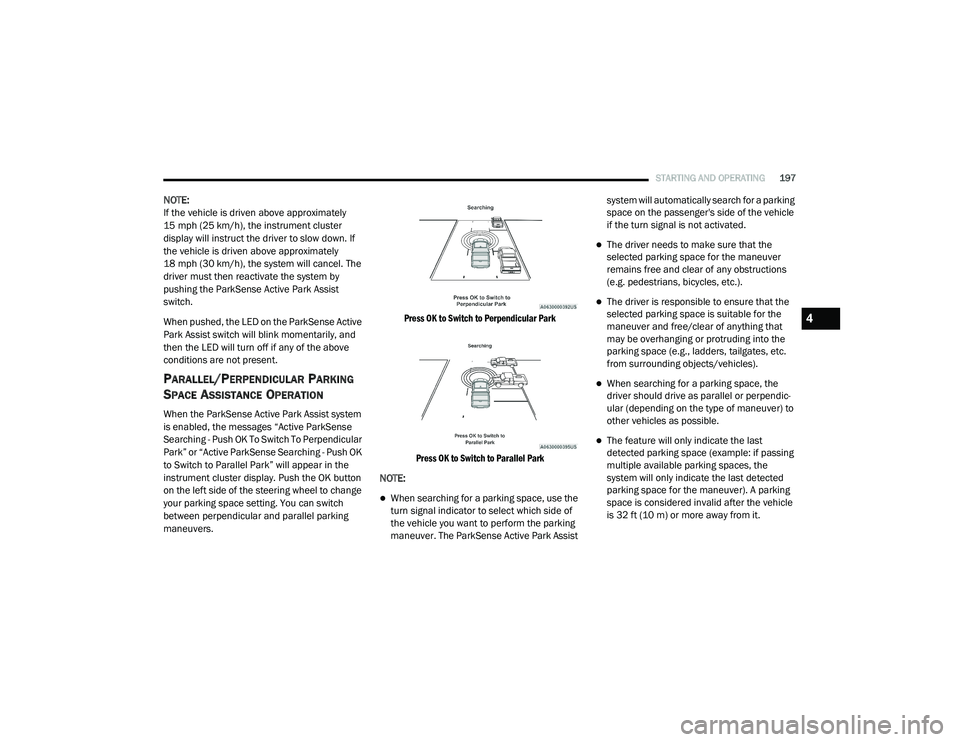
When the ParkSense Active Park Assist system
is enabled, the messages “Active ParkSense
Searching - Push OK To Switch To Perpendicular
Park” or “Active ParkSense Searching - Push OK
to Switch to Parallel Park” will appear in the
instrument cluster display. Push the OK button
on the left side of the steering wheel to change
your parking space setting. You can switch
between perpendicular and parallel parking
maneuvers.
Press OK to Switch to Perpendicular Park
Press OK to Switch to Parallel Park
NOTE:
When searching for a parking space, use the
turn signal indicator to select which side of
the vehicle you want to perform the parking
maneuver. The ParkSense Active Park Assist system will automatically search for a parking
space on the passenger's side of the vehicle
if the turn signal is not activated.
The driver needs to make sure that the
selected parking space for the maneuver
remains free and clear of any obstructions
(e.g. pedestrians, bicycles, etc.).
The driver is responsible to ensure that the
selected parking space is suitable for the
maneuver and free/clear of anything that
may be overhanging or protruding into the
parking space (e.g., ladders, tailgates, etc.
from surrounding objects/vehicles).
When searching for a parking space, the
driver should drive as parallel or perpendic
-
ular (depending on the type of maneuver) to
other vehicles as possible.
The feature will only indicate the last
detected parking space (example: if passing
multiple available parking spaces, the
system will only indicate the last detected
parking space for the maneuver). A parking
space is considered invalid after the vehicle
is 32 ft (10 m) or more away from it.
4
21_DT_OM_EN_USC_t.book Page 197
Page 204 of 496
202STARTING AND OPERATING
CHANGING LANESENSE STATUS
The LaneSense system has settings to adjust
the intensity of the torque warning and the
warning zone sensitivity (Early/Medium/Late)
that you can configure through the Uconnect
system Úpage 237.
NOTE:
When enabled the system operates above
37 mph (60 km/h) and below 112 mph (180 km/h).
The warnings are disabled with use of the
turn signal.
The system will not apply torque to the
steering wheel whenever a safety system
engages (Anti-Lock Brakes, Traction Control
System, Electronic Stability Control, Forward
Collision Warning, etc.).
PARKVIEW REAR BACK UP CAMERA
The ParkView Rear Back Up Camera allows you
to see an on-screen image of the rear
surroundings of your vehicle whenever the gear
selector is put into REVERSE. The image will be
displayed on the Navigation/Multimedia radio
display screen along with a caution note to “Check Entire Surroundings” across the top of
the screen. After five seconds this note will
disappear. The ParkView Camera is located in
the center of the tailgate handle.
Manual Activation Of The Rear View
Camera:
1. Press the "Controls" button located on the bottom of the Uconnect display.
2. Press the "Back Up Camera" icon to turn the Rear View Camera system on.
NOTE:
The ParkView Rear Back Up Camera has
programmable modes of operation that may be
selected through the Uconnect system
Ú page 237.
When the vehicle is shifted out of REVERSE
(with camera delay turned off), the rear camera
mode is exited and the previous screen
appears. When the vehicle is shifted out of
REVERSE (with camera delay turned on), the
camera image will continue to be displayed for
up to 10 seconds after shifting out of REVERSE
unless the following conditions occur: The
vehicle speed exceeds 8 mph (13 km/h), the vehicle is shifted into PARK, the vehicle’s
ignition is placed in the OFF position, or the user
presses image defeat “X” to exit out of the
camera video display.
Whenever the Rear View Camera image is
activated through the "Back Up Camera" button
in the Controls menu, and the vehicle speed is
greater than, or equal to, 8 mph (13 km/h), a
display timer for the image is initiated. The
image will continue to be displayed until the
display timer exceeds 10 seconds.
NOTE:
If the vehicle speed remains below 8 mph
(13 km/h), the Rear View Camera image will
be displayed continuously until deactivated
via the touchscreen button "X", the transmis -
sion is shifted into PARK, or the ignition is
placed in the OFF position.
The touchscreen button "X" to disable display
of the camera image is made available ONLY
when the vehicle is not in REVERSE.
When enabled, active guidelines are overlaid on
the image to illustrate the width of the vehicle
and its projected back up path based on the
steering wheel position. A dashed center line
overlay indicates the center of the vehicle to
21_DT_OM_EN_USC_t.book Page 202
Page 206 of 496

204STARTING AND OPERATING
AUX CAMERA — IF EQUIPPED
Your vehicle may be equipped with one or two
AUX Cameras, which display rearview and side
view images from the trailer on the
touchscreen.
Activation
The AUX Camera is activated by first pressing
the Backup Camera or Surround View Camera
(if equipped) button on the touchscreen,
followed by the AUX button located in the upper
left corner of the rearview display. The AUX
camera can also be activated when the vehicle
is in REVERSE by pressing the AUX button.
If equipped with two AUX Cameras, you can
switch between each camera by pressing the
AUX1 or AUX2 buttons on the Trailer Camera
display.
AUX1 Camera Button
AUX2 Camera Button Deactivation
The AUX Camera is deactivated by pressing the
“X” in the upper right corner of the touchscreen.
This will return the display back to the
previously displayed screen.
NOTE:
If the AUX button is pressed and no AUX
Camera is connected, the touchscreen will
display a blue screen along with the message
“Camera System Unavailable.” The screen
can be exited out by pressing the “X” in the
upper right hand corner. This will return the
display back to the previously displayed
screen.
Zoom View is not available with the AUX
Camera feature.
The display will always default to the Trailer
Camera display (AUX 1).
SURROUND VIEW CAMERA SYSTEM — IF
EQUIPPED
The Surround View Camera system allows you
to see an on-screen image of the surroundings
and the Top View of your vehicle. This occurs
whenever the gear selector is in REVERSE or when enabled through the Uconnect system.
The Top View of the vehicle will also show if any
doors are open. The image will be displayed on
the touchscreen along with a caution note
“Check Entire Surroundings”. After five
seconds, this note will disappear. The Surround
View Camera system is comprised of four
cameras located in the front grille, rear tailgate
and side mirrors.
NOTE:
The Surround View Camera system has
programmable settings that may be selected
through the Uconnect system Ú
page 237.
Press this button on the touchscreen
to enter the Surround View Camera
menu in the Uconnect system.
When the vehicle is shifted into REVERSE, the
Rear View and Top View is the default view of
the system.
If the camera delay is turned on, the camera
image will display for up to 10 seconds after
shifting out of REVERSE. The camera image will
not display for 10 seconds if the vehicle speed
exceeds 8 mph (13 km/h), the vehicle is shifted
into PARK, or the ignition is placed in the OFF
position. The “X” button on the touchscreen
disables the display of the camera image.
21_DT_OM_EN_USC_t.book Page 204
Page 209 of 496
STARTING AND OPERATING207
NOTE:
If the Surround View Camera is activated manu -
ally, and the vehicle is shifted into REVERSE,
deactivation methods for automatic activation
are assumed.
The camera delay system is turned off manually
through the Uconnect settings menu
Ú page 237.
NOTE:
If snow, ice, mud, or any foreign substance
builds up on the camera lenses, clean the
lenses, rinse with water, and dry with a soft
cloth. Do not cover the lenses.
If a malfunction with the system has
occurred, see an authorized dealer.
Forward Facing Camera With Tire Lines — If
Equipped
The Forward Facing Camera displays a front
view image of the road ahead, along with tire
lines to guide the driver when driving on narrow
roads. Tire lines can be activated/deactivated
through the Uconnect settings. Activation
The Forward Facing Camera can be activated in
the following ways:
Pressing the Forward Facing Camera button
in the Controls screen or Apps menu
Pressing the Backup Camera or Surround
View Camera button (if equipped) on the
touchscreen, followed by the AUX button
located in the upper left corner of the rear
-
view display
Pressing the Forward Facing Camera button
while the vehicle is in REVERSE
Once activated, the camera image will remain
on as long as the vehicle speed is below 8 mph
(13 km/h) and the vehicle is not in 4WD Low.
Deactivation
The Forward Facing Camera is deactivated in
the following conditions:
The vehicle is not in 4WD Low and the vehicle
speed exceeds 8 mph (13 km/h) for 10
seconds.
The “X” button on the display is pressed.
The vehicle is shifted into PARK.
The ignition is placed in the OFF position.
NOTE:
If the vehicle is in 4WD Low, the Forward Facing
Camera image will be displayed until the “X”
button is pressed or the ignition is placed in the
OFF position.
WARNING!
Drivers must be careful when backing up
even when using the Surround View Camera.
Always check carefully behind your vehicle,
and be sure to check for pedestrians,
animals, other vehicles, obstructions, or blind
spots before backing up. You are responsible
for the safety of your surroundings and must
continue to pay attention while backing up.
Failure to do so can result in serious injury or
death.
4
21_DT_OM_EN_USC_t.book Page 207
Page 218 of 496
216STARTING AND OPERATING
recommended for heavier Tongue Weights (TW)
and may be required depending on vehicle and
trailer configuration/loading to comply with
GAWR requirements.
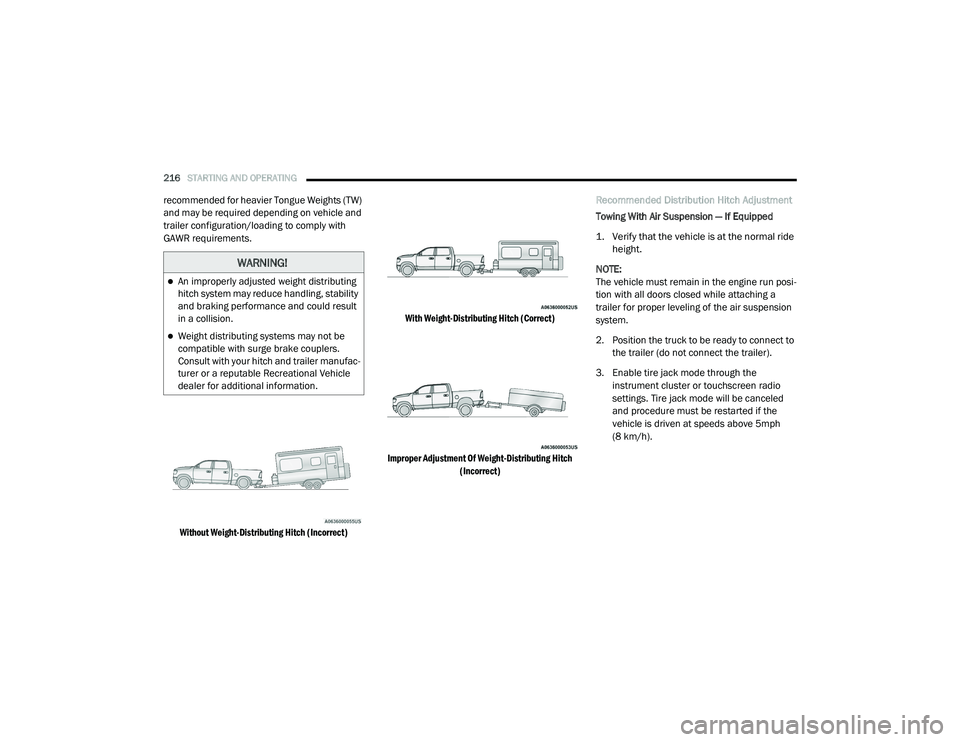
Without Weight-Distributing Hitch (Incorrect) With Weight-Distributing Hitch (Correct)
Improper Adjustment Of Weight-Distributing Hitch (Incorrect)
Recommended Distribution Hitch Adjustment
Towing With Air Suspension — If Equipped
1. Verify that the vehicle is at the normal ride
height.
NOTE:
The vehicle must remain in the engine run posi -
tion with all doors closed while attaching a
trailer for proper leveling of the air suspension
system.
2. Position the truck to be ready to connect to the trailer (do not connect the trailer).
3. Enable tire jack mode through the instrument cluster or touchscreen radio
settings. Tire jack mode will be canceled
and procedure must be restarted if the
vehicle is driven at speeds above 5mph
(8 km/h).
WARNING!
An improperly adjusted weight distributing
hitch system may reduce handling, stability
and braking performance and could result
in a collision.
Weight distributing systems may not be
compatible with surge brake couplers.
Consult with your hitch and trailer manufac -
turer or a reputable Recreational Vehicle
dealer for additional information.
21_DT_OM_EN_USC_t.book Page 216
Page 226 of 496

224STARTING AND OPERATING
Adjusting GAIN
NOTE:
This should only be performed in a traffic free
environment at speeds of approximately
20–25 mph (30–40 km/h).
1. Make sure the trailer brakes are in good
working condition, functioning normally
and properly adjusted. See your trailer
dealer if necessary.
2. Hook up the trailer and make the electrical connections according to the trailer
manufacturer's instructions.
3. When a trailer is plugged in with electric or EOH brakes, the trailer connected message
should appear in the instrument cluster
display (if the connection is not recognized by the ITBM, braking functions will not be
available), the GAIN setting will illuminate
and the correct type of trailer must be
selected from the instrument cluster display
options.
4. Push the UP or DOWN button on the steering wheel until “TRAILER TOW”
appears on the screen.
5. Push the RIGHT arrow on the steering wheel to enter “TRAILER TOW”.
6. Push the UP or DOWN buttons until the Trailer Brake Type appears on the screen.
7. Push the RIGHT arrow and then push the UP or DOWN buttons until the proper Trailer
Brake Type appears on the screen. 8. In a traffic-free environment, tow the trailer
on a dry, level surface at a speed of
20–25 mph (30–40 km/h) and squeeze
the manual brake control lever completely.
9. If the trailer wheels lockup (indicated by squealing tires), reduce the GAIN setting; if
the trailer wheels turn freely, increase the
GAIN setting.
Repeat steps 8 and 9 until the GAIN setting is at
a point just below trailer wheel lockup. If towing
a heavier trailer, trailer wheel lockup may not be
attainable even with the maximum GAIN setting
of 10.
*The suggested selection may change depending on the customer preferences for braking performance. Condition of the trailer brakes, driving and road state may also affect the
selection.
Light Electric Heavy Electric Light EOHHeavy EOH
Type of Trailer Brakes Electric Trailer Brakes Electric Trailer Brakes Electric over Hydraulic
Trailer BrakesElectric over Hydraulic
Trailer Brakes
Load *Under 10,000 lbs *Above 10,000 lbs *Under 10,000 lbs *Above 10,000 lbs
21_DT_OM_EN_USC_t.book Page 224
Page 242 of 496
240MULTIMEDIA
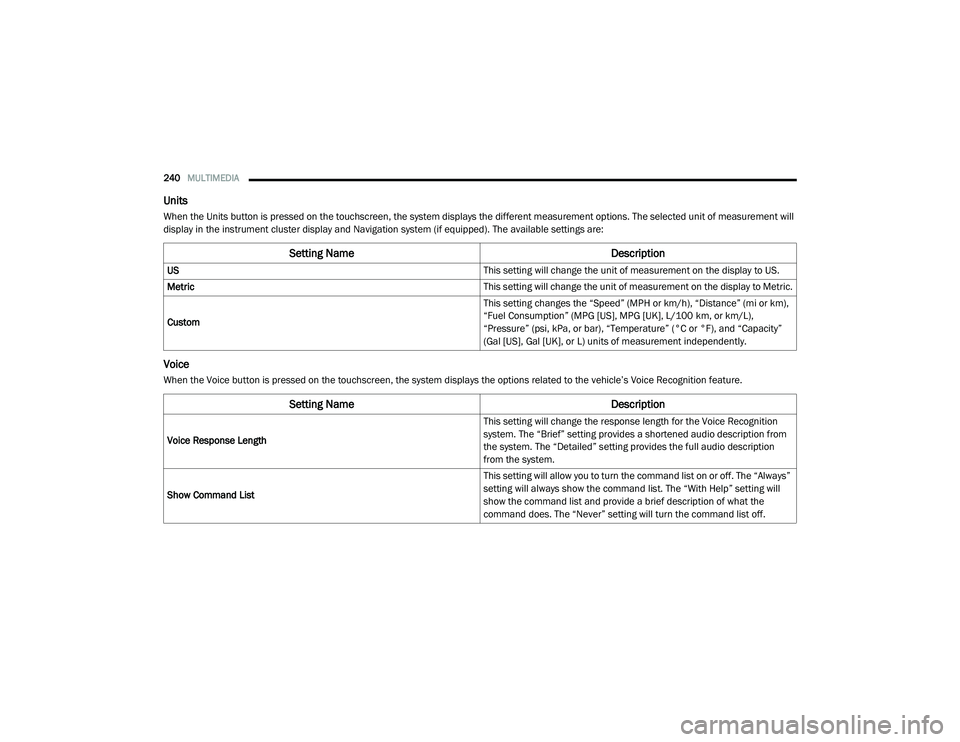
Units
When the Units button is pressed on the touchscreen, the system displays the different measurement options. The selected unit of measurement will
display in the instrument cluster display and Navigation system (if equipped). The available settings are:
Voice
When the Voice button is pressed on the touchscreen, the system displays the options related to the vehicle’s Voice Recognition feature.
Setting Name Description
US This setting will change the unit of measurement on the display to US.
Metric This setting will change the unit of measurement on the display to Metric.
Custom This setting changes the “Speed” (MPH or km/h), “Distance” (mi or km),
“Fuel Consumption” (MPG [US], MPG [UK], L/100 km, or km/L),
“Pressure” (psi, kPa, or bar), “Temperature” (°C or °F), and “Capacity”
(Gal [US], Gal [UK], or L) units of measurement independently.
Setting Name
Description
Voice Response Length This setting will change the response length for the Voice Recognition
system. The “Brief” setting provides a shortened audio description from
the system. The “Detailed” setting provides the full audio description
from the system.
Show Command List This setting will allow you to turn the command list on or off. The “Always”
setting will always show the command list. The “With Help” setting will
show the command list and provide a brief description of what the
command does. The “Never” setting will turn the command list off.
21_DT_OM_EN_USC_t.book Page 240