horn RAM 1500 2021 User Guide
[x] Cancel search | Manufacturer: RAM, Model Year: 2021, Model line: 1500, Model: RAM 1500 2021Pages: 496, PDF Size: 20.89 MB
Page 293 of 496
MULTIMEDIA291
An ignition cycle is required for some remote
commands, such as Remote Vehicle Start
and Remote Door Lock/Unlock if following a
Remote Horn & Lights activation.
Your Remote Door Lock/Unlock request will
not be processed if the vehicle is in motion,
the ignition key is on or during an emergency
call.
NOTE:
All other remote services should be performed
via your Owner’s Site or through the Uconnect
App on your compatible device.
Remote Vehicle Start
Description
The Remote Vehicle Start feature provides you
with the ability to start the engine on your
vehicle without the keys and from virtually any
distance. Once started, the preset climate
controls in your vehicle can warm up or cool
down the interior.
You can also send a command to turn off an
engine that has been started using Remote
Vehicle Start. After 15 minutes, if you have not
entered your vehicle with the key, the engine
will shut off automatically. This remote function requires your vehicle to be
equipped with a factory-installed Remote Start
system.
You can set up push notifications every time a
command is sent to activate or cancel Remote
Start.
Working Vehicle Conditions
The vehicle must be off or in ACC mode.
The vehicle has been started with the key fob
within the last 14 days.
The vehicle must be in PARK or at a standstill.
The vehicle’s security system has been
armed and not triggered since the last
vehicle start.
The doors, hood, and trunk/liftgate are
closed.
The vehicle’s check engine light must be off.
The vehicle must have at least a quarter tank
of fuel, along with oil and battery power.
The vehicle’s hazard lights must be off.
If equipped, the vehicle must have an auto
-
matic transmission.
The vehicle must be in an open area with cell
tower reception.
Your mobile device must have a cellular or
Wi-Fi connection.
If the Panic button has been pressed, the
vehicle must be started at least once after
alarming the system.
NOTE:
The SiriusXM Guardian™ Customer Care agents
are not authorized for Remote Vehicle Start
services. Contact the Uconnect Care Team for
assistance
Remote Horn & Lights
Description
It is easy to locate a vehicle in a dark, crowded
or noisy parking area by activating the horn and
lights. It may also help if you need to draw
attention to your vehicle for any reason.
If you want, you can set up push notifications
every time a command is sent to turn on the
horn and lights.
5
21_DT_OM_EN_USC_t.book Page 291
Page 294 of 496
292MULTIMEDIA
Working Vehicle Conditions
The vehicle must in PARK or at a standstill.
The vehicle must be in an open area with cell
tower reception.
Your mobile device must have a cellular or
Wi-Fi connection.
NOTE:
The Remote Horn & Lights feature is designed
to be loud and get noticed. Please keep in mind
the surroundings when using this feature. You
are responsible for compliance with local laws,
rules and ordinances in the location of your
vehicle when using Remote Horn & Lights.
Roadside Assistance Call
Description
Vehicles equipped with the SiriusXM Guardian™
system feature will contain an ASSIST button in
the vehicle. Once your SiriusXM Guardian™
services have been activated, the ASSIST
button can connect you directly to customer
care call centers. You will be directed to one of
the four services below.
Roadside Assist — If you get a flat tire or need
a tow, you’ll be connected to someone who
can help anytime.
Connected Services — Contact the SiriusXM
Guardian™ Customer Care call center to acti -
vate your services, renew after your trial has
expired, and for in-vehicle support for your
SiriusXM Guardian™ system or help
answering any general questions
surrounding your connected services.
Uconnect Care — In-vehicle support for all
non-connected Uconnect system features,
such as radio and Bluetooth® connections.
Vehicle Care — Total support for your vehicle.
SiriusXM Guardian™ In-Vehicle Assistance
Features
With SiriusXM Guardian™, your vehicle has
onboard assistance features located on the
rearview mirror or overhead console designed
to enhance your driving experience if you should
ever need assistance or support. How It Works
Simply press the ASSIST button in the vehicle
and you will be presented with your ASSIST
options on the touchscreen. Make your
selection by pressing the touchscreen.
Requirements
This feature is available only on vehicles sold
in the US and Canada.
Vehicle must be properly equipped with the
SiriusXM Guardian™ system.
Vehicle must have an operable LTE (voice/
data) or 3G or 4G (data) network connection.
Vehicle must be registered with SiriusXM
Guardian™ and have an active subscription
that includes the applicable feature.
Vehicle must be powered in the ON/RUN or
ACC (Accessory) position with a properly func -
tioning electrical system.
21_DT_OM_EN_USC_t.book Page 292
Page 297 of 496
MULTIMEDIA295
Vehicle Finder
Description
The Vehicle Finder feature of the Uconnect App
allows you to find the location of your stationary
vehicle.
You can also sound the horn and flash the lights
to make finding your vehicle even easier.
How It Works
Use the Uconnect App to find the location of
your vehicle.
1. Select the “Location” tab at the bottom of
the App. Then, touch the Vehicle icon to
find your vehicle.
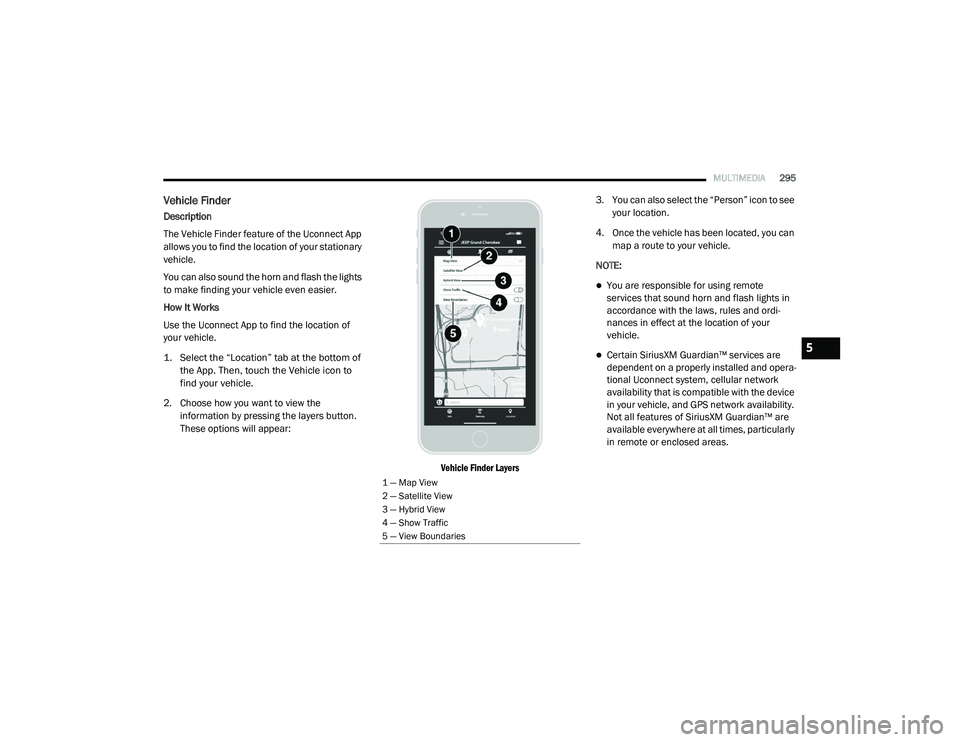
2. Choose how you want to view the information by pressing the layers button.
These options will appear:
Vehicle Finder Layers
3. You can also select the “Person” icon to see
your location.
4. Once the vehicle has been located, you can map a route to your vehicle.
NOTE:
You are responsible for using remote
services that sound horn and flash lights in
accordance with the laws, rules and ordi -
nances in effect at the location of your
vehicle.
Certain SiriusXM Guardian™ services are
dependent on a properly installed and opera -
tional Uconnect system, cellular network
availability that is compatible with the device
in your vehicle, and GPS network availability.
Not all features of SiriusXM Guardian™ are
available everywhere at all times, particularly
in remote or enclosed areas.
1 — Map View
2 — Satellite View
3 — Hybrid View
4 — Show Traffic
5 — View Boundaries
5
21_DT_OM_EN_USC_t.book Page 295
Page 305 of 496
MULTIMEDIA303
CONNECTED SERVICES VEHICLE FINDER
FAQ
S
1.
Can someone else locate my vehicle?
Your
vehicle may be located by anyone who has
your PIN and access to your account. It is
your responsibility to guard your PIN
accordingly. See the Uconnect and
SiriusXM Guardian™ terms of service for
more information.
2. How long does it take to sound my horn and
flash the lights? Depending on various
conditions, it can take three minutes or
more for the request to get through to your
vehicle.
3. How do I turn off the horn and lights after I
turn them on? If you are close enough to the
vehicle, you can use the key fob to turn off
the horn and lights by pressing the red
Panic button.
CONNECTED SERVICES STOLEN VEHICLE
A
SSISTANCE FAQS
1.
Can someone locate my vehicle?
To
enhance your privacy, and the privacy of
others using your vehicle, a stolen vehicle police report is required for you to activate
this service. You must involve local law
enforcement to have SiriusXM Guardian™
locate your vehicle. We may also locate the
vehicle for other law enforcement or
government agencies, subject to a valid
court order telling SiriusXM Guardian™ to
do so. We will also provide the service for
FCA entities to locate a vehicle that you
have purchased through them.
2. How will I know if my vehicle is recovered?
After you provide the SiriusXM Guardian™
Customer Care agent with the stolen vehicle
report, the agent will work together with law
enforcement to try to locate your vehicle. If
your vehicle is recovered, you will be
contacted by law enforcement.
3. Can SiriusXM Guardian™ lower my
insurance rates? Some insurance providers
offer lower rates on vehicles equipped with
systems that can deter auto theft. When
shopping for insurance, be sure to inform
the insurance provider of your SiriusXM
Guardian™ services subscription to find out
if the insurance provider can offer you a
lower rate. NOTE:
Neither FCA nor SiriusXM® are insurance
companies, and SiriusXM Guardian™ is not an
insurance product. You are responsible for
obtaining insurance coverage for your vehicle
and yourself.
CONNECTED SERVICES REMOTE VEHICLE
S
TART FAQS
1.
How long does it take to remotely start my
vehicle?
Depending on various conditions,
it can take three minutes or more for the
request to get through to your vehicle.
2. Which is faster, my key fob or the Uconnect
App? Your key fob will remote start your
vehicle more quickly. However its range is
limited. For example, when you are leaving
the stadium after the game, you can use the
Uconnect App to remote start your vehicle
and have the inside of your vehicle
comfortable by the time you get to it.
3. Will my vehicle be safe if I lose my wireless
device? People sometimes lose their
wireless devices, which is why security
measures have been engineered into the
Uconnect App. Asking for your username,
5
21_DT_OM_EN_USC_t.book Page 303
Page 306 of 496
304MULTIMEDIA
password and SiriusXM Guardian™ Security
PIN help to ensure that nobody can start
your vehicle if they happen to find your
device.
4. Can someone drive off with my vehicle
using the App? No. Driving your vehicle still
requires the keys to be in the vehicle. The
Remote Start feature simply starts the
engine to warm up or cool down the interior
before you arrive.
5. Can I stop a vehicle that is being driven with
the cancel Remote Vehicle Start command?
No. If the vehicle is in motion, the cancel
Remote Vehicle Start button will not stop
the vehicle.
6. Why can’t all mobile devices use the
Uconnect App? The Uconnect App has been
designed to work on most devices with the
Apple® and Android™ operating systems.
The capabilities of these devices allow us to
remotely command your vehicle. Other
operating systems may be supported in the
future.CONNECTED SERVICES REMOTE HORN
& L
IGHTS FAQS
1.
How long does it take to sound my horn and
flash the lights?
Depending on various
conditions, it can take three minutes or
more for the request to get through to your
vehicle.
2. Which is faster, my key fob or the Uconnect
App? Your key fob will sound the horn and
flash the lights quicker; however its range is
limited.
3. How do I turn off the horn and lights after I
turn them on? If you are close enough to the
vehicle, you can use the key fob to turn off
the horn and lights by pressing the red
Panic button. Otherwise, Remote Horn &
Lights will continue for a maximum of three
minutes.
4. Why can’t all mobile devices use the
Uconnect App? The Uconnect App has been
designed to work on most devices with the
Apple® and Android™ operating systems.
The capabilities of these devices allow us to
remotely command your vehicle. Other
operating systems may be supported in the
future.
CONNECTED SERVICES ACCOUNT FAQS
1.
How do I register for my SiriusXM
Guardian™ account? There are three ways
that you can register your SiriusXM
Guardian™ Account:
Push the Assist button. A call will be
placed to an agent who can assist in
registering your new account.
Press the Activate Services icon in the
Apps menu. Select the button to speak
with an agent, who can assist in regis -
tering your new account.
Press the Activate Services icon in the
Apps menu. Enter your email on the
touchscreen and then follow the prompts
from the provided email. You will receive
an email with an activation link that will
be good for 72 hours. Once you click the
activation link, you will be prompted to fill
out your information and accept Terms
and Conditions. Then, you will be directed
to the SiriusXM Guardian™ home page to
complete your profile and demo the
remote services.
21_DT_OM_EN_USC_t.book Page 304
Page 307 of 496
MULTIMEDIA305
2.Why do I need an email address? Without
an email address, customers cannot
register for SiriusXM Guardian™. Customers
need to register so they can subscribe to
receive additional services and create a
SiriusXM Guardian™ Security PIN for
remote command requests.
3. How do I create a SiriusXM Guardian™
security PIN? Set up your SiriusXM
Guardian™ Security PIN during the
registration process. The SiriusXM
Guardian™ Security PIN will be required to
authenticate you when accessing your
account via SiriusXM Guardian™ Call or
performing any remote services, such as
Remote Door Lock/Unlock, Remote Horn &
Lights, or Remote Vehicle Start.
4. What if I forgot my SiriusXM Guardian™
security PIN? If you’ve already activated
services and forgot your SiriusXM
Guardian™ Security PIN, you can reset the
PIN by selecting Edit Profile on your Owner’s
Site.
5. How do I update my SiriusXM Guardian™
payment account address? Your SiriusXM
Guardian™ Payment Account address can be updated online, or by calling SiriusXM
Guardian™ Customer Care from ASSIST in
your vehicle. To update online: login to your
Owner’s Site, and select Edit Profile >
SiriusXM Guardian™ Payment Account.
6. How do I update my SiriusXM Guardian™
profile? Your name, home address, phone
number, email address and SiriusXM
Guardian™ Security PIN can be updated
online on your Owner’s Site. Log in to your
Owner’s Site then select Edit Profile to edit
your personal information. Make your edits
and click Save.
7. Can I try features or packages before I buy
them? Your new vehicle purchase may have
come with an included trial period for
certain Apps and services.
8. Can I access every App and service while
driving? No, some applications and services
are not available while driving. For your own
safety, it is not possible to use some of the
touchscreen features while the vehicle is in
motion (e.g. key pad).
9. What happens when my subscription
comes up for renewal? If you have added a
credit card to your account information, your subscription will be automatically
renewed for a term length in accordance
with the service plan that you have selected
at the then current subscription rate and on
every renewal date thereafter, unless you
cancel your subscription by calling SiriusXM
Guardian™ Care. If you have not added a
credit card to your account, SiriusXM
Guardian™ will send you an email or letter
in advance of your expiration date to remind
you that your subscription is ending soon.
10. How do I manage my SiriusXM Guardian™
notification preferences? Contact SiriusXM
Guardian™ Customer Care, or go to your
Owner’s Site and then update your
preferences on the SiriusXM Guardian™
customer web portal.
11. How do I purchase a subscription? Contact
SiriusXM Guardian™ Customer Care by
pushing the ASSIST button on your rearview
mirror.
12. How do I update my credit card
information? Login to your Owner’s Site,
and select Edit Profile, then select SiriusXM
Guardian™ Payment Account.
5
21_DT_OM_EN_USC_t.book Page 305
Page 334 of 496
332SAFETY
Operation:
The horn will sound once to let the user know
when to stop filling the tire, when it reaches
recommended pressure.
The horn will sound three times if the tire is
overfilled and will continue to sound every
five seconds if the user continues to inflate
the tire.
The horn will sound once again when enough
air is let out to reach proper inflation level.
The horn will also sound three times if the tire
is then underinflated and will continue to
sound every five seconds if the user
continues to deflate the tire.
Trailer Tire Pressure Monitoring System
(TTPMS) — If Equipped
The Trailer Tire Pressure Monitoring System
(TTPMS) is a feature that displays the trailer tire
pressure values and warns the driver of a low
tire pressure event based on the drivers set
target tire pressure value, through TTPMS
settings found in the radio.
The TTPMS monitors the pressure of each tire
and warns the driver through the instrument
cluster, when either a low tire pressure condition falls below 25% of the drivers set
pressure or if a system malfunction occurs. The
instrument cluster will display the actual tire
pressure or dashes for each of the trailer tires in
the correct trailer position, based on trailer
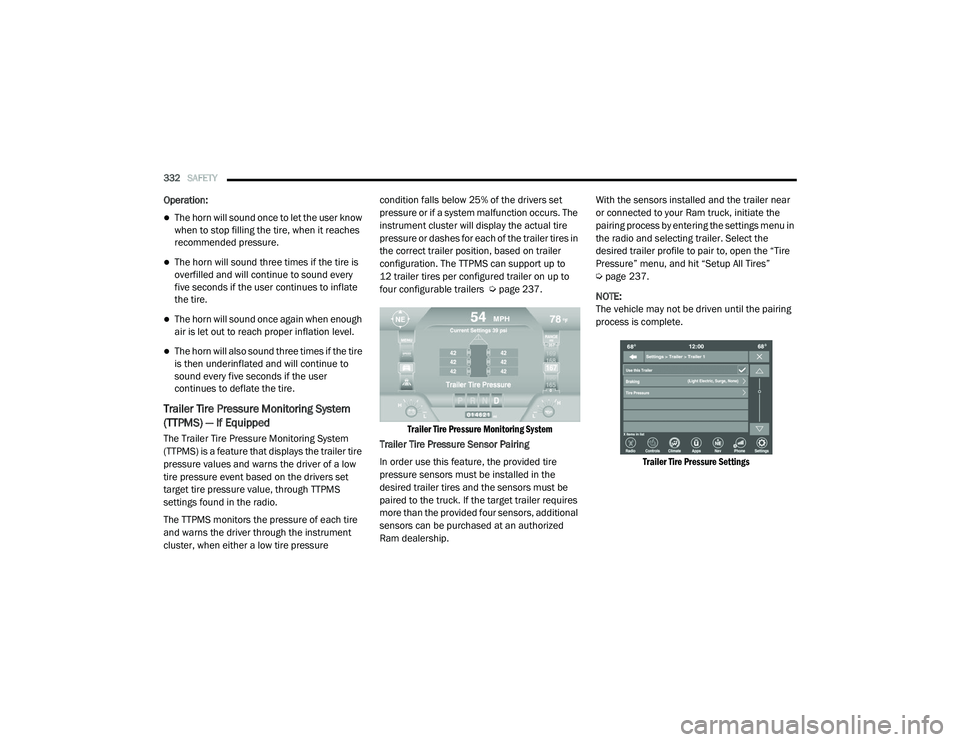
configuration. The TTPMS can support up to
12 trailer tires per configured trailer on up to
four configurable trailers Ú
page 237.
Trailer Tire Pressure Monitoring System
Trailer Tire Pressure Sensor Pairing
In order use this feature, the provided tire
pressure sensors must be installed in the
desired trailer tires and the sensors must be
paired to the truck. If the target trailer requires
more than the provided four sensors, additional
sensors can be purchased at an authorized
Ram dealership. With the sensors installed and the trailer near
or connected to your Ram truck, initiate the
pairing process by entering the settings menu in
the radio and selecting trailer. Select the
desired trailer profile to pair to, open the “Tire
Pressure” menu, and hit “Setup All Tires”
Ú
page 237.
NOTE:
The vehicle may not be driven until the pairing
process is complete.
Trailer Tire Pressure Settings
21_DT_OM_EN_USC_t.book Page 332
Page 335 of 496

SAFETY333
Trailer Tire Pressure Pairing
Follow the on screen prompts to select the
number of axles (1 - 3), the number of trailer
tires (2, 4, 6, 8, or 12), and the set trailer tire
pressure. The range is selectable anywhere
between 25-125 PSI (172-862 kPa).
Once PSI (kPa) is programmed, the pairing
screen appears. Tire sensors must be paired in
order shown. Starting with Tire 1, deflate tire by
5 PSI (34 kPa) and wait for a horn chirp. It may
take up to three minutes for the chirp to occur,
indicating that the sensor has paired. Repeat
process on each tire, in order, until complete.
Do not exit the pairing screen until process is
complete. If pairing was unsuccessful, a double
horn chirp will sound, and a prompt on the
touchscreen will allow you to retry the
procedure; “Retry” will only appear when setup fails. Each tire must be successfully paired
during a single pairing process to receive the
success screen.
NOTE:
If the pairing process times out after three
minutes of no communication with a sensor, a
double horn chip will occur indicating the
pairing has failed and a message will display on
the radio indicating the process was unsuc
-
cessful. Under certain circumstances, the
double horn chirp may continue to happen
every three minutes indicating the failed
pairing. If this happens, the horn chirping may
be canceled by cycling the ignition button OFF
and then back to RUN position.
Tire Pressure Monitoring Low Pressure
Warnings
When a tire pressure low in one or more of the
active road tires is detected, the instrument
cluster will display a message stating “Trailer
Tire Pressure Low”. The instrument cluster will
then display the TTPMS graphic showing the
pressure values of each tire with the low tire
pressure values in a different color.
Should this occur, you should stop as soon as
possible and inflate the tires with a low pressure condition (those in a different color in the
instrument cluster graphic) to the customer
programmed target tire pressure value as
shown at the top of the TTPMS instrument
cluster graphic. Once the tire(s) are inflated, the
system will automatically update the graphic
display in the instrument cluster, returning to its
original color. The vehicle may need to be driven
for up to 10 minutes above 15 mph (24 km/h)
in order for the TTPMS to receive the updated
information.
Service TTPMS Warning
If a system fault is detected, the instrument
cluster will display a “Trailer Tire Pressure
System Service Required” message for a
minimum of five seconds.
Once the system fault is corrected the "Trailer
Tire Pressure System Service Required"
message will no longer be displayed. The
vehicle may need to be driven for up to
10 minutes above 15 mph (24 km/h) in order
for the TTPMS to receive the trailer tire pressure
information.
6
21_DT_OM_EN_USC_t.book Page 333
Page 355 of 496

SAFETY353
eye irritation, rinse the area with cool water.
For nose or throat irritation, move to fresh air.
If the irritation continues, see your doctor. If
these particles settle on your clothing, follow
the garment manufacturer’s instructions for
cleaning.
Do not drive your vehicle after the air bags have
deployed. If you are involved in another
collision, the air bags will not be in place to
protect you.
NOTE:
Air bag covers may not be obvious in the inte -
rior trim, but they will open during air bag
deployment.
After any collision, the vehicle should be
taken to an authorized dealer immediately.
Enhanced Accident Response System
In the event of an impact, if the communication
network remains intact, and the power remains
intact, depending on the nature of the event,
the Occupant Restraint Controller (ORC) will
determine whether to have the Enhanced
Accident Response System perform the
following functions:
Cut off fuel to the engine (if equipped)
Cut off battery power to the electric motor (if
equipped)
Flash hazard lights as long as the battery has
power
Turn on the interior lights, which remain on
as long as the battery has power or for
15 minutes from the intervention of the
Enhanced Accident Response System
Unlock the power door locks
Your vehicle may also be designed to perform
any of these other functions in response to the
Enhanced Accident Response System:
Turn off the Fuel Filter Heater, Turn off the
HVAC Blower Motor, Close the HVAC Circula -
tion Door
Cut off battery power to the:
Engine
Electric Motor (if equipped)
Electric power steering
Brake booster
Electric park brake
Automatic transmission gear selector
Horn
Front wiper
Headlamp washer pump
NOTE:
After an accident, remember to cycle the igni -
tion to the STOP (OFF/LOCK) position and
remove the key from the ignition switch to avoid
draining the battery. Carefully check the vehicle
for fuel leaks in the engine compartment and on
the ground near the engine compartment and
fuel tank before resetting the system and
starting the engine. If there are no fuel leaks or
damage to the vehicle electrical devices (e.g.
headlights) after an accident, reset the system
by following the procedure described below. If
you have any doubt, contact an authorized
dealer.
WARNING!
Deployed air bags and seat belt
pretensioners cannot protect you in another
collision. Have the air bags, seat belt
pretensioners, and the seat belt retractor
assemblies replaced by an authorized dealer
immediately. Also, have the Occupant
Restraint Controller System serviced as well.
6
21_DT_OM_EN_USC_t.book Page 353
Page 433 of 496

SERVICING AND MAINTENANCE431
F4630 Amp Pink –Fuel Heater
F47 30 Amp Pink –Rear Defroster
F48 ––Spare
F49 30 Amp Pink –Htr Ctrl (Diesel Only)
F50 20 Amp Blue –AUX SWITCH #6 — If Equipped
F51 25 Amp White –FUEL PUMP MOTOR #1 — If Equipped
F52 ––Spare
F53 –10 Amp Red Supply / Purging Pump – If Equipped
F54 –15 Amp Blue PCM
F55 –15 Amp Blue Right HID Headlamp
F56 ––Spare
F57 –20 Amp Yellow Horn
F58 25 Amp White –FUEL PUMP MOTOR #2 — If Equipped
F59 –25 Amp Clear Injectors / IGN Coil / Glow Plug Module
F60 –20 Amp Yellow ECM / PCM / ACT Short Running Valve
F61 –15 Amp Blue Left HID Headlamp / Spare
F62 60 Amp Blue
40 Amp Green –
Glow Plug (DSL) / LTR Coolant Pump (TRX)
F63 20 Amp Blue –NOx Sensor
F64 –10 Amp Red PM Sensor – If Equipped
CavityCartridge Fuse Micro Fuse Description
8
21_DT_OM_EN_USC_t.book Page 431